This documentation is for the latest snapshot of GATE Developer/Embedded.
If you are using a release version you should refer to the documentation for that
release instead, which is accessible via the Help menu in GATE Developer.
The latest release is version 8.6.1
Developing Language Processing
Components with GATE
Version 9 (a User Guide)
For GATE version 9.1-SNAPSHOT (development builds)
(built August 16, 2023)
Hamish Cunningham, Diana Maynard, Kalina Bontcheva, Valentin Tablan, Niraj
Aswani, Ian Roberts, Genevieve Gorrell, Adam Funk, Angus Roberts, Danica Damljanovic,
Thomas Heitz, Mark A. Greenwood, Horacio Saggion, Johann Petrak, Yaoyong Li, Wim
Peters, Leon Derczynski, et al
©The University of Sheffield, Department of Computer Science 2001-2023
https://gate.ac.uk/
Work on GATE has been partly supported by EPSRC grants GR/K25267 (Large-Scale Information Extraction), GR/M31699 (GATE 2), RA007940 (EMILLE), GR/N15764/01 (AKT) and GR/R85150/01 (MIAKT), AHRB grant APN16396 (ETCSL/GATE), Ontotext Matrixware, the Information Retrieval Facility and several EU-funded projects: (TrendMiner, uComp, Arcomem, SEKT, TAO, NeOn, MediaCampaign, Musing, KnowledgeWeb, PrestoSpace, h-TechSight, and enIRaF).
Contents
1 Introduction
1.1 How to Use this Text
1.2 Context
1.3 Overview
1.3.1 Developing and Deploying Language Processing Facilities
1.3.2 Built-In Components
1.3.3 Additional Facilities in GATE Developer/Embedded
1.3.4 An Example
1.4 Some Evaluations
1.5 Recent Changes
1.5.1 Version 9.0.1 (March 2021)
1.5.2 Version 9.0 (February 2021)
1.5.3 Version 8.6.1 (January 2020)
1.5.4 Version 8.6 (June 2019)
1.5.5 Version 8.5.1 (June 2018)
1.5.6 Version 8.5 (May 2018)
1.6 Further Reading
2 Installing and Running GATE
2.1 Downloading GATE
2.2 Installing and Running GATE
2.2.1 The Easy Way
2.2.2 The Hard Way (1)
2.2.3 The Hard Way (2): Git
2.2.4 Running GATE Developer on Unix/Linux
2.3 Using System Properties with GATE
2.4 Changing GATE’s launch configuration
2.5 Configuring GATE
2.6 Building GATE
2.6.1 Using GATE with Maven/Ivy
2.7 Uninstalling GATE
2.8 Troubleshooting
3 Using GATE Developer
3.1 The GATE Developer Main Window
3.2 Loading and Viewing Documents
3.3 Creating and Viewing Corpora
3.4 Working with Annotations
3.4.1 The Annotation Sets View
3.4.2 The Annotations List View
3.4.3 The Annotations Stack View
3.4.4 The Co-reference Editor
3.4.5 Creating and Editing Annotations
3.4.6 Schema-Driven Editing
3.4.7 Printing Text with Annotations
3.5 Using CREOLE Plugins
3.6 Installing and updating CREOLE Plugins
3.7 Loading and Using Processing Resources
3.8 Creating and Running an Application
3.8.1 Running an Application on a Datastore
3.8.2 Running PRs Conditionally on Document Features
3.8.3 Doing Information Extraction with ANNIE
3.8.4 Modifying ANNIE
3.9 Saving Applications and Language Resources
3.9.1 Saving Documents to File
3.9.2 Saving and Restoring LRs in Datastores
3.9.3 Saving Application States to a File
3.9.4 Saving an Application with its Resources (e.g. GATE Cloud)
3.9.5 Upgrade An Application to use Newer Versions of Plugins
3.10 Keyboard Shortcuts
3.11 Miscellaneous
3.11.1 Stopping GATE from Restoring Developer Sessions/Options
3.11.2 Working with Unicode
4 CREOLE: the GATE Component Model
4.1 The Web and CREOLE
4.2 The GATE Framework
4.3 The Lifecycle of a CREOLE Resource
4.4 Processing Resources and Applications
4.5 Language Resources and Datastores
4.6 Built-in CREOLE Resources
4.7 CREOLE Resource Configuration
4.7.1 Configuring Resources using Annotations
4.7.2 Loading Third-Party Libraries in a Maven plugin
4.8 Tools: How to Add Utilities to GATE Developer
4.8.1 Putting Your Tools in a Sub-Menu
4.8.2 Adding Tools To Existing Resource Types
5 Language Resources: Corpora, Documents and Annotations
5.1 Features: Simple Attribute/Value Data
5.2 Corpora: Sets of Documents plus Features
5.3 Documents: Content plus Annotations plus Features
5.4 Annotations: Directed Acyclic Graphs
5.4.1 Annotation Schemas
5.4.2 Examples of Annotated Documents
5.4.3 Creating, Viewing and Editing Diverse Annotation Types
5.5 Document Formats
5.5.1 Detecting the Right Reader
5.5.2 XML
5.5.3 HTML
5.5.4 SGML
5.5.5 Plain text
5.5.6 RTF
5.5.7 Email
5.5.8 PDF Files and Office Documents
5.5.9 UIMA CAS Documents
5.5.10 CoNLL/IOB Documents
5.6 XML Input/Output
6 ANNIE: a Nearly-New Information Extraction System
6.1 Document Reset
6.2 Tokeniser
6.2.1 Tokeniser Rules
6.2.2 Token Types
6.2.3 English Tokeniser
6.3 Gazetteer
6.4 Sentence Splitter
6.5 RegEx Sentence Splitter
6.6 Part of Speech Tagger
6.7 Semantic Tagger
6.8 Orthographic Coreference (OrthoMatcher)
6.8.1 GATE Interface
6.8.2 Resources
6.8.3 Processing
6.9 Pronominal Coreference
6.9.1 Quoted Speech Submodule
6.9.2 Pleonastic It Submodule
6.9.3 Pronominal Resolution Submodule
6.9.4 Detailed Description of the Algorithm
6.10 A Walk-Through Example
6.10.1 Step 1 - Tokenisation
6.10.2 Step 2 - List Lookup
6.10.3 Step 3 - Grammar Rules
II GATE for Advanced Users
7 GATE Embedded
7.1 Quick Start with GATE Embedded
7.2 Resource Management in GATE Embedded
7.3 Using CREOLE Plugins
7.4 Language Resources
7.4.1 GATE Documents
7.4.2 Feature Maps
7.4.3 Annotation Sets
7.4.4 Annotations
7.4.5 GATE Corpora
7.5 Processing Resources
7.6 Controllers
7.7 Modelling Relations between Annotations
7.8 Duplicating a Resource
7.8.1 Sharable properties
7.9 Persistent Applications
7.10 Ontologies
7.11 Loading Annotation Schemas
7.12 Creating a New CREOLE Resource
7.12.1 Dependencies
7.13 Adding Support for a New Document Format
7.14 Using GATE Embedded in a Multithreaded Environment
7.15 Using GATE Embedded within a Spring Application
7.15.1 Duplication in Spring
7.15.2 Spring pooling
7.15.3 Further reading
7.16 Groovy for GATE
7.16.1 Groovy Scripting Console for GATE
7.16.2 Groovy scripting PR
7.16.3 The Scriptable Controller
7.16.4 Utility methods
7.17 Saving Config Data to gate.xml
7.18 Annotation merging through the API
7.19 Using Resource Helpers to Extend the API
7.20 Converting a Directory Plugin to a Maven Plugin
8 JAPE: Regular Expressions over Annotations
8.1 The Left-Hand Side
8.1.1 Matching Entire Annotation Types
8.1.2 Using Features and Values
8.1.3 Using Meta-Properties
8.1.4 Building complex patterns from simple patterns
8.1.5 Matching a Simple Text String
8.1.6 Using Templates
8.1.7 Multiple Pattern/Action Pairs
8.1.8 LHS Macros
8.1.9 Multi-Constraint Statements
8.1.10 Using Context
8.1.11 Negation
8.1.12 Escaping Special Characters
8.2 LHS Operators in Detail
8.2.1 Equality Operators
8.2.2 Comparison Operators
8.2.3 Regular Expression Operators
8.2.4 Contextual Operators
8.2.5 Custom Operators
8.3 The Right-Hand Side
8.3.1 A Simple Example
8.3.2 Copying Feature Values from the LHS to the RHS
8.3.3 Optional or Empty Labels
8.3.4 RHS Macros
8.4 Use of Priority
8.5 Using Phases Sequentially
8.6 Using Java Code on the RHS
8.6.1 A More Complex Example
8.6.2 Adding a Feature to the Document
8.6.3 Finding the Tokens of a Matched Annotation
8.6.4 Using Named Blocks
8.6.5 Java RHS Overview
8.7 Optimising for Speed
8.8 Ontology Aware Grammar Transduction
8.9 Serializing JAPE Transducer
8.9.1 How to Serialize?
8.9.2 How to Use the Serialized Grammar File?
8.10 Notes for Montreal Transducer Users
8.11 JAPE Plus
9 ANNIC: ANNotations-In-Context
9.1 Instantiating SSD
9.2 Search GUI
9.2.1 Overview
9.2.2 Syntax of Queries
9.2.3 Top Section
9.2.4 Central Section
9.2.5 Bottom Section
9.3 Using SSD from GATE Embedded
9.3.1 How to instantiate a searchabledatastore
9.3.2 How to search in this datastore
10 Performance Evaluation of Language Analysers
10.1 Metrics for Evaluation in Information Extraction
10.1.1 Annotation Relations
10.1.2 Cohen’s Kappa
10.1.3 Precision, Recall, F-Measure
10.1.4 Macro and Micro Averaging
10.2 The Annotation Diff Tool
10.2.1 Performing Evaluation with the Annotation Diff Tool
10.2.2 Creating a Gold Standard with the Annotation Diff Tool
10.2.3 A warning about feature values
10.3 Corpus Quality Assurance
10.3.1 Description of the interface
10.3.2 Step by step usage
10.3.3 Details of the Corpus statistics table
10.3.4 Details of the Document statistics table
10.3.5 GATE Embedded API for the measures
10.3.6 A warning about feature values
10.3.7 Quality Assurance PR
10.4 Corpus Benchmark Tool
10.4.1 Preparing the Corpora for Use
10.4.2 Defining Properties
10.4.3 Running the Tool
10.4.4 The Results
10.5 A Plugin Computing Inter-Annotator Agreement (IAA)
10.5.1 IAA for Classification
10.5.2 IAA For Named Entity Annotation
10.5.3 The BDM-Based IAA Scores
10.6 A Plugin Computing the BDM Scores for an Ontology
10.6.1 Computing BDM from embedded code
10.7 Quality Assurance Summariser for Teamware
11 Profiling Processing Resources
11.1 Overview
11.1.1 Features
11.1.2 Limitations
11.2 Graphical User Interface
11.3 Command Line Interface
11.4 Application Programming Interface
11.4.1 Log4j.properties
11.4.2 Benchmark log format
11.4.3 Enabling profiling
11.4.4 Reporting tool
12 Developing GATE
12.1 Reporting Bugs and Requesting Features
12.2 Contributing Patches
12.3 Creating New Plugins
12.3.1 What to Call your Plugin
12.3.2 Writing a New PR
12.3.3 Writing a New VR
12.3.4 Writing a ‘Ready Made’ Application
12.3.5 Distributing Your New Plugins
12.4 Adding your plugin to the default list
12.5 Updating this User Guide
12.5.1 Building the User Guide
12.5.2 Making Changes to the User Guide
III CREOLE Plugins
13 Gazetteers
13.1 Introduction to Gazetteers
13.2 ANNIE Gazetteer
13.2.1 Creating and Modifying Gazetteer Lists
13.2.2 ANNIE Gazetteer Editor
13.3 OntoGazetteer
13.4 Gaze Ontology Gazetteer Editor
13.4.1 The Gaze Gazetteer List and Mapping Editor
13.4.2 The Gaze Ontology Editor
13.5 Hash Gazetteer
13.5.1 Prerequisites
13.5.2 Parameters
13.6 Flexible Gazetteer
13.7 Gazetteer List Collector
13.8 OntoRoot Gazetteer
13.8.1 How Does it Work?
13.8.2 Initialisation of OntoRoot Gazetteer
13.8.3 Simple steps to run OntoRoot Gazetteer
13.9 Large KB Gazetteer
13.9.1 Quick usage overview
13.9.2 Dictionary setup
13.9.3 Additional dictionary configuration
13.9.4 Dictionary for Gazetteer List Files
13.9.5 Processing Resource Configuration
13.9.6 Runtime configuration
13.9.7 Semantic Enrichment PR
13.10 The Shared Gazetteer for multithreaded processing
13.11 Extended Gazetteer
13.12 Feature Gazetteer
14 Working with Ontologies
14.1 Data Model for Ontologies
14.1.1 Hierarchies of Classes and Restrictions
14.1.2 Instances
14.1.3 Hierarchies of Properties
14.1.4 URIs
14.2 Ontology Event Model
14.2.1 What Happens when a Resource is Deleted?
14.3 The Ontology Plugin
14.3.1 Upgrading from previous versions of GATE
14.3.2 The OWLIMOntology Language Resource
14.3.3 The ConnectSesameOntology Language Resource
14.3.4 The CreateSesameOntology Language Resource
14.3.5 The OWLIM2 Backwards-Compatible Language Resource
14.3.6 Using Ontology Import Mappings
14.3.7 Using BigOWLIM
14.3.8 The sesameCLI command line interface
14.4 GATE Ontology Editor
14.5 Ontology Annotation Tool
14.5.1 Viewing Annotated Text
14.5.2 Editing Existing Annotations
14.5.3 Adding New Annotations
14.5.4 Options
14.6 Relation Annotation Tool
14.6.1 Description of the two views
14.6.2 Create new annotation and instance from text selection
14.6.3 Create new annotation and add label to existing instance from text selection
14.6.4 Create and set properties for annotation relation
14.6.5 Delete instance, label or property
14.6.6 Differences with OAT and Ontology Editor
14.7 Using the ontology API
14.8 Ontology-Aware JAPE Transducer
14.9 Annotating Text with Ontological Information
14.10 Populating Ontologies
15 Non-English Language Support
15.1 Language Identification
15.1.1 The Optimaize Language Detector
15.1.2 Language Identification with TextCat
15.1.3 Fingerprint Generation
15.2 French Plugin
15.3 German Plugin
15.4 Romanian Plugin
15.5 Arabic Plugin
15.6 Chinese Plugin
15.6.1 Chinese Word Segmentation
15.7 Hindi Plugin
15.8 Russian Plugin
15.9 Bulgarian Plugin
15.10 Danish Plugin
15.11 Welsh Plugin
16 Domain Specific Resources
16.1 Biomedical Support
16.1.1 ABNER
16.1.2 MetaMap
16.1.3 GSpell biomedical spelling suggestion and correction
16.1.4 BADREX
16.1.5 MiniChem/Drug Tagger
16.1.6 AbGene
16.1.7 GENIA
16.1.8 Penn BioTagger
16.1.9 MutationFinder
17 Tools for Social Media Data
17.1 Tools for Twitter
17.2 Twitter JSON format
17.2.1 Entity annotations in JSON
17.3 Exporting GATE documents as JSON
17.4 Low-level PRs for Tweets
17.5 Handling multi-word hashtags
17.6 The TwitIE Pipeline
18 Parsers
18.1 SUPPLE Parser
18.1.1 Requirements
18.1.2 Building SUPPLE
18.1.3 Running the Parser in GATE
18.1.4 Viewing the Parse Tree
18.1.5 System Properties
18.1.6 Configuration Files
18.1.7 Parser and Grammar
18.1.8 Mapping Named Entities
18.2 Stanford Parser
18.2.1 Input Requirements
18.2.2 Initialization Parameters
18.2.3 Runtime Parameters
19 Machine Learning
19.1 Brief introduction to machine learning in GATE
20 Tools for Alignment Tasks
20.1 Introduction
20.2 The Tools
20.2.1 Compound Document
20.2.2 CompoundDocumentFromXml
20.2.3 Compound Document Editor
20.2.4 Composite Document
20.2.5 DeleteMembersPR
20.2.6 SwitchMembersPR
20.2.7 Saving as XML
20.2.8 Alignment Editor
20.2.9 Saving Files and Alignments
20.2.10 Section-by-Section Processing
21 Crowdsourcing Data with GATE
21.1 The Basics
21.2 Entity classification
21.2.1 Creating a classification job
21.2.2 Loading data into a job
21.2.3 Importing the results
21.2.4 Automatic adjudication
21.3 Entity annotation
21.3.1 Creating an annotation job
21.3.2 Loading data into a job
21.3.3 Importing the results
21.3.4 Automatic adjudication
22 Combining GATE and UIMA
22.1 Embedding a UIMA AE in GATE
22.1.1 Mapping File Format
22.1.2 The UIMA Component Descriptor
22.1.3 Using the AnalysisEnginePR
22.2 Embedding a GATE CorpusController in UIMA
22.2.1 Mapping File Format
22.2.2 The GATE Application Definition
22.2.3 Configuring the GATEApplicationAnnotator
23 More (CREOLE) Plugins
23.1 Verb Group Chunker
23.2 Noun Phrase Chunker
23.2.1 Differences from the Original
23.2.2 Using the Chunker
23.3 TaggerFramework
23.3.1 TreeTagger—Multilingual POS Tagger
23.3.2 GENIA and Double Quotes
23.4 Chemistry Tagger
23.4.1 Using the Tagger
23.5 TextRazor Annotation Service
23.6 Annotating Numbers
23.6.1 Numbers in Words and Numbers
23.6.2 Roman Numerals
23.7 Annotating Measurements
23.8 Annotating and Normalizing Dates
23.9 Snowball Based Stemmers
23.9.1 Algorithms
23.10 GATE Morphological Analyzer
23.10.1 Rule File
23.11 Flexible Exporter
23.12 Configurable Exporter
23.13 Annotation Set Transfer
23.14 Schema Enforcer
23.15 Information Retrieval in GATE
23.15.1 Using the IR Functionality in GATE
23.15.2 Using the IR API
23.16 WordNet in GATE
23.16.1 The WordNet API
23.17 Kea - Automatic Keyphrase Detection
23.17.1 Using the ‘KEA Keyphrase Extractor’ PR
23.17.2 Using Kea Corpora
23.18 Annotation Merging Plugin
23.19 Copying Annotations between Documents
23.20 LingPipe Plugin
23.20.1 LingPipe Tokenizer PR
23.20.2 LingPipe Sentence Splitter PR
23.20.3 LingPipe POS Tagger PR
23.20.4 LingPipe NER PR
23.20.5 LingPipe Language Identifier PR
23.21 OpenNLP Plugin
23.21.1 Init parameters and models
23.21.2 OpenNLP PRs
23.21.3 Obtaining and generating models
23.22 Stanford CoreNLP
23.22.1 Stanford Tagger
23.22.2 Stanford Parser
23.22.3 Stanford Named Entity Recognition
23.23 Content Detection Using Boilerpipe
23.24 Inter Annotator Agreement
23.25 Schema Annotation Editor
23.26 Coref Tools Plugin
23.27 Pubmed Format
23.28 MediaWiki Format
23.29 Fast Infoset Document Format
23.30 GATE JSON Document Format
23.31 Bdoc Format (JSON, YAML, MsgPack)
23.32 DataSift Document Format
23.33 CSV Document Support
23.34 TermRaider term extraction tools
23.34.1 Termbank language resources
23.34.2 Termbank Score Copier
23.34.3 The PMI bank language resource
23.35 Document Normalizer
23.36 Developer Tools
23.37 Linguistic Simplifier
23.38 GATE-Time
23.38.1 DCTParser
23.38.2 HeidelTime
23.38.3 TimeML Event Detection
23.39 StringAnnotation Plugin
23.40 CorpusStats Plugin
23.41 ModularPipelines Plugin
23.42 Java Plugin
23.43 Python Plugin
IV The GATE Family: Cloud, MIMIR, Teamware
24 GATE Cloud
24.1 GATE Cloud services: an overview
24.2 Using GATE Cloud services
24.3 Annotation Jobs on GATE Cloud
24.3.1 The Annotation Service Charges Explained
24.3.2 Where to find more details
24.4 GATE Cloud Pipeline URLs
25 GATE Teamware: A Web-based Collaborative Corpus Annotation Tool
25.1 Introduction
25.2 Requirements for Multi-Role Collaborative Annotation Environments
25.2.1 Typical Division of Labour
25.2.2 Remote, Scalable Data Storage
25.2.3 Automatic annotation services
25.2.4 Workflow Support
25.3 Teamware: Architecture, Implementation, and Examples
25.3.1 Data Storage Service
25.3.2 Annotation Services
25.3.3 The Executive Layer
25.3.4 The User Interfaces
25.4 Practical Applications
26 GATE Mímir
Appendices
A Change Log
A.1 Version 9.0.1 (March 2021)
A.2 Version 9.0 (February 2021)
A.3 Version 8.6.1 (January 2020)
A.4 Version 8.6 (June 2019)
A.5 Version 8.5.1 (June 2018)
A.6 Version 8.5 (May 2018)
A.6.1 For developers
A.7 Version 8.4.1 (June 2017)
A.8 Version 8.4 (February 2017)
A.8.1 Java compatibility
A.9 Version 8.3 (January 2017)
A.9.1 Java compatibility
A.10 Version 8.2 (May 2016)
A.10.1 Java compatibility
A.11 Version 8.1 (June 2015)
A.11.1 New plugins and significant new features
A.11.2 Library updates and bugfixes
A.11.3 Tools for developers
A.12 Version 8.0 (May 2014)
A.12.1 Major changes
A.12.2 Other new and improved plugins
A.12.3 Bug fixes and other improvements
A.12.4 For developers
A.13 Version 7.1 (November 2012)
A.13.1 New plugins
A.13.2 Library updates
A.13.3 GATE Embedded API changes
A.14 Version 7.0 (February 2012)
A.14.1 Major new features
A.14.2 Removal of deprecated functionality
A.14.3 Other enhancements and bug fixes
A.15 Version 6.1 (April 2011)
A.15.1 New CREOLE Plugins
A.15.2 Other new features and improvements
A.16 Version 6.0 (November 2010)
A.16.1 Major new features
A.16.2 Breaking changes
A.16.3 Other new features and bugfixes
A.17 Version 5.2.1 (May 2010)
A.18 Version 5.2 (April 2010)
A.18.1 JAPE and JAPE-related
A.18.2 Other Changes
A.19 Version 5.1 (December 2009)
A.19.1 New Features
A.19.2 JAPE improvements
A.19.3 Other improvements and bug fixes
A.20 Version 5.0 (May 2009)
A.20.1 Major New Features
A.20.2 Other New Features and Improvements
A.20.3 Specific Bug Fixes
A.21 Version 4.0 (July 2007)
A.21.1 Major New Features
A.21.2 Other New Features and Improvements
A.21.3 Bug Fixes and Optimizations
A.22 Version 3.1 (April 2006)
A.22.1 Major New Features
A.22.2 Other New Features and Improvements
A.22.3 Bug Fixes
A.23 January 2005
A.24 December 2004
A.25 September 2004
A.26 Version 3 Beta 1 (August 2004)
A.27 July 2004
A.28 June 2004
A.29 April 2004
A.30 March 2004
A.31 Version 2.2 – August 2003
A.32 Version 2.1 – February 2003
A.33 June 2002
B Version 5.1 Plugins Name Map
C Obsolete CREOLE Plugins
C.1 Ontotext JapeC Compiler
C.2 Google Plugin
C.3 Yahoo Plugin
C.3.1 Using the YahooPR
C.4 Gazetteer Visual Resource - GAZE
C.4.1 Display Modes
C.4.2 Linear Definition Pane
C.4.3 Linear Definition Toolbar
C.4.4 Operations on Linear Definition Nodes
C.4.5 Gazetteer List Pane
C.4.6 Mapping Definition Pane
C.5 Google Translator PR
D Design Notes
D.1 Patterns
D.1.1 Components
D.1.2 Model, view, controller
D.1.3 Interfaces
D.2 Exception Handling
E Ant Tasks for GATE
E.1 Declaring the Tasks
E.2 The packagegapp task - bundling an application with its dependencies
E.2.1 Introduction
E.2.2 Basic Usage
E.2.3 Handling Non-Plugin Resources
E.2.4 Streamlining your Plugins
E.2.5 Bundling Extra Resources
E.3 The expandcreoles Task - Merging Annotation-Driven Config into creole.xml
F Named-Entity State Machine Patterns
F.1 Main.jape
F.2 first.jape
F.3 firstname.jape
F.4 name.jape
F.4.1 Person
F.4.2 Location
F.4.3 Organization
F.4.4 Ambiguities
F.4.5 Contextual information
F.5 name_post.jape
F.6 date_pre.jape
F.7 date.jape
F.8 reldate.jape
F.9 number.jape
F.10 address.jape
F.11 url.jape
F.12 identifier.jape
F.13 jobtitle.jape
F.14 final.jape
F.15 unknown.jape
F.16 name_context.jape
F.17 org_context.jape
F.18 loc_context.jape
F.19 clean.jape
G Part-of-Speech Tags used in the Hepple Tagger
H Copyright and Licence
Part I
GATE Basics [#]
Chapter 1
Introduction [#]
GATE1 is an infrastructure for developing and deploying software components that process human language. It is nearly 15 years old and is in active use for all types of computational task involving human language. GATE excels at text analysis of all shapes and sizes. From large corporations to small startups, from €multi-million research consortia to undergraduate projects, our user community is the largest and most diverse of any system of this type, and is spread across all but one of the continents2.
GATE is open source free software; users can obtain free support from the user and developer community via GATE.ac.uk or on a commercial basis from our industrial partners. We are the biggest open source language processing project with a development team more than double the size of the largest comparable projects (many of which are integrated with GATE3). More than €5 million has been invested in GATE development4; our objective is to make sure that this continues to be money well spent for all GATE’s users.
The GATE family of tools has grown over the years to include a desktop client for developers, a workflow-based web application, a Java library, an architecture and a process. GATE is:
-
an IDE, GATE Developer: an integrated development environment5 for language processing components bundled with a very widely used Information Extraction system and a comprehensive set of other plugins
-
a cloud computing solution for hosted large-scale text processing, GATE Cloud (https://cloud.gate.ac.uk/). See also Chapter 24.
-
a web app, GATE Teamware: a collaborative annotation environment for factory-style semantic annotation projects built around a workflow engine and a heavily-optimised backend service infrastructure. See also Chapter 25.
-
a multi-paradigm search repository, GATE Mímir, which can be used to index and search over text, annotations, semantic schemas (ontologies), and semantic meta-data (instance data). It allows queries that arbitrarily mix full-text, structural, linguistic and semantic queries and that can scale to terabytes of text. See also Chapter 26.
-
a framework, GATE Embedded: an object library optimised for inclusion in diverse applications giving access to all the services used by GATE Developer and more.
-
an architecture: a high-level organisational picture of how language processing software composition.
-
a process for the creation of robust and maintainable services.
We also develop:
-
a wiki/CMS, GATE Wiki (http://gatewiki.sf.net/), mainly to host our own websites and as a testbed for some of our experiments
For more information on the GATE family see http://gate.ac.uk/family/ and also Part IV of this book.
One of our original motivations was to remove the necessity for solving common engineering problems before doing useful research, or re-engineering before deploying research results into applications. Core functions of GATE take care of the lion’s share of the engineering:
-
modelling and persistence of specialised data structures
-
measurement, evaluation, benchmarking (never believe a computing researcher who hasn’t measured their results in a repeatable and open setting!)
-
visualisation and editing of annotations, ontologies, parse trees, etc.
-
a finite state transduction language for rapid prototyping and efficient implementation of shallow analysis methods (JAPE)
-
extraction of training instances for machine learning
-
pluggable machine learning implementations (Weka, SVM Light, ...)
On top of the core functions GATE includes components for diverse language processing tasks, e.g. parsers, morphology, tagging, Information Retrieval tools, Information Extraction components for various languages, and many others. GATE Developer and Embedded are supplied with an Information Extraction system (ANNIE) which has been adapted and evaluated very widely (numerous industrial systems, research systems evaluated in MUC, TREC, ACE, DUC, Pascal, NTCIR, etc.). ANNIE is often used to create RDF or OWL (metadata) for unstructured content (semantic annotation).
GATE version 1 was written in the mid-1990s; at the turn of the new millennium we completely rewrote the system in Java; version 5 was released in June 2009; and version 6 — in November 2010. We believe that GATE is the leading system of its type, but as scientists we have to advise you not to take our word for it; that’s why we’ve measured our software in many of the competitive evaluations over the last decade-and-a-half (MUC, TREC, ACE, DUC and more; see Section 1.4 for details). We invite you to give it a try, to get involved with the GATE community, and to contribute to human language science, engineering and development.
This book describes how to use GATE to develop language processing components, test their performance and deploy them as parts of other applications. In the rest of this chapter:
-
Section 1.1 describes the best way to use this book;
-
Section 1.2 briefly notes that the context of GATE is applied language processing, or Language Engineering;
-
Section 1.3 gives an overview of developing using GATE;
-
Section 1.4 lists publications describing GATE performance in evaluations;
-
Section 1.5 outlines what is new in the current version of GATE;
-
Section 1.6 lists other publications about GATE.
Note: if you don’t see the component you need in this document, or if we mention a component that you can’t see in the software, contact gate-users@lists.sourceforge.net6 – various components are developed by our collaborators, who we will be happy to put you in contact with. (Often the process of getting a new component is as simple as typing the URL into GATE Developer; the system will do the rest.)
1.1 How to Use this Text [#]
The material presented in this book ranges from the conceptual (e.g. ‘what is software architecture?’) to practical instructions for programmers (e.g. how to deal with GATE exceptions) and linguists (e.g. how to write a pattern grammar). Furthermore, GATE’s highly extensible nature means that new functionality is constantly being added in the form of new plugins. Important functionality is as likely to be located in a plugin as it is to be integrated into the GATE core. This presents something of an organisational challenge. Our (no doubt imperfect) solution is to divide this book into three parts. Part I covers installation, using the GATE Developer GUI and using ANNIE, as well as providing some background and theory. We recommend the new user to begin with Part I. Part II covers the more advanced of the core GATE functionality; the GATE Embedded API and JAPE pattern language among other things. Part III provides a reference for the numerous plugins that have been created for GATE. Although ANNIE provides a good starting point, the user will soon wish to explore other resources, and so will need to consult this part of the text. We recommend that Part III be used as a reference, to be dipped into as necessary. In Part III, plugins are grouped into broad areas of functionality.
1.2 Context [#]
GATE can be thought of as a Software Architecture for Language Engineering [Cunningham 00].
‘Software Architecture’ is used rather loosely here to mean computer infrastructure for software development, including development environments and frameworks, as well as the more usual use of the term to denote a macro-level organisational structure for software systems [Shaw & Garlan 96].
Language Engineering (LE) may be defined as:
…the discipline or act of engineering software systems that perform tasks involving processing human language. Both the construction process and its outputs are measurable and predictable. The literature of the field relates to both application of relevant scientific results and a body of practice. [Cunningham 99a]
The relevant scientific results in this case are the outputs of Computational Linguistics, Natural Language Processing and Artificial Intelligence in general. Unlike these other disciplines, LE, as an engineering discipline, entails predictability, both of the process of constructing LE-based software and of the performance of that software after its completion and deployment in applications.
Some working definitions:
-
Computational Linguistics (CL): science of language that uses computation as an investigative tool.
-
Natural Language Processing (NLP): science of computation whose subject matter is data structures and algorithms for computer processing of human language.
-
Language Engineering (LE): building NLP systems whose cost and outputs are measurable and predictable.
-
Software Architecture: macro-level organisational principles for families of systems. In this context is also used as infrastructure.
-
Software Architecture for Language Engineering (SALE): software infrastructure, architecture and development tools for applied CL, NLP and LE.
(Of course the practice of these fields is broader and more complex than these definitions.)
In the scientific endeavours of NLP and CL, GATE’s role is to support experimentation. In this context GATE’s significant features include support for automated measurement (see Chapter 10), providing a ‘level playing field’ where results can easily be repeated across different sites and environments, and reducing research overheads in various ways.
1.3 Overview [#]
1.3.1 Developing and Deploying Language Processing Facilities [#]
GATE as an architecture suggests that the elements of software systems that process natural language can usefully be broken down into various types of component, known as resources7. Components are reusable software chunks with well-defined interfaces, and are a popular architectural form, used in Sun’s Java Beans and Microsoft’s .Net, for example. GATE components are specialised types of Java Bean, and come in three flavours:
-
LanguageResources (LRs) represent entities such as lexicons, corpora or ontologies;
-
ProcessingResources (PRs) represent entities that are primarily algorithmic, such as parsers, generators or ngram modellers;
-
VisualResources (VRs) represent visualisation and editing components that participate in GUIs.
These definitions can be blurred in practice as necessary.
Collectively, the set of resources integrated with GATE is known as CREOLE: a Collection of REusable Objects for Language Engineering. All the resources are packaged as Java Archive (or ‘JAR’) files, plus some XML configuration data. The JAR and XML files are made available to GATE by putting them on a web server, or simply placing them in the local file space. Section 1.3.2 introduces GATE’s built-in resource set.
When using GATE to develop language processing functionality for an application, the developer uses GATE Developer and GATE Embedded to construct resources of the three types. This may involve programming, or the development of Language Resources such as grammars that are used by existing Processing Resources, or a mixture of both. GATE Developer is used for visualisation of the data structures produced and consumed during processing, and for debugging, performance measurement and so on. For example, figure 1.1 is a screenshot of one of the visualisation tools.
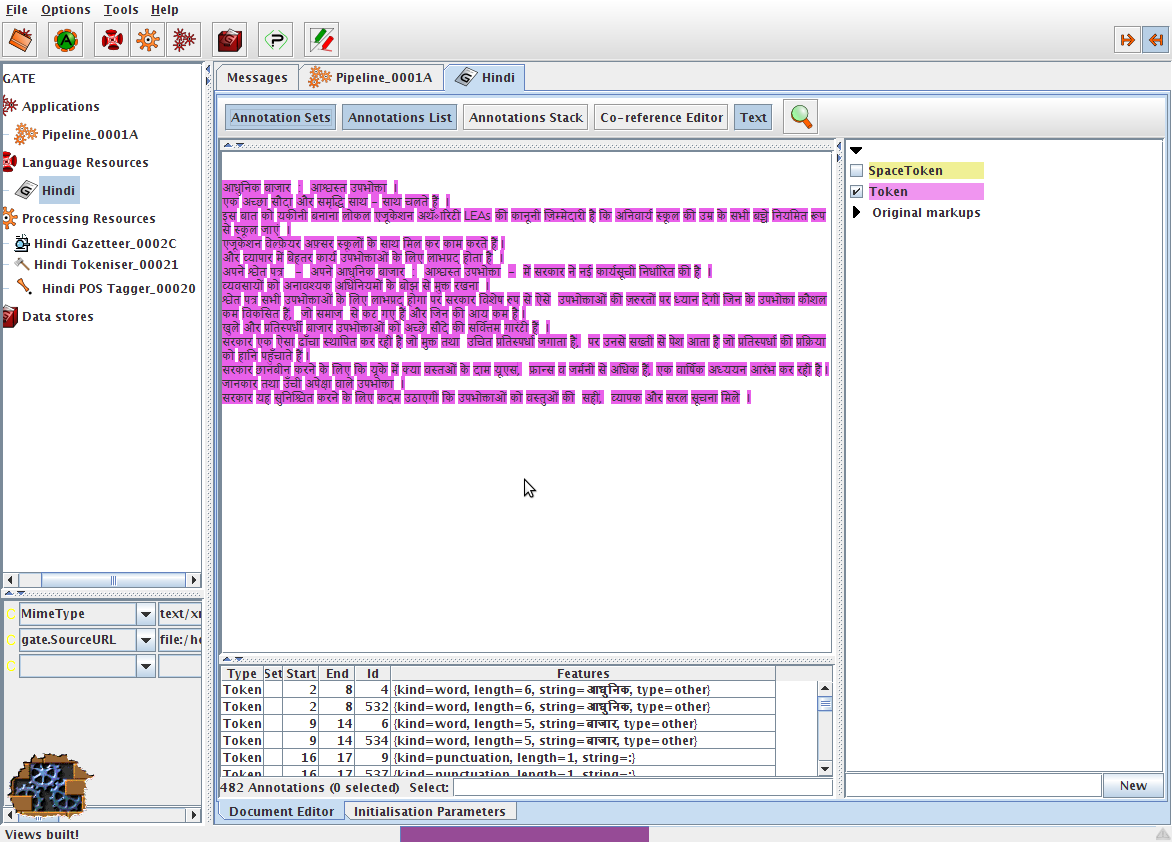
GATE Developer is analogous to systems like Mathematica for Mathematicians, or JBuilder for Java programmers: it provides a convenient graphical environment for research and development of language processing software.
When an appropriate set of resources have been developed, they can then be embedded in the target client application using GATE Embedded. GATE Embedded is supplied as a series of JAR files.8 To embed GATE-based language processing facilities in an application, these JAR files are all that is needed, along with JAR files and XML configuration files for the various resources that make up the new facilities.
1.3.2 Built-In Components [#]
GATE includes resources for common LE data structures and algorithms, including documents, corpora and various annotation types, a set of language analysis components for Information Extraction and a range of data visualisation and editing components.
GATE supports documents in a variety of formats including XML, RTF, email, HTML, SGML and plain text. In all cases the format is analysed and converted into a single unified model of annotation. The annotation format is a modified form of the TIPSTER format [Grishman 97] which has been made largely compatible with the Atlas format [Bird & Liberman 99], and uses the now standard mechanism of ‘stand-off markup’. GATE documents, corpora and annotations are stored in databases of various sorts, visualised via the development environment, and accessed at code level via the framework. See Chapter 5 for more details of corpora etc.
A family of Processing Resources for language analysis is included in the shape of ANNIE, A Nearly-New Information Extraction system. These components use finite state techniques to implement various tasks from tokenisation to semantic tagging or verb phrase chunking. All ANNIE components communicate exclusively via GATE’s document and annotation resources. See Chapter 6 for more details. Other CREOLE resources are described in Part III.
1.3.3 Additional Facilities in GATE Developer/Embedded [#]
Three other facilities in GATE deserve special mention:
-
JAPE, a Java Annotation Patterns Engine, provides regular-expression based pattern/action rules over annotations – see Chapter 8.
-
The ‘annotation diff’ tool in the development environment implements performance metrics such as precision and recall for comparing annotations. Typically a language analysis component developer will mark up some documents by hand and then use these along with the diff tool to automatically measure the performance of the components. See Chapter 10.
-
GUK, the GATE Unicode Kit, fills in some of the gaps in the JDK’s9 support for Unicode, e.g. by adding input methods for various languages from Urdu to Chinese. See Section 3.11.2 for more details.
1.3.4 An Example [#]
This section gives a very brief example of a typical use of GATE to develop and deploy language processing capabilities in an application, and to generate quantitative results for scientific publication.
Let’s imagine that a developer called Fatima is building an email client10 for Cyberdyne Systems’ large corporate Intranet. In this application she would like to have a language processing system that automatically spots the names of people in the corporation and transforms them into mailto hyperlinks.
A little investigation shows that GATE’s existing components can be tailored to this purpose. Fatima starts up GATE Developer, and creates a new document containing some example emails. She then loads some processing resources that will do named-entity recognition (a tokeniser, gazetteer and semantic tagger), and creates an application to run these components on the document in sequence. Having processed the emails, she can see the results in one of several viewers for annotations.
The GATE components are a decent start, but they need to be altered to deal specially with people from Cyberdyne’s personnel database. Therefore Fatima creates new ‘cyber-’ versions of the gazetteer and semantic tagger resources, using the ‘bootstrap’ tool. This tool creates a directory structure on disk that has some Java stub code, a Makefile and an XML configuration file. After several hours struggling with badly written documentation, Fatima manages to compile the stubs and create a JAR file containing the new resources. She tells GATE Developer the URL of these files11, and the system then allows her to load them in the same way that she loaded the built-in resources earlier on.
Fatima then creates a second copy of the email document, and uses the annotation editing facilities to mark up the results that she would like to see her system producing. She saves this and the version that she ran GATE on into her serial datastore. From now on she can follow this routine:
-
Run her application on the email test corpus.
-
Check the performance of the system by running the ‘annotation diff’ tool to compare her manual results with the system’s results. This gives her both percentage accuracy figures and a graphical display of the differences between the machine and human outputs.
-
Make edits to the code, pattern grammars or gazetteer lists in her resources, and recompile where necessary.
-
Tell GATE Developer to re-initialise the resources.
-
Go to 1.
To make the alterations that she requires, Fatima re-implements the ANNIE gazetteer so that it regenerates itself from the local personnel data. She then alters the pattern grammar in the semantic tagger to prioritise recognition of names from that source. This latter job involves learning the JAPE language (see Chapter 8), but as this is based on regular expressions it isn’t too difficult.
Eventually the system is running nicely, and her accuracy is 93% (there are still some problem cases, e.g. when people use nicknames, but the performance is good enough for production use). Now Fatima stops using GATE Developer and works instead on embedding the new components in her email application using GATE Embedded. This application is written in Java, so embedding is very easy12: the GATE JAR files are added to the project CLASSPATH, the new components are placed on a web server, and with a little code to do initialisation, loading of components and so on, the job is finished in half a day – the code to talk to GATE takes up only around 150 lines of the eventual application, most of which is just copied from the example in the sheffield.examples.StandAloneAnnie class.
Because Fatima is worried about Cyberdyne’s unethical policy of developing Skynet to help the large corporates of the West strengthen their strangle-hold over the World, she wants to get a job as an academic instead (so that her conscience will only have to cope with the torture of students, as opposed to humanity). She takes the accuracy measures that she has attained for her system and writes a paper for the Journal of Nasturtium Logarithm Incitement describing the approach used and the results obtained. Because she used GATE for development, she can cite the repeatability of her experiments and offer access to example binary versions of her software by putting them on an external web server.
And everybody lived happily ever after.
1.4 Some Evaluations [#]
This section contains an incomplete list of publications describing systems that used GATE in competitive quantitative evaluation programmes. These programmes have had a significant impact on the language processing field and the widespread presence of GATE is some measure of the maturity of the system and of our understanding of its likely performance on diverse text processing tasks.
-
describes the performance of an SVM-based learning system in the NTCIR-6 Patent Retrieval Task. The system achieved the best result on two of three measures used in the task evaluation, namely the R-Precision and F-measure. The system obtained close to the best result on the remaining measure (A-Precision).
-
describes a cross-source coreference resolution system based on semantic clustering. It uses GATE for information extraction and the SUMMA system to create summaries and semantic representations of documents. One system configuration ranked 4th in the Web People Search 2007 evaluation.
-
describes a cross-lingual summarization system which uses SUMMA components and the Arabic plugin available in GATE to produce summaries in English from a mixture of English and Arabic documents.
-
Open-Domain Question Answering:
-
The University of Sheffield has a long history of research into open-domain question answering. GATE has formed the basis of much of this research resulting in systems which have ranked highly during independent evaluations since 1999. The first successful question answering system developed at the University of Sheffield was evaluated as part of TREC 8 and used the LaSIE information extraction system (the forerunner of ANNIE) which was distributed with GATE [Humphreys et al. 99]. Further research was reported in [Scott & Gaizauskas. 00], [Greenwood et al. 02], [Gaizauskas et al. 03], [Gaizauskas et al. 04] and [Gaizauskas et al. 05]. In 2004 the system was ranked 9th out of 28 participating groups.
-
describes techniques for answering definition questions. The system uses definition patterns manually implemented in GATE as well as learned JAPE patterns induced from a corpus. In 2004, the system was ranked 4th in the TREC/QA evaluations.
-
describes a multidocument summarization system implemented using summarization components compatible with GATE (the SUMMA system). The system was ranked 2nd in the Document Understanding Evaluation programmes.
-
[Maynard et al. 03e] and [Maynard et al. 03d]
-
describe participation in the TIDES surprise language program. ANNIE was adapted to Cebuano with four person days of effort, and achieved an F-measure of 77.5%. Unfortunately, ours was the only system participating!
-
[Maynard et al. 02b] and [Maynard et al. 03b]
-
describe results obtained on systems designed for the ACE task (Automatic Content Extraction). Although a comparison to other participating systems cannot be revealed due to the stipulations of ACE, results show 82%-86% precision and recall.
-
describes the LaSIE-II system used in MUC-7.
-
describes the LaSIE-II system used in MUC-6.
1.5 Recent Changes [#]
This section details recent changes made to GATE. Appendix A provides a complete change log.
It was brought to our attention that in versions 9.0.1 and below there was a very small chance that the GUI action “Export for GATE Cloud” could be compromised. This would have required malicious code to be running locally on the machine; either by another user on a multi-user machine or because the computer had already been compromised. This issue only occurred within the GUI action and did not affect API use of the gate-core Maven artifact. Note that no known exploits exist for this issue, and we do not know for certain that the code could be exploited. If, however, you are at all concerned then we suggest you regenerate any packaged applications using a recent version of GATE Developer; at minimum 9.2-SNAPSHOT built on or after the 10th of August 2022.
1.5.1 Version 9.0.1 (March 2021) [#]
GATE Developer 9.0.1 is a bugfix release – the only change is to the way URL redirects are handled when loading a document. Support for following redirects from http to https was added in 9.0 which, while correct, broke the way URLs were used within GCP. This release fixes that bug and adds some additional security checking to the redirect handling.
1.5.2 Version 9.0 (February 2021) [#]
Whilst the majority of changes in GATE Developer 9.0 are small a number of them change default behaviour (in the UI or API) hence the change in version number. These changes include:
-
We now recommend users install a 64 bit version of Java whenever possible. This seems to be especially important on Windows.
-
We now default to assuming documents are UTF-8 encoded unless you specify otherwise. In previous versions if no encoding was specified GATE would use the default platform encoding, but this seemed to cause more problems than it solved (especially for Windows users). If you want the old behaviour then ensure the encoding parameter is set to the empty string when creating a document.
-
GATE uses a library called XStream for saving and loading GATE XML documents and applications. This allows us to store features of any Java type, but that can be abused by maliciously crafted files. In general use this is unlikely to be a problem, but in situations where GATE may be used as part of a service with no way of vetting input files it could present a serious security threat. XStream now offers a security framework to restrict the types of objects that can be loaded/saved. This can work either by allowing only specific types or by preventing specific types from being used. As we often do not know in advance what features might be used we have opted to use a minimal blacklist as the default security setting. This blocks the Java classes known to be exploitable. This can be further configured via calls to Gate.setXStreamSecurity() and we strongly encourage developers who depend on gate-core within larger applications to configure this based on their specific use cases.
-
Developers wishing to build GATE from source need to use Maven v3.6.0 or above.
-
Previous versions of GATE used Log4J for some of the logging. This was problematic when using gate-core as a dependency in larger projects and was awkward to configure properly. In this release we’ve switched to using SLF4J allowing the actual logging back-end to be configured independently. Plugins and code compiled against previous versions of GATE should work with the new release without change (we include the log4j-over-slf4j bridge as a dependency), although Log4J specific methods within gate-core have been deprecated and may be removed in a future release.
Many bugs have been fixed and documentation improved, in particular:
-
the Twitter plugin has been improved to make better use of the information provided by Twitter within a JSON Tweet object. The Hashtag tokenizer has been updated to provide a tokenized feature to make grouping semantically similar hashtags easier. Lots of other minor improvements and efficiency changes have been made throughout the rest of the TwitIE pipelines.
-
the ANNIE gazetteers have been updated to better support different ways of referring to countries and a blacklist option to prevent things being wrongly annotated.
-
A new addition to the JAPE syntax allows you to copy all features from a matched annotation to the new annotation being created
-
the Format_CSV plugin now allows the document cell to be interpreted as being a URL pointing to the document to load rather than the contents of the document. See Section 23.33 for more details.
1.5.3 Version 8.6.1 (January 2020) [#]
GATE Developer 8.6.1 is a bugfix release – the only change is to adjust for the fact that the Central Maven repository has been switched from http to https.
1.5.4 Version 8.6 (June 2019) [#]
GATE Developer 8.6 is mainly a maintenance and stability release, but there are some important new features, in particular around the processing of Twitter data:
-
The Format_Twitter plugin can now correctly handle extended 280 character tweets and the latest Twitter JSON format. See Section 17.2 for full details.
-
The new Format_JSON plugin provides import/export support for GATE JSON. This is essentially the old style Twitter format, but it no longer needs to track changes to the Twitter JSON format so should be more suitable for long term storage of GATE documents as JSON files. See Section 23.30 for more details. This plugin makes use of a new mechanism whereby document format parsers can take parameters via the document MIME type, which may be useful to third party formats too.
Many bugs have been fixed and documentation improved, in particular:
-
The plugin loading mechanism now properly respects the user’s Maven settings.xml:
-
HTTP proxy and “mirror” repository settings now work properly, including authentication. Also plugin resolution will now use the system proxy (if there is one) by default if there is no proxy specified in the Maven settings.
-
The “offline” setting is respected, and will prevent GATE from trying to fetch plugins from remote repositories altogether – for this to work, all the plugins you want to use must already be cached locally, or you can use “Export for GATE Cloud” to make a self-contained copy of an application including all its plugins.
-
-
Upgraded many dependencies including Tika and Jackson to avoid known security bugs in the previous versions.
-
Documentation improvements for the Kea plugin, the Corpus QA and annotation diff tools, and the default GATE XML and inline XML formats (section 3.9.1)
-
For plugin developers, the standard plugin testing framework generates a report detailing all the plugin-to-plugin dependencies, including those that are only expressed in the plugin’s example saved applications (section 7.12.1).
Some obsolete plugins have been removed (Websphinx web crawler, which depends on an unmaintained library, and the RASP parser, whose external binary is no longer available for modern operating systems), and there are many smaller bug fixes and improvements.
Note: following changes to Oracle’s JDK licensing scheme, we now recommend running GATE using the freely-available OpenJDK. The AdoptOpenJDK project offers simple installers for all major platforms, and major Linux distributions such as Ubuntu and CentOS offer OpenJDK packages as standard. See section 2.2 for full installation instructions.
1.5.5 Version 8.5.1 (June 2018) [#]
Version 8.5.1 is a minor release to fix a few critical bugs in 8.5:
-
Fixed an exception that prevented the ANNIC search GUI from opening.
-
Fixed a problem with “Export for GATE Cloud” that meant some resources were not getting included in the output ZIP file.
-
Fixed the XML schema in the gate-spring library.
1.5.6 Version 8.5 (May 2018) [#]
GATE Developer and Embedded 8.5 introduces a number of significant internal changes to the way plugins are managed, but with the exception of the plugin manager most users will not see significant changes in the way they use GATE.
-
The GATE plugins are no longer bundled with the GATE Developer distribution, instead each plugin is downloaded from a repository at runtime, the first time it is used. This means the distribution is much smaller than previous versions.
-
Most plugins are now distributed as a single JAR file through the Java-standard “Central Repository”, and resource files such as gazetteers and JAPE grammars are bundled inside the plugin JAR rather than being separate files on disk. If you want to modify the resources of a plugin then GATE provides a tool to extract an editable copy of the files from a plugin onto your disk – it is no longer possible to edit plugin grammars in place.
-
This makes dependencies between plugins much easier to manage – a plugin can specify its dependencies declaratively by name and version number rather than by fragile relative paths between plugin directories.
GATE 8.5 remains backwards compatible with existing third-party plugins, though we encourage you to convert your plugins to the new style where possible.
Further details on these changes can be found in sections 3.5 (the plugin manager in GATE Developer), 7.3 (loading plugins via the GATE Embedded API), 7.12 (creating a new plugin from scratch), and 7.20 (converting an existing plugin to the new style).
If you have an existing saved application from GATE version 8.4.1 or earlier it will be necessary to “upgrade” it to use the new core plugins. An upgrade tool is provided on the “Tools” menu of GATE Developer, and is described in section Section 3.9.5.
For developers
As part of this release, GATE development has moved from SourceForge to GitHub – bug reports, patches and feature requests should now use the GitHub issue tracker as described in section 12.1.
1.6 Further Reading [#]
Lots of documentation lives on the GATE web site, including:
For more details about Sheffield University’s work in human language processing see the NLP group pages or A Definition and Short History of Language Engineering ([Cunningham 99a]). For more details about Information Extraction see IE, a User Guide or the GATE IE pages.
A list of publications on GATE and projects that use it (some of which are available on-line from http://gate.ac.uk/gate/doc/papers.html):
2010
-
describes the Teamware web-based collaborative annotation environment, emphasising the different roles that users play in the corpus annotation process.
-
presents the use of GATE in the development of controlled natural language interfaces. There is other related work by Damljanovic, Agatonovic, and Cunningham on using GATE to build natural language interfaces for quering ontologies.
-
discusses the use of GATE to process South Asian languages (Hindi and Gujarati).
2009
-
focuses in detail on the use of GATE for mining opinions and facts for business intelligence gathering from web content.
-
presents in more detail the text alignment component of GATE.
-
is the ‘Human Language Technologies’ chapter of ‘Semantic Knowledge Management’ (John Davies, Marko Grobelnik and Dunja Mladenić eds.)
-
discusses the use of semantic annotation for software engineering, as part of the TAO research project.
-
reviews the current state of the art in email processing and communication research, focusing on the roles played by email in information management, and commercial and research efforts to integrate a semantic-based approach to email.
-
investigates two techniques for making SVMs more suitable for language learning tasks. Firstly, an SVM with uneven margins (SVMUM) is proposed to deal with the problem of imbalanced training data. Secondly, SVM active learning is employed in order to alleviate the difficulty in obtaining labelled training data. The algorithms are presented and evaluated on several Information Extraction (IE) tasks.
2008
-
presents our approach to automatic patent enrichment, tested in large-scale, parallel experiments on USPTO and EPO documents.
-
presents Question-based Interface to Ontologies (QuestIO) - a tool for querying ontologies using unconstrained language-based queries.
-
presents a semantic-based prototype that is made for an open-source software engineering project with the goal of exploring methods for assisting open-source developers and software users to learn and maintain the system without major effort.
-
presents ServiceFinder.
-
describes our SVM-based system and several techniques we developed successfully to adapt SVM for the specific features of the F-term patent classification task.
-
reviews the recent developments in applying geometric and quantum mechanics methods for information retrieval and natural language processing.
-
investigates the state of the art in automatic textual annotation tools, and examines the extent to which they are ready for use in the real world.
-
discusses methods of measuring the performance of ontology-based information extraction systems, focusing particularly on the Balanced Distance Metric (BDM), a new metric we have proposed which aims to take into account the more flexible nature of ontologically-based applications.
-
investigates NLP techniques for ontology population, using a combination of rule-based approaches and machine learning.
-
presents the QuestIO system – a natural language interface for accessing structured information, that is domain independent and easy to use without training.
2007
-
describes an ontologically based approach to multi-source, multilingual information extraction.
-
presents a controlled language for ontology editing and a software implementation, based partly on standard NLP tools, for processing that language and manipulating an ontology.
-
proposes a methodology to capture (1) the evolution of metadata induced by changes to the ontologies, and (2) the evolution of the ontology induced by changes to the underlying metadata.
-
describes the development of a system for content mining using domain ontologies, which enables the extraction of relevant information to be fed into models for analysis of financial and operational risk and other business intelligence applications such as company intelligence, by means of the XBRL standard.
-
describes experiments for the cross-document coreference task in SemEval 2007. Our cross-document coreference system uses an in-house agglomerative clustering implementation to group documents referring to the same entity.
-
describes the application of ontology-based extraction and merging in the context of a practical e-business application for the EU MUSING Project where the goal is to gather international company intelligence and country/region information.
-
introduces a hierarchical learning approach for IE, which uses the target ontology as an essential part of the extraction process, by taking into account the relations between concepts.
-
proposes some new evaluation measures based on relations among classification labels, which can be seen as the label relation sensitive version of important measures such as averaged precision and F-measure, and presents the results of applying the new evaluation measures to all submitted runs for the NTCIR-6 F-term patent classification task.
-
describes the algorithms and linguistic features used in our participating system for the opinion analysis pilot task at NTCIR-6.
-
describes our SVM-based system and the techniques we used to adapt the approach for the specifics of the F-term patent classification subtask at NTCIR-6 Patent Retrieval Task.
-
studies Japanese-English cross-language patent retrieval using Kernel Canonical Correlation Analysis (KCCA), a method of correlating linear relationships between two variables in kernel defined feature spaces.
2006
-
(Proceedings of the 5th International Semantic Web Conference (ISWC2006)) In this paper the problem of disambiguating author instances in ontology is addressed. We describe a web-based approach that uses various features such as publication titles, abstract, initials and co-authorship information.
-
‘Semantic Annotation and Human Language Technology’, contribution to ‘Semantic Web Technology: Trends and Research’ (Davies, Studer and Warren, eds.)
-
‘Semantic Information Access’, contribution to ‘Semantic Web Technology: Trends and Research’ (Davies, Studer and Warren, eds.)
-
presents an ontology learning approach that 1) exploits a range of information sources associated with software projects and 2) relies on techniques that are portable across application domains.
-
describes work in progress concerning the application of Controlled Language Information Extraction - CLIE to a Personal Semantic Wiki - Semper- Wiki, the goal being to permit users who have no specialist knowledge in ontology tools or languages to semi-automatically annotate their respective personal Wiki pages.
-
studies a machine learning algorithm based on KCCA for cross-language information retrieval. The algorithm is applied to Japanese-English cross-language information retrieval.
-
discusses existing evaluation metrics, and proposes a new method for evaluating the ontology population task, which is general enough to be used in a variety of situation, yet more precise than many current metrics.
-
describes an approach that allows users to create and edit ontologies simply by using a restricted version of the English language. The controlled language described is based on an open vocabulary and a restricted set of grammatical constructs.
-
describes the creation of linguistic analysis and corpus search tools for Sumerian, as part of the development of the ETCSL.
-
proposes an SVM based approach to hierarchical relation extraction, using features derived automatically from a number of GATE-based open-source language processing tools.
2005
-
(Proceedings of Fifth International Conference on Recent Advances in Natural Language Processing (RANLP2005)) It is a full-featured annotation indexing and search engine, developed as a part of the GATE. It is powered with Apache Lucene technology and indexes a variety of documents supported by the GATE.
-
presents the ONTOSUM system which uses Natural Language Generation (NLG) techniques to produce textual summaries from Semantic Web ontologies.
-
is an overview of the field of Information Extraction for the 2nd Edition of the Encyclopaedia of Language and Linguistics.
-
is an overview of the field of Software Architecture for Language Engineering for the 2nd Edition of the Encyclopaedia of Language and Linguistics.
-
(Euro Interactive Television Conference Paper) A system which can use material from the Internet to augment television news broadcasts.
-
(World Wide Web Conference Paper) The Web is used to assist the annotation and indexing of broadcast news.
-
(Second European Semantic Web Conference Paper) A system that semantically annotates television news broadcasts using news websites as a resource to aid in the annotation process.
-
(Proceedings of Sheffield Machine Learning Workshop) describe an SVM based IE system which uses the SVM with uneven margins as learning component and the GATE as NLP processing module.
-
(Proceedings of Ninth Conference on Computational Natural Language Learning (CoNLL-2005)) uses the uneven margins versions of two popular learning algorithms SVM and Perceptron for IE to deal with the imbalanced classification problems derived from IE.
-
(Proceedings of Fourth SIGHAN Workshop on Chinese Language processing (Sighan-05)) a system for Chinese word segmentation based on Perceptron learning, a simple, fast and effective learning algorithm.
-
(University of Sheffield-Research Memorandum CS-05-10) User-Friendly Ontology Authoring Using a Controlled Language.
-
describes experiments on content selection for producing biographical summaries from multiple documents.
-
(Proceedings of the 2nd European Workshop on the Integration of Knowledge, Semantic and Digital Media Technologies (EWIMT 2005))Digital Media Preservation and Access through Semantically Enhanced Web-Annotation.
-
(Proceedings of the 2005 IEEE/WIC/ACM International Conference on Web Intelligence (WI 2005)) Extracting a Domain Ontology from Linguistic Resource Based on Relatedness Measurements.
2004
-
(LREC 2004) describes lexical and ontological resources in GATE used for Natural Language Generation.
-
(JNLE) discusses developments in GATE in the early naughties.
-
(JNLE) is the introduction to the above collection.
-
(JNLE) is a collection of papers covering many important areas of Software Architecture for Language Engineering.
-
(Anaphora Processing) gives a lightweight method for named entity coreference resolution.
-
(Machine Learning Workshop 2004) describes an SVM based learning algorithm for IE using GATE.
-
(LREC 2004) presents algorithms for the automatic induction of gazetteer lists from multi-language data.
-
(ESWS 2004) discusses ontology-based IE in the hTechSight project.
-
(AIMSA 2004) presents automatic creation and monitoring of semantic metadata in a dynamic knowledge portal.
-
describes an approach to mining definitions.
-
describes a sentence extraction system that produces two sorts of multi-document summaries; a general-purpose summary of a cluster of related documents and an entity-based summary of documents related to a particular person.
-
(NLDB 2004) looks at ontology-based IE from parallel texts.
2003
-
(NLPXML-2003) looks at GATE for the semantic web.
-
(Corpus Linguistics 2003) describes GATE as a tool for collaborative corpus annotation.
-
(Technical Report) discusses semantic web technology in the context of multimedia indexing and search.
-
(HLT-NAACL 2003) describes experiments with geographic knowledge for IE.
-
(EACL 2003) looks at the distinction between information and content extraction.
-
(Recent Advances in Natural Language Processing 2003) looks at semantics and named-entity extraction.
-
(ACL Workshop 2003) describes NE extraction without training data on a language you don’t speak (!).
-
(EACL 2003) discusses robust, generic and query-based summarisation.
-
(Data and Knowledge Engineering) discusses multimedia indexing and search from multisource multilingual data.
-
(EACL 2003) discusses event co-reference in the MUMIS project.
-
(HLT-NAACL 2003) presents the OLLIE on-line learning for IE system.
-
(Recent Advances in Natural Language Processing 2003) discusses using parallel texts to improve IE recall.
2002
-
(LREC 2002) report results from the EMILLE Indic languages corpus collection and processing project.
-
(ACl 2002 Workshop) describes how GATE can be used as an environment for teaching NLP, with examples of and ideas for future student projects developed within GATE.
-
(NLIS 2002) discusses how GATE can be used to create HLT modules for use in information systems.
-
[Bontcheva et al. 02c], [Dimitrov 02a] and [Dimitrov 02b]
-
(TALN 2002, DAARC 2002, MSc thesis) describe the shallow named entity coreference modules in GATE: the orthomatcher which resolves pronominal coreference, and the pronoun resolution module.
-
(Computers and the Humanities) describes the philosophy and motivation behind the system, describes GATE version 1 and how well it lived up to its design brief.
-
(ACL 2002) describes the GATE framework and graphical development environment as a tool for robust NLP applications.
-
(DAARC 2002, MSc thesis) discuss lightweight coreference methods.
-
[Lal 02]
-
(Master Thesis) looks at text summarisation using GATE.
-
(ACL 2002) looks at text summarisation using GATE.
-
(ACL 2002 Summarisation Workshop) describes using GATE to build a portable IE-based summarisation system in the domain of health and safety.
-
(AIMSA 2002) describes the adaptation of the core ANNIE modules within GATE to the ACE (Automatic Content Extraction) tasks.
-
(Nordic Language Technology) describes various Named Entity recognition projects developed at Sheffield using GATE.
-
(JNLE) describes robustness and predictability in LE systems, and presents GATE as an example of a system which contributes to robustness and to low overhead systems development.
-
(LREC 2002) discusses the feasibility of grammar reuse in applications using ANNIE modules.
-
[Saggion et al. 02b] and [Saggion et al. 02a]
-
(LREC 2002, SPLPT 2002) describes how ANNIE modules have been adapted to extract information for indexing multimedia material.
-
(LREC 2002) describes GATE’s enhanced Unicode support.
Older than 2002
-
(RANLP 2001) discusses a project using ANNIE for named-entity recognition across wide varieties of text type and genre.
-
[Bontcheva et al. 00] and [Brugman et al. 99]
-
(COLING 2000, technical report) describe a prototype of GATE version 2 that integrated with the EUDICO multimedia markup tool from the Max Planck Institute.
-
(PhD thesis) defines the field of Software Architecture for Language Engineering, reviews previous work in the area, presents a requirements analysis for such systems (which was used as the basis for designing GATE versions 2 and 3), and evaluates the strengths and weaknesses of GATE version 1.
-
[Cunningham et al. 00a], [Cunningham et al. 98a] and [Peters et al. 98]
-
(OntoLex 2000, LREC 1998) presents GATE’s model of Language Resources, their access and distribution.
-
(LREC 2000) taxonomises Language Engineering components and discusses the requirements analysis for GATE version 2.
-
(COLING 2000, AISB 1999) summarise experiences with GATE version 1.
-
[Cunningham et al. 00d] and [Cunningham 99b]
-
(technical reports) document early versions of JAPE (superseded by the present document).
-
(LREC 2000) discusses experiences in the Svensk project, which used GATE version 1 to develop a reusable toolbox of Swedish language processing components.
-
(technical report) surveys users of GATE up to mid-2000.
-
(Vivek) presents the EMILLE project in the context of which GATE’s Unicode support for Indic languages has been developed.
-
(JNLE) reviewed and synthesised definitions of Language Engineering.
-
(ECAI 1998, NeMLaP 1998) report work on implementing a word sense tagger in GATE version 1.
-
(ANLP 1997) presents motivation for GATE and GATE-like infrastructural systems for Language Engineering.
-
(manual) was the guide to developing CREOLE components for GATE version 1.
-
(TIPSTER) discusses a selection of projects in Sheffield using GATE version 1 and the TIPSTER architecture it implemented.
-
[Cunningham et al. 96c, Cunningham et al. 96d, Cunningham et al. 95]
-
(COLING 1996, AISB Workshop 1996, technical report) report early work on GATE version 1.
-
(manual) was the user guide for GATE version 1.
-
[Gaizauskas et al. 96b, Cunningham et al. 97a, Cunningham et al. 96e]
-
(ICTAI 1996, TIPSTER 1997, NeMLaP 1996) report work on GATE version 1.
-
(manual) describes the language processing components distributed with GATE version 1.
-
(NeMLaP 1994, technical report) argue that software engineering issues such as reuse, and framework construction, are important for language processing R&D.
Chapter 2
Installing and Running GATE [#]
2.1 Downloading GATE [#]
To download GATE point your web browser at http://gate.ac.uk/download/.
2.2 Installing and Running GATE [#]
GATE will run anywhere that supports Java 8 or later, including Linux, Mac OS X and Windows platforms. We don’t run tests on other platforms, but have had reports of successful installs elsewhere.
We recommend using OpenJDK 1.8 (or higher). This is widely available from GNU/Linux package repositories. The AdoptOpenJDK website provides packages for various operating systems, and is particularly suitable for Windows users. Mac users should install the JDK (not just the JRE).
Note that wherever possible you should install the 64 bit version of Java as 32 bit versions can have issues with the amount of memory available for GATE to use.
2.2.1 The Easy Way [#]
The easy way to install is to use the installer (created using the excellent IzPack). Download the installer (.exe for Windows, .jar for other platforms) and follow the instructions it gives you. Once the installation is complete, you can start GATE Developer using gate.exe (Windows) or GATE.app (Mac) in the top-level installation directory, on Linux and other platforms use gate.sh in the bin directory (see section 2.2.4).
2.2.2 The Hard Way (1) [#]
-
Download and unpack the ZIP distribution, creating a directory containing jar files and scripts.
-
To run GATE Developer:
-
on Windows, use the the ‘gate.exe’ file;
-
on UNIX/Linux use ‘bin/gate.sh’.
-
on Mac use ‘GATE.app’ – if running from a terminal you can keep GATE in the foreground using GATE.app/Contents/MacOS/GATE or bin/gate.sh
-
-
To embed GATE as a library (GATE Embedded), put the JAR files in the lib folder onto your application’s classpath. Alternatively you can use a dependency manager to download GATE and its dependencies from the Central Repository by declaring a dependency on the appropriate version of group ID uk.ac.gate and artifact ID gate-core (see section 2.6.1).
2.2.3 The Hard Way (2): Git [#]
The GATE code is maintained in a set of repositories on GitHub. The main repository for GATE Developer and Embedded is gate-core, and each plugin has its own repository (typically with a name beginning gateplugin-).
All the modules (gate-core and the plugins) are built using Apache Maven version 3.5.2 or later. Clone the appropriate repository, checkout the relevant branch (“master” is the latest snapshot version), and build the code using mvn install
See section 2.6 for more details.
2.2.4 Running GATE Developer on Unix/Linux [#]
The script gate.sh in the directory bin of your installation (or distro/bin if you are building from source) can be used to start GATE Developer. You can run this script by entering its full path in a terminal or by adding the bin directory to your binary path. In addition you can also add a symbolic link to this script in any directory that already is in your binary path.
If gate.sh is invoked without parameters, GATE Developer will use the files ~/.gate.xml and ~/.gate.session to store session and configuration data. Alternately you can run gate.sh with the following parameters:
-
-h
-
show usage information
-
-ld
-
create or use the files .gate.session and .gate.xml in the current directory as the session and configuration files. If option -dc DIR occurs before this option, the file .gate.session is created from DIR/default.session if it does not already exist and the file .gate.xml is created from DIR/default.xml if it does not already exist.
-
-ln NAME
-
create or use NAME.session and NAME.xml in the current directory as the session and configuration files. If option -dc DIR occurs before this option, the file NAME.session is created from DIR/default.session if it does not already exist and the file DIR.xml is created from DIR/default.xml if it does not already exist.
-
-ll FILE
-
use the file specified to configure the logback logger of Gate Developer. Note that if this is not an absolute path and the name is identical to logback.xml then the default file on the classpath, ${GATE_HOME}/bin/logback.xml is is still used.
-
-rh LOCATION
-
set the resources home directory to the LOCATION provided. If a resources home location is provided, the URLs in a saved application are saved relative to this location instead of relative to the application state file (see section 3.9.3). This is equivalent to setting the property gate.user.resourceshome to this location.
-
-d URL
-
loads the CREOLE plugin at the given URL during the start-up process.
-
-i FILE
-
uses the specified file as the site configuration.
-
-dc DIR
-
copy default.xml and/or default.session from the directory DIR when creating a new config or session file. This option works only together with either the -ln, -ll or -tmp option and must occur before -ln, -ll or -tmp. An existing config or session file is used, but if it does not exist, the file from the given directory is copied to create the file instead of using an empty/default file.
-
-tmp
-
creates temporary configuration and session files in the current directory, optionally copying default.xml and default.session from the directory specified with a -dc DIR option that occurs before it. After GATE exits, those session and config files are removed.
-
all other parameters
-
are passed on to the java command. This can be used to e.g. set properties using the java option -D. For example to set the maximum amount of heap memory to be used when running GATE to 6000M, you can add -Xmx6000m as a parameter. In order to change the default encoding used by GATE to UTF-8 add -Dfile.encoding=utf-8 as a parameter. To specify a log4j configuration file add something like
-Dlog4j.configuration=file:///home/myuser/log4jconfig.properties.
Running GATE Developer with either the -ld or the -ln option from different directories is useful to keep several projects separate and can be used to run multiple instances of GATE Developer (or even different versions of GATE Developer) in succession or even simultanously without the configuration files getting mixed up between them.
2.3 Using System Properties with GATE [#]
During initialisation, GATE reads several Java system properties in order to decide where to find its configuration files.
Here is a list of the properties used, their default values and their meanings:
-
gate.site.config
-
points to the location of the configuration file containing the site-wide options. If not set no site config will be used.
-
gate.user.config
-
points to the file containing the user’s options. If not specified, or if the specified file does not exist at startup time, the default value of gate.xml (.gate.xml on Unix platforms) in the user’s home directory is used.
-
gate.user.session
-
points to the file containing the user’s saved session. If not specified, the default value of gate.session (.gate.session on Unix) in the user’s home directory is used. When starting up GATE Developer, the session is reloaded from this file if it exists, and when exiting GATE Developer the session is saved to this file (unless the user has disabled ‘save session on exit’ in the configuration dialog). The session is not used when using GATE Embedded.
-
gate.user.filechooser.defaultdir
-
sets the default directory to be shown in the file chooser of GATE Developer to the specified directory instead of the user’s operating-system specific default directory.
-
gate.builtin.creole.dir
-
is a URL pointing to the location of GATE’s built-in CREOLE directory. This is the location of the creole.xml file that defines the fundamental GATE resource types, such as documents, document format handlers, controllers and the basic visual resources that make up GATE. The default points to a location inside gate.jar and should not generally need to be overridden.
When using GATE Embedded, you can set the values for these properties before you call Gate.init(). Alternatively, you can set the values programmatically using the static methods setUserConfigFile(), etc. before calling Gate.init(). Note that from version 8.5 onwards, the user config file is ignored by default unless you also call runInSandbox(false) before init. See the Javadoc documentation for details.
To set these properties when running GATE developer see the next section.
2.4 Changing GATE’s launch configuration [#]
JVM options for GATE Developer are supplied in the gate.l4j.ini file on all platforms. The gate.l4j.ini file supplied by default with GATE simply sets two standard JVM memory options:
-Xmx1G
-Xms200m
-Xmx specifies the maximum heap size in megabytes (m) or gigabytes (g), and -Xms specifies the initial size.
Note that the format consists of one option per line. All the properties listed in Section 2.3 can be configured here by prefixing them with -D, e.g., -Dgate.user.config=path/to/other-gate.xml.
Proxy configuration can be set in this file – by default GATE uses the system-wide proxy settings (-Djava.net.useSystemProxies=true) but a specific proxy can be configured by deleting that line and replacing it with settings such as:
-Dhttp.proxyHost=proxy.example.com
-Dhttp.proxyPort=8080
-Dhttp.nonProxyHosts=*.example.com
Consult the Oracle Java Networking and Proxies documentation1 for further details of proxy configuration in Java, and see section 2.3.
For GATE Embedded, note that Java does not automatically use the system proxy settings by default, you must set java.net.useSystemProxies=true explicitly to enable this.
2.5 Configuring GATE [#]
When GATE Developer is started, or when Gate.init() is called from GATE Embedded (if you have disabled the default “sandbox” mode), GATE loads various sorts of configuration data stored as XML in a file generally called something like gate.xml or .gate.xml in your home directory. This data holds information such as:
-
whether to save settings on exit;
-
whether to save session on exit;
-
what fonts GATE Developer should use;
-
plugins to load at start;
-
colours of the annotations;
-
locations of files for the file chooser;
-
and a lot of other GUI related options;
Configuration data can be set from the GATE Developer GUI via the ‘Options’ menu then ‘Configuration’2. The user can change the appearance of the GUI in the ‘Appearance’ tab, which includes the options of font and the ‘look and feel’. The ‘Advanced’ tab enables the user to include annotation features when saving the document and preserving its format, to save the selected Options automatically on exit, and to save the session automatically on exit. These options are all stored in the user’s .gate.xml file.
2.6 Building GATE [#]
Note that you don’t need to build GATE unless you’re doing development on the system itself.
Prerequisites:
-
A conforming Java environment as above.
-
A clone of the relevant Git repository or repositories (see Section 2.2.3).
-
A working installation of Apache Maven version 3.5.2 or newer. It is advisable that you also set your JAVA_HOME environment variable to point to the top-level directory of your Java installation.
-
An appreciation of natural beauty.
To build gate-core, cd to where you cloned gate-core and:
-
Type:
mvn install -
[optional] To make the Javadoc documentation:
mvn site
In order to be able to run the GATE Developer you just built, you will also need to cd into the distro folder and run mvn compile in there, in order to create the classpath file that the GATE Developer launcher uses to find the JARs.
To build plugins cd into the plugin you just cloned and run mvn install. This will build the plugin and place it in your local Maven cache, from where GATE Developer will be able to resolve it at runtime.
Note if you are building a version of a plugin that depends on a SNAPSHOT version of gate-core then you will need to add some configuration to your Maven settings.xml file, as described in the gate-core README file.
2.6.1 Using GATE with Maven/Ivy [#]
This section is based on contributions by Marin Nozhchev (Ontotext) and Benson Margulies (Basis Technology Corp).
Stable releases of GATE (since 5.2.1) are available in the standard central Maven repository, with group ID “uk.ac.gate” and artifact ID “gate-core”. To use GATE in a Maven-based project you can simply add a dependency:
<dependency>
  <groupId>uk.ac.gate</groupId>
  <artifactId>gate-core</artifactId>
  <version>8.5</version>
</dependency>
Similarly, with a project that uses Ivy for dependency management:
<dependency org="uk.ac.gate" name="gate-core" rev="8.5"/>
You do not need to do anything to allow GATE to access its plugins, it will fetch them at runtime from the internet when they are loaded.
Nightly snapshot builds of gate-core are available from our own Maven repository at http://repo.gate.ac.uk/content/groups/public.
2.7 Uninstalling GATE [#]
If you have used the installer, run:
java -jar uninstaller.jar
or just delete the whole of the installation directory (the one containing bin, lib, Uninstaller, etc.). The installer doesn’t install anything outside this directory, but for completeness you might also want to delete the settings files GATE creates in your home directory (.gate.xml and .gate.session).
2.8 Troubleshooting [#]
See the FAQ on the GATE Wiki for frequent questions about running and using GATE.
Chapter 3
Using GATE Developer [#]
This chapter introduces GATE Developer, which is the GATE graphical user interface. It is analogous to systems like Mathematica for mathematicians, or Eclipse for Java programmers, providing a convenient graphical environment for research and development of language processing software. As well as being a powerful research tool in its own right, it is also very useful in conjunction with GATE Embedded (the GATE API by which GATE functionality can be included in your own applications); for example, GATE Developer can be used to create applications that can then be embedded via the API. This chapter describes how to complete common tasks using GATE Developer. It is intended to provide a good entry point to GATE functionality, and so explanations are given assuming only basic knowledge of GATE. However, probably the best way to learn how to use GATE Developer is to use this chapter in conjunction with the demonstrations and tutorials movies. There are specific links to them throughout the chapter. There is also a complete new set of video tutorials here.
The basic business of GATE is annotating documents, and all the functionality we will introduce relates to that. Core concepts are;
-
the documents to be annotated,
-
corpora comprising sets of documents, grouping documents for the purpose of running uniform processes across them,
-
annotations that are created on documents,
-
annotation types such as ‘Name’ or ‘Date’,
-
annotation sets comprising groups of annotations,
-
processing resources that manipulate and create annotations on documents, and
-
applications, comprising sequences of processing resources, that can be applied to a document or corpus.
What is considered to be the end result of the process varies depending on the task, but for the purposes of this chapter, output takes the form of the annotated document/corpus. Researchers might be more interested in figures demonstrating how successfully their application compares to a ‘gold standard’ annotation set; Chapter 10 in Part II will cover ways of comparing annotation sets to each other and obtaining measures such as F1. Implementers might be more interested in using the annotations programmatically; Chapter 7, also in Part II, talks about working with annotations from GATE Embedded. For the purposes of this chapter, however, we will focus only on creating the annotated documents themselves, and creating GATE applications for future use.
GATE includes a complete information extraction system that you are free to use, called ANNIE (a Nearly-New Information Extraction System). Many users find this is a good starting point for their own application, and so we will cover it in this chapter. Chapter 6 talks in a lot more detail about the inner workings of ANNIE, but we aim to get you started using ANNIE from inside of GATE Developer in this chapter.
We start the chapter with an exploration of the GATE Developer GUI, in Section 3.1. We describe how to create documents (Section 3.2) and corpora (Section 3.3). We talk about viewing and manually creating annotations (Section 3.4).
We then talk about loading the plugins that contain the processing resources you will use to construct your application, in Section 3.5. We then talk about instantiating processing resources (Section 3.7). Section 3.8 covers applications, including using ANNIE (Section 3.8.3). Saving applications and language resources (documents and corpora) is covered in Section 3.9. We conclude with a few assorted topics that might be useful to the GATE Developer user, in Section 3.11.
3.1 The GATE Developer Main Window [#]
Figure 3.1 shows the main window of GATE Developer, as you will see it when you first run it. There are five main areas:
-
at the top, the menus bar and tools bar with menus ‘File’, ‘Options’, ‘Tools’, ‘Help’ and icons for the most frequently used actions;
-
on the left side, a tree starting from ‘GATE’ and containing ‘Applications’, ‘Language Resources’ etc. – this is the resources tree;
-
in the bottom left corner, a rectangle, which is the small resource viewer;
-
in the center, containing tabs with ‘Messages’ or the name of a resource from the resources tree, the main resource viewer;
-
at the bottom, the messages bar.
The menu and the messages bar do the usual things. Longer messages are displayed in the messages tab in the main resource viewer area.
The resource tree and resource viewer areas work together to allow the system to display diverse resources in various ways. The many resources integrated with GATE can have either a small view, a large view, or both.
At any time, the main viewer can also be used to display other information, such as messages, by clicking on the appropriate tab at the top of the main window. If an error occurs in processing, the messages tab will flash red, and an additional popup error message may also occur.
In the options dialogue from the Options menu you can choose if you want to link the selection in the resources tree and the selected main view.
3.2 Loading and Viewing Documents [#]
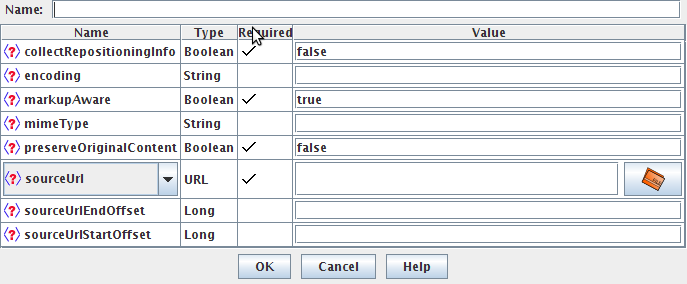
If you right-click on ‘Language Resources’ in the resources pane, select “New’ then ‘GATE Document’, the window ‘Parameters for the new GATE Document’ will appear as shown in figure 3.2. Here, you can specify the GATE document to be created. Required parameters are indicated with a tick. The name of the document will be created for you if you do not specify it. Enter the URL of your document or use the file browser to indicate the file you wish to use for your document source. For example, you might use ‘http://gate.ac.uk’, or browse to a text or XML file you have on disk. Click on ‘OK’ and a GATE document will be created from the source you specified.
See also the movie for creating documents.
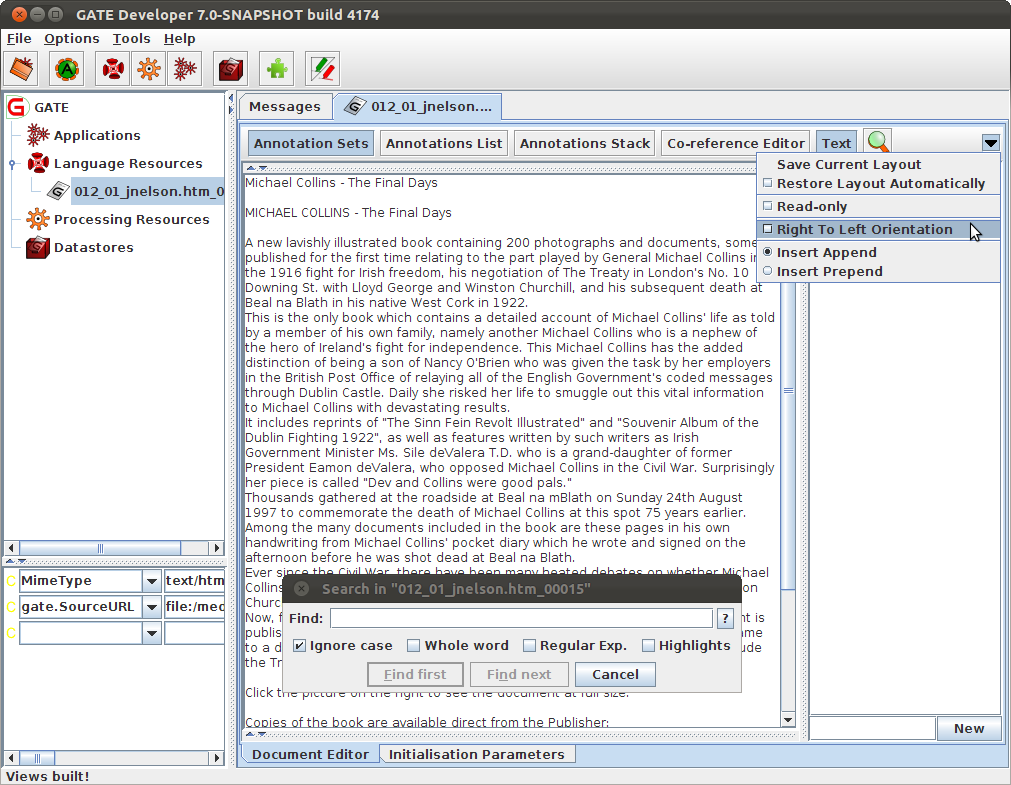
The document editor is contained in the central tabbed pane in GATE Developer. Double-click on your document in the resources pane to view the document editor.
The document editor consists of a top panel with buttons and icons that control the display of different views and the search box. Initially, you will see just the text of your document, as shown in figure 3.3. Click on ‘Annotation Sets’ and ‘Annotations List’ to view the annotation sets to the right and the annotations list at the bottom.
You will see a view similar to figure 3.4. In place of the annotations list, you can also choose to see the annotations stack. In place of the annotation sets, you can also choose to view the co-reference editor. More information about this functionality is given in Section 3.4.
Several options can be set from the small triangle icon at the top right corner.
With ‘Save Current Layout’ you store the way the different views are shown and the annotation types highlighted in the document. Then if you set ‘Restore Layout Automatically’ you will get the same views and annotation types each time you open a document. The layout is saved to the user preferences file, gate.xml. It means that you can give this file to a new user so s/he will have a preconfigured document editor.
Another setting make the document editor ‘Read-only’. If enabled, you won’t be able to edit the text but you will still be able to edit annotations. It is useful to avoid to involuntarily modify the original text.
The option ‘Right To Left Orientation’ is useful for changing orientation of the text for the languages such as Arabic and Urdu. Selecting this option changes orientation of the text of the currently visible document.
Finally you can choose between ‘Insert Append’ and ‘Insert Prepend’. That setting is only relevant when you’re inserting text at the very border of an annotation.
If you place the cursor at the start of an annotation, in one case the newly entered text will become part of the annotation, in the other case it will stay outside. If you place the cursor at the end of an annotation, the opposite will happen.
Let use this sentence: ‘This is an [annotation].’ with the square brackets [] denoting the boundaries of the annotation. If we insert a ‘x’ just before the ‘a’ or just after the ‘n’ of ‘annotation’, here’s what we get:
Append
-
This is an x[annotation].
-
This is an [annotationx].
Prepend
-
This is an [xannotation].
-
This is an [annotation]x.
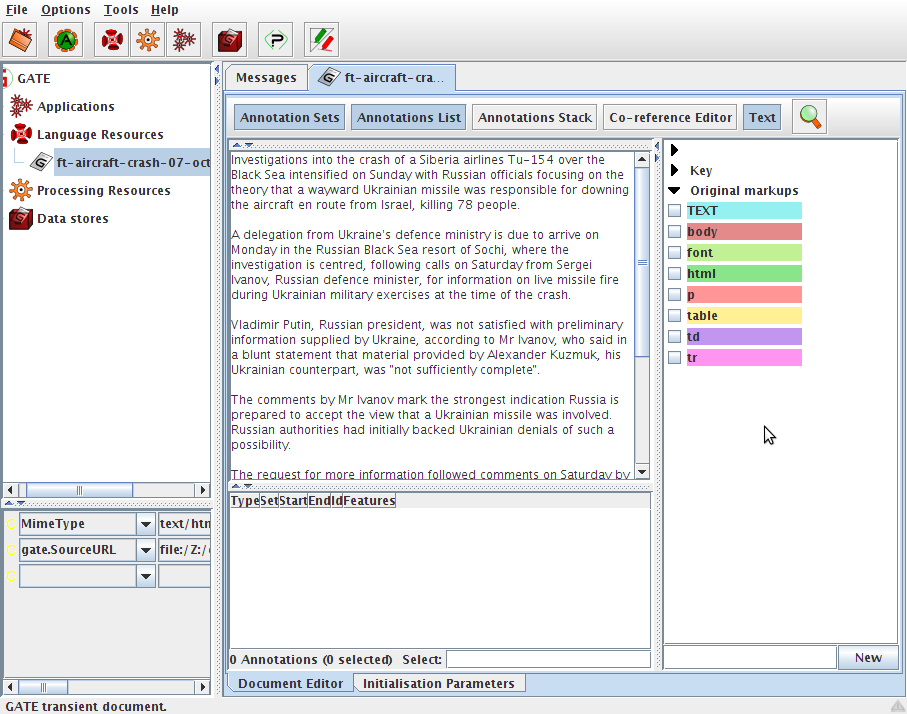
Text in a loaded document can be edited in the document viewer. The usual platform specific cut, copy and paste keyboard shortcuts should also work, depending on your operating system (e.g. CTRL-C, CTRL-V for Windows). The last icon, a magnifying glass, at the top of the document editor is for searching in the document. To prevent the new annotation windows popping up when a piece of text is selected, hold down the CTRL key. Alternatively, you can hide the annotation sets view by clicking on its button at the top of the document view; this will also cause the highlighted portions of the text to become un-highlighted.
See also Section 20.2.3 for the compound document editor.
3.3 Creating and Viewing Corpora [#]
You can create a new corpus in a similar manner to creating a new document; simply right-click on ‘Language Resources’ in the resources pane, select ‘New’ then ‘GATE corpus’. A brief dialogue box will appear in which you can optionally give a name for your corpus (if you leave this blank, a corpus name will be created for you) and optionally add documents to the corpus from those already loaded into GATE.
There are three ways of adding documents to a corpus:
-
When creating the corpus, clicking on the icon next to the “documentsList” input field brings up a popup window with a list of the documents already loaded into GATE Developer. This enables the user to add any documents to the corpus.
-
Alternatively, the corpus can be loaded first, and documents added later by double clicking on the corpus and using the + and - icons to add or remove documents to the corpus. Note that the documents must have been loaded into GATE Developer before they can be added to the corpus.
-
Once loaded, the corpus can be populated by right clicking on the corpus and selecting ‘Populate’. With this method, documents do not have to have been previously loaded into GATE Developer, as they will be loaded during the population process. If you right-click on your corpus in the resources pane, you will see that you have the option to ‘Populate’ the corpus. If you select this option, you will see a dialogue box in which you can specify a directory in which GATE will search for documents. You can specify the extensions allowable; for example, XML or TXT. This will restrict the corpus population to only those documents with the extensions you wish to load. You can choose whether to recurse through the directories contained within the target directory or restrict the population to those documents contained in the top level directory. Click on ‘OK’ to populate your corpus. This option provides a quick way to create a GATE Corpus from a directory of documents.
Additionally, right-clicking on a loaded document in the tree and selecting the ‘New corpus with this document’ option creates a new transient corpus named Corpus for document name containing just this document.
See also the movie for creating and populating corpora.
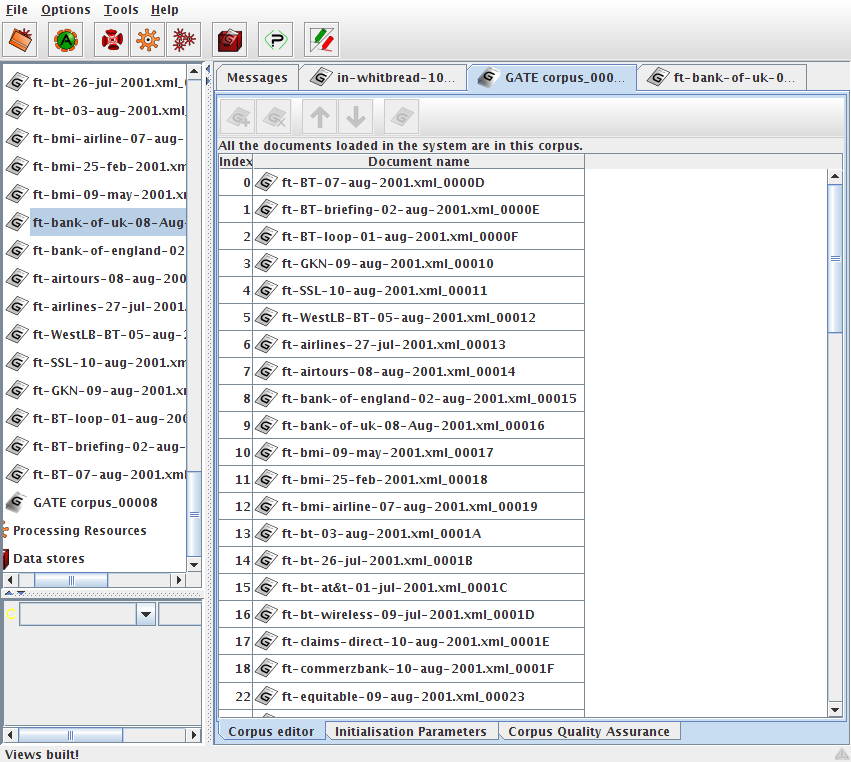
Double click on your corpus in the resources pane to see the corpus editor, shown in figure 3.5. You will see a list of the documents contained within the corpus.
In the top left of the corpus editor, plus and minus buttons allow you to add documents to the corpus from those already loaded into GATE and remove documents from the corpus (note that removing a document from a corpus does not remove it from GATE).
Up and down arrows at the top of the view allow you to reorder the documents in the corpus. The rightmost button in the view opens the currently selected document in a document editor.
At the bottom, you will see that tabs entitled ‘Initialisation Parameters’ and ‘Corpus Quality Assurance’ are also available in addition to the corpus editor tab you are currently looking at. Clicking on the ‘Initialisation Parameters’ tab allows you to view the initialisation parameters for the corpus. The ‘Corpus Quality Assurance’ tab allows you to calculate agreement measures between the annotations in your corpus. Agreement measures are discussed in depth in Chapter 10. The use of corpus quality assurance is discussed in Section 10.3.
3.4 Working with Annotations [#]
In this section, we will talk in more detail about viewing annotations, as well as creating and editing them manually. As discussed in at the start of the chapter, the main purpose of GATE is annotating documents. Whilst applications can be used to annotate the documents entirely automatically, annotation can also be done manually, e.g. by the user, or semi-automatically, by running an application over the corpus and then correcting/adding new annotations manually. Section 3.4.5 focuses on manual annotation. In Section 3.7 we talk about running processing resources on our documents. We begin by outlining the functionality around viewing annotations, organised by the GUI area to which the functionality pertains.
3.4.1 The Annotation Sets View [#]
To view the annotation sets, click on the ‘Annotation Sets’ button at the top of the document editor, or use the F3 key (see Section 3.10 for more keyboard shortcuts). This will bring up the annotation sets viewer, which displays the annotation sets available and their corresponding annotation types.
The annotation sets view is displayed on the left part of the document editor. It’s a tree-like view with a root for each annotation set. The first annotation set in the list is always a nameless set. This is the default annotation set. You can see in figure 3.4 that there is a drop-down arrow with no name beside it. Other annotation sets on the document shown in figure 3.4 are ‘Key’ and ‘Original markups’. Because the document is an XML document, the original XML markup is retained in the form of an annotation set. This annotation set is expanded, and you can see that there are annotations for ‘TEXT’, ‘body’, ‘font’, ‘html’, ‘p’, ‘table’, ‘td’ and ‘tr’.
To display all the annotations of one type, tick its checkbox or use the space key. The text segments corresponding to these annotations will be highlighted in the main text window. To delete an annotation type, use the delete key. To change the color, use the enter key. There is a context menu for all these actions that you can display by right-clicking on one annotation type, a selection or an annotation set.
If you keep shift key pressed when you open the annotation sets view, GATE Developer will try to select any annotations that were selected in the previous document viewed (if any); otherwise no annotation will be selected.
Having selected an annotation type in the annotation sets view, hovering over an annotation in the main resource viewer or right-clicking on it will bring up a popup box containing a list of the annotations associated with it, from which one can select an annotation to view in the annotation editor, or if there is only one, the annotation editor for that annotation. Figure 3.6 shows the annotation editor.
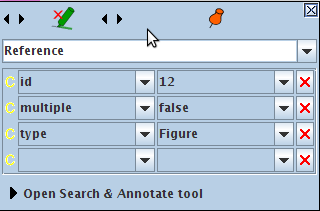
3.4.2 The Annotations List View [#]
To view the list of annotations and their features, click on the ‘Annotations list’ button at the top of the main window or use F4 key. The annotation list view will appear below the main text. It will only contain the annotations selected from the annotation sets view. These lists can be sorted in ascending and descending order for any column, by clicking on the corresponding column heading. Moreover you can hide a column by using the context menu by right-clicking on the column headings. Selecting rows in the table will blink the respective annotations in the document. Right-click on a row or selection in this view to delete or edit an annotation. Delete key is a shortcut to delete selected annotations.
3.4.3 The Annotations Stack View [#]
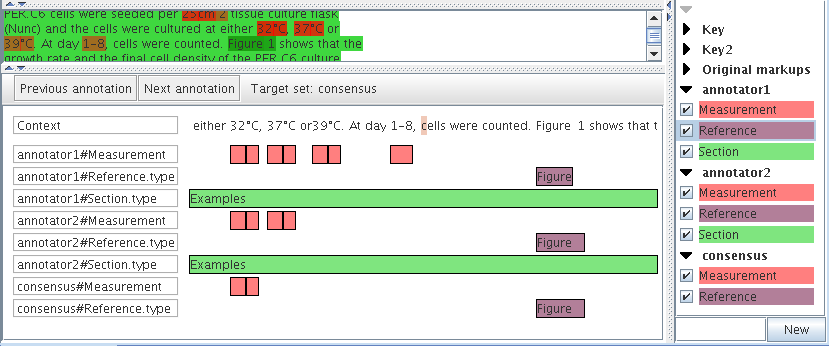
This view is similar to the ANNIC view described in section 9.2. It displays annotations at the document caret position with some context before and after. The annotations are stacked from top to bottom, which gives a clear view when they are overlapping.
As the view is centred on the document caret, you can use the conventional key to move it and update the view: notably the keys left and right to skip one letter; control + left/right to skip one word; up and down to go one line up or down; and use the document scrollbar then click in the document to move further.
There are two buttons at the top of the view that centre the view on the closest previous/next annotation boundary among all displayed. This is useful when you want to skip a region without annotation or when you want to reach the beginning or end of a very long annotation.
The annotation types displayed correspond to those selected in the annotation sets view. You can display feature values for an annotation rectangle by hovering the mouse on it or select only one feature to display by double-clicking on the annotation type in the first column.
Right-click on an annotation in the annotations stack view to edit it. Control-Shift-click to delete it. Double-click to copy it to another annotation set. Control-click on a feature value that contains an URL to display it in your browser.
All of these mouse shortcuts make it easier to create a gold standard annotation set.
3.4.4 The Co-reference Editor [#]
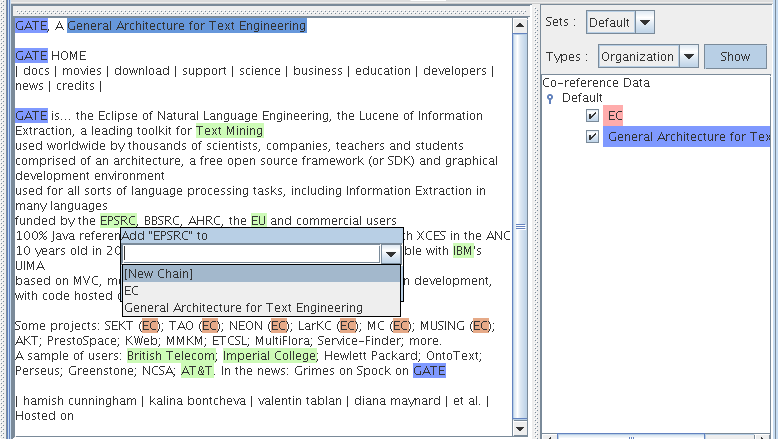
The co-reference editor allows co-reference chains (see Section 6.9) to be displayed and edited in GATE Developer. To display the co-reference editor, first open a document in GATE Developer, and then click on the Co-reference Editor button in the document viewer.
The combo box at the top of the co-reference editor allows you to choose which annotation set to display co-references for. If an annotation set contains no co-reference data, then the tree below the combo box will just show ‘Coreference Data’ and the name of the annotation set. However, when co-reference data does exist, a list of all the co-reference chains that are based on annotations in the currently selected set is displayed. The name of each co-reference chain in this list is the same as the text of whichever element in the chain is the longest. It is possible to highlight all the member annotations of any chain by selecting it in the list.
When a co-reference chain is selected, if the mouse is placed over one of its member annotations, then a pop-up box appears, giving the user the option of deleting the item from the chain. If the only item in a chain is deleted, then the chain itself will cease to exist, and it will be removed from the list of chains. If the name of the chain was derived from the item that was deleted, then the chain will be given a new name based on the next longest item in the chain.
A combo box near the top of the co-reference editor allows the user to select an annotation type from the current set. When the Show button is selected all the annotations of the selected type will be highlighted. Now when the mouse pointer is placed over one of those annotations, a pop-up box will appear giving the user the option of adding the annotation to a co-reference chain. The annotation can be added to an existing chain by typing the name of the chain (as shown in the list on the right) in the pop-up box. Alternatively, if the user presses the down cursor key, a list of all the existing annotations appears, together with the option [New Chain]. Selecting the [New Chain] option will cause a new chain to be created containing the selected annotation as its only element.
Each annotation can only be added to a single chain, but annotations of different types can be added to the same chain, and the same text can appear in more than one chain if it is referenced by two or more annotations.
The movie for inspecting results is also useful for learning about viewing annotations.
3.4.5 Creating and Editing Annotations [#]
To create annotations manually, select the text you want to annotate and hover the mouse on the selection or use control+E keys. A popup will appear, allowing you to create an annotation, as shown in figure 3.9
The type of the annotation, by default, will be the same as the last annotation you created, unless there is none, in which case it will be ‘_New_’. You can enter any annotation type name you wish in the text box, unless you are using schema-driven annotation (see Section 3.4.6). You can add or change features and their values in the table below.
To delete an annotation, click on the red X icon at the top of the popup window. To grow/shrink the span of the annotation at its start use the two arrow icons on the left or right and left keys. Use the two arrow icons next on the right to change the annotation end or alt+right and alt+left keys. Add shift and control+shift keys to make the span increment bigger. The red X icon is for removing the annotation.
The pin icon is to pin the window so that it remains where it is. If you drag and drop the window, this automatically pins it too. Pinning it means that even if you select another annotation (by hovering over it in the main resource viewer) it will still stay in the same position.
The popup menu only contains annotation types present in the Annotation Schema and those already listed in the relevant Annotation Set. To create a new Annotation Schema, see Section 3.4.6. The popup menu can be edited to add a new annotation type, however.
The new annotation created will automatically be placed in the annotation set that has been selected (highlighted) by the user. To create a new annotation set, type the name of the new set to be created in the box below the list of annotation sets, and click on ‘New’.
Figure 3.10 demonstrates adding a ‘Organization’ annotation for the string ‘EPSRC’ (highlighted in green) to the default annotation set (blank name in the annotation set view on the right) and a feature name ‘type’ with a value about to be added.
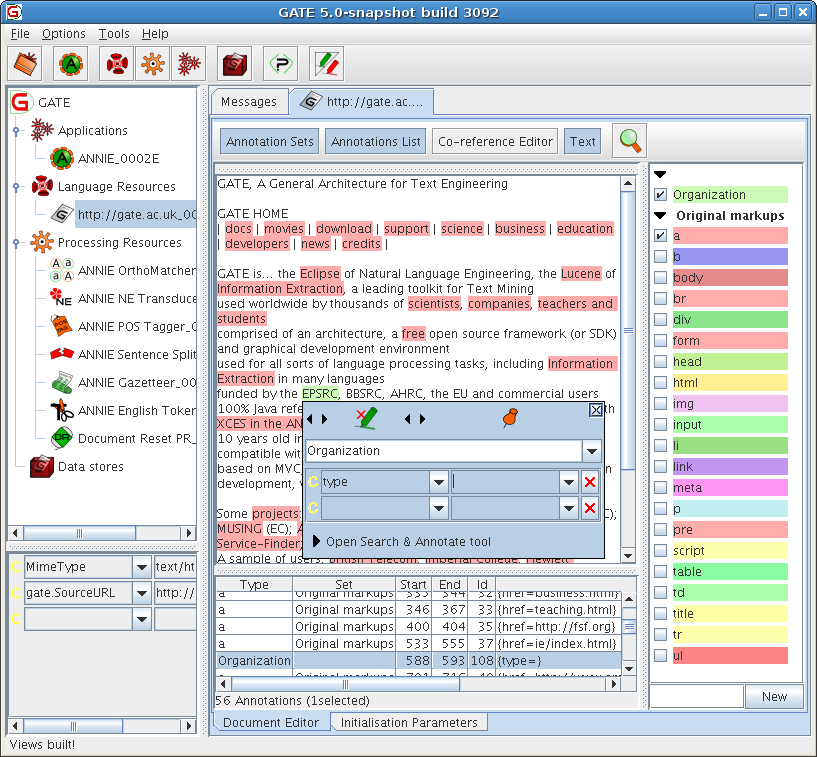
To add a second annotation to a selected piece of text, or to add an overlapping annotation to an existing one, press the CTRL key to avoid the existing annotation popup appearing, and then select the text and create the new annotation. Again by default the last annotation type to have been used will be displayed; change this to the new annotation type. When a piece of text has more than one annotation associated with it, on mouseover all the annotations will be displayed. Selecting one of them will bring up the relevant annotation popup.
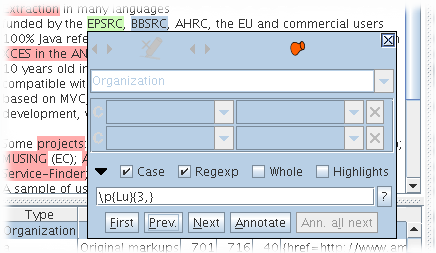
To search and annotate the document automatically, use the search and annotate function as shown in figure 3.11:
-
Create and/or select an annotation to be used as a model to annotate.
-
Open the panel at the bottom of the annotation editor window.
-
Change the expression to search if necessary.
-
Use the [First] button or Enter key to select the first expression to annotate.
-
Use the [Annotate] button if the selection is correct otherwise the [Next] button. After a few cycles of [Annotate] and [Next], Use the [Ann. all next] button.
Note that after using the [First] button you can move the caret in the document and use the [Next] button to avoid continuing the search from the beginning of the document. The [?] button at the end of the search text field will help you to build powerful regular expressions to search.
3.4.6 Schema-Driven Editing [#]
Annotation schemas allow annotation types and features to be pre-specified, so that during manual annotation, the relevant options appear on the drop-down lists in the annotation editor. You can see some example annotation schemas in Section 5.4.1. Annotation schemas provide a means to define types of annotations in GATE Developer. Basically this means that GATE Developer ‘knows about’ annotations defined in a schema. Annotation schemas are supported by the ‘Annotation schema’ language resource, which is one of the default LR types (along with corpus and document) available in GATE without the need to load any plugins.
To load an annotation schema into GATE Developer, right-click on ‘Language Resources’ in the resources pane. Select ‘New’ then ‘Annotation schema’. A popup box will appear in which you can browse to your annotation schema XML file. A default set of annotation schemas for common annotation types including Person, Organization and Location is provided in the ANNIE plugin, and can be loaded by creating an Annotation schema LR from the file plugins/ANNIE/resources/schema/ANNIE-Schemas.xml in the GATE distribution. You can also define your own schemas to tell GATE Developer about other kinds of annotations you frequently use. Each schema file can define only one annotation type, but you can have a master file which includes others, in order to load a group of schemas in one operation. The ANNIE schemas provide an example of this technique.
By default GATE Developer will allow you to create any annotations in a document, whether or not there is a schema to describe them. An alternative annotation editor component is available which constrains the available annotation types and features much more tightly, based on the annotation schemas that are currently loaded. This is particularly useful when annotating large quantities of data or for use by less skilled users.
To use this, you must load the Schema_Annotation_Editor plugin. With this plugin loaded, the annotation editor will only offer the annotation types permitted by the currently loaded set of schemas, and when you select an annotation type only the features permitted by the schema are available to edit1. Where a feature is declared as having an enumerated type the available enumeration values are presented as an array of buttons, making it easy to select the required value quickly.
3.4.7 Printing Text with Annotations [#]
We suggest you to use your browser to print a document as GATE don’t propose a printing facility for the moment.
First save your document by right clicking on the document in the left resources tree then choose ‘Save Preserving Format’. You will get an XML file with all the annotations highlighted as XML tags plus the ‘Original markups’ annotations set.
It’s possible that the output will not have an XML header and footer because the document was created from a plain text document. In that case you can use the XHTML example below.
Then add a stylesheet processing instruction at the beginning of the XML file, the second line in the following minimalist XHTML document:
<?xml version="1.0" encoding="UTF-8" ?>
<?xml-stylesheet type="text/css" href="gate.css"?>
<!DOCTYPE html
     PUBLIC "-//W3C//DTD XHTML 1.0 Strict//EN"
    "http://www.w3.org/TR/xhtml1/DTD/xhtml1-strict.dtd">
<html xmlns="http://www.w3.org/1999/xhtml" xml:lang="en" lang="en">
  <head>
    <title>Virtual Library</title>
  </head>
  <body>
  <p>Content of the document</p>
  ...
  </body>
</html>
And create a file ‘gate.css’ in the same directory:
BODY, body { margin: 2em } /* or any other first level tag */
P, p { display: block } /* or any other paragraph tag */
/* ANNIE tags but you can use whatever tags you want */
/* be careful that XML tags are case sensitive */
Date         { background-color: rgb(230, 150, 150) }
FirstPerson  { background-color: rgb(150, 230, 150) }
Identifier   { background-color: rgb(150, 150, 230) }
JobTitle     { background-color: rgb(150, 230, 230) }
Location     { background-color: rgb(230, 150, 230) }
Money        { background-color: rgb(230, 230, 150) }
Organization { background-color: rgb(230, 200, 200) }
Percent      { background-color: rgb(200, 230, 200) }
Person       { background-color: rgb(200, 200, 230) }
Title        { background-color: rgb(200, 230, 230) }
Unknown      { background-color: rgb(230, 200, 230) }
Etc          { background-color: rgb(230, 230, 200) }
/* The next block is an example for having a small tag
   with the name of the annotation type after each annotation */
Date:after {
content: "Date";
font-size: 50%;
vertical-align: sub;
color: rgb(100, 100, 100);
}
Finally open the XML file in your browser and print it.
Note that overlapping annotations, cannot be expressed correctly with inline XML tags and thus won’t be displayed correctly.
3.5 Using CREOLE Plugins [#]
In GATE, processing resources are used to automatically create and manipulate annotations on documents. We will talk about processing resources in the next section. However, we must first introduce CREOLE plugins. In most cases, in order to use a particular processing resource (and certain language resources) you must first load the CREOLE plugin that contains it. This section talks about using CREOLE plugins. Then, in Section 3.7, we will talk about creating and using processing resources.
The definitions of CREOLE resources (e.g. processing resources such as taggers and parsers, see Chapter 4) are stored in Maven central repository.
Plugins can have one or more of the following states in relation with GATE:
-
known
-
plugins are those plugins that the system knows about. These include all the plugins: 1. default plugins provided by Gate team. 2. The plugins added by the user manually according to the Maven artifact id. 3. those installed in the user’s own plugin directory.
-
loaded
-
plugins are the plugins currently loaded in the system. All CREOLE resource types from the loaded plugins are available for use. All known plugins can easily be loaded and unloaded using the user interface.
-
auto-loadable
-
plugins are the list of plugins that the system loads automatically during initialisation which can be configured via the load.plugin.path system property.
As hinted at above plugins can be loaded from numerous sources:
-
core plugins
-
are distributed with GATE to the Maven central repository.
-
maven plugins
-
are distributed with other parties to the Maven central repository.
-
user plugins
-
are plugins that have been installed by the user into their personal plugins folder. The location of this folder can be set either through the configuration tab of the CREOLE manager interface or via the gate.user.plugins system property
-
remote plugins
-
are plugins which are loaded via http from a remote machine.
Regular Maven users may have additional repositories or “mirror” settings configured in their m2/settings.xml file – GATE will respect these settings when retrieving plugins, including authentication with encrypted passwords in the standard Maven way with a master password in .m2/settings-security.xml. In particular if you have an organisational Maven repository configured as a <mirrorOf>external:*</mirrorOf> then this will be accepted and GATE will not attempt to use the Central Repository directly.
The CREOLE plugins can be managed through the graphical user interface which can be activated by selecting ‘Manage CREOLE Plugins’ from the ‘File’ menu. This will bring up a window listing all the known plugins. For each plugin there are two check-boxes – one labelled ‘Load Now’, which will load the plugin, and the other labelled ‘Load Always’ which will add the plugin to the list of auto-loadable plugins. A ‘Delete’ button is also provided – which will remove the plugin from the list of known plugins. This operation does not delete the actual plugin directory. Installed plugins are found automatically when GATE is started; if an installed plugin is deleted from the list, it will re-appear next time GATE is launched.
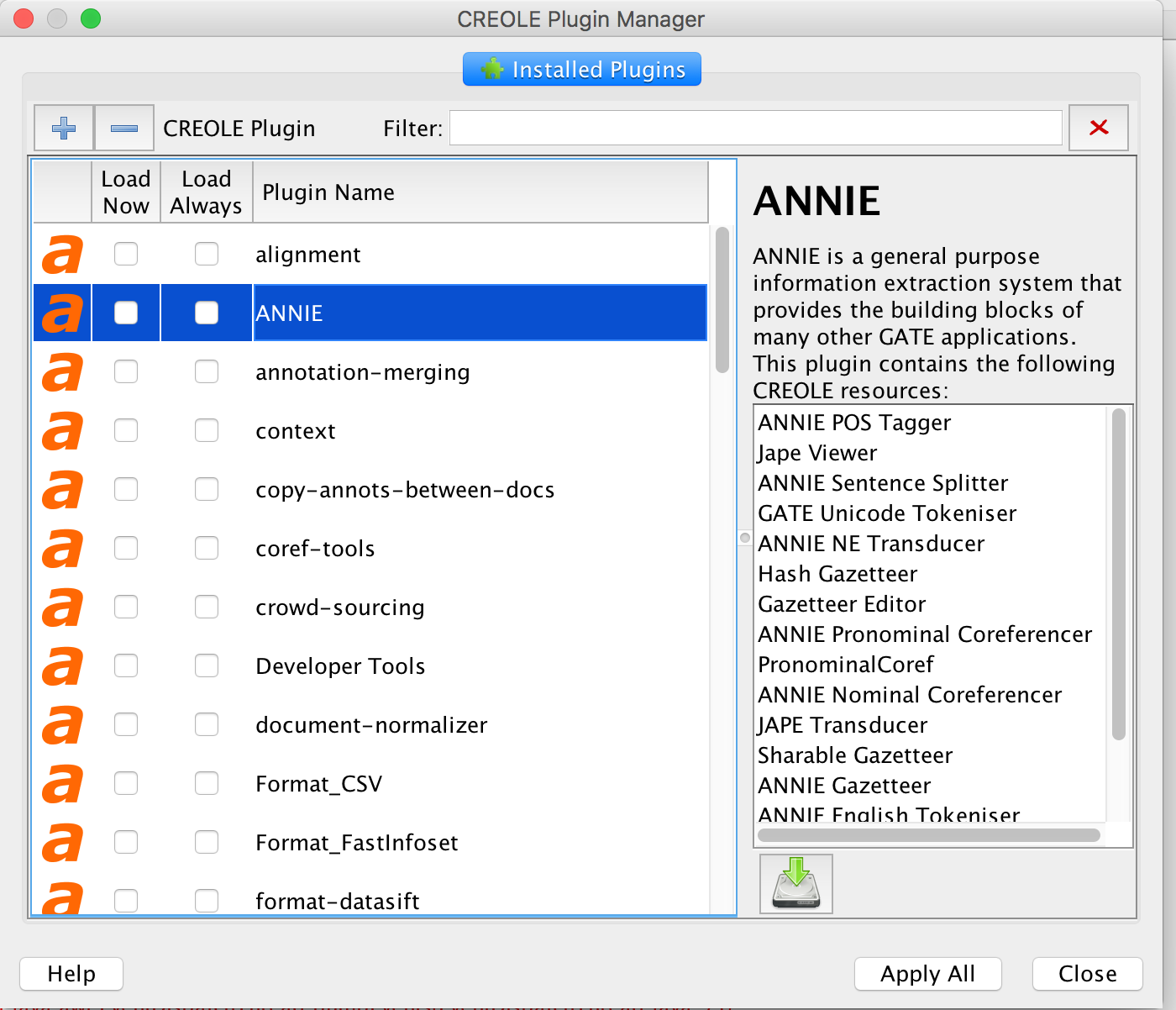
If you select a plugin, you will see in the pane on the right the list of resources that plugin contains. For example, in figure 3.12, the ‘ANNIE’ plugin is selected, and you can see that it contains 17 resources. If you wish to use a particular resource you will have to ascertain which plugin contains it. This list can be useful for that.
Having loaded the plugins you need, the resources they define will be available for use. Typically, to the GATE Developer user, this means that they will appear on the ‘New’ menu when you right-click on ‘Processing Resources’ in the resources pane, although some special plugins have different effects; for example, the Schema_Annotation_Editor (see Section 3.4.6).
Some plugins also contain files which are used to configure the resources. For example, the ANNIE plugin contains the resources for the ANNIE Gazetteer and the ANNIE NE Transducer (amongst other things). While often these files can be used straight from within the plugin, it can be useful to edit them, either to add missing information or as a starting point for delveloping new resources etc. To extract a copy of these resource files from a plugin simply select it in the plugin manager and then click the download resources button shown under the list of resources the plugin defines. This button will only be enabled for plugins which contain such files. After clicking the button you will be asked to select a directory into which to copy the files. You can then edit the files as needed before using them to configure a new instance of the appropriate processing resource.
3.6 Installing and updating CREOLE Plugins [#]
While GATE is distributed with a number of core plugins (see Part III) there are many more plugins developed and made available by other GATE users. Some of these additional plugins can easily be installed into your local copy of GATE through the CREOLE plugin manager.
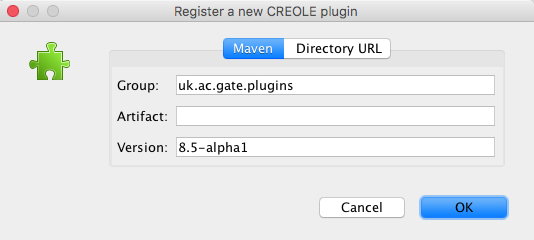
Installing new plugins is simply a case of checking the box and clicking ‘Apply All’. Note that plugins are installed into the user plugins directory, which must have been correctly configured before you can try installing new plugins.
Once a plugin is installed it will appear in the list of ‘Installed Plugins’ and can be loaded in the same way as any other CREOLE plugin (see Section 3.7). If a new version of a plugin you have installed becomes available the new version will be offered as an update. These updates can be installed in the same way as a new plugin.
To register a new plugin just need simply click the ‘+’ button located at the top right corner of Plugin Manager Then you can either register a new plugin by provide the Maven Group and Artifact ID for maven plugins or provide the Dirctory URL for local or remote plugins.
3.7 Loading and Using Processing Resources [#]
This section describes how to load and run CREOLE resources not present in ANNIE. To load ANNIE, see Section 3.8.3. For technical descriptions of these resources, see the appropriate chapter in Part III (e.g. Chapter 23). First ensure that the necessary plugins have been loaded (see Section 3.5). If the resource you require does not appear in the list of Processing Resources, then you probably do not have the necessary plugin loaded. Processing resources are loaded by selecting them from the set of Processing Resources: right click on Processing Resources or select ‘New Processing Resource’ from the File menu.
For example, use the Plugin Console Manager to load the ‘Tools’ plugin. When you right click on ‘Processing Resources’ in the resources pane and select ‘New’ you have the option to create any of the processing resources that plugin provides. You may choose to create a ‘GATE Morphological Analyser’, with the default parameters. Having done this, an instance of the GATE Morphological Analyser appears under ‘Processing Resources’. This processing resource, or PR, is now available to use. Double-clicking on it in the resources pane reveals its initialisation parameters, see figure 3.14.
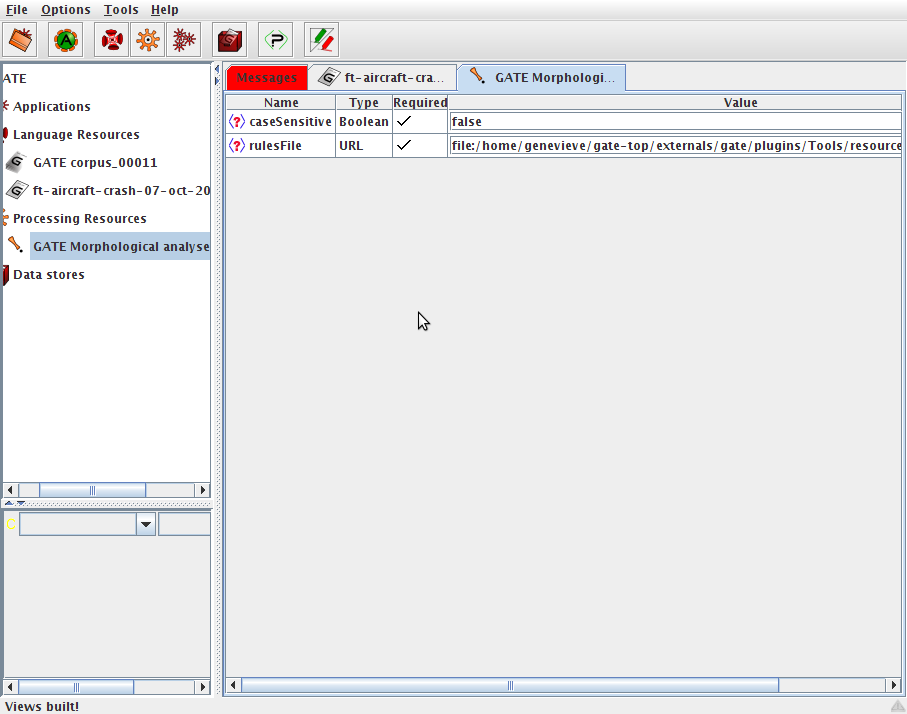
This processing resource is now available to be added to applications. It must be added to an application before it can be applied to documents. You may create as many of a particular processing resource as you wish, for example with different initialisation parameters. Section 3.8 talks about creating and running applications.
See also the movie for loading processing resources.
3.8 Creating and Running an Application [#]
Once all the resources you need have been loaded, an application can be created from them, and run on your corpus. Right click on ‘Applications’ and select ‘New’ and then either ‘Corpus Pipeline’ or ‘Pipeline’. A pipeline application can only be run over a single document, while a corpus pipeline can be run over a whole corpus.
To build the pipeline, double click on it, and select the resources needed to run the application (you may not necessarily wish to use all those which have been loaded).
Transfer the necessary components from the set of ‘loaded components’ displayed on the left hand side of the main window to the set of ‘selected components’ on the right, by selecting each component and clicking on the left and right arrows, or by double-clicking on each component.
Ensure that the components selected are listed in the correct order for processing (starting from the top). If not, select a component and move it up or down the list using the up/down arrows at the left side of the pane.
Ensure that any parameters necessary are set for each processing resource (by clicking on the resource from the list of selected resources and checking the relevant parameters from the pane below). For example, if you wish to use annotation sets other than the Default one, these must be defined for each processing resource.
Note that if a corpus pipeline is used, the corpus needs only to be set once, using the drop-down menu beside the ‘corpus’ box. If a pipeline is used, the document must be selected for each processing resource used.
Finally, click on ‘Run’ to run the application on the document or corpus.
See also the movie for loading and running processing resources.
For how to use the conditional versions of the pipelines see Section 3.8.2 and for saving/restoring the configuration of an application see Section 3.9.3.
3.8.1 Running an Application on a Datastore [#]
To avoid loading all your documents at the same time you can run an application on a datastore corpus.
To do this you need to load your datastore, see section 3.9.2, and to load the corpus from the datastore by double clicking on it in the datastore viewer.
Then, in the application viewer, you need to select this corpus in the drop down list of corpora.
When you run the application on the corpus datastore, each document will be loaded, processed, saved then unloaded. So at any time there will be only one document from the datastore corpus loaded. This prevent memory shortage but is also a little bit slower than if all your documents were already loaded.
The processed documents are automatically saved back to the datastore so you may want to use a copy of the datastore to experiment.
Be very careful that if you have some documents from the datastore corpus already loaded before running the application then they will not be unloaded nor saved. To save such document you have to right click on it in the resources tree view and save it to the datastore.
3.8.2 Running PRs Conditionally on Document Features [#]
The ‘Conditional Pipeline’ and ‘Conditional Corpus Pipeline’ application types are conditional versions of the pipelines mentioned in Section 3.8 and allow processing resources to be run or not according to the value of a feature on the document. In terms of graphical interface, the only addition brought by the conditional versions of the applications is a box situated underneath the lists of available and selected resources which allows the user to choose whether the currently selected processing resource will run always, never or only on the documents that have a particular value for a named feature.
If the Yes option is selected then the corresponding resource will be run on all the documents processed by the application as in the case of non-conditional applications. If the No option is selected then the corresponding resource will never be run; the application will simply ignore its presence. This option can be used to temporarily and quickly disable an application component, for debugging purposes for example.
The If value of feature option permits running specific application components conditionally on document features. When selected, this option enables two text input fields that are used to enter the name of a feature and the value of that feature for which the corresponding processing resource will be run. When a conditional application is run over a document, for each component that has an associated condition, the value of the named feature is checked on the document and the component will only be used if the value entered by the user matches the one contained in the document features.
At first sight the conditional behaviour available with these controller may seem limited, but in fact it is very powerful when used in conjunction with JAPE grammars (see chapter 8). Complex conditions can be encoded in JAPE rules which set the appropriate feature values on the document for use by the conditional controllers. Alternatively, the Groovy plugin provides a scriptable controller (see section 7.16.3) in which the execution strategy is defined by a Groovy script, allowing much richer conditional behaviour to be encoded directly in the controller’s configuration.
3.8.3 Doing Information Extraction with ANNIE [#]
This section describes how to load and run ANNIE (see Chapter 6) from GATE Developer. ANNIE is a good place to start because it provides a complete information extraction application, that you can run on any corpus. You can then view the effects.
From the File menu, select ‘Load ANNIE System’. To run it in its default state, choose ‘with Defaults’. This will automatically load all the ANNIE resources, and create a corpus pipeline called ANNIE with the correct resources selected in the right order, and the default input and output annotation sets.
If ‘without Defaults’ is selected, the same processing resources will be loaded, but a popup window will appear for each resource, which enables the user to specify a name, location and other parameters for the resource. This is exactly the same procedure as for loading a processing resource individually, the difference being that the system automatically selects those resources contained within ANNIE. When the resources have been loaded, a corpus pipeline called ANNIE will be created as before.
The next step is to add a corpus (see Section 3.3), and select this corpus from the drop-down corpus menu in the Serial Application editor. Finally click on ‘Run’ from the Serial Application editor, or by right clicking on the application name in the resources pane and selecting ‘Run’. (Many people prefer to switch to the messages tab, then run their application by right-clicking on it in the resources pane, because then it is possible to monitor any messages that appear whilst the application is running.)
To view the results, double click on one of the document contained in the corpus processed in the left hand tree view. No annotation sets nor annotations will be shown until annotations are selected in the annotation sets; the ‘Default’ set is indicated only with an unlabelled right-arrowhead which must be selected in order to make visible the available annotations. Open the default annotation set and select some of the annotations to see what the ANNIE application has done.
See also the movie for loading and running ANNIE.
3.8.4 Modifying ANNIE [#]
You will need to first make a copy of ANNIE resources by extracting them from the ANNIE plugin via the plugin manager. Once you have a copy of the resources simply locate the file(s) you want to modify, edit them, and then use them to configure the appropriate ANNIE processing resources.
3.9 Saving Applications and Language Resources [#]
In this section, we will describe how applications and language resources can be saved for use outside of GATE and for use with GATE at a later time. Section 3.9.1 talks about saving documents to file. Section 3.9.2 outlines how to use datastores. Section 3.9.3 talks about saving application states (resource parameter states), and Section 3.9.4 talks about exporting applications together with referenced files and resources to a ZIP file.
3.9.1 Saving Documents to File [#]
There are three main ways to save annotated documents:
-
in GATE’s own XML serialisation format (including all the annotations on the document);
-
an inline XML format that saves the original markup and selected annotations
-
by writing your own exporter algorithm as a processing resource
This section describes how to use the first two options.
Both types of data export are available in the popup menu triggered by right-clicking on a document in the resources tree (see Section 3.1) and selecting the “Save As...” menu. In addition, all documents in a corpus can be saved as individual XML files into a directory by right-clicking on the corpus instead of individual documents.
Selecting to save as GATE XML leads to a file open dialogue; give the name of the file you want to create, and the whole document and all its data will be exported to that file. If you later create a document from that file, the state will be restored. (Note: because GATE’s annotation model is richer than that of XML, and because our XML dump implementation sometimes cuts corners2, the state may not be identical after restoration. If your intention is to store the state for later use, use a DataStore instead.)
The ‘Inline XML’ option leads to a richer dialog than the ‘GATE XML’ option. This allows you to select the file to save to at the top of the dialog box, but also then allows you to configure extactly what is saved and how. By default the exporter is configured to save all the annotations from ‘Original markups’ (i.e. those extracted from the source document when it was loaded) as well as Person, Organization, and Location from the default set (i.e. the main output annotations from running ANNIE). Features of these annotations will also be saved.
The annotations are saved as normal XML document tags, using the annotation type as the tag name. If you choose to save features then they will be added as attributes to the relevant XML tags.
Note that GATE’s model of annotation allows graph structures, which are difficult to represent in XML (XML is a tree-structured representation format). During the dump process, annotations that cross each other in ways that cannot be represented in legal XML will be discarded, and a warning message printed.
Saving documents using this ‘Inine XML’ format that were not created from an HTML or XML file often results in a plain text file, with in-line tags for the saved annotations. In otherwords, if the set of annotations you are saving does not include an annotation which spans the entire document, the result will not be valid XML and may not load back into GATE. This format should really be considered a legacy format, and it may be removed in future versions of GATE.
3.9.2 Saving and Restoring LRs in Datastores [#]
Where corpora are large, the memory available may not be sufficient to have all documents open simultaneously. The datastore functionality provides the option to save documents to disk and open them only one at a time for processing. This means that much larger corpora can be used. A datastore can also be useful for saving documents in an efficient and lossless way.
To save a text in a datastore, a new datastore must first be created if one does not already exist. Create a datastore by right clicking on Datastore in the left hand pane, and select the option ‘Create Datastore’. Select the data store type you wish to use. Create a directory to be used as the datastore (note that the datastore is a directory and not a file).
You can either save a whole corpus to the datastore (in which case the structure of the corpus will be preserved) or you can save individual documents. The recommended method is to save the whole corpus. To save a corpus, right click on the corpus name and select the ‘Save to...’ option (giving the name of the datastore created earlier). To save individual documents to the datastore, right clicking on each document name and follow the same procedure.
To load a document from a datastore, do not try to load it as a language resource. Instead, open the datastore by right clicking on Datastore in the left hand pane, select ‘Open Datastore’ and choose the datastore to open. The datastore tree will appear in the main window. Double click on a corpus or document in this tree to open it. To save a corpus and document back to the same datastore, simply select the ‘Save’ option.
See also the movie for creating a datastore and the movie for loading corpus and documents from a datastore.
3.9.3 Saving Application States to a File [#]
Resources, and applications that are made up of them, are created based on the settings of their parameters (see Section 3.7). It is possible to save the data used to create an application to a file and re-load it later. To save the application to a file, right click on it in the resources tree and select ‘Save application state’, which will give you a file creation dialogue. Choose a file name that ends in gapp as this file dialog and the one for loading application states age displays all files which have a name ending in gapp. A common convention is to use .gapp or .xgapp as a file extension.
To restore the application later, select ‘Restore application from file’ from the ‘File’ menu.
Note that the data that is saved represents how to recreate an application – not the resources that make up the application itself. So, for example, if your application has a resource that initialises itself from some file (e.g. a grammar, a document) then that file must still exist when you restore the application.
In case you don’t want to save the corpus configuration associated with the application then you must select ‘<none>’ in the corpus list of the application before saving the application.
The file resulting from saving the application state contains the values of the initialisation and runtime parameters for all the processing resources contained by the stored application as well as the values of the initialisation parameters for all the language resources referenced by those processing resources. Note that if you reference a document that has been created with an empty URL and empty string content parameter and subsequently been manually edited to add content, that content will not be saved. In order for document content to be preserved, load the document from an URL, specify the content as for the string content parameter or use a document from a datastore.
For the parameters of type URL or “ResourceReference” (which are typically used to select resources such as grammars or rules files either from inside the plugin or elsewhere on disk) a transformation is applied so that the paths are are stored relative to either the location of the saved application state file or a special user resources home directory, according to the following rules:
-
If the property gate.user.resourceshome is set to the path of a directory and the resource is located inside that directory but the state file is saved to a location outside of this directory, the path is stored relative to this directory and the path marker $resourceshome$ is used.
-
in all other situations, the path is stored relative to the location of the application state file location and the the path marker $relpath$ is used.
References to resources inside GATE plugins are stored as a special type of URI of the form creole://group;artifact;version/path/inside/plugin. In this way, all resource files that are part of plugins are always used corretly, no matter where the plugins are stored. Resource files which are not part of a plugin and used by an application do not need to be in the same location as when the application was initially created but rather in the same location relative to the location of the application file. In addition if your application uses a project-specific location for global resources or project specific plugins, the java property gate.user.resourceshome can be set to this location and the application will be stored so that this location will also always be used correctly, no matter where the application state file is copied to. To set the resources home directory, the -rh location option for the Linux script gate.sh to start GATE can be used. The combination of these features allows the creation and deployment of portable applications by keeping the application file and the resource files used by the application together.
If your application uses resources from inside plugins then those resources may change if you upgrade your application to a newer version of the plugin. If you want to upgrade to a newer plugin but keep the same resources you should export a copy of the resource files from the plugin onto disk and load them from there instead of using the plugin-relative defaults.
When an application is restored from an application state file, GATE uses the keyword $relpath$ for paths relative to the location of the gapp file and $resourceshom$ for paths relative to the the location the property gate.user.resourceshome is set. There exists other keywords that can be interesting in some cases. You will need to edit the gapp file manually. You can use $sysprop:...$ to declare paths relative to any java system property, for example $sysprop:user.home$.
If you want to save your application along with all plugins and resources it requires you can use the ‘Export for GATE Cloud’ option (see Section 3.9.4).
See also the movie for saving and restoring applications.
3.9.4 Saving an Application with its Resources (e.g. GATE Cloud) [#]
When you save an application using the ‘Save application state’ option (see Section 3.9.3), the saved file contains references to the plugins that were loaded when the application was saved, and to any resource files required by the application. To be able to reload the file, these plugins and other dependencies must exist at the same locations (relative to the saved state file). While this is fine for saving and loading applications on a single machine it means that if you want to package your application to run it elsewhere (e.g. deploy it to GATE Cloud) then you need to be careful to include all the resource files and plugins at the right locations in your package. The ‘Export for GATE Cloud’ option on the right-click menu for an application helps to automate this process.
When you export an application in this way, GATE Developer produces a ZIP file containing the saved application state (in the same format as ‘Save application state’). Any plugins and resource files that the application refers to are also included in the zip file, and the relative paths in the saved state are rewritten to point to the correct locations within the package. The resulting package is therefore self-contained and can be copied to another machine and unpacked there, or passed to GATE Cloud for deployment. Maven-style plugins will be resolved from within the package rather than being downloaded at runtime from the internet.
There are a few important points to note about the export process:
-
All plugins that are loaded at the point when you perform the export will be included in the resulting package. Use the plugin manager to unload any plugins your application is not using before you export it.
-
If your application refers to a resource file that is in a directory on disk rather than inside one of the loaded plugins, the entire contents of this directory will be recursively included in the package. If you have a number of unrelated resources in a single directory (e.g. many sets of large gazetteer lists) you may want to separate them into separate directories so that only the relevant ones are included in the package.
-
The packager only knows about resources that your application refers to directly in its parameters. For example, if your application includes a multi-phase JAPE grammar the packager will only consider the main grammar file, not any of its sub-phases. If the sub-phases are not contained in the same directory as the main grammar you may find they are not included. If indirect references of this kind are all to files under the same directory as the ‘master’ file it will work OK.
If you require more flexibility than this option provides you should read Section E.2, which describes the underlying Ant task that the exporter uses.
3.9.5 Upgrade An Application to use Newer Versions of Plugins [#]
Some of the changes introduced in GATE 8.5 mean that applications saved with a previous version of GATE might not load without being updated. Loading such an application is likely to result in errors similar to those seen in Figure 3.15.
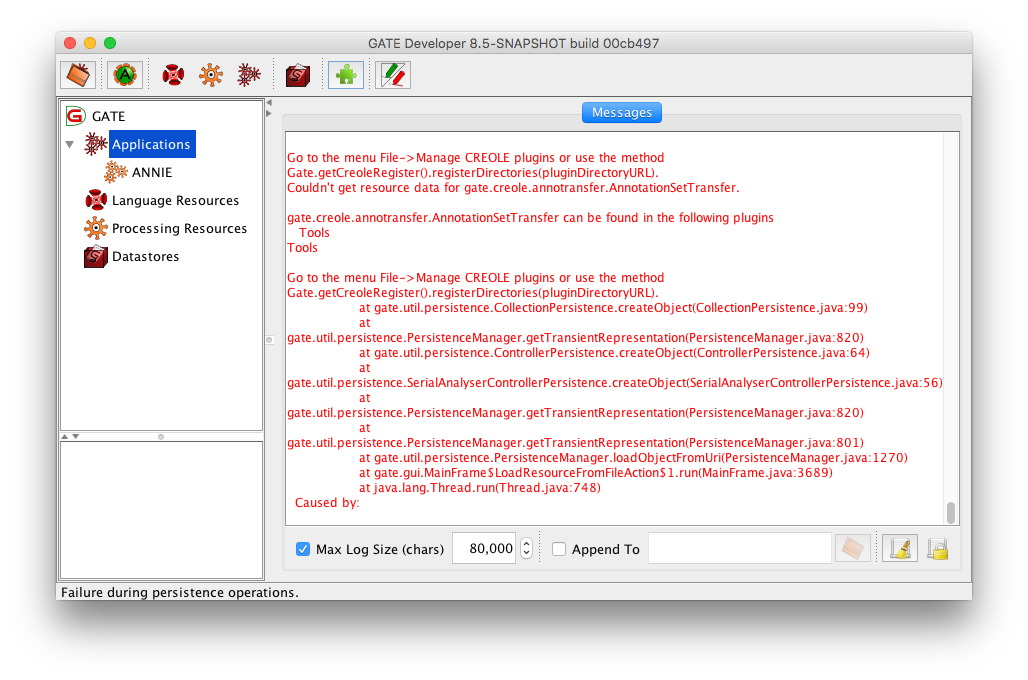
In order to load such application into GATE 8.5 (or above), you need first upgrade them to use compatible versions of the relevant plugins. In most cases this process can be automated and we provide a tool to walk you through the process. To start upgrading an application select ‘Upgrade XGapp’ from the ‘Tools’ menu. This will first ask you to choose an application file to upgrade and will then present the UI shown in Figure 3.16.
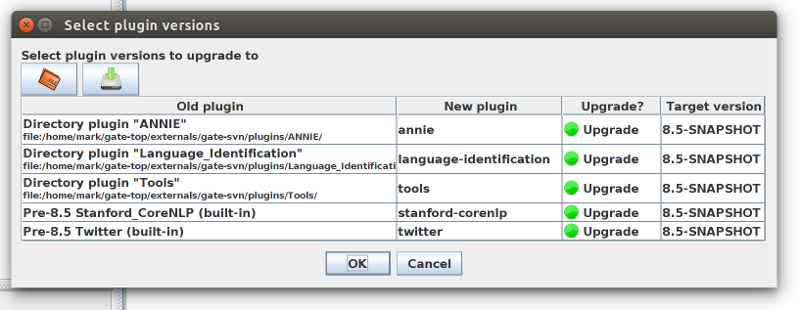
One the application has been analysed the tool will show you a table in which each row signifies a plugin used by the app. In the left most column it lists the plugin currently referenced by the application. This is followed by details of the new plugin. While in most cases the tool can correctly determine the right plugin to offer in this column you can correct any mistakes by double-clicking the incorrect plugin and then specifying the correct plugin location. The final two columns determine if the plugin is upgraded and to which version. The versions offered are all those which are available and known to be compatible with the version of GATE you are running. By default the latest available version will be selected, although -SNAPSHOT versions are only selected by default if you are also running a -SNAPSHOT version of GATE.
The ‘Upgrade’ column allows you to determine if and how a plugin will be upgraded. The three possible choices are Upgrade, Plugin Only, and Skip. Skip is fairly self explanatory but upgrade and plugin only require a little more explanation. Upgrade means that not only will the plugin location be upgraded, but also any resources that reside within the plugin will also be changed to reference those within the new plugin. This is the only upgrade option when considering a plugin which was originally part of the GATE distribution. The plugin only option allows you to change the application to load a new version of the plugin which leaving the resource locations untouched. This is useful for cases where you have edited the resources inside a plugin rather than having created a separate copy specific to the application.
After upgrade, the old version of the application file will still be available but will have been renamed by adding the ’.bak’ suffix.
In most cases this upgrade process will work without issue. If, however, you find you have an application which fails to open after the upgrade then it maybe because one or more plugins couldn’t be correctly mapped to new versions. In these cases the best option is to revert the upgrade (replace the xgapp file with the generated backup), load the application into GATE 8.4.1 and then use the “Export for GATE Cloud” option to produce a self contained application (see Section 3.9.4). Then finally run the upgrade tool over this version of the application.
The two buttons at the top of the dialog allow you save and restore the mappings defined in the table. This makes it easier to upgrade a set of related applications which should all be upgraded in a similar fashion.
Note that this process is not limited simply to upgrading applications saved prior to GATE 8.5 but can be used at any time to upgrade the version of a plugin used by an application.
3.10 Keyboard Shortcuts [#]
You can use various keyboard shortcuts for common tasks in GATE Developer. These are listed in this section.
General (Section 3.1):
-
F1 Display a help page for the selected component
-
Alt+F4 Exit the application without confirmation
-
Tab Put the focus on the next component or frame
-
Shift+Tab Put the focus on the previous component or frame
-
F6 Put the focus on the next frame
-
Shift+F6 Put the focus on the previous frame
-
Alt+F Show the File menu
-
Alt+O Show the Options menu
-
Alt+T Show the Tools menu
-
Alt+H Show the Help menu
-
F10 Show the first menu
Resources tree (Section 3.1):
-
Enter Show the selected resources
-
Ctrl+H Hide the selected resource
-
Ctrl+Shift+H Hide all the resources
-
F2 Rename the selected resource
-
Ctrl+F4 Close the selected resource
Document editor (Section 3.2):
-
Ctrl+F Show the search dialog for the document
-
Ctrl+E Edit the annotation at the caret position
-
Ctrl+S Save the document in a file
-
F3 Show/Hide the annotation sets
-
Shift+F3 Show the annotation sets with preselection
-
F4 Show/Hide the annotations list
-
F5 Show/Hide the coreference editor
-
F7 Show/Hide the text
Annotation editor (Section 3.4):
-
Right/Left Grow/Shrink the annotation span at its start
-
Alt+Right/Alt+Left Grow/Shrink the annotation span at its end
-
+Shift/+Ctrl+Shift Use a span increment of 5/10 characters
-
Alt+Delete Delete the currently edited annotation
Annic/Lucene datastore (Chapter 9):
-
Alt+Enter Search the expression in the datastore
-
Alt+Backspace Delete the search expression
-
Alt+Right Display the next page of results
-
Alt+Left Display the row manager
-
Alt+E Export the results to a file
Annic/Lucene query text field (Chapter 9):
-
Ctrl+Enter Insert a new line
-
Enter Search the expression
-
Alt+Top Select the previous result
-
Alt+Bottom Select the next result
3.11 Miscellaneous [#]
3.11.1 Stopping GATE from Restoring Developer Sessions/Options [#]
GATE can remember Developer options and the state of the resource tree when it exits. The options are saved by default; the session state is not saved by default. This default behaviour can be changed from the ‘Advanced’ tab of the ‘Configuration’ choice on the ‘Options’ menu (or the ‘Preferences’ option on the ‘GATE’ application menu on Mac).
If a problem occurs and the saved data prevents GATE Developer from starting, you can fix this by deleting the configuration and session data files. These are stored in your home directory, and are called gate.xml and gate.sesssion or .gate.xml and .gate.sesssion depending on platform. On Windows your home is typically:
-
95, 98, NT:
-
Windows Directory/profiles/username
-
2000, XP:
-
Windows Drive/Documents and Settings/username
-
Windows 7 or later
-
Windows Drive/Users/username
though the directory name may be in your local language if your copy of Windows is not in English.
3.11.2 Working with Unicode [#]
When you create a document from a URL pointing to textual data in GATE, you have to tell the system what character encoding the text is stored in. By default, GATE will set this parameter to be the empty string. This tells Java to use the default encoding for whatever platform it is running on at the time – e.g. on Western versions of Windows this will be ISO-8859-1, and Eastern ones ISO-8859-9. On Linux systems, the default encoding is influenced by the LANG environment variable, e.g. when this variable is set to en_US.utf-8 the default encoding used will be UTF-8. You can change the default encoding used by GATE to UTF-8 by adding -Dfile.encoding=UTF-8 to the gate.l4j.ini file.
A popular way to store Unicode documents is in UTF-8, which is a superset of ASCII (but can still store all Unicode data); if you get an error message about document I/O during reading, try setting the encoding to UTF-8, or some other locally popular encoding.
Chapter 4
CREOLE: the GATE Component Model [#]
The GATE architecture is based on components: reusable chunks of software with well-defined interfaces that may be deployed in a variety of contexts. The design of GATE is based on an analysis of previous work on infrastructure for LE, and of the typical types of software entities found in the fields of NLP and CL (see in particular chapters 4–6 of [Cunningham 00]). Our research suggested that a profitable way to support LE software development was an architecture that breaks down such programs into components of various types. Because LE practice varies very widely (it is, after all, predominantly a research field), the architecture must avoid restricting the sorts of components that developers can plug into the infrastructure. The GATE framework accomplishes this via an adapted version of the Java Beans component framework from Sun, as described in section 4.2.
GATE components may be implemented by a variety of programming languages and databases, but in each case they are represented to the system as a Java class. This class may do nothing other than call the underlying program, or provide an access layer to a database; on the other hand it may implement the whole component.
GATE components are one of three types:
-
LanguageResources (LRs) represent entities such as lexicons, corpora or ontologies;
-
ProcessingResources (PRs) represent entities that are primarily algorithmic, such as parsers, generators or ngram modellers;
-
VisualResources (VRs) represent visualisation and editing components that participate in GUIs.
The distinction between language resources and processing resources is explored more fully in section D.1.1. Collectively, the set of resources integrated with GATE is known as CREOLE: a Collection of REusable Objects for Language Engineering.
In the rest of this chapter:
-
Section 4.3 describes the lifecycle of GATE components;
-
Section 4.4 describes how Processing Resources can be grouped into applications;
-
Section 4.5 describes the relationship between Language Resources and their datastores;
-
Section 4.6 summarises GATE’s set of built-in components;
-
Section 4.7 describes how configuration data for Resource types is supplied to GATE.
4.1 The Web and CREOLE [#]
GATE allows resource implementations and Language Resource persistent data to be distributed over the Web, and uses Java annotations for configuration of resources (and GATE itself).
Resource implementations are grouped together as ‘plugins’, stored either in a single JAR file published via the standard Maven repository mechanism, or at a URL (when the resources are in the local file system this would be a file:/ URL). When a plugin is loaded into GATE it looks for a configuration file called creole.xml relative to the plugin URL or inside the plugin JAR file and uses the contents of this file in combination with Java annotations on the source code to determine what resources this plugin declares and, in the case of directory-style plugins, where to find the classes that implement the resource types (typically a JAR file in the plugin directory). GATE retrieves the configuration information from the plugin’s resource classes and adds the resource definitions to the CREOLE register. When a user requests an instantiation of a resource, GATE creates an instance of the resource class in the virtual machine.
Language resource data can be stored in binary serialised form in the local file system.
4.2 The GATE Framework [#]
We can think of the GATE framework as a backplane into which users can plug CREOLE components. The user gives the system a list of plugins to search when it starts up, and components in those plugins are loaded by the system.
The backplane performs these functions:
-
component discovery, bootstrapping, loading and reloading;
-
management and visualisation of native data structures for common information types;
-
generalised data storage and process execution.
A set of components plus the framework is a deployment unit which can be embedded in another application.
At their most basic, all GATE resources are Java Beans, the Java platform’s model of software components. Beans are simply Java classes that obey certain interface conventions:
-
beans must have no-argument constructors.
-
beans have properties, defined by pairs of methods named by the convention setProp and getProp .
GATE uses Java Beans conventions to construct and configure resources at runtime, and defines interfaces that different component types must implement.
4.3 The Lifecycle of a CREOLE Resource [#]
CREOLE resources exhibit a variety of forms depending on the perspective they are viewed from. Their implementation is as a Java class plus an XML metadata file living at the same URL. When using GATE Developer, resources can be loaded and viewed via the resources tree (left pane) and the ‘create resource’ mechanism. When programming with GATE Embedded, they are Java objects that are obtained by making calls to GATE’s Factory class. These various incarnations are the phases of a CREOLE resource’s ‘lifecycle’. Depending on what sort of task you are using GATE for, you may use resources in any or all of these phases. For example, you may only be interested in getting a graphical view of what GATE’s ANNIE Information Extraction system (see Chapter 6) does; in this case you will use GATE Developer to load the ANNIE resources, and load a document, and create an ANNIE application and run it on the document. If, on the other hand, you want to create your own resources, or modify the Java code of an existing resource (as opposed to just modifying its grammar, for example), you will need to deal with all the lifecycle phases.
The various phases may be summarised as:
-
Creating a new resource from scratch (bootstrapping).
-
To create the binary image of a resource (a Java class in a JAR file), and the XML file that describes the resource to GATE, you need to create the appropriate .java file(s), compile them and package them as a .jar. GATE provides a Maven archetype to start this process – see Section 7.12. Alternatively you can simply copy code from an existing resource.
-
Instantiating a resource in GATE Embedded.
-
To create a resource in your own Java code, use GATE’s Factory class (this takes care of parameterising the resource, restoring it from a database where appropriate, etc. etc.). Section 7.2 describes how to do this.
-
Loading a resource into GATE Developer.
-
To load a resource into GATE Developer, use the various ‘New ... resource’ options from the File menu and elsewhere. See Section 3.1.
-
Resource configuration and implementation.
-
GATE’s Maven archetype will create an empty resource that does nothing. In order to achieve the behaviour you require, you’ll need to change the Java code and its configuration annotations. See section 4.7 for more details.
4.4 Processing Resources and Applications [#]
PRs can be combined into applications. Applications model a control strategy for the execution of PRs. In GATE, applications are called ‘controllers’ accordingly.
Currently the main application types provided by GATE implement sequential or “pipeline” control flow. There are two main types of pipeline:
-
Simple pipelines
-
simply group a set of PRs together in order and execute them in turn. The implementing class is called SerialController.
-
Corpus pipelines
-
are specific for LanguageAnalysers – PRs that are applied to documents and corpora. A corpus pipeline opens each document in the corpus in turn, sets that document as a runtime parameter on each PR, runs all the PRs on the corpus, then closes the document. The implementing class is called SerialAnalyserController.
Conditional versions of these controllers are also available. These allow processing resources to be run conditionally on document features. See Section 3.8.2 for how to use these. If more flexibility is required, the Groovy plugin provides a scriptable controller (see section 7.16.3) whose execution strategy is specified using the Groovy programming language.
Controllers are themselves PRs – in particular a simple pipeline is a standard PR and a corpus pipeline is a LanguageAnalyser – so one pipeline can be nested in another. This is particularly useful with conditional controllers to group together a set of PRs that can all be turned on or off as a group.
There is also a real-time version of the corpus pipeline. When creating such a controller, a timeout parameter needs to be set which determines the maximum amount of time (in milliseconds) allowed for the processing of a document. Documents that take longer to process, are simply ignored and the execution moves to the next document after the timeout interval has lapsed.
All controllers have special handling for processing resources that implement the interface gate.creole.ControllerAwarePR. This interface provides methods that are called by the controller at the start and end of the whole application’s execution – for a corpus pipeline, this means before any document has been processed and after all documents in the corpus have been processed, which is useful for PRs that need to share data structures across the whole corpus, build aggregate statistics, etc. For full details, see the JavaDoc documentation for ControllerAwarePR.
4.5 Language Resources and Datastores [#]
Language Resources can be stored in Datastores. Datastores are an abstract model of disk-based persistence, which can be implemented by various types of storage mechanism. Here are the types implemented:
-
Serial Datastores
-
are based on Java’s serialisation system, and store data directly into files and directories.
-
Lucene Datastores
-
is a full-featured annotation indexing and retrieval system. It is provided as part of an extension of the Serial Datastores. See Section 9 for more details.
4.6 Built-in CREOLE Resources [#]
GATE comes with various built-in components:
-
Language Resources modelling Documents and Corpora, and various types of Annotation Schema – see Chapter 5.
-
Processing Resources that are part of the ANNIE system – see Chapter 6.
-
Gazetteers – see Chapter 13.
-
Ontologies – see Chapter 14.
-
Machine Learning resources – see Chapter 19.
-
Alignment tools – see Chapter 20.
-
Parsers and taggers – see Chapter 18.
-
Other miscellaneous resources – see Chapter 23.
4.7 CREOLE Resource Configuration [#]
This section describes how to supply GATE with the configuration data it needs about a resource, such as what its parameters are, how to display it if it has a visualisation, etc. Several GATE resources can be grouped into a single plugin, which is a directory or JAR file containing an XML configuration file called creole.xml at its root. The creole.xml file provides metadata about the plugin as a whole, the configuration for individual resource classes is given directly in the Java source file using Java annotations.
A creole.xml file has a root element <CREOLE-DIRECTORY> which supports several optional attribute:
-
NAME:
-
The name of the plugin. Used in the GUI to help identify the plugin in a nicer way than the direcory or artifact name.
-
VERSION:
-
The version number of the plugin. For example, 3, 3.1, 3.11, 3.12-SNAPSHOT etc.
-
DESCRIPTION:
-
A short description of the resources provided by the plugin. Note that there is really only space for a single sentence in the GUI.
-
GATE-MIN:
-
The earliest version of GATE that this plugin is compatible with. This should be in the same format as the version shown in the GATE titlebar, i.e. 8.5 or 8.6-beta1. Do not include the build number information.
Currently all these attributes are optional, as in most cases the information can be pulled from other elements of the plugin metadata; for example, plugins distributued via Maven will use information from the pom.xml if not specified.
For many simple single-JAR plugins the creole.xml file need have no other content – just an empty <CREOLE-DIRECTORY /> element – but there are certain child elements that are used in some types of plugin.
Directory-style plugins need at least one <JAR> child element to tell GATE where to find the classes that implement the plugin’s resources. Each <JAR> element contains a path to a JAR file, which is resolved relative to the location of the creole.xml, for example:
<CREOLE-DIRECTORY>
  <JAR SCAN="true">myPlugin.jar</JAR>
  <JAR>lib/thirdPartyLib.jar</JAR>
</CREOLE-DIRECTORY>
JAR files that contain resource classes must be specified with SCAN="true", which tells GATE to scan the JAR contents to discover resource classes annotated with @CreoleResource (see below). Other JAR files required by the plugin can be specified using other <JAR> elements without SCAN="true".
Plugins can depend on other plugins, for example if a plugin defines a PR which internally makes use of a JAPE transducer then that plugin would declare that it depends on ANNIE (the standard plugin that defines the JAPE transducer PR). This is done with a <REQUIRES> element. To depend on a single-JAR plugin from a Maven repository, use an empty element with attributes GROUP, ARTIFACT and VERSION, for example
<CREOLE-DIRECTORY>
  <REQUIRES GROUP="uk.ac.gate.plugins"
            ARTIFACT="annie"
            VERSION="8.5" />
</CREOLE-DIRECTORY>
Directory-style plugins can also depend on other directory-style plugins using a relative path (e.g. <REQUIRES>../other-plugin</REQUIRES>, but this is generally discouraged – if your plugin is likely to be required as a dependency of other plugins then it is better converted to the single JAR Maven style so the dependency can be handled via group/artifact/version co-ordinates.
You may see old plugins with other elements such as <RESOURCE>, this is the older style of configuration in XML, which is now deprecated in favour of the annotations described below.
4.7.1 Configuring Resources using Annotations [#]
The configuration of the resources within a plugin is handled using Java annotation types to embed the configuration data directly in the Java source code. @CreoleResource is used to mark a class as a GATE resource, and parameter information is provided through annotations on the JavaBean set methods. At runtime these annotations are read and used to construct the resource data that is registered with the CREOLE register. The metadata annotation types are all marked @Documented so the CREOLE configuration data will be visible in the generated JavaDoc documentation.
For more detailed information, see the JavaDoc documentation for gate.creole.metadata.
Basic Resource-Level Data
To mark a class as a CREOLE resource, simply use the @CreoleResource annotation (in the gate.creole.metadata package), for example:
2import gate.creole.metadata.*;
3
4@CreoleResource(name = "GATE Tokeniser",
5 comment = "Splits text into tokens and spaces")
6public class Tokeniser extends AbstractLanguageAnalyser {
7 ...
8}
The @CreoleResource annotation provides slots for various configuration values:
-
name
-
(String) the name of the resource, as it will appear in the ‘New’ menu in GATE Developer. If omitted, defaults to the bare name of the resource class (without a package name).
-
comment
-
(String) a descriptive comment about the resource, which will appear as the tooltip when hovering over an instance of this resource in the resources tree in GATE Developer. If omitted, no comment is used.
-
helpURL
-
(String) a URL to a help document on the web for this resource. It is used in the help browser inside GATE Developer.
-
isPrivate
-
(boolean) should this resource type be hidden from the GATE Developer GUI, so it does not appear in the ‘New’ menus? If omitted, defaults to false (i.e. not hidden).
-
icon
-
(String) the icon to use to represent the resource in GATE Developer. If omitted, a generic language resource or processing resource icon is used. The value of this element can be:
-
a plain name such as “Application”, which is prepended with the package name gate.resources.img.svg. and the suffix “Icon”, which is assumed to be a Java class implementing javax.swing.Icon. GATE provides a collection of these icon classes which are generated from SVG files and are fully scalable for high-DPI monitors.
-
a path to an image file inside the plugin’s JAR, starting with a forward slash, e.g. /myplugin/images/icon.png
-
-
interfaceName
-
(String) the interface type implemented by this resource, for example a new type of document would specify "gate.Document" here.
-
tool
-
(boolean) is this resource type a tool? The “tool” flag identifies things like resource helpers and resources that contribute items to the tools menu in GATe Developer.
-
autoInstances
-
(array of @AutoInstance annotations) definitions for any instances of this resource that should be created automatically when the plugin is loaded. If omitted, no auto-instances are created by default. Auto-instances are useful for things like document formats and tools which contribute behaviour to other GATE resources, and which should be available by default whenever the plugin is loaded.
For visual resources only, the following elements are also available:
-
guiType
-
(GuiType enum) the type of GUI this resource defines. The options are LARGE (the VR should appear in the main right-hand panel of the GUI) or SMALL (the VR should appear in the bottom left hand corner below the resources tree).
-
resourceDisplayed
-
(String) the class name of the resource type that this VR displays, e.g. "gate.Corpus". Any resource whose type is assignable to this type will be displayed with this viewer, so for example a VR that can display all types of document would specify gate.Document, whereas a VR that can only display the default GATE document implementation would specify gate.corpora.DocumentImpl.
-
mainViewer
-
(boolean) is this VR the ‘most important’ viewer for its displayed resource type? If there are several different viewers that are all applicable to a particular resource type, the mainViewer hint helps GATE Developer decide which one should be initially visible as the selected tab.
For annotation viewers, you should specify an annotationTypeDisplayed element giving the annotation type that the viewer can display (e.g. Sentence).
Resource Parameters
Parameters are declared by placing annotations on their JavaBean set methods. To mark a setter method as a parameter, use the @CreoleParameter annotation, for example:
  @CreoleParameter(comment = "The location of the list of abbreviations")
  public void setAbbrListUrl(URL listUrl) {
    ...
GATE will infer the parameter’s name from the name of the JavaBean property in the usual way (i.e. strip off the leading set and convert the following character to lower case, so in this example the name is abbrListUrl). The parameter name is not taken from the name of the method parameter. The parameter’s type is inferred from the type of the method parameter (java.net.URL in this case).
The annotation elements of @CreoleParameter are as follows:
-
comment
-
(String) an optional descriptive comment about the parameter.
-
defaultValue
-
(String) the optional default value for this parameter. The value is specified as a string but is converted to the relevant type by GATE according to the conversions described below.
-
suffixes
-
(String) for parameters of type URL or ResourceReference, a semicolon-separated list of default file suffixes that this parameter accepts.
-
collectionElementType
-
(Class) for Collection-valued parameters, the type of the elements in the collection. This can usually be inferred from the generic type information, for example public void setIndices(List<Integer> indices), but must be specified if the set method’s parameter has a raw (non-parameterized) type.
Parameter default values must be specified as strings, but parameters can be of any type and GATE applies the following rules to convert the default string into an appropriate value for the parameter type:
-
String
-
if the parameter is of type String the default value is used directly
-
Primitive wrapper types e.g. Integer
-
the string is passed to the relevant valueOf method
-
enum types
-
the value is passed to Enum.valueOf
-
java.net.URL or gate.creole.ResourceReference
-
the string is parsed as a URI, and if the URI is relative then it is resolved against the plugin (for directory-style plugins this means against the location of creole.xml and for Maven plugins it is the root of the plugin JAR file)
-
collection types (Set, List, etc.)
-
the string is treated as a semicolon-separated list of values, and each value is converted to the collection’s element type following these same rules.
-
gate.FeatureMap
-
the string is parsed as “feature1=value1;feature2=value2” etc. (a semicolon-separated list of “name=value” pairs)
-
any other java.* type
-
if the type has a constructor taking a String then that constructor is called with the default string as its parameter.
If there is no default specified, the default value is null.
Mutually-exclusive parameters are handled by adding a disjunction="label" and priority=n to the @CreoleParameter annotation – all parameters that share the same label are grouped in the same disjunction, and will be offered in order of priority. The parameter with the smallest priority value will be the one listed first, and thus the one that is offered initially when creating a resource of this type in GATE Developer. For example, the following is a simplified extract from gate.corpora.DocumentImpl:
2public void setSourceUrl(URL src) { /∗ ∗/ }
3
4@CreoleParameter(disjunction="src", priority=2)
5public void setStringContent(String content) { /∗ ∗/ }
This declares the parameters “stringContent” and “sourceUrl” as mutually-exclusive, and when creating an instance of this resource in GATE Developer the parameter that will be shown initially is sourceUrl. To set stringContent instead the user must select it from the drop-down list. Parameters with the same declared priority value will appear next to each other in the list, but their relative ordering is not specified. Parameters with no explicit priority are always listed after those that do specify a priority.
Optional and runtime parameters are marked using extra annotations, for example:
Runtime parameters apply only to Processing Resources, and are parameters that are not used when the resource is initialised but instead only when it is executed. An “optional” parameter is one that does not have to be set before creating or executing the resource.
Inheritance
A resource will inherit any configuration data that was not explicitly specified from annotations on its parent class and on any interfaces it implements. Specifically, if you do not specify a comment, interfaceName, icon, annotationTypeDisplayed or the GUI-related elements (guiType and resourceDisplayed) on your @CreoleResource annotation then GATE will look up the class tree for other @CreoleResource annotations, first on the superclass, its superclass, etc., then at any implemented interfaces, and use the first value it finds. This is useful if you are defining a family of related resources that inherit from a common base class.
The resource name and the isPrivate and mainViewer flags are not inherited.
Parameter definitions are inherited in a similar way. For example, the gate.LanguageAnalyser interface provides two parameter definitions via annotated set methods, for the corpus and document parameters. Any @CreoleResource annotated class that implements LanguageAnalyser, directly or indirectly, will get these parameters automatically.
Of course, there are some cases where this behaviour is not desirable, for example if a subclass calculates a value for a superclass parameter rather than having the user set it directly. In this case you can hide the parameter by overriding the set method in the subclass and using a marker annotation:
2 public void setSomeParam(String someParam) {
3 super.setSomeParam(someParam);
4 }
The overriding method will typically just call the superclass one, as its only purpose is to provide a place to put the @HiddenCreoleParameter annotation.
Alternatively, you may want to override some of the configuration for a parameter but inherit the rest from the superclass. Again, this is handled by trivially overriding the set method and re-annotating it:
2 @CreoleParameter(comment = "Location of the grammar file",
3 suffixes = "jape")
4 public void setGrammarUrl(URL grammarLocation) {
5 ...
6 }
7
8 @Optional
9 @RunTime
10 @CreoleParameter(comment = "Feature to set on success")
11 public void setSuccessFeature(String name) {
12 ...
13 }
2 // subclass
3
4 // override the default value, inherit everything else
5 @CreoleParameter(defaultValue = "resources/defaultGrammar.jape")
6 public void setGrammarUrl(URL url) {
7 super.setGrammarUrl(url);
8 }
9
10 // we want the parameter to be required in the subclass
11 @Optional(false)
12 @CreoleParameter
13 public void setSuccessFeature(String name) {
14 super.setSuccessFeature(name);
15 }
Note that for backwards compatibility, data is only inherited from superclass annotations if the subclass is itself annotated with @CreoleResource.
4.7.2 Loading Third-Party Libraries in a Maven plugin [#]
A Maven plugin is distributed as a single JAR file, but if the plugin depends on any third-party libraries these can be specified as dependencies in the corresponding POM file in the usual Maven way as compile or runtime scoped dependencies.
If one plugin has a compile-time dependency on another (as opposed to simply a runtime dependency when one plugin creates resources defined in another) then you should specify the dependency in your POM as <scope>provided</scope> as well as declaring it in creole.xml with group/artifact/version.
4.8 Tools: How to Add Utilities to GATE Developer [#]
Visual Resources allow a developer to provide a GUI to interact with a particular resource type (PR or LR), but sometimes it is useful to provide general utilities for use in the GATE Developer GUI that are not tied to any specific resource type. Examples include the annotation diff tool and the Groovy console (provided by the Groovy plugin), both of which are self-contained tools that display in their own top-level window. To support this, the CREOLE model has the concept of a tool.
A resource type is marked as a tool by setting tool = true in the @CreoleResource annotation. If a resource is declared to be a tool, and written to implement the gate.gui.ActionsPublisher interface, then whenever an instance of the resource is created its published actions will be added to the “Tools” menu in GATE Developer.
Since the published actions of every instance of the resource will be added to the tools menu, it is best not to use this mechanism on resource types that can be instantiated by the user. The “tool” marker is best used in combination with the “private” flag (to hide the resource from the list of available types in the GUI) and one or more hidden autoinstance definitions to create a limited number of instances of the resource when its defining plugin is loaded. See the GroovySupport resource in the Groovy plugin for an example of this.
4.8.1 Putting Your Tools in a Sub-Menu [#]
If your plugin provides a number of tools (or a number of actions from the same tool) you may wish to organise your actions into one or more sub-menus, rather than placing them all on the single top-level tools menu. To do this, you need to put a special value into the actions returned by the tool’s getActions() method:
The key must be GateConstants.MENU_PATH_KEY and the value must be an array of strings. Each string in the array represents the name of one level of sub-menus. Thus in the example above the action would be placed under “Tools → Acme toolkit → Statistics”. If no MENU_PATH_KEY value is provided the action will be placed directly on the Tools menu.
4.8.2 Adding Tools To Existing Resource Types [#]
While Visual Resources (VR) allow you to add new features to a particular resource they have a number of shortcomings. Firstly not every new feature will require a full VR; often a new entry on the resources right-click menu will suffice. More importantly new feautres added via a VR are only available while the VR is open. A Resource Helper is a form of Tool, as above, which can add new menu options to any existing resource type without requiring a VR.
A Resource Helper is defined in the same way as a Tool (by setting the tool = true feature of the @CreoleResource annotation and loaded via an autoinstance definition) but must also extend the gate.gui.ResourceHelper class. A Resource Helper can then return a set of actions for a given resource which will be added to its right-click menu. See the FastInfosetExporter resource in the “Format: FastInfoset” plugin for an example of how this works.
A Resource Helper may also make new API calls accessable to allow similar functionality to be made available to GATE Embedded, see Section 7.19 for more details on how this works.
Chapter 5
Language Resources: Corpora, Documents and Annotations [#]
This chapter documents GATE’s model of corpora, documents and annotations on documents. Section 5.1 describes the simple attribute/value data model that corpora, documents and annotations all share. Section 5.2, Section 5.3 and Section 5.4 describe corpora, documents and annotations on documents respectively. Section 5.5 describes GATE’s support for diverse document formats, and Section 5.5.2 describes facilities for XML input/output.
5.1 Features: Simple Attribute/Value Data [#]
GATE has a single model for information that describes documents, collections of documents (corpora), and annotations on documents, based on attribute/value pairs. Attribute names are strings; values can be any Java object. The API for accessing this feature data is Java’s Map interface (part of the Collections API).
5.2 Corpora: Sets of Documents plus Features [#]
A Corpus in GATE is a Java Set whose members are Documents. Both Corpora and Documents are types of LanguageResource (LR); all LRs have a FeatureMap (a Java Map) associated with them that stored attribute/value information about the resource. FeatureMaps are also used to associate arbitrary information with ranges of documents (e.g. pieces of text) via the annotation model (see below).
Documents have a DocumentContent which is a text at present (future versions may add support for audiovisual content) and one or more AnnotationSets which are Java Sets.
5.3 Documents: Content plus Annotations plus Features [#]
Documents are modelled as content plus annotations (see Section 5.4) plus features (see Section 5.1). The content of a document can be any subclass of DocumentContent.
5.4 Annotations: Directed Acyclic Graphs [#]
Annotations are organised in graphs, which are modelled as Java sets of Annotation. Annotations may be considered as the arcs in the graph; they have a start Node and an end Node, an ID, a type and a FeatureMap. Nodes have pointers into the sources document, e.g. character offsets.
5.4.1 Annotation Schemas [#]
Annotation schemas provide a means to define types of annotations in GATE. GATE uses the XML Schema language supported by W3C for these definitions. When using GATE Developer to create/edit annotations, a component is available (gate.gui.SchemaAnnotationEditor) which is driven by an annotation schema file. This component will constrain the data entry process to ensure that only annotations that correspond to a particular schema are created. (Another component allows unrestricted annotations to be created.)
Schemas are resources just like other GATE components. Below we give some examples of such schemas. Section 3.4.6 describes how to create new schemas. Note that each schema file defines a single annotation type, however it is possible to use include definitions in a schema to refer to other schemas in order to load a whole set of schemas as a group. The default schemas for ANNIE annotation types (defined in resources/schema in the ANNIE plugin) give an example of this technique.
Date Schema
<?xml version="1.0"?>
<schema
xmlns="http://www.w3.org/2000/10/XMLSchema">
 <!-- XSchema deffinition for Date-->
  <element name="Date">
    <complexType>
      <attribute name="kind"  use="optional">
        <simpleType>
          <restriction base="string">
            <enumeration value="date"/>
            <enumeration value="time"/>
            <enumeration value="dateTime"/>
          </restriction>
        </simpleType>
    </attribute>
  </complexType>
 </element>
</schema>
Person Schema
<?xml version="1.0"?>
<schema
xmlns="http://www.w3.org/2000/10/XMLSchema">
    <!-- XSchema definition for Person-->
    <element name="Person" />
</schema>
Address Schema
<?xml version="1.0"?> <schema
xmlns="http://www.w3.org/2000/10/XMLSchema">
    <!-- XSchema definition for Address-->
    <element name="Address">
      <complexType>
        <attribute name="kind"  use="optional">
          <simpleType>
            <restriction base="string">
              <enumeration value="email"/>
              <enumeration value="url"/>
              <enumeration value="phone"/>
              <enumeration value="ip"/>
              <enumeration value="street"/>
              <enumeration value="postcode"/>
              <enumeration value="country"/>
              <enumeration value="complete"/>
            </restriction>
        </simpleType>
    </attribute>
  </complexType>
</element>
</schema>
5.4.2 Examples of Annotated Documents [#]
This section shows some simple examples of annotated documents.
This material is adapted from [Grishman 97], the TIPSTER Architecture Design document upon which GATE version 1 was based. Version 2 has a similar model, although annotations are now graphs, and instead of multiple spans per annotation each annotation now has a single start/end node pair. The current model is largely compatible with [Bird & Liberman 99], and roughly isomorphic with "stand-off markup" as latterly adopted by the SGML/XML community.
Each example is shown in the form of a table. At the top of the table is the document being annotated; immediately below the line with the document is a ruler showing the position (byte offset) of each character (see TIPSTER Architecture Design Document).
Underneath this appear the annotations, one annotation per line. For each annotation is shown its Id, Type, Span (start/end offsets derived from the start/end nodes), and Features. Integers are used as the annotation Ids. The features are shown in the form name = value.
The first example shows a single sentence and the result of three annotation procedures: tokenization with part-of-speech assignment, name recognition, and sentence boundary recognition. Each token has a single feature, its part of speech (pos), using the tag set from the University of Pennsylvania Tree Bank; each name also has a single feature, indicating the type of name: person, company, etc.
| Text | ||||
| Cyndi savored the soup.
| ||||
| ^0...^5...^10..^15..^20 | ||||
| Annotations
| ||||
| Id | Type | SpanStart | Span End | Features |
| 1 | token | 0 | 5 | pos=NP |
| 2 | token | 6 | 13 | pos=VBD |
| 3 | token | 14 | 17 | pos=DT |
| 4 | token | 18 | 22 | pos=NN |
| 5 | token | 22 | 23 | |
| 6 | name | 0 | 5 | name_type=person |
| 7 | sentence | 0 | 23 | |
Annotations will typically be organized to describe a hierarchical decomposition of a text. A simple illustration would be the decomposition of a sentence into tokens. A more complex case would be a full syntactic analysis, in which a sentence is decomposed into a noun phrase and a verb phrase, a verb phrase into a verb and its complement, etc. down to the level of individual tokens. Such decompositions can be represented by annotations on nested sets of spans. Both of these are illustrated in the second example, which is an elaboration of our first example to include parse information. Each non-terminal node in the parse tree is represented by an annotation of type parse.
| Text | ||||
| Cyndi savored the soup.
| ||||
| ^0...^5...^10..^15..^20 | ||||
| Annotations
| ||||
| Id | Type | SpanStart | Span End | Features |
| 1 | token | 0 | 5 | pos=NP |
| 2 | token | 6 | 13 | pos=VBD |
| 3 | token | 14 | 17 | pos=DT |
| 4 | token | 18 | 22 | pos=NN |
| 5 | token | 22 | 23 | |
| 6 | name | 0 | 5 | name_type=person |
| 7 | sentence | 0 | 23 | constituents=[1],[2],[3].[4],[5] |
In most cases, the hierarchical structure could be recovered from the spans. However, it may be desirable to record this structure directly through a constituents feature whose value is a sequence of annotations representing the immediate constituents of the initial annotation. For the annotations of type parse, the constituents are either non-terminals (other annotations in the parse group) or tokens. For the sentence annotation, the constituents feature points to the constituent tokens. A reference to another annotation is represented in the table as "[ Annotation Id]"; for example, "[3]" represents a reference to annotation 3. Where the value of an feature is a sequence of items, these items are separated by commas. No special operations are provided in the current architecture for manipulating constituents. At a less esoteric level, annotations can be used to record the overall structure of documents, including in particular documents which have structured headers, as is shown in the third example (Table 5.3).
| Text | ||||
| To: All Barnyard Animals
| ||||
| ^0...^5...^10..^15..^20. | ||||
| From: Chicken Little
| ||||
| ^25..^30..^35..^40.. | ||||
| Date: November 10,1194
| ||||
| ...^50..^55..^60..^65. | ||||
| Subject: Descending Firmament
| ||||
| .^70..^75..^80..^85..^90..^95 | ||||
| Priority: Urgent
| ||||
| .^100.^105.^110. | ||||
| The sky is falling. The sky is falling.
| ||||
| ....^120.^125.^130.^135.^140.^145.^150.
| ||||
| Annotations
| ||||
| Id | Type | SpanStart | Span End | Features |
| 1 | Addressee | 4 | 24 | |
| 2 | Source | 31 | 45 | |
| 3 | Date | 53 | 69 | ddmmyy=101194 |
| 4 | Subject | 78 | 98 | |
| 5 | Priority | 109 | 115 | |
| 6 | Body | 116 | 155 | |
| 7 | Sentence | 116 | 135 | |
| 8 | Sentence | 136 | 155 | |
If the Addressee, Source, ... annotations are recorded when the document is indexed for retrieval, it will be possible to perform retrieval selectively on information in particular fields. Our final example (Table 5.4) involves an annotation which effectively modifies the document. The current architecture does not make any specific provision for the modification of the original text. However, some allowance must be made for processes such as spelling correction. This information will be recorded as a correction feature on token annotations and possibly on name annotations:
| Text | ||||
| Topster tackles 2 terrorbytes.
| ||||
| ^0...^5...^10..^15..^20..^25.. | ||||
| Annotations
| ||||
| Id | Type | SpanStart | Span End | Features |
| 1 | token | 0 | 7 | pos=NP correction=TIPSTER |
| 2 | token | 8 | 15 | pos=VBZ |
| 3 | token | 16 | 17 | pos=CD |
| 4 | token | 18 | 29 | pos=NNS correction=terabytes |
| 5 | token | 29 | 30 | |
5.4.3 Creating, Viewing and Editing Diverse Annotation Types [#]
Note that annotation types should consist of a single word with no spaces. Otherwise they may not be recognised by other components such as JAPE transducers, and may create problems when annotations are saved as inline (‘Save Preserving Format’ in the context menu).
To view and edit annotation types, see Section 3.4. To add annotations of a new type, see Section 3.4.5. To add a new annotation schema, see Section 3.4.6.
5.5 Document Formats [#]
The following document formats are supported by GATE by default:
-
Plain Text
-
HTML
-
SGML
-
XML
-
RTF
-
Email
-
PDF (some documents)
-
Microsoft Office (some formats)
-
OpenOffice (some formats)
-
UIMA CAS XML format
-
CoNLL/IOB
Additional formats are provided by plugins – you must load the relevant plugin before attempting to parse these document types
-
Twitter JSON (in the Twitter plugin, see section 17.2)
-
GATE JSON (in the Format_JSON plugin, see section 23.30
-
DataSift JSON, a common format for social media data from http://datasift.com (in the Format_DataSift plugin, see section 23.32)
-
FastInfoset, a compressed binary encoding of GATE XML (in the Format_FastInfoset plugin, see section 23.29)
-
MediaWiki markup, as used by Wikipedia and many other public wiki sites (in the Format_MediaWiki plugin, see section 23.28)
-
The formats used by PubMed and the Cochrane collaboration for biomedical literature (in the Format_PubMed plugin, see section 23.27)
-
CSV files containing one column of text data and optionally additional columns of metadata (in the Format_CSV plugin, see section 23.33)
By default GATE will try and identify the type of the document, then strip and convert any markup into GATE’s annotation format. To disable this process, set the markupAware parameter on the document to false.
When reading a document of one of these types, GATE extracts the text between tags (where such exist) and create a GATE annotation filled as follows:
The name of the tag will constitute the annotation’s type, all the tags attributes will materialize in the annotation’s features and the annotation will span over the text covered by the tag. A few exceptions of this rule apply for the RTF, Email and Plain Text formats, which will be described later in the input section of these formats.
The text between tags is extracted and appended to the GATE document’s content and all annotations created from tags will be placed into a GATE annotation set named ‘Original markups’.
Example:
If the markup is like this:
<aTagName attrib1="value1" attrib2="value2" attrib3="value3"> A
piece of text</aTagName>
then the annotation created by GATE will look like:
annotation.type = "aTagName";
annotation.fm = {attrib1=value1;atrtrib2=value2;attrib3=value3};
annotation.start = startNode;
annotation.end = endNode;
The startNode and endNode are created from offsets referring the beginning and the end of ‘A piece of text’ in the document’s content.
The documents supported by GATE have to be in one of the encodings accepted by Java. The most popular is the ‘UTF-8’ encoding which is also the most storage efficient one for UNICODE. If, when loading a document in GATE the encoding parameter is set to ‘’(the empty string), then the default encoding of the platform will be used.
5.5.1 Detecting the Right Reader [#]
In order to successfully apply the document creation algorithm described above, GATE needs to detect the proper reader to use for each document format. If the user knows in advance what kind of document they are loading then they can specify the MIME type (e.g. text/html) using the init parameter mimeType, and GATE will respect this. If an explicit type is not given, GATE attempts to determine the type by other means, taking into consideration (where possible) the information provided by three sources:
-
Document’s extension
-
The web server’s content type
-
Magic numbers detection
The first represents the extension of a file like (xml,htm,html,txt,sgm,rtf, etc), the second represents the HTTP information sent by a web server regarding the content type of the document being send by it (text/html; text/xml, etc), and the third one represents certain sequences of chars which are ultimately number sequences. GATE is capable of supporting multimedia documents, if the right reader is added to the framework. Sometimes, multimedia documents are identified by a signature consisting in a sequence of numbers. Inside GATE they are called magic numbers. For textual documents, certain char sequences form such magic numbers. Examples of magic numbers sequences will be provided in the Input section of each format supported by GATE.
All those tests are applied to each document read, and after that, a voting mechanism decides what is the best reader to associate with the document. There is a degree of priority for all those tests. The document’s extension test has the highest priority. If the system is in doubt which reader to choose, then the one associated with document’s extension will be selected. The next higher priority is given to the web server’s content type and the third one is given to the magic numbers detection. However, any two tests that identify the same mime type, will have the highest priority in deciding the reader that will be used. The web server test is not always successful as there might be documents that are loaded from a local file system, and the magic number detection test is not always applicable. In the next paragraphs we will se how those tests are performed and what is the general mechanism behind reader detection.
The method that detects the proper reader is a static one, and it belongs to the gate.DocumentFormat class. It uses the information stored in the maps filled by the init() method of each reader. This method comes with three signatures:
2aGateDocument, URL url)
3
4static public DocumentFormat getDocumentFormat(gate.Document
5aGateDocument, String fileSuffix)
6
7static public DocumentFormat getDocumentFormat(gate.Document
8aGateDocument, MimeType mimeType)
The first two methods try to detect the right MimeType for the GATE document, and after that, they call the third one to return the reader associate with a MimeType. Of course, if an explicit mimeType parameter was specified, GATE calls the third form of the method directly, passing the specified type. GATE uses the implementation from ‘http://jigsaw.w3.org’ for mime types.
The magic numbers test is performed using the information form
magic2mimeTypeMap map. Each key from this map, is searched in the first bufferSize (the default
value is 2048) chars of text. The method that does this is called
runMagicNumbers(InputStreamReader aReader) and it belongs to DocumentFormat class. More
details about it can be found in the GATE API documentation.
In order to activate a reader to perform the unpacking, the creole definition of a GATE document defines a parameter called ‘markupAware’ initialized with a default value of true. This parameter, forces GATE to detect a proper reader for the document being read. If no reader is found, the document’s content is load and presented to the user, just like any other text editor (this for textual documents).
You can also use Tika format auto-detection by setting the mimeType of a document to "application/tika". Then the document will be parsed only by Tika.
The next subsections investigates particularities for each format and will describe the file extensions registered with each document format.
5.5.2 XML [#]
Input [#]
GATE permits the processing of any XML document and offers support for XML namespaces. It benefits the power of Apache’s Xerces parser and also makes use of Sun’s JAXP layer. Changing the XML parser in GATE can be achieved by simply replacing the value of a Java system property (‘javax.xml.parsers.SAXParserFactory’).
GATE will accept any well formed XML document as input. Although it has the possibility to validate XML documents against DTDs it does not do so because the validating procedure is time consuming and in many cases it issues messages that are annoying for the user.
There is an open problem with the general approach of reading XML, HTML and SGML documents in GATE. As we previously said, the text covered by tags/elements is appended to the GATE document content and a GATE annotation refers to this particular span of text. When appending, in cases such as ‘end.</P><P>Start’ it might happen that the ending word of the previous annotation is concatenated with the beginning phrase of the annotation currently being created, resulting in a garbage input for GATE processing resources that operate at the text surface.
Let’s take another example in order to better understand the problem:
<title>This is a title</title><p>This is a paragraph</p><a
href="#link">Here is an useful link</a>
When the markup is transformed to annotations, it is likely that the text from the document’s content will be as follows:
This is a titleThis is a paragraphHere is an useful link
The annotations created will refer the right parts of the texts but for the GATE’s processing resources like (tokenizer, gazetteer, etc) which work on this text, this will be a major disaster. Therefore, in order to prevent this problem from happening, GATE checks if it’s likely to join words and if this happens then it inserts a space between those words. So, the text will look like this after loaded in GATE Developer:
This is a title This is a paragraph Here is an useful link
There are cases when these words are meant to be joined, but they are rare. This is why it’s an open problem. If you need to disable these spaces in GATE Developer, select Options, Configuration, and then the Advanced tab in the configuration dialog; untick the box beside Add space on markup unpack if needed. You can re-enable the spaces later if you wish. This option will persist between sessions if Save options on exit (in the same dialog) is turned on.
Programmatically, this can be controlled with the following code:
Gate.getUserConfig().put(GateConstants.DOCUMENT_ADD_SPACE_ON_UNPACK_FEATURE_NAME, enabled);
where enabled is a boolean or Boolean.
The extensions associate with the XML reader are:
-
xml
-
xhtm
-
xhtml
The web server content type associate with xml documents is: text/xml.
The magic numbers test searches inside the document for the XML(<?xml version="1.0") signature. It is also able to detect if the XML document uses the semantics described in the GATE document format DTD (see 1 below) or uses other semantics.
Namespace handling
By default, GATE will retain the namespace prefix and namespace URIs of XML elements when creating annotations and features within the Original markups annotation set. For example, the element
<dc:title xmlns:dc="http://purl.org/dc/elements/1.1/">Document title</dc:title>
will create the following annotation
dc:title(xmlns:dc=http://purl.org/dc/elements/1.1/)
However, as the colon character ’:’ is a reserved meta-character in JAPE, it is not possible to write a JAPE rule that will match the dc:title element or its namespace URI.
If you need to match namespace-prefixed elements in the Original markups AS, you can alter the default namespace deserialization behaviour to remove the namespace prefix and add it as a feature (along with the namespace URI), by specifying the following attributes in the <GATECONFIG> element of gate.xml or local configuration file:
-
addNamespaceFeatures - set to "true" to deserialize namespace prefix and uri information as features.
-
namespaceURI - The feature name to use that will hold the namespace URI of the element, e.g. "namespace"
-
namespacePrefix - The feature name to use that will hold the namespace prefix of the element, e.g. "prefix"
i.e.
<GATECONFIG
addNamespaceFeatures="true"
namespaceURI="namespace"
namespacePrefix="prefix" />
For example
<dc:title>Document title</dc:title>
would create in Original markups AS (assuming the xmlns:dc URI has defined in the document root or parent element)
title(prefix=dc, namespace=http://purl.org/dc/elements/1.1/)
If a JAPE rule is written to create a new annotation, e.g.
description(prefix=foo, namespace=http://www.example.org/)
then these would be serialized to
<dc:title xmlns:dc="http://purl.org/dc/elements/1.1/">Document title</dc:title>
<foo:description xmlns:foo="http://www.example.org/">...</foo:description>
when using the ’Save preserving document format’ XML output option (see 1 below).
Output [#]
GATE is capable of ensuring persistence for its resources. The types of persistent storage used for Language Resources are:
-
Java serialization;
-
XML serialization.
We describe the latter case here.
XML persistence doesn’t necessarily preserve all the objects belonging to the annotations, documents or corpora. Their features can be of all kinds of objects, with various layers of nesting. For example, lists containing lists containing maps, etc. Serializing these arbitrary data types in XML is not a simple task; GATE does the best it can, and supports native Java types such as Integers and Booleans, but where complex data types are used, information may be lost(the types will be converted into Strings). GATE provides a full serialization of certain types of features such as collections, strings and numbers. It is possible to serialize only those collections containing strings or numbers. The rest of other features are serialized using their string representation and when read back, they will be all strings instead of being the original objects. Consequences of this might be observed when performing evaluations (see Chapter 10).
When GATE outputs an XML document it may do so in one of two ways:
-
When the original document that was imported into GATE was an XML document, GATE can dump that document back into XML (possibly with additional markup added);
-
For all document formats, GATE can dump its internal representation of the document into XML.
In the former case, the XML output will be close to the original document. In the latter case, the format is a GATE-specific one which can be read back by the system to recreate all the information that GATE held internally for the document.
In order to understand why there are two types of XML serialization, one needs to understand the structure of a GATE document. GATE allows a graph of annotations that refer to parts of the text. Those annotations are grouped under annotation sets. Because of this structure, sometimes it is impossible to save a document as XML using tags that surround the text referred to by the annotation, because tags crossover situations could appear (XML is essentially a tree-based model of information, whereas GATE uses graphs). Therefore, in order to preserve all annotations in a GATE document, a custom type of XML document was developed.
The problem of crossover tags appears with GATE’s second option (the preserve format one), which is implemented at the cost of losing certain annotations. The way it is applied in GATE is that it tries to restore the original markup and where it is possible, to add in the same manner annotations produced by GATE.
How to Access and Use the Two Forms of XML Serialization
Save as XML Option [#]
This option is available in GATE Developer in the pop-up menu associated with each language resource (document or corpus). Saving a corpus as XML is done by calling ‘Save as XML’ on each document of the corpus. This option saves all the annotations of a document together their features(applying the restrictions previously discussed), using the GateDocument.dtd :
 <!ELEMENT GateDocument (GateDocumentFeatures,
           TextWithNodes, (AnnotationSet+))>
 <!ELEMENT GateDocumentFeatures (Feature+)>
 <!ELEMENT Feature (Name, Value)>
 <!ELEMENT Name (\#PCDATA)>
 <!ELEMENT Value (\#PCDATA)>
 <!ELEMENT TextWithNodes (\#PCDATA | Node)*>
 <!ELEMENT AnnotationSet (Annotation*)>
 <!ATTLIST AnnotationSet  Name CDATA \#IMPLIED>
 <!ELEMENT Annotation (Feature*)>
 <!ATTLIST Annotation  Type      CDATA \#REQUIRED
                       StartNode CDATA \#REQUIRED
                       EndNode   CDATA \#REQUIRED>
 <!ELEMENT Node EMPTY>
 <!ATTLIST Node id CDATA \#REQUIRED>
The document is saved under a name chosen by the user and it may have any extension. However, the recommended extension would be ‘xml’.
Using GATE Embedded, this option is available by calling gate.Document’s toXml() method. This method returns a string which is the XML representation of the document on which the method was called.
Note: It is recommended that the string representation to be saved on the file system using the UTF-8 encoding, as the first line of the string is : <?xml version="1.0" encoding="UTF-8"?>
Example of such a GATE format document:
<?xml version="1.0" encoding="UTF-8" ?>
<GateDocument>

<!-- The document’s features-->

<GateDocumentFeatures>
<Feature>
  <Name className="java.lang.String">MimeType</Name>
  <Value className="java.lang.String">text/plain</Value>
</Feature>
<Feature>
  <Name className="java.lang.String">gate.SourceURL</Name>
  <Value className="java.lang.String">file:/G:/tmp/example.txt</Value>
</Feature>
</GateDocumentFeatures>

<!-- The document content area with serialized nodes -->

<TextWithNodes>
<Node id="0"/>A TEENAGER <Node
id="11"/>yesterday<Node id="20"/> accused his parents of cruelty
by feeding him a daily diet of chips which sent his weight
ballooning to 22st at the age of l2<Node id="146"/>.<Node
id="147"/>
</TextWithNodes>

<!-- The default annotation set -->

<AnnotationSet>
<Annotation Type="Date" StartNode="11"
EndNode="20">
<Feature>
  <Name className="java.lang.String">rule2</Name>
  <Value className="java.lang.String">DateOnlyFinal</Value>
</Feature> <Feature>
  <Name className="java.lang.String">rule1</Name>
  <Value className="java.lang.String">GazDateWords</Value>
</Feature> <Feature>
  <Name className="java.lang.String">kind</Name>
  <Value className="java.lang.String">date</Value>
</Feature> </Annotation> <Annotation Type="Sentence" StartNode="0"
EndNode="147"> </Annotation> <Annotation Type="Split"


StartNode="146" EndNode="147"> <Feature>
  <Name className="java.lang.String">kind</Name>
  <Value className="java.lang.String">internal</Value>
</Feature> </Annotation> <Annotation Type="Lookup" StartNode="11"
EndNode="20"> <Feature>
  <Name className="java.lang.String">majorType</Name>
  <Value className="java.lang.String">date_key</Value>
</Feature> </Annotation>
</AnnotationSet>

<!-- Named annotation set -->

<AnnotationSet Name="Original markups" >
 <Annotation
Type="paragraph" StartNode="0" EndNode="147"> </Annotation>
</AnnotationSet>
</GateDocument>
Note: One must know that all features that are not collections containing numbers or strings or that are not numbers or strings are discarded. With this option, GATE does not preserve those features it cannot restore back.
The Preserve Format Option This option is available in GATE Developer from the popup menu of the annotations table. If no annotation in this table is selected, then the option will restore the document’s original markup. If certain annotations are selected, then the option will attempt to restore the original markup and insert all the selected ones. When an annotation violates the crossed over condition, that annotation is discarded and a message is issued.
This option makes it possible to generate an XML document with tags surrounding the annotation’s referenced text and features saved as attributes. All features which are collections, strings or numbers are saved, and the others are discarded. However, when read back, only the attributes under the GATE namespace (see below) are reconstructed back differently to the others. That is because GATE does not store in the XML document the information about the features class and for collections the class of the items. So, when read back, all features will become strings, except those under the GATE namespace.
One will notice that all generated tags have an attribute called ‘gateId’ under the namespace ‘http://www.gate.ac.uk’. The attribute is used when the document is read back in GATE, in order to restore the annotation’s old ID. This feature is needed because it works in close cooperation with another attribute under the same namespace, called ‘matches’. This attribute indicates annotations/tags that refer the same entity1. They are under this namespace because GATE is sensitive to them and treats them differently to all other elements with their attributes which fall under the general reading algorithm described at the beginning of this section.
The ‘gateId’ under GATE namespace is used to create an annotation which has as ID the value indicated by this attribute. The ‘matches’ attribute is used to create an ArrayList in which the items will be Integers, representing the ID of annotations that the current one matches.
Example:
If the text being processed is as follows:
<Person gate:gateId="23">John</Person> and <Person
gate:gateId="25" gate:matches="23;25;30">John Major</Person> are
the same person.
What GATE does when it parses this text is it creates two annotations:
a1.type = "Person"
a1.ID = Integer(23)
a1.start = <the start offset of
John>
a1.end = <the end offset of John>
a1.featureMap = {}

a2.type = "Person"
a2.ID = Integer(25)
a2.start = <the start offset
of John Major>
a2.end = <the end offset of John Major>
a2.featureMap = {matches=[Integer(23); Integer(25); Integer(30)]}
Under GATE Embedded, this option is available by calling gate.Document’s toXml(Set aSetContainingAnnotations) method. This method returns a string which is the XML representation of the document on which the method was called. If called with null as a parameter, then the method will attempt to restore only the original markup. If the parameter is a set that contains annotations, then each annotation is tested against the crossover restriction, and for those found to violate it, a warning will be issued and they will be discarded.
In the next subsections we will show how this option applies to the other formats supported by GATE.
5.5.3 HTML [#]
Input
HTML documents are parsed by GATE using the NekoHTML parser. The documents are read and created in GATE the same way as the XML documents.
The extensions associate with the HTML reader are:
-
htm
-
html
The web server content type associate with html documents is: text/html.
The magic numbers test searches inside the document for the HTML(<html) signature.There are certain HTML documents that do not contain the HTML tag, so the magical numbers test might not hold.
There is a certain degree of customization for HTML documents in that GATE introduces new lines into the document’s text content in order to obtain a readable form. The annotations will refer the pieces of text as described in the original document but there will be a few extra new line characters inserted.
After reading H1, H2, H3, H4, H5, H6, TR, CENTER, LI, BR and DIV tags, GATE will introduce a new line (NL) char into the text. After a TITLE tag it will introduce two NLs. With P tags, GATE will introduce one NL at the beginning of the paragraph and one at the end of the paragraph. All newly added NLs are not considered to be part of the text contained by the tag.
Output
The ‘Save as XML’ option works exactly the same for all GATE’s documents so there is no particular observation to be made for the HTML formats.
When attempting to preserve the original markup formatting, GATE will generate the document in xhtml. The html document will look the same with any browser after processed by GATE but it will be in another syntax.
5.5.4 SGML [#]
Input
The SGML support in GATE is fairly light as there is no freely available Java SGML parser. GATE uses a light converter attempting to transform the input SGML file into a well formed XML. Because it does not make use of a DTD, the conversion might not be always good. It is advisable to perform a SGML2XML conversion outside the system(using some other specialized tools) before using the SGML document inside GATE.
The extensions associate with the SGML reader are:
-
sgm
-
sgml
The web server content type associate with xml documents is : text/sgml.
There is no magic numbers test for SGML.
Output
When attempting to preserve the original markup formatting, GATE will generate the document as XML because the real input of a SGML document inside GATE is an XML one.
5.5.5 Plain text [#]
Input
When reading a plain text document, GATE attempts to detect its paragraphs and add ‘paragraph’ annotations to the document’s ‘Original markups’ annotation set. It does that by detecting two consecutive NLs. The procedure works for both UNIX like or DOS like text files.
Example:
If the plain text read is as follows:
Paragraph 1. This text belongs to the first paragraph.

Paragraph 2. This text belongs to the second paragraph
then two ‘paragraph’ type annotation will be created in the ‘Original markups’ annotation set (referring the first and second paragraphs ) with an empty feature map.
The extensions associate with the plain text reader are:
-
txt
-
text
The web server content type associate with plain text documents is: text/plain.
There is no magic numbers test for plain text.
Output
When attempting to preserve the original markup formatting, GATE will dump XML markup that surrounds the text refereed.
The procedure described above applies both for plain text and RTF documents.
5.5.6 RTF [#]
Input
Accessing RTF documents is performed by using the Java’s RTF editor kit. It only extracts the document’s text content from the RTF document.
The extension associate with the RTF reader is ‘rtf’.
The web server content type associate with xml documents is : text/rtf.
The magic numbers test searches for {∖∖rtf1.
Output
Same as the plain tex output.
5.5.7 Email [#]
Input
GATE is able to read email messages packed in one document (UNIX mailbox format). It detects multiple messages inside such documents and for each message it creates annotations for all the fields composing an e-mail, like date, from, to, subject, etc. The message’s body is analyzed and a paragraph detection is performed (just like in the plain text case) . All annotation created have as type the name of the e-mail’s fields and they are placed in the Original markup annotation set.
Example:
From someone@zzz.zzz.zzz Wed Sep  6 10:35:50 2000

Date: Wed, 6 Sep2000 10:35:49 +0100 (BST)

From: forename1 surname2 <someone1@yyy.yyy.xxx>

To: forename2 surname2 <someone2@ddd.dddd.dd.dd>

Subject: A subject

Message-ID: <Pine.SOL.3.91.1000906103251.26010A-100000@servername>
MIME-Version: 1.0
Content-Type: TEXT/PLAIN; charset=US-ASCII

This text belongs to the e-mail body....

This is a paragraph in the body of the e-mail

This is another paragraph.
GATE attempts to detect lines such as ‘From someone@zzz.zzz.zzz Wed Sep 6 10:35:50 2000’ in the e-mail text. Those lines separate e-mail messages contained in one file. After that, for each field in the e-mail message annotations are created as follows:
The annotation type will be the name of the field, the feature map will be empty and the annotation will span from the end of the field until the end of the line containing the e-mail field.
Example:
a1.type = "date" a1 spans between the two ^ ^. Date:^ Wed,
6Sep2000 10:35:49 +0100 (BST)^

a2.type = "from"; a2 spans between the two ^ ^. From:^ forename1
surname2 <someone1@yyy.yyy.xxx>^
The extensions associated with the email reader are:
-
eml
-
email
-
mail
The web server content type associate with plain text documents is: text/email.
The magic numbers test searches for keywords like Subject:,etc.
Output
Same as plain text output.
5.5.8 PDF Files and Office Documents [#]
GATE uses the Apache Tika library to provide support for PDF documents and a number of the document formats from both Microsoft Office and OpenOffice. In essense Tika converts the document structure into HTML which is then used to create a GATE document. This means that whilst a PDF or Word document may have been loaded the “Original markups” set will contain HTML elements. One advantage of this approach is that processing resources and JAPE grammars designed for use with HTML files should also work well with PDF and Office documents.
5.5.9 UIMA CAS Documents [#]
GATE can read UIMA CAS documents. The CAS stands for Common Analysis Structure. It provides a common representation to the artifact being analyzed, here a text.
The subject of analysis (SOFA), here a string, is used as the document content. Multiple sofa are concatenated. The analysis results or metadata are added as annotations when having begin and end offsets and otherwise are added as document features. The views are added as GATE annotation sets. The type system (a hierarchical annotation schema) is not currently supported.
The web server content type associate with UIMA documents is: text/xmi+xml.
The extensions are: xcas, xmicas, xmi.
The magic numbers are:
<CAS version="2">
and
xmlns:cas=
5.5.10 CoNLL/IOB Documents [#]
GATE can read files of text annotated in the traditional CoNLL or BIO/BILOU format, typically used to represent POS tags and chunks and best known for Conference on Natural Language Learning2 tasks. The following example illustrates one sentence with POS and chunk tags (B- and I- indicate the beginning and continuation, respectively, of a chunk); the columns represent the tokens, the POS tags, and the chunk tags, and sentences are separated by blank lines.
My    PRP$  B-NP
dog   NN    I-NP
has   VBZ   B-VP
fleas NNS   B-NP
.     .     O
GATE interpets this format quite flexibly: the columns can be separated by any whitespace sequence, and the number of columns can vary. The strings from the leftmost column become strings in the document content, with spaces interposed, and Token and SpaceToken annotations (with string and length features) are created appropriately in the Original markups set).
Each blank line (empty or containing only whitespace) in the original data becomes a newline in the document content.
The tags in subsequent columns are transformed into annotations. A chunk tag (beginning with B- and followed by zero or more matching I- tags) produces an annotation whose type is determined by the rest of the tag (NP or VP in the above example, but any string with no whitespace is acceptable), with a kind = chunk feature. A chunk tag beginning with L- (last) terminates the chunk, and a U- (unigram) tag produces a chunk annotation over one token. Other tags produce annotations with the tag name as the type and a kind = token feature.
Every annotation derived from a tag has a column feature whose int value indicates the source column in the data (numbered from 0 for the string column). An “O” tag closes all open chunk tags at the end of the previous token.
This document format is associated with MIME-type text/x-conll and filename extensions .conll and .iob.
5.6 XML Input/Output [#]
Support for input from and output to XML is described in Section 5.5.2. In short:
-
GATE will read any well-formed XML document (it does not attempt to validate XML documents). Markup will by default be converted into native GATE format.
-
GATE will write back into XML in one of two ways:
-
Preserving the original format and adding selected markup (for example to add the results of some language analysis process to the document).
-
In GATE’s own XML serialisation format, which encodes all the data in a GATE Document (as far as this is possible within a tree-structured paradigm – for 100% non-lossy data storage use GATE’s RDBMS or binary serialisation facilities – see Section 4.5).
-
When using GATE Embedded, object representations of XML documents such as DOM or jDOM, or query and transformation languages such as X-Path or XSLT, may be used in parallel with GATE’s own Document representation (gate.Document) without conflicts.
Chapter 6
ANNIE: a Nearly-New Information Extraction System [#]
GATE was originally developed in the context of Information Extraction (IE) R&D, and IE systems in many languages and shapes and sizes have been created using GATE with the IE components that have been distributed with it (see [Maynard et al. 00] for descriptions of some of these projects).1
GATE is distributed with an IE system called ANNIE, A Nearly-New IE system (developed by Hamish Cunningham, Valentin Tablan, Diana Maynard, Kalina Bontcheva, Marin Dimitrov and others). ANNIE relies on finite state algorithms and the JAPE language (see Chapter 8).
ANNIE components form a pipeline which appears in figure 6.1.
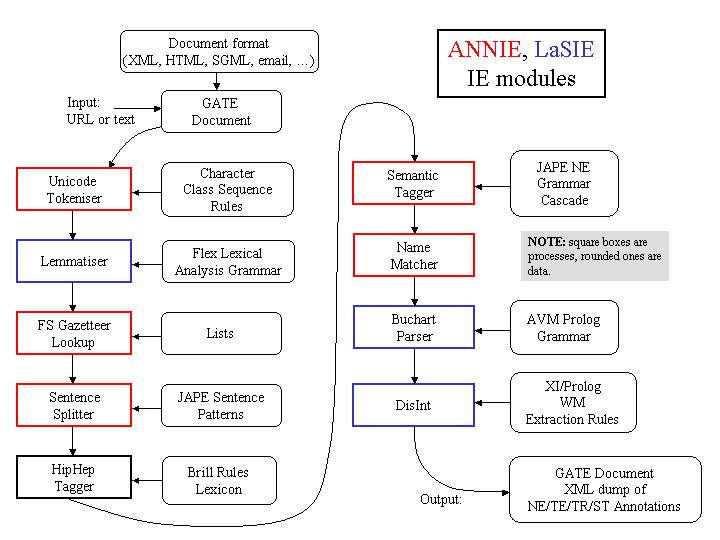
ANNIE components are included with GATE (though the linguistic resources they rely on are generally more simple than the ones we use in-house). The rest of this chapter describes these components.
For the GATE Cloud version of ANNIE, see:
https://cloud.gate.ac.uk/shopfront/displayItem/annie-named-entity-recognizer
6.1 Document Reset [#]
The document reset resource enables the document to be reset to its original state, by removing all the annotation sets and their contents, apart from the one containing the document format analysis (Original Markups). An optional parameter, keepOriginalMarkupsAS, allows users to decide whether to keep the Original Markups AS or not while reseting the document. The parameter annotationTypes can be used to specify a list of annotation types to remove from all the sets instead of the whole sets.
Alternatively, if the parameter setsToRemove is not empty, the other parameters except annotationTypes are ignored and only the annotation sets specified in this list will be removed. If annotationTypes is also specified, only those annotation types in the specified sets are removed. In order to specify that you want to reset the default annotation set, just click the "Add" button without entering a name – this will add <null> which denotes the default annotation set. This resource is normally added to the beginning of an application, so that a document is reset before an application is rerun on that document.
6.2 Tokeniser [#]
The tokeniser splits the text into very simple tokens such as numbers, punctuation and words of different types. For example, we distinguish between words in uppercase and lowercase, and between certain types of punctuation. The aim is to limit the work of the tokeniser to maximise efficiency, and enable greater flexibility by placing the burden on the grammar rules, which are more adaptable.
6.2.1 Tokeniser Rules
A rule has a left hand side (LHS) and a right hand side (RHS). The LHS is a regular expression which has to be matched on the input; the RHS describes the annotations to be added to the AnnotationSet. The LHS is separated from the RHS by ‘>’. The following operators can be used on the LHS:
| (or)
* (0 or more occurrences)
? (0 or 1 occurrences)
+ (1 or more occurrences)
The RHS uses ‘;’ as a separator, and has the following format:
{LHS} > {Annotation type};{attribute1}={value1};...;{attribute
n}={value n}
Details about the primitive constructs available are given in the tokeniser file (DefaultTokeniser.Rules).
The following tokeniser rule is for a word beginning with a single capital letter:
‘UPPERCASE_LETTER’ ‘LOWERCASE_LETTER’* >
  Token;orth=upperInitial;kind=word;
It states that the sequence must begin with an uppercase letter, followed by zero or more lowercase letters. This sequence will then be annotated as type ‘Token’. The attribute ‘orth’ (orthography) has the value ‘upperInitial’; the attribute ‘kind’ has the value ‘word’.
6.2.2 Token Types
In the default set of rules, the following kinds of Token and SpaceToken are possible:
Word
A word is defined as any set of contiguous upper or lowercase letters, including a hyphen (but no other forms of punctuation). A word also has the attribute ‘orth’, for which four values are defined:
-
upperInitial - initial letter is uppercase, rest are lowercase
-
allCaps - all uppercase letters
-
lowerCase - all lowercase letters
-
mixedCaps - any mixture of upper and lowercase letters not included in the above categories
Number
A number is defined as any combination of consecutive digits. There are no subdivisions of numbers.
Symbol
Two types of symbol are defined: currency symbol (e.g. ‘$’, ‘£’) and symbol (e.g. ‘&’,
‘ ’). These are represented by any number of consecutive currency or other symbols
(respectively).
’). These are represented by any number of consecutive currency or other symbols
(respectively).
Punctuation
Three types of punctuation are defined: start_punctuation (e.g. ‘(’), end_punctuation (e.g. ‘)’), and other punctuation (e.g. ‘:’). Each punctuation symbol is a separate token.
SpaceToken
White spaces are divided into two types of SpaceToken - space and control - according to whether they are pure space characters or control characters. Any contiguous (and homogeneous) set of space or control characters is defined as a SpaceToken.
The above description applies to the default tokeniser. However, alternative tokenisers can be created if necessary. The choice of tokeniser is then determined at the time of text processing.
6.2.3 English Tokeniser [#]
The English Tokeniser is a processing resource that comprises a normal tokeniser and a JAPE transducer (see Chapter 8). The transducer has the role of adapting the generic output of the tokeniser to the requirements of the English part-of-speech tagger. One such adaptation is the joining together in one token of constructs like “ ’30s”, “ ’Cause”, “ ’em”, “ ’N”, “ ’S”, “ ’s”, “ ’T”, “ ’d”, “ ’ll”, “ ’m”, “ ’re”, “ ’til”, “ ve”, etc. Another task of the JAPE transducer is to convert negative constructs like “don’t” from three tokens (“don”, “ ’ “ and “t”) into two tokens (“do” and “n’t”).
The English Tokeniser should always be used on English texts that need to be processed afterwards by the POS Tagger.
6.3 Gazetteer [#]
The role of the gazetteer is to identify entity names in the text based on lists. The ANNIE gazetteer is described here, and also covered in Chapter 13 in Section 13.2.
The gazetteer lists used are plain text files, with one entry per line. Each list represents a set of names, such as names of cities, organisations, days of the week, etc.
Below is a small section of the list for units of currency:
Ecu
European Currency Units
FFr
Fr
German mark
German marks
New Taiwan dollar
New Taiwan dollars
NT dollar
NT dollars
An index file (lists.def) is used to access these lists; for each list, a major type is specified and, optionally, a minor type. It is also possible to include a language in the same way (fourth column), where lists for different languages are used, though ANNIE is only concerned with monolingual recognition. By default, the Gazetteer PR creates a Lookup annotation for every gazetteer entry it finds in the text. One can also specify an annotation type (fifth column) specific to an individual list. In the example below, the first column refers to the list name, the second column to the major type, and the third to the minor type.
These lists are compiled into finite state machines. Any text tokens that are matched by these machines will be annotated with features specifying the major and minor types. Grammar rules then specify the types to be identified in particular circumstances. Each gazetteer list should reside in the same directory as the index file.
currency_prefix.lst:currency_unit:pre_amount
currency_unit.lst:currency_unit:post_amount
date.lst:date:specific
day.lst:date:day
So, for example, if a specific day needs to be identified, the minor type ‘day’ should be specified in the grammar, in order to match only information about specific days; if any kind of date needs to be identified,the major type ‘date’ should be specified, to enable tokens annotated with any information about dates to be identified. More information about this can be found in the following section.
In addition, the gazetteer allows arbitrary feature values to be associated with particular entries in a single list. ANNIE does not use this capability, but to enable it for your own gazetteers, set the optional gazetteerFeatureSeparator parameter to a single character (or an escape sequence such as \t or \uNNNN) when creating a gazetteer. In this mode, each line in a .lst file can have feature values specified, for example, with the following entry in the index file:
software_company.lst:company:software
the following software_company.lst:
Red Hat&stockSymbol=RHAT
Apple Computer&abbrev=Apple&stockSymbol=AAPL
Microsoft&abbrev=MS&stockSymbol=MSFT
and gazetteerFeatureSeparator set to &, the gazetteer will annotate Red Hat as a Lookup with features majorType=company, minorType=software and stockSymbol=RHAT. Note that you do not have to provide the same features for every line in the file, in particular it is possible to provide extra features for some lines in the list but not others.
Here is a full list of the parameters used by the Default Gazetteer:
Init-time parameters
-
listsURL
-
A URL pointing to the index file (usually lists.def) that contains the list of pattern lists.
-
encoding
-
The character encoding to be used while reading the pattern lists.
-
gazetteerFeatureSeparator
-
The character used to add arbitrary features to gazetteer entries. See above for an example.
-
caseSensitive
-
Should the gazetteer be case sensitive during matching.
Run-time parameters
-
document
-
The document to be processed.
-
annotationSetName
-
The name for annotation set where the resulting Lookup annotations will be created.
-
wholeWordsOnly
-
Should the gazetteer only match whole words? If set to true, a string segment in the input document will only be matched if it is bordered by characters that are not letters, non spacing marks, or combining spacing marks (as identified by the Unicode standard).
-
longestMatchOnly
-
Should the gazetteer only match the longest possible string starting from any position. This parameter is only relevant when the list of lookups contains proper prefixes of other entries (e.g when both ‘Dell’ and ‘Dell Europe’ are in the lists). The default behaviour (when this parameter is set to true) is to only match the longest entry, ‘Dell Europe’ in this example. This is the default GATE gazetteer behaviour since version 2.0. Setting this parameter to false will cause the gazetteer to match all possible prefixes.
6.4 Sentence Splitter [#]
The sentence splitter is a cascade of finite-state transducers which segments the text into sentences. This module is required for the tagger. The splitter uses a gazetteer list of abbreviations to help distinguish sentence-marking full stops from other kinds.
Each sentence is annotated with the type ‘Sentence’. Each sentence break (such as a full stop) is also given a ‘Split’ annotation. It has a feature ‘kind’ with two possible values: ‘internal’ for any combination of exclamation and question mark or one to four dots and ‘external’ for a newline.
The sentence splitter is domain and application-independent.
There is an alternative ruleset for the Sentence Splitter which considers newlines and carriage returns differently. In general this version should be used when a new line on the page indicates a new sentence). To use this alternative version, simply load the main-single-nl.jape from the default location instead of main.jape (the default file) when asked to select the location of the grammar file to be used.
6.5 RegEx Sentence Splitter [#]
The RegEx sentence splitter is an alternative to the standard ANNIE Sentence Splitter. Its main aim is to address some performance issues identified in the JAPE-based splitter, mainly do to with improving the execution time and robustness, especially when faced with irregular input.
As its name suggests, the RegEx splitter is based on regular expressions, using the default Java implementation.
The new splitter is configured by three files containing (Java style, see http://java.sun.com/j2se/1.5.0/docs/api/java/util/regex/Pattern.html) regular expressions, one regex per line. The three different files encode patterns for:
-
internal splits
-
sentence splits that are part of the sentence, such as sentence ending punctuation;
-
external splits
-
sentence splits that are NOT part of the sentence, such as 2 consecutive new lines;
-
non splits
-
text fragments that might be seen as splits but they should be ignored (such as full stops occurring inside abbreviations).
The new splitter comes with an initial set of patterns that try to emulate the behaviour of the original splitter (apart from the situations where the original one was obviously wrong, like not allowing sentences to start with a number).
Here is a full list of the parameters used by the RegEx Sentence Splitter:
Init-time parameters
-
encoding
-
The character encoding to be used while reading the pattern lists.
-
externalSplitListURL
-
URL for the file containing the list of external split patterns;
-
internalSplitListURL
-
URL for the file containing the list of internal split patterns;
-
nonSplitListURL
-
URL for the file containing the list of non split patterns;
Run-time parameters
-
document
-
The document to be processed.
-
outputASName
-
The name for annotation set where the resulting Split and Sentence annotations will be created.
6.6 Part of Speech Tagger [#]
The tagger [Hepple 00] is a modified version of the Brill tagger, which produces a part-of-speech tag as an annotation on each word or symbol. The list of tags used is given in Appendix G. The tagger uses a default lexicon and ruleset (the result of training on a large corpus taken from the Wall Street Journal). Both of these can be modified manually if necessary. Two additional lexicons exist - one for texts in all uppercase (lexicon_cap), and one for texts in all lowercase (lexicon_lower). To use these, the default lexicon should be replaced with the appropriate lexicon at load time. The default ruleset should still be used in this case.
The ANNIE Part-of-Speech tagger requires the following parameters.
-
encoding - encoding to be used for reading rules and lexicons (init-time)
-
lexiconURL - The URL for the lexicon file (init-time)
-
rulesURL - The URL for the ruleset file (init-time)
-
document - The document to be processed (run-time)
-
inputASName - The name of the annotation set used for input (run-time)
-
outputASName - The name of the annotation set used for output (run-time). This is an optional parameter. If user does not provide any value, new annotations are created under the default annotation set.
-
baseTokenAnnotationType - The name of the annotation type that refers to Tokens in a document (run-time, default = Token)
-
baseSentenceAnnotationType - The name of the annotation type that refers to Sentences in a document (run-time, default = Sentence).
-
outputAnnotationType - POS tags are added as category features on the annotations of type ‘outputAnnotationType’ (run-time, default = Token)
-
posTagAllTokens - If set to false, only Tokens within each baseSentenceAnnotationType will be POS tagged (run-time, default = true).
-
failOnMissingInputAnnotations - if set to false, the PR will not fail with an ExecutionException if no input Annotations are found and instead only log a single warning message per session and a debug message per document that has no input annotations (run-time, default = true).
If - (inputASName == outputASName) AND (outputAnnotationType == baseTokenAnnotationType)
then - New features are added on existing annotations of type ‘baseTokenAnnotationType’.
otherwise - Tagger searches for the annotation of type ‘outputAnnotationType’ under the ‘outputASName’ annotation set that has the same offsets as that of the annotation with type ‘baseTokenAnnotationType’. If it succeeds, it adds new feature on a found annotation, and otherwise, it creates a new annotation of type ‘outputAnnotationType’ under the ‘outputASName’ annotation set.
6.7 Semantic Tagger [#]
ANNIE’s semantic tagger is based on the JAPE language – see Chapter 8. It contains rules which act on annotations assigned in earlier phases, in order to produce outputs of annotated entities.
The default annotation types, features and possible values produced by ANNIE are based on the original MUC entity types, and are as follows:
-
Person
-
gender: male, female
-
-
Location
-
locType: region, airport, city, country, county, province, other
-
-
Organization
-
orgType: company, department, government, newspaper, team, other
-
-
Money
-
Percent
-
Date
-
kind: date, time, dateTime
-
-
Address
-
kind: email, url, phone, postcode, complete, ip, other
-
-
Identifier
-
Unknown
Note that some of these feature values are generated automatically from the gazetteer lists, so if you alter the gazetteer list definition file, these could change. Note also that other annotations, features and values are also created by ANNIE which may be left for debugging purposes: for example, most annotations have a rule feature that gives information about which rule(s) fired to create the annotation. The Unknown annotation type is used by the Orthomatcher module (see 6.8) and consists of any proper noun not already identified.
6.8 Orthographic Coreference (OrthoMatcher) [#]
(Note: this component was previously known as a ‘NameMatcher’.)
The Orthomatcher module adds identity relations between named entities found by the semantic tagger, in order to perform coreference. It does not find new named entities as such, but it may assign a type to an unclassified proper name (an Unknown annotation), using the type of a matching name.
The matching rules are only invoked if the names being compared are both of the same type, i.e. both already tagged as (say) organisations, or if one of them is classified as ‘unknown’. This prevents a previously classified name from being recategorised.
6.8.1 GATE Interface
Input – entity annotations, with an id attribute.
Output – matches attributes added to the existing entity annotations.
6.8.2 Resources
A lookup table of aliases is used to record non-matching strings which represent the same entity, e.g. ‘IBM’ and ‘Big Blue’, ‘Coca-Cola’ and ‘Coke’. There is also a table of spurious matches, i.e. matching strings which do not represent the same entity, e.g. ‘BT Wireless’ and ‘BT Cellnet’ (which are two different organizations). The list of tables to be used is a load time parameter of the orthomatcher: a default list is set but can be changed as necessary.
6.8.3 Processing
The wrapper builds an array of the strings, types and IDs of all name annotations, which is then passed to a string comparison function for pairwise comparisons of all entries.
6.9 Pronominal Coreference [#]
The pronominal coreference module performs anaphora resolution using the JAPE grammar formalism. Note that this module is not automatically loaded with the other ANNIE modules, but can be loaded separately as a Processing Resource. The main module consists of three submodules:
-
quoted text module
-
pleonastic it module
-
pronominal resolution module
The first two modules are helper submodules for the pronominal one, because they do not perform anything related to coreference resolution except the location of quoted fragments and pleonastic it occurrences in text. They generate temporary annotations which are used by the pronominal submodule (such temporary annotations are removed later).
The main coreference module can operate successfully only if all ANNIE modules were already executed. The module depends on the following annotations created from the respective ANNIE modules:
-
Token (English Tokenizer)
-
Sentence (Sentence Splitter)
-
Split (Sentence Splitter)
-
Location (NE Transducer, OrthoMatcher)
-
Person (NE Transducer, OrthoMatcher)
-
Organization (NE Transducer, OrthoMatcher)
For each pronoun (anaphor) the coreference module generates an annotation of type ‘Coreference’ containing two features:
-
antecedent offset - this is the offset of the starting node for the annotation (entity) which is proposed as the antecedent, or null if no antecedent can be proposed.
-
matches - this is a list of annotation IDs that comprise the coreference chain comprising this anaphor/antecedent pair.
6.9.1 Quoted Speech Submodule
The quoted speech submodule identifies quoted fragments in the text being analysed. The identified fragments are used by the pronominal coreference submodule for the proper resolution of pronouns such as I, me, my, etc. which appear in quoted speech fragments. The module produces ‘Quoted Text’ annotations.
The submodule itself is a JAPE transducer which loads a JAPE grammar and builds an FSM over it. The FSM is intended to match the quoted fragments and generate appropriate annotations that will be used later by the pronominal module.
The JAPE grammar consists of only four rules, which create temporary annotations for all punctuation marks that may enclose quoted speech, such as ", ’, ‘, etc. These rules then try to identify fragments enclosed by such punctuation. Finally all temporary annotations generated during the processing, except the ones of type ‘Quoted Text’, are removed (because no other module will need them later).
6.9.2 Pleonastic It Submodule
The pleonastic it submodule matches pleonastic occurrences of ‘it’. Similar to the quoted speech submodule, it is a JAPE transducer operating with a grammar containing patterns that match the most commonly observed pleonastic it constructs.
6.9.3 Pronominal Resolution Submodule
The main functionality of the coreference resolution module is in the pronominal resolution submodule. This uses the result from the execution of the quoted speech and pleonastic it submodules. The module works according to the following algorithm:
-
Preprocess the current document. This step locates the annotations that the submodule need (such as Sentence, Token, Person, etc.) and prepares the appropriate data structures for them.
-
For each pronoun do the following:
-
inspect the proper appropriate context for all candidate antecedents for this kind of pronoun;
-
choose the best antecedent (if any);
-
-
Create the coreference chains from the individual anaphor/antecedent pairs and the coreference information supplied by the OrthoMatcher (this step is performed from the main coreference module).
6.9.4 Detailed Description of the Algorithm
Full details of the pronominal coreference algorithm are as follows.
Preprocessing
The preprocessing task includes the following subtasks:
-
Identifying the sentences in the document being processed. The sentences are identified with the help of the Sentence annotations generated from the Sentence Splitter. For each sentence a data structure is prepared that contains three lists. The lists contain the annotations for the person/organization/location named entities appearing in the sentence. The named entities in the sentence are identified with the help of the Person, Location and Organization annotations that are already generated from the Named Entity Transducer and the OrthoMatcher.
-
The gender of each person in the sentence is identified and stored in a global data structure. It is possible that the gender information is missing for some entities - for example if only the person family name is observed then the Named Entity transducer will be unable to deduce the gender. In such cases the list with the matching entities generated by the OrhtoMatcher is inspected and if some of the orthographic matches contains gender information it is assigned to the entity being processed.
-
The identified pleonastic it occurrences are stored in a separate list. The ‘Pleonastic It’ annotations generated from the pleonastic submodule are used for the task.
-
For each quoted text fragment, identified by the quoted text submodule, a special structure is created that contains the persons and the 3rd person singular pronouns such as ‘he’ and ‘she’ that appear in the sentence containing the quoted text, but not in the quoted text span (i.e. the ones preceding and succeeding the quote).
Pronoun Resolution
This task includes the following subtasks:
Retrieving all the pronouns in the document. Pronouns are represented as annotations of type ‘Token’ with feature ‘category’ having value ‘PRP$’ or ‘PRP’. The former classifies possessive adjectives such as my, your, etc. and the latter classifies personal, reflexive etc. pronouns. The two types of pronouns are combined in one list and sorted according to their offset in the text.
For each pronoun in the list the following actions are performed:
-
If the pronoun is ‘it’, then the module performs a check to determine if this is a pleonastic occurrence. If it is, then no further attempt for resolution is made.
-
The proper context is determined. The context size is expressed in the number of sentences it will contain. The context always includes the current sentence (the one containing the pronoun), the preceding sentence and zero or more preceding sentences.
-
Depending on the type of pronoun, a set of candidate antecedents is proposed. The candidate set includes the named entities that are compatible with this pronoun. For example if the current pronoun is she then only the Person annotations with ‘gender’ feature equal to ‘female’ or ‘unknown’ will be considered as candidates.
-
From all candidates, one is chosen according to evaluation criteria specific for the pronoun.
Coreference Chain Generation
This step is actually performed by the main module. After executing each of the submodules on the current document, the coreference module follows the steps:
-
Retrieves the anaphor/antecedent pairs generated from them.
-
For each pair, the orthographic matches (if any) of the antecedent entity is retrieved and then extended with the anaphor of the pair (i.e. the pronoun). The result is the coreference chain for the entity. The coreference chain contains the IDs of the annotations (entities) that co-refer.
-
A new Coreference annotation is created for each chain. The annotation contains a single feature ‘matches’ whose value is the coreference chain (the list with IDs). The annotations are exported in a pre-specified annotation set.
The resolution of she, her, her$, he, him, his, herself and himself are similar because an analysis of a corpus showed that these pronouns are related to their antecedents in a similar manner. The characteristics of the resolution process are:
-
Context inspected is not very big - cases where the antecedent is found more than 3 sentences back from the anaphor are rare.
-
Recency factor is heavily used - the candidate antecedents that appear closer to the anaphor in the text are scored better.
-
Anaphora have higher priority than cataphora. If there is an anaphoric candidate and a cataphoric one, then the anaphoric one is preferred, even if the recency factor scores the cataphoric candidate better.
The resolution process performs the following steps:
-
Inspect the context of the anaphor for candidate antecedents. Every Person annotation is consider to be a candidate. Cases where she/her refers to inanimate entity (ship for example) are not handled.
-
For each candidate perform a gender compatibility check - only candidates having ‘gender’ feature equal to ‘unknown’ or compatible with the pronoun are considered for further evaluation.
-
Evaluate each candidate with the best candidate so far. If the two candidates are anaphoric for the pronoun then choose the one that appears closer. The same holds for the case where the two candidates are cataphoric relative to the pronoun. If one is anaphoric and the other is cataphoric then choose the former, even if the latter appears closer to the pronoun.
Resolution of ‘it’, ‘its’, ‘itself’
This set of pronouns also shares many common characteristics. The resolution process contains certain differences with the one for the previous set of pronouns. Successful resolution for it, its, itself is more difficult because of the following factors:
-
There is no gender compatibility restriction. In the case in which there are several candidates in the context, the gender compatibility restriction is very useful for rejecting some of the candidates. When no such restriction exists, and with the lack of any syntactic or ontological information about the entities in the context, the recency factor plays the major role in choosing the best antecedent.
-
The number of nominal antecedents (i.e. entities that are not referred by name) is much higher compared to the number of such antecedents for she, he, etc. In this case trying to find an antecedent only amongst named entities degrades the precision a lot.
Resolution of ‘I’, ‘me’, ‘my’, ‘myself’
Resolution of these pronouns is dependent on the work of the quoted speech submodule. One important difference from the resolution process of other pronouns is that the context is not measured in sentences but depends solely on the quote span. Another difference is that the context is not contiguous - the quoted fragment itself is excluded from the context, because it is unlikely that an antecedent for I, me, etc. appears there. The context itself consists of:
-
the part of the sentence where the quoted fragment originates, that is not contained in the quote - i.e. the text prior to the quote;
-
the part of the sentence where the quoted fragment ends, that is not contained in the quote - i.e. the text following the quote;
-
the part of the sentence preceding the sentence where the quote originates, which is not included in other quote.
It is worth noting that contrary to other pronouns, the antecedent for I, me, my and myself is most often cataphoric or if anaphoric it is not in the same sentence with the quoted fragment.
The resolution algorithm consists of the following steps:
-
Locate the quoted fragment description that contains the pronoun. If the pronoun is not contained in any fragment then return without proposing an antecedent.
-
Inspect the context for the quoted fragment (as defined above) for candidate antecedents. Candidates are considered annotations of type Pronoun or annotations of type Token with features category = ‘PRP’, string = ‘she’ or category = ‘PRP’, string = ‘he’.
-
Try to locate a candidate in the text succeeding the quoted fragment (first pattern). If more than one candidate is present, choose the closest to the end of the quote. If a candidate is found then propose it as antecedent and exit.
-
Try to locate a candidate in the text preceding the quoted fragment (third pattern). Choose the closest one to the beginning of the quote. If found then set as antecedent and exit.
-
Try to locate antecedents in the unquoted part of the sentence preceding the sentence where the quote starts (second pattern). Give preference to the one closest to the end of the quote (if any) in the preceding sentence or closest to the sentence beginning.
6.10 A Walk-Through Example [#]
Let us take an example of a 3-stage procedure using the tokeniser, gazetteer and named-entity grammar. Suppose we wish to recognise the phrase ‘800,000 US dollars’ as an entity of type ‘Number’, with the feature ‘money’.
First of all, we give an example of a grammar rule (and corresponding macros) for money, which would recognise this type of pattern.
Macro: MILLION_BILLION
({Token.string == "m"}|
{Token.string == "million"}|
{Token.string == "b"}|
{Token.string == "billion"}
)

Macro: AMOUNT_NUMBER
({Token.kind == number}
(({Token.string == ","}|
  {Token.string == "."})
{Token.kind == number})*
(({SpaceToken.kind == space})?
 (MILLION_BILLION)?)
)

Rule: Money1
// e.g. 30 pounds
  (
      (AMOUNT_NUMBER)
      (SpaceToken.kind == space)?
      ({Lookup.majorType == currency_unit})
  )
 :money  -->
  :money.Number = {kind = "money", rule = "Money1"}
6.10.1 Step 1 - Tokenisation
The tokeniser separates this phrase into the following tokens. In general, a word is comprised of any number of letters of either case, including a hyphen, but nothing else; a number is composed of any sequence of digits; punctuation is recognised individually (each character is a separate token), and any number of consecutive spaces and/or control characters are recognised as a single spacetoken.
Token, string = ‘800’, kind = number, length = 3
Token, string = ‘,’, kind = punctuation, length = 1
Token, string = ‘000’, kind = number, length = 3
SpaceToken, string = ‘ ’, kind = space, length = 1
Token, string = ‘US’, kind = word, length = 2, orth = allCaps
SpaceToken, string = ‘ ’, kind = space, length = 1
Token, string = ‘dollars’, kind = word, length = 7, orth = lowercase
6.10.2 Step 2 - List Lookup
The gazetteer lists are then searched to find all occurrences of matching words in the text. It finds the following match for the string ‘US dollars’:
Lookup, minorType = post_amount, majorType = currency_unit
6.10.3 Step 3 - Grammar Rules
The grammar rule for money is then invoked. The macro MILLION_BILLION recognises any of the strings ‘m’, ‘million’, ‘b’, ‘billion’. Since none of these exist in the text, it passes onto the next macro. The AMOUNT_NUMBER macro recognises a number, optionally followed by any number of sequences of the form‘dot or comma plus number’, followed by an optional space and an optional MILLION_BILLION. In this case, ‘800,000’ will be recognised. Finally, the rule Money1 is invoked. This recognises the string identified by the AMOUNT_NUMBER macro, followed by an optional space, followed by a unit of currency (as determined by the gazetteer). In this case, ‘US dollars’ has been identified as a currency unit, so the rule Money1 recognises the entire string ‘800,000 US dollars’. Following the rule, it will be annotated as a Number entity of type Money:
Number, kind = money, rule = Money1
Part II
GATE for Advanced Users [#]
Chapter 7
GATE Embedded [#]
7.1 Quick Start with GATE Embedded [#]
Embedding GATE-based language processing in other applications using GATE Embedded (the GATE API) is straightforward:
-
add the GATE libraries to your application’s classpath.
-
if you use a build tool with dependency management, such as Maven or Gradle, add a dependency on the right version of uk.ac.gate:gate-core – this is the recommended way to build against the GATE APIs.
-
if you can’t use a dependency manager, you can instead add all the JAR files from the lib directory of a GATE installation to your compile classpath in your build tool.
-
-
initialise GATE with gate.Gate.init();
-
program to the framework API.
For example, this code will create the default ANNIE extraction system, the same as the “load ANNIE” button in GATE Developer:
2 Gate.init();
3
4 // load the ANNIE plugin
5 Plugin anniePlugin = new Plugin.Maven(
6 "uk.ac.gate.plugins", "annie", gate.Main.version);
7 Gate.getCreoleRegister().registerPlugin(anniePlugin);
8
9 // load ANNIE application from inside the plugin
10 SerialAnalyserController controller = (SerialAnalyserController)
11 PersistenceManager.loadObjectFromUrl(new ResourceReference(
12 anniePlugin, "resources/" + ANNIEConstants.DEFAULT_FILE)
13 .toURL());
If you want to use resources from any plugins, you need to load the plugins before calling createResource:
2
3 // need Tools plugin for the Morphological analyser
4 Gate.getCreoleRegister().registerPlugin(new Plugin.Maven(
5 "uk.ac.gate.plugins", "tools", gate.Main.version));
6
7 ...
8
9 ProcessingResource morpher = (ProcessingResource)
10 Factory.createResource("gate.creole.morph.Morph");
Instead of creating your processing resources individually using the Factory, you can create your application in GATE Developer, save it using the ‘save application state’ option (see Section 3.9.3), and then load the saved state from your code. This will automatically reload any plugins that were loaded when the state was saved, you do not need to load them manually.
2
3 CorpusController controller = (CorpusController)
4 PersistenceManager.loadObjectFromFile(new File("savedState.xgapp"));
There are many examples of using GATE Embedded available at:
http://gate.ac.uk/wiki/code-repository/.
See Section 2.3 for details of the system properties GATE uses to find its configuration files.
7.2 Resource Management in GATE Embedded [#]
As outlined earlier, GATE defines three different types of resources:
-
Language Resources
-
: (LRs) entities that hold linguistic data.
-
Processing Resources
-
: (PRs) entities that process data.
-
Visual Resources
-
: (VRs) components used for building graphical interfaces.
These resources are collectively named CREOLE1 resources.
All CREOLE resources have some associated meta-data in the form of annotations on the resource class and some of its methods. The most important role of that meta-data is to specify the set of parameters that a resource understands, which of them are required and which not, if they have default values and what those are. See Section 4.7 for full details of the configuration mechanism.
All resource types have creation-time parameters that are used during the initialisation phase. Processing Resources also have run-time parameters that get used during execution (see Section 7.5 for more details).
Controllers are used to define GATE applications and have the role of controlling the execution flow (see Section 7.6 for more details).
This section describes how to create and delete CREOLE resources as objects in a running Java virtual machine. This process involves using GATE’s Factory class2, and, in the case of LRs, may also involve using a DataStore.
CREOLE resources are Java Beans; creation of a resource object involves using a default constructor, then setting parameters on the bean, then calling an init() method. The Factory takes care of all this, makes sure that the GATE Developer GUI is told about what is happening (when GUI components exist at runtime), and also takes care of restoring LRs from DataStores. A programmer using GATE Embedded should never call the constructor of a resource: always use the Factory!
Creating a resource involves providing the following information:
-
fully qualified class name for the resource. This is the only required value. For all the rest, defaults will be used if actual values are not provided.
-
values for the creation time parameters.†
-
initial values for resource features.† For an explanation on features see Section 7.4.2.
-
a name for the new resource;
† Parameters and features need to be provided in the form of a GATE Feature Map which is essentially a java Map (java.util.Map) implementation, see Section 7.4.2 for more details on Feature Maps.
Creating a resource via the Factory involves passing values for any create-time parameters that require setting to the Factory’s createResource method. If no parameters are passed, the defaults are used. So, for example, the following code creates a default ANNIE part-of-speech tagger:
2 "uk.ac.gate.plugins", "annie", gate.Main.version));
3FeatureMap params = Factory.newFeatureMap(); //empty map:default params
4ProcessingResource tagger = (ProcessingResource)
5 Factory.createResource("gate.creole.POSTagger", params);
Note that if the resource created here had any parameters that were both mandatory and had no default value, the createResource call would throw an exception. In the case of the POS tagger, all the required parameters have default values so no params need to be passed in.
When creating a Document, however, the URL of the source for the document must be provided3. For example:
2FeatureMap params = Factory.newFeatureMap();
3params.put("sourceUrl", u);
4Document doc = (Document)
5 Factory.createResource("gate.corpora.DocumentImpl", params);
Note that the document created here is transient: when you quit the JVM the document will no longer exist. If you want the document to be persistent, you need to store it in a DataStore (see Section 7.4.5).
Apart from createResource() methods with different signatures, Factory also provides some shortcuts for common operations, listed in table 7.1.
Method | Purpose |
newFeatureMap() | Creates a new Feature Map (as used in the example above). |
newDocument(String content) | Creates a new GATE Document starting from a String value that will be used to generate the document content. |
newDocument(URL sourceUrl) | Creates a new GATE Document using the text pointed by an URL to generate the document content. |
newDocument(URL sourceUrl, String encoding) | Same as above but allows the specification of an encoding to be used while downloading the document content. |
newCorpus(String name) | creates a new GATE Corpus with a specified name. |
GATE maintains various data structures that allow the retrieval of loaded resources. When a resource is no longer required, it needs to be removed from those structures in order to remove all references to it, thus making it a candidate for garbage collection. This is achieved using the deleteResource(Resource res) method on Factory.
Simply removing all references to a resource from the user code will NOT be enough to make the resource collect-able. Not calling Factory.deleteResource() will lead to memory leaks!
7.3 Using CREOLE Plugins [#]
As shown in the examples above, in order to use a CREOLE resource the relevant CREOLE plugin must be loaded. Processing Resources, Visual Resources and Language Resources other than Document, Corpus and DataStore all require that the appropriate plugin is first loaded. When using Document, Corpus or DataStore, you do not need to first load a plugin. The following API calls listed in table 7.2 are relevant to working with CREOLE plugins.
| Class gate.Gate
| |
Method | Purpose |
public static void addKnownPlugin(Plugin plugin) | adds the plugin to the list of known plugins. |
public static void removeKnownPlugin(Plugin plugin) | tells the system to ‘forget’ about one previously known directory. If the specified plugin was loaded, it will be unloaded as well - i.e. all the metadata relating to resources defined by this plugin will be removed from memory. |
public static void addAutoloadPlugin(Plugin plugin) | adds a new plugin to the list of plugins that are loaded automatically at start-up. |
public static void removeAutoloadPlugin(Plugin plugin) | tells the system to remove a plugin from the list of plugins that are loaded automatically at system start-up. This will be reflected in the user’s configuration data file. |
| Class gate.CreoleRegister
| |
public void registerPlugin(Plugin plugin) | loads a new CREOLE plugin. The new plugin is added to the list of known plugins if not already there. |
public void unregisterPlugin(Plugin plugin) | unloads a loaded CREOLE plugin. |
There are several different subclasses of Plugin that can be passed to these methods. The most common one is Plugin.Maven, as seen in the examples above, which is a plugin that is a single JAR file specified via its group:artifact:version “coordinates”, and which is downloaded from a Maven repository at runtime by GATE the first time the plugin is loaded. The vast majority of standard GATE plugins are of this type. To load version 8.5 of the ANNIE plugin, for example, you would use:
2 "uk.ac.gate.plugins", "annie", "8.5"));
By default GATE looks in the Central Repository and in the GATE repository (http://repo.gate.ac.uk/content/groups/public/, where we deploy snapshot builds of the standard plugins), plus any repositories declared in active profiles in the normal Maven settings.xml file. Mirror and proxy settings from this file are also respected.
In addition to Maven plugins, GATE still supports the style of plugins used in GATE version 8.4.1 and earlier where the plugin is a directory on disk which contains a creole.xml configuration file and optionally one or more JAR files containing the compiled classes of the plugin’s CREOLE resources. These plugins are represented by the class Plugin.Directory, with a URL pointing to the directory that contains the creole.xml file:
2 new URL("file:/home/example/my-plugins/FishCounter/"));
Finally, if you are writing a GATE Embedded application and have a single resource class that will only be used from your embedded code (and so does not need to be distributed as a complete plugin), and all the configuration for that resource is provided as Java annotations on the class, then it is possible to register the class as a special type of Plugin called a “component”:
Note that components cannot be registered this way in the developer GUI, and cannot be included in saved application states (see section 7.9 below).
7.4 Language Resources [#]
This section describes the implementation of documents and corpora in GATE.
7.4.1 GATE Documents
Documents are modelled as content plus annotations (see Section 7.4.4) plus features (see Section 7.4.2).
The content of a document can be any implementation of the gate.DocumentContent interface; the features are <attribute, value> pairs stored a Feature Map. Attributes are String values while the values can be any Java object.
The annotations are grouped in sets (see section 7.4.3). A document has a default (anonymous) annotations set and any number of named annotations sets.
Documents are defined by the gate.Document interface and there is also a provided implementation:
-
: transient document. Can be stored persistently through Java serialisation.
Main Document functions are presented in table 7.3.
| Content Manipulation
| |
Method | Purpose |
DocumentContent getContent() | Gets the Document content. |
void edit(Long start, Long end, DocumentContent replacement) | Modifies the Document content. |
void setContent(DocumentContent newContent) | Replaces the entire content. |
| Annotations Manipulation
| |
Method | Purpose |
public AnnotationSet getAnnotations() | Returns the default annotation set. |
public AnnotationSet getAnnotations(String name) | Returns a named annotation set. |
public Map getNamedAnnotationSets() | Returns all the named annotation sets. |
void removeAnnotationSet(String name) | Removes a named annotation set. |
| Input Output
| |
String toXml() | Serialises the Document in XML format. |
String toXml(Set aSourceAnnotationSet, boolean includeFeatures) | Generates XML from a set of annotations only, trying to preserve the original format of the file used to create the document. |
7.4.2 Feature Maps [#]
All CREOLE resources as well as the Controllers and the annotations can have attached meta-data in the form of Feature Maps.
A Feature Map is a Java Map (i.e. it implements the java.util.Map interface) and holds <attribute-name, attribute-value> pairs. The attribute names are Strings while the values can be any Java Objects.
The use of non-Serialisable objects as values is strongly discouraged.
Feature Maps are created using the gate.Factory.newFeatureMap() method.
The actual implementation for FeatureMaps is provided by the gate.util.SimpleFeatureMapImpl class.
Objects that have features in GATE implement the gate.util.FeatureBearer interface which has only the two accessor methods for the object features: FeatureMap getFeatures() and void setFeatures(FeatureMap features).
 etting a particular feature from an object
7.4.3 Annotation Sets [#]
A GATE document can have one or more annotation layers — an anonymous one, (also called default), and as many named ones as necessary.
An annotation layer is organised as a Directed Acyclic Graph (DAG) on which the nodes are particular locations —anchors— in the document content and the arcs are made out of annotations reaching from the location indicated by the start node to the one pointed by the end node (see Figure 7.1 for an illustration). Because of the graph metaphor, the annotation layers are also called annotation graphs. In terms of Java objects, the annotation layers are represented using the Set paradigm as defined by the collections library and they are hence named annotation sets. The terms of annotation layer, graph and set are interchangeable and refer to the same concept when used in this book.
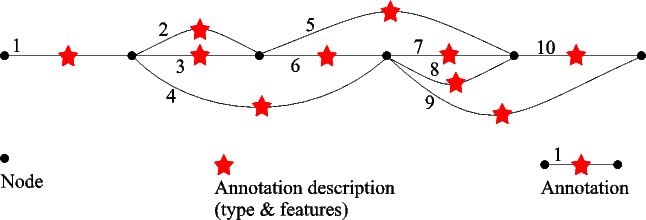
An annotation set holds a number of annotations and maintains a series of indices in order to provide fast access to the contained annotations.
The GATE Annotation Sets are defined by the gate.AnnotationSet interface and there is a default implementation provided:
-
annotation set implementation used by transient documents.
The annotation sets are created by the document as required. The first time a particular annotation set is requested from a document it will be transparently created if it doesn’t exist.
Tables 7.4 and 7.5 list the most used Annotation Set functions.
| Annotations Manipulation
| |
Method | Purpose |
Integer add(Long start, Long end, String type, FeatureMap features) | Creates a new annotation between two offsets, adds it to this set and returns its id. |
Integer add(Node start, Node end, String type, FeatureMap features) | Creates a new annotation between two nodes, adds it to this set and returns its id. |
boolean remove(Object o) | Removes an annotation from this set. |
| Nodes
| |
Method | Purpose |
Node firstNode() | Gets the node with the smallest offset. |
Node lastNode() | Gets the node with the largest offset. |
Node nextNode(Node node) | Get the first node that is relevant for this annotation set and which has the offset larger than the one of the node provided. |
| Set implementation
| |
Iterator iterator() |
|
int size() |
|
| Searching
| |
AnnotationSet get(Long offset) | Select annotations by offset. This returns the set of annotations whose start node is the least such that it is greater than or equal to offset. If a positional index doesn’t exist it is created. If there are no nodes at or beyond the offset parameter then it will return null. |
AnnotationSet get(Long startOffset, Long endOffset) | Select annotations by offset. This returns the set of annotations that overlap totally or partially with the interval defined by the two provided offsets. The result will include all the annotations that either:
|
AnnotationSet get(String type) | Returns all annotations of the specified type. |
AnnotationSet get(Set types) | Returns all annotations of the specified types. |
AnnotationSet get(String type, FeatureMap constraints) | Selects annotations by type and features. |
Set getAllTypes() | Gets a set of java.lang.String objects representing all the annotation types present in this annotation set. |
AnnotationSet getContained(Long startOffset, Long endOffset) | Select annotations contained within an interval, i.e. |
AnnotationSet getCovering(String neededType, Long startOffset, Long endOffset) | Select annotations of the given type that completely span the range. |
 terating from left to right over all annotations of a given type
2String type = "Person";
3//Get all person annotations
4AnnotationSet persSet = annSet.get(type);
5//Sort the annotations
6List persList = new ArrayList(persSet);
7Collections.sort(persList, new gate.util.OffsetComparator());
8//Iterate
9Iterator persIter = persList.iterator();
10while(persIter.hasNext()){
11...
12}
7.4.4 Annotations [#]
An annotation is a form of meta-data attached to a particular section of document content. The connection between the annotation and the content it refers to is made by means of two pointers that represent the start and end locations of the covered content. An annotation must also have a type (or a name) which is used to create classes of similar annotations, usually linked together by their semantics.
An Annotation is defined by:
-
start node
-
a location in the document content defined by an offset.
-
end node
-
a location in the document content defined by an offset.
-
type
-
a String value.
-
features
-
(see Section 7.4.2).
-
ID
-
an Integer value. All annotations IDs are unique inside an annotation set.
In GATE Embedded, annotations are defined by the gate.Annotation interface and implemented by the gate.annotation.AnnotationImpl class. Annotations exist only as members of annotation sets (see Section 7.4.3) and they should not be directly created by means of a constructor. Their creation should always be delegated to the containing annotation set.
7.4.5 GATE Corpora [#]
A corpus in GATE is a Java List (i.e. an implementation of java.util.List) of documents. GATE corpora are defined by the gate.Corpus interface and the following implementations are available:
-
gate.corpora.CorpusImpl
-
used for transient corpora.
-
gate.corpora.SerialCorpusImpl
-
used for persistent corpora that are stored in a serial datastore (i.e. as a directory in a file system).
Apart from implementation for the standard List methods, a Corpus also implements the methods in table 7.6.
Method | Purpose |
String getDocumentName(int index) | Gets the name of a document in this corpus. |
List getDocumentNames() | Gets the names of all the documents in this corpus. |
void populate(URL directory, FileFilter filter, String encoding, boolean recurseDirectories) | Fills this corpus with documents created on the fly from selected files in a directory. Uses a FileFilter to select which files will be used and which will be ignored. A simple file filter based on extensions is provided in the Gate distribution (gate.util.ExtensionFileFilter). |
void populate(URL singleConcatenatedFile, String documentRootElement, String encoding, int numberOfDocumentsToExtract, String documentNamePrefix, DocType documentType) | Fills the provided corpus with documents extracted from the provided single concatenated file. Uses the content between the start and end of the element as specified by documentRootElement for each document. The parameter documentType specifies if the resulting files are html, xml or of any other type. User can also restrict the number of documents to extract by providing the relevant value for numberOfDocumentsToExtract parameter. |
Creating a corpus from all XML files in a directory
Using a DataStore
Assuming that you have a DataStore already open called myDataStore, this code will ask the datastore to take over persistence of your document, and to synchronise the memory representation of the document with the disk storage:
Document persistentDoc = myDataStore.adopt(doc, mySecurity);
myDataStore.sync(persistentDoc);
When you want to restore a document (or other LR) from a datastore, you make the same createResource call to the Factory as for the creation of a transient resource, but this time you tell it the datastore the resource came from, and the ID of the resource in that datastore:
2 SerialDataStore sds = new SerialDataStore(u.toString());
3 sds.open();
4
5 // getLrIds returns a list of LR Ids, so we get the first one
6 Object lrId = sds.getLrIds("gate.corpora.DocumentImpl").get(0);
7
8 // we need to tell the factory about the LR’s ID in the data
9 // store, and about which datastore it is in − we do this
10 // via a feature map:
11 FeatureMap features = Factory.newFeatureMap();
12 features.put(DataStore.LR_ID_FEATURE_NAME, lrId);
13 features.put(DataStore.DATASTORE_FEATURE_NAME, sds);
14
15 // read the document back
16 Document doc = (Document)
17 Factory.createResource("gate.corpora.DocumentImpl", features);
7.5 Processing Resources [#]
Processing Resources (PRs) represent entities that are primarily algorithmic, such as parsers, generators or ngram modellers.
They are created using the GATE Factory in manner similar the Language Resources. Besides the creation-time parameters they also have a set of run-time parameters that are set by the system just before executing them.
Analysers are a particular type of processing resources in the sense that they always have a document and a corpus among their run-time parameters.
The most used methods for Processing Resources are presented in table 7.7
Method | Purpose |
void setParameterValue(String paramaterName, Object parameterValue) | Sets the value for a specified parameter. method inherited from gate.Resource |
void setParameterValues(FeatureMap parameters) | Sets the values for more parameters in one step. method inherited from gate.Resource |
Object getParameterValue(String paramaterName) | Gets the value of a named parameter of this resource. method inherited from gate.Resource |
Resource init() | Initialise this resource, and return it. method inherited from gate.Resource |
void reInit() | Reinitialises the processing resource. After calling this method the resource should be in the state it is after calling init. If the resource depends on external resources (such as rules files) then the resource will re-read those resources. If the data used to create the resource has changed since the resource has been created then the resource will change too after calling reInit(). |
void execute() | Starts the execution of this Processing Resource. |
void interrupt() | Notifies this PR that it should stop its execution as soon as possible. |
boolean isInterrupted() | Checks whether this PR has been interrupted since the last time its Executable.execute() method was called. |
7.6 Controllers [#]
Controllers are used to create GATE applications. A Controller handles a set of Processing Resources and can execute them following a particular strategy. GATE provides a series of serial controllers (i.e. controllers that run their PRs in sequence):
-
gate.creole.SerialController:
-
a serial controller that takes any kind of PRs.
-
gate.creole.SerialAnalyserController:
-
a serial controller that only accepts Language Analysers as member PRs.
-
gate.creole.ConditionalSerialController:
-
a serial controller that accepts all types of PRs and that allows the inclusion or exclusion of member PRs from the execution chain according to certain run-time conditions (currently features on the document being processed are used).
-
gate.creole.ConditionalSerialAnalyserController:
-
a serial controller that only accepts Language Analysers and that allows the conditional run of member PRs.
-
gate.creole.RealtimeCorpusController:
-
a SerialAnalyserController that allows you to specify graceful and timeout parameters (times in milliseconds). If processing for a document takes longer than the amount of time specified for graceful, then the controller will attempt to gracefully end it by sending an interrupt request to it. If the graceful parameter is ‘-1’ then no attempt to gracefully end it is made. If processing takes longer than the amount of time specified for the timeout parameter, it will be forcibly terminated and the controller will move on to the next document. The parameter suppressExceptions controls if time-outs and other exceptions will be suppressed or passed on to the caller: if this parameter is set to ‘true’, then any exception or a timeout will simply cause the controller to move on to the next document rather than failing the entire corpus processing. If the parameter is set to ‘false’ both time-outs and exceptions will be passed on as exceptions to the caller.
Additionally there is a scriptable controller provided by the Groovy plugin. See section 7.16.3 for details.
Creating an ANNIE application and running it over a corpus
2Plugin anniePlugin = new Plugin.Maven(
3 "uk.ac.gate.plugins", "annie", gate.Main.version);
4Gate.getCreoleRegister().registerPlugin(anniePlugin);
5
6// create a serial analyser controller to run ANNIE with
7SerialAnalyserController annieController =
8 (SerialAnalyserController) Factory.createResource(
9 "gate.creole.SerialAnalyserController",
10 Factory.newFeatureMap(),
11 Factory.newFeatureMap(), "ANNIE");
12
13// load each PR as defined in ANNIEConstants
14// Note this code is for demonstration purposes only,
15// in practice if you want to load the ANNIE app you
16// should use the PersistenceManager as shown at the
17// start of this chapter
18for(int i = 0; i < ANNIEConstants.PR_NAMES.length; i++) {
19 // use default parameters
20 FeatureMap params = Factory.newFeatureMap();
21 ProcessingResource pr = (ProcessingResource)
22 Factory.createResource(ANNIEConstants.PR_NAMES[i],
23 params);
24 // add the PR to the pipeline controller
25 annieController.add(pr);
26} // for each ANNIE PR
27
28// Tell ANNIE’s controller about the corpus you want to run on
29Corpus corpus = ...;
30annieController.setCorpus(corpus);
31// Run ANNIE
32annieController.execute();
7.7 Modelling Relations between Annotations [#]
Most text processing tasks in GATE model metadata associated with text snippets as annotations. In some cases, however, it is useful to to have another layer of metadata, associated with the annotations themselves. One such case is the modelling of relations between annotations. One typical example of relations between annotation is that of co-reference. Two annotations of type Person may be referring to the same actual person; in this case the two annotations are said to be co-referring.
Starting with version 7.1, GATE Embedded supports the representation of relations between annotations. A relation set is associated with, and accssed via, an annotation set. All members of a relation must be either annotations from the associated annotation set or other relations within the same set. The classes supporting relations can be found in the gate.relations package.
A relation, as described by the gate.relations.Relation interface, is defined by the following values:
-
id
-
a unique ID that identifies the relation. IDs for both relations and annotations are generated from the same source, guaranteeing that not only is the ID unique among the relations, but also among all annotations from the same document.
-
type
-
a String value describing the type of the relation (e.g. ’coref’ for co-reference relations).
-
members
-
an int[] array, containing the annotation IDs for the annotations referred to by the relation. Note that relations are not guaranteed to be symmetric, so the ordering in the members array is relevant.
-
featureMap
-
a FeatureMap that, like with Annotations, allows the storing of an arbitary set of features for the relation.
-
userData
-
an optional Serializable value, which can be used to associate any arbitrary data with a relation.
Relation sets are modelled by the gate.relations.RelationSet class. The principal API calls published by this class include:
-
public Relation addRelation(String type, int... members)
Creates a new relation with the specified type and member annotations. Returns the newly created relation object. -
public void addRelation(Relation rel)
Adds to this relation set an externally-created relation. This method is provided to support the use of custom implementations of the gate.relations.Relation interface. -
public boolean deleteRelation(Relation relation)
Deletes the specified relation from this relation set. Any relations which include this relation as a member will also be deleted (recursively) to ensure the set remains internally consistent. -
public Collection<Relation> get()
Returns all the relations within this set. -
public Relation get(Integer id)
Returns the relation with the given ID. -
public Collection<Relation> getRelations(String type)
Gets all relations with the specified type contained in this relation set. -
public Collection<Relation> getRelations(int... members)
Gets relations by members. Gets all relations with have the specified members on the specified positions. The required members are represented as an int[], where each required annotation ID is placed on its required position. For unconstrained positions, the constant value gate.relations.RelationSet.ANY should be used. -
public Collection<Relation> getRelations(String type, int... members)
Gets all relations with the specified type and members. -
public Collection<Relation> getReferencing(int id)
Gets all the relations which reference an annotation or relation with the specified ID. -
public int getMaximumArity()
Gets the maximum arity (number of members) for all relations in this relation set.
Included next is a simple code snippet that illustrates the RelationSet API. The function of the example code is to:
-
find all the Sentence annotations inside a document;
-
for each sentence, find all the contained Token annotations;
-
for each sentence and contained token, add a new relation named contained between the token and the sentence.
2Document doc = Factory.newDocument(
3 new File("documents/file.xml").toURI().toURL());
4// get the annotation set
5AnnotationSet annSet = doc.getAnnotations();
6// get the relations set
7RelationSet relSet = annSet.getRelations();
8// get all sentences
9AnnotationSet sentences = annSet.get(
10 ANNIEConstants.SENTENCE_ANNOTATION_TYPE);
11for(Annotation sentence : sentences) {
12 // get all the tokens
13 AnnotationSet tokens = annSet.get(
14 ANNIEConstants.TOKEN_ANNOTATION_TYPE,
15 sentence.getStartNode().getOffset(),
16 sentence.getEndNode().getOffset());
17 for(Annotation token : tokens) {
18 // for each sentence and token, add the contained relation
19 relSet.addRelation("contained",
20 new int[] {token.getId(), sentence.getId()});
21 }
22}
7.8 Duplicating a Resource [#]
Sometimes, particularly in a multi-threaded application, it is useful to be able to create an independent copy of an existing PR, controller or LR. The obvious way to do this is to call createResource again, passing the same class name, parameters, features and name, and for many resources this will do the right thing. However there are some resources for which this may be insufficient (e.g. controllers, which also need to duplicate their PRs), unsafe (if a PR uses temporary files, for instance), or simply inefficient. For example for a large gazetteer this would involve loading a second copy of the lists into memory and compiling them into a second identical state machine representation, but a much more efficient way to achieve the same behaviour would be to use a SharedDefaultGazetteer (see section 13.10), which can re-use the existing state machine.
The GATE Factory provides a duplicate method which takes an existing resource instance and creates and returns an independent copy of the resource. By default it uses the algorithm described above, extracting the parameter values from the template resource and calling createResource to create a duplicate (the actual algorithm is slightly more complicated than this, see the following section). However, if a particular resource type knows of a better way to duplicate itself it can implement the CustomDuplication interface, and provide its own duplicate method which the factory will use instead of performing the default duplication algorithm. A caller who needs to duplicate an existing resource can simply call Factory.duplicate to obtain a copy, which will be constructed in the appropriate way depending on the resource type.
Note that the duplicate object returned by Factory.duplicate will not necessarily be of the same class as the original object. However the contract of Factory.duplicate specifies that where the original object implements any of a list of core GATE interfaces, the duplicate can be assumed to implement the same ones – if you duplicate a DefaultGazetteer the result may not be an instance of DefaultGazetteer but it is guaranteed to implement the Gazetteer interface.
Full details of how to implement a custom duplicate method in your own resource type can be found in the JavaDoc documentation for the CustomDuplication interface and the Factory.duplicate method.
7.8.1 Sharable properties [#]
The @Sharable annotation (in the gate.creole.metadata package) provides a way for a resource to mark JavaBean properties whose values should be shared between a resource and its duplicates. Typical examples of objects that could be marked sharable include large or expensive-to-create data structures that are created by a resource at init time and subsequently used in a read-only fashion, a thread-safe cache of some sort, or state used to create globally unique identifiers (such as an AtomicInteger that is incremented each time a new ID is required). Clearly any ojects that are shared between different resource instances must be accessed by all instances in a way that is thread-safe or appropriately synchronized.
The sharable property must have the standard public getter and setter methods, with the @Sharable annotation applied to the setter4. The same setter may be marked both as a sharable property and as a @CreoleParameter but the two are not related – sharable properties that are not parameters and parameters that are not sharable are both allowed and both have uses in different circumstances. The use of sharable properties removes the need to implement custom duplication in many simple cases.
The default duplication algorithm in full is thus as follows:
-
Extract the values of all init-time parameters from the original resource.
-
Recursively duplicate any of these values that are themselves GATE Resources, except for parameters that are marked as @Sharable (i.e. parameters that are marked sharable are copied directly to the duplicate resource without being duplicated themselves).
-
Add to this parameter map any other sharable properties of the original resource (including those that are not parameters).
-
Extract the features of the original resource and recursively duplicate any values in this map that are themselves resources, as above.
-
Call Factory.createResource passing the class name of the original resource, the duplicated/shared parameters and the duplicated features.
-
this will result in a call to the new resource’s init method, with all sharable properties (parameters and non-parameters) populated with their values from the old resource. The init method must recognise this and adapt its behaviour appropriately, i.e. not re-creating sharable data structures that have already been injected.
-
-
If the original resource is a PR, extract its runtime parameter values (except those that are marked as sharable, which have already been dealt with above), and recursively duplicate any resource values in the map.
-
Set the resulting runtime parameter values on the duplicate resource.
The duplication process keeps track of any recursively-duplicated resources, such that if the same original resource is used in several places (e.g. when duplicating a controller with several JAPE transducer PRs that all refer to the same ontology LR in their runtime parameters) then the same duplicate (ontology) will be used in the same places in the duplicated resource (i.e. all the duplicate transducers will refer to the same ontology LR, which will be a duplicate of the original one).
7.9 Persistent Applications [#]
GATE Embedded allows the persistent storage of applications in a format based on XML serialisation. This is particularly useful for applications management and distribution. A developer can save the state of an application when he/she stops working on its design and continue developing it in a next session. When the application reaches maturity it can be deployed to the client site using the same method.
When an application (i.e. a Controller) is saved, GATE will actually only save the values for the parameters used to create the Processing Resources that are contained in the application. When the application is reloaded, all the PRs will be re-created using the saved parameters.
Many PRs use external resources (files) to define their behaviour and, in most cases, these files are identified using URLs. During the saving process, all the URLs are converted relative URLs based on the location of the application file. This way, if the resources are packaged together with the application file, the entire application can be reliably moved to a different location.
API access to application saving and loading is provided by means of two static methods on the gate.util.persistence.PersistenceManager class, listed in table 7.8.
Method | Purpose |
public static void saveObjectToFile(Object obj, File file) | Saves the data needed to re-create the provided GATE object to the specified file. The Object provided can be any type of Language or Processing Resource or a Controller. The procedures may work for other types of objects as well (e.g. it supports most Collection types). |
public static Object loadObjectFromFile(File file) | Parses the file specified (which needs to be a file created by the above method) and creates the necessary object(s) as specified by the data in the file. Returns the root of the object tree. |
 aving and loading a GATE application
2File file = ...;
3//What to save?
4Controller theApplication = ...;
5
6//save
7gate.util.persistence.PersistenceManager.
8 saveObjectToFile(theApplication, file);
9//delete the application
10Factory.deleteResource(theApplication);
11theApplication = null;
12
13[...]
14//load the application back
15theApplication = gate.util.persistence.PersistenceManager.
16 loadObjectFromFile(file);
7.10 Ontologies
Starting from GATE version 3.1, support for ontologies has been added. Ontologies are nominally Language Resources but are quite different from documents and corpora and are detailed in chapter 14.
Classes related to ontologies are to be found in the gate.creole.ontology package and its sub-packages. The top level package defines an abstract API for working with ontologies while the sub-packages contain concrete implementations. A client program should only use the classes and methods defined in the API and never any of the classes or methods from the implementation packages.
The entry point to the ontology API is the gate.creole.ontology.Ontology interface which is the base interface for all concrete implementations. It provides methods for accessing the class hierarchy, listing the instances and the properties.
Ontology implementations are available through plugins. Before an ontology language resource can be created using the gate.Factory and before any of the classes and methods in the API can be used, one of the implementing ontology plugins must be loaded. For details see chapter 14.
7.11 Loading Annotation Schemas [#]
In order to create a gate.creole.AnnotationSchema object from a schema annotation file, one must use the gate.Factory class;
2param.put("xmlFileUrl",annotSchemaFile.toURL());\\
3AnnotationSchema annotSchema = \\
4Factory.createResurce("gate.creole.AnnotationSchema", params);
Note: All the elements and their values must be written in lower case, as XML is defined as case sensitive and the parser used for XML Schema inside GATE searches is case sensitive.
In order to be able to write XML Schema definitions, the ones defined in GATE (resources/creole/schema) can be used as a model, or the user can have a look at http://www.w3.org/2000/10/XMLSchema for a proper description of the semantics of the elements used.
Some examples of annotation schemas are given in Section 5.4.1.
7.12 Creating a New CREOLE Resource [#]
To create a new resource you need to:
-
write a Java class that implements GATE’s beans model;
-
annotate the class with the necessary CREOLE metadata;
-
compile the class, and any others that it uses, into a Java Archive (JAR) file, including a creole.xml file to identify the JAR as a plugin;
-
tell GATE how to find the JAR.
The recommended way to build GATE plugins from version 8.5 onwards is to use the Apache Maven build tool. A JAR file requires certain specific contents in order to be a valid GATE plugin, and GATE provides tools to automate the creation of these as part of a Maven build. For best results you should use Maven 3.5.2 or later.
GATE provides a Maven archetype to create the skeleton of a new plugin including an example AbstractLanguageAnalyser processing resource you can use as a starting point for your own code. To create a new plugin project from the archetype, run the following Maven command (which has been split over several lines for clarity, but should be run as a single command):
mvn archetype:generate -DarchetypeGroupId=uk.ac.gate \
                       -DarchetypeArtifactId=gate-pr-archetype \
                       -DarchetypeVersion=8.6
Replace “8.6” with the version of gate-core that you wish to depend on. You will be prompted for several values by Maven:
-
groupId
-
the group ID to use in the generated project POM. In Maven terms a “group” is a set of related JARs maintained and released by the same developer or group – conventionally this is based on the same convention as Java package names, using a reversed form of a DNS domain you own. You can use any value you like here, except that you should not use a group ID starting uk.ac.gate, as that is reserved for core plugins from the GATE team.
-
artifactId
-
the artifact ID for the generated project POM – this will be used as the directory name for the new project on disk and as the first part of the name of the final JAR file.
-
version
-
the initial version number for your new plugin – this should always end with -SNAPSHOT in capital letters, which is a Maven convention denoting work-in-progress code where the same version number can refer to different JAR files over time. The Maven dependency mechanism assumes that only -SNAPSHOT versions can ever change, and JAR files for non-SNAPSHOT versions are immutable and can be cached forever.
-
package
-
the Java package name. Often this is the same as the group ID but this is not strictly required.
-
prClass
-
the class name of the PR class to generate – this must be a valid Java identifier.
-
prName
-
the name of the PR as it will appear to users in the GATE Developer GUI (e.g. in the “new processing resource” popup menu).
Alternatively you can specify any of these values as extra -D options to archetype:generate, e.g. -DprClass=GoldfishTagger.
The archetype will create a new directory named after the artifactId, containing a few files:
-
pom.xml
-
the Maven project descriptor controlling the build process
-
src/main/java/package/prClass.java
-
the PR Java class.
-
src/main/resources/creole.xml
-
the plugin descriptor that identifies this project as a GATE plugin.
-
src/main/resources/resources
-
a directory into which you should put any resource files that your PR requires (e.g. configuration files, JAPE grammars, etc.). The doubled “resources” is deliberate – src/main/resources is the Maven conventional location for non-Java files that should be packaged in the JAR, and GATE requires a folder called resources inside that.
-
src/test
-
some simple tests.
The generated Java class in src/main/java contains some basic CREOLE metadata and an example of how you can configure parameters, and some boilerplate initialization and execution code that you can modify to your requirements.
There is an alternative archetype available called gate-plugin-archetype, which creates the Maven project structure, POM file and creole.xml but not the example Java class. This is useful if you already have an existing CREOLE plugin from an earlier version of GATE that you want to convert to the Maven style. The process is exactly the same as described above, use the same mvn archetype:generate call as before but with -DarchetypeArtifactId=gate-plugin-archetype.
7.12.1 Dependencies [#]
If you need to use other Java libraries in your PR code you should declare them in the <dependencies> block of the pom.xml. You can use https://search.maven.org to find the appropriate XML snippet for each dependency.
If your plugin requires another GATE plugin to operate (for example if it needs to internally create a JAPE transducer PR) then you should declare a dependency on the relevant plugin in src/main/resources/creole.xml (see section 4.7, in particular the REQUIRES element) and GATE will ensure that the other plugin is always loaded before this one, and that this plugin is unloaded whenever the other one is unloaded.
If your plugin has a compile-time dependency on another plugin then you will also need to declare this in pom.xml as well as in creole.xml – the pom dependency should use “provided” scope:
<dependency>
  <groupId>uk.ac.gate.plugins</groupId>
  <artifactId>annie</artifactId>
  <version>8.5</version>
  <scope>provided</scope>
</dependency>
Note that such dependencies are very rarely required, typically only if you need to write a PR class in one plugin that extends (in the Java sense) a PR defined in another plugin. If you simply need to run another plugin’s PR as part of yours then the creole.xml dependency is sufficient as you would create and use the PR via the Factory in the normal way.
2// of this PR and is of type \texttt{ResourceReference}
3FeatureMap params = Utils.featureMap("grammarUrl", grammarLocation);
4LanguageAnalyser jape = (LanguageAnalyser)Factory.createResource(
5 "gate.creole.Transducer", params);
One of the tests created by the archetypes, the GappLoadingTest, will look for any saved application files in src/main/resources and test that they load successfully into GATE. As a side effect, this test will also create two files in the target folder detailing all the other plugins on which this plugin depends. It captures both direct dependencies (REQUIRES entries in creole.xml) and indirect dependencies where other plugins are loaded by one of this plugin’s saved applications, even if there is no hard dependency between them. For example, many plugins have sample applications that require the ANNIE plugin in order to load document reset, tokeniser or JAPE transducer PRs. The information is presented in two ways:
-
a flat file creole-dependencies.txt listing the plugins with the plugin under test on the first row and then other required plugins in the order they were loaded during the GappLoadingTest.
-
a representation of the dependency graph in the GraphViz DOT format (creole-dependencies.gv) with a node for each plugin and an edge for each dependency, coloured red for REQUIRES links and coloured green for dependencies only expressed by the sample saved applications.
7.13 Adding Support for a New Document Format [#]
In order to add a new document format, one needs to extend the gate.DocumentFormat class and to implement an abstract method called:
This method is supposed to implement the functionality of each format reader and to create annotations on the document. Finally the document’s old content will be replaced with a new one containing only the text between markups.
If one needs to add a new textual reader will extend the gate.corpora.TextualDocumentFormat and override the unpackMarkup(doc) method.
This class needs to be implemented under the Java bean specifications because it will be instantiated by GATE using Factory.createResource() method.
The init() method that one needs to add and implement is very important because in here the reader defines its means to be selected successfully by GATE. What one needs to do is to add some specific information into certain static maps defined in DocumentFormat class, that will be used at reader detection time.
After that, a definition of the reader will be placed into the one’s creole.xml file and the reader will be available to GATE.
We present for the rest of the section a complete three step example of adding such a reader. The reader we describe in here is an XML reader.
Step 1
Create a new class called XmlDocumentFormat that extends
gate.corpora.TextualDocumentFormat and add appropriate CREOLE metadata. For
example:
2 autoinstances = {@AutoInstance(hidden = true)})
3public class XmlDocumentFormat extends TextualDocumentFormat {
4
5}
Step 2
Implement the unpackMarkup(Document doc) which performs the required functionality for the reader. Add XML detection means in init() method:
2 // Register XML mime type
3 MimeType mime = new MimeType("text","xml");
4 // Register the class handler for this mime type
5 mimeString2ClassHandlerMap.put(mime.getType()+ "/" + mime.getSubtype(),
6 this);
7 // Register the mime type with mine string
8 mimeString2mimeTypeMap.put(mime.getType() + "/" + mime.getSubtype(),
9 mime);
10 // Register file suffixes for this mime type
11 suffixes2mimeTypeMap.put("xml",mime);
12 suffixes2mimeTypeMap.put("xhtm",mime);
13 suffixes2mimeTypeMap.put("xhtml",mime);
14 // Register magic numbers for this mime type
15 magic2mimeTypeMap.put("<?xml",mime);
16 // Set the mimeType for this language resource
17 setMimeType(mime);
18 return this;
19}// init()
More details about the information from those maps can be found in Section 5.5.1
More information on the operation of GATE’s document format analysers may be found in Section 5.5.
7.14 Using GATE Embedded in a Multithreaded Environment [#]
GATE Embedded can be used in multithreaded applications, so long as you observe a few restrictions. First, you must initialise GATE by calling Gate.init() exactly once in your application, typically in the application startup phase before any concurrent processing threads are started.
Secondly, you must not make calls that affect the global state of GATE (e.g. loading or unloading plugins) in more than one thread at a time. Again, you would typically load all the plugins your application requires at initialisation time. It is safe to create instances of resources in multiple threads concurrently.
Thirdly, it is important to note that individual GATE processing resources, language resources and controllers are by design not thread safe – it is not possible to use a single instance of a controller/PR/LR in multiple threads at the same time – but for a well written resource it should be possible to use several different instances of the same resource at once, each in a different thread. When writing your own resource classes you should bear the following in mind, to ensure that your resource will be useable in this way.
-
Avoid static data. Where possible, you should avoid using static fields in your class, and you should try and take all configuration data via the CREOLE parameters you declare in your creole.xml file. System properties may be appropriate for truly static configuration, such as the location of an external executable, but even then it is generally better to stick to CREOLE parameters – a user may wish to use two different instances of your PR, each talking to a different executable.
-
Read parameters at the correct time. Init-time parameters should be read in the init() (and reInit()) method, and for processing resources runtime parameters should be read at each execute().
-
Use temporary files correctly. If your resource makes use of external temporary files you should create them using File.createTempFile() at init or execute time, as appropriate. Do not use hardcoded file names for temporary files.
-
If there are objects that can be shared between different instances of your resource, make sure these objects are accessed either read-only, or in a thread-safe way. In particular you must be very careful if your resource can take other resource instances as init or runtime parameters (e.g. the Flexible Gazetteer, Section 13.6).
Of course, if you are writing a PR that is simply a wrapper around an external library that imposes these kinds of limitations there is only so much you can do. If your resource cannot be made safe you should document this fact clearly.
All the standard ANNIE PRs are safe when independent instances are used in different threads concurrently, as are the standard transient document, transient corpus and controller classes. A typical pattern of development for a multithreaded GATE-based application is:
-
Develop your GATE processing pipeline in GATE Developer.
-
Save your pipeline as a .gapp file.
-
In your application’s initialisation phase, load n copies of the pipeline using PersistenceManager.loadObjectFromFile() (see the Javadoc documentation for details), or load the pipeline once and then make copies of it using Factory.duplicate as described in section 7.8, and either give one copy to each thread or store them in a pool (e.g. a LinkedList).
-
When you need to process a text, get one copy of the pipeline from the pool, and return it to the pool when you have finished processing.
Alternatively you can use the Spring Framework as described in the next section to handle the pooling for you.
7.15 Using GATE Embedded within a Spring Application [#]
GATE Embedded provides helper classes to allow GATE resources to be created and managed by the Spring framework. These helpers are provided by the gate-spring module, which must be added as a dependency of your project (and which in turn depends on gate-core). To use the helpers in an XML bean definition file, add the following declarations to the top:
<beans xmlns="http://www.springframework.org/schema/beans"
       xmlns:gate="http://gate.ac.uk/ns/spring"
       xmlns:xsi="http://www.w3.org/2001/XMLSchema-instance"
       xsi:schemaLocation="
         http://www.springframework.org/schema/beans
         http://www.springframework.org/schema/beans/spring-beans.xsd
         http://gate.ac.uk/ns/spring
         http://gate.ac.uk/ns/spring.xsd">
You can have Spring initialise GATE:
<gate:init />
For backwards compatibility the <gate:init> element accepts a number of attributes which were used in earlier versions of GATE to specify paths to GATE’s “home” folder and configuration files, but as of GATE 8.5 these options do nothing by default. If you do want to load a user configuration file (for example to configure things like the “add space on markup unpack” feature) then you must explicitly turn off the sandbox mode:
<gate:init run-in-sandbox="false" user-config-file="WEB-INF/user/xml" />
The user-config-file location is interpreted as a Spring “resource” path. If the value is not an absolute URL then Spring will resolve the path in an appropriate way for the type of application context — in a web application it is taken as being relative to the web app root, and you would typically use a location within WEB-INF as shown in the example above. To use an absolute path for gate-home it is not sufficient to use a leading slash (e.g. /opt/myapp/user.xml), for backwards-compatibility reasons Spring will still resolve this relative to your web application. Instead you must specify it as a full URL, i.e. file:/opt/myapp/user.xml.
You can specify CREOLE plugins that should be loaded after GATE has initialised using <gate:extra-plugin> elements, for example:
  <gate:init />

  <!-- load the standard ANNIE plugin from Maven Central -->
  <gate:extra-plugin group-id="uk.ac.gate.plugins"
                     artifact-id="annie"
                     vesion="8.5" />

  <!-- load a custom directory-based plugin from inside the webapp -->
  <gate:extra-plugin>WEB-INF/plugins/FishCounter</gate:extra-plugin>
The usual rules apply for the resolution of Maven plugins – GATE will look in .m2/repository under the home directory of the current user, as well as in the Central repository and the GATE team repository online, plus any repositories configured in the current user’s .m2/settings.xml. As well as this you can specify a local “cache” directory which is a Maven repository that will be searched first before trying any remote repositories, as part of the <gate:init> element:
<gate:init>
  <gate:maven-caches>
    <value>WEB-INF/maven-cache</value>
  </gate:maven-caches>
</gate:init>
Note that due to restrictions within the Maven resolver this must be a real directory on disk, so in the web application case if you put a cache inside your WAR file it will only be used if the WAR is unpacked by the container, not if it attempts to run the application directly from the compressed WAR.
To create a GATE resource, use the <gate:resource> element.
  <gate:resource id="referenceDocument" scope="singleton"
          resource-class="gate.corpora.DocumentImpl">
    <gate:parameters>
      <entry key="sourceUrl">
        <gate:url>WEB-INF/reference.xml</gate:url>
      </entry>
    </gate:parameters>
    <gate:features>
      <entry key="documentVersion" value="0.1.3" />
      <entry key="mainRef">
        <value type="java.lang.Boolean">true</value>
      </entry>
    </gate:features>
  </gate:resource>
The children of <gate:parameters> are Spring <entry/> elements, just as you would write when configuring a bean property of type Map<String,Object>. <gate:url> provides a way to construct a java.net.URL from a resource path as discussed above. If it is possible to resolve the resource path as a file: URL then this form will be preferred, as there are a number of areas within GATE which work better with file: URLs than with other types of URL (for example plugins that run external processes, or that use a URL parameter to point to a directory in which they will create new files).
A note about types: The <gate:parameters> and <gate:features> elements define GATE FeatureMaps. When using the simple <entry key="..." value="..." /> form, the entry values will be treated as strings; Spring can convert strings into many other types of object using the standard Java Beans property editor mechanism, but since a FeatureMap can hold any kind of values you must use an explicit <value type="...">...</value> to tell Spring what type the value should be.
There is an additional twist for <gate:parameters> – GATE has its own internal logic to convert strings to other types required for resource parameters (see the discussion of default parameter values in section 4.7.1). So for parameter values you have a choice, you can either use an explicit <value type="..."> to make Spring do the conversion, or you can pass the parameter value as a string and let GATE do the conversion. For resource parameters whose type is gate.creole.ResourceReference, if you pass a string value that is not an absolute URL (starting file:, http:, etc.) then GATE will treat the string as a path relative to the plugin that defines the resource type whose parameter you are setting. If this is not what you intended then you should use <gate:url> to cause Spring to resolve the path to a URL (which GATE will then convert to a ResourceReference) before passing it to GATE. For example, for a JAPE transducer, <entry key="grammarURL" value="grammars/main.jape" /> would resolve to the resource reference creole://uk.ac.gate.plugins;annie;8.5/grammars/main.jape, whereas
<entry key="grammarURL">
  <gate:url>grammars/main.jape</gate:url>
</entry>
would resolve to file:/path/to/webapp/grammars/main.jape.
You can load a GATE saved application with
  <gate:saved-application location="WEB-INF/application.gapp" scope="prototype">
    <gate:customisers>
      <gate:set-parameter pr-name="custom transducer" name="ontology"
                          ref="sharedOntology" />
    </gate:customisers>
  </gate:saved-application>
‘Customisers’ are used to customise the application after it is loaded. In the example above, we assume we have loaded a singleton copy of an ontology which is then shared between all the separate instances of the (prototype) application. The <gate:set-parameter> customiser accepts all the same ways to provide a value as the standard Spring <property> element (a "value" or "ref" attribute, or a sub-element - <value>, <list>, <bean>, <gate:resource> …).
The <gate:add-pr> customiser provides support for the case where most of the application is in a saved state, but we want to create one or two extra PRs with Spring (maybe to inject other Spring beans as init parameters) and add them to the pipeline.
  <gate:saved-application ...>
    <gate:customisers>
      <gate:add-pr add-before="OrthoMatcher" ref="myPr" />
    </gate:customisers>
  </gate:saved-application>
By default, the <gate:add-pr> customiser adds the target PR at the end of the pipeline, but an add-before or add-after attribute can be used to specify the name of a PR before (or after) which this PR should be placed. Alternatively, an index attribute places the PR at a specific (0-based) index into the pipeline. The PR to add can be specified either as a ‘ref’ attribute, or with a nested <bean> or <gate:resource> element.
7.15.1 Duplication in Spring [#]
The above example defines the <gate:application> as a prototype-scoped bean, which means the saved application state will be loaded afresh each time the bean is fetched from the bean factory (either explicitly using getBean or implicitly when it is injected as a dependency of another bean). However in many cases it is better to load the application once and then duplicate it as required (as described in section 7.8), as this allows resources to optimise their memory usage, for example by sharing a single in-memory representation of a large gazetteer list between several instances of the gazetteer PR. This approach is supported by the <gate:duplicate> tag.
<gate:duplicate id="theApp">
  <gate:saved-application location="/WEB-INF/application.xgapp" />
</gate:duplicate>
The <gate:duplicate> tag acts like a prototype bean definition, in that each time it is fetched or injected it will call Factory.duplicate to create a new duplicate of its template resource (declared as a nested element or referenced by the template-ref attribute). However the tag also keeps track of all the duplicate instances it has returned over its lifetime, and will ensure they are released (using Factory.deleteResource) when the Spring context is shut down.
The <gate:duplicate> tag also supports customisers, which will be applied to the newly-created duplicate resource before it is returned. This is subtly different from applying the customisers to the template resource itself, which would cause them to be applied once to the original resource before it is first duplicated.
Finally, <gate:duplicate> takes an optional boolean attribute return-template. If set to false (or omitted, as this is the default behaviour), the tag always returns a duplicate — the original template resource is used only as a template and is not made available for use. If set to true, the first time the bean defined by the tag is injected or fetched, the original template resource is returned. Subsequent uses of the tag will return duplicates. Generally speaking, it is only safe to set return-template="true" when there are no customisers, and when the duplicates will all be created up-front before any of them are used. If the duplicates will be created asynchronously (e.g. with a dynamically expanding pool, see below) then it is possible that, for example, a template application may be duplicated in one thread whilst it is being executed by another thread, which may lead to unpredictable behaviour.
7.15.2 Spring pooling [#]
In a multithreaded application it is vital that individual GATE resources are not used in more than one thread at the same time. Because of this, multithreaded applications that use GATE Embedded often need to use some form of pooling to provided thread-safe access to GATE components. This can be managed by hand, but the Spring framework has built-in tools to support transparent pooling of Spring-managed beans. Spring can create a pool of identical objects, then expose a single “proxy” object (offering the same interface) for use by clients. Each method call on the proxy object will be routed to an available member of the pool in such a way as to guarantee that each member of the pool is accessed by no more than one thread at a time.
Since the pooling is handled at the level of method calls, this approach is not used to create a pool of GATE resources directly — making use of a GATE PR typically involves a sequence of method calls (at least setDocument(doc), execute() and setDocument(null)), and creating a pooling proxy for the resource may result in these calls going to different members of the pool. Instead the typical use of this technique is to define a helper object with a single method that internally calls the GATE API methods in the correct sequence, and then create a pool of these helpers. The interface gate.util.DocumentProcessor and its associated implementation gate.util.LanguageAnalyserDocumentProcessor are useful for this. The DocumentProcessor interface defines a processDocument method that takes a GATE document and performs some processing on it. LanguageAnalyserDocumentProcessor implements this interface using a GATE LanguageAnalyser (such as a saved “corpus pipeline” application) to do the processing. A pool of LanguageAnalyserDocumentProcessor instances can be exposed through a proxy which can then be called from several threads.
The machinery to implement this is all built into Spring, but the configuration typically required to enable it is quite fiddly, involving at least three co-operating bean definitions. Since the technique is so useful with GATE Embedded, GATE provides a special syntax to configure pooling in a simple way.
To use Spring pooling, you need to add a dependency to your project on an appropriate version of org.apache.commons:commons-pool2 or commons-pool:commons-pool5. Now, given the <gate:duplicate id="theApp"> definition from the previous section we can create a DocumentProcessor proxy that can handle up to five concurrent requests as follows:
<bean id="processor"
    class="gate.util.LanguageAnalyserDocumentProcessor">
  <property name="analyser" ref="theApp" />
  <gate:pooled-proxy max-size="5" />
</bean>
The <gate:pooled-proxy> element decorates a singleton bean definition. It converts the original definition to prototype scope and replaces it with a singleton proxy delegating to a pool of instances of the prototype bean. The pool parameters are controlled by attributes of the <gate:pooled-proxy> element, the most important ones being:
-
max-size
-
The maximum size of the pool. If more than this number of threads try to call methods on the proxy at the same time, the others will (by default) block until an object is returned to the pool.
-
initial-size
-
The default behaviour of Spring’s pooling tools is to create instances in the pool on demand (up to the max-size). This attribute instead causes initial-size instances to be created up-front and added to the pool when it is first created.
-
when-exhausted-action-name
-
What to do when the pool is exhausted (i.e. there are already max-size concurrent calls in progress and another one arrives). Should be set to one of WHEN_EXHAUSTED_BLOCK (the default, meaning block the excess requests until an object becomes free), WHEN_EXHAUSTED_GROW (create a new object anyway, even though this pushes the pool beyond max-size) or WHEN_EXHAUSTED_FAIL (cause the excess calls to fail with an exception).
Any of these attributes can make use of the usual ${...} property placeholder mechanism. Many more options are available, corresponding to the properties of the underlying Spring TargetSource in use (by default, a slightly customised subclass of CommonsPool2TargetSource or CommonsPoolTargetSource, depending which version of commons-pool you depend on). These allow you, for example, to configure a pool that dynamically grows and shrinks as necessary, releasing objects that have been idle for a set amount of time. See the JavaDoc documentation of CommonsPoolTargetSource (and the documentation for Apache commons-pool) for full details. If you wish to use a different TargetSource implementation from the default you can provide a target-source-class attribute with the fully-qualified class name of the class you wish to use (which must, of course, implement the TargetSource interface).
Note that the <gate:pooled-proxy> technique is not tied to GATE in any way, it is simply an easy way to configure standard Spring beans and can be used with any bean that needs to be pooled, not just objects that make use of GATE.
7.15.3 Further reading [#]
These custom elements all define various factory beans. For full details, see the JavaDocs for the gate-spring module. The main Spring framework API documentation is the best place to look for more detail on the pooling facilities provided by Spring AOP.
7.16 Groovy for GATE [#]
Groovy is a dynamic programming language based on Java. Groovy is not used in the core GATE distribution, so to enable the Groovy features in GATE you must first load the Groovy plugin. Loading this plugin:
-
provides access to the Groovy scripting console (configured with some extensions for GATE) from the GATE Developer “Tools” menu.
-
provides a PR to run a Groovy script over documents.
-
provides a controller which uses a Groovy DSL to define its execution strategy.
-
enhances a number of core GATE classes with additional convenience methods that can be used from any Groovy code including the console, the script PR, and any Groovy class that uses the GATE Embedded API.
This section describes these features in detail, but assumes that the reader already has some knowledge of the Groovy language. If you are not already familiar with Groovy you should read this section in conjunction with Groovy’s own documentation at http://groovy.codehaus.org/.
7.16.1 Groovy Scripting Console for GATE [#]
Loading the Groovy plugin in GATE Developer will provide a “Groovy Console” item in the Tools/Groovy Tools menu. This menu item opens the standard Groovy console window (http://groovy.codehaus.org/Groovy+Console).
To help scripting GATE in Groovy, the console is pre-configured to import all classes from the gate and gate.util packages of the core GATE API. This means you can refer to classes and interfaces such as Factory, AnnotationSet, Gate, etc. without needing to prefix them with a package name. In addition, the following (read-only) variable bindings are pre-defined in the Groovy Console.
-
corpora: a list of loaded corpora LRs (Corpus)
-
docs: a list of all loaded document LRs (DocumentImpl)
-
prs: a list of all loaded PRs
-
apps: a list of all loaded Applications (AbstractController)
These variables are automatically updated as resources are created and deleted in GATE.
Here’s an example script. It finds all documents with a feature “annotator” set to “fred”, and puts them in a new corpus called “fredsDocs”.
You can find other examples (and add your own) in the Groovy script repository on the GATE Wiki: http://gate.ac.uk/wiki/groovy-recipes/.
Why won’t the ‘Groovy executing’ dialog go away? Sometimes, when you execute a Groovy script through the console, a dialog will appear, saying “Groovy is executing. Please wait”. The dialog fails to go away even when the script has ended, and cannot be closed by clicking the “Interrupt” button. You can, however, continue to use the Groovy Console, and the dialog will usually go away next time you run a script. This is not a GATE problem: it is a Groovy problem.
7.16.2 Groovy scripting PR [#]
The Groovy scripting PR enables you to load and execute Groovy scripts as part of a GATE application pipeline. The Groovy scripting PR is made available when you load the Groovy plugin via the plugin manager.
Parameters [#]
The Groovy scripting PR has a single initialisation parameter
-
scriptURL: the path to a valid Groovy script
It has three runtime parameters
-
inputASName: an optional annotation set intended to be used as input by the PR (but note that the PR has access to all annotation sets)
-
outputASName: an optional annotation set intended to be used as output by the PR (but note that the PR has access to all annotation sets)
-
scriptParams: optional parameters for the script. In a creole.xml file, these should be specified as key=value pairs, each pair separated by a comma. For example: ’name=fred,type=person’ . In the GATE GUI, these are specified via a dialog.
Script bindings [#]
As with the Groovy console described above Groovy scripts run by the scripting PR implicitly import all classes from the gate and gate.util packages of the core GATE API. The Groovy scripting PR also makes available the following bindings, which you can use in your scripts:
-
doc: the current document (Document)
-
corpus: the corpus containing the current document
-
controller: the controller running the script
-
content: the string content of the current document
-
inputAS: the annotation set specified by inputASName in the PRs runtime parameters
-
outputAS: the annotation set specified by outputASName in the PRs runtime parameters
Note that inputAS and outputAS are intended to be used as input and output AnnotationSets. This is, however, a convention: there is nothing to stop a script writing to or reading from any AnnotationSet. Also, although the script has access to the corpus containing the document it is running over, it is not generally necessary for the script to iterate over the documents in the corpus itself – the reference is provided to allow the script to access data stored in the FeatureMap of the corpus. Any other variables assigned to within the script code will be added to the binding, and values set while processing one document can be used while processing a later one.
Passing parameters to the script [#]
In addition to the above bindings, one further binding is available to the script:
-
scriptParams: a FeatureMap with keys and values as specified by the scriptParams runtime parameter
For example, if you were to create a scriptParams runtime parameter for your PR, with the keys and values: ’name=fred,type=person’, then the values could be retrieved in your script via scriptParams.name and scriptParams.type. If you populate the scriptParams FeatureMap programmatically, the values will of course have the same types inside the Groovy script, but if you create the FeatureMap with GATE Developer’s parameter editor, the keys and values will all have String type. (If you want to set n=3 in the GUI editor, for example, you can use scriptParams.n as Integer in the Groovy script to obtain the Integer type.)
Controller callbacks [#]
A Groovy script may wish to do some pre- or post-processing before or after processing the documents in a corpus, for example if it is collecting statistics about the corpus. To support this, the script can declare methods beforeCorpus and afterCorpus, taking a single parameter. If the beforeCorpus method is defined and the script PR is running in a corpus pipeline application, the method will be called before the pipeline processes the first document. Similarly, if the afterCorpus method is defined it will be called after the pipeline has completed processing of all the documents in the corpus. In both cases the corpus will be passed to the method as a parameter. If the pipeline aborts with an exception the afterCorpus method will not be called, but if the script declares a method aborted(c) then this will be called instead.
Note that because the script is not processing a particular document when these methods are called, the usual doc, corpus, inputAS, etc. are not available within the body of the methods (though the corpus is passed to the method as a parameter). The scriptParams and controller variables are available.
The following example shows how this technique could be used to build a simple tf/idf index for a GATE corpus. The example is available in the GATE distribution as plugins/Groovy/resources/scripts/tfidf.groovy. The script makes use of some of the utility methods described in section 7.16.4.
2void beforeCorpus(c) {
3 // list of maps (one for each doc) from term to frequency
4 frequencies = []
5 // sorted map from term to docs that contain it
6 docMap = new TreeMap()
7 // index of the current doc in the corpus
8 docNum = 0
9}
10
11// start frequency list for this document
12frequencies << [:]
13
14// iterate over the requested annotations
15inputAS[scriptParams.annotationType].each {
16 def str = doc.stringFor(it)
17 // increment term frequency for this term
18 frequencies[docNum][str] =
19 (frequencies[docNum][str] ?: 0) + 1
20
21 // keep track of which documents this term appears in
22 if(!docMap[str]) {
23 docMap[str] = new LinkedHashSet()
24 }
25 docMap[str] << docNum
26}
27
28// normalize counts by doc length
29def docLength = inputAS[scriptParams.annotationType].size()
30frequencies[docNum].each { freq ->
31 freq.value = ((double)freq.value) / docLength
32}
33
34// increment the counter for the next document
35docNum++
36
37// compute the IDFs and store the table as a corpus feature
38void afterCorpus(c) {
39 def tfIdf = [:]
40 docMap.each { term, docsWithTerm ->
41 def idf = Math.log((double)docNum / docsWithTerm.size())
42 tfIdf[term] = [:]
43 docsWithTerm.each { docId ->
44 tfIdf[term][docId] = frequencies[docId][term] * idf
45 }
46 }
47 c.features.freqTable = tfIdf
48}
Examples [#]
The plugin directory Groovy/resources/scripts contains some example scripts. Below is the code for a naive regular expression PR.
2matcher = content =~ scriptParams.regex
3while(matcher.find())
4 outputAS.add(matcher.start(),
5 matcher.end(),
6 scriptParams.type,
7 Factory.newFeatureMap())
The script needs to have the runtime parameter scriptParams set with keys and values as follows:
-
regex: the Groovy regular expression that you want to match e.g. [^\s]*ing
-
type: the type of the annotation to create for each regex match, e.g. regexMatch
When the PR is run over a document, the script will first make a matcher over the document content for the regular expression given by the regex parameter. It will iterate over all matches for this regular expression, adding a new annotation for each, with a type as given by the type parameter.
7.16.3 The Scriptable Controller [#]
The Groovy plugin’s “Scriptable Controller” is a more flexible alternative to the standard pipeline (SerialController) and corpus pipeline (SerialAnalyserController) applications and their conditional variants, and also supports the time limiting and robustness features of the realtime controller. Like the standard controllers, a scriptable controller contains a list of processing resources and can optionally be configured with a corpus, but unlike the standard controllers it does not necessarily execute the PRs in a linear order. Instead the execution strategy is controlled by a script written in a Groovy domain specific language (DSL), which is detailed in the following sections.
Running a single PR
To run a single PR from the scriptable controller’s list of PRs, simply use the PR’s name as a Groovy method call:
If the PR’s name contains spaces or any other character that is not valid in a Groovy identifier, or if the name is a reserved word (such as “import”) then you must enclose the name in single or double quotes. You may prefer to rename the PRs so their names are valid identifiers. Also, if there are several PRs in the controller’s list with the same name, they will all be run in the order in which they appear in the list.
You can optionally provide a Map of named parameters to the call, and these will override the corresponding runtime parameter values for the PR (the original values will be restored after the PR has been executed):
Iterating over the corpus
If a corpus has been provided to the controller then you can iterate over all the documents in the corpus using eachDocument:
The block of code (in fact a Groovy closure) is executed once for each document in the corpus exactly as a standard corpus pipeline application would operate. The current document is available to the script in the variable doc and the corpus in the variable corpus, and in addition any calls to PRs that implement the LanguageAnalyser interface will set the PR’s document and corpus parameters appropriately.
Running all the PRs in sequence
Calling allPRs() will execute all the controller’s PRs once in the order in which they appear in the list. This is rarely useful in practice but it serves to define the default behaviour: the initial script that is used by default in a newly instantiated scriptable controller is eachDocument { allPRs() }, which mimics the behaviour of a standard corpus pipeline application.
More advanced scripting
The basic DSL is extremely simple, but because the script is Groovy code you can use all the other facilities of the Groovy language to do conditional execution, grouping of PRs, etc. The control script has the same implicit imports as provided by the Groovy Script PR (section 7.16.2), and additional import statements can be added as required.
For example, suppose you have a pipeline for multi-lingual document processing, containing PRs named “englishTokeniser”, “englishGazetteer”, “frenchTokeniser”, “frenchGazetteer”, “genericTokeniser”, etc., and you need to choose which ones to run based on a document feature:
2 def lang = doc.features.language ?: ’generic’
3 "${lang}Tokeniser"()
4 "${lang}Gazetteer"()
5}
As another example, suppose you have a particular JAPE grammar that you know is slow on documents that mention a large number of locations, so you only want to run it on documents with up to 100 Location annotations, and use a faster but less accurate one on others:
2void annotateLocations() {
3 tokeniser()
4 splitter()
5 gazetteer()
6 locationGrammar()
7}
8
9eachDocument {
10 annotateLocations()
11 if(doc.annotations["Location"].size() <= 100) {
12 fullLocationClassifier()
13 }
14 else {
15 fastLocationClassifier()
16 }
17}
You can have more than one call to eachDocument, for example a controller that pre-processes some documents, then collects some corpus-level statistics, then further processes the documents based on those statistics.
As a final example, consider a controller to post-process data from a manual annotation task. Some of the documents have been annotated by one annotator, some by more than one (the annotations are in sets named “annotator1”, “annotator2”, etc., but the number of sets varies from document to document).
2 // find all the annotatorN sets on this document
3 def annotators =
4 doc.annotationSetNames.findAll {
5 it ==~ /annotator\d+/
6 }
7
8 // run the post−processing JAPE grammar on each one
9 annotators.each { asName ->
10 postProcessingGrammar(
11 inputASName: asName,
12 outputASName: asName)
13 }
14
15 // now merge them to form a consensus set
16 mergingPR(annSetsForMerging: annotators.join(’;’))
17}
Nesting a scriptable controller in another application
Like the standard SerialAnalyserController, the scriptable controller implements the LanugageAnalyser interface and so can itself be nested as a PR in another pipeline. When used in this way, eachDocument does not iterate over the corpus but simply calls its closure once, with the “current document” set to the document that was passed to the controller as a parameter. This is the same logic as is used by SerialAnalyserController, which runs its PRs once only rather than once per document in the corpus.
Global variables
There are a number of variables that are pre-defined in the control script.
-
controller
-
(read-only) a reference to the ScriptableController object itself, providing access to its features etc.
-
prs
-
(read-only) an unmodifiable list of the processing resources in the pipeline.
-
corpus
-
(read-write) a reference to the corpus (if any) currently set on the controller, and over which any eachDocument loops will iterate. This variable is a direct “alias” to the controller’s getCorpus/setCorpus methods, so for example a script could build a new corpus (using a web crawler or similar), then use eachDocument to iterate over this corpus and process the documents.
In addition, as mentioned above, within the scope of an eachDocument loop there is a “doc” variable giving access to the document being processed in the current iteration. Note that if this controller is nested inside another controller (see the previous section) then the “doc” variable will be available throughout the script.
Ignoring errors
By default, if an exception or error occurs while processing (either thrown by a PR or occurring directly within the controller’s script) then the controller’s execution will terminate with an exception. If this occurs during an eachDocument then the remaining documents will not be processed. In some circumstances it may be preferable to ignore the error and simply continue with the next document. To support this you can use ignoringErrors:
Any exceptions or errors thrown within the ignoringErrors block will be logged6 but not rethrown. So in the example above if myTransducer fails with an exception the controller will continue with the next document. Note that it is important to nest the blocks correctly – if the nesting were reversed (with the eachDocument inside the ignoringErrors) then an exception would terminate the whole eachDocument loop and the remaining documents would not be processed.
Realtime behaviour
Some GATE processing resources can be very slow when operating on large or complex documents. In many cases it is possible to use heuristics within your controller’s script to spot likely “problem” documents and avoid running such PRs over them (see the fast vs. full location classifier example above), but for situations where this is not possible you can use the timeLimit method to put a blanket limit on the time that PRs will be allowed to consume, in a similar way to the real-time controller.
2 ignoringErrors {
3 annotateLocations()
4 timeLimit(soft:30.seconds, hard:30.seconds) {
5 classifyLocations()
6 }
7 }
8}
A call to timeLimit will attempt to limit the running time of its associated code block. You can specify three different kinds of limit:
-
soft
-
if the block is still executing after this time, attempt to interrupt it gently. This uses Thread.interrupt() and also calls the interrupt() method of the currently executing PR (if any).
-
exception
-
if the block is still executing after this time beyond the soft limit, attempt to induce an exception by setting the corpus and document parameters of the currently running PR to null. This is useful to deal with PRs that do not properly respect the interrupt call.
-
hard
-
if the block is still executing after this time beyond the previous limit, forcibly terminate it using Thread.stop. This is inherently dangerous and prone to memory leakage but may be the only way to stop particularly stubborn PRs. It should be used with caution.
Limits can be specified using Groovy’s TimeCategory notation as shown above (e.g. 10.seconds, 2.minutes, 1.minute+45.seconds), or as simple numbers (of milliseconds). Each limit starts counting from the end of the last, so in the example above the hard limit is 30 seconds after the soft limit, or 1 minute after the start of execution. If no hard limit is specified the controller will wait indefinitely for the block to complete.
Note also that when a timeLimit block is terminated it will throw an exception. If you do not wish this exception to terminate the execution of the controller as a whole you will need to wrap the timeLimit block in an ignoringErrors block.
timeLimit blocks, particularly ones with a hard limit specified, should be regarded as a last resort – if there are heuristic methods you can use to avoid running slow PRs in the first place it is a good idea to use them as a first defence, possibly wrapping them in a timeLimit block if you need hard guarantees (for example when you are paying per hour for your compute time in a cloud computing system).
The Scriptable Controller in GATE Developer
When you double-click on a scriptable controller in the resources tree of GATE Developer you see the same controller editor that is used by the standard controllers. This view allows you to add PRs to the controller and set their default runtime parameter values, and to specify the corpus over which the controller should run. A separate view is provided to allow you to edit the Groovy script, which is accessible via the “Control Script” tab (see figure 7.2). This tab provides a text editor which does basic Groovy syntax highlighting (the same editor used by the Groovy Console).
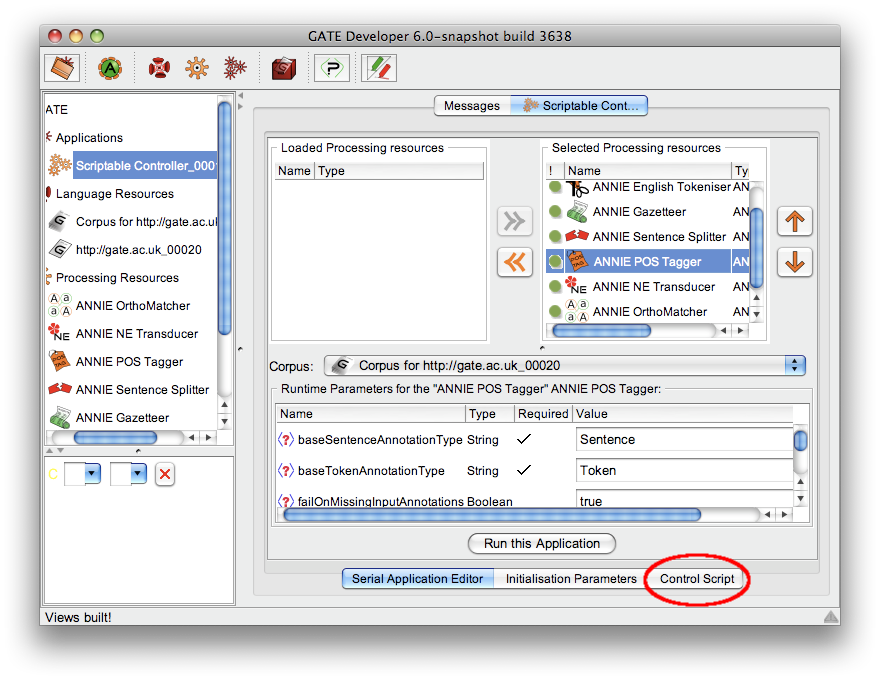
7.16.4 Utility methods [#]
Loading the Groovy plugin adds some additional methods to several of the core GATE API classes and interfaces using the Groovy “mixin” mechanism. Any Groovy code that runs after the plugin has been loaded can make use of these additional methods, including snippets run in the Groovy console, scripts run using the Script PR, and any other Groovy code that uses the GATE Embedded API.
The methods that are injected come from two classes. The gate.Utils class (part of the core GATE API in gate.jar) defines a number of static methods that can be used to simplify common tasks such as getting the string covered by an annotation or annotation set, finding the start or end offset of an annotation (or set), etc. These methods do not use any Groovy-specific types, so they are usable from pure Java code in the usual way as well as being mixed in for use in Groovy. Additionally, the class gate.groovy.GateGroovyMethods (part of the Groovy plugin) provides methods that use Groovy types such as closures and ranges.
The added methods include:
-
Unified access to the start and end offsets of an Annotation, AnnotationSet or Document: e.g. someAnnotation.start() or anAnnotationSet.end()
-
Simple access to the DocumentContent or string covered by an annotation or annotation set: document.stringFor(anAnnotation), document.contentFor(annotationSet)
-
Simple access to the length of an annotation or document, either as an int (annotation.length()) or a long (annotation.lengthLong()).
-
A method to construct a FeatureMap from any map, to support constructions like def params = [sourceUrl:’http://gate.ac.uk’, encoding:’UTF-8’].toFeatureMap()
-
A method to convert an annotation set into a List of annotations in the order they appear in the document, for iteration in a predictable order: annSet.inDocumentOrder().collect { it.type }
-
The each, eachWithIndex and collect methods for a corpus have been redefined to properly load and unload documents if the corpus is stored in a datastore.
-
Various getAt methods to support constructions like annotationSet["Token"] (get all Token annotations from the set), annotationSet[15..20] (get all annotations between offsets 15 and 20), documentContent[0..10] (get the document content between offsets 0 and 10).
-
A withResource method for any resource, which calls a closure with the resource passed as a parameter, and ensures that the resource is properly deleted when the closure completes (analagous to the default Groovy method InputStream.withStream).
For full details, see the source code or javadoc documentation for these two classes.
7.17 Saving Config Data to gate.xml
Arbitrary feature/value data items can be saved to the user’s gate.xml file via the following API calls:
To get the config data: Map configData = Gate.getUserConfig().
To add config data simply put pairs into the map: configData.put("my new config key", "value");.
To write the config data back to the XML file: Gate.writeUserConfig();.
Note that new config data will simply override old values, where the keys are the same. In this way defaults can be set up by putting their values in the main gate.xml file, or the site gate.xml file; they can then be overridden by the user’s gate.xml file.
7.18 Annotation merging through the API [#]
If we have annotations about the same subject on the same document from different annotators, we may need to merge those annotations to form a unified annotation. Two approaches for merging annotations are implemented in the API, via static methods in the class gate.util.AnnotationMerging.
The two methods have very similar input and output parameters. Each of the methods takes an array of annotation sets, which should be the same annotation type on the same document from different annotators, as input. A single feature can also be specified as a parameter (or given asnull if no feature is to be specified).
The output is a map, the key of which is one merged annotation and the value of which represents the annotators (in terms of the indices of the array of annotation sets) who support the annotation. The methods also have a boolean input parameter to indicate whether or not the annotations from different annotators are based on the same set of instances, which can be determined by the static method public boolean isSameInstancesForAnnotators(AnnotationSet[] annsA) in the class gate.util.IaaCalculation. One instance corresponds to all the annotations with the same span. If the annotation sets are based on the same set of instances, the merging methods will ensure that the merged annotations are on the same set of instances.
The two methods corresponding to those described for the Annotation Merging plugin described in Section 23.18. They are:
-
The Method public static void mergeAnnotation(AnnotationSet[] annsArr, String nameFeat, HashMap<Annotation,String>mergeAnns, int numMinK, boolean isTheSameInstances) merges the annotations stored in the array annsArr. The merged annotation is put into the map mergeAnns, with a key of the merged annotation and value of a string containing the indices of elements in the annotation set array annsArr which contain that annotation. NumMinK specifies the minimal number of the annotators supporting one merged annotation. The boolean parameter isTheSameInstances indicate if or not those annotation sets for merging are based on the same instances.
-
Method public static void mergeAnnotationMajority(AnnotationSet[] annsArr, String nameFeat, HashMap<Annotation, String>mergeAnns, boolean isTheSameInstances) selects the annotations which the majority of the annotators agree on. The meanings of parameters are the same as those in the above method.
7.19 Using Resource Helpers to Extend the API [#]
Resource Helpers (see Section 4.8.2) are an easy way of adding new features to existing resources within GATE Developer. Currently most Resource Helpers provide additional ways of loading or exporting documents, and it would also be useful to have the same features available via the API. While you could compile embedded code against the plugin classes or use reflection, this can quickly become difficult to manage, and rather negates the whole plugin philosophy. Fortunately the Resource Helper API makes it easy to access these new features from embedded code.
Here is a pseudo example:
2ResourceHelper rh =
3 (ResourceHelper)Gate.getCreoleRegister()
4 .getAllInstances("gate.example.ResourceHelperExample").iterator()
5 .next();
6
7// create a simple test document
8Document doc =
9 Factory.newDocument("A test of the Resource Handler API access");
10
11// use the Resource Helper to "analyse" the document
12rh.call("analyse", doc);
The comments should make the code fairly self-explanatory, but the main feature is on line 12 which uses the ResourceHandler.call(String, Resource, Object...) method. This essentially allows you to call a named method of the Resource Helper (in the example “analyse”), for a given Resource instance (here we are using a Document instance), supplying any necessary parameters. This allows you to access any public instance method of a Resource Helper that takes a Resource as it’s first parameter.
The only downside to this approach is that there is no compile time checking that the method you are trying to call actually exists or that the parameters are of the correct type so testing is important.
7.20 Converting a Directory Plugin to a Maven Plugin [#]
Prior to GATE version 8.5 plugins were distributed as direcories containing a creole.xml at their root. This approach was fragile (required relative paths for dependencies etc.) and did not properly support versioning making it difficult to gurantee reproducability. From GATE version 8.5 onwards the recommended way to both build and distribute plugins is via the Apache Maven build tool. In this approach a plugin is represented by a JAR file containing the compiled code, default resources, and CREOLE metadata. For best results you should use Maven 3.5.2 or later.
As discussed in Section 7.12 GATE provides a Maven archetype to create the skeleton of a new plugin. That example contains a sample processing resource. We also provide an archetype which produces an empty plugin and which can easy the process of converting a directory plugin to a new Maven style plugin. To use this archetype run the following Maven command (which has been split over several lines for clarity, but should be run as a single command):
mvn archetype:generate -DarchetypeGroupId=uk.ac.gate \
                       -DarchetypeArtifactId=gate-plugin-archetype \
                       -DarchetypeVersion=8.5
Replace “8.5” with the version of gate-core that you wish to depend on. You will be prompted for several values by Maven:
-
groupId
-
the group ID to use in the generated project POM. In Maven terms a “group” is a set of related JARs maintained and released by the same developer or group – conventionally this is based on the same convention as Java package names, using a reversed form of a DNS domain you own. You can use any value you like here, except that you should not use a group ID starting uk.ac.gate, as that is reserved for core plugins from the GATE team.
-
artifactId
-
the artifact ID for the generated project POM – this will be used as the directory name for the new project on disk and as the first part of the name of the final JAR file.
-
version
-
the initial version number for your new plugin – this should always end with -SNAPSHOT in capital letters, which is a Maven convention denoting work-in-progress code where the same version number can refer to different JAR files over time. The Maven dependency mechanism assumes that only -SNAPSHOT versions can ever change, and JAR files for non-SNAPSHOT versions are immutable and can be cached forever.
Once the directory structure has been corrected existing code and resources can be copied in from your old directory based plugin as follows:
-
Source Code
-
should be copied into src/main/java or src/test/java as appropriate
-
Resources
-
should be copied into src/main/resources/resources. Note that the repeated directory name is deliberate to ensure that any resources end up in a folder called resources at the root of the plugin JAR file.
Code libraries (usually found in lib in directory plugins) are now handled via Maven and so do not need to be transfered over from the old plugin but should be detailed in the Maven pom.xml file. See Section 7.12 for full details on developing a Maven based plugin, all of which applies to upgrading a plugin once the source and resources have been copied into the correct directory structure.
One other recommendation when converting a plugin is to switch from using URL as a parameter type to using ResourceReference as these allow users to easily access resources inside plugins. See Section 12.3.2 for details on how to use ResourceReference values within your plugins.
Chapter 8
JAPE: Regular Expressions over Annotations [#]
JAPE is a Java Annotation Patterns Engine. JAPE provides finite state transduction over annotations based on regular expressions. JAPE is a version of CPSL – Common Pattern Specification Language1. This chapter introduces JAPE, and outlines the functionality available. (You can find an excellent tutorial here; thanks to Dhaval Thakker, Taha Osmin and Phil Lakin).
JAPE allows you to recognise regular expressions in annotations on documents. Hang on, there’s something wrong here: a regular language can only describe sets of strings, not graphs, and GATE’s model of annotations is based on graphs. Hmmm. Another way of saying this: typically, regular expressions are applied to character strings, a simple linear sequence of items, but here we are applying them to a much more complex data structure. The result is that in certain cases the matching process is non-deterministic (i.e. the results are dependent on random factors like the addresses at which data is stored in the virtual machine): when there is structure in the graph being matched that requires more than the power of a regular automaton to recognise, JAPE chooses an alternative arbitrarily. However, this is not the bad news that it seems to be, as it turns out that in many useful cases the data stored in annotation graphs in GATE (and other language processing systems) can be regarded as simple sequences, and matched deterministically with regular expressions.
A JAPE grammar consists of a set of phases, each of which consists of a set of pattern/action rules. The phases run sequentially and constitute a cascade of finite state transducers over annotations. The left-hand-side (LHS) of the rules consist of an annotation pattern description. The right-hand-side (RHS) consists of annotation manipulation statements. Annotations matched on the LHS of a rule may be referred to on the RHS by means of labels that are attached to pattern elements. Consider the following example:
Phase: Jobtitle
Input: Lookup
Options: control = appelt debug = true

Rule: Jobtitle1
(
 {Lookup.majorType == jobtitle}
 (
  {Lookup.majorType == jobtitle}
 )?
)
:jobtitle
-->
 :jobtitle.JobTitle = {rule = "JobTitle1"}
The LHS is the part preceding the ‘-->’ and the RHS is the part following it. The LHS specifies a pattern to be matched to the annotated GATE document, whereas the RHS specifies what is to be done to the matched text. In this example, we have a rule entitled ‘Jobtitle1’, which will match text annotated with a ‘Lookup’ annotation with a ‘majorType’ feature of ‘jobtitle’, followed optionally by further text annotated as a ‘Lookup’ with ‘majorType’ of ‘jobtitle’. Once this rule has matched a sequence of text, the entire sequence is allocated a label by the rule, and in this case, the label is ‘jobtitle’. On the RHS, we refer to this span of text using the label given in the LHS; ‘jobtitle’. We say that this text is to be given an annotation of type ‘JobTitle’ and a ‘rule’ feature set to ‘JobTitle1’.
We began the JAPE grammar by giving it a phase name, e.g. ‘Phase: Jobtitle’. JAPE grammars can be cascaded, and so each grammar is considered to be a ‘phase’ (see Section 8.5). Phase names (and rule names) must contain only alphanumeric characters, hyphens and underscores, and cannot start with a number.
We also provide a list of the annotation types we will use in the grammar. In this case, we say ‘Input: Lookup’ because the only annotation type we use on the LHS are Lookup annotations. If no annotations are defined, all annotations will be matched.
Then, several options are set:
-
Control; in this case, ‘appelt’. This defines the method of rule matching (see Section 8.4)
-
Debug. When set to true, if the grammar is running in Appelt mode and there is more than one possible match, the conflicts will be displayed on the standard output.
A wide range of functionality can be used with JAPE, making it a very powerful system. Section 8.1 gives an overview of some common LHS tasks. Section 8.2 talks about the various operators available for use on the LHS. After that, Section 8.3 outlines RHS functionality. Section 8.4 talks about priority and Section 8.5 talks about phases. Section 8.6 talks about using Java code on the RHS, which is the main way of increasing the power of the RHS. We conclude the chapter with some miscellaneous JAPE-related topics of interest.
8.1 The Left-Hand Side [#]
The LHS of a JAPE grammar aims to match the text span to be annotated, whilst avoiding undesirable matches. There are various tools available to enable you to do this. This section outlines how you would approach various common tasks on the LHS of your JAPE grammar.
8.1.1 Matching Entire Annotation Types
The simplest pattern in JAPE is to match any single annotation of a particular annotation type. You can match only annotation types you specified in the “Input” line at the top of the file. For example, the following will match any Lookup annotation:
{Lookup}
If the annotation type contains anything other than ASCII letters and digits, you need to quote it2:
{"html:table"}
8.1.2 Using Features and Values
You can specify the features (and values) of an annotation to be matched. Several operators are supported; see Section 8.2 for full details:
-
{Token.kind == "number"}, {Token.length != 4} - equality and inequality.
-
{Token.string > "aardvark"}, {Token.length < 10} - comparison operators. >= and <= are also supported.
-
{Token.string =~ "[Dd]ogs"}, {Token.string !~ "(?i)hello"} - regular expression. ==~ and !=~ are also provided, for whole-string matching.
-
{X contains Y}, {X notContains Y}, {X within Y} and {X notWithin Y} for checking annotations within the context of other annotations.
In the following rule, the ‘category’ feature of the ‘Token’ annotation is used, along with the ‘equals’ operator:
Rule: Unknown
Priority: 50
(
 {Token.category == NNP}
)
:unknown
-->
 :unknown.Unknown = {kind = "PN", rule = Unknown}
As with the annotation type, if you want to match a feature name that contains anything other than letters or digits, it must be quoted
{element."xsi:type" == "xs:string"}
8.1.3 Using Meta-Properties [#]
In addition to referencing annotation features, JAPE allows access to other ‘meta-properties’ of an annotation. This is done by using an ‘@’ symbol rather than a ‘.’ symbol after the annotation type name. The three meta-properties that are built in are:
-
length - returns the spanning length of the annotation.
-
string - returns the string spanned by the annotation in the document.
-
cleanString - Like string, but with extra white space stripped out. (i.e. ‘∖s+’ goes to a single space and leading or trailing white space is removed).
{X@length > 5}:label-->:label.New = {}
8.1.4 Building complex patterns from simple patterns [#]
So far we have seen how to build a simple pattern that matches a single annotation, optionally with a constraint on one of its features or meta-properties, but to do anything useful with JAPE you will need to combine these simple patterns into more complex ones.
Sequences, alternatives and grouping
Patterns can be matched in sequence, for example:
Rule: InLocation
(
  {Token.category == "IN"}
  {Location}
):inLoc
matches a Token annotation of category “IN” followed by a Location annotation. Note that “followed by” in JAPE depends on the annotation types specified in the Input line – the above pattern matches a Token annotation and a Location annotation provided there are no intervening annotations of a type listed in the Input line. The Token and Location will not necessarily be immediately adjacent (they would probably be separated by an intervening space). In particular the pattern would not match if “SpaceToken” were specified in the Input line.
The vertical bar “|” is used to denote alternatives. For example
Rule: InOrAdjective
(
  {Token.category == "IN"} | {Token.category == "JJ"}
):inLoc
would match either a Token whose category is “IN” or one whose category is “JJ”.
Parentheses are used to group patterns:
Rule: InLocation
(
  ({Token.category == "IN"} | {Token.category == "JJ"})
  {Location}
):inLoc
matches a Token with one or other of the two category values, followed by a Location, whereas:
Rule: InLocation
(
  {Token.category == "IN"} |
  ( {Token.category == "JJ"}
    {Location} )
):inLoc
would match either an “IN” Token or a sequence of “JJ” Token and Location.
Repetition
JAPE also provides repetition operators to allow a pattern in parentheses to be optional (?), or to match zero or more (*), one or more (+) or some specified number of times. In the following example, you can see the ‘∣’ and ‘?’ operators being used:
Rule: LocOrganization
Priority: 50

(
 ({Lookup.majorType == location} |
  {Lookup.majorType == country_adj})
{Lookup.majorType == organization}
({Lookup.majorType == organization})?
)
:orgName -->
  :orgName.TempOrganization = {kind = "orgName", rule=LocOrganization}
Range Notation [#]
Repetition ranges are specified using square brackets.
({Token})[1,3]
matches one to three Tokens in a row.
({Token.kind == number})[3]
matches exactly 3 number Tokens in a row.
8.1.5 Matching a Simple Text String
JAPE operates over annotations so it cannot match strings of text in the document directly. To match a string you need to match an annotation that covers that string, typically a “Token”. The GATE Tokeniser adds a “string” feature to all the Token annotations containing the string that the Token covers, so you can use this (or the @string meta property) to match text in your document.
{Token.string == "of"}
The following grammar shows a sequence of strings being matched.
Phase: UrlPre
Input:  Token SpaceToken
Options: control = appelt

Rule: Urlpre

( (({Token.string == "http"} |
  {Token.string == "ftp"})
 {Token.string == ":"}
 {Token.string == "/"}
         {Token.string == "/"}
        ) |
({Token.string == "www"}
         {Token.string == "."}
        )
):urlpre
-->
:urlpre.UrlPre = {rule = "UrlPre"}
Since we are matching annotations and not text, you must be careful that the strings you ask for are in fact single tokens. In the example above, {Token.string == "://"} would never match (assuming the default ANNIE Tokeniser) as the three characters are treated as separate tokens.
8.1.6 Using Templates [#]
In cases where a grammar contains many similar or identical strings or other literal values, JAPE supports the concept of templates. A template is a named value declared in the grammar file, similar to a variable in Java or other programming languages, which can be referenced anywhere where a normal string literal, boolean or numeric value could be used, on the left- or right-hand side of a rule. In the simplest case templates can be constants:
Template: source = "Interesting entity finder"
Template: threshold = 0.6
The templates can be used in rules by providing their names in square brackets:
Rule: InterestingLocation
(
  {Location.score >= [threshold]}
):loc
-->
:loc.Entity = { type = Location, source = [source] }
The JAPE grammar parser substitutes the template values for their references when the grammar is parsed. Thus the example rule is equivalent to
Rule: InterestingLocation
(
  {Location.score >= 0.6}
):loc
-->
:loc.Entity = { type = Location,
  source = "Interesting entity finder" }
The advantage of using templates is that if there are many rules in the grammar that all reference the threshold template then it is possible to change the threshold for all rules by simply changing the template definition.
The name “template” stems from the fact that templates whose value is a string can contain parameters, specified using ${name} notation:
Template: url = "http://gate.ac.uk/${path}"
When a template containing parameters is referenced, values for the parameters may be specified:
...
-->
:anchor.Reference = {
  page = [url path = "userguide"] }
This is equivalent to page = "http://gate.ac.uk/userguide". Multiple parameter value assignments are separated by commas, for example:
Template: proton =
  "http://proton.semanticweb.org/2005/04/proton${mod}#${n}"

...
{Lookup.class == [proton mod="km", n="Mention"]}
// equivalent to
// {Lookup.class ==
//    "http://proton.semanticweb.org/2005/04/protonkm#Mention"}
The parser will report an error if a value is specified for a parameter that is not declared by the referenced template, for example [proton module="km"] would not be permitted in the above example.
Advanced template usage
If a template contains parameters for which values are not provided when the template is referenced, the parameter placeholders are passed through unchanged. Combined with the fact that the value for a template definition can itself be a reference to a previously-defined template, this allows for idioms like the following:
Template: proton =
  "http://proton.semanticweb.org/2005/04/proton${mod}#${n}"
Template: pkm = [proton mod="km"]
Template: ptop = [proton mod="t"]

...
({Lookup.class == [ptop n="Person"]}):look
-->
:look.Mention = { class = [pkm n="Mention"], of = "Person"}
(This example is inspired by the ontology-aware JAPE matching mode described in section 14.8.)
In a multi-phase JAPE grammar, templates defined in earlier phases may be referenced in later phases. This makes it possible to declare constants (such as the PROTON URIs above) in one place and reference them throughout a complex grammar.
8.1.7 Multiple Pattern/Action Pairs
It is also possible to have more than one pattern and corresponding action, as shown in the rule below. On the LHS, each pattern is enclosed in a set of round brackets and has a unique label; on the RHS, each label is associated with an action. In this example, the Lookup annotation is labelled ‘jobtitle’ and is given the new annotation JobTitle; the TempPerson annotation is labelled ‘person’ and is given the new annotation ‘Person’.
Rule: PersonJobTitle
Priority: 20

(
 {Lookup.majorType == jobtitle}
):jobtitle
(
 {TempPerson}
):person
-->
    :jobtitle.JobTitle = {rule = "PersonJobTitle"},
    :person.Person = {kind = "personName", rule = "PersonJobTitle"}
Similarly, labelled patterns can be nested, as in the example below, where the whole pattern is annotated as Person, but within the pattern, the jobtitle is annotated as JobTitle.
Rule: PersonJobTitle2
Priority: 20

(
(
 {Lookup.majorType == jobtitle}
):jobtitle
 {TempPerson}
):person
-->
    :jobtitle.JobTitle = {rule = "PersonJobTitle"},
    :person.Person = {kind = "personName", rule = "PersonJobTitle"}
8.1.8 LHS Macros [#]
Macros allow you to create a definition that can then be used multiple times in your JAPE rules. In the following JAPE grammar, we have a cascade of macros used. The macro ‘AMOUNT_NUMBER’ makes use of the macros ‘MILLION_BILLION’ and ‘NUMBER_WORDS’, and the rule ‘MoneyCurrencyUnit’ then makes use of ‘AMOUNT_NUMBER’:
Phase: Number
Input: Token Lookup
Options: control = appelt

Macro: MILLION_BILLION
({Token.string == "m"}|
{Token.string == "million"}|
{Token.string == "b"}|
{Token.string == "billion"}|
{Token.string == "bn"}|
{Token.string == "k"}|
{Token.string == "K"}
)

Macro: NUMBER_WORDS
(
 (({Lookup.majorType == number}
   ({Token.string == "-"})?
  )*
   {Lookup.majorType == number}
   {Token.string == "and"}
 )*
 ({Lookup.majorType == number}
  ({Token.string == "-"})?
 )*
   {Lookup.majorType == number}
)

Macro: AMOUNT_NUMBER
(({Token.kind == number}
  (({Token.string == ","}|
    {Token.string == "."}
   )
   {Token.kind == number}
  )*
  |
  (NUMBER_WORDS)
 )
 (MILLION_BILLION)?
)

Rule: MoneyCurrencyUnit


  (
      (AMOUNT_NUMBER)
      ({Lookup.majorType == currency_unit})
  )
:number -->
  :number.Money = {kind = "number", rule = "MoneyCurrencyUnit"}
8.1.9 Multi-Constraint Statements [#]
In the examples we have seen so far, most statements have contained only one constraint. For example, in this statement, the ‘category’ of ‘Token’ must equal ‘NNP’:
Rule: Unknown
Priority: 50
(
 {Token.category == NNP}
)
:unknown
-->
 :unknown.Unknown = {kind = "PN", rule = Unknown}
However, it is equally acceptable to have multiple constraints in a statement. In this example, the ‘majorType’ of ‘Lookup’ must be ‘name’ and the ‘minorType’ must be ‘surname’:
Rule: Surname
(
  {Lookup.majorType == "name",
   Lookup.minorType == "surname"}
):surname
-->
 :surname.Surname = {}
Multiple constraints on the same annotation type must all be satisfied by the same annotation in order for the pattern to match.
The constraints may refer to different annotations, and for the pattern as a whole to match the constraints must be satisfied by annotations that start at the same location in the document. In this example, in addition to the constraints on the ‘majorType’ and ‘minorType’ of ‘Lookup’, we also have a constraint on the ‘string’ of ‘Token’:
Rule: SurnameStartingWithDe
(
  {Token.string == "de",
   Lookup.majorType == "name",
   Lookup.minorType == "surname"}
):de
-->
 :de.Surname = {prefix = "de"}
This rule would match anywhere where a Token with string ‘de’ and a Lookup with majorType ‘name’ and minorType ‘surname’ start at the same offset in the text. Both the Lookup and Token annotations would be included in the :de binding, so the Surname annotation generated would span the longer of the two. As before, constraints on the same annotation type must be satisfied by a single annotation, so in this example there must be a single Lookup matching both the major and minor types – the rule would not match if there were two different lookups at the same location, one of them satisfying each constraint.
8.1.10 Using Context [#]
Context can be dealt with in the grammar rules in the following way. The pattern to be annotated is always enclosed by a set of round brackets. If preceding context is to be included in the rule, this is placed before this set of brackets. This context is described in exactly the same way as the pattern to be matched. If context following the pattern needs to be included, it is placed after the label given to the annotation. Context is used where a pattern should only be recognised if it occurs in a certain situation, but the context itself does not form part of the pattern to be annotated.
For example, the following rule for Time (assuming an appropriate macro for ‘year’) would mean that a year would only be recognised if it occurs preceded by the words ‘in’ or ‘by’:
Rule: YearContext1

({Token.string == "in"}|
 {Token.string == "by"}
)
(YEAR)
:date -->
 :date.Timex = {kind = "date", rule = "YearContext1"}
Similarly, the following rule (assuming an appropriate macro for ‘email’) would mean that an email address would only be recognised if it occurred inside angled brackets (which would not themselves form part of the entity):
Rule: Emailaddress1
({Token.string == ‘<’})
(
 (EMAIL)
)
:email
({Token.string == ‘>’})
-->
 :email.Address= {kind = "email", rule = "Emailaddress1"}
It is important to remember that context is consumed by the rule, so it cannot be reused in another rule within the same phase. So, for example, right context for one rule cannot be used as left context for another rule.
8.1.11 Negation [#]
All the examples in the preceding sections involve constraints that require the presence of certain annotations to match. JAPE also supports ‘negative’ constraints which specify the absence of annotations. A negative constraint is signalled in the grammar by a ‘!’ character.
Negative constraints are used in combination with positive ones to constrain the locations at which the positive constraint can match. For example:
Rule: PossibleName
(
 {Token.orth == "upperInitial", !Lookup}
):name
-->
 :name.PossibleName = {}
This rule would match any uppercase-initial Token, but only where there is no Lookup annotation starting at the same location. The general rule is that a negative constraint matches at any location where the corresponding positive constraint would not match. Negative constraints do not contribute any annotations to the bindings - in the example above, the :name binding would contain only the Token annotation3.
Any constraint can be negated, for example:
Rule: SurnameNotStartingWithDe
(
 {Surname, !Token.string ==~ "[Dd]e"}
):name
-->
 :name.NotDe = {}
This would match any Surname annotation that does not start at the same place as a Token with the string ‘de’ or ‘De’. Note that this is subtly different from {Surname, Token.string !=~ "[Dd]e"}, as the second form requires a Token annotation to be present, whereas the first form (!Token...) will match if there is no Token annotation at all at this location.4
As with positive constraints, multiple negative constraints on the same annotation type must all match the same annotation in order for the overall pattern match to be blocked. For example:
{Name, !Lookup.majorType == "person", !Lookup.minorType == "female"}
would match a “Name” annotation, but only if it does not start at the same location as a Lookup with majorType “person” and minorType “female”. A Lookup with majorType “person” and minorType “male” would not block the pattern from matching. However negated constraints on different annotation types are independent:
{Person, !Organization, !Location}
would match a Person annotation, but only if there is no Organization annotation and no Location annotation starting at the same place.
Note Prior to GATE 7.0, negated constraints on the same annotation type were considered independent, i.e. in the Name example above any Lookup of majorType “person” would block the match, irrespective of its minorType. If you have existing grammars that depend on this behaviour you should add negationGrouping = false to the Options line at the top of the JAPE phase in question.
Although JAPE provides an operator to look for the absence of a single annotation type, there is no support for a general negative operator to prevent a rule from firing if a particular sequence of annotations is found. One solution to this is to create a ‘negative rule’ which has higher priority than the matching ‘positive rule’. The style of matching must be Appelt for this to work. To create a negative rule, simply state on the LHS of the rule the pattern that should NOT be matched, and on the RHS do nothing. In this way, the positive rule cannot be fired if the negative pattern matches, and vice versa, which has the same end result as using a negative operator. A useful variation for developers is to create a dummy annotation on the RHS of the negative rule, rather than to do nothing, and to give the dummy annotation a rule feature. In this way, it is obvious that the negative rule has fired. Alternatively, use Java code on the RHS to print a message when the rule fires. An example of a matching negative and positive rule follows. Here, we want a rule which matches a surname followed by a comma and a set of initials. But we want to specify that the initials shouldn’t have the POS category PRP (personal pronoun). So we specify a negative rule that will fire if the PRP category exists, thereby preventing the positive rule from firing.
Rule: NotPersonReverse
Priority: 20
// we don’t want to match ’Jones, I’
(
 {Token.category == NNP}
 {Token.string == ","}
 {Token.category == PRP}
)
:foo
-->
{}

Rule:   PersonReverse
Priority: 5
// we want to match ‘Jones, F.W.’

(
 {Token.category == NNP}
 {Token.string == ","}
 (INITIALS)?
)
:person -->
8.1.12 Escaping Special Characters
To specify a single or double quote as a string, precede it with a backslash, e.g.
{Token.string=="\""}
will match a double quote. For other special characters, such as ‘$’, enclose it in double quotes, e.g.
{Token.category == "PRP$"}
8.2 LHS Operators in Detail [#]
This section gives more detail on the behaviour of the matching operators used on the left-hand side of JAPE rules.
Matching operators are used to specify how matching must take place between a JAPE pattern and an annotation in the document. Equality (‘==’ and ‘!=’) and comparison (‘<’, ‘<=’, ‘>=’ and ‘>’) operators can be used, as can regular expression matching and contextual operators (‘contains’ and ‘within’).
8.2.1 Equality Operators
The equality operators are ‘==’ and ‘!=’. The basic operator in JAPE is equality. {Lookup.majorType == "person"} matches a Lookup annotation whose majorType feature has the value ‘person’. Similarly {Lookup.majorType != "person"} would match any Lookup whose majorType feature does not have the value ‘person’. If a feature is missing it is treated as if it had an empty string as its value, so this would also match a Lookup annotation that did not have a majorType feature at all.
Certain type coercions are performed:
-
If the constraint’s attribute is a string, it is compared with the annotation feature value using string equality (String.equals()).
-
If the constraint’s attribute is an integer it is treated as a java.lang.Long. If the annotation feature value is also a Long, or is a string that can be parsed as a Long, then it is compared using Long.equals().
-
If the constraint’s attribute is a floating-point number it is treated as a java.lang.Double. If the annotation feature value is also a Double, or is a string that can be parsed as a Double, then it is compared using Double.equals().
-
If the constraint’s attribute is true or false (without quotes) it is treated as a java.lang.Boolean. If the annotation feature value is also a Boolean, or is a string that can be parsed as a Boolean, then it is compared using Boolean.equals().
The != operator matches exactly when == doesn’t.
8.2.2 Comparison Operators
The comparison operators are ‘<’, ‘<=’, ‘>=’ and ‘>’. Comparison operators have their expected meanings, for example {Token.length > 3} matches a Token annotation whose length attribute is an integer greater than 3. The behaviour of the operators depends on the type of the constraint’s attribute:
-
If the constraint’s attribute is a string it is compared with the annotation feature value using Unicode-lexicographic order (see String.compareTo()).
-
If the constraint’s attribute is an integer it is treated as a java.lang.Long. If the annotation feature value is also a Long, or is a string that can be parsed as a Long, then it is compared using Long.compareTo().
-
If the constraint’s attribute is a floating-point number it is treated as a java.lang.Double. If the annotation feature value is also a Double, or is a string that can be parsed as a Double, then it is compared using Double.compareTo().
8.2.3 Regular Expression Operators [#]
The regular expression operators are ‘=∼’, ‘==∼’, ‘!∼’ and ‘!=∼’. These operators match regular expressions. {Token.string =~ "[Dd]ogs"} matches a Token annotation whose string feature contains a substring that matches the regular expression [Dd]ogs, using !~ would match if the feature value does not contain a substring that matches the regular expression. The ==~ and !=~ operators are like =~ and !~ respectively, but require that the whole value match (or not match) the regular expression5. As with ==, missing features are treated as if they had the empty string as their value, so the constraint {Identifier.name ==~ "(?i)[aeiou]*"} would match an Identifier annotation which does not have a name feature, as well as any whose name contains only vowels.
The matching uses the standard Java regular expression library, so full details of the pattern syntax can be found in the JavaDoc documentation for java.util.regex.Pattern. There are a few specific points to note:
-
To enable flags such as case-insensitive matching you can use the (?flags) notation. See the Pattern JavaDocs for details.
-
If you need to include a double quote character in a regular expression you must precede it with a backslash, otherwise JAPE will give a syntax error. Quoted strings in JAPE grammars also convert the sequences \n, \r and \t to the characters newline (U+000A), carriage return (U+000D) and tab (U+0009) respectively, but these characters can match literally in regular expressions so it does not make any difference to the result in most cases.6
8.2.4 Contextual Operators [#]
The contextual Operators are ‘contains’ and ‘within’, and their complements ‘notContains’ and ‘notWithin’. These operators match annotations within the context of other annotations.
-
contains - Written as {X contains Y}, returns true if an annotation of type X completely contains an annotation of type Y. Conversely {X notContains Y} matches if an annotation of type X does not contain one of type Y.
-
within - Written as {X within Y}, returns true if an annotation of type X is completely covered by an annotation of type Y. Conversely {X notWithin Y} matches if an annotation of type X is not covered by an annotation of type Y.
For any of these operators, the right-hand value (Y in the above examples) can be a full constraint itself. For example {X contains {Y.foo==bar}} is also accepted. The operators can be used in a multi-constraint statement (see Section 8.1.9) just like any of the traditional ones, so {X.f1 != "something", X contains {Y.foo==bar}} is valid.
8.2.5 Custom Operators [#]
It is possible to add additional custom operators without modifying the JAPE language. There are init-time parameters to Transducer so that additional annotation ‘meta-property’ accessors and custom operators can be referenced at runtime. To add a custom operator, write a class that implements gate.jape.constraint.ConstraintPredicate, make the class available to GATE (either by putting the class in a JAR file in the lib directory or by putting the class in a plugin and loading the plugin), and then list that class name for the Transducer’s ‘operators’ property. Similarly, to add a custom ‘meta-property’ accessor, write a class that implements gate.jape.constraint.AnnotationAccessor, and then list that class name in the Transducer’s ‘annotationAccessors’ property.
8.3 The Right-Hand Side [#]
The RHS of the rule contains information about the annotation to be created/manipulated. Information about the text span to be annotated is transferred from the LHS of the rule using the label just described, and annotated with the entity type (which follows it). Finally, attributes and their corresponding values are added to the annotation. Alternatively, the RHS of the rule can contain Java code to create or manipulate annotations, see Section 8.6.
8.3.1 A Simple Example
In the simple example below, the pattern described will be awarded an annotation of type ‘Enamex’ (because it is an entity name). This annotation will have the attribute ‘kind’, with value ‘location’, and the attribute ‘rule’, with value ‘GazLocation’. (The purpose of the ‘rule’ attribute is simply to ease the process of manual rule validation).
Rule: GazLocation
(
{Lookup.majorType == location}
)
:location -->
 :location.Enamex = {kind="location", rule=GazLocation}
To create annotations whose type or features contain characters other than ASCII letters and digits, quote them appropriately:
:example."New annotation" = {"entity type"="location"}
8.3.2 Copying Feature Values from the LHS to the RHS
JAPE provides limited support for copying either single annotation feature values, or all the features of a matched annotation, from the left to the right hand side of a rule. To copy a single feature:
Rule: LocationType
(
 {Lookup.majorType == location}
):loc
-->
    :loc.Location = {rule = "LocationType", type = :loc.Lookup.minorType}
This will set the ‘type’ feature of the generated location to the value of the ‘minorType’ feature from the ‘Lookup’ annotation bound to the loc label. If the Lookup has no minorType, the Location will have no ‘type’ feature. The behaviour of newFeat = :bind.Type.oldFeat is:
-
Find all the annotations of type Type from the left hand side binding bind.
-
Find one of them that has a non-null value for its oldFeat feature (if there is more than one, which one is chosen is up to the JAPE implementation).
-
If such a value exists, set the newFeat feature of our newly created annotation to this value.
-
If no such non-null value exists, do not set the newFeat feature at all.
Notice that the behaviour is deliberately underspecified if there is more than one Type annotation in bind. If you need more control, or if you want to copy several feature values from the same left hand side annotation, you should consider using Java code on the right hand side of your rule (see Section 8.6).
As usual, if the annotation type or feature contains any unusual characters then they can be quoted (type = :loc."Some annotation"."feature 2")
In addition to copying feature values you can also copy meta-properties (see section 8.1.3):
Rule: LocationType
(
 {Lookup.majorType == location}
):loc
-->
    :loc.Location = {rule = "LocationType", text = :loc.Lookup@cleanString}
The syntax “feature = :label.AnnotationType@string” assigns to the specified feature the text covered by the annotation of this type in the binding with this label. The @cleanString and @length properties are similar. As before, if there is more than one annotation of the given type is bound to the same label then one of them will be chosen arbitrarily.
The “.AnnotationType” may be omitted, for example
Rule: LocationType
(
 {Token.category == IN}
 {Lookup.majorType == location}
):loc
-->
    :loc.InLocation = {rule = "InLoc", text = :loc@string,
                       size = :loc@length}
In this case the string, cleanString or length is that covered by the whole label, i.e. the same span as would be covered by an annotation created with “:label.NewAnnotation = {}”.
Finally you can copy all the features from a matched annotation onto the new annotation as follows:
Rule: LocationType
(
 {Token.category == IN}
 {Lookup.majorType == location}
):loc
-->
    :loc.InLocation = {rule = "InLoc", :loc.Lookup}
This will find a ‘Lookup’ annotation bound to the loc label, and add all its features to the new InLocation – it is roughly equivalent to a series of “f = :loc.Lookup.f” for all features of the Lookup annotation, except that (a) it is much more efficient and (b) it doesn’t require the rule writer to know up front what all the possible feature names will be.
The annotation type can be omitted if there is only one possible annotation in the binding, for example
Rule: LocationType
(
 {Lookup.majorType == location}
):loc
-->
    :loc.Location = {rule = "LocationType", :loc }
As before, if there is more than one annotation bound to the label (or more than one of the appropriate type, if a type is specified) then one of the annotations will be chosen arbitrarily.
Also note that JAPE processes all feature assignments from left to right, so the order of expressions within the brackets may be significant – {type = unknown, :loc} will set type to “unknown” by default, but if the annotation bound to :loc also has a “type” feature then this will override the default value. Conversely {:loc, type = unknown} will always set the type feature to “unknown”, even if the annotation bound to :loc has a different value for the same feature.
8.3.3 Optional or Empty Labels [#]
The JAPE compiler will throw an exception if the RHS of a rule uses a label missing from the LHS. However, you can use labels from optional parts of the LHS.
Rule: NP
( (({Token.category == "DT"}):det)?
  (({Token.category ==~ "JJ.*"})*):adjs
  (({Token.category ==~ "NN.*"})+):noun
):np
-->
:det.Determiner = {},
:adjs.Adjectives = {},
:noun.Nouns = {},
:np.NP = {}
This rule can match a sequence consisting of only one Token whose category feature (POS tag) starts with NN; in this case the :det binding is null and the :adjs binding is an empty annotation set, and both of them are silently ignored when the RHS of the rule is executed.
8.3.4 RHS Macros
Macros, first introduced in the context of the left-hand side (Section 8.1.8) can also be used on the RHS of rules. In this case, the label (which matches the label on the LHS of the rule) should be included in the macro. Below we give an example of using a macro on the RHS:
Macro: UNDERSCORES_OKAY          // separate
:match                                              // lines
{
    AnnotationSet matchedAnns = bindings.get("match");

    int begOffset = matchedAnns.firstNode().getOffset().intValue();
    int endOffset = matchedAnns.lastNode().getOffset().intValue();
    String mydocContent = doc.getContent().toString();
    String matchedString = mydocContent.substring(begOffset, endOffset);

    FeatureMap newFeatures = Factory.newFeatureMap();

    if(matchedString.equals("Spanish"))     {
     newFeatures.put("myrule",  "Lower");
    }
    else    {
     newFeatures.put("myrule",  "Upper");
    }

    newFeatures.put("quality",  "1");
    outputAS.add(matchedAnns.firstNode(), matchedAnns.lastNode(),
                              "Spanish_mark", newFeatures);
}

Rule: Lower
(
    ({Token.string == "Spanish"})
:match)-->UNDERSCORES_OKAY   // no label here, only macro name

Rule: Upper
(
    ({Token.string == "SPANISH"})
:match)-->UNDERSCORES_OKAY   // no label here, only macro name
8.4 Use of Priority [#]
Each grammar has one of 5 possible control styles: ‘brill’, ‘all’, ‘first’, ‘once’ and ‘appelt’. This is specified at the beginning of the grammar. If no control style is specified, the default is brill, but we would recommend always specifying a control style for sake of clarity. Figure 8.1 shows the different styles and how they can be interpreted.
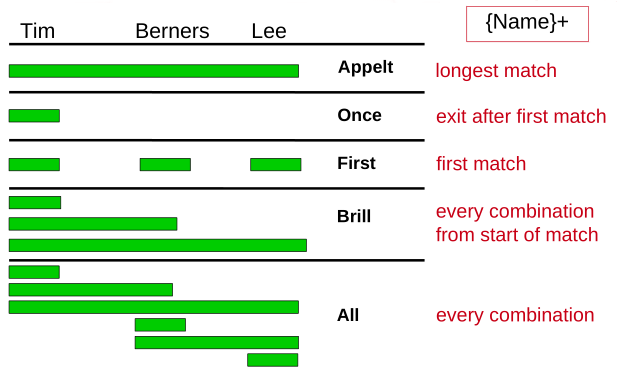
The Brill style means that when more than one rule matches the same region of the document, they are all fired. The result of this is that a segment of text could be allocated more than one entity type, and that no priority ordering is necessary. Brill will execute all matching rules starting from a given position and will advance and continue matching from the position in the document where the longest match finishes.
The ‘all’ style is similar to Brill, in that it will also execute all matching rules, but the matching will continue from the next offset to the current one.
For example, where [] are annotations of type Ann
[aaa[bbb]] [ccc[ddd]]
then a rule matching {Ann} and creating {Ann-2} for the same spans will generate:
BRILL: [aaabbb] [cccddd]
ALL: [aaa[bbb]] [ccc[ddd]]
With the ‘first’ style, a rule fires for the first match that’s found. This makes it inappropriate for rules that end in ‘+’ or ‘?’ or ‘*’. Once a match is found the rule is fired; it does not attempt to get a longer match (as the other two styles do).
With the ‘once’ style, once a rule has fired, the whole JAPE phase exits after the first match.
With the appelt style, only one rule can be fired for the same region of text, according to a set of priority rules. Priority operates in the following way.
-
From all the rules that match a region of the document starting at some point X, the one which matches the longest region is fired.
-
If more than one rule matches the same region, the one with the highest priority is fired
-
If there is more than one rule with the same priority, the one defined earlier in the grammar is fired.
An optional priority declaration is associated with each rule, which should be a positive integer. The higher the number, the greater the priority. By default (if the priority declaration is missing) all rules have the priority -1 (i.e. the lowest priority).
For example, the following two rules for location could potentially match the same text.
Rule:   Location1
Priority: 25

(
 ({Lookup.majorType == loc_key, Lookup.minorType == pre}
  {SpaceToken})?
 {Lookup.majorType == location}
 ({SpaceToken}
  {Lookup.majorType == loc_key, Lookup.minorType == post})?
)
:locName -->
  :locName.Location = {kind = "location", rule = "Location1"}


Rule: GazLocation
Priority: 20
  (
  ({Lookup.majorType == location}):location
  )
  -->   :location.Name = {kind = "location", rule=GazLocation}
Assume we have the text ‘China sea’, that ‘China’ is defined in the gazetteer as ‘location’, and that sea is defined as a ‘loc_key’ of type ‘post’. In this case, rule Location1 would apply, because it matches a longer region of text starting at the same point (‘China sea’, as opposed to just ‘China’). Now assume we just have the text ‘China’. In this case, both rules could be fired, but the priority for Location1 is highest, so it will take precedence. In this case, since both rules produce the same annotation, so it is not so important which rule is fired, but this is not always the case.
One important point of which to be aware is that prioritisation only operates within a single grammar. Although we could make priority global by having all the rules in a single grammar, this is not ideal due to other considerations. Instead, we currently combine all the rules for each entity type in a single grammar. An index file (main.jape) is used to define which grammars should be used, and in which order they should be fired.
Note also that depending on the control style, firing a rule may ‘consume’ that part of the text, making it unavailable to be matched by other rules. This can be a problem for example if one rule uses context to make it more specific, and that context is then missed by later rules, having been consumed due to use of for example the ‘Brill’ control style. ‘All’, on the other hand, would allow it to be matched.
Using priority to resolve ambiguity
If the Appelt style of matching is selected, rule priority operates in the following way.
-
Length of rule – a rule matching a longer pattern will fire first.
-
Explicit priority declaration. Use the optional Priority function to assign a ranking. The higher the number, the higher the priority. If no priority is stated, the default is -1.
-
Order of rules. In the case where the above two factors do not distinguish between two rules, the order in which the rules are stated applies. Rules stated first have higher priority.
Because priority can only operate within a single grammar, this can be a problem for dealing with ambiguity issues. One solution to this is to create a temporary set of annotations in initial grammars, and then manipulate this temporary set in one or more later phases (for example, by converting temporary annotations from different phases into permanent annotations in a single final phase). See the default set of grammars for an example of this.
If two possible ways of matching are found for the same text string, a conflict can arise. Normally this is handled by the priority mechanism (test length, rule priority and finally rule precedence). If all these are equal, Jape will simply choose a match at random and fire it. This leads ot non-deterministic behaviour, which should be avoided.
8.5 Using Phases Sequentially [#]
A JAPE grammar consists of a set of sequential phases. The list of phases is specified (in the order in which they are to be run) in a file, conventionally named main.jape. When loading the grammar into GATE, it is only necessary to load this main file – the phases will then be loaded automatically. It is, however, possible to omit this main file, and just load the phases individually, but this is much more time-consuming. The grammar phases do not need to be located in the same directory as the main file, but if they are not, the relative path should be specified for each phase.
One of the main reasons for using a sequence of phases is that a pattern can only be used once in each phase, but it can be reused in a later phase. Combined with the fact that priority can only operate within a single grammar, this can be exploited to help deal with ambiguity issues.
The solution currently adopted is to write a grammar phase for each annotation type, or for each combination of similar annotation types, and to create temporary annotations. These temporary annotations are accessed by later grammar phases, and can be manipulated as necessary to resolve ambiguity or to merge consecutive annotations. The temporary annotations can either be removed later, or left and simply ignored.
Generally, annotations about which we are more certain are created earlier on. Annotations which are more dubious may be created temporarily, and then manipulated by later phases as more information becomes available.
An annotation generated in one phase can be referred to in a later phase, in exactly the same way as any other kind of annotation (by specifying the name of the annotation within curly braces). The features and values can be referred to or omitted, as with all other annotations. Make sure that if the Input specification is used in the grammar, that the annotation to be referred to is included in the list.
8.6 Using Java Code on the RHS [#]
The RHS of a JAPE rule can consist of any Java code. This is useful for removing temporary annotations and for percolating and manipulating features from previous annotations. In the example below
The first rule below shows a rule which matches a first person name, e.g. ‘Fred’, and adds a gender feature depending on the value of the minorType from the gazetteer list in which the name was found. We first get the bindings associated with the person label (i.e. the Lookup annotation). We then create a new annotation called ‘personAnn’ which contains this annotation, and create a new FeatureMap to enable us to add features. Then we get the minorType features (and its value) from the personAnn annotation (in this case, the feature will be ‘gender’ and the value will be ‘male’), and add this value to a new feature called ‘gender’. We create another feature ‘rule’ with value ‘FirstName’. Finally, we add all the features to a new annotation ‘FirstPerson’ which attaches to the same nodes as the original ‘person’ binding.
Note that inputAS and outputAS represent the input and output annotation set. Normally, these would be the same (by default when using ANNIE, these will be the ‘Default’ annotation set). Since the user is at liberty to change the input and output annotation sets in the parameters of the JAPE transducer at runtime, it cannot be guaranteed that the input and output annotation sets will be the same, and therefore we must specify the annotation set we are referring to.
Rule: FirstName

(
 {Lookup.majorType == person_first}
):person
-->
{
AnnotationSet person = bindings.get("person");
Annotation personAnn = person.iterator().next();
FeatureMap features = Factory.newFeatureMap();
features.put("gender", personAnn.getFeatures().get("minorType"));
features.put("rule", "FirstName");
outputAS.add(person.firstNode(), person.lastNode(), "FirstPerson",
features);
}
The second rule (contained in a subsequent grammar phase) makes use of annotations produced by the first rule described above. Instead of percolating the minorType from the annotation produced by the gazetteer lookup, this time it percolates the feature from the annotation produced by the previous grammar rule. So here it gets the ‘gender’ feature value from the ‘FirstPerson’ annotation, and adds it to a new feature (again called ‘gender’ for convenience), which is added to the new annotation (in outputAS) ‘TempPerson’. At the end of this rule, the existing input annotations (from inputAS) are removed because they are no longer needed. Note that in the previous rule, the existing annotations were not removed, because it is possible they might be needed later on in another grammar phase.
Rule: GazPersonFirst
(
 {FirstPerson}
)
:person
-->
{
AnnotationSet person = bindings.get("person");
Annotation personAnn = person.iterator().next();
FeatureMap features = Factory.newFeatureMap();

features.put("gender", personAnn.getFeatures().get("gender"));
features.put("rule", "GazPersonFirst");
outputAS.add(person.firstNode(), person.lastNode(), "TempPerson",
features);
inputAS.removeAll(person);
}
You can combine Java blocks and normal assignments (separating each block or assignment from the next with a comma), so the above RHS could be more simply expressed as
-->
:person.TempPerson = { gender = :person.FirstPerson.gender,
                       rule = "GazPersonFirst" },
{
  inputAS.removeAll(bindings.get("person"));
}
8.6.1 A More Complex Example
The example below is more complicated, because both the title and the first name (if present) may have a gender feature. There is a possibility of conflict since some first names are ambiguous, or women are given male names (e.g. Charlie). Some titles are also ambiguous, such as ‘Dr’, in which case they are not marked with a gender feature. We therefore take the gender of the title in preference to the gender of the first name, if it is present. So, on the RHS, we first look for the gender of the title by getting all Title annotations which have a gender feature attached. If a gender feature is present, we add the value of this feature to a new gender feature on the Person annotation we are going to create. If no gender feature is present, we look for the gender of the first name by getting all firstPerson annotations which have a gender feature attached, and adding the value of this feature to a new gender feature on the Person annotation we are going to create. If there is no firstPerson annotation and the title has no gender information, then we simply create the Person annotation with no gender feature.
Rule: PersonTitle
Priority: 35
/* allows Mr. Jones, Mr Fred Jones etc. */

(
 (TITLE)
(FIRSTNAME | FIRSTNAMEAMBIG | INITIALS2)*
 (PREFIX)?
 {Upper}
 ({Upper})?
 (PERSONENDING)?
)
:person -->
 {
FeatureMap features = Factory.newFeatureMap();
AnnotationSet personSet = bindings.get("person");

// get all Title annotations that have a gender feature
 HashSet fNames = new HashSet();
    fNames.add("gender");
    AnnotationSet personTitle = personSet.get("Title", fNames);

// if the gender feature exists
 if (personTitle != null && personTitle.size()>0)
{
  Annotation personAnn = personTitle.iterator().next();
  features.put("gender", personAnn.getFeatures().get("gender"));
}
else
{
  // get all firstPerson annotations that have a gender feature
    AnnotationSet firstPerson = personSet.get("FirstPerson", fNames);

  if (firstPerson != null && firstPerson.size()>0)
  // create a new gender feature and add the value from firstPerson
 {
  Annotation personAnn = firstPerson.iterator().next();
  features.put("gender", personAnn.getFeatures().get("gender"));
 }
}
  // create some other features
  features.put("kind", "personName");


  features.put("rule", "PersonTitle");
  // create a Person annotation and add the features we’ve created
outputAS.add(personSet.firstNode(), personSet.lastNode(), "TempPerson",
features);
}
8.6.2 Adding a Feature to the Document [#]
This is useful when using conditional controllers, where we only want to fire a particular resource under certain conditions. We first test the document to see whether it fulfils these conditions or not, and attach a feature to the document accordingly.
In the example below, we test whether the document contains an annotation of type ‘message’. In emails, there is often an annotation of this type (produced by the document format analysis when the document is loaded in GATE). Note that annotations produced by document format analysis are placed automatically in the ‘Original markups’ annotation set, so we must ensure that when running the processing resource containing this grammar that we specify the Original markups set as the input annotation set. It does not matter what we specify as the output annotation set, because the annotation we produce is going to be attached to the document and not to an output annotation set. In the example, if an annotation of type ‘message’ is found, we add the feature ‘genre’ with value ‘email’ to the document.
 Rule: Email
 Priority: 150

 (
  {message}
 )
 -->
 {
 doc.getFeatures().put("genre", "email");
 }
8.6.3 Finding the Tokens of a Matched Annotation [#]
In this section we will demonstrate how by using Java on the right-hand side one can find all Token annotations that are covered by a matched annotation, e.g., a Person or an Organization. This is useful if one wants to transfer some information from the matched annotations to the tokens. For example, to add to the Tokens a feature indicating whether or not they are covered by a named entity annotation deduced by the rule-based system. This feature can then be given as a feature to a learning PR, e.g. the HMM. Similarly, one can add a feature to all tokens saying which rule in the rule based system did the match, the idea being that some rules might be more reliable than others. Finally, yet another useful feature might be the length of the coreference chain in which the matched entity is involved, if such exists.
The example below is one of the pre-processing JAPE grammars used by the HMM application. To inspect all JAPE grammars, see the muse/applications/hmm directory in the distribution.
Phase:  NEInfo

Input: Token Organization Location Person

Options: control = appelt

Rule:   NEInfo

Priority:100

({Organization} | {Person} | {Location}):entity
-->
{
  //get the annotation set
  AnnotationSet annSet = bindings.get("entity");

  //get the only annotation from the set
  Annotation entityAnn = annSet.iterator().next();

  AnnotationSet tokenAS = inputAS.get("Token",
        entityAnn.getStartNode().getOffset(),
        entityAnn.getEndNode().getOffset());
  List<Annotation> tokens = new ArrayList<Annotation>(tokenAS);
  //if no tokens to match, do nothing
  if (tokens.isEmpty())
     return;
  Collections.sort(tokens, new gate.util.OffsetComparator());

  Annotation curToken=null;
  for (int i=0; i < tokens.size(); i++) {
    curToken = tokens.get(i);
    String ruleInfo = (String) entityAnn.getFeatures().get("rule1");
    String NMRuleInfo = (String) entityAnn.getFeatures().get("NMRule");
    if ( ruleInfo != null) {
      curToken.getFeatures().put("rule_NE_kind", entityAnn.getType());
      curToken.getFeatures().put("NE_rule_id", ruleInfo);
    }
    else if (NMRuleInfo != null) {
      curToken.getFeatures().put("rule_NE_kind", entityAnn.getType());
      curToken.getFeatures().put("NE_rule_id", "orthomatcher");
    }
    else {


      curToken.getFeatures().put("rule_NE_kind", "None");
      curToken.getFeatures().put("NE_rule_id", "None");
    }
    List matchesList = (List) entityAnn.getFeatures().get("matches");
    if (matchesList != null) {
      if (matchesList.size() == 2)
        curToken.getFeatures().put("coref_chain_length", "2");
      else if (matchesList.size() > 2 && matchesList.size() < 5)
        curToken.getFeatures().put("coref_chain_length", "3-4");
    else
        curToken.getFeatures().put("coref_chain_length", "5-more");
    }
    else
      curToken.getFeatures().put("coref_chain_length", "0");
  }//for

}

Rule:   TokenNEInfo
Priority:10
({Token}):entity
-->
{
  //get the annotation set
  AnnotationSet annSet = bindings.get("entity");

  //get the only annotation from the set
  Annotation entityAnn = annSet.iterator().next();

  entityAnn.getFeatures().put("rule_NE_kind", "None");
  entityAnn.getFeatures().put("NE_rule_id", "None");
  entityAnn.getFeatures().put("coref_chain_length", "0");
}
8.6.4 Using Named Blocks [#]
For the common case where a Java block refers just to the annotations from a single left-hand-side binding, JAPE provides a shorthand notation:
Rule: RemoveDoneFlag

(
  {Instance.flag == "done"}
):inst
-->
:inst{
  Annotation theInstance = instAnnots.iterator().next();
  theInstance.getFeatures().remove("flag");
}
This rule is equivalent to the following:
Rule: RemoveDoneFlag

(
  {Instance.flag == "done"}
):inst
-->
{
  AnnotationSet instAnnots = bindings.get("inst");
  if(instAnnots != null && instAnnots.size() != 0) {
    Annotation theInstance = instAnnots.iterator().next();
    theInstance.getFeatures().remove("flag");
  }
}
A label :<label> on a Java block creates a local variable <label>Annots within the Java block which is the AnnotationSet bound to the <label> label. Also, the Java code in the block is only executed if there is at least one annotation bound to the label, so you do not need to check this condition in your own code. Of course, if you need more flexibility, e.g. to perform some action in the case where the label is not bound, you will need to use an unlabelled block and perform the bindings.get() yourself.
8.6.5 Java RHS Overview [#]
When a JAPE grammar is parsed, a Jape parser creates action classes for all Java RHSs in the grammar. (one action class per RHS) RHS Java code will be embedded as a body of the method doit and will work in context of this method. When a particular rule is fired, the method doit will be executed.
Method doit is specified by the interface gate.jape.RhsAction. Each action class implements this interface and is generated with roughly the following template:
2import java.util.*;
3import gate.*;
4import gate.jape.*;
5import gate.creole.ontology.*;
6import gate.annotation.*;
7import gate.util.*;
8// Import: block code will be embedded here
9class <AutogeneratedActionClassName>
10 implements java.io.Serializable, gate.jape.RhsAction {
11 private ActionContext ctx;
12 public ActionContext getActionContext() { ... }
13 public String ruleName() { .. }
14 public String phaseName() { .. }
15 public void doit(
16 gate.Document doc,
17 java.util.Map<java.lang.String, gate.AnnotationSet> bindings,
18 gate.AnnotationSet inputAS,
19 gate.AnnotationSet outputAS,
20 gate.creole.ontology.Ontology ontology) throws JapeException {
21 // your RHS Java code will be embedded here ...
22 }
23}
Method doit has the following parameters that can be used in RHS Java code7:
-
gate.Document doc - a document that is currently processed
-
java.util.Map<String, AnnotationSet> bindings - a map of binding variables where a key is a (String) name of binding variable and value is (AnnotationSet) set of annotations corresponding to this binding variable8
-
gate.AnnotationSet inputAS - input annotations
-
gate.AnnotationSet outputAS - output annotations
-
gate.creole.ontology.Ontology ontology - a GATE’s transducer ontology
In addition, the field ctx provides the ActionContext object to the RHS code (see the ActionContext JavaDoc for more). The ActionContext object can be used to access the controller and the corpus and the name and the feature map of the processing resource.
In your Java RHS you can use short names for all Java classes that are imported by the action class (plus Java classes from the packages that are imported by default according to JVM specification: java.lang.*, java.math.*). But you need to use fully qualified Java class names for all other classes. For example:
2{
3 // VALID line examples
4 AnnotationSet as = ...
5 InputStream is = ...
6 java.util.logging.Logger myLogger =
7 java.util.logging.Logger.getLogger("JAPELogger");
8 java.sql.Statement stmt = ...
9
10 // INVALID line examples
11 Logger myLogger = Logger.getLogger("JapePhaseLogger");
12 Statement stmt = ...
13}
In order to add additional Java import or import static statements to all Java RHS’ of the rules in a JAPE grammar file, you can use the following code at the beginning of the JAPE file:
These import statements will be added to the default import statements for each action class generated for a RHS and the corresponding classes can be used in the RHS Java code without the need to use fully qualified names. A useful class to know about is gate.Utils (see the javadoc documentation for details), which provides static utility methods to simplify some common tasks that are frequently used in RHS Java code. Adding an import static gate.Utils.*; to the Imports block allows you to use these methods without any prefix, for example:
2 AnnotationSet lookups = bindings.get("lookup");
3 outputAS.add(start(lookups), end(lookups), "Person",
4 featureMap("text", stringFor(doc, lookups)));
5}
You can do the same with your own utility classes — JAPE rules can import any class available to GATE, including classes defined in a plugin.
The predefined methods ruleName() and phaseName() allow you to easily access the rule and phase name in your Java RHS.
A JAPE file can optionally also contain Java code blocks for handling the events of when the controller (pipeline) running the JAPE processing resource starts processing, finishes processing, or processing is aborted (see the JavaDoc for ControllerAwarePR for more information and warnings about using this feature). These code blocks have to be defined after any Import: block but before the first phase in the file using the ControllerStarted:, ControllerFinished: and ControllerAborted: keywords:
2 // code to run when the controller starts / before any transducing is done
3}
4ControllerFinished: {
5 // code to run right before the controller finishes / after all transducing
6}
7ControllerAborted: {
8 // code to run when processing is aborted by an exception or by a manual
9 // interruption
10}
The Java code in each of these blocks can access the following predefined fields:
-
controller: the Controller object running this JAPE transducer
-
corpus: the Corpus object on which this JAPE transducer is run, if it is run by a CorpusController, null otherwise.
-
ontology: the Ontology object if an Ontology LR has been specified as a runtime-parameter for this JAPE transducer, null otherwise
-
ctx: the ActionContext object. The method ctx.isPREnabled() can be used to find out if the PR is not disabled in a conditional controller (Note that even when a PR is disabled the ControllerStarted/Finished blocks are still executed!)
-
throwable: inside the ControllerAborted block, the Throwable which signalled the aborting exception
Note that these blocks are invoked even when the JAPE processing resource is disabled in a conditional pipeline. If you want to adapt or avoid the processing inside a block in case the processing resource is disabled, use the method ctx.isPREnabled() to check if the processing resource is not disabled.
8.7 Optimising for Speed [#]
The way in which grammars are designed can have a huge impact on the processing speed. Some simple tricks to keep the processing as fast as possible are:
-
avoid the use of the * and + operators. Replace them with range queries where possible. For example, instead of
({Token})*use
({Token})[0,3]if you can predict that you won’t need to recognise a string of Tokens longer than 3. Using * and + on very common annotations (especially Token) is also the most common cause of out-of-memory errors in JAPE transducers.
-
avoid specifying unnecessary elements such as SpaceTokens where you can. To do this, use the Input specification at the beginning of the grammar to stipulate the annotations that need to be considered. If no Input specification is used, all annotations will be considered (so, for example, you cannot match two tokens separated by a space unless you specify the SpaceToken in the pattern). If, however, you specify Tokens but not SpaceTokens in the Input, SpaceTokens do not have to be mentioned in the pattern to be recognised. If, for example, there is only one rule in a phase that requires SpaceTokens to be specified, it may be judicious to move that rule to a separate phase where the SpaceToken can be specified as Input.
-
avoid the shorthand syntax for copying feature values (newFeat = :bind.Type.oldFeat), particularly if you need to copy multiple features from the left to the right hand side of your rule.
8.8 Ontology Aware Grammar Transduction [#]
GATE supports two different methods for ontology aware grammar transduction. Firstly it is possible to use the ontology feature both in grammars and annotations, while using the default transducer. Secondly it is possible to use an ontology aware transducer by passing an ontology language resource to one of the subsumes methods in SimpleFeatureMapImpl. This second strategy does not check for ontology features, which will make the writing of grammars easier, as there is no need to specify ontology when writing them. More information about the ontology-aware transducer can be found in Section 14.8.
8.9 Serializing JAPE Transducer [#]
JAPE grammars are written as files with the extension ‘.jape’, which are parsed and compiled at run-time to execute them over the GATE document(s). Serialization of the JAPE Transducer adds the capability to serialize such grammar files and use them later to bootstrap new JAPE transducers, where they do not need the original JAPE grammar file. This allows people to distribute the serialized version of their grammars without disclosing the actual contents of their jape files. This is implemented as part of the JAPE Transducer PR. The following sections describe how to serialize and deserialize them.
8.9.1 How to Serialize?
Once an instance of a JAPE transducer is created, the option to serialize it appears in the context menu of that instance. The context menu can be activated by right clicking on the respective PR. Having done so, it asks for the file name where the serialized version of the respective JAPE grammar is stored.
8.9.2 How to Use the Serialized Grammar File?
The JAPE Transducer now also has an init-time parameter binaryGrammarURL, which appears as an optional parameter to the grammarURL. The User can use this parameter (i.e. binaryGrammarURL) to specify the serialized grammar file.
8.10 Notes for Montreal Transducer Users [#]
In June 2008, the standard JAPE transducer implementation gained a number of features inspired by Luc Plamondon’s ‘Montreal Transducer’, which was available as a GATE plugin for several years, and was made obsolete in Version 5.1. If you have existing Montreal Transducer grammars and want to update them to work with the standard JAPE implementation you should be aware of the following differences in behaviour:
-
Quantifiers (*, + and ?) in the Montreal transducer are always greedy, but this is not necessarily the case in standard JAPE.
-
The Montreal Transducer defines {Type.feature != value} to be the same as {!Type.feature == value} (and likewise the !~ operator in terms of =~). In standard JAPE these constructs have different semantics. {Type.feature != value} will only match if there is a Type annotation whose feature feature does not have the given value, and if it matches it will bind the single Type annotation. {!Type.feature == value} will match if there is no Type annotation at a given place with this feature (including when there is no Type annotation at all), and if it matches it will bind every other annotation that starts at that location. If you have used != in your Montreal grammars and want them to continue to behave the same way you must change them to use the prefix-! form instead (see Section 8.1.11).
-
The =~ operator in standard JAPE looks for regular expression matches anywhere within a feature value, whereas in the Montreal transducer it requires the whole string to match. To obtain the whole-string matching behaviour in standard JAPE, use the ==~ operator instead (see Section 8.2.3).
8.11 JAPE Plus [#]
Version 7.0 of GATE Developer/Embedded saw the introduction of the JAPE_Plus plugin, which includes a new JAPE execution engine, in the form of the JAPE-Plus Transducer. The JAPE-Plus Transducer should be a drop-in replacement for the standard JAPE Transducer: it accepts the same language (i.e. JAPE grammars) and it has a similar set of parameters. The JAPE-Plus Transducer includes a series of optimisations designed to speed-up the execution:
-
FSM Minimisation
-
the finite state machine used internally to represent the JAPE grammars is minimised, reducing the number of tests that to be performed at execution time.
-
Annotation Graph Indexing
-
JAPE Plus uses a special data structure for holding input annotations which is optimised for the types of tests performed during the execution of JAPE grammars.
-
Predicate Caching
-
JAPE pattern elements are converted into atomic predicates, i.e. tests that cannot be further sub-divided (such as testing if the value of a given annotation feature has a certain value). The truth value for all predicates for each input annotation is cached once calculated, using dynamic-programming techniques. This avoids the same test being evaluated multiple times for the same annotation.
-
Compilation of the State Machine
-
the finite state machine used during matching is converted into Java code that is then compiled on the fly. This allows the inlining of constants and the unwinding of execution loops. Additionally, the Java JIT optimisations can also apply in this set-up.
There are a few small differences in the behaviour of JAPE and JAPE Plus:
-
JAPE Plus behaves in a more deterministic fashion. There are cases where multiple paths inside the annotation graph can be matched with the same precedence, e.g. when the same JAPE rule matches different sets of annotations using different branches of a disjunction in the rule. In such situations, the standard JAPE engine will pick one of the possible paths at random and apply the rule using it. Separate executions of the same grammar over the same document can thus lead to different results. By contrast, JAPE Plus will always choose the same matching set of annotations. It is however not possible to know a priori which one will be chosen, unless the rules are re-written to remove the ambiguity (solution which is also possible with the standard JAPE engine).
-
JAPE Plus is capable of matching zero-length annotations, i.e. annotations for which the start and end offsets are the same, so they cover no document text. The standard JAPE engine simply ignores such annotations, while JAPE Plus allows their use in rules. This can be useful in matching annotations converted from the original markup, for example HTML <br> tags will never have any text content.
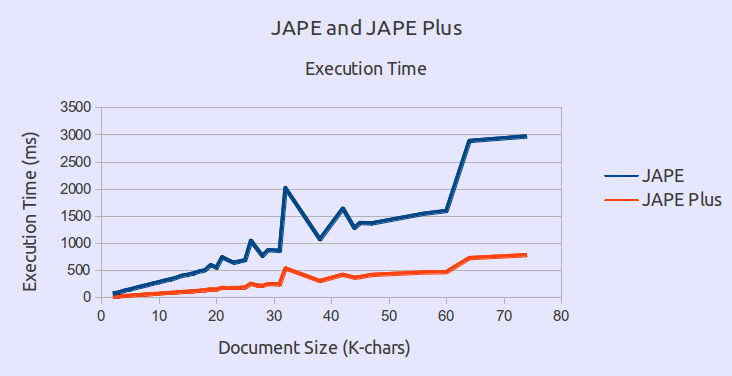
It is not possible to accurately quantify the speed differential between JAPE and JAPE Plus in the general case, as that depends on the complexity of the JAPE grammars used and of the input documents. To get one useful data point we performed an experiment where we processed just over 8,000 web pages from the BBC News web site, with the ANNIE NE grammars, using both JAPE and JAPE Plus. On average the execution speed was 4 times faster when using JAPE Plus. The smallest speed differential was 1 (i.e. JAPE Plus was as fast as JAPE), the highest was 9 times faster. Figure 8.2 plots the execution speed for both engines against document length. As can be seen, JAPE Plus is consistently faster on all document sizes.
Figure 8.3 includes a histogram showing the number of documents for each speed differential. For the vast majority of documents, JAPE Plus was 3 times or more faster than JAPE.
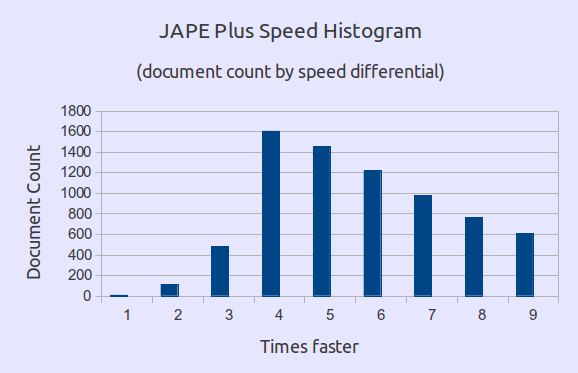
Chapter 9
ANNIC: ANNotations-In-Context [#]
ANNIC (ANNotations-In-Context) is a full-featured annotation indexing and retrieval system. It is provided as part of an extension of the Serial Data-stores, called Searchable Serial Data-store (SSD).
ANNIC can index documents in any format supported by the GATE system (i.e., XML, HTML, RTF, e-mail, text, etc). Compared with other such query systems, it has additional features addressing issues such as extensive indexing of linguistic information associated with document content, independent of document format. It also allows indexing and extraction of information from overlapping annotations and features. Its advanced graphical user interface provides a graphical view of annotation markups over the text, along with an ability to build new queries interactively. In addition, ANNIC can be used as a first step in rule development for NLP systems as it enables the discovery and testing of patterns in corpora.
ANNIC is built on top of the Apache Lucene1 – a high performance full-featured search engine implemented in Java, which supports indexing and search of large document collections. Our choice of IR engine is due to the customisability of Lucene. For more details on how Lucene was modified to meet the requirements of indexing and querying annotations, please refer to [Aswani et al. 05].
As explained earlier, SSD is an extension of the serial data-store. In addition to the persist location, SSD asks user to provide some more information (explained later) that it uses to index the documents. Once the SSD has been initiated, user can add/remove documents/corpora to the SSD in a similar way it is done with other data-stores. When documents are added to the SSD, it automatically tries to index them. It updates the index whenever there is a change in any of the documents stored in the SSD and removes the document from the index if it is deleted from the SSD. Be warned that only the annotation sets, types and features initially provided during the SSD creation time, will be updated when adding/removing documents to the datastore.
SSD has an advanced graphical interface that allows users to issue queries over the SSD. Below we explain the parameters required by SSD and how to instantiate it, how to use its graphical interface and how to use SSD programmatically.
9.1 Instantiating SSD [#]
Steps:
-
In GATE Developer, right click on ‘Datastores’ and select ‘Create Datastore’.
-
From a drop-down list select ‘Lucene Based Searchable DataStore’.
-
Here, you will see a file dialog. Please select an empty folder for your datastore. This is similar to the procedure of creating a serial datastore.
-
After this, you will see an input window. Please provide these parameters:
-
DataStore URL: This is the URL of the datastore folder selected in the previous step.
-
Index Location: By default, the location of index is calculated from the datastore location. It is done by appending ‘-index’ to the datastore location. If user wants to change this location, it is possible to do so by clicking on the folder icon and selecting another empty folder. If the selected folder exists already, the system will check if it is an empty folder. If the selected folder does not exist, the system tries to create it.
-
Annotation Sets: Here, you can provide one or more annotation sets that you wish to index or exclude from being indexed. By default, the default annotation set and the ‘Key’ annotation set are included. User can change this selection by clicking on the edit list icon and removing or adding appropriate annotation set names. In order to be able to readd the default annotation set, you must click on the edit list icon and add an empty field to the list. If there are no annotation sets provided, all the annotation sets in all documents are indexed.
-
Base-Token Type: (e.g. Token or Key.Token) These are the basic tokens of any document. Your documents must have the annotations of Base-Token-Type in order to get indexed. These basic tokens are used for displaying contextual information while searching patterns in the corpus. In case of indexing more than one annotation set, user can specify the annotation set from which the tokens should be taken (e.g. Key.Token- annotations of type Token from the annotation set called Key). In case user does not provide any annotation set name (e.g. Token), the system searches in all the annotation sets to be indexed and the base-tokens from the first annotation set with the base token annotations are taken. Please note that the documents with no base-tokens are not indexed. However, if the ‘create tokens automatically’ option is selected, the SSD creates base-tokens automatically. Here, each string delimited with white space is considered as a token.
-
Index Unit Type: (e.g. Sentence, Key.Sentence) This specifies the unit of Index. In other words, annotations lying within the boundaries of these annotations are indexed (e.g. in the case of ‘Sentences’, no annotations that are spanned across the boundaries of two sentences are considered for indexing). User can specify from which annotation set the index unit annotations should be considered. If user does not provide any annotation set, the SSD searches among all annotation sets for index units. If this field is left empty or SSD fails to locate index units, the entire document is considered as a single unit.
-
Features: Finally, users can specify the annotation types and features that should be indexed or excluded from being indexed. (e.g. SpaceToken and Split). If user wants to exclude only a specific feature of a specific annotation type, he/she can specify it using a ’.’ separator between the annotation type and its feature (e.g. Person.matches).
-
-
Click OK. If all parameters are OK, a new empty DS will be created.
-
Create an empty corpus and save it to the SSD.
-
Populate it with some documents. Each document added to the corpus and eventually to the SSD is indexed automatically. If the document does not have the required annotations, that document is skipped and not indexed.
SSDs are portable and can be moved across different systems. However, the relative positions of both the datastore folder and the respective index folder must be maintained. If it is not possible to maintain the relative positions, the new location of the index must be specified inside the ‘__GATE_SerialDataStore__’ file inside the datastore folder.
9.2 Search GUI [#]
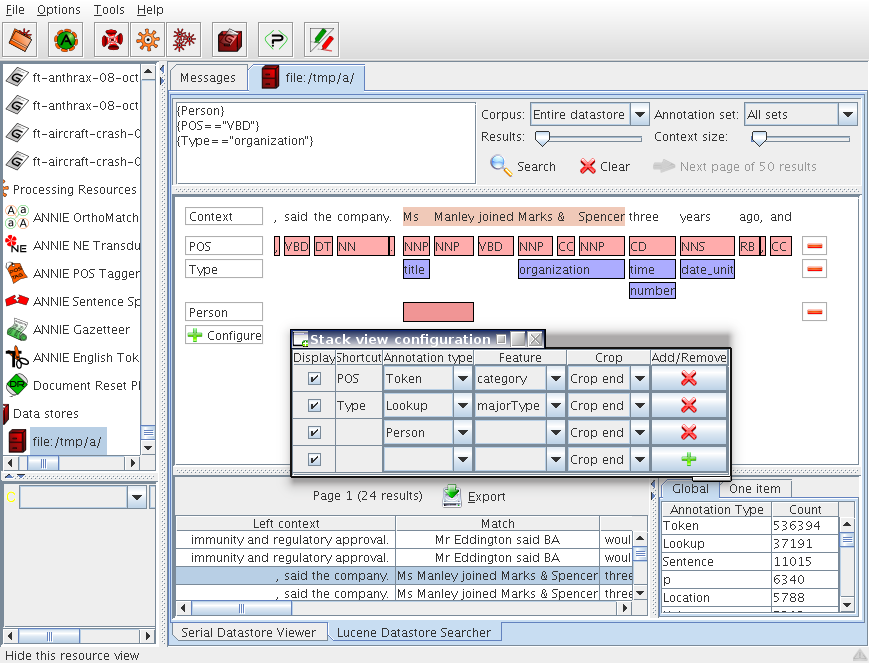
9.2.1 Overview
Figure 9.1 shows the search GUI for a datastore. The top section contains a text area to write a query, lists to select the corpus and annotation set to search in, sliders to set the size of the results and context and icons to execute and clear the query.
The central section shows a graphical visualisation of stacked annotations and feature values for the result row selected in the bottom results table. There is a configuration window where you define which annotation type and feature to display in the central section.
The bottom section contains the results table of the query, i.e. the text that matches the query with their left and right contexts. The bottom section contains also a tabbed pane of statistics.
9.2.2 Syntax of Queries [#]
SSD enables you to formulate versatile queries using a subset of JAPE patterns. Below, we give the JAPE pattern clauses which can be used as SSD queries. Queries can also be a combination of one or more of the following pattern clauses.
-
String
-
{AnnotationType}
-
{AnnotationType == String}
-
{AnnotationType.feature == feature value}
-
{AnnotationType1, AnnotationType2.feature == featureValue}
-
{AnnotationType1.feature == featureValue, AnnotationType2.feature == featureValue}
JAPE patterns also support the | (OR) operator. For instance, {A} ({B} | {C}) is a pattern of two annotations where the first is an annotation of type A followed by the annotation of type either B or C.
ANNIC supports two operators, + and *, to specify the number of times a particular annotation or a sub pattern should appear in the main query pattern. Here, ({A})+n means one and up to n occurrences of annotation {A} and ({A})*n means zero or up to n occurrences of annotation {A}.
Below we explain the steps to search in SSD.
-
Double click on SSD. You will see an extra tab “Lucene DataStore Searcher”. Click on it to activate the searcher GUI.
-
Here you can specify a query to search in your SSD. The query here is a L.H.S. part of the JAPE grammar. Here are some examples:
-
{Person} – This will return annotations of type Person from the SSD
-
{Token.string == “Microsoft”} – This will return all occurrences of “Microsoft” from the SSD.
-
{Person}({Token})*2{Organization} – Person followed by zero or up to two tokens followed by Organization.
-
{Token.orth==“upperInitial”, Organization} – Token with feature orth with value set to “upperInitial” and which is also annotated as Organization.
-
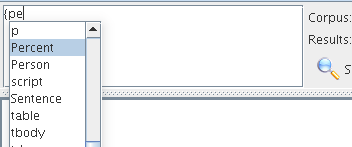
9.2.3 Top Section [#]
A text-area located in the top left part of the GUI is used to input a query. You can copy/cut/paste with Control+C/X/V, undo/redo your changes with Control+Z/Y as usual. To add a new line, use Control+Enter key combination.
Auto-completion as shown in figure 9.2 for annotation type is triggered when typing ’{’ or ’,’ and for feature when typing ’.’ after a valid annotation type. It shows only the annotation types and features related to the selected corpus and annotation set.
If you right-click on an expression it will automatically select the shortest valid enclosing brace and if you click on a selection it will propose you to add quantifiers for allowing the expression to appear zero, one or more times.
To execute the query, click on the magnifying glass icon, use Enter key or Alt+Enter key combination. To clear the query, click on the red X icon or use Alt+Backspace key combination.
It is possible to have more than one corpus, each containing a different set of documents, stored in a single data-store. ANNIC, by providing a drop down box with a list of stored corpora, also allows searching within a specific corpus. Similarly a document can have more than one annotation set indexed and therefore ANNIC also provides a drop down box with a list of indexed annotation sets for the selected corpus.
A large corpus can have many hits for a given query. This may take a long time to refresh the GUI and may create inconvenience while browsing through results. Therefore you can specify the number of results to retrieve. Use the Next Page of Results button to iterate through results. Due to technical complexities, it is not possible to visit a previous page. To retrieve all the results at the same time, push the results slider to the right end.
9.2.4 Central Section [#]
Annotation types and features to show can be configured from the stack view configuration window by clicking on the Configure button at the bottom of the annotation stack. You can also change the feature value displayed by double clicking on the annotation type name in the first column.
The central section shows coloured rectangles exactly below the spans of text where these annotations occur. If only an annotation type is displayed, the rectangle remains empty. When you hover the mouse over the rectangle, it shows all their features and values in a tooltip. If an annotation type and a feature are displayed, the value of that feature is shown in the rectangle.
Shortcuts are expressions that stand for an "AnnotationType.Feature" expression. For example, on the figure 9.1, the shortcut "POS" stands for the expression "Token.category".
When you double click on an annotation rectangle, the respective query expression is placed at the caret position in the query text area. If you have selected anything in the query text area, it gets replaced. You can also double click on a word on the first line to add it to the query.
9.2.5 Bottom Section [#]
The table of results contains the text matched by the query, the contexts, the features displayed in the central view but only for the matching part, the effective query, the document and annotation set names. You can sort a table column by clicking on its header.
You can remove a result from the results table or open the document containing it by right-clicking on a result in the results table.
ANNIC provides an Export button to export results into an HTML file. You can also select then copy/paste the table in your word processor or spreadsheet.
A statistics tabbed pane is displayed at the bottom right. There is always a global statistics pane that lists the count of the occurrences of all annotation types for the selected corpus and annotation set. Double clicking on a row adds the annotation type to the query.
Statistics can be obtained for matched spans of the query in the results, with or without contexts, just by annotation type, an annotation type + feature or an annotation type + feature + value. A second pane contains the one item statistics that you can add by right-clicking on a non empty annotation rectangle or on the first column of a row in the central section. You can sort a table column by clicking on its header.
9.3 Using SSD from GATE Embedded [#]
9.3.1 How to instantiate a searchabledatastore
2// create an instance of datastore
3LuceneDataStoreImpl ds = (LuceneDataStoreImpl)
4 Factory.createDataStore(‘‘gate.persist.LuceneDataStoreImpl’’,
5 dsLocation);
6
7// we need to set Indexer
8Indexer indexer = new LuceneIndexer(new URL(indexLocation));
9
10// set the parameters
11Map parameters = new HashMap();
12
13// specify the index url
14parameters.put(Constants.INDEX_LOCATION_URL, new URL(indexLocation));
15
16// specify the base token type
17// and specify that the tokens should be created automatically
18// if not found in the document
19parameters.put(Constants.BASE_TOKEN_ANNOTATION_TYPE, ‘‘Token’’);
20parameters.put(Constants.CREATE_TOKENS_AUTOMATICALLY,
21 new Boolean(true));
22
23// specify the index unit type
24parameters.put(Constants.INDEX_UNIT_ANNOTATION_TYPE, ‘‘Sentence’’);
25
26// specifying the annotation sets "Key" and "Default Annotation Set"
27// to be indexed
28List<String> setsToInclude = new ArrayList<String>();
29setsToInclude.add("Key");
30setsToInclude.add("<null>");
31parameters.put(Constants.ANNOTATION_SETS_NAMES_TO_INCLUDE,
32 setsToInclude);
33parameters.put(Constants.ANNOTATION_SETS_NAMES_TO_EXCLUDE,
34 new ArrayList<String>());
35
36// all features should be indexed
37parameters.put(Constants.FEATURES_TO_INCLUDE, new ArrayList<String>());
38parameters.put(Constants.FEATURES_TO_EXCLUDE, new ArrayList<String>());
39
40// set the indexer
41ds.setIndexer(indexer, parameters);
42
43// set the searcher
44ds.setSearcher(new LuceneSearcher());
9.3.2 How to search in this datastore
2// obtain the searcher instance
3Searcher searcher = ds.getSearcher();
4Map parameters = new HashMap();
5
6// obtain the url of index
7String indexLocation =
8 new File(((URL) ds.getIndexer().getParameters()
9 .get(Constants.INDEX_LOCATION_URL)).getFile()).getAbsolutePath();
10ArrayList indexLocations = new ArrayList();
11indexLocations.add(indexLocation);
12
13
14// corpus2SearchIn = mention corpus name that was indexed here.
15
16// the annotation set to search in
17String annotationSet2SearchIn = "Key";
18
19// set the parameter
20parameters.put(Constants.INDEX_LOCATIONS,indexLocations);
21parameters.put(Constants.CORPUS_ID, corpus2SearchIn);
22parameters.put(Constants.ANNOTATION_SET_ID, annotationSet);
23parameters.put(Constants.CONTEXT_WINDOW, contextWindow);
24parameters.put(Constants.NO_OF_PATTERNS, noOfPatterns);
25
26// search
27String query = "{Person}";
28Hit[] hits = searcher.search(query, parameters);
Chapter 10
Performance Evaluation of Language Analysers [#]
GATE provides a variety of tools for automatic evaluation. The Annotation Diff tool compares two annotation sets within a document. Corpus QA extends Annotation Diff to an entire corpus. The Corpus Benchmark tool also provides functionality for comparing annotation sets over an entire corpus. Additionally, two plugins cover similar functionality; one implements inter-annotator agreement, and the other, the balanced distance metric.
These tools are particularly useful not just as a final measure of performance, but as a tool to aid system development by tracking progress and evaluating the impact of changes as they are made. Applications include evaluating the success of a machine learning or language engineering application by comparing its results to a gold standard and also comparing annotations prepared by two human annotators to each other to ensure that the annotations are reliable.
This chapter begins by introducing the concepts and metrics relevant, before describing each of the tools in turn.
10.1 Metrics for Evaluation in Information Extraction [#]
When we evaluate the performance of a processing resource such as tokeniser, POS tagger, or a whole application, we usually have a human-authored ‘gold standard’ against which to compare our software. However, it is not always easy or obvious what this gold standard should be, as different people may have different opinions about what is correct. Typically, we solve this problem by using more than one human annotator, and comparing their annotations. We do this by calculating inter-annotator agreement (IAA), also known as inter-rater reliability.
IAA can be used to assess how difficult a task is. This is based on the argument that if two humans cannot come to agreement on some annotation, it is unlikely that a computer could ever do the same annotation ‘correctly’. Thus, IAA can be used to find the ceiling for computer performance.
There are many possible metrics for reporting IAA, such as Cohen’s Kappa, prevalence, and bias [Eugenio & Glass 04]. Kappa is the best metric for IAA when all the annotators have identical exhaustive sets of questions on which they might agree or disagree. In other words, it is a classification task. This could be a task like ‘are these names male or female names’. However, sometimes there is disagreement about the set of questions, e.g. when the annotators themselves determine which text spans they ought to annotate, such as in named entity extraction. That could be a task like ‘read over this text and mark up all references to politics’. When annotators determine their own sets of questions, it is appropriate to use precision, recall, and F-measure to report IAA. Precision, recall and F-measure are also appropriate choices when assessing performance of an automated application against a trusted gold standard.
In this section, we will first introduce some relevant terms, before outlining Cohen’s Kappa and similar measures, in Section 10.1.2. We will then introduce precision, recall and F-measure in Section 10.1.3.
10.1.1 Annotation Relations [#]
Before introducing the metrics we will use in this chapter, we will first outline the ways in which annotations can relate to each other. These ways of comparing annotations to each other are used to determine the counts that then go into calculating the metrics of interest. Consider a document with two annotation sets upon it. These annotation sets might for example be prepared by two human annotators, or alternatively, one set might be produced by an automated system and the other might be a trusted gold standard. We wish to assess the extent to which they agree. We begin by counting incidences of the following relations:
-
Coextensive
-
Two annotations are coextensive if they hit the same span of text in a document. Basically, both their start and end offsets are equal.
-
Overlaps
-
Two annotations overlap if they share a common span of text.
-
Compatible
-
Two annotations are compatible if they are coextensive and if the features of one (usually the ones from the key) are included in the features of the other (usually the response).
-
Partially Compatible
-
Two annotations are partially compatible if they overlap and if the features of one (usually the ones from the key) are included in the features of the other (response).
-
Missing
-
This applies only to the key annotations. A key annotation is missing if either it is not coextensive or overlapping, orif one or more features are not included in the response annotation.
-
Spurious
-
This applies only to the response annotations. A response annotation is spurious if either it is not coextensive or overlapping, or if one or more features from the key are not included in the response annotation.
10.1.2 Cohen’s Kappa [#]
The three commonly used IAA measures are observed agreement, specific agreement, and Kappa (κ) [Hripcsak & Heitjan 02]. Those measures can be calculated from a contingency table, which lists the numbers of instances of agreement and disagreement between two annotators on each category. To explain the IAA measures, a general contingency table for two categories cat1 and cat2 is shown in Table 10.1.
| Annotator-2 | |||
| Annotator-1 | cat1 | cat2 | marginal sum |
| cat1 | a | b | a+b |
| cat2 | c | d | c+d |
| marginal sum | a+c | b+d | a+b+c+d |
Observed agreement is the portion of the instances on which the annotators agree. For the two annotators and two categories as shown in Table 10.1, it is defined as
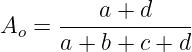
| (10.1) |
The extension of the above formula to more than two categories is straightforward. The extension to more than two annotators is usually taken as the mean of the pair-wise agreements [Fleiss 75], which is the average agreement across all possible pairs of annotators. An alternative compares each annotator with the majority opinion of the others [Fleiss 75].
However, the observed agreement has two shortcomings. One is that a certain amount of agreement is expected by chance. The Kappa measure is a chance-corrected agreement. Another is that it sums up the agreement on all the categories, but the agreements on each category may differ. Hence the category specific agreement is needed.
Specific agreement quantifies the degree of agreement for each of the categories separately. For example, the specific agreement for the two categories list in Table 10.1 is the following, respectively,

| (10.2) |
Kappa is defined as the observed agreements Ao minus the agreement expected by chance Ae and is normalized as a number between -1 and 1.
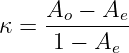
| (10.3) |
κ = 1 means perfect agreements, κ = 0 means the agreement is equal to chance, κ = −1 means ‘perfect’ disagreement.
There are two different ways of computing the chance agreement Ae (for a detailed explanations about it see [Eugenio & Glass 04]; however, a quick outline will be given below). The Cohen’s Kappa is based on the individual distribution of each annotator, while the Siegel & Castellan’s Kappa is based on the assumption that all the annotators have the same distribution. The former is more informative than the latter and has been used widely.
Let us consider an example:
| Annotator-2 | |||
| Annotator-1 | cat1 | cat2 | marginal sum |
| cat1 | 1 | 2 | 3 |
| cat2 | 3 | 4 | 7 |
| marginal sum | 4 | 6 | 10 |
Cohen’s Kappa requires that the expected agreement be calculated as follows. Divide marginal sums by the total to get the portion of the instances that each annotator allocates to each category. Multiply annotator’s proportions together to get the likelihood of chance agreement, then total these figures. Table 10.3 gives a worked example.
| Annotator-1 | Annotator 2 | Multiplied | |
| cat1 | 3 / 10 = 0.3 | 4 / 10 = 0.4 | 0.12 |
| cat2 | 7 / 10 = 0.7 | 6 / 10 = 0.6 | 0.42 |
| Total | 0.54 | ||
The formula can easily be extended to more than two categories.
Siegel & Castellan’s Kappa is applicable for any number of annotators. Siegel & Castellan’s Kappa for two annotators is also known as Scott’s Pi (see [Lombard et al. 02]). It differs from Cohen’s Kappa only in how the expected agreement is calculated. Table 10.4 shows a worked example. Annotator totals are added together and divided by the number of decisions to form joint proportions. These are then squared and totalled.
| Ann-1 | Ann-2 | Sum | Joint Prop | JP-Squared | |
| cat1 | 3 | 4 | 7 | 7/20 | 49/400=0.1225 |
| cat2 | 7 | 6 | 13 | 13/20 | 169/400=0.4225 |
| Total | 218/400 = 0.545 | ||||
The Kappa suffers from the prevalence problem which arises because imbalanced distribution of categories in the data increases Ae. The prevalence problem can be alleviated by reporting the positive and negative specified agreement on each category besides the Kappa [Hripcsak & Heitjan 02, Eugenio & Glass 04]. In addition, the so-called bias problem affects the Cohen’s Kappa, but not S&C’s. The bias problem arises as one annotator prefers one particular category more than another annotator. [Eugenio & Glass 04] advised to compute the S&C’s Kappa and the specific agreements along with the Cohen’s Kappa in order to handle these problems.
Despite the problem mentioned above, the Cohen’s Kappa remains a popular IAA measure. Kappa can be used for more than two annotators based on pair-wise figures, e.g. the mean of all the pair-wise Kappa as an overall Kappa measure. The Cohen’s Kappa can also be extended to the case of more than two annotators by using the following single formula [Davies & Fleiss 82]

| (10.4) |
Where I and J are the number of instances and annotators, respectively; Y ic is the number of annotators who assigns the category c to the instance I; pcj is the probability of the annotator j assigning category c; pc is the probability of assigning category by all annotators (i.e. averaging pcj over all annotators).
The Krippendorff’s alpha, another variant of Kappa, differs only slightly from the S&C’s Kappa on nominal category problem (see [Carletta 96, Eugenio & Glass 04]).
However, note that the Kappa (and the observed agreement) is not applicable to some tasks. Named entity annotation is one such task [Hripcsak & Rothschild 05]. In the named entity annotation task, annotators are given some text and are asked to annotate some named entities (and possibly their categories) in the text. Different annotators may annotate different instances of the named entity. So, if one annotator annotates one named entity in the text but another annotator does not annotate it, then that named entity is a non-entity for the latter. However, generally the non-entity in the text is not a well-defined term, e.g. we don’t know how many words should be contained in the non-entity. On the other hand, if we want to compute Kappa for named entity annotation, we need the non-entities. This is why people don’t compute Kappa for the named entity task.
10.1.3 Precision, Recall, F-Measure [#]
Much of the research in IE in the last decade has been connected with the MUC competitions, and so it is unsurprising that the MUC evaluation metrics of precision, recall and F-measure [Chinchor 92] also tend to be used, along with slight variations. These metrics have a very long-standing tradition in the field of IR [van Rijsbergen 79] (see also [Manning & Schütze 99, Frakes & Baeza-Yates 92]).
Precision measures the number of correctly identified items as a percentage of the number of items identified. In other words, it measures how many of the items that the system identified were actually correct, regardless of whether it also failed to retrieve correct items. The higher the precision, the better the system is at ensuring that what is identified is correct.
Error rate is the inverse of precision, and measures the number of incorrectly identified items as a percentage of the items identified. It is sometimes used as an alternative to precision.
Recall measures the number of correctly identified items as a percentage of the total number of correct items. In other words, it measures how many of the items that should have been identified actually were identified, regardless of how many spurious identifications were made. The higher the recall rate, the better the system is at not missing correct items.
Clearly, there must be a tradeoff between precision and recall, for a system can easily be made to achieve 100% precision by identifying nothing (and so making no mistakes in what it identifies), or 100% recall by identifying everything (and so not missing anything). The F-measure [van Rijsbergen 79] is often used in conjunction with Precision and Recall, as a weighted average of the two. False positives are a useful metric when dealing with a wide variety of text types, because it is not dependent on relative document richness in the same way that precision is. By this we mean the relative number of entities of each type to be found in a set of documents.
When comparing different systems on the same document set, relative document richness is unimportant, because it is equal for all systems. When comparing a single system’s performance on different documents, however, it is much more crucial, because if a particular document type has a significantly different number of any type of entity, the results for that entity type can become skewed. Compare the impact on precision of one error where the total number of correct entities = 1, and one error where the total = 100. Assuming the document length is the same, then the false positive score for each text, on the other hand, should be identical.
Common metrics for evaluation of IE systems are defined as follows:

| (10.5) |

| (10.6) |

| (10.7) |
where β reflects the weighting of P vs. R. If β is set to 1, the two are weighted equally. With β set to 0.5, precision weights twice as much as recall. And with β set to 2, recall weights twice as much as precision.

| (10.8) |
where c is some constant independent from document richness, e.g. the number of tokens or sentences in the document.
Note that we consider annotations to be partially correct if the entity type is correct and the spans are overlapping but not identical. Partially correct responses are normally allocated a half weight.
10.1.4 Macro and Micro Averaging [#]
Where precision, recall and f-measure are calculated over a corpus, there are options in terms of how document statistics are combined.
-
Micro averaging essentially treats the corpus as one large document. Correct, spurious and missing counts span the entire corpus, and precision, recall and f-measure are calculated accordingly.
-
Macro averaging calculates precision, recall and f-measure on a per document basis, and then averages the results.
The method of choice depends on the priorities of the case in question. Macro averaging tends to increase the importance of shorter documents.
It is also possible to calculate a macro average across annotation types; that is to say, precision, recall and f-measure are calculated separately for each annotation type and the results then averaged.
10.2 The Annotation Diff Tool [#]
The Annotation Diff tool enables two sets of annotations in one or two documents to be compared, in order either to compare a system-annotated text with a reference (hand-annotated) text, or to compare the output of two different versions of the system (or two different systems). For each annotation type, figures are generated for precision, recall, F-measure. Each of these can be calculated according to 3 different criteria - strict, lenient and average. The reason for this is to deal with partially correct responses in different ways.
-
The Strict measure considers all partially correct responses as incorrect (spurious).
-
The Lenient measure considers all partially correct responses as correct.
-
The Average measure allocates a half weight to partially correct responses (i.e. it takes the average of strict and lenient).
It can be accessed both from GATE Developer and from GATE Embedded. Annotation Diff compares sets of annotations with the same type. When performing the comparison, the annotation offsets and their features will be taken into consideration. and after that, the comparison process is triggered.
All annotations from the key set are compared with the ones from the response set, and those found to have the same start and end offsets are displayed on the same line in the table. Then, the Annotation Diff evaluates if the features of each annotation from the response set subsume those features from the key set, as specified by the features names you provide.
To use the annotation diff tool, see Section 10.2.1. To create a gold standard, see section 10.2.2. To compare more than two annotation sets, see Section 3.4.3.
10.2.1 Performing Evaluation with the Annotation Diff Tool [#]
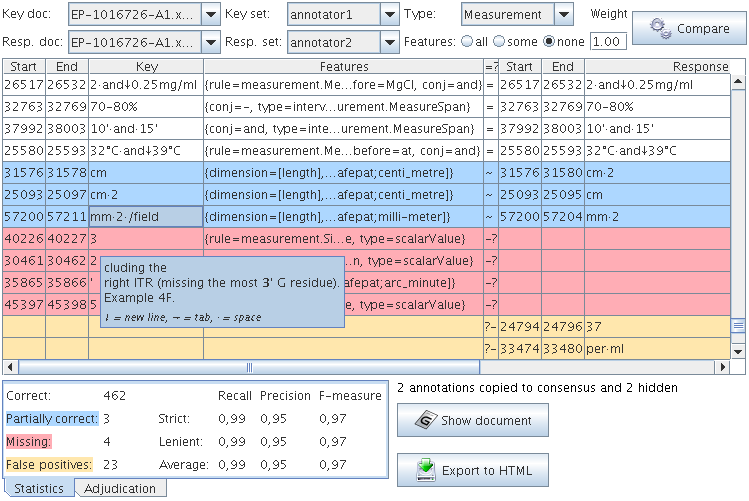
The Annotation Diff tool is activated by selecting it from the Tools menu at the top of the GATE Developer window. It will appear in a new window. Select the key and response documents to be used (note that both must have been previously loaded into the system), the annotation sets to be used for each, and the annotation type to be compared.
Note that the tool automatically intersects all the annotation types from the selected key annotation set with all types from the response set.
On a separate note, you can perform a diff on the same document, between two different annotation sets. One annotation set could contain the key type and another could contain the response one.
After the type has been selected, the user is required to decide how the features will be compared. It is important to know that the tool compares them by analysing if features from the key set are contained in the response set. It checks for both the feature name and feature value to be the same.
There are three basic options to select:
-
To take ‘all’ the features from the key set into consideration
-
To take only ‘some’ user selected features
-
To take ‘none’ of the features from the key set.
The weight for the F-Measure can also be changed - by default it is set to 1.0 (i.e. to give precision and recall equal weight). Finally, click on ‘Compare’ to display the results. Note that the window may need to be resized manually, by dragging the window edges as appropriate).
In the main window, the key and response annotations will be displayed. They can be sorted by any category by clicking on the central column header: ‘=?’. The key and response annotations will be aligned if their indices are identical, and are color coded according to the legend displayed at the bottom.
Precision, recall, F-measure are also displayed below the annotation tables, each according to 3 criteria - strict, lenient and average. See Sections 10.2 and 10.1 for more details about the evaluation metrics.
The results can be saves to an HTML file by using the ‘Export to HTML’ button. This creates an HTML snapshot of what the Annotation Diff table shows at that moment. The columns and rows in the table will be shown in the same order, and the hidden columns will not appear in the HTML file. The colours will also be the same.
If you need more details or context you can use the button ‘Show document’ to display the document and the annotations selected in the annotation diff drop down lists and table.
10.2.2 Creating a Gold Standard with the Annotation Diff Tool [#]
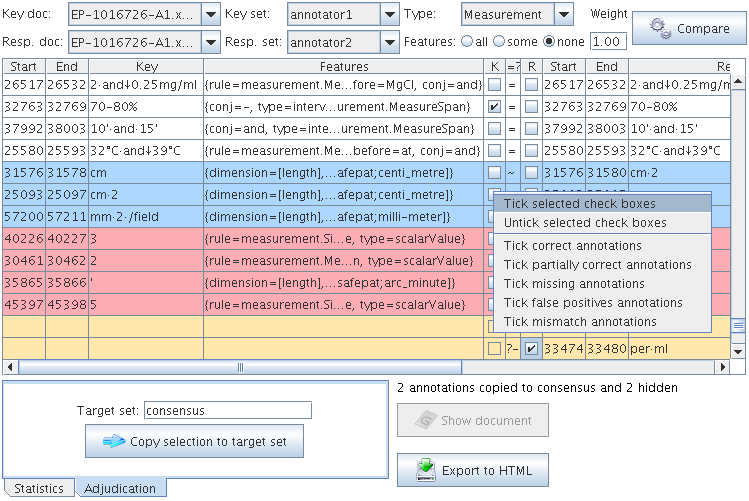
In order to create a gold standard set from two sets you need to show the ‘Adjudication’ panel at the bottom. It will insert two checkboxes columns in the central table. Tick boxes in the columns ‘K(ey)’ and ‘R(esponse)’ then input a Target set in the text field and use the ‘Copy selection to target’ button to copy all annotations selected to the target annotation set.
There is a context menu for the checkboxes to tick them quickly.
Each time you will copy the selection to the target set to create the gold standard set, the rows will be hidden in further comparisons. In this way, you will see only the annotations that haven’t been processed. At the end of the gold standard creation you should have an empty table.
To see again the copied rows, select the ‘Statistics’ tab at the bottom and use the button ‘Compare’.
10.2.3 A warning about feature values [#]
The Annotation Differ uses the Java equals test on the feature values to determine whether they match. This test returns false (i.e., it counts as a mismatch) if the values have different types, even if they look the same in the user interface: for example, a String with a value of "5" and an Integer with a value of 5 look the same on the screen but do not match. Refer to the longer explanation in Section 10.3.6 for more detail and advice on preventing mismatches.
10.3 Corpus Quality Assurance [#]
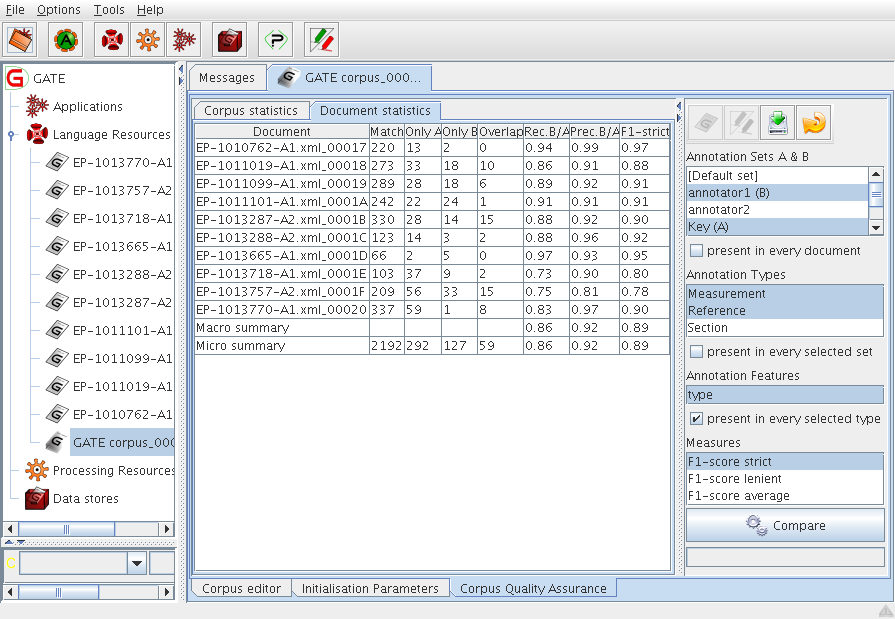
10.3.1 Description of the interface
A bottom tab in each corpus view is entitled ‘Corpus Quality Assurance’. This tab will allow you to calculate precision, recall and F-score between two annotation sets in a corpus without the need to load a plugin. It extends the Annotation Diff functionality to the entire corpus in a convenient interface.
The main part of the view consists of two tabs each containing a table. One tab is entitled ‘Corpus statistics’ and the other is entitled ‘Document statistics’.
To the right of the tabbed area is a configuration pane in which you can select the annotation sets you wish to compare, the annotation types you are interested in and the annotation features you wish to specify for use in the calculation if any.
You can also choose whether to calculate agreement on a strict or lenient basis or take the average of the two. (Recall that strict matching requires two annotations to have an identical span if they are to be considered a match, where lenient matching accepts a partial match; annotations are overlapping but not identical in span.)
At the top, several icons are for opening a document (double-clicking on a row is also working) or Annotation Diff only when a row in the document statistics table is selected, exporting the tables to an HTML file, reloading the list of sets, types and features when some documents have been modified in the corpus and getting this help page.
Corpus Quality Assurance works also with a corpus inside a datastore. Using a datastore is useful to minimise memory consumption when you have a big corpus.
See the section 10.1 for more details about the evaluation metrics.
10.3.2 Step by step usage
Begin by selecting the annotation sets you wish to compare in the top list in the configuration pane. Clicking on an annotation set labels it annotation set A for the Key (an ‘(A)’ will appear beside it to indicate that this is your selection for annotation set A). Now click on another annotation set. This will be labelled annotation set B for the response.
To change your selection, deselect an annotation set by clicking on it a second time. You can now choose another annotation set. Note that you do not need to hold the control key down to select the second annotation set. This list is configured to accept two (and no more than two) selections. If you wish, you may check the box ‘present in every document’ to reduce the annotation sets list to only those sets present in every document.
You may now choose the annotation types you are interested in. If you don’t choose any then all will be used. If you wish, you may check the box ‘present in every selected set’ to reduce the annotation types list to only those present in every selected annotation set.
You can choose the annotation features you wish to include in the calculation. If you choose features, then for an annotation to be considered a match to another, their feature values must also match. If you select the box ‘present in every selected type’ the features list will be reduced to only those present in every type you selected.
For the classification measures you must select only one type and one feature.
The ‘Measures’ list allows you to choose whether to calculate strict or lenient figures or average the two. You may choose as many as you wish, and they will be included as columns in the table to the left. The BDM measures allow to accept a match when the two concept are close enough in an ontology even if their name are different. See section 10.6.
An ‘Options’ button above the ‘Measures’ list gives let you set some settings like the beta for the Fscore or the BDM file.
Finally, click on the ‘Compare’ button to recalculate the tables. The figures that appear in the several tables (one per tab) are described below.
10.3.3 Details of the Corpus statistics table
In this table you will see that one row appears for every annotation type you chose. Columns give total counts for matching annotations (‘Match’ equivalent to TREC Correct), annotations only present in annotation set A/Key (‘Only A’ equivalent to TREC Missing), annotations only present in annotation set B/Response (‘Only B’ equivalent to TREC Spurious) and annotations that overlapped (‘Overlap’ equivalent to TREC Partial).
Depending on whether one of your annotation sets is considered a gold standard, you might prefer to think of ‘Only A’ as missing and ‘Only B’ as spurious, or vice versa, but the Corpus Quality Assurance tool makes no assumptions about which if any annotation set is the gold standard. Where it is being used to calculate Inter Annotator Agreement there is no concept of a ‘correct’ set. However, in ‘MUC’ terms, ‘Match’ would be correct and ‘Overlap’ would be partial.
After these columns, three columns appear for every measure you chose to calculate. If you chose to calculate a strict F1, a recall, precision and F1 column will appear for the strict counts. If you chose to calculate a lenient F1, precision, recall and F1 columns will also appear for lenient counts.
In the corpus statistics table, calculations are done on a per type basis and include all documents in the calculation. Final rows in the table provide summaries; total counts are given along with a micro and a macro average.
Micro averaging treats the entire corpus as one big document where macro averaging, on this table, is the arithmetic mean of the per-type figures. See Section 10.1.4 for more detail on the distinction between a micro and a macro average.
10.3.4 Details of the Document statistics table
In this table you will see that one row appears for every document in the corpus. Columns give counts as in the corpus statistics table, but this time on a per-document basis.
As before, for every measure you choose to calculate, precision, recall and F1 columns will appear in the table.
Summary rows, again, give a macro average (arithmetic mean of the per-document measures) and micro average (identical to the figure in the corpus statistics table).
10.3.5 GATE Embedded API for the measures
You can get the same results as the Corpus Quality Assurance tool from your program by using the classes that compute the results.
They are three for the moment: AnnotationDiffer, ClassificationMeasures and OntologyMeasures. All in gate.util package.
To compute the measures respect the order below.
Constructors and methods to initialise the measure objects:
AnnotationDiffer differ = new AnnotationDiffer();
differ.setSignificantFeaturesSet(Set<String> features);
ClassificationMeasures classificationMeasures = new ClassificationMeasures();
OntologyMeasures ontologyMeasures = new OntologyMeasures();
ontologyMeasures.setBdmFile(URL bdmFileUrl);
With bdmFileUrl an URL to a file of the format described at section 10.6.
Methods for computing the measures:
differ.calculateDiff(Collection key, Collection response)
classificationMeasures.calculateConfusionMatrix(AnnotationSet key,
 AnnotationSet response, String type, String feature, boolean verbose)
ontologyMeasures.calculateBdm(Collection<AnnotationDiffer> differs)
With verbose to be set to true if you want to get printed the annotations ignored on the "standard" output stream.
Constructors, useful for micro average, no need to use calculateX methods as they must have been already called:
AnnotationDiffer(Collection<AnnotationDiffer> differs)
ClassificationMeasures(Collection<ClassificationMeasures> tables)
OntologyMeasures(Collection<OntologyMeasures> measures)
Method for getting results for all 3 classes:
List<String> getMeasuresRow(Object[] measures, String title)
With measures an array of String with values to choose from:
-
F1.0-score strict
-
F1.0-score lenient
-
F1.0-score average
-
F1.0-score strict BDM
-
F1.0-score lenient BDM
-
F1.0-score average BDM
-
Observed agreement
-
Cohen’s Kappa
-
Pi’s Kappa
Note that the numeric value ‘1.0’ represents the beta coefficient in the Fscore. See section 10.1 for more information on these measures.
Method only for ClassificationMeasures:
List<List<String>> getConfusionMatrix(String title)
The following example is taken from gate.gui.CorpusQualityAssurance#compareAnnotation but hasn’t been ran so there could be some corrections to make.
2 final int CLASSIFICATION_MEASURES = 1;
3 ArrayList<String> documentNames = new ArrayList<String>();
4 TreeSet<String> types = new TreeSet<String>();
5 Set<String> features = new HashSet<String>();
6
7 int measuresType = FSCORE_MEASURES;
8 Object[] measures = new Object[]
9 {"F1.0-score strict", "F0.5-score lenient BDM"};
10 String keySetName = "Key";
11 String responseSetName = "Response";
12 types.add("Person");
13 features.add("gender");
14 URL bdmFileUrl = null;
15 try {
16 bdmFileUrl = new URL("file:///tmp/bdm.txt");
17 } catch (MalformedURLException e) {
18 e.printStackTrace();
19 }
20
21 boolean useBdm = false;
22 for (Object measure : measures) {
23 if (((String) measure).contains("BDM")) { useBdm = true; break; }
24 }
25
26 // for each document
27 for (int row = 0; row < corpus.size(); row++) {
28 boolean documentWasLoaded = corpus.isDocumentLoaded(row);
29 Document document = (Document) corpus.get(row);
30 documentNames.add(document.getName());
31 Set<Annotation> keys = new HashSet<Annotation>();
32 Set<Annotation> responses = new HashSet<Annotation>();
33 // get annotations from selected annotation sets
34 keys = document.getAnnotations(keySetName);
35 responses = document.getAnnotations(responseSetName);
36 if (!documentWasLoaded) { // in case of datastore
37 corpus.unloadDocument(document);
38 Factory.deleteResource(document);
39 }
40
41 // fscore document table
42 if (measuresType == FSCORE_MEASURES) {
43 HashMap<String, AnnotationDiffer> differsByType =
44 new HashMap<String, AnnotationDiffer>();
45 AnnotationDiffer differ;
46 Set<Annotation> keysIter = new HashSet<Annotation>();
47 Set<Annotation> responsesIter = new HashSet<Annotation>();
48 for (String type : types) {
49 if (!keys.isEmpty() && !types.isEmpty()) {
50 keysIter = ((AnnotationSet)keys).get(type);
51 }
52 if (!responses.isEmpty() && !types.isEmpty()) {
53 responsesIter = ((AnnotationSet)responses).get(type);
54 }
55 differ = new AnnotationDiffer();
56 differ.setSignificantFeaturesSet(features);
57 differ.calculateDiff(keysIter, responsesIter); // compare
58 differsByType.put(type, differ);
59 }
60 differsByDocThenType.add(differsByType);
61 differ = new AnnotationDiffer(differsByType.values());
62 List<String> measuresRow;
63 if (useBdm) {
64 OntologyMeasures ontologyMeasures = new OntologyMeasures();
65 ontologyMeasures.setBdmFile(bdmFileUrl);
66 ontologyMeasures.calculateBdm(differsByType.values());
67 measuresRow = ontologyMeasures.getMeasuresRow(
68 measures, documentNames.get(documentNames.size()-1));
69 } else {
70 measuresRow = differ.getMeasuresRow(measures,
71 documentNames.get(documentNames.size()-1));
72 }
73 System.out.println(Arrays.deepToString(measuresRow.toArray()));
74
75 // classification document table
76 } else if (measuresType == CLASSIFICATION_MEASURES
77 && !keys.isEmpty() && !responses.isEmpty()) {
78 ClassificationMeasures classificationMeasures =
79 new ClassificationMeasures();
80 classificationMeasures.calculateConfusionMatrix(
81 (AnnotationSet) keys, (AnnotationSet) responses,
82 types.first(), features.iterator().next(), false);
83 List<String> measuresRow = classificationMeasures.getMeasuresRow(
84 measures, documentNames.get(documentNames.size()-1));
85 System.out.println(Arrays.deepToString(measuresRow.toArray()));
86 List<List<String>> matrix = classificationMeasures
87 .getConfusionMatrix(documentNames.get(documentNames.size()-1));
88 for (List<String> matrixRow : matrix) {
89 System.out.println(Arrays.deepToString(matrixRow.toArray()));
90 }
91 }
92 }
See method gate.gui.CorpusQualityAssurance#printSummary for micro and macro average like in the Corpus Quality Assurance.
10.3.6 A warning about feature values [#]
The F-measure, precision, and recall measures, and the counts of matches used to produce them, are based on the Java equals test on the feature values being compared. This test returns false (i.e., it counts as a mismatch) if the values have different types, even if they look the same in the user interface: for example, a String with a value of "5" and an Integer with a value of 5 look the same on the screen but do not match.
The values of GATE features (for documents as well as annotations) are automatically stored as String values whenever you change them in the GUI feature editor. For example, if you click in a feature with an Integer with a value of 5 and type another digit, the result will be stored as a String (e.g., "56", but it will look like 56 in the GUI). The current version of GATE does not change feature values to String if you click in the value text box but do not change anything. (Earlier versions made the change if you clicked in the text box.)
In order to get correct results, you need to ensure that the values of the key and response features being compared have the same type. If this is not certain to be the case, you may wish to add a JAPE or Groovy PR to check the types of the feature values and convert them all to one type (e.g., String or Integer).
The classification and confusion matrix tables in the Corpus QA display are produced a different way, by assembling a list of all the feature values, converting them to strings to create the row and column headers, and then incrementing the cells in the table according to the string conversion. In these tables, a String with a value of "5" and an Integer with a value of 5 count as a match.
10.3.7 Quality Assurance PR [#]
We have also implemented a processing resource called Quality Assurance PR that wraps the functionality of the QA Tool. At the time of writing this documentation, the only difference the QA PR has in terms of functionality is that the PR only accepts one measure at a time.
The Quality Assuarance PR is included in the Tools plugin. The PR can be added to any existing corpus pipeline. Since the QA tool works on the entire corpus, the PR has to be executed after all the documents in the corpus have been processed. In order to achieve this, we have designed the PR in such a way that it only gets executed when the pipeline reaches to the last document in the corpus. There are no init-time parameters but users are required to provide values for the following run-time parameters.
-
annotationTypes - annotation types to compare.
-
featuresNames - features of the annotation types (specified above) to compare.
-
keyASName - the annotation set that acts as a gold standard set and contains annotations of the types specified above in the first parameter.
-
responseASName - the annotation set that acts as a test set and contains annotations of the types specified above in the first parameter.
-
measure - one of the six pre-defined measures: F1_STRICT, F1_AVERAGE, F1_LENIENT, F05_STRICT, F05_AVERAGE and F05_LENIENT.
-
outputFolderUrl - the PR produces two html files in the folder mentioned in this parameter. The files are document-stats.html and the corpus-stats.html. The former lists statistics for each document and the latter lists statistics for each annotation type in the corpus. In case of the document-stats.html, each document is linked with an html file that contains the output of the annotation diff utility in GATE.
10.4 Corpus Benchmark Tool [#]
Like the Corpus Quality Assurance functionality, the corpus benchmark tool enables evaluation to be carried out over a whole corpus rather than a single document. Unlike Corpus QA, it uses matched corpora to achieve this, rather than comparing annotation sets within a corpus. It enables tracking of the system’s performance over time. It provides more detailed information regarding the annotations that differ between versions of the corpus (e.g. annotations created by different versions of an application) than the Corpus QA tool does.
The basic idea with the tool is to evaluate an application with respect to a ‘gold standard’. You have a ‘marked’ corpus containing the gold standard reference annotations; you have a ‘clean’ copy of the corpus that does not contain the annotations in question, and you have an application that creates the annotations in question. Now you can see how you are getting on, by comparing the result of running your application on ‘clean’ to the ‘marked’ annotations.
10.4.1 Preparing the Corpora for Use [#]
You will need to prepare the following directory structure:
main directory (can have any name)
|
|__"clean" (directory containing unannotated documents in XML form)
|
|__"marked" (directory containing annotated documents in XML form)
|
|__"processed" (directory containing the datastore which is generated
               when you ‘store corpus for future evaluation’)
-
main: you should have a main directory containing subdirectories for your matched corpora. It does not matter what this directory is called. This is the directory you will select when the program prompts, ‘Please select a directory which contains the documents to be evaluated’.
-
clean: Make a directory called ‘clean’ (case-sensitive), and in it, make a copy of your corpus that does not contain the annotations that your application creates (though it may contain other annotations). The corpus benchmark tool will apply your application to this corpus, so it is important that the annotations it creates are not already present in the corpus. You can create this corpus by copying your ‘marked’ corpus and deleting the annotations in question from it.
-
marked: you should have a ‘gold standard’ copy of your corpus in a directory called ‘marked’ (case-sensitive), containing the annotations to which the program will compare those produced by your application. The idea of the corpus benchmark tool is to tell you how good your application performance is relative to this annotation set. The ‘marked’ corpus should contain exactly the same documents as the ‘clean’ set.
-
processed: this directory contains a third version of the corpus. This directory will be created by the tool itself, when you run ‘store corpus for future evaluation’. We will explain how to do this in Section 10.4.3
10.4.2 Defining Properties [#]
The properties of the corpus benchmark tool are defined in the file ‘corpus_tool.properties’, which should be located in the GATE home directory. GATE will tell you where it’s looking for the properties file in the ‘message’ panel when you run the Corpus Benchmark Tool. It is important to prepare this file before attempting to run the tool because there is no file present by default, so unless you prepare this file, the corpus benchmark tool will not work!
The following properties should be set:
-
the precision/recall performance threshold for verbose mode, below which the annotation will be displayed in the results file. This enables problem annotations to be easily identified. By default this is set to 0.5;
-
the name of the annotation set containing the human-marked annotations (annotSetName);
-
the name of the annotation set containing the system-generated annotations (outputSetName);
-
the annotation types to be considered (annotTypes);
-
the feature values to be considered, if any (annotFeatures).
The default annotation set has to be represented by an empty string. The outputSetName and annotSetName must be different, and cannot both be the default annotation set. (If they are the same, then use the Annotation Set Transfer PR to change one of them.) If you omit any line (or just leave the value blank), that property reverts to default. For example, ‘annotSetName=’ is the same as leaving that line out.
An example file is shown below:
threshold=0.7
annotSetName=Key
outputSetName=ANNIE
annotTypes=Person;Organization;Location;Date;Address;Money
annotFeatures=type;gender
Here is another example:
threshold=0.6
annotSetName=Filtered
outputSetName=
annotTypes=Mention
annotFeatures=class
10.4.3 Running the Tool [#]
To use the tool, first make sure the properties of the tool have been set correctly (see Section 10.4.2 for how to do this) and that the corpora and directory structure have been prepared as outlined in Section 10.4.1. Also, make sure that your application is saved to file (see Section 3.9.3). Then, from the ‘Tools’ menu, select ‘Corpus Benchmark’. You have four options:
-
Default Mode
-
Store Corpus for Future Evaluation
-
Human Marked Against Stored Processing Results
-
Human Marked Against Current Processing Results
We will describe these options in a different order to that in which they appear on the menu, to facilitate explanation.
Store Corpus for Future Evaluation populates the ‘processed’ directory with a datastore containing the result of running your application on the ‘clean’ corpus. If a ‘processed’ directory exists, the results will be placed there; if not, one will be created. This creates a record of the current application performance. You can rerun this operation any time to update the stored set.
Human Marked Against Stored Processing Results compares the stored ‘processed’ set with the ‘marked’ set. This mode assumes you have already run ‘Store corpus for future evaluation’. It performs a diff between the ‘marked’ directory and the ‘processed’ directory and prints out the metrics.
Human Marked Against Current Processing Results compares the ‘marked’ set with the result of running the application on the ‘clean’ corpus. It runs your application on the documents in the ‘clean’ directory creating a temporary annotated corpus and performs a diff with the documents in the ‘marked’ directory. After the metrics (recall, precision, etc.) are calculated and printed out, it deletes the temporary corpus.
Default Mode runs ‘Human Marked Against Current Processing Results’ and ‘Human Marked Against Stored Processing Results’ and compares the results of the two, showing you where things have changed between versions. This is one of the main purposes of the benchmark tool; to show the difference in performance between different versions of your application.
Once the mode has been selected, the program prompts, ‘Please select a directory which contains the documents to be evaluated’. Choose the main directory containing your corpus directories. (Do not select ‘clean’, ‘marked’, or ‘processed’.) Then (except in ‘Human marked against stored processing results’ mode) you will be prompted to select the file containing your application (e.g. an .xgapp file).
The tool can be used either in verbose or non-verbose mode, by selecting or unselecting the verbose option from the menu. In verbose mode, for any precision/recall figure below the user’s pre-defined threshold (stored in corpus_tool.properties file) the tool will show the the non-coextensive annotations (and their corresponding text) for that entity type, thereby enabling the user to see where problems are occurring.
10.4.4 The Results [#]
Running the tool (either in ‘Human marked against stored processing results’, ‘Human marked against current processing results’ or ‘Default’ mode) produces an HTML file, in tabular form, which is output in the main GATE Developer messages window. This can then be pasted into a text editor and viewed in a web browser for easier viewing. See figure 10.4 for an example.
In each mode, the following statistics will be output:
-
Per-document figures, itemised by type: precision and recall, as well as detailed information about the differing annotations;
-
Summary by type (‘Statistics’): correct, partially correct, missing and spurious totals, as well as whole corpus (micro-average) precision, recall and f-measure (F1), itemised by type;
-
Overall average figures: precision, recall and F1 calculated as a macro-average (arithmetic average) of the individual document precisions and recalls.
In ‘Default’ mode, information is also provided about whether the figures have increased or decreased in comparison with the ‘Marked’ corpus.
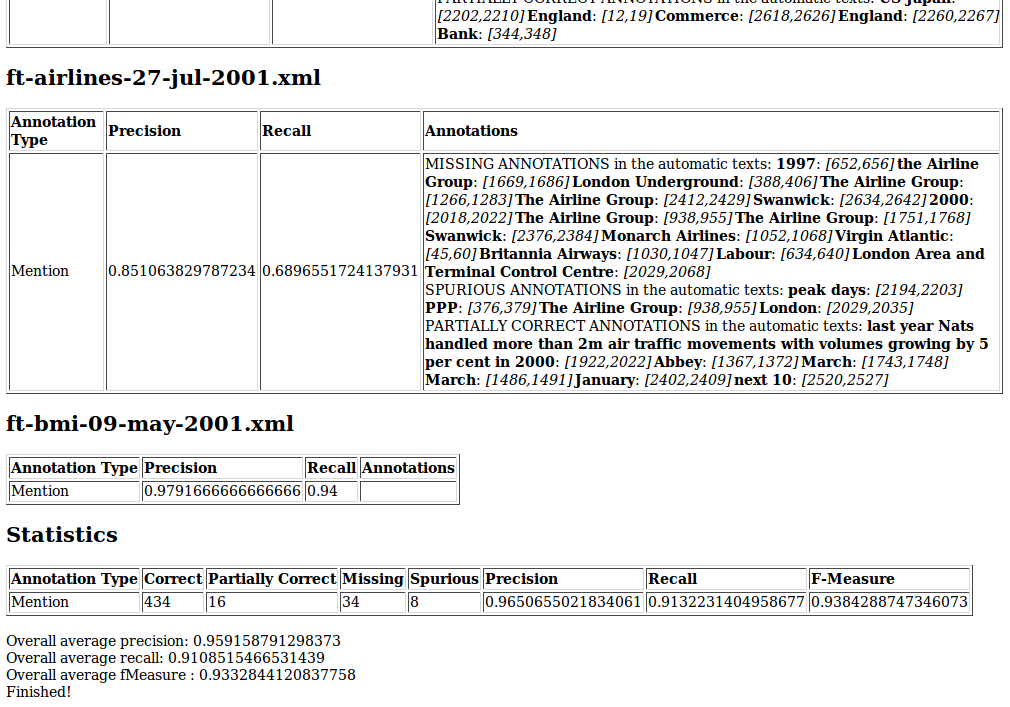
10.5 A Plugin Computing Inter-Annotator Agreement (IAA) [#]
The interannotator agreement plugin, ‘Inter_Annotator_Agreement’, computes the F-measures, namely precision, recall and F1, suitable for named entity annotations (see Section 10.1.3), and agreement, Cohen’s kappa and Scott’s pi, suitable for text classification tasks (see Section 10.1.2). In the latter case, a confusion matrix is also provided. In this section we describe those measures and the output results from the plugin. But first we explain how to load the plugin, and the input to and the parameters of the plugin.
First you need to load the plugin named ‘Inter_Annotator_Agreement’ into GATE Developer using the tool Manage CREOLE Plugins, if it is not already loaded. Then you can create a PR for the plugin from the ‘IAA Computation’ in the existing PR list. After that you can put the PR into a Corpus Pipeline to use it.
The IAA Computation PR differs from the Corpus Benchmark Tool in the data preparation required. As in the Corpus Benchmark Tool, the idea is to compare annotation sets, for example, prepared by different annotators, but in the IAA Computation PR, these annotation sets should be on the same set of documents. Thus, one corpus is loaded into GATE on which the PR is run. Different annotation sets contain the annotations which will be compared. These should (obviously) have different names.
It falls to the user to decide whether to use annotation type or an annotation feature as class; are two annotations considered to be in agreement because they have the same type and the same span? Or do you want to mark up your data with an annotation type such as ‘Mention’, thus defining the relevant annotations, then give it a ‘class’ feature, the value of which should be matched in order that they are considered to agree? This is a matter of convenience. For example, data for machine learning (see Section 19.1) uses a single annotation type and a class feature. In other contexts, using annotation type might feel more natural; the annotation sets should agree about what is a ‘Person’, what is a ‘Date’ etc. It is also possible to mix the two, as you will see below.
The IAA plugin has two runtime parameters annSetsForIaa and annTypesAndFeats for specifying the annotation sets and the annotation types and features, respectively. Values should be separated by semicolons. For example, to specify annotation sets ‘Ann1’, ‘Ann2’ and ‘Ann3’ you should set the value of annSetsForIaa to ‘Ann1;Ann2;Ann3’. Note that more than two annotation sets are possible. Specify the value of annTypesAndFeats as ‘Per’ to compute the IAA for the three annotation sets on the annotation type Per. You can also specify more than one annotation type and separate them by ‘;’ too, and optionally specify an annotation feature for a type by attaching a ‘->’ followed by feature name to the end of the annotation name. For example, ‘Per->label;Org’ specifies two annotation types Per and Org and also a feature name label for the type Per. If you specify an annotation feature for an annotation type, then two annotations of the same type will be regarded as being different if they have different values of that feature, even if the two annotations occupy exactly the same position in the document. On the other hand, if you do not specify any annotation feature for an annotation type, then the two annotations of the type will be regarded as the same if they occupy the same position in the document.
The parameter measureType specifies the type of measure computed. There are two measure types; the F-measure (i.e. Precision, Recall and F1), and the observed agreement and Cohen’s Kappa. For classification tasks such as document or sentence classification, the observed agreement and Cohen’s Kappa is often used, though the F-measure is applicable too. In these tasks, the targets are already identified, and the task is merely to classify them correctly. However, for the named entity recognition task, only the F-measure is applicable. In such tasks, finding the ‘named entities’ (text to be annotated) is as much a part of the task as correctly labelling it. Observed agreement and Cohen’s kappa are not suitable in this case. See Section 10.1.2 for further discussion. The parameter has two values, FMEASURE and AGREEMENTANDKAPPA. The default value of the parameter is FMEASURE.
Another parameter verbosity specifies the verbosity level of the plugin’s output. Level 2 displays the most detailed output, including the IAA measures on each document and the macro-averaged results over all documents. Level 1 only displays the IAA measures averaged over all documents. Level 0 does not have any output. The default value of the parameter is 1. In the following we will explain the outputs in detail.
Yet another runtime parameter bdmScoreFile specifies the URL for a file containing the BDM scores used for the BDM based IAA computation. The BDM score file should be produced by the BDM computation plugin, which is described in Section 10.6. The BDM-based IAA computation will be explained below. If the parameter is not assigned any value, or is assigned a file which is not a BDM score file, the PR will not compute the BDM based IAA.
10.5.1 IAA for Classification
IAA has been used mainly in classification tasks, where two or more annotators are given a set of instances and are asked to classify those instances into some pre-defined categories. IAA measures the agreements among the annotators on the class labels assigned to the instances by the annotators. Text classification tasks include document classification, sentence classification (e.g. opinionated sentence recognition), and token classification (e.g. POS tagging). The important point to note is that the evaluation set and gold standard set have exactly the same instances, but some instances in the two sets have different class labels. Identifying the instances is not part of the problem.
The three commonly used IAA measures are observed agreement, specific agreement, and Kappa (κ) [Hripcsak & Heitjan 02]. See Section 10.1.2 for the detailed explanations of those measures. If you select the value of the runtime parameter measureType as AGREEMENTANDKAPPA, the IAA plugin will compute and display those IAA measures for your classification task. Below, we will explain the output of the PR for the agreement and Kappa measures.
At the verbosity level 2, the output of the plugin is the most detailed. It first prints out a list of the names of the annotation sets used for IAA computation. In the rest of the results, the first annotation set is denoted as annotator 0, and the second annotation set is denoted as annotator 1, etc. Then the plugin outputs the IAA results for each document in the corpus.
For each document, it displays one annotation type and optionally an annotation feature if specified, and then the results for that type and that feature. Note that the IAA computations are based on the pairwise comparison of annotators. In other words, we compute the IAA for each pair of annotators. The first results for one document and one annotation type are the macro-averaged ones over all pairs of annotators, which have three numbers for the three types of IAA measures, namely Observed agreement, Cohen’s kappa and Scott’s pi. Then for each pair of annotators, it outputs the three types of measures, a confusion matrix (or contingency table), and the specific agreements for each label. The labels are obtained from the annotations of that particular type. For each annotation type, if a feature is specified, then the labels are the values of that feature. Please note that two terms may be added to the label list: one is the empty one obtained from those annotations which have the annotation feature but do not have a value for the feature; the other is ‘Non-cat’, corresponding to those annotations not having the feature at all. If no feature is specified, then two labels are used: ‘Anns’ corresponding to the annotations of that type, and ‘Non-cat’ corresponding to those annotations which are annotated by one annotator but are not annotated by another annotator.
After displaying the results for each document, the plugin prints out the macro-averaged results over all documents. First, for each annotation type, it prints out the results for each pair of annotators, and the macro-averaged results over all pairs of annotators. Finally it prints out the macro-averaged results over all pairs of annotators, all types and all documents.
Please note that the classification problem can be evaluated using the F-measure too. If you want to evaluate a classification problem using the F-measure, you just need to set the run time parameter measureType to FMEASURE.
10.5.2 IAA For Named Entity Annotation
The commonly used IAA measures, such as kappa, have not been used in text mark-up tasks such as named entity recognition and information extraction, for reasons explained in Section 10.1.2 (also see [Hripcsak & Rothschild 05]). Instead, the F-measures, such as Precision, Recall, and F1, have been widely used in information extraction evaluations such as MUC, ACE and TERN for measuring IAA. This is because the computation of the F-measures does not need to know the number of non-entity examples. Another reason is that F-measures are commonly used for evaluating information extraction systems. Hence IAA F-measures can be directly compared with results from other systems published in the literature.
For computing F-measure between two annotation sets, one can use one annotation set as gold standard and another set as system’s output and compute the F-measures such as Precision, Recall and F1. One can switch the roles of the two annotation sets. The Precision and Recall in the former case become Recall and Precision in the latter, respectively. But the F1 remains the same in both cases. For more than two annotators, we first compute F-measures between any two annotators and use the mean of the pair-wise F-measures as an overall measure.
The computation of the F-measures (e.g. Precision, Recall and F1) are shown in Section 10.1. As noted in [Hripcsak & Rothschild 05], the F1 computed for two annotators for one specific category is equivalent to the positive specific agreement of the category.
The outputs of the IAA plugins for named entity annotation are similar to those for classification. But the outputs are the F-measures, such as Precision, Recall and F1, instead of the agreements and Kappas. It first prints out the results for each document. For one document, it prints out the results for each annotation type, macro-averaged over all pairs of annotators, then the results for each pair of annotators. In the last part, the micro-averaged results over all documents are displayed. Note that the results are reported in both the strict measure and the lenient measure, as defined in Section 10.2.
Please note that, for computing the F-measures for the named entity annotations, the IAA plugin carries out the same computation as the Corpus Benchmark tool. The IAA plugin is simpler than the Corpus benchmark tool in the sense that the former needs only one set of documents with two or more annotation sets, whereas the latter needs three sets of the same documents, one without any annotation, another with one annotation set, and the third one with another annotation set. Additionally, the IAA plugin can deal with more than two annotation sets but the Corpus benchmark tool can only deal with two annotation sets.
10.5.3 The BDM-Based IAA Scores [#]
For a named entity recognition system, if the named entity’s class labels are the names of concepts in some ontology (e.g. in the ontology-based information extraction), the system can be evaluated using the IAA measures based on the BDM scores. The BDM measures the closeness of two concepts in an ontology. If an entity is identified but is assigned a label which is close to but not the same as the true label, the system should obtain some credit for it, which the BDM-based metric can do. In contrast, the conventional named entity recognition measure does not take into account the closeness of two labels and does not give any credit to one identified entity with a wrong label, regardless of how close the assigned label is to the true label. For more explanation about BDM see Section 10.6.
In order to compute the BDM-based IAA, one has to assign the plugin’s runtime parameter bdmScoreFile to the URL of a file containing the BDM scores. The file should be obtained by using the BDM computation plugin, which is described in Section 10.6. Currently the BDM-based IAA is only used for computing the F-measures for e.g. the entity recognition problem. Please note that the F-measures can also be used for evaluation of classification problem. The BDM is not used for computing other measures such as the observed agreement and Kappa, though it is possible to implement it. Therefore currently one has to select FMEASURE for the run time parameter measureType in order to use the BDM based IAA computation.
10.6 A Plugin Computing the BDM Scores for an Ontology [#]
The BDM (balanced distance metric) measures the closeness of two concepts in an ontology or taxonomy [Maynard 05, Maynard et al. 06]. It is a real number between 0 and 1. The closer the two concepts are in an ontology, the greater their BDM score is. For detailed explanation about the BDM, see the papers [Maynard 05, Maynard et al. 06]. The BDM can be seen as an improved version of the learning accuracy [Cimiano et al. 03]. It is dependent on the length of the shortest path connecting the two concepts and also the deepness of the two concepts in ontology. It is also normalised with the size of ontology and also takes into account the concept density of the area containing the two involved concepts.
The BDM has been used to evaluate the ontology based information extraction (qOBIE) system [Maynard et al. 06]. The OBIE identifies the instances for the concepts of an ontology. It’s possible that an OBIE system identifies an instance successfully but does not assign it the correct concept. Instead it assigns the instance a concept being close to the correct one. For example, the entity ‘London’ is an instance of the concept Capital, and an OBIE system assigns it the concept City which is close to the concept Capital in some ontology. In that case the OBIE should obtain some credit according to the closeness of the two concepts. That is where the BDM can be used. The BDM has also been used to evaluate the hierarchical classification system [Li et al. 07b]. It can also be used for ontology learning and alignment.
The BDM computation plugin (“Ontology: BDM computation” in the plugin manager) computes the BDM score for each pair of concepts in an ontology. Loading the plugin adds a “Calculate BDM scores” option to the right-click menu of every ontology LR. To run the calculation, right click on the relevant ontology LR, select this option, and choose a text file into which the results should be saved.
The BDM computation used the formula given in [Maynard et al. 06]. The output is a text file in the following format: The first line of the file gives some meta information such as the name of ontology used for BDM computation. From the second line of the file, each line corresponds to one pair of concepts. One line is like
key=Service, response=Object, bdm=0.6617647, msca=Object, cp=1, dpk=1, dpr=0, n0=2.0, n1=2.0, n2=2.8333333, bran=1.9565217
It first shows the names of the two concepts (one as key and another as response, and the BDM score, and then other parameters’ values used for the computation. Note that, since the BDM is symmetric for the two concepts, the resulting file contains only one line for each pair. So if you want to look for the BDM score for one pair of concepts, you can choose one as key and another as response. If you cannot find the line for the pair, you have to change the order of two concepts and retrieve the file again.
A BDM score file generated by this tool can be used as input to the BDM-based inter-annotator agreement calculation as described in section 10.5.3.
10.6.1 Computing BDM from embedded code
The BDM tool is implemented as a ResourceHelper so you can also run it from embedded code, as follows:
2Ontology onto = Factory.createResource(
3 "gate.creole.ontology.impl.sesame.OWLIMOntology",
4 Utils.featureMap("rdfXmlUrl", ontologyFile.toURI().toURL()));
5
6Gate.getCreoleRegister().registerPlugin(new Plugin.Maven(
7 "uk.ac.gate.plugins", "ontology-bdm-computation", "8.5"));
8
9ResourceHelper bdm =
10 (ResourceHelper)Gate.getCreoleRegister()
11 .getAllInstances("gate.bdmComp.BDMTool").iterator()
12 .next();
13
14Path outputFile = Paths.get("....");
15try(BufferedWriter w = Files.newBufferedWriter(
16 outputFile, StandardCharsets.UTF8)) {
17 bdm.call("computeBDM", ontology, w);
18}
10.7 Quality Assurance Summariser for Teamware [#]
When documents are annotated using Teamware, anonymous annotation sets are created for the annotating annotators. This makes it impossible to run Quality Assurance on such documents as annotation sets with same names in different documents may refer to the annoations created by different annotators. This is specially the case when a requirement is to compute Inter Annotator Agreement (IAA). The QA Summariser for Teamware PR generates a summary of agreements among annotators. It does this by pairing individual annotators involved in the annotation task. It also compares annotations of each individual annotator with those available in the consensus annotation set in the respective documents.
The PR is available from the Teamware_Tools plugin, but the Tools plugin must be loaded before the Teamware_Tools one because the QA summariser PR internally uses the QualityAssurancePR (from Tools) to calculate agreement statistics. User has to provide the following run-time parameters:
-
annotationTypes Annotation types for which the IAA has to be computed.
-
featureNames Features of annotations that should be used in IAA computations. If no value is provided, only annotation boundaries for same annotation types are compared.
-
measure one of the six pre-defined measures: F1_STRICT, F1_AVERAGE, F1_LENIENT, F05_STRICT, F05_AVERAGE and F05_LENIENT.
-
outputFolderUrl The PR produces a summary in this folder. More information on the generated file is provided below.
The PR generates an index.html file in the output folder. This html file contains a table that summarises the agreement statistics. Both the first row and the first column contain names of annotators who were involved in the annotation task. For each pair of annotators who did the annotations together on atleast one document, both the micro and macro averages are produced.
Last two columns in each row give average macro and micro agreements of the respective annotator with all the other annotators he or she did annotations together.
These figures are color coded. The color green is used for a cell background to indicate full agreement (i.e. 1.0). The background color becomes lighter as the agreement reduces towards 0.5. At 0.5 agreement, the background color of a cell is fully white. From 0.5 downwards, the color red is used and as the agreement reduces further, the color becomes darker with dark red at 0.0 agreement. Use of such a color coding makes it easy for user to get an idea of how annotators are performing and locate specific pairs of annotations who need more training or may be someone who deserves a pat on his/her back.
For each pair of annotators, the summary table provides a link (with caption document) to another html document that summarises annotations of the two respective annotators on per document basis. The details include number of annotations they agreed and disagreed and the scores for recall, precision and f-measure. Each document name in this summary is linked with another html document with indepth comparison of annotations. User can actually see the annotations on which the annotators had agreed and disagreed.
Chapter 11
Profiling Processing Resources [#]
11.1 Overview [#]
This is a reporting tool for GATE processing resources. It reports the total time taken by processing resources and the time taken for each document to be processed by an application of type corpus pipeline.
GATE use log4j, a logging system, to write profiling informations in a file. The GATE profiling reporting tool uses the file generated by log4j and produces a report on the processing resources. It profiles JAPE grammars at the rule level, enabling the user precisely identify the performance bottlenecks. It also produces a report on the time taken to process each document to find problematic documents.
This initial code for the reporting tool was written by Intelius employees Andrew Borthwick and Chirag Viradiya and generously released under the LGPL licence to be part of GATE.
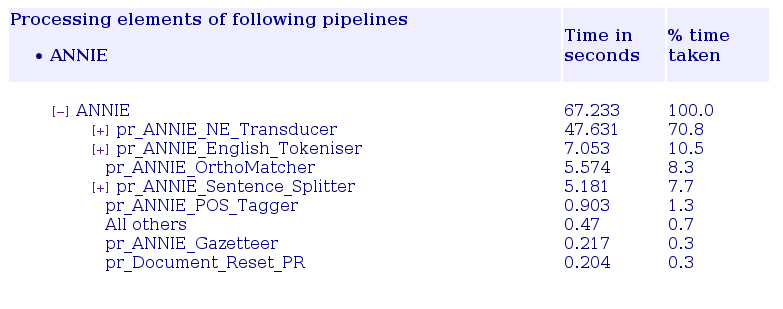
11.1.1 Features
-
Ability to generate the following two reports
-
Report on processing resources. For each level of processing: application, processing resource (PR) and grammar rule, subtotalled at each level.
-
Report on documents processed. For some or all PR, sorted in decreasing processing time.
-
-
Report on processing resources specific features
-
Sort order by time or by execution.
-
Show or hide processing elements which took 0 milliseconds.
-
Generate HTML report with a collapsible tree.
-
-
Report on documents processed specific features
-
Limit the number of document to show from the most time consuming.
-
Filter the PR to display statistics for.
-
-
Features common to both reports
-
Generate report as indented text or in HTML format.
-
Generate a report only on the log entries from the last logical run of GATE.
-
All processing times are reported in milliseconds and in terms of percentage (rounded to nearest 0.1%) of total time.
-
Command line interface and API.
-
Detect if the benchmark.txt file is modified while generating the report.
-
11.1.2 Limitations
Be aware that the profiling doesn’t support non corpus pipeline as application type. There is indeed no interest in profiling a non corpus pipeline that works on one or no document at all. To get meaningful results you should run your corpus pipeline on at least 10 documents.
11.2 Graphical User Interface [#]
The activation of the profiling and the creation of profiling reports are accessible from the ‘Tools’ menu in GATE with the submenu ‘Profiling Reports’.
You can ‘Start Profiling Applications’ and ‘Stop Profiling Applications’ at any time. The logging is cumulative so if you want to get a new report you must use the ‘Clear Profiling History’ menu item when the profiling is stopped.
Be very careful that you must start the profiling before you load your application or you will need to reload every Processing Resource that uses a Transducer. Otherwise you will get an Exception similar to:
java.lang.IndexOutOfBoundsException: Index: 2, Size: 0
at java.util.ArrayList.RangeCheck(ArrayList.java:547)
at java.util.ArrayList.get(ArrayList.java:322)
at gate.jape.SinglePhaseTransducer.updateRuleTime(SinglePhaseTransducer.java:678)
Two types of reports are available: ‘Report on Processing Resources’ and ‘Report on Documents Processed’. See the previous section for more information.
11.3 Command Line Interface [#]
Report on processing resources Usage: java gate.util.reporting.PRTimeReporter [Options]
Options:
-i input file path (default: benchmark.txt in the user’s .gate directory1)
-m print media - html/text (default: html)
-z suppressZeroTimeEntries - true/false (default: true)
-s sorting order - exec_order/time_taken (default: exec_order)
-o output file path (default: report.html/txt in the system temporary directory)
-l logical start (not set by default)
-h show help
Note that suppressZeroTimeEntries will be ignored if the sorting order is ‘time_taken’
Report on documents processed Usage: java gate.util.reporting.DocTimeReporter [Options]
Options:
-i input file path (default: benchmark.txt in the user’s .gate directory2)
-m print media - html/text (default: html)
-d number of docs, use -1 for all docs (default: 10 docs)
-p processing resource name to be matched (default: all_prs)
-o output file path (default: report.html/txt in the system temporary directory)
-l logical start (not set by default)
-h show help
-
Run report 1: Report on Total time taken by each processing element across corpus
-
java -cp "gate/bin:gate/lib/GnuGetOpt.jar" gate.util.reporting.PRTimeReporter -i benchmark.txt -o report.txt -m text
-
-
Run report 2: Report on Time taken by document within given corpus.
-
java -cp "gate/bin:gate/lib/GnuGetOpt.jar" gate.util.reporting.DocTimeReporter -i benchmark.txt -o report.html -m html
-
11.4 Application Programming Interface [#]
11.4.1 Log4j.properties
This is required to direct the profiling information to the benchmark.txt file. The benchmark.txt generated by GATE will be used as input for GATE profiling report tool as input.
-
# File appender that outputs only benchmark messages
-
log4j.appender.benchmarklog=org.apache.log4j.RollingFileAppender
-
log4j.appender.benchmarklog.Threshold=DEBUG
-
log4j.appender.benchmarklog.File=$user.home/.gate/benchmark.txt
-
log4j.appender.benchmarklog.MaxFileSize=5MB
-
log4j.appender.benchmarklog.MaxBackupIndex=1
-
log4j.appender.benchmarklog.layout=org.apache.log4j.PatternLayout
-
log4j.appender.benchmarklog.layout.ConversionPattern=%m%n
-
# Configure the Benchmark logger so that it only goes to the benchmark log file
-
log4j.logger.gate.util.Benchmark=DEBUG, benchmarklog
-
log4j.additivity.gate.util.Benchmark=false
11.4.2 Benchmark log format
The format of the benchmark file that logs the times is as follow:
timestamp START PR_name
timestamp duration benchmarkID class features
timestamp duration benchmarkID class features
...
with the timestamp being the difference, measured in milliseconds, between the current time and midnight, January 1, 1970 UTC.
Example:
1257269774770 START Sections_splitter
1257269774773 0 Sections_splitter.doc_EP-1026523-A1_xml_00008.documentLoaded
gate.creole.SerialAnalyserController
{corpusName=Corpus for EP-1026523-A1.xml_00008,
documentName=EP-1026523-A1.xml_00008}
...
11.4.3 Enabling profiling
There are two ways to enable profiling of the processing resources:
-
In gate/build.properties, add the line: run.gate.enable.benchmark=true
-
In your Java code, use the method: Benchmark.setBenchmarkingEnabled(true)
11.4.4 Reporting tool
Report on processing resources
-
Instantiate the Class PRTimeReporter
-
PRTimeReporter report = new PRTimeReporter();
-
-
Set the input benchmark file
-
File benchmarkFile = new File("benchmark.txt");
-
report.setBenchmarkFile(benchmarkFile);
-
-
Set the output report file
-
File reportFile = new File("report.txt"); or
-
File reportFile = new File("report.html");
-
report.setReportFile(reportFile);
-
-
Set the output format: in html or text format (default: MEDIA_HTML)
-
report.setPrintMedia(PRTimeReporter.MEDIA_TEXT); or
-
report.setPrintMedia(PRTimeReporter.MEDIA_HTML);
-
-
Set the sorting order: Sort in order of execution or descending order of time taken (default: EXEC_ORDER)
-
report.setSortOrder(PRTimeReporter.SORT_TIME_TAKEN); or
-
report.setSortOrder(PRTimeReporter.SORT_EXEC_ORDER);
-
-
Set if suppress zero time entries: True/False (default: True). Parameter ignored if SortOrder specified is ‘SORT_TIME_TAKEN’
-
report.setSuppressZeroTimeEntries(true);
-
-
Set the logical start: A string indicating the logical start to be operated upon for generating reports
-
report.setLogicalStart("InteliusPipelineStart");
-
-
Generate the text/html report
-
report.executeReport();
-
-
Instantiate the Class DocTimeReporter
-
DocTimeReporter report = new DocTimeReporter();
-
-
Set the input benchmark file
-
File benchmarkFile = new File("benchmark.txt");
-
report.setBenchmarkFile(benchmarkFile);
-
-
Set the output report file
-
File reportFile = new File("report.txt"); or
-
File reportFile = new File("report.html");
-
report.setReportFile(reportFile);
-
-
Set the output format: Generate report in html or text format (default: MEDIA_HTML)
-
report.setPrintMedia(DocTimeReporter.MEDIA_TEXT); or
-
report.setPrintMedia(DocTimeReporter.MEDIA_HTML);
-
-
Set the maximum number of documents: Maximum number of documents to be displayed in the report (default: 10 docs)
-
report.setNoOfDocs(2); // 2 docs or
-
report.setNoOfDocs(DocTimeReporter.ALL_DOCS); // All documents
-
-
Set the PR matching regular expression: A PR name or a regular expression to filter the results (default: MATCH_ALL_PR_REGEX).
-
report.setSearchString("HTML"); // match ALL PRS having HTML as substring
-
-
Set the logical start: A string indicating the logical start to be operated upon for generating reports
-
report.setLogicalStart("InteliusPipelineStart");
-
-
Generate the text/html report
-
report.executeReport();
-
Chapter 12
Developing GATE [#]
This chapter describes ways of getting involved in and contributing to the GATE project. Sections 12.1 and 12.2 are good places to start. Sections 12.3 and 12.5 describe protocol and provide information for committers; we cover creating new plugins and updating this user guide. See Section 12.2 for information on becoming a committer.
12.1 Reporting Bugs and Requesting Features [#]
The source code and issue trackers for GATE can be found on GitHub. The code is split across many repositories:
-
gate-core
-
the core GATE Embedded library and GATE Developer GUI.
-
gate-top
-
miscellaneous small components including
-
gate-plugin-base
-
Maven parent POM shared by all GATE plugins (ours and those developed by third parties)
-
gate-maven-plugin
-
Maven plugin used by the base POM to build the artifacts required for a JAR to be a GATE plugin
-
gate-plugin-test-utils
-
utilities used in plugin unit tests
-
archetypes
-
to simplify the generation of new plugins
-
-
gate-spring
-
the helper classes for using GATE in the Spring Framework (see section 7.15)
-
gateplugin-*
-
the standard GATE plugins
Use the GitHub issue tracker for the appropriate repository to report bugs or submit feature requests – gate-core for bugs in the core library or which cut across many plugins, or the relevant gateplugin- repository for bugs in a specific plugin. When reporting bugs, please give as much detail as possible. Include the GATE version number and build number, the platform on which you observed the bug, and the version of Java you were using (8u171, 10.0.1, etc.). Include steps to reproduce the problem, and a full stack trace of any exceptions, including ‘Caused by …’. You may wish to first check whether the bug is already fixed in the latest snapshot build (available from https://gate.ac.uk/download/#snapshots). You may also request new features.
12.2 Contributing Patches [#]
Patches may be submitted via the usual GitHub pull request mechanism. Create a fork of the relevant GitHub repository, commit your changes there, then submit a pull request. Note that gate-core is intended to be compatible with Java 8, so if you regularly develop using a later version of Java it is very important to compile and test your patches on Java 8. Patches that use features from a later version of Java and do not compile and run on Java 8 will not be accepted.
When you submit a pull request you will be asked to sign a contributor licence agreement if you do not already have one on file. This is to ensure that we at the University of Sheffield have permission to use the code you contribute.
12.3 Creating New Plugins [#]
GATE provides a flexible structure where new resources can be plugged in very easily. There are three types of resources: Language Resource (LR), Processing Resource (PR) and Visual Resource (VR). In the following subsections we describe the necessary steps to write new PRs and VRs, and to add plugins to the nightly build. The guide on writing new LRs will be available soon.
You can quickly create a new plugin project structure using the Maven archetype described in section 7.12.
12.3.1 What to Call your Plugin [#]
Plugins in GATE have two types of “name”, the Maven artifact ID (which is what you use when adding the plugin to the plugin manager or loading it via the API) and the <name> in the POM file (which is what is displayed in the plugin manager). The artifact ID should follow normal Maven conventions and be named in “lower-case-with-hyphens”, the human readable name in the POM file can be anything but conventionally we use the form “Function: Detail”, for example “Language: Arabic” or “Tagger: Numbers”. This naturally groups similar plugins together in the plugin manager list when it is sorted alphabetically. Before naming your plugin, look at the existing plugins and see where it might group well.
Core GATE plugins use the Maven group ID uk.ac.gate.plugins. If you are not part of the core GATE development team you should use your own group ID, typically based on the reversed form of a DNS domain name you control (e.g. com.example if you owned example.com).
12.3.2 Writing a New PR [#]
Class Definition
Below we show a template class definition, which can be used in order to write a new Processing Resource.
2package example;
3
4import gate.*;
5import gate.creole.*;
6import gate.creole.metadata.*;
7
8/∗∗
9 ∗ Processing Resource. The @CreoleResource annotation marks this
10 ∗ class as a GATE Resource, and gives the information GATE needs
11 ∗ to configure the resource appropriately.
12 ∗/
13@CreoleResource(name = "Example PR",
14 comment = "An example processing resource")
15public class NewPlugin extends AbstractLanguageAnalyser {
16
17 /∗
18 ∗ this method gets called whenever an object of this
19 ∗ class is created either from GATE Developer GUI or if
20 ∗ initiated using Factory.createResource() method.
21 ∗/
22 public Resource init() throws ResourceInstantiationException {
23 // here initialize all required variables, and may
24 // be throw an exception if the value for any of the
25 // mandatory parameters is not provided
26
27 if(this.rulesURL == null)
28 throw new ResourceInstantiationException("rules URL null");
29
30 return this;
31 }
32
33
34 /∗
35 ∗ this method should provide the actual functionality of the PR
36 ∗ (from where the main execution begins). This method
37 ∗ gets called when user click on the "RUN" button in the
38 ∗ GATE Developer GUI’s application window.
39 ∗/
40 public void execute() throws ExecutionException {
41 // write code here
42 }
43
44 /∗ this method is called to reinitialize the resource ∗/
45 public void reInit() throws ResourceInstantiationException {
46 // reinitialization code
47 }
48
49 /∗
50 ∗ There are two types of parameters
51 ∗ 1. Init time parameters − values for these parameters need to be
52 ∗ provided at the time of initializing a new resource and these
53 ∗ values are not supposed to be changed.
54 ∗ 2. Runtime parameters − values for these parameters are provided
55 ∗ at the time of executing the PR. These are runtime parameters and
56 ∗ can be changed before starting the execution
57 ∗ (i.e. before you click on the "RUN" button in GATE Developer)
58 ∗ A parameter myParam is specified by a pair of methods getMyParam
59 ∗ and setMyParam (with the first letter of the parameter name
60 ∗ capitalized in the normal Java Beans style), with the setter
61 ∗ annotated with a @CreoleParameter annotation.
62 ∗
63 ∗ for example to set a value for outputAnnotationSetName
64 ∗/
65 String outputAnnotationSetName;
66
67 //getter and setter methods
68
69 /∗ get<parameter name with first letter Capital> ∗/
70 public String getOutputAnnotationSetName() {
71 return outputAnnotationSetName;
72 }
73
74 /∗ The setter method is annotated to tell GATE that it defines an
75 ∗ optional runtime parameter.
76 ∗/
77 @Optional
78 @RunTime
79 @CreoleParameter(
80 comment = "name of the annotationSet used for output")
81 public void setOutputAnnotationSetName(String setName) {
82 this.outputAnnotationSetName = setName;
83 }
84
85 /∗∗ Init−time parameter ∗/
86 private ResourceReference rulesURL;
87
88 // getter and setter methods
89 public ResourceReference getRulesURL() {
90 return rulesURL;
91 }
92
93 /∗ This parameter is not annotated @RunTime or @Optional, so it is a
94 ∗ required init−time parameter.
95 ∗/
96 @CreoleParameter(
97 comment = "example of an inittime parameter",
98 defaultValue = "resources/morph/default.rul")
99 public void setRulesURL(ResourceReference rulesURL) {
100 this.rulesURL = rulesURL;
101 }
102}
Use ResourceReference for things like configuration files. The defaultValue is a path relative to the plugin’s src/main/resources folder, but users can use normal URLs to refer to files outside the plugin’s JAR. Resource files like this should be put into a resources folder (i.e. src/main/resources/resources) as GATE Developer has special support for copying the resources folder out of a plugin to give the user an editable copy of the resource files.
Context Menu
Each resource (LR,PR) has some predefined actions associated with it. These actions appear in a context menu that appears in GATE Developer when the user right clicks on any of the resources. For example if the selected resource is a Processing Resource, there will be at least four actions available in its context menu: 1. Close 2. Hide 3. Rename and 4. Reinitialize. New actions in addition to the predefined actions can be added by implementing the gate.gui.ActionsPublisher interface in either the LR/PR itself or in any associated VR. Then the user has to implement the following method.
public List getActions() {
     return actions;
}
Here the variable actions should contain a list of instances of type javax.swing.AbstractAction. A string passed in the constructor of an AbstractAction object appears in the context menu. Adding a null element adds a separator in the menu.
Listeners
There are at least four important listeners which should be implemented in order to listen to the various relevant events happening in the background. These include:
-
CreoleListener
Creole-register keeps information about instances of various resources and refreshes itself on new additions and deletions. In order to listen to these events, a class should implement the gate.event.CreoleListener. Implementing CreoleListener requires users to implement the following methods:
-
public void resourceLoaded(CreoleEvent creoleEvent);
-
public void resourceUnloaded(CreoleEvent creoleEvent);
-
public void resourceRenamed(Resource resource, String oldName, String newName);
-
public void datastoreOpened(CreoleEvent creoleEvent);
-
public void datastoreCreated(CreoleEvent creoleEvent);
-
public void datastoreClosed(CreoleEvent creoleEvent);
-
-
DocumentListener
A traditional GATE document contains text and a set of annotationSets. To get notified about changes in any of these resources, a class should implement the gate.event.DocumentListener. This requires users to implement the following methods:
-
public void contentEdited(DocumentEvent event);
-
public void annotationSetAdded(DocumentEvent event);
-
public void annotationSetRemoved(DocumentEvent event);
-
-
AnnotationSetListener
As the name suggests, AnnotationSet is a set of annotations. To listen to the addition and deletion of annotations, a class should implement the gate.event.AnnotationSetListener and therefore the following methods:
-
public void annotationAdded(AnnotationSetEvent event);
-
public void annotationRemoved(AnnotationSetEvent event);
-
-
AnnotationListener
Each annotation has a featureMap associated with it, which contains a set of feature names and their respective values. To listen to the changes in annotation, one needs to implement the gate.event.AnnotationListener and implement the following method:
-
public void annotationUpdated(AnnotationEvent event);
-
12.3.3 Writing a New VR [#]
Each resource (PR and LR) can have its own associated visual resource. When double clicked, the resource’s respective visual resource appears in GATE Developer. The GATE Developer GUI is divided into three visible parts (See Figure 12.1). One of them contains a tree that shows the loaded instances of resources. The one below this is used for various purposes - such as to display document features and that the execution is in progress. This part of the GUI is referred to as ‘small’. The third and the largest part of the GUI is referred to as ‘large’. One can specify which one of these two should be used for displaying a new visual resource in the creole.xml.
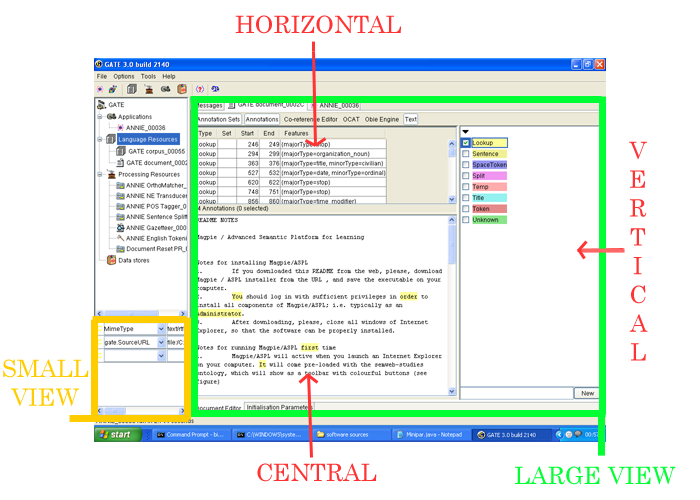
Class Definition
Below we show a template class definition, which can be used in order to write a new Visual Resource.
2
3import gate.*;
4import gate.creole.*;
5import gate.creole.metadata.*;
6
7/∗
8 ∗ An example Visual Resource for the New Plugin
9 ∗ Note that here we extends the AbstractVisualResource class.
10 ∗ The @CreoleResource annotation associates this VR with the
11 ∗ underlying PR type it displays.
12 ∗/
13@CreoleResource(name = "Visual resource for new plugin",
14 guiType = GuiType.LARGE,
15 resourceDisplayed = "example.NewPlugin",
16 mainViewer = true)
17public class NewPluginVR extends AbstractVisualResource {
18
19 /∗
20 ∗ An Init method called when the GUI is initialized for
21 ∗ the first time
22 ∗/
23 public Resource init() {
24 // initialize GUI Components
25 return this;
26 }
27
28 /∗
29 ∗ Here target is the PR class to which this Visual Resource
30 ∗ belongs. This method is called after the init() method.
31 ∗/
32 public void setTarget(Object target) {
33 // check if the target is an instance of what you expected
34 // and initialize local data structures if required
35 }
36}
Every document has its own document viewer associated with it. It comes with a single component that shows the text of the original document. GATE provides a way to attach new GUI plugins to the document viewer. For example AnnotationSet viewer, AnnotationList viewer and Co-Reference editor. These are the examples of DocumentViewer plugins shipped as part of the core GATE build. These plugins can be displayed either on the right or on top of the document viewer. They can also replace the text viewer in the center (See figure 12.1). A separate button is added at the top of the document viewer which can be pressed to display the GUI plugin.
Below we show a template class definition, which can be used to develop a new DocumentViewer plugin.
2/∗
3 ∗ Note that the class needs to extends the AbstractDocumentView class
4 ∗/
5@CreoleResource
6public class DocumentViewerPlugin extends AbstractDocumentView {
7
8 /∗ Implementers should override this method and use it for
9 ∗ populating the GUI.
10 ∗/
11 public void initGUI() {
12 // write code to initialize GUI
13 }
14
15 /∗ Returns the type of this view ∗/
16 public int getType() {
17 // it can be any of the following constants
18 // from the gate.gui.docview.DocumentView
19 // CENTRAL, VERTICAL, HORIZONTAL
20 }
21
22 /∗ Returns the actual UI component this view represents. ∗/
23 public Component getGUI() {
24 // return the top level GUI component
25 }
26
27 /∗ This method called whenever view becomes active.∗/
28 public void registerHooks() {
29 // register listeners
30 }
31
32 /∗ This method called whenever view becomes inactive. ∗/
33 public void unregisterHooks() {
34 // do nothing
35 }
36}
12.3.4 Writing a ‘Ready Made’ Application [#]
Often a CREOLE plugin may contain an example application to showcase the PRs it contains. These ‘ready made’ applications can be made easily available through GATE Developer by creating a simple PackagedController subclass. In essence such a subclass simply references a saved application and provides details that can be used to create a menu item to load the application.
The following example shows how the example application in the tagger-measurements plugin is added to the menus in GATE Developer.
2 icon = "measurements", autoinstances = @AutoInstance(parameters = {
3 @AutoInstanceParam(name="pipelineURL",
4 value="resources/annie-measurements.xgapp"),
5 @AutoInstanceParam(name="menu", value="ANNIE")}))
6public class ANNIEMeasurements extends PackagedController {
7
8}
The menu parameter is used to specify the folder structure in which the menu item will be placed. Typically its value will just be a single menu name, but it can be a semicolon-separated list of names, which will map to a series of sub-menus. For example "Languages;German" would create a “Languages” menu with a “German” sub-menu, which in turn would contain the menu item for this application.
12.3.5 Distributing Your New Plugins [#]
Since GATE 8.5 plugins are distributed via the normal Maven repository mechanism. Release versions of most core plugins are in the Central Repository and snapshot versions are released via our own Maven repository at http://repo.gate.ac.uk/content/groups/public, along with releases of a few plugins whose dependencies are not in Central.
There are several routes by which you can release your own plugins into the Central Repository, the simplest is to use the Sonatype OSSRH system (which is how we release gate-core and the standard plugins).
For snapshots you can host your own Maven repository, or use the OSSRH snapshot repository. In order to use plugins from a repository other than Central or the GATE team repository mentioned above, you must tell Maven where to find it by creating a file called settings.xml in the .m2 folder under your home directory – GATE will respect any repositories you have configured in your Maven settings.
2 xmlns:xsi="http://www.w3.org/2001/XMLSchema-instance"
3 xsi:schemaLocation="http://maven.apache.org/SETTINGS/1.0.0
4 http://maven.apache.org/xsd/settings-1.0.0.xsd">
5
6 <profiles>
7 <profile>
8 <id>my-custom-repo</id>
9 <repositories>
10 <repository>
11 <id>my-repo</id>
12 <name>My Personal Repo</name>
13 <url>http://repo.example.com/</url>
14 <layout>default</layout>
15 <releases><enabled>true</enabled></releases>
16 <snapshots><enabled>true</enabled></snapshots>
17 </repository>
18 </repositories>
19 </profile>
20 </profiles>
21
22 <activeProfiles>
23 <activeProfile>my-custom-repo</activeProfile>
24 </activeProfiles>
25</settings>
12.4 Adding your plugin to the default list [#]
The GATE plugin manager has a list of “default” plugins that are automatically listed in the manager whenever GATE Developer is started. This list is itself maintained in another GitHub repository https://github.com/GateNLP/gate-metadata, with a separate file for each version of GATE. If you have developed and released a plugin that you believe is of wider interest to the GATE user community you can request that it be added to the default list. This is done through the normal GitHub pull request mechanism – fork the gate-metadata repository and commit your change to all the versioned plugins-NNN.tsv files for versions of GATE with which your plugin is compatible, then submit a pull request asking us to merge your change into the master list.
The same procedure applies when you release an updated version of your plugin – update your forked copy of the TSV files and submit another pull request.
12.5 Updating this User Guide [#]
The GATE User Guide is maintained on GitHub at https://github.com/GateNLP/userguide. If you are a developer at Sheffield you do not need to check out the userguide explicitly, as it will appear under the tao directory when you check out sale.
The user guide is written in LaTeX and translated to PDF using pdflatex and to HTML using tex4ht. The main file that ties it all together is tao_main.tex, which defines the various macros used in the rest of the guide and \inputs the other .tex files, one per chapter.
12.5.1 Building the User Guide [#]
You will need:
-
A standard POSIX shell environment including GNU Make. On Windows this generally means Cygwin, on Mac OS X the XCode developer tools and on Unix the relevant packages from your distribution.
-
A copy of the userguide sources (see above).
-
A LaTeX installation, including pdflatex if you want to build the PDF version, and tex4ht if you want to build the HTML. MiKTeX should work for Windows, texlive (available in MacPorts) for Mac OS X, or your choice of package for Unix.
-
The BibTeX database big.bib. It must be located in the directory above where you have checked out the userguide, i.e. if the guide sources are in /home/bob/github/userguide then big.bib needs to go in /home/bib/github. Sheffield developers will find that it is already in the right place, under sale, others will need to download it from http://gate.ac.uk/sale/big.bib.
-
The file http://gate.ac.uk/sale/utils.tex.
-
A bit of luck.
Once these are all assembled it should be a case of running make to perform the actual build. To build the PDF do make tao.pdf, for the one page HTML do make index.html and for the several pages HTML do make split.html.
The PDF build generally works without problems, but the HTML build is known to hang on some machines for no apparent reason. If this happens to you try again on a different machine.
12.5.2 Making Changes to the User Guide [#]
To make changes to the guide simply edit the relevant .tex files, make sure the guide still builds (at least the PDF version), and check in your changes to the source files only. Please do not check in your own built copy of the guide, the official user guide builds are produced by a continuous integration server in Sheffield.
For non-Sheffield developers we welcome documentation patches through the normal GitHub pull request mechanism.
If you add a section or subsection you should use the \sect or \subsect commands rather than the normal LaTeX \section or \subsection. These shorthand commands take an optional first parameter, which is the label to use for the section and should follow the pattern of existing labels. The label is also set as an anchor in the HTML version of the guide. For example a new section for the ‘Fish’ plugin would go in misc-creole.tex with a heading of:
\sect[sec:misc-creole:fish]{The Fish Plugin}
and would have the persistent URL http://gate.ac.uk/userguide/sec:misc-creole:fish.
If your changes are to document a bug fix or a new (or removed) feature then you should also add an entry to the change log in recent-changes.tex. You should include a reference to the full documentation for your change, in the same way as the existing changelog entries do. You should find yourself adding to the changelog every time except where you are just tidying up or rewording existing documentation. Unlike in the other source files, if you add a section or subsection you should use the \rcSect or \rcSubsect. Recent changes appear both in the introduction and the appendix, so these commands enable nesting to be done appropriately.
Section/subsection labels should comprise ‘sec’ followed by the chapter label and a descriptive section identifier, each colon-separated. New chapter labels should begin ‘chap:’.
Try to avoid changing chapter/section/subsection labels where possible, as this may break links to the section. If you need to change a label, add it in the file ‘sections.map’. Entries in this file are formatted one per line, with the old section label followed by a tab followed by the new section label.
The quote marks used should be ‘ and ’.
Titles should be in title case (capitalise the first word, nouns, pronouns, verbs, adverbs and adjectives but not articles, conjunctions or prepositions). When referring to a numbered chapter, section, subsection, figure or table, capitalise it, e.g. ‘Section 3.1’. When merely using the words chapter, section, subsection, figure or table, e.g. ‘the next chapter’, do not capitalise them. Proper nouns should be capitalised (‘Java’, ‘Groovy’), as should strings where the capitalisation is significant, but not terms like ‘annotation set’ or ‘document’.
The user guide is rebuilt automatically whenever changes are checked in, so your change should appear in the online version of the guide within 20 or 30 minutes.
Part III
CREOLE Plugins [#]
Chapter 13
Gazetteers [#]
13.1 Introduction to Gazetteers [#]
A gazetteer consists of a set of lists containing names of entities such as cities, organisations, days of the week, etc. These lists are used to find occurrences of these names in text, e.g. for the task of named entity recognition. The word ‘gazetteer’ is often used interchangeably for both the set of entity lists and for the processing resource that makes use of those lists to find occurrences of the names in text.
When a gazetteer processing resource is run on a document, annotations of type Lookup are created for each matching string in the text. Gazetteers usually do not depend on Tokens or on any other annotation and instead find matches based on the textual content of the document. (the Flexible Gazetteer, described in section 13.6, being the exception to the rule). This means that an entry may span more than one word and may start or end within a word. If a gazetteer that directly works on text does respect word boundaries, the way how word boundaries are found might differ from the way the GATE tokeniser finds word boundaries. A Lookup annotation will only be created if the entire gazetteer entry is matched in the text. The details of how gazetteer entries match text depend on the gazetteer processing resource and its parameters. In this chapter, we will cover several gazetteers.
13.2 ANNIE Gazetteer [#]
The rest of this introductory section describes the ANNIE Gazetteer which is part of ANNIE and also described in section 6.3. The ANNIE gazetteer is part of and provided by the ANNIE plugin.
Each individual gazetteer list is a plain text file, with one entry per line.
Below is a section of the list for units of currency:
 Ecu
 European Currency Units
 FFr
 Fr
 German mark
 German marks
 New Taiwan dollar
 New Taiwan dollars
 NT dollar
 NT dollars
An index file (usually called lists.def) is used to describe all such gazetteer list files that belong together. Each gazetteer list should reside in the same directory as the index file.
The gazetteer index files describes for each list the major type and optionally, a minor type, a language and an annotation type, separated by colons. In the example below, the first column refers to the list name, the second column to the major type, the third to the minor type, the fourth column to the language and the fifth column to the annotation type. These lists are compiled into finite state machines. Any text strings matched by these machines will be annotated with features specifying the major and minor types.
currency_prefix.lst:currency_unit:pre_amount
currency_unit.lst:currency_unit:post_amount
date.lst:date:specific_date::Date
day.lst:date:day
monthen.lst:date:month:en
monthde.lst:date:month:de
season.lst:date:season
The major and minor type as well as the language will be added as features to only Lookup annotation generated from a matching entry from the respective list. For example, if an entry from the currency_unit.lst gazetteer list matches some text in a document, the gazetteer processing resource will generate a Lookup annotation spanning the matching text and assign the features major="currency_unit" and minor="post_amount" to that annotation.
By default the ANNIE Gazetteer PR creates Lookup annotations. However, if a user has specified a specific annotation type for a list, the Gazetteer uses the specified annotation type to annotate entries that are part of the specified list and appear in the document being processed.
Grammar rules (JAPE rules) can specify the types to be identified in particular circumstances. The major and minor types enable this identification to take place, by giving access to items stored in particular lists or combinations of lists.
For example, if a day needs to be identified, the minor type ‘day’ would be specified in the grammar, in order to match only information about specific days. If any kind of date needs to be identified, the major type ‘date’ would be specified. This might include weeks, months, years etc. as well as days of the week, and would give access to all the items stored in day.lst, month.lst, season.lst, and date.lst in the example shown.
13.2.1 Creating and Modifying Gazetteer Lists
Gazetteer lists can be modified using any text editor or an editor inside GATE when you double-click on the gazetteer in the resources tree. Use of an editor that can edit Unicode UTF-8 files (e.g. the GATE Unicode editor) is advised, however, in order to ensure that the lists are stored as UTF-8, which will minimise any language encoding problems, particularly if e.g. accents, umlauts or characters from non-Latin scripts are present.
To create a new list, simply add an entry for that list to the definitions file and add the new list in the same directory as the existing lists.
After any modifications have been made in an external editor, ensure that you reinitialise the gazetteer PR in GATE, if one is already loaded, before rerunning your application.
13.2.2 ANNIE Gazetteer Editor [#]
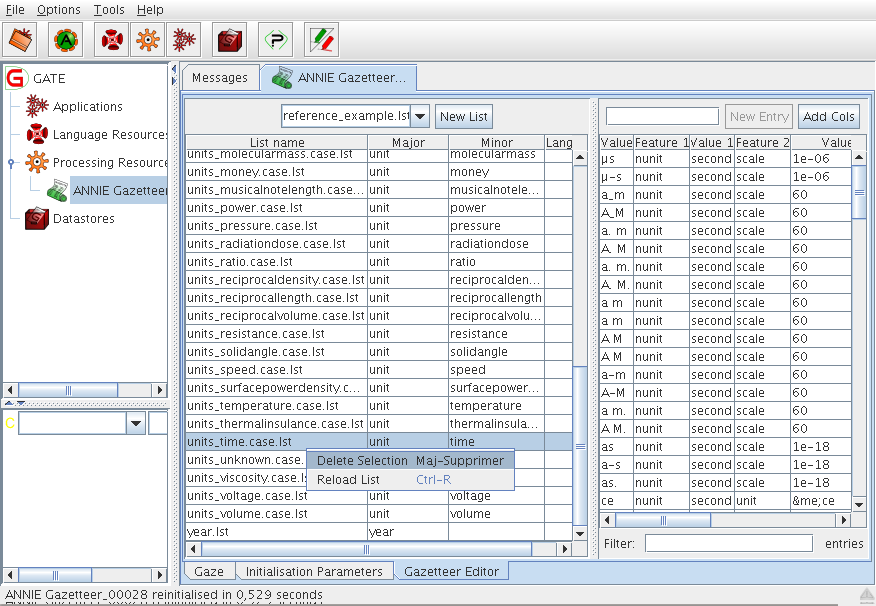
To open this edior, double-click on the gazetteer in the resources tree.
It is composed of two tables:
-
a left table with 5 columns (List name, Major, Minor, Language, Annotation type) for the index, usually a .def file
-
a right table with 1+2*n columns (Value, Feature 1, Value 1...Feature n, Value n) for the lists, usually .lst files
When selecting a list in the left table you get its content displayed in the right table.
You can sort both tables by clicking on their column headers. A text field ‘Filter’ at the bottom of the right table allows to display only the rows that contain the expression you typed.
To edit a value in a table, double click on a cell or press F2 then press Enter when finished editing the cell. To add a new row in both tables use the text field at the top and press Enter or use the ‘New’ button next to it. When adding a new list you can select from the list of existing gazetteer lists in the current directory or type a new file name. To delete a row, press Shift+Delete or use the context menu. To delete more than one row select them before.
You can reload a modified list by selecting it and right-clicking for the context menu item ‘Reload List’ or by pressing Control+R. When a list is modified its name in the left table is coloured in red.
If you have set ‘gazetteerFeatureSeparator’ parameter then the right table will show a ‘Feature’ and ‘Value’ columns for each feature. To add a new couple of columns use the button ‘Add Cols’.
Note that in the left table, you can only select one row at a time.
The gazetteer like other language resource has a context menu in the resources tree to ‘Reinitialise’, ‘Save’ or ‘Save as...’ the resource.
The right table has a context menu for the current selection to help you creating new gazetteer. It is similar with the actions found in a spreadsheet application like ‘Fill Down Selection’, ‘Clear Selection’, ‘Copy Selection’, ‘Paste Selection’, etc.
13.3 OntoGazetteer [#]
The Ontogazetteer, or Hierarchical Gazetteer, is a processing resource which can associate the entities from a specific gazetteer list with a class in a GATE ontology language resource. The OntoGazetteer assigns classes rather than major or minor types, and is aware of mappings between lists and class IDs. The Gaze visual resource can display the lists, ontology mappings and the class hierarchy of the ontology for a OntoGazetteer processing resource and provides ways of editing these components.
13.4 Gaze Ontology Gazetteer Editor [#]
This section describes the Gaze gazetteer editor when it displays an OntoGazetteer processing resource. The editor consists of two parts: one for the editing of the lists and the mapping of lists and one for editing the ontology. These two parts are described in the following subsections.
13.4.1 The Gaze Gazetteer List and Mapping Editor
This is a VR for editing the gazetteer lists, and mapping them to classes in an ontology. It provides load/store/edit for the lists, load/store/edit for the mapping information, loading of ontologies, load/store/edit for the linear definition file, and mapping of the lists file to the major type, minor type and language.
Left pane: A single ontology is visualized in the left pane of the VR. The mapping between a list and a class is displayed by showing the list as a subclass with a different icon. The mapping is specified by drag and drop from the linear definition pane (in the middle) and/or by right click menu.
Middle pane: The middle pane displays the nodes/lines in the linear definition file. By double clicking on a node the corresponding list is opened. Editing of the line/node is done by right clicking and choosing edit: a dialogue appears (lower part of the scheme) allowing the modification of the members of the node.
Right pane: In the right pane a single gazetteer list is displayed. It can be edited and parts of it can be cut/copied/pasted.
13.4.2 The Gaze Ontology Editor
Note: to edit ontologies within gate, the more recent ontology viewer editor provided by the Ontology_Tools which provides many more features can be used, see section 14.4.
This is a VR for editing the class hierarchy of an ontology. it provides storing to and loading from RDF/RDFS, and provides load/edit/store of the class hierarchy of an ontology.
Left pane: The various ontologies loaded are listed here. On double click or right click and edit from the menu the ontology is visualized in the Right pane.
Right pane: Besides the visualization of the class hierarchy of the ontology the following operations are allowed:
-
expanding/collapsing parts of the ontology
-
adding a class in the hierarchy: by right clicking on the intended parent of the new class and choosing add sub class.
-
removing a class: via right clicking on the class and choosing remove.
As a result of this VR, the ontology definition file is affected/altered.
13.5 Hash Gazetteer [#]
The Hash Gazetteer is a gazetteer implemented by the OntoText Lab ( http://www.ontotext.com/). Its implementation is based on simple lookup in several java.util.HashMap objects, and is inspired by the strange idea of Atanas Kiryakov, that searching in HashMaps may be faster than in a Finite State Machine (FSM). The Hash Gazetteer processing resource is part of the ANNIE plugin.
This gazetteer processing resource is implemented in the following way: Every phrase i.e. every list entry is separated into several parts. The parts are determined by the whitespaces lying among them; e.g., the phrase “form is emptiness” has three parts: “form”, “is”, and “emptiness”. There is also a list of HashMaps: mapsList which has as many elements as the longest (in terms of ‘count of parts’) phrase in the lists. So the first part of a phrase is placed in the first map. The first part + space + second part is placed in the second map, etc. The full phrase is placed in the appropriate map, and a reference to a Lookup object is attached to it.
On first sight it seems that this algorithm is certainly much more memory-consuming than a finite state machine (FSM) with the parts of the phrases as transitions, but this is actually not so important since the average length of the phrases (in parts) in the lists is 1.1. On the other hand, one advantage of the algorithm is that, although unconventional, it takes less memory and may be slightly faster, especially if you have a very large gazetteer (e.g., 100,000s of entries).
13.5.1 Prerequisites
The phrases to be recognised should be listed in a set of files, one for each type of occurrence (as for the standard gazetteer).
The gazetteer is built with the information from a file that contains the set of lists (which are files as well) and the associated type for each list. The file defining the set of lists should have the following syntax: each list definition should be written on its own line and should contain:
-
the file name (required)
-
the major type (required)
-
the minor type (optional)
-
the language(s) (optional)
The elements of each definition are separated by ‘:’. The following is an example of a valid definition:
personmale.lst:person:male:english
Each file named in the lists definition file is just a list containing one entry per line.
When this gazetteer is run over some input text (a GATE document) it will generate annotations of type Lookup having the attributes specified in the definition file.
13.5.2 Parameters
The Hash Gazetteer processing resource allows the specification of the following parameters when it is created:
-
caseSensitive:
-
this can be switched between true and false to indicate if matches should be done in a case-sensitive way.
-
encoding:
-
the encoding of the gazetteer lists
-
listsURL:
-
the URL of the list definitions (index) file, i.e. the file that contains the filenames, major types and optionally minor types and languages of all the list files.
There is one run-time parameter, annotationSetName that allows the specification of the annotation set in which the Lookup annotations will be created. If nothing is specified the default annotation set will be used.
Note that the Hash Gazetteer does not have the longestMatchOnly and wholeWordsOnly parameters; if you need to configure these options, you should use the another gazetteer that supports them, such as the standard ANNIE Gazetteer (see section 13.2).
13.6 Flexible Gazetteer [#]
The Flexible Gazetteer provides users with the flexibility to choose their own customized input and an external Gazetteer. For example, the user might want to replace words in the text with their base forms (which is an output of the Morphological Analyser) before running the Gazetteer.
The Flexible Gazetteer performs lookup over a document based on the values of an arbitrary feature of an arbitrary annotation type, by using an externally provided gazetteer. It is important to use an external gazetteer as this allows the use of any type of gazetteer (e.g. an Ontological gazetteer).
Input to the Flexible Gazetteer:
Runtime parameters:
-
Document – the document to be processed
-
inputASName The annotationSet where the Flexible Gazetteer should search for the AnnotationType.feature specified in the inputFeatureNames.
-
outputASName The AnnotationSet where Lookup annotations should be placed.
Creation time parameters:
-
inputFeatureNames – when selected, these feature values are used to replace the corresponding original text. For each feature, a temporary document is created from the values of the specified features on the specified annotation types. For example: for Token.root the temporary document will have content of every Token replaced with its root value. In case of overlapping annotations of the same type in the input, only the value of the first annotation is considered. Here, please note that the order of annotations is decided by using the gate.util.OffsetComparator class.
-
gazetteerInst – the actual gazetteer instance, which should run over a temporary document. This generates the Lookup annotations with features. This must be an instance of gate.creole.gazetteer.Gazetteer which has already been created. All such instances will be shown in the dropdown menu for this parameter in GATE Developer.
Once the external gazetteer has annotated text with Lookup annotations, Lookup annotations on the temporary document are converted to Lookup annotations on the original document. Finally the temporary document is deleted.
13.7 Gazetteer List Collector [#]
The gazetteer list collector, found in the Tools plugin, collects occurrences of entities directly from a set of annotated training documents and populates gazetteer lists with the entities. The entity types and structure of the gazetteer lists are defined as necessary by the user. Once the lists have been collected, a semantic grammar can be used to find the same entities in new texts.
The target gazetteer must contain a list corresponding exactly to each annotation type to be collection (for example, Person.lst for the Person annotations, Organization.lst for the Organization annotations, etc.). You can use the gazetteer editor to create new empty lists for types that are not already in your gazetteer. Note that if you do this, you will need to “Save and Reinitialise” the gazetteer later (the collector updates the *.lst files on disk, but not the lists.def file).
If a list in the gazetteer already contains entries, the collector will add new entries, but it will only collect one occurrence of each new entry; it checks that the entry is not present already before adding it.
There are 4 runtime parameters:
-
annotationTypes: a list of the annotation types that should be collected
-
gazetteer: the gazetteer where the results will be stored (this must be already loaded in GATE)
-
markupASname: the annotation set from which the annotation types should be collected
-
theLanguage: sets the language feature of the gazetteer lists to be created to the appropriate language (in the case where lists are collected for different languages)
Figure 13.2 shows a screenshot of a set of lists collected automatically for the Hindi language. It contains 4 lists: Person, Organisation, Location and a list of stopwords. Each list has a majorType whose value is the type of list, a minorType ‘inferred’ (since the lists have been inferred from the text), and the language ‘Hindi’.
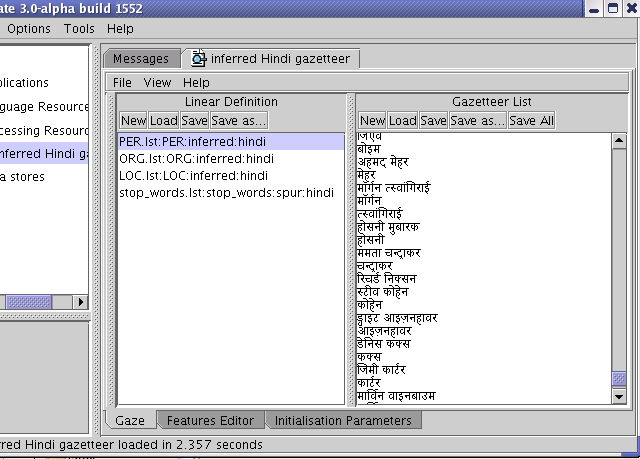
The list collector also has a facility to split the Person names that it collects into their individual tokens, so that it adds both the entire name to the list, and adds each of the tokens to the list (i.e. each of the first names, and the surname) as a separate entry. When the grammar annotates Persons, it can require them to be at least 2 tokens or 2 consecutive Person Lookups. In this way, new Person names can be recognised by combining a known first name with a known surname, even if they were not in the training corpus. Where only a single token is found that matches, an Unknown entity is generated, which can later be matched with an existing longer name via the orthomatcher component which performs orthographic coreference between named entities. This same procedure can also be used for other entity types. For example, parts of Organisation names can be combined together in different ways. The facility for splitting Person names is hardcoded in the file gate/src/gate/creole/GazetteerListsCollector.java and is commented.
13.8 OntoRoot Gazetteer [#]
OntoRoot Gazetteer is a type of a dynamically created gazetteer that is, in combination with few other generic GATE resources, capable of producing ontology-based annotations over the given content with regards to the given ontology. This gazetteer is a part of ‘Gazetteer_Ontology_Based’ plugin that has been developed as a part of the TAO project.
13.8.1 How Does it Work? [#]
To produce ontology-based annotations i.e. annotations that link to the specific concepts or relations from the ontology, it is essential to pre-process the Ontology Resources (e.g., Classes, Instances, Properties) and extract their human-understandable lexicalisations.
As a precondition for extracting human-understandable content from the ontology, first a list of the following is being created:
-
names of all ontology resources i.e. fragment identifiers 1 and
-
assigned property values for all ontology resources (e.g., label and datatype property values)
Each item from the list is further processed so that:
-
any name containing dash ("-") or underline ("_") character(s) is processed so that each of these characters is replaced by a blank space. For example, Project_Name or Project-Name would become a Project Name.
-
any name that is written in camelCase style is actually split into its constituent words, so that ProjectName becomes a Project Name (optional).
-
any name that is a compound name such as ‘POS Tagger for Spanish’ is split so that both ‘POS Tagger’ and ‘Tagger’ are added to the list for processing. In this example, ‘for’ is a stop word, and any words after it are ignored (optional).
Each item from this list is analysed separately by the Onto Root Application (ORA) on execution (see figure 13.3). The Onto Root Application first tokenises each linguistic term, then assigns part-of-speech and lemma information to each token.
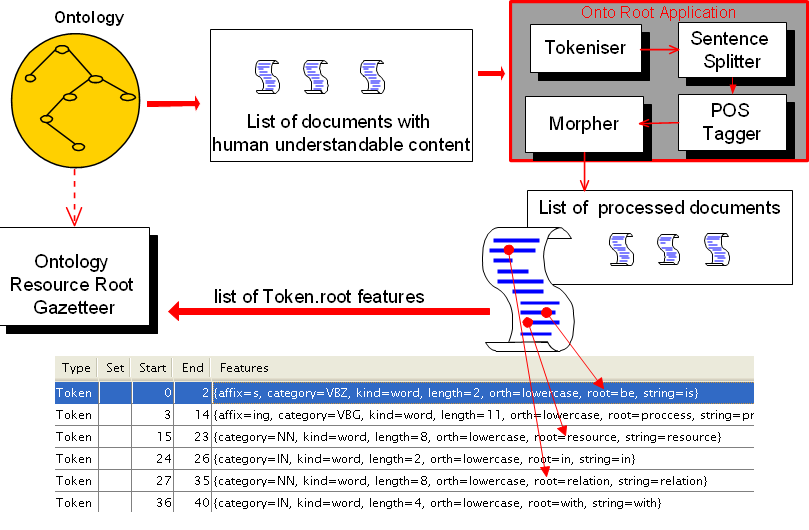
As a result of that pre-processing, each token in the terms will have additional feature named ‘root’, which contains the lemma as created by the morphological analyser. It is this lemma or a set of lemmas which are then added to the dynamic gazetteer list, created from the ontology.
For instance, if there is a resource with a short name (i.e., fragment identifier) ProjectName, without any assigned properties the created list before executing the OntoRoot gazetteer collection will contain the following strings:
-
‘ProjectName’,
-
‘Project Name’ after separating camelCased word and
-
‘Name’ after applying heuristic rules.
Each of the item from the list is then analysed separately and the results would be the same as the input strings, as all of entries are nouns given in singular form.
13.8.2 Initialisation of OntoRoot Gazetteer [#]
To initialise the gazetteer there are few mandatory parameters:
-
Ontology to be processed;
-
CorpusController to process the ontology terms2. This application will be run on a document that contains a single Sentence annotation spanning the whole document, and is expected to produce annotations of type Token in the default annotation set, with features category (the POS tag) and root (the morphological root). Typically this pipeline would contain a tokeniser appropriate to the source language, a POS tagger, and a GATE Morphological Analyser PR, but any application that will produce the right annotation types and features will work. For example, when processing non-English text you may need to use an alternative POS tagger such as the Stanford tagger or TreeTagger.
and few optional ones:
-
useResourceUri, default is set to true - should this gazetteer analyse resource URIs or not;
-
considerProperties, default is set to true - should this gazetteer consider properties or not;
-
propertiesToInclude - checked only if considerProperties is set to true - this parameter contains the list of property names (URIs) to be included, comma separated;
-
propertiesToExclude - checked only if considerProperties is set to true - this parameter contains the list of property names to be excluded, comma separated;
-
caseSensitive, default set to be false -should this gazetteer differentiate on case;
-
separateCamelCasedWords, default set to true - should this gazetteer separate emphcamelCased words, e.g. ‘ProjectName’ into ‘Project Name’;
-
considerHeuristicRules, default set to false - should this gazetteer consider several heuristic rules or not. Rules include splitting the words containing spaces, and using prepositions as stop words; for example, if ’pos tagger for Spanish’ would be analysed, ‘for’ would be considered as a stop word; heuristically derived would be ‘pos tagger’ and this would be further used to add ‘pos tagger’ to the gazetteer list, with a feature emphheuristical level set to be 0, and ‘tagger’ with emphheuristical level 1; at runtime lower heuristical level should be preferred. NOTE: setting considerHeuristicRules to true can cause a lot of noise for some ontologies and is likely to require implementing an additional filtering resource that will prefer the annotations with the lower heuristic level;
The OntoRoot Gazetteer’s initialization preprocesses strings from the ontology and runs the root finder application over them. It is possible to re-use the same tokeniser, POS tagger and morphological analyser PR instances in both the root finder application and the main pipeline that will contain the finished OntoRoot Gazetteer, but in this case the PRs must use the default annotation set for output. If you need to use a different annotation set for your main pipeline’s output then you will need to create separate PRs specifically for the root finder and configure those to use the default set.
13.8.3 Simple steps to run OntoRoot Gazetteer [#]
OntoRoot Gazetteer is a part of the Gazetteer_Ontology_Based plugin.
Easy way [#]
For a quick start with the OntoRoot Gazetteer, consider running it from the GATE Developer (GATE GUI):
-
Start GATE
-
Load a sample application from resources folder (exampleApp.xgapp). This will load CAT App application.
-
Run CAT App application and open query-doc to see a set of Lookup annotations generated as a result (see Figure 13.4).
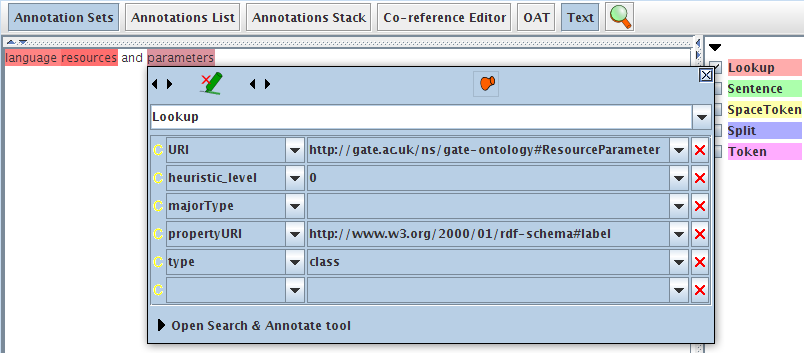
Hard way [#]
OntoRoot Gazetteer can easily be set up to be used with any ontology. To generate a GATE application which demonstrates the use of the OntoRoot Gazetteer, follow these steps:
-
Start GATE
-
Load necessary plugins: Click on Manage CREOLE plugins and check the following:
-
Tools
-
Ontology
-
Ontology_Based_Gazetteer
-
Ontology_Tools (optional); this parameter is required in order to view ontology using the GATE Ontology Editor.
-
ANNIE.
Make sure that these plugins are loaded from GATE/plugins/[plugin_name] folder.
-
-
Load an ontology. Right click on Language Resource, and select the last option to create an OWLIM Ontology LR. Specify the format of the ontology, for example rdfXmlURL, and give the correct path to the ontology: either the absolute path on your local machine such as c:/myOntology.owl or the URL such as http://gate.ac.uk/ns/gate-ontology. Specify the name such as myOntology (this is optional).
-
Create Processing Resources: Right click on the Processing Resource and create the following PRs (with default parameters):
-
Document Reset PR
-
ANNIE English Tokeniser
-
ANNIE POS Tagger
-
GATE Morphological Analyser
-
RegEx Sentence Splitter (or ANNIE Sentence Splitter)
Place the tokeniser, POS tagger and morphological analyser PRs into a new “corpus pipeline” application, named “Root finder”.
-
-
Create an Onto Root Gazetteer and set the init parameters. Mandatory ones are:
-
ontology: select previously created myOntology;
-
rootFinderApplication: select the “Root finder” pipeline you created above.
OntoRoot gazetteer is quite flexible in that it can be configured using the optional parameters. List of all parameters is detailed in Section 13.8.2.
When all parameters are set click OK. It can take some time to initialise OntoRoot Gazetteer. For example, loading GATE knowledge base from http://gate.ac.uk/ns/gate-kb takes around 6-15 seconds. Larger ontologies can take much longer.
-
-
Create another PR which is a Flexible Gazetteer. As init parameters it is mandatory to select previously created OntoRoot Gazetteer for gazetteerInst. For another parameter, inputFeatureNames, click on the button on the right and when prompt with a window, add ’Token.root’ in the provided textbox, then click Add button. Click OK, give name to the new PR (optional) and then click OK.
-
Create an application. Right click on Application, then create a new Corpus Pipeline (or Conditional Corpus Pipeline). Add the following PRs to the application in this particular order:
-
Document Reset PR
-
RegEx Sentence Splitter (or ANNIE Sentence Splitter)
-
ANNIE English Tokeniser
-
ANNIE POS Tagger
-
GATE Morphological Analyser
-
Flexible Gazetteer
The tokeniser, POS tagger and morphological analyser may be the same ones used in the root finder application, or they may be different (and must be different if you want to use an annotation set other than the default one for this pipeline’s PRs).
-
-
Create a document to process with the new application; for example, if the ontology was http://gate.ac.uk/ns/gate-kb, then the document could be the GATE home page: http://gate.ac.uk. Run application and then investigate the results further. All annotations are of type Lookup, with additional features that give details about the resources they are referring to in the given ontology.
13.9 Large KB Gazetteer [#]
Note that from GATE 8.5 onwards the ontology plugin must have been loaded before you can load this plugin. The plugin also does not appear in the default list. It can be added by providing it’s Maven coordinates through the plugin manager. See https://github.com/GateNLP/gateplugin-Gazetteer_LKB for more information about the plugin and how to load it.
The large KB gazetteer provides support for ontology-aware NLP. You can load any ontology from RDF and then use the gazetteer to obtain lookup annotations that have both instance and class URI. Alternately, the PR can read in LST and DEF files in the same format as the Default Gazetteer. For both data sources, the Large KB Gazetteer PR allows to use large gazetteer lists and speeds up subsequent loading of the data by caching.
The large KB gazetteer is available as the plugin Gazetteer_LKB.
The current version of the large KB gazetteer does not use GATE ontology language resources. Instead, it uses its own mechanism to load and process ontologies.
The Large KB gazetteer grew from a component in the semantic search platform Ontotext KIM. The gazetteer was developed by people from the KIM team. You may find the name kim left in several places in the source code, documentation or source files.
13.9.1 Quick usage overview
-
To use the Large KB gazetteer, set up your dictionary first. The dictionary is a folder with some configuration files. Use the samples at GATE_HOME/plugins/Gazetteer_LKB/samples as a guide. There are samples for loading the gazetteer data from a local repository, a remote repository or from a set of list files as configured in a .def file.
-
Load GATE_HOME/plugins/Gazetteer_LKB as a CREOLE plugin. See Section 3.5 for details.
-
Create a new ‘Large KB Gazetteer’ processing resource (PR). Put the folder of the dictionary you created in the ‘dictionaryPath’ parameter. You can leave the rest of the parameters as defaults.
-
Add the PR to your GATE application. The gazetteer doesn’t require a tokenizer or the output of any other processing resources.
-
The gazetteer will create annotations with type ‘Lookup’ and two features; ‘inst’, which contains the URI of the ontology instance, and ‘class’ which contains the URI of the ontology class that instance belongs to. If the gazetteer was loaded from gazetteer list files, the ‘inst’ and ‘class’ features are set from the ‘minorType’ and ‘majorType’ settings for the list file or from the ‘inst’ and ‘class’ features stored for each entry in the list file (see below).
13.9.2 Dictionary setup
The dictionary is a folder with some configuration files. You can find samples at GATE_HOME/plugins/Gazetteer_LKB/samples.
Setting up your own dictionary is easy. You need to define your RDF ontology and then specify a SPARQL or SERQL query that will retrieve a subset of that ontology as a dictionary.
config.ttl is a Turtle RDF file which configures a local RDF ontology or connection to a remote Sesame RDF database.
If you want to see examples of how to use local RDF files, please check samples/dictionary_from_local_ontology/config.ttl. The Sesame repository configuration section configures a local Ontotext SwiftOWLIM database that loads a list of RDF files. Simply create a list of your RDF files and reuse the rest of the configuration. The sample configuration support datasets with 10,000,000 triples with acceptable performance. For working with larger datasets, advanced users can substitute SwiftOWLIM with another Sesame RDF engine. In that case, make sure you add the necessary JARs to the list in GATE_HOME/plugins/Gazetteer_LKB/creole.xml. For example, Ontotext BigOWL is a Sesame RDF engine that can load billions of triples on desktop hardware.
Since any Sesame repository can be configured in config.ttl, the Large KB Gazetteer can extract dictionaries from all significant RDF databases. See the page on database compatibility for more information.
query.txt contains a SPARQL query. You can write any query you like, as long as its projection contains at least two columns in the following order: label and instance. As an option, you can also add a third column for the ontology class of the RDF entity. Below you can see a sample query, which creates a dictionary from the names and the unique identifiers of 10,000 entertainers in DbPedia.
PREFIX opencyc: <http://sw.opencyc.org/2008/06/10/concept/en/>
PREFIX rdfs: <http://www.w3.org/2000/01/rdf-schema#>

SELECT ?Name ?Person WHERE {
        ?Person a opencyc:Entertainer ; rdfs:label ?Name .
    FILTER (lang(?Name) = "en")
} LIMIT 10000
Try this query at the Linked Data Semantic Repository.
When you load the dictionary configuration in GATE for the first time, it creates a binary snapshot of the dictionary. Thereafter it will load only this binary snapshot. If the dictionary configuration is changed, the snapshot will be reinitialized automatically. For more information, please see the dictionary lifecycle specification.
13.9.3 Additional dictionary configuration
The config.ttl may contain additional dictionary configuration. Such configuration concerns only the initial loading of the dictionary from the RDF database. The options are still being determined and more will appear in future versions. They must be placed below the repository configuration section as attributes of a dictionary configuration. Here is a sample config.ttl file with additional configuration.
# Sesame configuration template for a (proxy for a) remote repository
#
@prefix rdfs: <http://www.w3.org/2000/01/rdf-schema#>.
@prefix rep: <http://www.openrdf.org/config/repository#>.
@prefix hr: <http://www.openrdf.org/config/repository/http#>.
@prefix lkbg: <http://www.ontotext.com/lkb_gazetteer#>.

[] a rep:Repository ;
   rep:repositoryImpl [
      rep:repositoryType "openrdf:HTTPRepository" ;
      hr:repositoryURL <http://ldsr.ontotext.com/openrdf-sesame/repositories/owlim>
   ];
   rep:repositoryID "owlim" ;
   rdfs:label "LDSR" .

[] a lkbg:DictionaryConfiguration ;
  lkbg:caseSensitivity "CASE_INSENSITIVE" .
13.9.4 Dictionary for Gazetteer List Files
In order to load the gazetteer from gazetteer list files, place a file with extension .def in the dictionary directory. This file should have the same format as for the Default Gazetteer, however the fields for language and annotation type are ignored. The values for the fields ‘majorType’ and ‘minorType’ are converted to URIs by prepending ‘urn:’ and the URI from ‘majorType’ is used for assigning the ‘class’ feature, the URI from ‘minorType’ for assigning the ‘inst’ feature of all annotations created from the list. These valus can be overwritted by features from the individual entries in a list file, if the ‘gazetteerFeatureSeparator’ configuaration option is set to a non-blank value in the configuration file. In that case, each line in a list file is split by the separator and the first part is used as the gazetteer entry. The remaining parts are interpreted as feature/value pairs of the form feature=value. If a feature ‘inst’ is found the value is used as the inst URI for that entry, overwriting the URI taken from the ‘minorType’ of the list file. If a feature ‘class’ is found, the value is used as the class URI for that entry, overwriting the URI taken from the ‘majorType’ of the list file.
The config.ttl file for a loading the gazetteer from list files should have the following content (the example shows a tab character to be used as the feature separator for list files):
@prefix lkbg: <http://www.ontotext.com/lkb_gazetteer#>.
lkbg:DictionaryConfiguration
   lkbg:caseSensitivity "caseinsensitive" ;
   lkbg:caching "enabled" ;
   lkbg:ignoreList "ignoreList.txt" ;
   lkbg:gazetteerFeatureSeparator "\t" .
13.9.5 Processing Resource Configuration
The following options can be set when the gazetteer PR is initialized:
-
dictionaryPath; the dictionary folder described above.
-
forceCaseSensitive; whether the gazetteer should return case-sensitive matches regardless of the loaded dictionary.
13.9.6 Runtime configuration
-
annotationSetName - The annotation set, which will receive the generated lookup annotations.
-
annotationLimit - The maximum number of the generated annotations. NULL or 0 for no limit. Setting limit of the number of the created annotations will reduce the memory consumption of GATE on large documents. Note that GATE documents consume gigabytes of memory if there are tens of thousands of annotations in the document. All PRs that create large number of annotations like the gazetteers and tokenizers may cause an Out Of Memory error on large texts. Setting that option limits the amount of memory that the gazetteer will use.
13.9.7 Semantic Enrichment PR [#]
The Semantic Enrichment PR allows adding new data to semantic annotations by querying external RDF (Linked Data) repositories. It is a companion to the large KB gazetteer that showcases the usefulness of using Linked Data URI as identifiers.
Here a semantic annotation is an annotation that is linked to an RDF entity by having the URI of the entity in the ‘inst’ feature of the annotation. For all such annotation of a given type, this PR runs a SPARQL query against the defined repository and puts a comma-separated list of the values mentioned in the query output in the ‘connections’ feature of the same annotation.
There is a sample pipeline that features the Semantic Enrichment PR.
Parameters
-
inputASName; the annotation set, which annotation will be processed.
-
server; the URL of the Sesame 2 HTTP repository. Support for generic SPARQL endpoints can be implemented if required.
-
repositoryId; the ID of the Sesame repository.
-
annotationTypes; a list of types of annotation that will be processed.
-
query; a SPARQL query pattern. The query will be processed like this - String.format(query, uriFromAnnotation), so you can use parameters like %s or %1$s.
-
deleteOnNoRelations; whether we want to delete the annotation that weren’t enriched. Helps to clean up the input annotations.
13.10 The Shared Gazetteer for multithreaded processing [#]
The DefaultGazetteer (and its subclasses such as the OntoRootGazetteer) compiles its gazetteer data into a finite state matcher at initialization time. For large gazetteers this FSM requires a considerable amount of memory. However, once the FSM has been built then (as long as you do not modify it dynamically using Gaze) it is accessed in a read-only manner at runtime. For a multi-threaded application that requires several identical copies of its processing resources (see section 7.14), GATE provides a mechanism whereby a single compiled FSM can be shared between several gazetteer PRs that can then be executed concurrently in different threads, saving the memory that would otherwise be required to load the lists several times.
This feature is not available in the GATE Developer GUI, as it is only intended for use in embedded code. To make use of it, first create a single instance of the regular DefaultGazetteer or OntoRootGazetteer:
FeatureMap params = Factory.newFeatureMap();
params.put("listsUrl", listsDefLocation);
LanguageAnalyser mainGazetteer = (LanguageAnalyser)Factory.createResource(
    "gate.creole.gazetteer.DefaultGazetteer", params);
Then create any number of SharedDefaultGazetteer instances, passing this regular gazetteer as a parameter:
FeatureMap params = Factory.newFeatureMap();
params.put("bootstrapGazetteer", mainGazetteer);
LanguageAnalyser sharedGazetteer = (LanguageAnalyser)Factory.createResource(
    "gate.creole.gazetteer.SharedDefaultGazetteer", params);
The SharedDefaultGazetteer instance will re-use the FSM that was built by the mainGazetteer instead of loading its own.
13.11 Extended Gazetteer [#]
The ExtendedGazetteer is part of the StringAnnotation plugin and works similar to the default ANNIE Gazetteer PR, but with the following changes and additions:
-
it scales to very large gazetters by implementing an optimized compressed trie data structure which allows to fit huge gazetteer lists into memory. Unlike the LKB Gazetteer it still allows arbitrary features per entry.
-
it automatically properly supports duplication, the loaded gazetteer gets automatically shared between all duplicates.
-
the compressed data structre is cashed to disk, so loading the gazetteer is faster once the cashe file has been created
-
it can be used to match either the original document text (as the default ANNIE Gazetteer) or the "virtual document view" created from the values of some feature for some annotation type (similar to how the Flexible Gazetteer works)
-
it requires word annotations and non-word/space annotations (e.g. the Token/SpaceToken annotations created by ANNIE) and uses those to determine word boundaries in the document (instead of the whitespace patterns used by the default ANNIE gazetteer). In addition it is possible to define a "Split" annotation type so that a gazetteer match will never cross or include a split annotation (e.g. to prevent matches across sentence boundaries).
-
All files have to use UTF-8 encoding by default
-
The default feature separator is a tab character, not a colon
-
For case-insensitive matches, the upper-case version of strings from the gazetteer list and the document are compared, and the language for converting to upper case can be specified (e.g. in German, a ß character is converted to "SS").
More detailed documentation of the ExtendedGazetteer is available online at https://gatenlp.github.io/gateplugin-StringAnnotation/ExtendedGazetteer.
13.12 Feature Gazetteer [#]
The FeatureGazetteer is part of the StringAnnotation plugin and can be used to match annotation features against a gazetteer list and if there is a match perform one of the following actions:
-
add new features from the gazetteer entry to the annotation
-
remove that annotation
-
add a new annotation
More detailed documentation of the FeatureGazetteer is available online at https://gatenlp.github.io/gateplugin-StringAnnotation/FeatureGazetteer.
Chapter 14
Working with Ontologies [#]
GATE provides an API for modeling and manipulating ontologies and comes with two plugins that provide implementations for the API and several tools for simple editing of ontologies and using them for document annotation. Note that for more complex ontology editing, it may be better to use a tool such as Protégé to first edit the ontology outside GATE.
Ontologies in GATE are classified as language resources. In order to create an ontology language resource, the user must first load a plugin containing an ontology implementation.
The following implementations and ontology related tools are provided as plugins:
-
Plugin Ontology provides the standard implementation of the GATE ontology API (see Section 14.3). Unless noted otherwise, all information in this chapter applies to this implementation.
-
The plugin ontology-tools provides a simple graphical ontology editor (see Section 14.4) and OCAT, a tool for interactive ontology based document annotation (see Section 14.5). It also provides a gazetteer processing resource, OntoGaz, that allows the mapping of linear gazetteers to classes in an ontology (see Section 13.3).
-
Plugin gazetteer-ontology-based provides the ‘Onto Root Gazetteer’ for the automatic creating of a gazetteer from an ontology (see Section 13.8)
-
Plugin ontology-bdm-computation can be used to compute BDM scores (see Section 10.6).
-
Plugin gazetteer-lkb provides a processing resource for creating annotations based on the contents of a large ontology.
GATE ontology support aims to simplify the use of ontologies both within the set of GATE tools and for programmers using the GATE ontology API. The GATE ontology API hides the details of the actual backend implementation and allows a simplified manipulation of ontologies by modeling ontology resources as easy-to-use Java objects. Ontologies can be loaded from and saved to various serialization formats.
The GATE ontology support roughly conforms to the representation, manipulation and inference that conforms to what is supported in OWL-Lite (see http://www.w3.org/TR/owl-features/). This means that a user can represent information in an ontology that conforms to OWL-Lite and that the GATE ontology model will provide inferred information equivalent to what an OWL-Lite reasoner would provide. The GATE ontology model makes an attempt to also to some extend provide useful information for ontologies that do not conform to OWL-Lite: RDFS, OWL-DL, OWL-Full or OWL2 ontologies can be loaded but GATE might ignore part of all contents of those ontologies, or might only provide part of, or incorrect inferred facts for such ontologies. If an ontology is loaded that contains a restriction not supported by OWL-Lite, like oneOf, unionOf, intersectionOf, or complementOf, the classes to which such restrictions apply will not be found in some sitations because the Ontology API has not way of representing such restrictions. For example, such classes will not show up when requesting the direct subclasses of a given class. In other situations, e.g. when retrieved directly using the URI, the class will be found. Using the Ontology plugin with ontologies that do not conform to OWL-Lite should be avoided to avoid such confusing behavior.
The GATE API tries to prevent clients from modifying an ontology that conforms to OWL-Lite to become OWL-DL or OWL-Full and also tries to prevent or warn about some of the most common errors that would make the ontology inconsistent. However, the current implementation is not able to prevent all such errors and has no way of finding out if an ontology conforms to OWL-Lite or is inconsistent.
14.1 Data Model for Ontologies
14.1.1 Hierarchies of Classes and Restrictions
Class hierarchy (or taxonomy) plays the central role in the ontology data model. This consists of a set of ontology classes (represented by OClass objects in the ontology API) linked by subClassOf, superClassOf and equivalentClassAs relations. Each ontology class is identified by an URI (unless it is a restriction or an anonymous class, see below). The URI of each ontology resource must be unique.
Each class can have a set of superclasses and a set of subclasses; these are used to build the class hierarchy. The subClassOf and superClassOf relations are transitive and methods are provided by the API for calculating the transitive closure for each of these relations given a class. The transitive closure for the set of superclasses for a given class is a set containing all the superclasses of that class, as well as all the superclasses of its direct superclasses, and so on until no more are found. This calculation is finite, the upper bound being the set of all the classes in the ontology. A class that has no superclasses is called a top class. An ontology can have several top classes. Although the GATE ontology API can deal with cycles in the hierarchy graph, these can cause problems for processes using the API and probably indicate an error in the definition of the ontology. Also other components of GATE, like the ontology editor cannot deal with cyclic class structures and will terminate with an error. Care should be taken to avoid such situations.
A pair of ontology classes can also have an equivalentClassAs relation, which indicates that the two classes are virtually the same and all their properties and instances should be shared.
A restriction (represented by Restriction objects in the GATE ontology API) is an anonymous class (i.e., the class is not identified by an URI/IRI) and is set on an object or a datatype property to restrict some instances of the specified domain of the property to have only certain values (also known as value constraint) or certain number of values (also known as cardinality restriction) for the property. Thus for each restriction there exists at least three triples in the repository. One that defines resource as a restriction, another one that indicates on which property the restriction is specified, and finally the third one that indicates what is the constraint set on the cardinality or value on the property. There are six types of restrictions:
-
Cardinality Restriction (owl:cardinalityRestriction): the only valid values for this restriction in OWL-Lite are 0 and 1. A cardinality restriction set to either 0 or 1 implies both a MinCardinality Restriction and a MaxCardinality Restriction set to the same value.
-
MinCardinality Restriction (owl:minCardinalityRestriction)
-
MaxCardinality Restriction (owl:maxCardinalityRestriction)
-
HasValue Restriction (owl:hasValueRestriction)
-
AllValuesFrom Restriction (owl:allValuesFromRestriction)
-
SomeValuesFrom Restriction (owl:someValuesFromRestriction)
Please visit the OWL Reference for more detailed information on restrictions.
14.1.2 Instances
Instances, also often called individuals are objects that belong to classes. Like named classes, each instance is identified by an URI. Each instance can belong to one or more classes and can have properties with values. Two instances can have the sameInstanceAs relation, which indicates that the property values assigned to both instances should be shared and that all the properties applicable to one instance are also valid for the other. In addition, there is a differentInstanceAs relation, which declares the instances as disjoint.
Instances are represented by OInstance objects in the API. API methods are provided for getting all the instances in an ontology, all the ones that belong to a given class, and all the property values for a given instance. There is also a method to retrieve a list of classes that the instance belongs to, using either transitive or direct closure.
14.1.3 Hierarchies of Properties
The last part of the data model is made up of hierarchies of properties that can be associated with objects in the ontology. The specification of the type of objects that properties apply to is done through the means of domains. Similarly, the types of values that a property can take are restricted through the definition of a range. A property with a domain that is an empty set can apply to instances of any type (i.e. there are no restrictions given). Like classes, properties can also have superPropertyOf, subPropertyOf and equivalentPropertyAs relations among them.
GATE supports the following property types:
-
Annotation Property:
An annotation property is associated with an ontology resource (i.e. a class, property or instance) and can have a Literal as value. A Literal is a Java object that can refer to the URI of any ontology resource or a string (http://www.w3.org/2001/XMLSchema#string) with the specified language or a data type (discussed below) with a compatible value. Two annotation properties can not be declared as equivalent. It is also not possible to specify a domain or range for an annotation property or a super or subproperty relation between two annotation properties. Five annotation properties, predefined by OWL, are made available to the user whenever a new ontology instance is created:
-
owl:versionInfo,
-
rdfs:label,
-
rdfs:comment,
-
rdfs:seeAlso, and
-
rdfs:isDefinedBy.
In other words, even when the user creates an empty ontology, these annotation properties are created automatically and available to users.
-
-
Datatype Property:
A datatype property is associated with an ontology instance and can have a Literal value that is compatible with its data type . A data type can be one of the pre-defined data types in the GATE ontology API:
      http://www.w3.org/2001/XMLSchema#boolean
      http://www.w3.org/2001/XMLSchema#byte
      http://www.w3.org/2001/XMLSchema#date
      http://www.w3.org/2001/XMLSchema#decimal
      http://www.w3.org/2001/XMLSchema#double
      http://www.w3.org/2001/XMLSchema#duration
      http://www.w3.org/2001/XMLSchema#float
      http://www.w3.org/2001/XMLSchema#int
      http://www.w3.org/2001/XMLSchema#integer
      http://www.w3.org/2001/XMLSchema#long
      http://www.w3.org/2001/XMLSchema#negativeInteger
      http://www.w3.org/2001/XMLSchema#nonNegativeInteger
      http://www.w3.org/2001/XMLSchema#nonPositiveInteger
      http://www.w3.org/2001/XMLSchema#positiveInteger
      http://www.w3.org/2001/XMLSchema#short
      http://www.w3.org/2001/XMLSchema#string
      http://www.w3.org/2001/XMLSchema#time
      http://www.w3.org/2001/XMLSchema#unsignedByte
      http://www.w3.org/2001/XMLSchema#unsignedInt
      http://www.w3.org/2001/XMLSchema#unsignedLong
      http://www.w3.org/2001/XMLSchema#unsignedShort
A set of ontology classes can be specified as a property’s domain; in that case the property can be associated with the instance belonging to all of the classes specified in that domain only (the intersection of the set of domain classes).
Datatype properties can have other datatype properties as subproperties.
-
Object Property:
An object property is associated with an ontology instance and has an instance as value. A set of ontology classes can be specified as property’s domain and range. Then the property can only be associated with the instances belonging to all of the classes specified as the domain. Similarly, only the instances that belong to all the classes specified in the range can be set as values.
Object properties can have other object properties as subproperties.
-
RDF Property:
RDF properties are more general than datatype or object properties. The GATE ontology API uses RDFProperty objects to hold datatype properties, object properties, annotation properties or actual RDF properties (rdf:Property).
Note: The use of RDFProperty objects for creating, or manipulating RDF properties is carried over from previous implementations for compatibility reasons but should be avoided.
All properties (except the annotation properties) can be marked as functional properties, which means that for a given instance in their domain, they can only take at most one value, i.e. they define a function in the algebraic sense. Properties inverse to functional properties are marked as inverse functional. If one likes ontology properties with algebraic relations, the semantics of these become apparent.
14.1.4 URIs
URIs are used to identify resources (instances, classes, properties) in an ontology. All URIs that identify classes, instances, or properties in an ontology must consist of two parts:
-
a name part: this is the part after the last slash (/) or the first hash (#) in the URI. This part of the URI is often used as a shorthand name for the entity (e.g. in the ontology editor) and is often called a fragment identifier
-
a namespace part: the part that precedes the name, including the trailing slash or hash character.
URIs uniquely identify resources: each resource can have at most one URI and each URI can be associated with at most one resource.
URIs are represented by OURI objects in the API. The Ontology object provides factory methods to create OURIs from a complete URI string or by appending a name to the default namespace of the ontology. However it is the responsibility of the caller to ensure that any strings that are passed to these factory methods do in fact represent valid URIs. GATE provides some helper methods in the OUtils class to help with encoding and decoding URI strings.
14.2 Ontology Event Model
An Ontology Event Model (OEM) is implemented and incorporated into the new GATE ontology API. Under the new OEM, events are fired when a resource is added, modified or deleted from the ontology.
An interface called OntologyModificationListener is created with five methods (see below) that need to be implemented by the listeners of ontology events.
public void resourcesRemoved(Ontology ontology, String[] resources);
This method is invoked whenever an ontology resource (a class, property or instance) is removed from the ontology. Deleting one resource can also result into the deletion of the other dependent resources. For example, deleting a class should also delete all its instances (more details on how deletion works are explained later). The second parameter, an array of strings, provides a list of URIs of resources deleted from the ontology.
public void resourceAdded(Ontology ontology, OResource resource);
This method is invoked whenever a new resource is added to the ontology. The parameters provide references to the ontology and the resource being added to it.
public void ontologyRelationChanged(Ontology ontology, OResource resource1,
                                   OResource resource2, int eventType);
This method is invoked whenever a relation between two resources (e.g. OClass and OClass, RDFPRoeprty, RDFProeprty, etc) is changed. Example events are addition or removal of a subclass or a subproperty, two classes or properties being set as equivalent or different and two instances being set as same or different. The first parameter is the reference to the ontology, the next two parameters are the resources being affected and the final parameters is the event type. Please refer to the list of events specified below for different types of events.
public void resourcePropertyValueChanged(Ontology ontology,
                                         OResource resource, RDFProperty
                                       property, Object value, int eventType)
This method is invoked whenever any property value is added or removed to a resource. The first parameter provides a reference to the ontology in which the event took place. The second provides a reference to the resource affected, the third parameter provides a reference to the property for which the value is added or removed, the fourth parameter is the actual value being set on the resource and the fifth parameter identifies the type of event.
public void ontologyReset(Ontology ontology)
This method is called whenever ontology is reset. In other words when all resources of the ontology are deleted using the ontology.cleanup method.
The OConstants class defines the static constants, listed below, for various event types.
public static final int OCLASS_ADDED_EVENT;
public static final int ANONYMOUS_CLASS_ADDED_EVENT;
public static final int CARDINALITY_RESTRICTION_ADDED_EVENT;
public static final int MIN_CARDINALITY_RESTRICTION_ADDED_EVENT;
public static final int MAX_CARDINALITY_RESTRICTION_ADDED_EVENT;
public static final int HAS_VALUE_RESTRICTION_ADDED_EVENT;
public static final int SOME_VALUES_FROM_RESTRICTION_ADDED_EVENT;
public static final int ALL_VALUES_FROM_RESTRICTION_ADDED_EVENT;
public static final int SUB_CLASS_ADDED_EVENT;
public static final int SUB_CLASS_REMOVED_EVENT;
public static final int EQUIVALENT_CLASS_EVENT;
public static final int ANNOTATION_PROPERTY_ADDED_EVENT;
public static final int DATATYPE_PROPERTY_ADDED_EVENT;
public static final int OBJECT_PROPERTY_ADDED_EVENT;
public static final int TRANSTIVE_PROPERTY_ADDED_EVENT;
public static final int SYMMETRIC_PROPERTY_ADDED_EVENT;
public static final int ANNOTATION_PROPERTY_VALUE_ADDED_EVENT;
public static final int DATATYPE_PROPERTY_VALUE_ADDED_EVENT;
public static final int OBJECT_PROPERTY_VALUE_ADDED_EVENT;
public static final int RDF_PROPERTY_VALUE_ADDED_EVENT;
public static final int ANNOTATION_PROPERTY_VALUE_REMOVED_EVENT;
public static final int DATATYPE_PROPERTY_VALUE_REMOVED_EVENT;
public static final int OBJECT_PROPERTY_VALUE_REMOVED_EVENT;
public static final int RDF_PROPERTY_VALUE_REMOVED_EVENT;
public static final int EQUIVALENT_PROPERTY_EVENT;
public static final int OINSTANCE_ADDED_EVENT;
public static final int DIFFERENT_INSTANCE_EVENT;
public static final int SAME_INSTANCE_EVENT;
public static final int RESOURCE_REMOVED_EVENT;
public static final int RESTRICTION_ON_PROPERTY_VALUE_CHANGED;
public static final int SUB_PROPERTY_ADDED_EVENT;
public static final int SUB_PROPERTY_REMOVED_EVENT;
An ontology is responsible for firing various ontology events. Object wishing to listen to the ontology events must implement the methods above and must be registered with the ontology using the following method.
addOntologyModificationListener(OntologyModificationListener oml);
The following method cancels the registration.
removeOntologyModificationListener(OntologyModificationListener oml);
14.2.1 What Happens when a Resource is Deleted?
Resources in an ontology are connected with each other. For example, one class can be a sub or superclass of another classes. A resource can have multiple properties attached to it. Taking these various relations into account, change in one resource can affect other resources in the ontology. Below we describe what happens (in terms of what does the GATE ontology API do) when a resource is deleted.
-
When a class is deleted
-
A list of all its super classes is obtained. For each class in this list, a list of its subclasses is obtained and the deleted class is removed from it.
-
All subclasses of the deleted class are removed from the ontology. A list of all its equivalent classes is obtained. For each class in this list, a list of its equivalent classes is obtained and the deleted class is removed from it.
-
All instances of the deleted class are removed from the ontology.
-
All properties are checked to see if they contain the deleted class as a member of their domain or range. If so, the respective property is also deleted from the ontology.
-
-
When an instance is deleted
-
A list of all its same instances is obtained. For each instance in this list, a list of its same instances is obtained and the deleted instance is removed.
-
A list of all instances set as different from the deleted instance is obtained. For each instance in this list, a list of instances set as different from it is obtained and the deleted instance is removed.
-
All the instances of ontology are checked to see if any of their set properties have the deleted instance as value. If so, the respective set property is altered to remove the deleted instance.
-
-
When a property is deleted
-
A list of all its super properties is obtained. For each property in this list, a list of its sub properties is obtained and the deleted property is removed.
-
All sub properties of the deleted property are removed from the ontology.
-
A list of all its equivalent properties is obtained. For each property in this list, a list of its equivalent properties is obtained and the deleted property is removed.
-
All instances and resources of the ontology are checked to see if they have the deleted property set on them. If so the respective property is deleted.
-
14.3 The Ontology Plugin [#]
The plugin Ontology contains the current ontology API implementation. It is based on a backend that uses Sesame version 2 and OWLIM version 3.
The Ontology plugin depends on libraries that are not available in the Central Maven Repository, so the plugin must be downloaded and installed separately. You can download released versions of the plugin from GitHub, and the latest snapshot version from our snapshot repository. Unpacking the downloaded zip file will create a new directory gateplugin-Ontology-version , and that directory should be loaded as a CREOLE plugin – open the plugin manager, click the “+” button at the top left, switch to the “directory URL” tab, and select the ontology plugin directory you just unpacked. This will add the plugin to the known plugins list and you can then select “load now” and/or “load always” as appropriate.
Once the plugin is loaded, the context menu for Language Resources will include the following ontology language resources:
-
OWLIMOntology: this is the standard language resource to use in most situations. It allows the user to create a new ontology backed by files in a local directory and optionally load ontology data into it.
-
OWLIMOntology DEPRECATED: this language resource has the same functionality as OWLIMOntology but uses the exactly same package and class name as the language resource in the plugin Ontology_OWLIM2. This LR is provided to allow an easier upgrade of existing pipelines to the new implementation but users should move the the OWLIMOntology LR as soon as possible.
-
ConnectSesameOntology: This language resources allows the use of ontologies that are already stored in a Sesame2 repository which is either stored in a directory or accessible from a server. This is useful for quickly re-using a very large ontology that has been previously created as a persistent OWLIMOntology language resource.
-
CreateSesameOntology: This language resource allows the user to create a new empty ontology by specifying the repository configuration for creating the sesame repository. Note:This is for advanced uses only!
Each of these language resources is explained in more detail in the following sections.
To make the plugin available to your GATE Embedded application, load the plugin prior to creating one of the ontology language resources using code similar to the following:
2File ontologyPlugin = new File("/path/to/gateplugin-Ontology");
3// Load the plugin from that directory
4Gate.getCreoleRegister().registerPlugin(new Plugin.Directory(
5 ontologyPlugin.toURI().toURL()));
Alternatively, if you load a saved application state that was saved with the plugin loaded, then it will be re-loaded automatically as part of that process.
14.3.1 Upgrading from previous versions of GATE [#]
If you have a saved GATE application from GATE version 8.4.1 or earlier that uses the Ontology plugin that was built in to GATE at that time, you will need to upgrade your application to make it work with GATE 8.5 and later.
With the Ontology plugin loaded, there will be an “Ontologies” sub-menu in the GATE Developer “Tools” menu, with an entry to “Upgrade old saved application”. Select this option and locate the existing xgapp file in the file chooser. The upgrade backs up the old xgapp file with a “.onto.bak” extension and replaces all references to the old “built-in” Ontology plugin with the version of the plugin you currently have loaded.
Note that this procedure is specific to the Ontology plugin and is in addition to the standard upgrade procedure detailed in section 3.9.5 used for the other standard GATE plugins – to fully upgrade an application that uses ontologies you must run both the standard upgrader and the ontology plugin upgrader in sequence in order to obtain a final xgapp that will work with GATE 8.5. You can run the two upgrades either way around on the same file, we suggest running the standard upgrader first (skipping the Ontology plugin) and then the ontology plugin upgrader second, which will leave your original pre-8.5 application backed up with a “.bak” extension.
14.3.2 The OWLIMOntology Language Resource [#]
The OWLIMOntology language resource is the main ontology language resource provided by the plugin and creates an in-memory store backed by files in a directory on the file system to hold the ontology data.
To create a new OWLIM Ontology resource, select ‘OWLIM Ontology’ from the right-click ‘New’ menu for language resources. A dialog as shown in Figure 14.1 appears with the following parameters to fill in or change:
-
Name (optional): if no name is given, a default name will be generated, if an ontology is loaded from an URL, based on that URL, otherwise based on the language resource name.
-
baseURI (optional): the URI to be used for resolving relative URI references in the ontology during loading.
-
dataDirectoryName (optional): the name of an existing directory on the file system where the directory will be created that backs the ontology store. The name of the directory that will be created within the data directory will be GATE_OWLIMOntology_ followed by a string representation of the system time. If this parameter is not specified, the value for system property java.io.tmpdir is used, if this is not set either an error is raised.
-
loadImports (optional): either true or false. If set to false all ontology import specifications found in the loaded ontology are ignored. This parameter is ignored if no ontology is loaded when the language resource is created.
-
mappingsURL (optional): the URL of a text file containing import mappings specifications. See section 14.3.6 for a description of the mappings file. If no URL is specified, the GATE will interpret each import URI found as an URL and try to import the data from that URL. If the URI is not absolute it will get resolved against the base URI.
-
persistent (optional): true or false: if false, the directory created inside the data directory is removed when the language resource is closed, otherwise, that directory is kept. The ConnectSesameOntology language resource can be used at a later time to connect to such a directory and create an ontology language resource for it (see Section 14.3.3).
-
rdfXmlUrl (optional): an URL specifying the location of an ontology in RDF/XML serialization format (see http://www.w3.org/TR/rdf-syntax-grammar/) from which to load initial ontology data from. The parameter name can be changed from rdfXmlUrl to n3Url to indicate N3 serialization format (see http://www.w3.org/DesignIssues/Notation3.html), to ntriplesUrl to indicate N-Triples format (see http://www.w3.org/TR/2004/REC-rdf-testcases-20040210/#ntriples), and to turtleUrl to indicate TURTLE serialization format (see http://www.w3.org/TeamSubmission/turtle/). If this is left blank, no ontology is loaded and an empty ontology language resource is created.
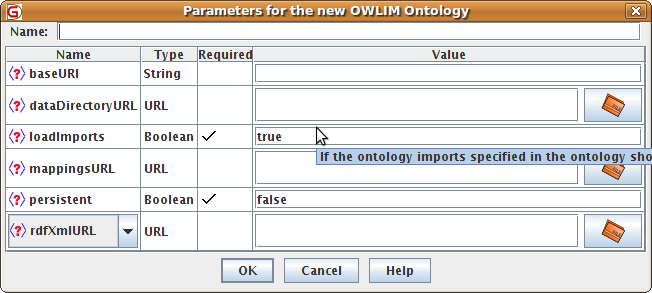
Note: you could create a language resource such as OWLIM Ontology from GATE Developer successfully, but you will not be able to browse/edit the ontology unless you loaded Ontology Tools plugin beforehand.
Additional ontology data can be loaded into an existing ontology language resource by selecting the ‘Load’ option from the language resource’s context menu. This will show the dialog shown in figure 14.2. The parameters in this dialog correspond to the parameters in the dialog for creating a new ontology with the addition of one new parameter: ‘load as import’. If this parameter is checked, the ontology data is loaded specifically as an ontology import. Ontology imports can be excluded from what is saved at a later time.
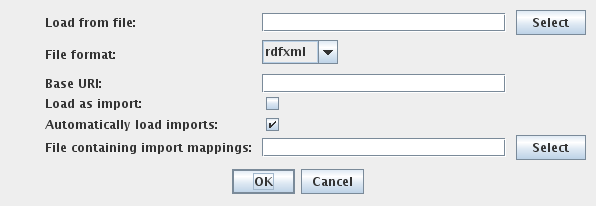
Figure 14.3 shows the ontology save dialog that is shown when the option ‘Save as…’ is selected from the language resource’s context menu. The parameter ‘include imports’ allows the user to specify if the data that has been loaded through imports should be included in the saved data or not.
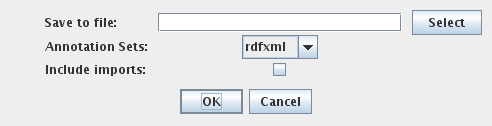
14.3.3 The ConnectSesameOntology Language Resource [#]
This ontology language resource can be created from either a directory on the local file system that holds an ontology backing store (as created in the ‘data directory’ for the ‘OWLIM Ontology’ language resource), or from a sesame repository on a server that holds an OWLIM ontology store.
This is very useful when using very large ontologies with GATE. Loading a very large ontology from a serialized format takes a significant amount of time because the file has to be deserialized and all implied facts have to get generated. Once an ontology has been loaded into a persisting OWLIMOntology language resource, the ConnectSesameOntology language resource can be used with the directory created to re-connect to the already de-serialized and inferred data much faster.
Figure 14.4 shows the dialog for creating a ConnectSesameOntology language resource.
-
repositoryID: the name of the sesame repository holding the ontology store. For a backing store created with the ‘OWLIM Ontology’ language resource, this is always ‘owlim3’.
-
repositoryLocation: the URL of the location where to find the repository holding the ontology store. The URL can either specify a local directory or an HTTP server. For a backing store created with the ‘OWLIM Ontology’ language resource this is the directory that was created inside the data directory (the name of the directory starting with GATE_OWLIMOntology_). If the URL specifies a HTTP server which requires authentification, the user-ID and password have to be included in the URL (e.g. http://userid:passwd@localhost:8080/openrdf-sesame).
Note that this ontology language resource is only supported when connected with an OWLIM3 repository configured to use the owl-max ruleset and with partialRDFS optimizations disabled! Connecting to any other repository is experimental and for expert users only! Also note that connecting to a repository that is already in use by GATE or any other application is not supported and might result in unwanted or erroneous behavior!
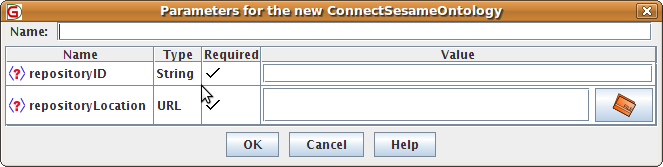
14.3.4 The CreateSesameOntology Language Resource [#]
This ontology language resource can be directly created from a Sesame2 repository configuration file. This is an experimental language resource intended for expert users only. This can be used to create any kind of Sesame2 repository, but the only repository configuration supported by GATE and the GATE ontology API is an OWLIM repository configured to use the owl-max ruleset and with partialRDFS optimizations disabled. The dialog for creating this language resource is shown in Figure 14.5.
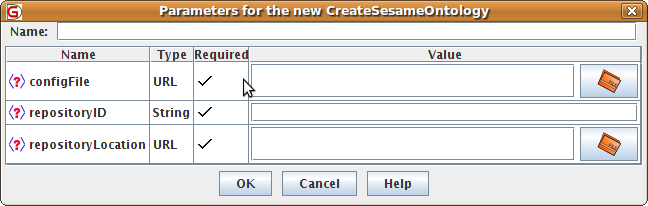
14.3.5 The OWLIM2 Backwards-Compatible Language Resource [#]
This language resource is shown as “OWLIM Ontology DEPRECATED” in the ‘New Language Resource’ submenu from the ‘File’ menu. It provides the “OWLIM Ontology” language resource in a way that attempts maximum backwards-compatibility with the ontology language resource provided by prior versions or the Ontology_OWLIM2 language resource. This means, the class name is identical to those language resources gate.creole.ontology.owlim.OWLIMOntologyLR) and the parameters are made compatible. This means that the parameter defaultNameSpace is added as an alias for the parameter baseURI (also the methods setPersistsLocation and getPersistLocation are available for legacy Java code that expects them, but the persist location set that way is not actually used).
In addition, this language resource will still automatically add the resource name of a resource as the String value for the annotation property “label”.
14.3.6 Using Ontology Import Mappings [#]
If an ontology is loaded that contains the URIs of imported ontologies using owl:imports, the plugin will try to automatically resolve those URIs to URLs and load the ontology file to be imported from the location corresponding to the URL. This is done transitively, i.e. import specifications contained in freshly imported ontologies are resolved too.
In some cases one might want to suppress the import of certain ontologies or one might want to load the data from a different locatin, e.g. from a file on the local file system instead. With the OWLIMOntology language resource this can be achieved by specifying an import mappings file when creating the ontology.
An import mappings file (see figure 14.6 for an example) is a plain file that maps specific import URIs to URLs or to nothing at all. Each line that is not empty or does not start with a hash (#) indicating a comment line must contain a URI. If the URI is not followed by anything, this URI will be ignored when processing imports. If the URI is followed by something, this is interpreted as a URL that is used for resolving the import of the URI. Local files can be specified as file: URLs or by just giving the absolute or relative pathname of the file in Linux path notation (forward slashes as path separators). At the moment, filenames with embedded whitespace are not supported. If a pathname is relative it will be resolved relative to the directory which contains the mappings file.
# map this import to another web url
http://proton.semanticweb.org/2005/04/protont http://mycompany.com/owl/protont.owl

# map this import to a file in the same directory as the mappings file
http://proton.semanticweb.org/2005/04/protons protons.owl

# ignore this import
http://somewhere.com/reallyhugeimport
14.3.7 Using BigOWLIM [#]
The GATE ontology plugin is based on SwiftOWLIM for storing the ontology and managing inference. SwiftOWLIM is an in-memory store and the maximum size of ontologies that can be stored is limited by the available memory.
BigOWLIM (see http://www.ontotext.com/owlim/big/) can handle huge ontologies and is not limited by available memory. BigOWLIM is a commercial product and needs to be separately obtained and installed for use with the GATE ontology plugin. See the BigOWLIM installation guide on how to set up BigOWLIM on a Tomcat server and how to create BigOWLIM on the server with the Sesame console program.
The ontology plugin can easily and without any additional installation be used with BigOWLIM repositories by using the ConnectSesameOntology LR (see section 14.3.3) to connect to a BigOWLIM repository on a remote Tomcat server.
14.3.8 The sesameCLI command line interface [#]
The script sesameCLI is located in the bin subdirectory of the Ontology plugin directory and provides basic functionality for creating repositories, importing, exporting, querying and updating of GATE ontologies, either on a saved local file repository (saved with the persistent parameter of the OWLIM Ontology LR set to true) or a repository on a server from the command line. It can be used on any machine that supports bash scripts.
To show usage information run the command with the –help option. Some options can be specified in a long form using double hyphens or a single-letter form using a single hyphen, for example, -e can be used in place of –do or -u in place of –serverURL.
The main option is –do which specifies which action should be carried out. For all actions the ontology must be specified as a combination of either the URL of a Sesame web server with serverURL or the directory of a local Sesame repository directory with sesameDir and the name of the repository with –id.
The –do option supports the following values:
-
clear
-
Clear the repository and remove all triples from it.
-
ask
-
Perform an ASK query. The result of the ASK query is printed to standard output.
-
query
-
Perform a SELECT query. The result of the query is printed in tabular form to standard output. The default column separation character is a tab and if the column separator or a new line character occurs in a value it is changed to a space.
-
update
-
Perform a SPARQL update query (INSERT, DELETE)
-
import
-
Import data into the repository from a file
-
export
-
Export data from the repository into a filenames
-
create
-
Create a new repository using a TURTLE repository configuration file.
-
delete
-
Delete a repository. Note that due to a Sesame limitation, the actual files for the repository may not be removed from the disk for remote ontologies on a server.
-
listids
-
Print the list of all repository names to standard output.
The sesameCLI command line tool is meant as an easy way to perform some basic operations from the command line and for basic testing. The functions it supports and its command line options may change in future versions.
14.4 GATE Ontology Editor [#]
GATE’s ontology support also includes a viewer/editor that can be used within GATE Developer to navigate an ontology and quickly inspect the information relating to any of the objects defined in it—classes and restrictions, instances and their properties. Also, resources can be deleted and new resources can be added through the viewer.
The ontology viewer is part of the “Ontology Tools” plugin, which is visible by default in the GATE plugin manager, however you will also need to load the ontology implementation plugin (see section 14.3) in order to be able to load the ontology LRs you want to view.
Note: To make it possible to show a loaded ontology in the ontology editor, the Ontology Tools plugin must be loaded before the ontology language resource is created.
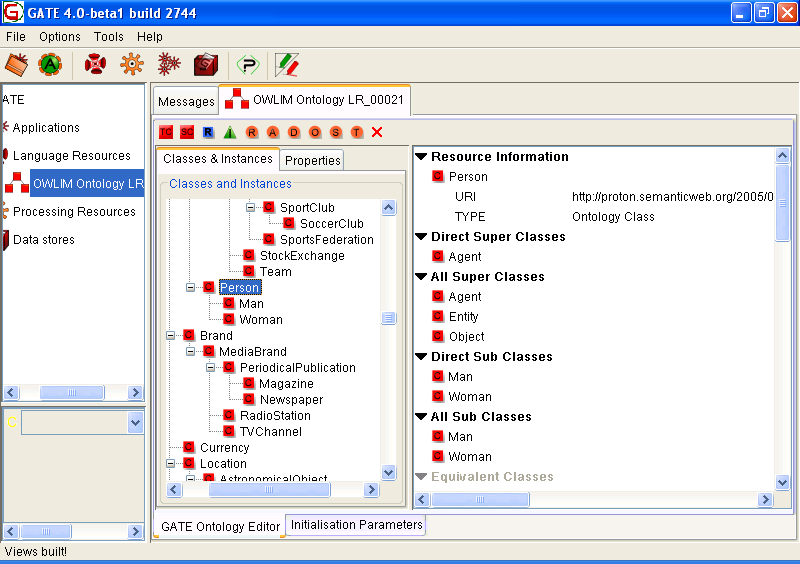
The viewer is divided into two areas. One on the left shows separate tabs for hierarchy of classes and instances and for (as of Gate 4) hierarchy of properties. The view on right hand side shows the details pertaining of the object currently selected in the other two.
First tab on the left view displays a tree which shows all the classes and restrictions defined in the ontology. The tree can have several root nodes—one for each top class in the ontology. The same tree also shows each instances for each class. Note: Instances that belong to several classes are shown as children of all the classes they belong to.
Second tab on the left view displays a tree of all the properties defined in the ontology. This tree can also have several root nodes—one for each top property in the ontology. Different types of properties are distinguished by using different icons.
Whenever an item is selected in the tree view, the right-hand view is populated with the details that are appropriate for the selected object. For an ontology class, the details include the brief information about the resource such as the URI of the selected class, type of the selected class etc., set of direct superclasses, the set of all superclasses using the transitive closure, the set of direct subclasses, the set of all the subclasses, the set of equivalent classes, the set of applicable property types, the set of property values set on the selected class, and the set of instances that belong to the selected class. For a restriction, in addition to the above information, it displays on which property the restriction is applicable to and what type of the restriction that is.
For an instance, the details displayed include the brief information about the instance, set of direct types (the list of classes this instance is known to belong to), the set of all types this instance belongs to (through the transitive closure of the set of direct types), the set of same instances, the set of different instances and the values for all the properties that are set.
When a property is selected, different information is displayed in the right-hand view according to the property type. It includes the brief information about the property itself, set of direct superproperties, the set of all superproperties (obtained through the transitive closure), the set of direct subproperties, the set of all subproperties (obtained through the transitive closure), the set of equivalent properties, and domain and range information.
As mentioned in the description of the data model, properties are not directly linked to the classes, but rather define their domain of applicability through a set of domain restrictions. This means that the list of properties should not really be listed as a detail for class objects but only for instances. It is however quite useful to have an indication of the types of properties that could apply to instances of a given class. Because of the semantics of property domains, it is not possible to calculate precisely the list of applicable properties for a given class, but only an estimate of it. If a property for instance requires its domain instances to belong to two different classes then it cannot be known with certitude whether it is applicable to either of the two classes—it does not apply to all instances of any of those classes, but only to those instances the two classes have in common. Because of this, such properties will not be listed as applicable to any class.
The information listed in the details pane is organised in sub-lists according to the type of the items. Each sub-list can be collapsed or expanded by clicking on the little triangular button next to the title. The ontology viewer is dynamic and will update the information displayed whenever the underlying ontology is changed through the API.
When you double click on any resource in the details table, the respective resource is selected in the class or in the property tree and the selected resource’s details are shown in the details table. To change a property value, user can double click on a value of the property (second column) and the relevant window is shown where user is asked to provide a new value. Along with each property value, a button (with red X caption) is provided. If user wants to remove a property value he or she can click on the button and the property value is deleted.
A new toolbar has been added at the top of the ontology viewer, which contains the following buttons to add and delete ontology resources:
-
Add new top class (TC)
-
Add new subclass (SC)
-
Add new instance (I)
-
Add new restriction (R)
-
Add new Annotation property (A)
-
Add new Datatype property (D)
-
Add new Object property (O)
-
Add new Symmetric property (S)
-
Add new Transitive property (T)
-
Remove the selected resource(s) (X)
-
Search
-
Refresh ontology
The tree components allow the user to select more than one node, but the details table on the right-hand side of the GATE Developer GUI only shows the details of the first selected node. The buttons in the toolbar are enabled and disabled based on users’ selection of nodes in the tree.
-
Creating a new top class:
A window appears which asks the user to provide details for its namespace (default name space if specified), and class name. If there is already a class with same name in ontology, GATE Developer shows an appropriate message.
-
Creating a new subclass:
A class can have multiple super classes. Therefore, selecting multiple classes in the ontology tree and then clicking on the ‘SC’ button, automatically considers the selected classes as the super classes. The user is then asked for details for its namespace and class name.
-
Creating a new instance:
An instance can belong to more than one class. Therefore, selecting multiple classes in the ontology tree and then clicking on the ‘I’ button, automatically considers the selected classes as the type of new instance. The user is then prompted to provide details such as namespace and instance name.
-
Creating a new restriction:
As described above, restriction is a type of an anonymous class and is specified on a property with a constraint set on either the number of values it can take or the type of value allowed for instances to have for that property. User can click on the blue ‘R’ square button which shows a window for creating a new restriction. User can select a type of restriction, property and a value constraint for the same. Please note that restrictions are considered as anonymous classes and therefore user does not have to specify any URI for the same but restrictions are named automatically by the system.
-
Creating a new property:
Editor allows creating five different types of properties:
-
Annotation property: Since an annotation property cannot have any domain or range constraints, clicking on the new annotation property button brings up a dialog that asks the user for information such as the namespace and the annotation property name.
-
Datatype property: A datatype property can have one or more ontology classes as its domain and one of the pre-defined datatypes as its range. Selecting one or more classes and clicking on the new Datatype property icon, brings up a window where the selected classes in the tree are taken as the property’s domain. The user is then asked to provide information such as the namespace and the property name. A drop down box allows users to select one of the data types from the list.
-
Object, Symmetric and Transitive properties: These properties can have one or more classes as their domain and range. For a symmetric property the domain and range are the same. Clicking on any of these options brings up a window where user is asked to provide information such as the namespace and the property name. The user is also given two buttons to select one or more classes as values for domain and range.
-
-
Removing the selected resources:
All the selected nodes are removed when user clicks on the ‘X’ button. Please note that since ontology resources are related in various ways, deleting a resource can affect other resources in the ontology; for example, deleting a resource can cause other resources in the same ontology to be deleted too.
-
Searching in ontology:
The Search button allows users to search for resources in the ontology. A window pops up with an input text field that allows incremental searching. In other words, as user types in name of the resource, the drop-down list refreshes itself to contain only the resources that start with the typed string. Selecting one of the resources in this list and pressing OK, selects the appropriate resource in the editor. The Search function also allows selecting resources by the property values set on them.
-
Refresh Ontology
The refresh button reloads the ontology and updates the editor.
-
Setting properties on instances/classes:
Right-clicking on an instance brings up a menu that provides a list of properties that are inherited and applicable to its classes. Selecting a specific property from the menu allows the user to provide a value for that property. For example, if the property is an Object property, a new window appears which allows the user to select one or more instances which are compatible to the range of the selected property. The selected instances are then set as property values. For classes, all the properties (e.g. annotation and RDF properties) are listed on the menu.
-
Setting relations among resources:
Two or more classes, or two or more properties, can be set as equivalent; similarly two or more instances can be marked as the same. Right-clicking on a resource brings up a menu with an appropriate option (Equivalent Class for ontology classes, Same As Instance for instances and Equivalent Property for properties) which when clicked then brings up a window with a drop down box containing a list of resources that the user can select to specify them as equivalent or the same.
14.5 Ontology Annotation Tool [#]
The Ontology Annotation Tool (OAT) is a GATE plugin available from the Ontology Tools plugin set, which enables a user to manually annotate a text with respect to one or more ontologies. The required ontology must be selected from a pull-down list of available ontologies.
The OAT tool supports annotation with information about the ontology classes, instances and properties.
14.5.1 Viewing Annotated Text [#]
Ontology-based annotations in the text can be viewed by selecting the desired classes or instances in the ontology tree in GATE Developer (see Figure 14.8). By default, when a class is selected, all of its sub-classes and instances are also automatically selected and their mentions are highlighted in the text. There is an option to disable this default behaviour (see Section 14.5.4).
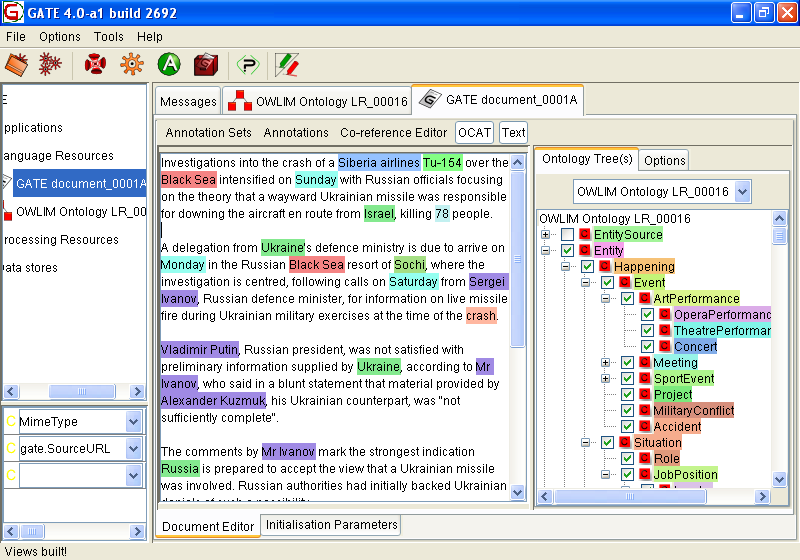
Figure 14.8 shows the mentions of each class and instance in a different colour. These colours can be customised by the user by clicking on the class/instance names in the ontology tree. It is also possible to expand and collapse branches of the ontology.
14.5.2 Editing Existing Annotations [#]
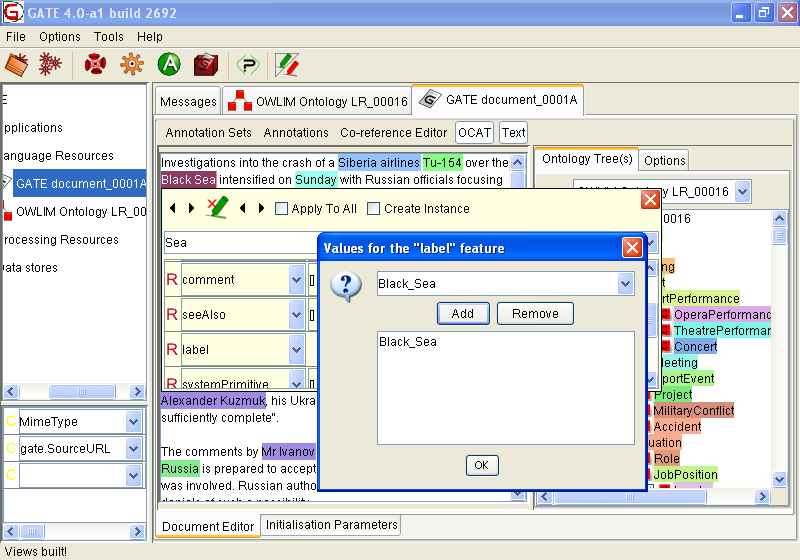
In order to view the class/instance of a highlighted annotation in the text (e.g., United States - see Figure 14.9), hover the mouse over it and an edit dialogue will appear. It shows the current class or instance (Country in our example) and allows the user to delete it or change it. To delete an existing annotation, press the Delete button.
A class or instance can be changed by starting to type the name of the new class in the combo-box. Then it displays a list of available classes and instances, which start with the typed string. For example, if we want to change the type from Country to Location, we can type ‘Lo’ and all classes and instances which names start with Lo will be displayed. The more characters are typed, the fewer matching classes remain in the list. As soon as one sees the desired class in the list, it is chosen by clicking on it.
It is possible to apply the changes to all occurrences of the same string and the same previous class/instance, not just to the current one. This is useful when annotating long texts. The user needs to make sure that they still check the classes and instances of annotations further down in the text, in case the same string has a different meaning (e.g., bank as a building vs. bank as a river bank).
The edit dialogue also allows correcting annotation offset boundaries. In other words, user can expand or shrink the annotation offsets’ boundaries by clicking on the relevant arrow buttons.
OAT also allows users to assign property values as annotation features to the existing class and instance annotations. In the case of class annotation, all annotation properties from the ontology are displayed in the table. In the case of instance annotations, all properties from the ontology applicable to the selected instance are shown in the table. The table also shows existing features of the selected annotation. User can then add, delete or edit any value(s) of the selected feature. In the case of a property, user is allowed to provide an arbitrary number of values. User can, by clicking on the editList button, add, remove or edit any value to the property. In case of object properties, users are only allowed to select values from a pre-selected list of values (i.e. instances which satisfy the selected property’s range constraints).
14.5.3 Adding New Annotations [#]
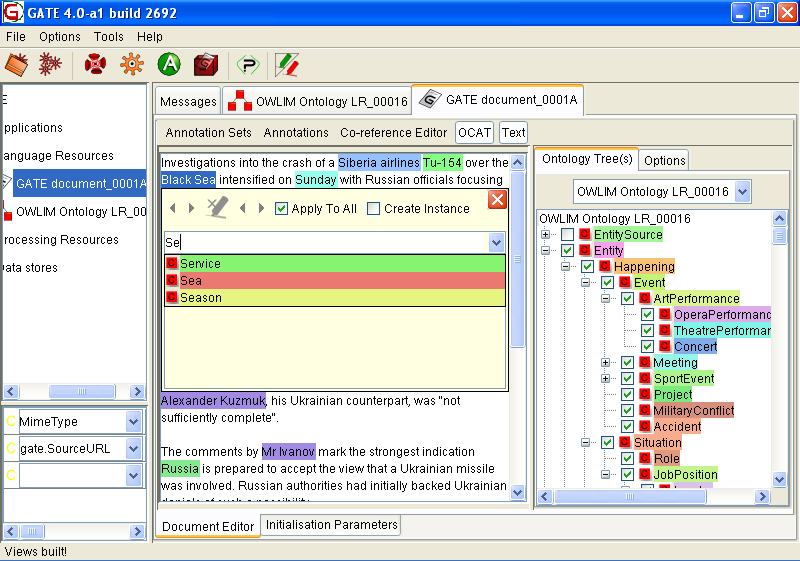
New annotations can be added in two ways: using a dialogue (see Figure 14.10) or by selecting the text and clicking on the desired class or instance in the ontology tree.
When adding a new annotation using the dialogue, select a text and after a very short while, if the mouse is not moved, a dialogue will appear (see Figure 14.10). Start typing the name of the desired class or instance, until you see it listed in the combo-box, then select it with the mouse. This operation is the same, as in changing the class/instance of an existing annotation. One has the option of applying this choice to the current selection only or to all mentions of the selected string in the current document (Apply to All check box).
User can also create an instance from the selected text. If user checks the ‘create instance’ checkbox prior to selecting the class, the selected text is annotated with the selected class and a new instance of the selected class (with the name equivalent to the selected text) is created (provided there isn’t any existing instance available in the ontology with that name).
14.5.4 Options [#]
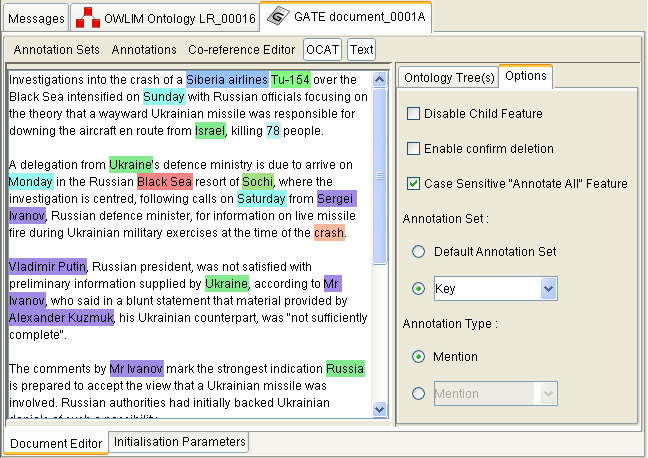
There are several options that control the OAT behaviour (see Figure 14.11):
-
Disable child feature: By default, when a class is selected, all of its sub-classes are also automatically selected and their mentions are highlighted in the text. This option disables that behaviour, so only mentions of the selected class are highlighted.
-
Delete confirmation: By default, OAT deletes ontological information without asking for confirmation, when the delete button is pressed. However, if this leads to too many mistakes, it is possible to enable delete confirmations from this option.
-
Disable Case-Sensitive Feature: When user decides to annotate all occurrences of the selected text (‘apply to all’ option) in the document and if the ‘disable case-sensitive feature’ is selected, the tool, when searching for the identical strings in the document text, ignores the case-sensitivity.
-
Setting up a filter to disable resources from the OAT GUI: When user wants to annotate the text of a document with certain classes/instances of the ontology, s/he may disable the resources which s/he is not going to use. This option allows users to select a file which contains class or instance names, one per line. These names are case sensitive. After selecting a file, when user turns on the ‘filter’ check box, the resources specified in the filter file are disabled and removed from the annotation editor window. User can also add new resources to this list or remove some or all from the list by right clicking on the respective resource and by selecting the relevant option. Once modified, the ‘save’ button allows users to export this list to a file.
-
Annotation Set: GATE stores information in annotation sets and OAT allows you to select which set to use as input and output.
-
Annotation Type: By default, this is annotation of type Mention, but that can be changed to any other name. This option is required because OAT uses Gate annotations to store and read the ontological data. However, to do that, it needs a type (i.e. name) so ontology-based annotations can be distinguished easily from other annotations (e.g. tokens, gazetteer lookups).
14.6 Relation Annotation Tool [#]
This tool is designed to annotate a document with ontology instances and to create relations between annotations with ontology object properties. It is close and compatible with OAT but focus on relations between annotations, see section 14.5 for OAT.
To use it you must load the Ontology Tools plugin, load a document and an ontology then show the document and in the document editor click on the button named ‘RAT-C’ (Relation Annotation Tool Class view) which will also display the ‘RAT-I’ view (Relation Annotation Tool Instance view).
14.6.1 Description of the two views
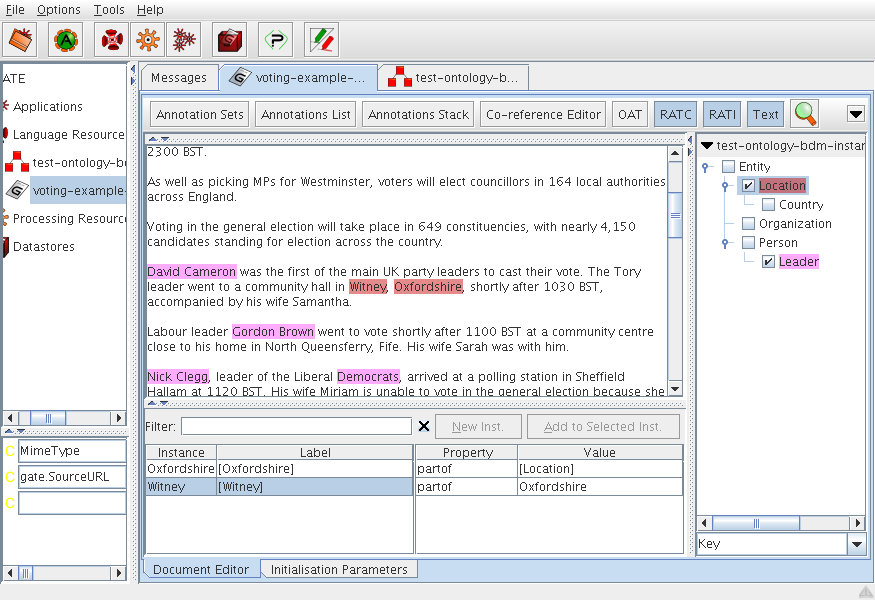
The right vertical view shows the loaded ontologies as trees.
To show/hide the annotations in the document, use the class checkbox. The selection of a class and the ticking of a checkbox are independent and work the same as in the annotation sets view.
To change the annotation set used to load/save the annotations, use the drop down list at the bottom of the vertical view.
To hide/show the classes in the tree in order to decrease the amount of elements displayed, use the context menu on classes selection. The setting is saved in the user preferences.
The bottom horizontal view shows two tables: one for instances and one for properties. The instances table shows the instances and their labels for the selected class in the ontology trees and the properties table shows the properties values for the selected instance in the instances table.
Two buttons allow to add a new instance from the text selection in the document or as a new label for the selected instance.
To filter on instance labels, use the filter text field. You can clear the field with the X button at the end of the field.
You can use ‘Show In Ontology Editor’ on the context menu of an instance in the instance table. Then in the ontology editor you can add class or object properties.
14.6.2 Create new annotation and instance from text selection
-
select a class in the ontology tree at the right
-
select some text in the document editor and hover the mouse over it
-
use the button ‘New Inst.’ in the view at the bottom
-
in the bottom left table you have your new instance
-
don’t forget to save your document AND the ontology before to quit
14.6.3 Create new annotation and add label to existing instance from text selection
-
select a class in the ontology tree at the right
-
select some text in the document editor and hover the mouse on it
-
if the instances table is empty then clear the filter text field
-
select an existing instance in the instances table
-
use the button ‘Add to Selected Inst.’ in the view at the bottom
-
in the bottom left table you have your new label
-
don’t forget to save your document AND the ontology before to quit
14.6.4 Create and set properties for annotation relation
-
open an ontology with the ontology editor
-
if not existing add at least an object property for one class
-
set the domain and range accordingly to the type of annotation relation
-
add an instance or label as explained previously for the same class
-
in the bottom right table you have the properties for this instance
-
click in the ‘Value’ column cell to set the object property
-
if the list of choices is empty, add first other instances
-
don’t forget to save your document AND the ontology before to quit
14.6.5 Delete instance, label or property
-
select one or more instances or properties in their respective table
-
right-click on the selection for the context menu and choose an item
14.6.6 Differences with OAT and Ontology Editor
This tool is very close to OAT but without the annotation editor popup and instead a bottom tables view, with multiple ontologies support, with only instance annotation and no class annotation.
To make OAT compatible with this tool you must use ‘Mention’ as annotation type, ‘class’ and ‘inst’ as feature names. They are the defaults in OAT. You must also select the same annotation set in the drop down list at the bottom right corner.
You should enable the option ‘Selected Text As Property Value’ in the Options panel of OAT. So it will add a label from the selected text for each instance.
The ontology editor is useful to check that an instance is correctly added to the ontology and to add new annotation relation as object property.
14.7 Using the ontology API [#]
The following code demonstrates how to use the GATE API to create an instance of the OWLIM Ontology language resource.
2if(!Gate.isInitialized()) { Gate.init(); }
3
4// step 2: load the Ontology plugin that contains the implementation
5File ontoHome = new File("/path/to/gateplugin-Ontology");
6Gate.getCreoleRegister().registerPlugin(
7 new Plugin.Directory(ontoHome.toURI().toURL()));
8
9// step 3: set the parameters
10FeatureMap fm = Factory.newFeatureMap();
11fm.put("rdfXmlURL", urlOfTheOntology);
12fm.put("baseURI", theBaseURI);
13fm.put("mappingsURL", urlOfTheMappingsFile);
14// .. any other parameters
15
16// step 4: finally create an instance of ontology
17Ontology ontology = (Ontology)
18Factory.createResource("gate.creole.ontology.impl.sesame.OWLIMOntology",
19 fm);
20
21// retrieving a list of top classes
22Set<OClass> topClasses = ontology.getOClasses(true);
23
24// for all top classes, printing their direct sub classes and print
25// their URI or blank node ID in turtle format.
26for(OClass c : topClasses) {
27 Set<OClass> dcs = c.getSubClasses(OConstants.Closure.DIRECT_CLOSURE);
28 for(OClass sClass : dcs) {
29 System.out.println(sClass.getONodeID().toTurtle());
30 }
31}
32
33// creating a new class from a full URI
34OURI aURI1 = ontology.createOURI("http://sample.en/owlim#Organization");
35OClass organizationClass = ontology.addOClass(aURI1);
36
37// create a new class from a name and the default name space set for
38// the ontology
39OURI aURI2 = ontology.createOURIForName("someOtherName");
40OClass someOtherClass = ontology.addOClass(aURI2);
41
42// set the label for the class
43someOtherClass.setLabel("some other name", OConstants.ENGLISH);
44
45// creating a new Datatype property called name
46// with domain set to Organization
47// with datatype set to string
48URI dURI = new URI("http://sample.en/owlim#Name", false);
49Set<OClass> domain = new HashSet<OClass>();
50domain.add(organizationClass);
51DatatypeProperty dp =
52 ontology.addDatatypeProperty(dURI, domain, Datatype.getStringDataType());
53
54// creating a new instance of class organization called IBM
55OURI iURI = ontology.createOURI("http://sample.en/owlim#IBM");
56OInstance ibm = Ontology.addOInstance(iURI, organizationClass);
57
58// assigning a Datatype property, name to ibm
59ibm.addDatatypePropertyValue(dp,
60 new Literal("IBM Corporation", dp.getDataType());
61
62// get all the set values of all Datatype properties on the instance ibm
63Set<DatatypeProperty> dps = Ontology.getDatatypeProperties();
64for(DatatypeProperty dp : dps) {
65 List<Literal> values = ibm.getDatatypePropertyValues(dp);
66 System.out.println("DP : "+dp.getOURI());
67 for (Literal l : values) {
68 System.out.println("Value : "+l.getValue());
69 System.out.println("Datatype : "+ l.getDataType().getXmlSchemaURI());
70 }
71}
72
73// export data to a file in Turtle format
74BufferedWriter writer = new BufferedWriter(new FileWriter(someFile));
75ontology.writeOntologyData(writer, OConstants.OntologyFormat.TURTLE);
76writer.close();
14.8 Ontology-Aware JAPE Transducer [#]
One of the GATE components that makes use of the ontology support is the JAPE transducer (see Chapter 8). Combining the power of ontologies with JAPE’s pattern matching mechanisms can ease the creation of applications.
In order to use ontologies with JAPE, one needs to load an ontology in GATE before loading the JAPE transducer. Once the ontology is known to the system, it can be set as the value for the optional ontology parameter for the JAPE grammar. Doing so alters slightly the way the matching occurs when the grammar is executed. If a transducer is ontology-aware (i.e. it has a value set for the ’ontology’ parameter) it will treat all occurrences of the feature named class differently from the other features of annotations. The values for the feature class on any type of annotation will be considered as referring to classes in the ontology as follows:
-
if the class feature value is a valid URI (e.g. http://sample.en/owlim#Organization) then it is treated as a reference to the class (if any) with that URI in the ontology.
-
otherwise, it is treated as a name in the ontology’s default namespace. The default namespace is prepended to the value to give a URI and the feature is treated as referring to the class with that URI.
For example, if the default namespace of the ontology is http://gate.ac.uk/example# then a class feature with the value “Person” refers to the http://gate.ac.uk/example#Person class in the ontology. If the ontology imports other ontologies then it may be useful to define templates for the various namespace URIs to avoid excessive repetition. There is an example of this for the PROTON ontology in section 8.1.6.
In ontology-aware mode the matching between two class values will not be based on simple equality but rather hierarchical compatibility. For example if the ontology contains a class named ‘Politician’, which is a sub class of the class ‘Person’, then a pattern of {Entity.class == ‘Person’} will successfully match an annotation of type Entity with a feature class having the value ‘Politician’. If the JAPE transducer were not ontology-aware, such a test would fail.
This behaviour allows a larger degree of generalisation when designing a set of rules. Rules that apply several types of entities mentioned in the text can be written using the most generic class they apply to and need not be repeated for each subtype of entity. One could have rules applying to Locations without needing to know whether a particular location happens to be a country or a city.
If a domain ontology is available at the time of building an application, using it in conjunction with the JAPE transducers can significantly simplify the set of grammars that need to be written.
The ontology does not normally affect actions on the right hand side of JAPE rules, but when Java is used on the right hand side, then the ontology becomes accessible via a local variable named ontology, which may be referenced from within the right-hand-side code.
In Java code, the class feature should be referenced using the static final variable, LOOKUP_CLASS_FEATURE_NAME, that is defined in gate.creole.ANNIEConstants.
14.9 Annotating Text with Ontological Information [#]
The ontology-aware JAPE transducer enables the text to be linked to classes in an ontology by means of annotations. Essentially this means that each annotation can have a class and ontology feature. To add the relevant class feature to an annotation is very easy: simply add a feature ‘class’ with the classname as its value. To add the relevant ontology, use ontology.getURL().
Below is a sample rule which looks for a location annotation and identifies it as a ‘Mention’ annotation with the class ‘Location’ and the ontology loaded with the ontology-aware JAPE transducer (via the runtime parameter of the transducer).
Rule: Location

({Location}):mention

-->
:mention{
  // create the ontology and class features
  FeatureMap features = Factory.newFeatureMap();
  features.put("ontology", ontology.getURL());
  features.put("class", "Location");

  // create the new annotation
  try {
    outputAS.add(mentionAnnots.firstNode().getOffset(),
       mentionAnnots.lastNode().getOffset(), "Mention", features);
  }
  catch(InvalidOffsetException e) {
    throw new JapeException(e);
  }
}
14.10 Populating Ontologies [#]
Another typical application that combines the use of ontologies with NLP techniques is finding mentions of entities in text. The scenario is that one has an existing ontology and wants to use Information Extraction to populate it with instances whenever entities belonging to classes in the ontology are mentioned in the input texts.
Let us assume we have an ontology and an IE application that marks the input text with annotations of type ‘Mention’ having a feature ‘class’ specifying the class of the entity mentioned. The task we are seeking to solve is to add instances in the ontology for every Mention annotation.
The example presented here is based on a JAPE rule that uses Java code on the action side in order to access directly the GATE ontology API:
2({Mention}):mention
3-->
4:mention{
5 //find the annotation matched by LHS
6 //we know the annotation set returned
7 //will always contain a single annotation
8 Annotation mentionAnn = mentionAnnots.iterator().next();
9
10 //find the class of the mention
11 String className = (String)mentionAnn.getFeatures().
12 get(gate.creole.ANNIEConstants.LOOKUP_CLASS_FEATURE_NAME);
13 // should normalize class name and avoid invalid class names here!
14 OClass aClass = ontology.getOClass(ontology.createOURIForName(className));
15 if(aClass == null) {
16 System.err.println("Error class \"" + className + "\" does not exist!");
17 return;
18 }
19
20 //find the text covered by the annotation
21 String theMentionText = gate.Utils.stringFor(doc, mentionAnn);
22
23 // when creating a URI from text that came from a document you must take care
24 // to ensure that the name does not contain any characters that are illegal
25 // in a URI. The following method does this nicely for English but you may
26 // want to do your own normalization instead if you have non−English text.
27 String mentionName = OUtils.toResourceName(theMentionText);
28
29 // get the property to store mention texts for mention instances
30 DatatypeProperty prop =
31 ontology.getDatatypeProperty(ontology.createOURIForName("mentionText"));
32
33 OURI mentionURI = ontology.createOURIForName(mentionName);
34 // if that mention instance does not already exist, add it
35 if (!ontology.containsOInstance(mentionURI)) {
36 OInstance inst = ontology.addOInstance(mentionURI, aClass);
37 // add the actual mention text to the instance
38 try {
39 inst.addDatatypePropertyValue(prop,
40 new Literal(theMentionText, OConstants.ENGLISH));
41 }
42 catch(InvalidValueException e) {
43 throw new JapeException(e);
44 }
45 }
46}
This will match each annotation of type Mention in the input and assign it to a label ‘mention’. That label is then used in the right hand side to find the annotation that was matched by the pattern (lines 5–10); the value for the class feature of the annotation is used to identify the ontological class name (lines 12–14); and the annotation span is used to extract the text covered in the document (lines 16–26). Once all these pieces of information are available, the addition to the ontology can be done. First the right class in the ontology is identified using the class name (lines 28–37) and then a new instance for that class is created (lines 38–50).
Beside JAPE, another tool that could play a part in this application is the Ontological Gazetteer, see Section 13.3, which can be useful in bootstrapping the IE application that finds entity mentions.
The solution presented here is purely pedagogical as it does not address many issues that would be encountered in a real life application solving the same problem. For instance, it is naïve to assume that the name for the entity would be exactly the text found in the document. In many cases entities have several aliases – for example the same person name can be written in a variety of forms depending on whether titles, first names, or initials are used. A process of name normalisation would probably need to be employed in order to make sure that the same entity, regardless of the textual form it is mentioned in, will always be linked to the same ontology instance.
For a detailed description of the GATE ontology API, please consult the JavaDoc documentation.
Chapter 15
Non-English Language Support [#]
There are plugins available for processing the following languages: French, German, Italian, Danish, Chinese, Arabic, Romanian, Hindi, Russian, Welsh and Cebuano. Some of the applications are quite basic and just contain some useful processing resources to get you started when developing a full application. Others (Cebuano and Hindi) are more like toy systems built as part of an exercise in language portability.
Note that if you wish to use individual language processing resources without loading the whole application, you will need to load the relevant plugin for that language in most cases. The plugins all follow the same kind of format. Load the plugin using the plugin manager in GATE Developer, and the relevant resources will be available in the Processing Resources set.
Some plugins just contain a list of resources which can be added ad hoc to other applications. For example, the Italian plugin simply contains a lexicon which can be used to replace the English lexicon in the default English POS tagger: this will provide a reasonable basic POS tagger for Italian.
In most cases you will also find a directory in the relevant plugin directory called data which contains some sample texts (in some cases, these are annotated with NEs).
There are also a number of plugins, documented elsewhere in this manual that while they default to processing English can be configured to support other languages. These include the TaggerFramework (Section 23.3), the OpenNLP plugin (Section 23.21), the Numbers Tagger (Section 23.6.1), and the Snowball based stemmer (Section 23.9). The LingPipe POS Tagger PR (Section 23.20.3) now includes two models for Bulgarian.
15.1 Language Identification [#]
A common problem when handling multiple languages is determining the language of a document or section of document. For example, patent documents often contain the abstract in more than one language. In such cases you may want to only process those sections written in English, or you may want to run different processing resources over the different sections dependent upon the language they are written in. Once documents or sections are annotated with their language then it is easy to apply different processing resources to the different sections using either a Conditional Corpus Pipeline or via the Section-By-Section PR (Section 20.2.10). The problem is, of course, identifying the language.
GATE provides two plugins that implement language identification using different underlying libraries.
15.1.1 The Optimaize Language Detector [#]
The “Language Detection (Optimaize)” plugin is based on the Optimaize language detector library by Fabian Kessler. The library ships with profiles for seventy different languages, and it is easy to train additional profiles if required.
The PR has a number of initialization parameters to control which profiles are loaded - by default all the built-in profiles are used, but the PR can be restricted to a smaller set of languages using the builtInLanguages parameter, or the built-in profiles can be disabled completely using the loadBuiltInProfiles parameter. For some languages the library provides optimised profiles for use with shorter texts (the standard models work best on longer-form texts of several paragraphs or pages in length); the textType parameter selects between the long and short text profiles. Whether or not the built-in profiles are in use, additional custom profiles may be loaded using the extraProfiles parameter.
The PR has the following runtime parameters.
-
annotationType
-
If this is supplied, the PR classifies the text underlying each annotation of the specified type and stores the result as a feature on that annotation. If this is left blank (null or empty), the PR classifies the text of each document and stores the result as a document feature.
-
annotationSetName
-
The annotation set used for input and output; ignored if annotationType is blank.
-
languageFeatureName
-
The name of the document or annotation feature used to store the results.
-
unknownValue
-
Normally if the detector does not find any language that meets its probability threshold then it does not set the output feature at all. If this parameter is set then the feature will be set in all cases, using the specified fallback value if necessary (which could be a genuine language code, in order to for example “classify anything unknown as English”, or it could be a dedicated “unk” code to explicitly tag the unknowns).
15.1.2 Language Identification with TextCat [#]
The Language_Identification plugin contains a TextCat based PR for performing language identification. The choice of languages used for categorization is specified through a configuration file, the URL of which is the PRs only initialization parameter.
The PR has the following runtime parameters.
-
annotationType
-
If this is supplied, the PR classifies the text underlying each annotation of the specified type and stores the result as a feature on that annotation. If this is left blank (null or empty), the PR classifies the text of each document and stores the result as a document feature.
-
annotationSetName
-
The annotation set used for input and output; ignored if annotationType is blank.
-
languageFeatureName
-
The name of the document or annotation feature used to store the results.
Unlike most other PRs (which produce annotations), these two language identifiers both add either document features or annotation features. (To classify both whole documents and spans within them, use two instances of the same PR.) Note that classification accuracy is better over long spans of text (paragraphs rather than sentences, for example), particularly in the case of TextCat.
Note that a third language identification PR is available in the LingPipe plugin, which is documented in Section 23.20.5.
15.1.3 Fingerprint Generation [#]
Whilst the TextCat based PR supports a number of languages (not all of which are enabled in the default configuration file), there may be occasiosn where you need to support a new language, or where the language of domain specific documents affects the classification. In these situations you can use the Fingerprint Generation PR included in the Language_Identification to build new fingerprints from a corpus of documents.
The PR has no initialization parameters and is configured through the following runtime parameters:
-
annotationType
-
If this is supplied, the PR uses only the text underlying each annotation of the specified type to build the language fingerprint. If this is left blank (null or empty), the PR will instead use the whole of each document to create the fingerprint.
-
annotationSetName
-
The annotation set used for input; ignored if annotationType is blank.
-
fingerprintURL
-
The URL to a file in which the fingerprint should be stored – note that this must be a file URL.
15.2 French Plugin [#]
The French plugin contains two applications for NE recognition: one which includes the TreeTagger for POS tagging in French (french+tagger.gapp) , and one which does not (french.gapp). Simply load the application required from the plugins/Lang_French directory. You do not need to load the plugin itself from the GATE Developer’s Plugin Management Console. Note that the TreeTagger must first be installed and set up correctly (see Section 23.3 for details). Check that the runtime parameters are set correctly for your TreeTagger in your application. The applications both contain resources for tokenisation, sentence splitting, gazetteer lookup, NE recognition (via JAPE grammars) and orthographic coreference. Note that they are not intended to produce high quality results, they are simply a starting point for a developer working on French. Some sample texts are contained in the plugins/Lang_French/data directory.
Additionally, a more sophisticated application for French NE recognition is available at https://github.com/GateNLP/gateapplication-French. This is designed to be flexible in the choice of POS tagger, by mapping the output POS tags to the universal tagset, which is used in the JAPE grammars. The application uses the Stanford POS tagger, but this can be easily replaced with any other tagger.
The GATE Cloud version of the plugin can be found here:
https://cloud.gate.ac.uk/shopfront/displayItem/french-named-entity-recognizer
15.3 German Plugin [#]
The German plugin contains two applications for NE recognition: one which includes the TreeTagger for POS tagging in German (german+tagger.gapp) , and one which does not (german.gapp). Simply load the application required from the plugins/Lang_German/resources directory. You do not need to load the plugin itself from the GATE Developer’s Plugin Management Console. Note that the TreeTagger must first be installed and set up correctly (see Section 23.3 for details). Check that the runtime parameters are set correctly for your TreeTagger in your application. The applications both contain resources for tokenisation, sentence splitting, gazetteer lookup, compound analysis, NE recognition (via JAPE grammars) and orthographic coreference. Some sample texts are contained in the plugins/Lang_German/data directory. We are grateful to Fabio Ciravegna and the Dot.KOM project for use of some of the components for the German plugin.
Additionally, a more sophisticated application for German NE recognition is available at https://github.com/GateNLP/gateapplication-German. This is designed to be flexible in the choice of POS tagger, by mapping the output POS tags to the universal tagset, which is used in the JAPE grammars. The application uses the Stanford POS tagger, but this can be easily replaced with any other tagger.
The GATE Cloud version of the plugin can be found here:
https://cloud.gate.ac.uk/shopfront/displayItem/german-named-entity-recognizer
15.4 Romanian Plugin [#]
The Romanian plugin contains an application for Romanian NE recognition (romanian.gapp). Simply load the application from the plugins/Lang_Romanian/resources directory. You do not need to load the plugin itself from the GATE Developer’s Plugin Management Console. The application contains resources for tokenisation, gazetteer lookup, NE recognition (via JAPE grammars) and orthographic coreference. Some sample texts are contained in the plugins/romanian/corpus directory.
The GATE Cloud version of the plugin can be found here:
https://cloud.gate.ac.uk/shopfront/displayItem/romanian-named-entity-recognizer
15.5 Arabic Plugin [#]
The Arabic plugin contains a simple application for Arabic NE recognition (arabic.gapp). Simply load the application from the plugins/Lang_Arabic/resources directory. You do not need to load the plugin itself from the GATE Developer’s Plugin Management Console. The application contains resources for tokenisation, gazetteer lookup, NE recognition (via JAPE grammars) and orthographic coreference. Note that there are two types of gazetteer used in this application: one which was derived automatically from training data (Arabic inferred gazetteer), and one which was created manually. Note that there are some other applications included which perform quite specific tasks (but can generally be ignored). For example, arabic-for-bbn.gapp and arabic-for-muse.gapp make use of a very specific set of training data and convert the result to a special format. There is also an application to collect new gazetteer lists from training data (arabic_lists_collector.gapp). For details of the gazetteer list collector please see Section 13.7.
15.6 Chinese Plugin [#]
The Chinese plugin contains two components: a simple application for Chinese NE recognition (chinese.gapp) and a component called “Chinese Segmenter”.
In order to use the former, simply load the application from the plugins/Lang_Chinese/resources directory. You do not need to load the plugin itself from the GATE Developer’s Plugin Management Console. The application contains resources for tokenisation, gazetteer lookup, NE recognition (via JAPE grammars) and orthographic coreference. The application makes use of some gazetteer lists (and a grammar to process them) derived automatically from training data, as well as regular hand-crafted gazetteer lists. There are also applications (listscollector.gapp, adj_collector.gapp and nounperson_collector.gapp) to create such lists, and various other application to perform special tasks such as coreference evaluation (coreference_eval.gapp) and converting the output to a different format (ace-to-muse.gapp).
15.6.1 Chinese Word Segmentation [#]
Unlike English, Chinese text does not have a symbol (or delimiter) such as blank space to explicitly separate a word from the surrounding words. Therefore, for automatic Chinese text processing, we may need a system to recognise the words in Chinese text, a problem known as Chinese word segmentation. The plugin described in this section performs the task of Chinese word segmentation. It is based on our work using the Perceptron learning algorithm for the Chinese word segmentation task of the Sighan 20051. [Li et al. 05b]. Our Perceptron based system has achieved very good performance in the Sighan-05 task.
The plugin is called Lang_Chinese and is available in the GATE distribution. The corresponding processing resource’s name is Chinese Segmenter PR. Once you load the PR into GATE, you may put it into a Pipeline application. Note that it does not process a corpus of documents, but a directory of documents provided as a parameter (see description of parameters below). The plugin can be used to learn a model from segmented Chinese text as training data. It can also use the learned model to segment Chinese text. The plugin can use different learning algorithms to learn different models. It can deal with different character encodings for Chinese text, such as UTF-8, GB2312 or BIG5. These options can be selected by setting the run-time parameters of the plugin.
The plugin has five run-time parameters, which are described in the following.
-
learningAlg is a String variable, which specifies the learning algorithm used for producing the model. Currently it has two values, PAUM and SVM, representing the two popular learning algorithms Perceptron and SVM, respectively. The default value is PAUM.
Generally speaking, SVM may perform better than Perceptron, in particular for small training sets. On the other hand, Perceptron’s learning is much faster than SVM’s. Hence, if you have a small training set, you may want to use SVM to obtain a better model. However, if you have a big training set which is typical for the Chinese word segmentation task, you may want to use Perceptron for learning, because the SVM’s learning may take too long time. In addition, using a big training set, the performance of the Perceptron model is quite similar to that of the SVM model. See [Li et al. 05b] for the experimental comparison of SVM and Perceptron on Chinese word segmentation. -
learningMode determines the two modes of using the plugin, either learning a model from training data or applying a learned model to segment Chinese text. Accordingly it has two values, SEGMENTING and LEARNING. The default value is SEGMENTING, meaning segmenting the Chinese text.
Note that you first need to learn a model and then you can use the learned model to segment the text. Several models using the training data used in the Sighan-05 Bakeoff are available for this plugin, which you can use to segment your Chinese text. More descriptions about the provided models will be given below. -
modelURL specifies an URL referring to a directory containing the model. If the plugin is in the LEARNING runmode, the model learned will be put into the directory. If it is in the SEGMENTING runmode, the plugin will use the model stored in the directory to segment the text. The models learned from the Sighan-05 bakeoff training data will be discussed below.
-
textCode specifies the encoding of the text used. For example it can be UTF-8, BIG5, GB2312 or any other encoding for Chinese text. Note that, when you segment some Chinese text using a learned model, the Chinese text should use the same encoding as the one used by the training text for obtaining the model.
-
textFilesURL specifies an URL referring to a directory containing the Chinese documents. All the documents contained in this directory (but not those documents contained in its sub-directory if there is any) will be used as input data. In the LEARNING runmode, those documents contain the segmented Chinese text as training data. In the SEGMENTING runmode, the text in those documents will be segmented. The segmented text will be stored in the corresponding documents in the sub-directory called segmented.
The following PAUM models are distributed with plugins and are available as compressed zip files under the plugins/Lang_Chinese/resources/models directory. Please unzip them to use. In detail, those models were learned using the PAUM learning algorithm from the corpora provided by Sighan-05 bakeoff task.
-
the PAUM model learned from PKU training data, using the PAUM learning algorithm and the UTF-8 encoding, is available as model-paum-pku-utf8.zip.
-
the PAUM model learned from PKU training data, using the PAUM learning algorithm and the GB2312 encoding, is available as model-paum-pku-gb.zip.
-
the PAUM model learned from AS training data, using the PAUM learning algorithm and the UTF-8 encoding, is available as model-as-utf8.zip.
-
the PAUM model learned from AS training data, using the PAUM learning algorithm and the BIG5 encoding, is available as model-as-big5.zip.
As you can see, those models were learned using different training data and different Chinese text encodings of the same training data. The PKU training data are news articles published in mainland China and use simplified Chinese, while the AS training data are news articles published in Taiwan and use traditional Chinese. If your text are in simplified Chinese, you can use the models trained by the PKU data. If your text are in traditional Chinese, you need to use the models trained by the AS data. If your data are in GB2312 encoding or any compatible encoding, you need use the model trained by the corpus in GB2312 encoding.
Note that the segmented Chinese text (either used as training data or produced by this plugin) use the blank space to separate a word from its surrounding words. Hence, if your data are in Unicode such as UTF-8, you can use the GATE Unicode Tokeniser to process the segmented text to add the Token annotations into your text to represent the Chinese words. Once you get the annotations for all the Chinese words, you can perform further processing such as POS tagging and named entity recognition.
15.7 Hindi Plugin [#]
The Hindi plugin (‘Lang_Hindi’) contains a set of resources for basic Hindi NE recognition which mirror the ANNIE resources but are customised to the Hindi language. You need to have the ANNIE plugin loaded first in order to load any of these PRs. With the Hindi, you can create an application similar to ANNIE but replacing the ANNIE PRs with the default PRs from the plugin.
15.8 Russian Plugin [#]
The Russian plugin (Lang_Russian) contains a set of resource for a Russian IE application which mirrors the construction of ANNIE. This includes custom components for part-of-speech tagging, morphological analysis and gazetteer lookup. A number of ready-made applications are also available which combine these resources together in a number of ways.
The GATE Cloud version of the plugin can be found here:
https://cloud.gate.ac.uk/shopfront/displayItem/russian-named-entity-recognizer-basic
15.9 Bulgarian Plugin [#]
The Bulgarian plugin (Lang_Bulgarian) containts a GATE PR which integrates the BulStem stemmer into GATE. Currently no other Bulgarian specific PRs are available so the stemmer should be used with the Unicode tokenizer and a sentence splitter to process Bulgarian language documents.
15.10 Danish Plugin [#]
The Danish plugin (Lang_Danish) contains resources for a Danish IE application. As well as a set of tokeniser rules and gazetteer lists tuned for Danish, the plugin includes models for the Stanford CoreNLP POS tagger and named entity recogniser trained on the Danish PAROLE corpus and the Copenhagen Dependency Treebank respectively. Full details can be found in the EACL 2014 paper [Derczynski et al. 14].
The Java code in this plugin (the tokeniser and gazetteer) is released under the same LGPL licence as GATE itself, but the POS tagger and NER models are subject to the full GPL as this is the licence of the data used for training.
15.11 Welsh Plugin [#]
The Welsh plugin (Lang_Welsh) is the result of the Welsh Natural Language Toolkit project2, funded by the Welsh Government. It contains a set of resources that mirror the English-language ANNIE application, but adapted to the Welsh language. The plugin includes a tokeniser, sentence splitter, POS tagger, morphological analyser, gazetteers and named entity JAPE grammars, with a ready-made application called CYMRIE to combine them all.
The GATE Cloud version of the plugin can be found here:
https://cloud.gate.ac.uk/shopfront/displayItem/cymrie-welsh-named-entity-recogniser
Chapter 16
Domain Specific Resources [#]
The majority of GATE plugins work well on any English languages document (see Chapter 15 for details on non-English language support). Some domains, however, produce documents that use unusual terms, phrases or syntax. In such cases domain specific processing resources are often required in order to extract useful or interesting information. This chapter documents GATE resources that have been developed for specific domains.
16.1 Biomedical Support [#]
Documents from the biomedical domain offer a number of challenges, including a highly specialised vocabulary, words that include mixed case and numbers requiring unusual tokenization, as well as common English words used with a domain-specific sense. Many of these problems can only be solved through the use of domain-specific resources.
Some of the processing resources documented elsewhere in this user guide can be adapted with little or no effort to help with processing biomedical documents. The Large Knowledge Base Gazetteer (Section 13.9) can be initialized against a biomedical ontology such as Linked Life Data in order to annotate many different domain-specific concepts. The Language Identification PR (Section 15.1) can also be trained to differentiate between document domains instead of languages, which could help target specific resources to specific documents using a conditional corpus pipeline.
Also many plugins can be used “as is” to extract information from biomedical documents. For example, the Measurements Tagger (Section 23.7) can be used to extract information about the dose of a medication, or the weight of patients participating in a study.
The rest of this section, however, documents the resources included with or available to GATE and which are focused purely on processing biomedical documents.
16.1.1 ABNER [#]
ABNER is A Biomedical Named Entity Recogniser [Settles 05]. It uses machine learning (linear-chain conditional random fields, CRFs) to find entities such as genes, cell types, and DNA in text. Full details of ABNER can be found at http://pages.cs.wisc.edu/ bsettles/abner/
To use ABNER within GATE, first load the Tagger_Abner plugin through the plugins console, and then create a new ABNER Tagger PR in the usual way. The ABNER Tagger PR has no initialization parameters and it does not require any other PRs to be run prior to execution. Configuration of the tagger is performed using the following runtime parameters:
-
abnerMode The ABNER model that will be used for tagging. The plugin can use one of two previously trained machine learning models for tagging text, as provided by ABNER:
-
BIOCREATIVE trained on the BioCreative corpus
-
NLPBA trained on the NLPBA corpus
-
-
annotationName The name of the annotations the tagger should create (defaults to ‘Tagger’). If left blank (or null) the name of each annotation is determined by the type of entity discovered by ABNER (see below).
-
outputASName The name of the annotation set in which new annotations will be created.
The tagger finds and annotates entities of the following types:
-
Protein
-
DNA
-
RNA
-
CellLine
-
CellType
If an annotationName is specified then these types will appear as features on the created annotations, otherwise they will be used as the names of the annotations themselves.
ABNER does support training of models on other data, but this functionality is not, however, supported by the GATE wrapper.
For further details please refer to the ABNER documentation at http://pages.cs.wisc.edu/~bsettles/abner/
16.1.2 MetaMap [#]
MetaMap, from the National Library of Medicine (NLM), maps biomedical text to the UMLS Metathesaurus and allows Metathesaurus concepts to be discovered in a text corpus [Aronson & Lang 10].
The Tagger_MetaMap plugin for GATE wraps the MetaMap Java API client to allow GATE to communicate with a remote (or local) MetaMap PrologBeans mmserver and MetaMap distribution. This allows the content of specified annotations (or the entire document content) to be processed by MetaMap and the results converted to GATE annotations and features.
To use this plugin, you will need access to a remote MetaMap server, or install one locally by downloading and installing the complete distribution:
and Java PrologBeans mmserver
http://metamap.nlm.nih.gov/README_javaapi.html
The default mmserver location and port locations are localhost and 8066. To use a different server location and/or port, see the above API documentation and specify the –metamap_server_host and –metamap_server_port options within the metaMapOptions run-time parameter.
Run-time parameters
-
annotateNegEx: set this to true to add NegEx features to annotations (NegExType and NegExTrigger). See http://code.google.com/p/negex/ for more information on NegEx
-
annotatePhrases: set to true to output MetaMap phrase-level annotations (generally noun-phrase chunks). Only phrases containing a MetaMap mapping will be annotated. Can be useful for post-coordination of phrase-level terms that do not exist in a pre-coordinated form in UMLS.
-
inputASName: input Annotation Set name. Use in conjunction with inputASTypes: (see below). Unless specified, the entire document content will be sent to MetaMap.
-
inputASTypes: only send the content of these annotations within inputASName to MetaMap and add new MetaMap annotations inside each. Unless specified, the entire document content will be sent to MetaMap.
-
inputASTypeFeature: send the content of this feature within inputASTypes to MetaMap and wrap a new MetaMap annotation around each annotation in inputASTypes. If the feature is empty or does not exist, then the annotation content is sent instead.
-
metaMapOptions: set parameter-less MetaMap options here. Default is -Xdt (truncate Candidates mappings, disallow derivational variants and do not use full text parsing). See http://metamap.nlm.nih.gov/README_javaapi.html for more details. NB: only set the -y parameter (word-sense disambiguation) if wsdserverctl is running.
-
outputASName: output Annotation Set name.
-
outputASType: output annotation name to be used for all MetaMap annotations
-
outputMode: determines which mappings are output as annotations in the GATE document, for each phrase:
-
AllCandidatesAndMappings: annotate both Candidate and final mappings. This will usually result in multiple, overlapping annotations for each term/phrase
-
AllMappings: annotate all the final MetaMap Mappings for each phrase. This will result in fewer annotations with higher precision (e.g. for ’lung cancer’ only the complete phrase will be annotated as Neoplastic Process [neop])
-
HighestMappingOnly: annotate only the highest scoring MetaMap Mapping for each phrase. If two Mappings have the same score, the first returned by MetaMap is output.
-
HighestMappingLowestCUI: Where there is more than one highest-scoring mapping, return the mapping where the head word/phrase map event has the lowest CUI.
-
HighestMappingMostSources: Where there is more than one highest-scoring mapping, return the mapping where the head word/phrase map event has the highest number of source vocabulary occurrences.
-
AllCandidates: annotate all Candidate mappings and not the final Mappings. This will result in more annotations with less precision (e.g. for ’lung cancer’ both ’lung’ (bpoc) and ’lung cancer’ (neop) will be annotated).
-
-
taggerMode: determines whether all term instances are processed by MetaMap, the first instance only, or the first instance with coreference annotations added. Only used if the inputASTypes parameter has been set.
-
FirstOccurrenceOnly: only process and annotate the first instance of each term in the document
-
CoReference: process and annotate the first instance and coreference following instances
-
AllOccurrences: process and annotate all term instances independently
-
16.1.3 GSpell biomedical spelling suggestion and correction [#]
This plugin wraps the GSpell API, from the National Library of Medicine Lexical Systems Group, to add spelling suggestions to features in the input/output annotations defined (default is Token). The GSpell plugin has a number of options to customise the behaviour and to reduce the number of false positives in the spelling suggestions. For example, ignore words and spelling suggestions shorter than a given threshold, and regular expressions to filter the input to the spell checker. Two filters are provided by default: ignore capitalised abbreviations/words in all caps, and words starting or ending with a digit.
There are two processing modes: WholePhrase, which will spell-check the content of defined annotations as a single phrase, and does not require any prior tokenization; and PhraseTokens, which requires a tokenizer to have been run as a prior phase.
The GSpell plugin can be downloaded from here.
16.1.4 BADREX [#]
BADREX (identifying Biomedical Abbreviations using Dynamic Regular Expressions)[Gooch 12] is a GATE plugin that annotates, expands and coreferences term-abbreviation pairs using parameterisable regular expressions that generalise and extend the Schwartz-Hearst algorithm [Schwartz & Hearst 03]. In addition it uses a subset of the inner–outer selection rules described in the [Ao & Takagi 05] ALICE algorithm. Rather than simply extracting terms and their abbreviations, it annotates them in situ and adds the corresponding long-form and short-form text as features on each.
In coreference mode BADREX expands all abbreviations in the text that match the short form of the most recently matched long-form–short-form pair. In addition, there is the option of annotating and classifying common medical abbreviations extracted from Wikipedia.
BADREX can be downloaded from GitHub.
16.1.5 MiniChem/Drug Tagger [#]
The MiniChem Tagger is a GATE plugin uses a small set ( 500) of chemistry morphemes classified into 10 types (root, suffix, multiplier etc), and some deterministic rules based on the Wikipedia IUPAC entries, to identify chemical names, drug names and chemical formula in text.
The plugin can be downloaded from here.
16.1.6 AbGene [#]
Support for using AbGene [Tanabe & Wilbur 02] (a modified version of the Brill tagger), to annotate gene names, within GATE is provided by the Tagger Framework plugin (Section 23.3).
AbGene needs to be downloaded1 and installed externally to GATE and then the example AbGene GATE application, provided in the resources directory of the Tagger Framework plugin, needs to be modified accordingly.
16.1.7 GENIA [#]
A number of different biomedical language processing tools have been developed under the auspices of the GENIA Project. Support is provided within GATE for using both the GENIA sentence splitter and the tagger, which provides tokenization, part-of-speech tagging, shallow parsing and named entity recognition.
To use either the GENIA sentence splitter2 or tagger3 within GATE you need to have downloaded and compiled the appropriate programs which can then be called by the GATE PRs.
The GATE GENIA plugin provides the sentence splitter PR. The PR is configured through the following runtime parameters:
-
annotationSetName the name of the annotation set in which the Sentence annotations should be created
-
debug if true then details of calling the external process will be reported within the message pane
-
splitterBinary the location of the GENIA sentence slitter binary
Support for the GENIA tagger within GATE is handled by the Tagger Framework which is documented in Section 23.3.
Together these two components in a GATE pipeline provides a biomedical equivalent of ANNIE (minus the orthographic coreference component). Such a pipeline is provided as an example within the GENIA plugin4.
For more details on the GENIA tagger and its performance over biomedical text see [Tsuruoka et al. 05].
16.1.8 Penn BioTagger [#]
The Penn BioTagger software suite5 provides a biomedical tokenizer and three taggers for gene entities [McDonald & Pereira 05], genomic variations entities [McDonald et al. 04] and malignancy type entities [Jin et al. 06]. All four components are available within GATE via the Tagger_PennBio plugin.
The tokenizer PR is configured through two parameters, one init and one runtime, as follows:
-
tokenizerURL this init parameter specifies the location of the tokenizer model to use (the default value points to the model distributed with the Penn BioTagger suite)
-
annotationSetName this runtime parameter determines the annotation set in which Token annotations will be created
All three taggers are configured in the same way, via one init parameter and two runtime parameters, as follows:
-
modelURL the location of the model used by the tagger
-
inputASName the annotation set to use as input to the tagger (must contain Token annotations)
-
outputASName the annotation set in which new annotations are created via the tagger
16.1.9 MutationFinder [#]
MutationFinder is a high-performance IE tool designed to extract mentions of point mutations from free text [Caporaso et al. 07].
The MutationFinder PR is configured via a single init parameter:
-
regexURL this init parameter specifies the location of the regular expression file used by MutationFinder. Note that the default value points to the file supplied with MutationFinder.
Once created the runtime behaviour of the PR can be controlled via the following runtime parameter:
-
annotationSetName the name of the annotation set in which the Mutation annotations should be created
Chapter 17
Tools for Social Media Data [#]
Social media provides data that is highly valuable to many organizations, for example as a way to track public opinion about a company’s products or to discover attitudes towards “hot topics” and breaking news stories. However, processing social media text presents a set of unique challenges, and text processing tools designed to work on longer and more well-formed texts such as news articles tend to perform badly on social media. To obtain reasonable results on short, inconsistent and ungrammatical texts such as these requires tools that are specifically tuned to deal with them.
This chapter discusses the tools provided by GATE for use with social media data.
17.1 Tools for Twitter [#]
The Twitter tools in GATE are provided in two plugins. The Format_Twitter plugin contains tools to load and save documents in GATE using the JSON format provided by the Twitter APIs, and the Twitter plugin contains a tokeniser and POS tagger tuned to Tweets, a tool to split up multi-word hashtags, and an example named entity recognition application called TwitIE which demonstrates all these components working together. The Twitter plugin makes use of PRs from the Stanford_CoreNLP plugin, which will be loaded automatically when the Twitter plugin is loaded.
The GATE Cloud version of TwitIE can be found here:
https://cloud.gate.ac.uk/shopfront/displayItem/twitie-named-entity-recognizer-for-tweets
17.2 Twitter JSON format [#]
Twitter provides APIs to search for Tweets according to various criteria, and to collect streams of Tweets in real-time. These APIs return the Tweets in a structured JSON format1 which
Loading the plugin registers the document format with GATE, so that it will be automatically associated with files whose names end in “.json”; otherwise you need to specify text/x-json-twitter for the document mimeType parameter. This will work both when directly creating a single new GATE document and when populating a corpus.
Each top level tweet is loaded into a GATE document and covered with a Tweet annotation. Each of the tweets it contains (retweets, quoted tweets etc. are then added to the document and covered with a TweetSegment annotation2. Each TweetSegment annotation has three features textPath, entitiesPath, and tweetType. The latter of these tells you the type of tweet i.e. retweet, quoted etc. whereas the first two give the dotted path through the JSON object to the fields from which text and entities were extracted to produce that segment. All the JSON data is added as nested features on the top level Tweet annotation.
Multiple tweet objects in the same JSON file are separated by blank lines (which are not covered by Tweet annotations). Should you have such files and want to split them into multipe GATE documents, then you can do this using the populator provided by the Format: JSON plugin by setting the MIME type to text/x-json-twitter. You can even set the name of the document to the ID of the tweet by setting the document ID parameter in the dialog to /id_str. See Section 23.30 for more details.
17.2.1 Entity annotations in JSON [#]
Twitter’s JSON format provides a mechanism to represent annotations over the Tweet text as standoff markup, via a JSON property named “entities”. The value of this property is an object with one property for each entity type, whose value is a list of objects representing the individual annotations. Within each individual entity object, the “indices” property gives start and end character offsets of the annotation within the Tweet text.
{
  ...
  "full_text":"@some_user this is a nice #example",
  "entities":{
    "user_mentions":[
      {
        "indices":[0,10],
        "screen_name":"some_user",
        ...
      }
    ],
    "hashtags":[
      {
        "indices":[26,34],
        "text":"example"
      }
    ]
  }
}
When loaded into GATE the entity type (e.g. user_mentions) becomes the annotation type, the indices property provides the offsets, and the other properties become features of the generated annotation.
By default, the entity annotations are created in the “Original markups” annotation set, as is the usual convention for annotations generated by a document format. However, if the entity type contains a colon character (e.g. "Key:Person":[...]) then the portion before the colon is taken to be an annotation set name and the portion after the colon is the annotation type (in this example, a “Person” annotation in the “Key” annotation set). An empty annotation set name (i.e. ":Person") creates the corresponding annotations in the default annotation set. This scheme is designed to be compatible with the GATE JSON export mechanism described in the next section.
17.3 Exporting GATE documents as JSON [#]
Loading the Format_Twitter plugin also adds a “Twitter JSON” option to the “Save as…” right-click menu on documents and corpora, to export GATE documents in the Twitter-style JSON format. This tool can save a document or corpus of documents as a single file where each Tweet in the document or corpus is represented as a JSON object, and the set of objects are represented either as a single top-level JSON array ([{...},{...}]) or simply as one object per line (as per Twitter’s streaming APIs). This exporter can only be used on documents loaded from Twitter JSON (or which has the same structure) as it relies on the Tweet and TweetSegment annotations to store the information back correctly into the original JSON structure.
The available options for the JSON exporter are:
-
entitiesAnnotationSetName
-
the primary annotation set that should be scanned for entity annotations.
-
annotationTypes
-
the entity annotation types to output.
-
exportAsArray
-
if true, output the objects as a top-level JSON array. If false (the default), output the JSON objects directly at the top level, separated by newlines.
Annotation types to be saved can be specified in two ways. Plain annotation type names such as “Person” will be taken from the specified entitiesAnnotationSetName, but if a type name contains a colon character (e.g. “Key:Person”) then the portion before the colon is treated as the annotation set name and the portion after the colon as the annotation type. The full name including the colon will be used as the type label in the “entities” object, so if the resulting JSON were re-loaded into GATE the annotations would be re-created in the same annotation sets they originally came from.
17.4 Low-level PRs for Tweets [#]
The Twitter plugin provides a number of low-level language processing components that are specifically tuned to Twitter data.
The “Twitter Tokenizer” PR is a specialization of the ANNIE English Tokeniser for use with Tweets. There are a number of differences in the way this tokeniser divides up the text compared to the default ANNIE PR:
-
URLs and abbreviations (such as “gr8” or “2day”) are treated as a single token.
-
User mentions (@username) are two tokens, one for the @ and one for the username.
-
Hashtags are likewise two tokens (the hash and the tag), but see below for another component that can split up multi-word hashtags.
-
“Emoticons” such as :-D can be treated as a single token. This requires a gazetteer of emoticons to be run before the tokeniser, an example gazetteer is provided in the Twitter plugin. This gazetteer also normalises the emoticons to help with classification, machine learning etc. For example, :-D, and 8D are both normalized to :D.
The “Tweet Normaliser” PR uses a spelling correction dictionary to correct mis-spellings and a Twitter-specific dictionary to expand common abbreviations and substitutions. It replaces the string feature on matching tokens with the normalised form, preserving the original string value in the origString feature.
The “Twitter POS Tagger” PR uses the Stanford Tagger (section 23.22) with a model trained on Tweets. The POS tagger can take advantage of expanded strings produced by the normaliser PR.
17.5 Handling multi-word hashtags [#]
When rendering a Tweet on the web, Twitter automatically converts contiguous sequences of alpha-numeric characters following a hash (#) into links to search for other Tweets that include the same string. Thus “hashtags” have rapidly become the de-facto standard way to mark a Tweet as relating to a particular theme, event, brand name, etc. Since hashtags cannot contain white space, it is common for users to form hashtags by running together a number of separate words, sometimes in “camel case” form but sometimes simply all in lower (or upper) case, for example “#worldgonemad” (as search queries on Twitter are not case-sensitive).
The “Hashtag Tokenizer” PR attempts to recover the original discrete words from such multi-word hashtags. It uses a large gazetteer of common English words, organization names, locations, etc. as well as slang words and contractions without the use of apostrophes (since hashtags are alphanumeric, words like “wouldn’t” tend to be expressed as “wouldnt” without the apostrophe). Camel-cased hashtags (#CamelCasedHashtag) are split at case changes.
More details, and an example usecase, can be found in [Maynard & Greenwood 14].
The output of the hashtag tokenizer is two fold. Firstly the Token annotations with the span of the hashtag are modified so as to accurate reflect the words within the hashtag. This allows PRs further down the pipeline to treat the sections of the hashtag as individual words for NE or sentiment analysis etc. Secondly a tokenized feature is added to each Hashtag annotation. This is a lower case version of the hashtag with Unicode ‘HAIR SPACE’ (U+200A) characters inserted between the separate tokens. This means that the feature continues, on first glance, to look like a hashtag (i.e. no spaces) but if two hashtags are tokenized differently the spacing becomes more obvious to the human eye. This means that in general you can use the tokenized feature to group tweets by hashtag which takes into account different formatting and case while still allowing them to be treated differently when they represent semantically different concepts.
17.6 The TwitIE Pipeline [#]
The Twitter plugin includes a sample ready-made application called TwitIE, which combines the PRs described above with additional resources borrowed from ANNIE and the TextCat language identification PR to produce a general-purpose named entity recognition pipeline for use with Tweets. TwitIE includes the following components:
-
Annotation Set Transfer to transfer Tweet annotations from the Original markups annotation set. For documents loaded using the JSON document format or corpus population logic, this means that each Tweet will be covered by a separate Tweet annotation in the final output of TwitIE. Hashtags, URLs, UserMentions, and Symbols appearing in the original JSON are also transferred (and renamed appropriately) into the default set.
-
Language identification PR (see section 15.1) using language models trained on English, French, German, Dutch and Spanish Tweets. This creates a feature lang on each Tweet annotation giving the detected language.
-
Twitter tokenizer described above, including a gazetteer of emoticons.
-
Hashtag tokenizer to split up hashtags consisting of multiple words.
-
The standard ANNIE gazetteer and sentence splitter.
-
Normaliser and POS tagger described above.
-
Named entity JAPE grammars, based largely on the ANNIE defaults but with some customizations.
Full details of the TwitIE pipeline can be found in [Bontcheva et al. 13].
Chapter 18
Parsers [#]
18.1 SUPPLE Parser [#]
SUPPLE is a bottom-up parser that constructs syntax trees and logical forms for English sentences. The parser is complete in the sense that every analysis licensed by the grammar is produced. In the current version only the ‘best’ parse is selected at the end of the parsing process. The English grammar is implemented as an attribute-value context free grammar which consists of subgrammars for noun phrases (NP), verb phrases (VP), prepositional phrases (PP), relative phrases (R) and sentences (S). The semantics associated with each grammar rule allow the parser to produce logical forms composed of unary predicates to denote entities and events (e.g., chase(e1), run(e2)) and binary predicates for properties (e.g. lsubj(e1,e2)). Constants (e.g., e1, e2) are used to represent entity and event identifiers. The GATE SUPPLE Wrapper stores syntactic information produced by the parser in the gate document in the form of parse annotations containing a bracketed representation of the parse; and semantics annotations that contains the logical forms produced by the parser. It also produces SyntaxTreeNode annotations that allow viewing of the parse tree for a sentence (see Section 18.1.4).
SUPPLE must be manually downloaded and installed, it does not appear in the GATE Developer plugin manager by default. See the “Building SUPPLE” section below for more details.
18.1.1 Requirements
The SUPPLE parser is written in Prolog, so you will need a Prolog interpreter to run the parser. A copy of PrologCafe (http://kaminari.scitec.kobe-u.ac.jp/PrologCafe/), a pure Java Prolog implementation, is provided in the distribution. This should work on any platform but it is not particularly fast. SUPPLE also supports the open-source SWI Prolog (http://www.swi-prolog.org) and the commercially licenced SICStus prolog (http://www.sics.se/sicstus, SUPPLE supports versions 3 and 4), which are available for Windows, Mac OS X, Linux and other Unix variants. For anything more than the simplest cases we recommend installing one of these instead of using PrologCafe.
18.1.2 Building SUPPLE
SUPPLE is not distributed via Maven repositories, it must be downloaded separately. Release versions are available from the GitHub releases page, the latest snapshot build is available from our snapshot repository. Download the ZIP file of the relevant version and unpack it to create a new directory gateplugin-Parser_SUPPLE-version . Alternatively you can clone the source code from the GitHub repository.
The binary distribution is ready to run using the PrologCafe interpreter, but the plugin must be rebuilt from source to use SWI or SICStus Prolog. Building from source requires a suitable Java JDK (GATE itself technically requires only the JRE to run). To build SUPPLE, first edit the file build.xml in the SUPPLE distribution and adjust the user-configurable options at the top of the file to match your environment. In particular, if you are using SWI or SICStus Prolog, you will need to change the swi.executable or sicstus.executable property to the correct name for your system. Once this is done, you can build the plugin by opening a command prompt or shell, going to the directory where SUPPLE was unpacked, and running:
ant swi
For PrologCafe or SICStus, replace swi with plcafe or sicstus as appropriate.
The plugin must be rebuilt following any change to the Prolog sources.
18.1.3 Running the Parser in GATE
The SUPPLE plugin does not appear in the GATE Developer plugin manager by default. To load the plugin, open the plugin manager, click the “+” button at the top left, switch to the “directory URL” tab, and select the plugin directory you unpacked or cloned. This will add the plugin to the known plugins list and you can then select “load now” and/or “load always” as appropriate. Loading the SUPPLE plugin will also load the Tools and ANNIE plugins automatically.
In order to parse a document you will need to construct an application that has:
-
tokeniser
-
splitter
-
POS-tagger
-
Morphology
-
SUPPLE Parser with parameters
mapping file (config/mapping.config)
feature table file (config/feature_table.config)
parser file (supple.plcafe or supple.sicstus or supple.swi)
prolog implementation (shef.nlp.supple.prolog.PrologCafe,
shef.nlp.supple.prolog.SICStusProlog3, shef.nlp.supple.prolog.SICStusProlog4,
shef.nlp.supple.prolog.SWIProlog or shef.nlp.supple.prolog.SWIJavaProlog1).You can take a look at build.xml to see examples of invocation for the different implementations.
18.1.4 Viewing the Parse Tree [#]
GATE Developer provides a syntax tree viewer in the Tools plugin which can display the parse tree generated by SUPPLE for a sentence. To use the tree viewer, be sure that the Tools plugin is loaded (this should happen automatically when SUPPLE is loaded), then open a document in GATE Developer that has been processed with SUPPLE and view its Sentence annotations. Right-click on the relevant Sentence annotation in the annotations table and select ‘Edit with syntax tree viewer’. This viewer can also be used with the constituency output of the Stanford Parser PR (Section 18.2).
18.1.5 System Properties [#]
The SICStusProlog (3 and 4) and SWIProlog implementations work by calling the native prolog executable, passing data back and forth in temporary files. The location of the prolog executable is specified by a system property:
-
for SICStus: supple.sicstus.executable - default is to look for sicstus.exe (Windows) or sicstus (other platforms) on the PATH.
-
for SWI: supple.swi.executable - default is to look for plcon.exe (Windows) or swipl (other platforms) on the PATH.
If your prolog is installed under a different name, you should specify the correct name in the relevant system property. For example, when installed from the source distribution, the Unix version of SWI prolog is typically installed as pl, most binary packages install it as swipl, though some use the name swi-prolog. You can also use the properties to specify the full path to prolog (e.g. /opt/swi-prolog/bin/pl) if it is not on your default PATH.
For details of how to pass system properties to GATE, see the end of Section 2.3.
18.1.6 Configuration Files [#]
Two files are used to pass information from GATE to the SUPPLE parser: the mapping file and the
feature table file.
Mapping File
The mapping file specifies how annotations produced using GATE are to be passed to the parser. The file is composed of a number of pairs of lines, the first line in a pair specifies a GATE annotation we want to pass to the parser. It includes the AnnotationSet (or default), the AnnotationType, and a number of features and values that depend on the AnnotationType. The second line of the pair specifies how to encode the GATE annotation in a SUPPLE syntactic category, this line also includes a number of features and values. As an example consider the mapping:
Gate;AnnotationType=Token;category=DT;string=&S
SUPPLE;category=dt;m_root=&S;s_form=&S
It specifies how a determinant (’DT’) will be translated into a category ‘dt’ for the parser. The construct ‘&S’ is used to represent a variable that will be instantiated to the appropriate value during the mapping process. More specifically a token like ‘The’ recognised as a DT by the POS-tagging will be mapped into the following category:
dt(s_form:’The’,m_root:’The’,m_affix:’_’,text:’_’).
As another example consider the mapping:
Gate;AnnotationType=Lookup;majorType=person_first;minorType=female;string=&S
SUPPLE;category=list_np;s_form=&S;ne_tag=person;ne_type=person_first;gender=female
It specified that an annotation of type ‘Lookup’ in GATE is mapped into a category ‘list_np’ with specific features and values. More specifically a token like ‘Mary’ identified in GATE as a Lookup will be mapped into the following SUPPLE category:
list_np(s_form:’Mary’,m_root:’_’,m_affix:’_’,
text:’_’,ne_tag:’person’,ne_type:’person_first’,gender:’female’).
Feature Table [#]
The feature table file specifies SUPPLE ‘lexical’ categories and its features. As an example an entry in this file is:
n;s_form;m_root;m_affix;text;person;number
which specifies which features and in which order a noun category should be written. In this case:
n(s_form:...,m_root:...,m_affix:...,text:...,person:...,number:....).
18.1.7 Parser and Grammar [#]
The parser builds a semantic representation compositionally, and a ‘best parse’ algorithm is applied to each final chart, providing a partial parse if no complete sentence span can be constructed. The parser uses a feature valued grammar. Each Category entry has the form:
Category(Feature1:Value1,...,FeatureN:ValueN)
where the number and type of features is dependent on the category type (see Section 5.1). All categories will have the features s_form (surface form) and m_root (morphological root); nominal and verbal categories will also have person and number features; verbal categories will also have tense and vform features; and adjectival categories will have a degree feature. The list_np category has the same features as other nominal categories plus ne_tag and ne_type.
Syntactic rules are specified in Prolog with the predicate rule(LHS,RHS) where LHS is a syntactic category and RHS is a list of syntactic categories. A rule such as BNP _HEAD ⇒ N (‘a basic noun phrase head is composed of a noun’) is written as follows:
rule(bnp_head(sem:E^[[R,E],[number,E,N]],number:N),
[n(m_root:R,number:N)]).
where the feature ‘sem’ is used to construct the semantics while the parser processes input, and E, R, and N are variables to be instantiated during parsing.
The full grammar of this distribution can be found in the prolog/grammar directory, the file load.pl specifies which grammars are used by the parser. The grammars are compiled when the system is built and the compiled version is used for parsing.
18.1.8 Mapping Named Entities
SUPPLE has a prolog grammar which deals with named entities, the only information required is the Lookup annotations produced by Gate, which are specified in the mapping file. However, you may want to pass named entities identified with your own Jape grammars in GATE. This can be done using a special syntactic category provided with this distribution. The category sem_cat is used as a bridge between Gate named entities and the SUPPLE grammar. An example of how to use it (provided in the mapping file) is:
Gate;AnnotationType=Date;string=&S
SUPPLE;category=sem_cat;type=Date;text=&S;kind=date;name=&S
which maps a named entity ‘Date’ into a syntactic category ’sem_cat’. A grammar file called semantic_rules.pl is provided to map sem_cat into the appropriate syntactic category expected by the phrasal rules. The following rule for example:
rule(ne_np(s_form:F,sem:X^[[name,X,NAME],[KIND,X]]),[
sem_cat(s_form:F,text:TEXT,type:’Date’,kind:KIND,name:NAME)]).
is used to parse a ‘Date’ into a named entity in SUPPLE which in turn will be parsed into a noun phrase.
18.2 Stanford Parser [#]
The Stanford Parser is a probabilistic parsing system implemented in Java by Stanford University’s Natural Language Processing Group. Data files are available from Stanford for parsing Arabic, Chinese, English, and German.
This PR (gate.stanford.Parser) acts as a wrapper around the Stanford Parser and translates GATE annotations to and from the data structures of the parser itself. The plugin is supplied with the unmodified jar file and one English data file obtained from Stanford. Stanford’s software itself is subject to the full GPL.
The parser itself can be trained on other corpora and languages, as documented on the website, but this plugin does not provide a means of doing so. Trained data files are not necessarily compatible between different versions of the parser.
The current versions of the Stanford parser and this PR are threadsafe. Multiple instances of the PR with the same or different model files can be used simultaneously.
18.2.1 Input Requirements
Documents to be processed by the Parser PR must already have Sentence and Token annotations, such as those produced by either ANNIE Sentence Splitter (Sections 6.4 and 6.5) and the ANNIE English Tokeniser (Section 6.2).
If the reusePosTags parameter is true, then the Token annotations must have category features with compatible POS tags. The tags produced by the ANNIE POS Tagger are compatible with Stanford’s parser data files for English (which also use the Penn treebank tagset).
18.2.2 Initialization Parameters
-
parserFile
-
the path to the trained data file; the default value points to the English data file2 included with the GATE distribution. You can also use other files downloaded from the Stanford Parser website or produced by training the parser.
-
mappingFile
-
the optional path to a mapping file: a flat, two-column file which the wrapper can use to ‘translate’ tags. A sample file is included.3 By default this value is null and mapping is ignored.
-
tlppClass
-
an implementation of TreebankLangParserParams, used by the parser itself to extract the dependency relations from the constituency structures. The default value is compatible with the English data file supplied. Please refer to the Stanford NLP Group’s documentation and the parser’s javadoc for a further explanation.
18.2.3 Runtime Parameters
-
annotationSetName
-
the name of the annotationSet used for input (Token and Sentence annotations) and output (SyntaxTreeNode and Dependency annotations, and category and dependencies features added to Tokens).
-
debug
-
a boolean value which controls the verbosity of the wrapper’s output.
-
reusePosTags
-
if true, the wrapper will read category features (produced by an earlier POS-tagging PR) from the Token annotations and force the parser to use them.
-
useMapping
-
if this is true and a mapping file was loaded when the PR was initialized, the POS and syntactic tags produced by the parser will be translated using that file. If no mapping file was loaded, this parameter is ignored.
The following boolean parameters switch on and off the various types of output that the parser can produce. Any or all of them can be true, but if all are false the PR will simply print a warning to save time (instead of running the parser).
-
addPosTags
-
if this is true, the wrapper will add category features to the Token annotations.
-
addConstituentAnnotations
-
if true, the wrapper will mark the syntactic constituents with SyntaxTreeNode annotations that are compatible with the Syntax Tree Viewer (see Section 18.1.4).
-
addDependencyAnnotations
-
if true, the wrapper will add Dependency annotations to indicate the dependency relations in the sentence.
-
addDependencyFeatures
-
if true, the wrapper will add dependencies features to the Token annotations to indicate the dependency relations in the sentence.
The parser will derive the dependency structures only if at least one of the dependency output options is enabled, so if you do not need the dependency analysis, set both of them to false so the PR will run faster.
The following parameters control the Stanford parser’s options for processing dependencies; please refer to the Stanford Dependencies Manual4 for details. These parameters are ignored unless at least one of the dependency-related parameters above is true. The default values (Typed and false) correspond to the behaviour of previous version of this PR.
-
dependencyMode
-
One of the following values:
Mode equivalent command-line option Typed -basic AllTyped -nonCollapsed TypedCollapsed -collapsed TypedCCprocessed -CCprocessed -
includeExtraDependencies
-
This has no effect with the AllTyped mode; for the others, it determines whether to include “extras” such as control dependencies; if they are included, the complete set of dependencies may not follow a tree structure.
Two sample GATE applications for English are included in the plugins/Parser_Stanford directory: sample_parser_en.gapp runs the Regex Sentence Splitter and ANNIE Tokenizer and then uses this PR to annotate POS tags and constituency and dependency structures, whereas sample_pos+parser_en.gapp also runs the ANNIE POS Tagger and makes the parser re-use its POS tags.
Chapter 19
Machine Learning [#]
The machine learning technology in GATE is the Learning Framework plugin. This is available in the plugin manager.
A few words of introduction will be given in this section. However, much more extensive documentation can be found here, including a step by step tutorial:
https://gatenlp.github.io/gateplugin-LearningFramework/
19.1 Brief introduction to machine learning in GATE [#]
There are two main types of ML; supervised learning and unsupervised learning. Classification is a particular example of supervised learning, in which the set of training examples is split into multiple subsets (classes) and the algorithm attempts to distribute new examples into the existing classes. This is the type of ML that is used in GATE.
An ML algorithm ‘learns’ about a phenomenon by looking at a set of occurrences of that phenomenon that are used as examples. Based on these, a model is built that can be used to predict characteristics of future (unseen) examples of the phenomenon.
An ML implementation has two modes of functioning: training and application. The training phase consists of building a model (e.g. a statistical model, a decision tree, a rule set, etc.) from a dataset of already classified instances. During application, the model built during training is used to classify new instances.
The Learning Framework offers two main task types:
-
Text classification classifies text into pre-defined categories. The process can be equally well applied at the document, sentence or token level. Typical examples of text classification might be document classification, opinionated sentence recognition, POS tagging of tokens and word sense disambiguation.
-
Chunk recognition assigns a label or labels to chunks of text. These may be classified into one or several types (for example, Persons and Organizations may be done simultaneously). Examples of chunk recognition include named entity recognition (and more generally, information extraction), NP chunking and word segmentation.
Typically, the three types of NLP learning use different linguistic features and feature representations. For example, it has been recognised that for text classification the so-called tf − idf representation of n-grams is very effective (e.g. with SVM). For chunk recognition, identifying the start token and the end token of the chunk by using the linguistic features of the token itself and the surrounding tokens is effective and efficient.
Relation learning can be implemented using classification by first learning the entities involved in the relationship, then creating a new instance annotation for every possible pair, then classifying the pairs.
Some important concepts to be familiar with are:
-
instance: an example of the studied phenomenon. An ML algorithm learns a model from a set of known instances, called a (training) dataset. It can then apply the learned model to another (application) dataset. In order to use ML in GATE, annotations are used to indicate the instances. For example, for chunking tasks, tokens are normally used, and are classified into the beginning, inside or outside of the entity. For classification of tweets into positive or negative, the instance annotation might be “tweet”.
-
attribute: a characteristic of the instances. Each instance is defined by the values of its attributes. The set of possible attributes is well defined and is the same for all instances in the training and application datasets. ‘Feature’ is also often used, and should not be confused with GATE annotation features. An attribute must be the value of a named feature of a particular annotation type, which might be colocated with the instance, or be before or after it.
-
class: The classification to be learned, such as “positive” or “negative” for a review, or a score, or whether an entity is a person or organization. ML is used to find the value of this attribute in the application dataset. Any attribute referring to the current instance can be marked as class attribute. The exception is for chunking tasks, where class is specified as a type, and turning that into a classification task is done for you behind the scenes.
In the usual case, in a GATE corpus pipeline application, documents are processed one at a time, and each PR is applied in turn to the document, processing it fully, before moving on to the next document. Machine learning PRs break from this rule. ML training algorithms typically run as a batch process over a training set, and require all the data to be fully prepared and passed to the algorithm in one go. This means that in training (or evaluation) mode, the PR will wait for all the documents to be processed and will then run as a single operation at the end. Therefore, learning PRs need to be positioned last in the pipeline. In application mode, the situation is slightly different, since the ML model has already been created, and the PR only applies it to the data, so the application PR can be positioned anywhere in the pipeline.
Chapter 20
Tools for Alignment Tasks [#]
20.1 Introduction
This chapter introduces a new plugin called ‘Alignment’ that comprises of tools to perform text alignment at various level (e.g word, phrase, sentence etc). It allows users to integrate other tools that can be useful for speeding up the alignment process.
Text alignment can be achieved at a document, section, paragraph, sentence and a word level. Given two parallel corpora, where the first corpus contains documents in a source language and the other in a target language, the first task is to find out the parallel documents and align them at the document level. For these tasks one would need to refer to more than one document at the same time. Hence, a need arises for Processing Resources (PRs) which can accept more than one document as parameters. For example given two documents, a source and a target, a Sentence Alignment PR would need to refer to both of them to identify which sentence of the source document aligns with which sentence of the target document. However, the problem occurs when such a PR is part of a corpus pipeline. In a corpus pipeline, only one document from the selected corpus at a time is set on the member PRs. Once the PRs have completed their execution, the next document in the corpus is taken and set on the member PRs. Thus it is not possible to use a corpus pipeline and at the same time supply for than one document to the underlying PRs.
20.2 The Tools [#]
We have introduced a few new resources in GATE that allows processing parallel data. These include resources such as CompoundDocument, CompositeDocument, and a new AlignmentEditor to name a few. Below we describe these components. Please note that all these resources are distributed as part of the ‘Alignment’ plugin and therefore the users should load the plugin first in order to use these resources.
20.2.1 Compound Document [#]
A new Language Resource (LR), called CompoundDocument, is introduced which is a collection of documents and allow various documents to be grouped together under a single document. The CompoundDocument allows adding more documents to it and removing them if required. It implements the gate.Document interface allowing users to carry out all operations that can be done on a normal gate document. For example, if a PR such as Sentence Aligner needs access to two documents (e.g. source and target documents), these documents can be grouped under a single compound document and supplied to the Sentence Alignment PR.
To instantiate CompoundDocument user needs to provide the following parameters.
-
encoding - encoding of the member documents. All document members must have the same encoding (e.g. Unicode, UTF-8, UTF-16).
-
collectRepositioningInfo - this parameter indicates whether the underlying documents should collect the repositioning information in case the contents of these documents change.
-
preserveOriginalContent - if the original content of the underlying documents should be preserved.
-
documentIDs - users need to provide a unique ID for each document member. These ids are used to locate the appropriate documents.
-
sourceUrl - given a URL of one of the member documents, the instance of CompoundDocument searches for other members in the same folder based on the ids provided in the documentIDs parameter. Following document name conventions are followed to search other member documents:
-
FileName.id.extension (filename followed by id followed the extension and all of these separated by a ‘.’ (dot)).
-
For example if user provides three document IDs (e.g. ‘en’, ‘hi’ and ‘gu’) and selects a file with name ‘File.en.xml’, the CompoundDocument will search for rest of the documents (i.e. ‘File.hi.xml’ and ‘File.gu.xml’). The file name (i.e. ‘File’) and the extension (i.e. ‘xml’) remain common for all three members of the compound document.
-
Figure 20.1 shows a snapshot for instantiating a compound document from GATE Developer.
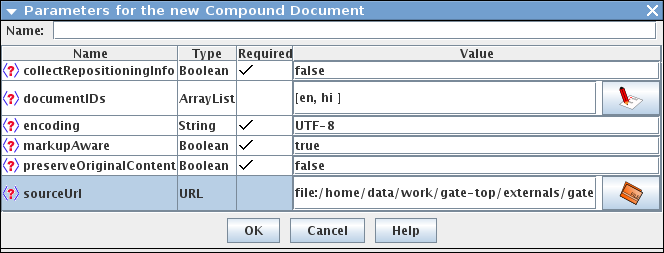
Compound document provides various methods that help in accessing their individual members.
public Document getDocument(String docid);
The following method returns a map of documents where the key is a document ID and the value is its respective document.
public Map getDocuments();
Please note that only one member document in a compound document can have focus set on it. Then all the standard document methods of gate.Document interface apply to the document with focus set on it. For example, if there are two documents, ‘hi’ and ‘en’, and the focus is set on the document ‘hi’ then the getAnnotations() method will return a default annotation set of the ‘hi’ document. One can use the following method to switch the focus of a compound document to a different document:
public void setCurrentDocument(String documentID);
public Document getCurrentDocument();
As explained above, new documents can be added to or removed from the compound document using the following method:
public void addDocument(String documentID, Document document);
public void removeDocument(String documentID);
The following code snippet demonstrates how to create a new compound document using GATE Embedded:
2// step 1: initialize GATE
3Gate.init();
4
5// step 2: load the Alignment plugin
6Gate.getCreoleRegister().registerPlugin(new Plugin.Maven(
7 "uk.ac.gate.plugins"
8 "alignment"
9 "8.5"));
10
11// step 3: set the parameters
12FeatureMap fm = Factory.newFeatureMap();
13
14// for example you want to create a compound document for
15// File.id1.xml and File.id2.xml
16List docIDs = new ArrayList();
17docIDs.add("id1");
18docIDs.add("id2");
19fm.put("documentIDs", docIDs);
20fm.put("sourceUrl", new URL("file:///url/to/File.id1.xml"));
21
22// step 4: finally create an instance of compound document
23Document aDocument = (gate.compound.CompoundDocument)
24 Factory.createResource("gate.compound.impl.CompoundDocumentImpl", fm);
20.2.2 CompoundDocumentFromXml [#]
As described later in the chapter, the entire compound document can be saved in a single xml file. In order to load such a compound document from the saved xml file, we provide a language resource called CompoundDocumentFromXml. This is same as the Compound Document. The only difference is in the parameters needed to instantiate this resource. This LR requires only one parameter called compoundDocumentUrl. The parameter is the url to the xml file.
20.2.3 Compound Document Editor [#]
The compound document editor is a visual resource (VR) associated with the compound document. The VR contains several tabs - each representing a different member of the compound document. All standard functionalities such as GATE document editor, with all its add-on plugins such as AnnotationSetView, AnnotationsList, coreference editor etc., are available to be used with each individual member.
Figure 20.2 shows a compound document editor with English and Hindi documents as members of the compound document.
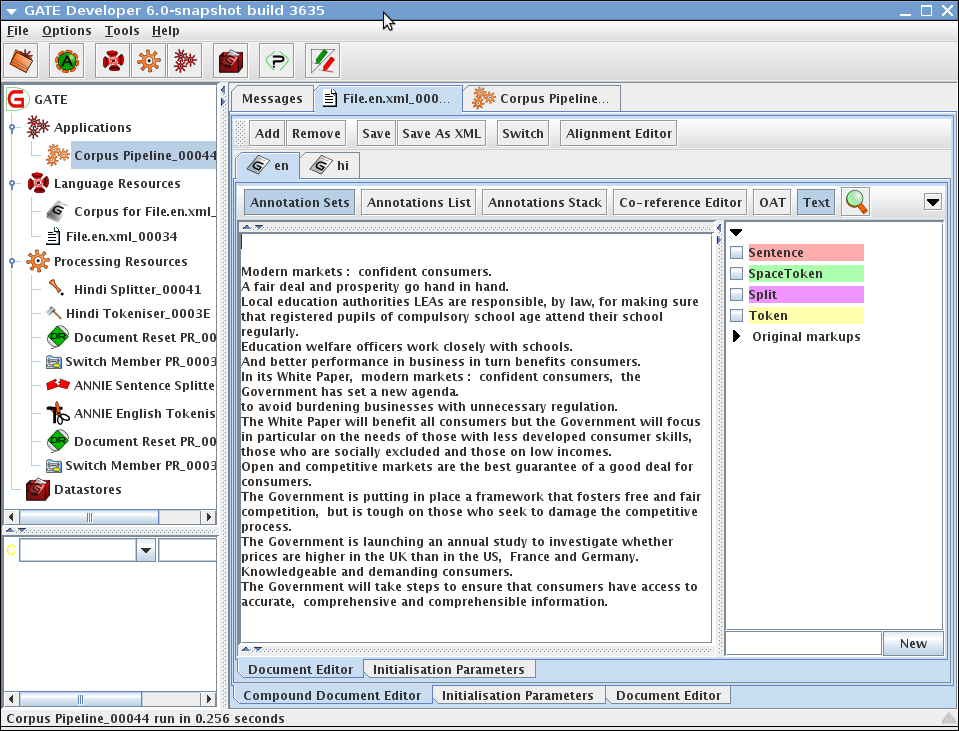
As shown in the figure 20.2, there are several buttons at the top of the editor that provide different functionalities. For instance, the Add button, allows adding a new member document to the compound document. The Remove button removes the current visible member from the document. The buttons Save and Save As XML allow saving the documents individually and in a single xml document respectively. The Switch button allows changing focus of the compound document from one member to the other (this functionality is explained later). Finally, the Alignment Editor allows one to start the alignment editor to align text.
20.2.4 Composite Document [#]
The composite document allows users to merge the texts of member documents and keep the merged text linked with their respective member documents. In other words, if users make any change to the composite document (e.g. add new annotations or remove any existing annotations), the relevant effect is made to their respective documents.
A PR called CombineMembersPR allows creation of a new composite document. It asks for a class name that implements the CombiningMethod interface. The CombiningMethod tells the CombineMembersPR how to combine texts and create a new composite document.
For example, a default implementation of the CombiningMethod, called DefaultCombiningMethod, takes the following parameters and puts the text of the compound document’s members into a new composite document.
unitAnnotationType=Sentence
inputASName=Key
copyUnderlyingAnnotations=true;
The first parameter tells the combining method that it is the ‘Sentence’ annotation type whose text needs to be merged and it should be taken from the ‘Key’ annotation set (second parameter) and finally all the underlying annotations of every Sentence annotation must be copied in the composite document.
If there are two members of a compound document (e.g. ‘hi’ and ‘en’), given the above parameters, the combining method finds out all the annotations of type Sentence from each document and sorts them in ascending order, and one annotation from each document is put one after another in a composite document. This operation continues until all the annotations have been traversed.
Document en     Document hi
Sen1            Shi1
Sen2            Shi2
Sen3            Shi3

Document Composite
Sen1
Shi1
Sen2
Shi2
Sen3
Shi3
The composite document also maintains a mapping of text offsets such that if someone adds a new annotation to or removes any annotation from the composite document, they are added to or removed from their respective documents. Finally the newly created composite document becomes a member of the same compound document.
20.2.5 DeleteMembersPR [#]
This PR allows deletion of a specific member of the compound document. It takes a parameter called ‘documentID’ and deletes a document with this name.
20.2.6 SwitchMembersPR [#]
As described above, only one member of the compound document can have focus set on it. PRs trying to use the getDocument() method get a pointer to the compound document; however all the other methods of the compound document give access to the information of the document member with the focus set on it. So if user wants to process a particular member of the compound document with some PRs, s/he should use the SwitchMembersPR that takes one parameter called documentID and sets focus to the document with that specific id.
20.2.7 Saving as XML [#]
Calling the toXml() method on a compound document returns the XML representation of the member which has focus. However, GATE Developer provides an option to save all member documents in different files. This option appears in the options menu when the user right-clicks on the compound document. The user is asked to provide a name for the directory in which all the members of the compound document will be saved in separate files.
It is also possible to save all members of the compound document in a single XML file. The option, ‘Save in a single XML Document’, also appears in the options menu. After saving it in a single XML document, the user can use the option ‘Compound Document from XML’ to load the document back into GATE Developer.
20.2.8 Alignment Editor [#]
Inspired by various tools, we have implemented a new version of alignment editor that is comprised of several new features. We preserve standard ways of aligning text but at the same time provide advanced features that can be used for facilitating incremental learning. The alignment editor can be used for performing alignment at any annotation level. When performing alignment at word or sentence level, the texts being aligned need to be pre-processed in order to identify tokens and sentences boundaries.
Information about the alignments carried over the text of a compound document is stored as a document feature in the compound document itself. Since the document features are stored in a map, every object stored as a document feature needs to have a unique name that identifies that feature. There is no limit on how many features one can store provided they all have different names. This allows storing alignment information, carried out at different levels, in separate alignment instances. For example, if a user is carrying out alignment at a word level, he/she can store it in an alignment object with a name word-alignment. Similarly, sentence alignment information can be stored with a name sentence-alignment. If multiple users are annotating the same document, alignments produced by different users can be stored with different names (e.g. word-alignment-user1, word-alignment-user2 etc.). Alignment objects can be used for:
-
aligning and unaligning two annotations;
-
checking if the two annotations are aligned with each other;
-
obtaining all the aligned annotations in a document;
-
obtaining all the annotations that are aligned to a particular annotation.
Given a compound document containing a source and a target document, the alignment editor starts in the alignment viewer mode. In this mode the texts of the two documents are shown side-by-side in parallel windows. The purpose of the alignment viewer is to highlight the annotations that are already aligned. The figure 20.3 shows the alignment viewer. In this case the selected documents are English and Hindi, titled as en and hi respectively.
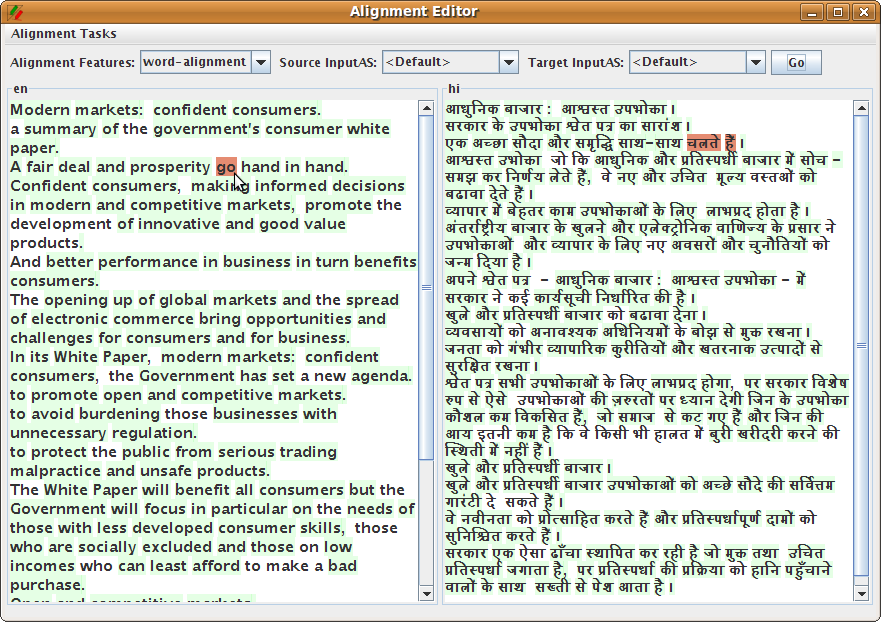
To see alignments, user needs to select the alignment object that he/she wants to see alignments from. Along with this, user also needs to select annotation sets - one for the source document and one for the target document. Given these parameters, the alignment viewer highlights the annotations that belong to the selected annotation sets and have been aligned in the selected alignment object. When the mouse is placed on one of the aligned annotations, the selected annotation and the annotations that are aligned to the selected annotation are highlighted in red. In this case (see figure 20.3) the word go is aligned with the words chalate hein.
Before the alignment process can be started, the tool needs to know few parameters about the alignment task.
Unit Of Alignment: this is the annotation type that users want to perform alignment at. Data Source: generally, if performing a word alignment task, people consider a pair of aligned sentences one at a time and align words within sentences. If the sentences are annotated, for example as Sentence, the Sentence annotation type is called Parent of Unit of Alignment. The Data Source contains information about the aligned parents of unit of alignment. In this case, it would refer to the alignment object that contains alignment information about the annotations of type Sentence. The editor iterates through the aligned sentences and forms pairs of parent of unit of alignments to be shown to the user one by one. If user does not provide any data source, a single pair is formed containing entire documents. Alignment Feature Name: this is the name given to the alignment object where the information about new alignments is stored.
The purpose of the alignment viewer is to highlight the annotations that are already aligned. The editor comes with three different views for performing alignment which the user can select at the time of creating a new alignment task: the Links view (see 20.4 - suitable for character, word and phrase level alignments), the Parallel view (see 20.5 - suitable for annotations which have longer texts, e.g. sentences, paragraphs, sections) and the Matrix view (see 20.6) - suitable for character, word and phrase level alignment.
Let us assume that the user wants to align words in sentences using the Links view. The first thing he needs to do is to create a new Alignment task. This can be achieved by clicking on the File menu and selecting the New Task option. User is asked to provide certain parameters as discussed above. The editor also allows to store task configurations in an xml file which can be at later stage reloaded in the alignment editor. Also, if there are more than one task created, the editor allows users to switch between them.
To align one or more words in the source language with one or more words in the target language, the user needs to select individual words by clicking on them individually. Clicking on words highlights them with an identical colour. Right clicking on any of the selected words brings up a menu with the two default options: Reset Selection and Align. Different colours are used for highlighting different pairs of alignments. This helps distinguishing one set of aligned words from other sets of aligned pairs. Also a link between the aligned words in the two texts is drawn to show the alignment. To unalign, user needs to right click on the aligned words and click on the Remove Alignment option. Only the word on which user right-clicks is taken out of the alignment and rest of the words in the pair remain unaffected. We use the term Orphaned Annotation to refer to the annotation which does not have any alignment in the target document. If after removing an annotation from alignment pair, there are any orphaned annotations in the alignment pair, they are unaligned too.
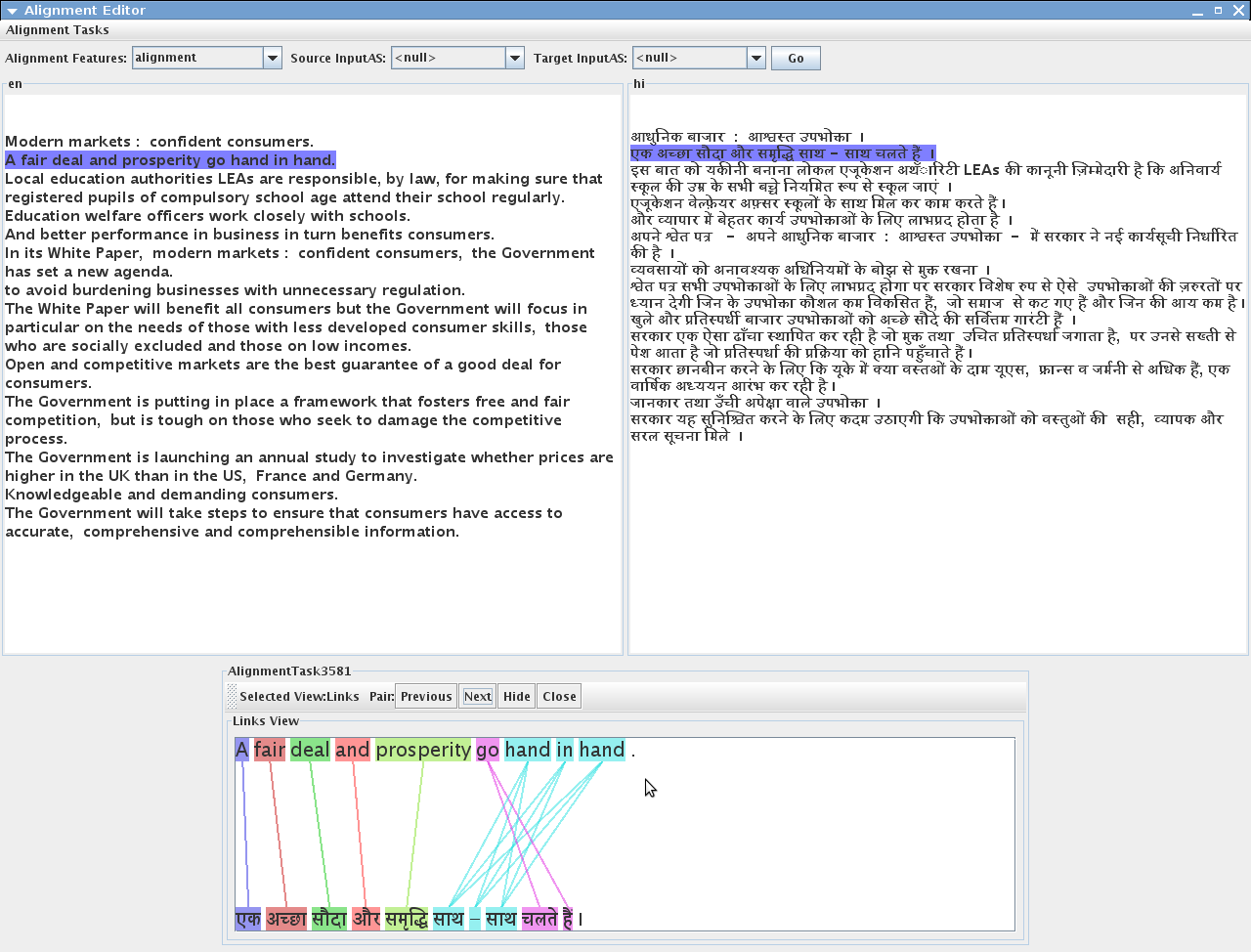
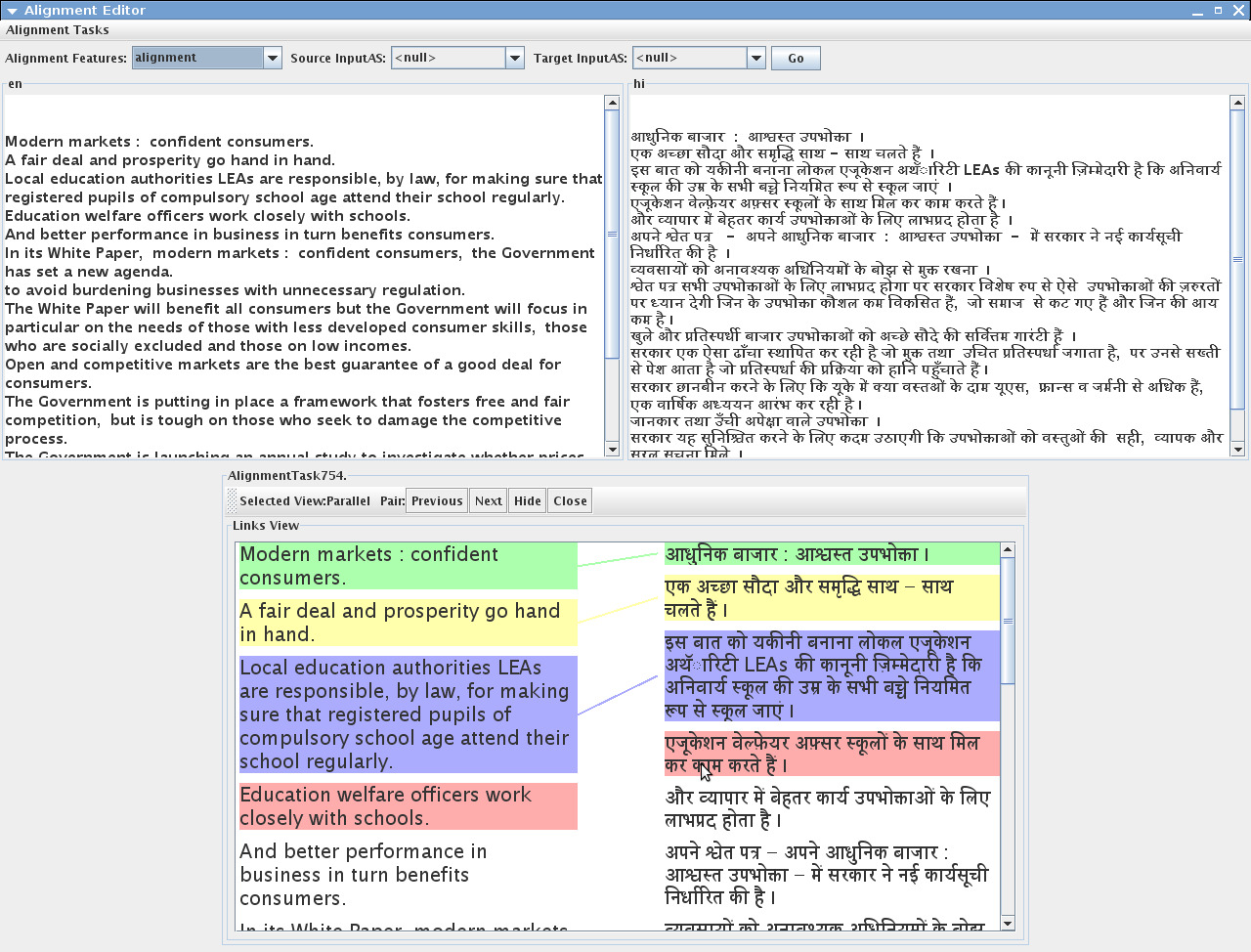
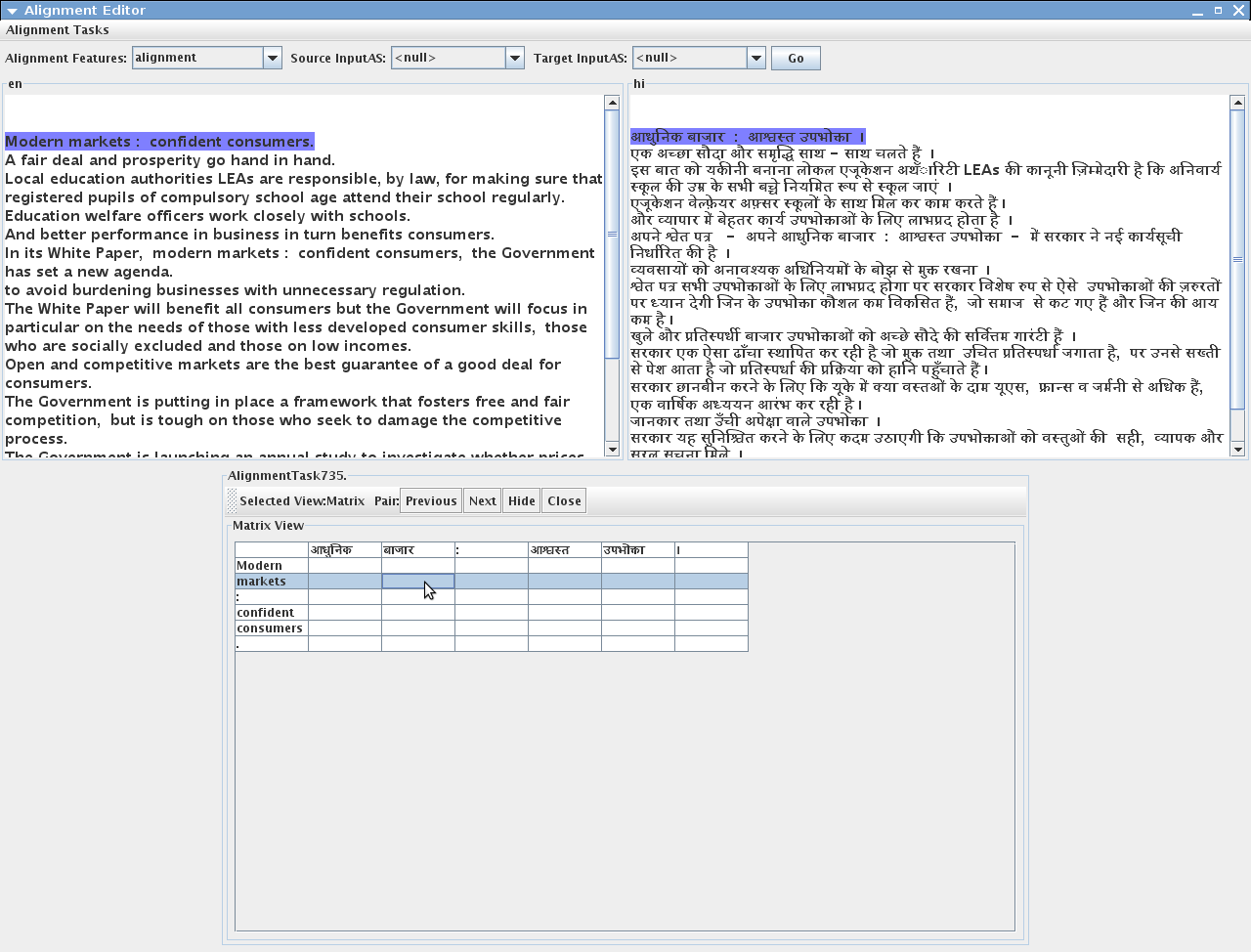
Advanced Features [#]
The options Align, Reset Selection and Remove Alignment are available by default. The Align and the Reset Selection options appear when user wants to align new annotations. The Remove Alignment option only appears when user right clicks on the already aligned annotations. The first two actions are available when there is at least one annotation selected in the source language and another one is selected in the target language. Apart from these three basic actions, the editor also allows adding more actions to the editor.
There are four different types of actions: actions that should be taken before the user starts aligning words (PreDisplayAction); actions that should be taken when the user aligns annotations (AlignmentAction); the actions that should be taken when the user has completed aligning all the words in the given sentence pair (FinishedAlignmentAction) and the actions to publish any data or statistics to the user. For example, to help users in the alignment process by suggesting word alignments, one may want to wrap a pre-trained statistical word alignment model as PreDisplayAction. Similarly, actions of the type AlignmentAction can be used for submitting examples to the model in order for the model to update itself. When all the words in a sentence pair are aligned, one may want to sign off the pair and take actions such as comparing all the alignments in that sentence pair with the alignments carried out by some other user for the same pair. Similarly, while collecting data in the background, one might want to display some information to the user (e.g. statistics for the collected data or some suggestions that help users in the alignment process).
When users click on the next or the previous button, the editor obtains the next or the previous pair that needs to be shown from the data source. Before the pair is displayed in the editor, the editor calls the registered instances of the PreDisplayAction and the current pair object is passed onto the instances of PreDisplayAction. Please note that this only happens when the pair is not already signed off. Once the instances of PreDisplayAction have been executed, the editor collects the alignment information from the compound document and displays it in the editor.
As explained earlier, when users right click on units of alignment in the editor a popup menu with default options (e.g. Align, Reset Selection and Remove Alignment) is shown. The editor allows adding new actions to this menu. It is also possible that users may want to take extra actions when they click on any of the Align or the Remove Alignment options. The AlignmentAction makes it possible to achieve this. Below we list some of the parameters of the AlignmenAction. The implementation is called depending on these parameters.
-
invokeForAlignedAnnotation - the action appears in the options menu when user right clicks on the aligned annotation.
-
invokeForHighlightedUnalignedAnnotation - the action appears in the options menu when user right clicks on a highlighted but unaligned annotation.
-
invokeForUnhighlightedUnalignedAnnotation - the action appears in the options menu when user right clicks on an unhighlighted and unaligned annotation.
-
invokeWithAlignAction - the action is executed whenever user aligns some annotations.
-
invokeWithRemoveAction - the action is executed whenever user removes any alignment.
-
caption - in case of the first three options, the caption is used in the options menu. In case of the fourth and the fifth options, the caption appears as a check box under the actions tab.
These methods can be used for, for example, building up a dictionary in the background while aligning word pairs. Before users click on the next button, they are asked if the pair they were aligning has been aligned completely (i.e. signed off for further alignment). If user replies yes to it, the actions registered as FinishedAlignmentAction are executed one after the other. This could be helpful, for instance, to write an alignment exporter that exports alignment results in an appropriate format or to update the dictionary with new alignments.
Users can point the editor to a file that contains a list of actions and parameters needed to initialize them. A configuration file is a simple text file with fully-qualified class name, and required parameters specified in it. Below we give an example of such a configuration file.
gate.alignment.actions.AlignmentCache,$relpath$/align-cache.txt,root
The first argument is the name of the class that implements one of the actions described above. The second parameter is the name of the file in which the alignment cache should store its results. Finally, the third argument instructs the alignment cache to store root forms of the words in the dictionary so that different forms of the same words can be matched easily. All the parameters (comma separated) after the class name are passed to the action. The relpath parameter is resolved at runtime.
AlignmentCache is one such example of FinishedAlignmentAction and the PreDisplayAction. This is an inbuilt alignment cache in the editor which collects alignment pairs that the users annotate. The idea here is to cache such pairs and later, align them automatically if they appear in subsequent pairs, thus reducing the efforts of humans to annotate the same pair again. By default the alignment cache is disabled. Users wishing to enable it should look into the plugins/Alignment/resources/actions.conf and uncomment the appropriate line.
Users wishing to implement their own actions should refer to the implementation of the AlignmentCache.
20.2.9 Saving Files and Alignments [#]
A compound document can have more than one member documents, the alignment information stored as a document feature and more than one alignment features. The framework allows users to store the whole compound document in a single XML file. The XML file contains all the necessary information about the compound document to load it back in Gate and bring it to the state the compound document was when saving the document as XML. It contains XML produced for each and every member document of the compound document and the details of the document features set on the compound document. XML for each member document includes XML elements for its content; annotations sets and annotations; document features set on individual member document and the id given to this document as as member of the compound document. Having a single XML file makes it possible to port the entire file from one destination to the others easily.
Apart from this, the framework has an alignment exporter. Using the alignment exporter, it is possible to store the alignment information in a separate XML file. For example, once the annotators have aligned documents at a word level, the alignment information about both the unit and the parent of unit annotations can be exported to an XML file. Figure 20.7 shows an XML file with word alignment information in it.
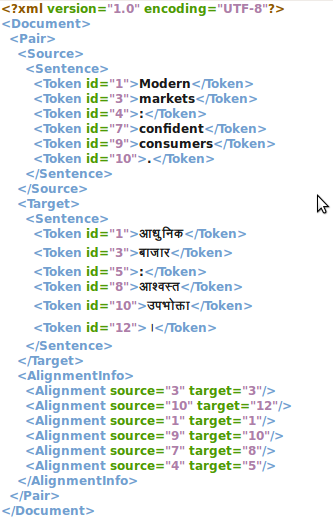
When aligning words in sentences, it is possible to have one or more source sentences aligned with one or more target sentences in a pair. This is achieved by having Source and Target elements within the Pair element which can have one or more Sentence elements in each of them. Each word or token within these sentences is marked with Token element. Every Token element has a unique id assigned to it which is used when aligning words. It is possible to have 1:1 or 1:many and many:1 alignments. The Alignment element is used for mentioning every alignment pair with source and target attributes that refer to one of the source token ids and one of the target document ids respectively. For example, according to the first alignment entry, the source token markets with id 3 is aligned with the target token bAzAr with id 3. The exporter does not export any entry for the unaligned words.
20.2.10 Section-by-Section Processing [#]
In this section, we describe a component that allows processing documents section-by-section. Processing documents this way is useful for many reasons:
For example, a patent document has several different sections but user is interested in processing only the ‘claims’ section or the ‘technical details section’. This is also useful for processing a large document where processing it as a single document is not possible and the only alternative is to divide it in several small documents to process them independently. However, doing so would need another process that merges all the small documents and their annotations back into the original document. On the other hand, a webpage may contain profiles of different people. If the document has more than one person with similar names, running the ‘Orthomatcher PR’ on such a document would produce incorrect coreference chains.
All such problems can be solved by using a PR called ‘Segment Processing PR’. This PR is distributed as part of the ‘Alignment’ plugin. User needs to provide the following four parameters to run this PR.
-
document: This is the document to be processed.
-
analyser: This can be a PR or a corpus controller that needs to be used for processing the segments of the document.
-
segmentAnnotationType: Sections of the documents (that need to be processed) should be annotated with some annotation type and the type of such annotation should be provided as the value to this parameter.
-
segmentAnnotationFeatureName and segmentAnnotationFeatureValue: If user has provided values for these parameters, only the annotations with the sepcified feature name and feature value are processed with the Segment Processing PR.
-
inputASName: This is the name of the annotation set that contains the segment annotations.
Given these parameters, each span in the document that is annotated as the type specified by the segmentAnnotationType is processed independently.
Given a corpus of publications, if you just want to process the abstract section with the ANNIE application, please follow the following steps. It is assumed that the boundaries of abstracts in all these publications are already identified. If not, you would have to do some processing to identify them prior to using the following steps. In the following example, we assume that the abstract boundaries have been annotated as ‘Abstract’ annotations and stored under the ‘Original markups’ annotation set.
Steps:
-
Create a new corpus and populate it with a set of publications that you would like to process with ANNIE.
-
Load the ANNIE application.
-
Load the ‘Alignment’ plugin.
-
Create an instance of the ‘Segment Processing PR’ by selecting it from the list of processing resources.
-
Create a corpus pipeline.
-
Add the ‘Segment Processing PR’ into the pipeline and provide the following parameters:
-
Provide the corpus with publication documents in it as a parameter to the corpus controller.
-
Select the ‘ANNIE’ controller for the ‘controller’ parameter.
-
Type ‘Abstract’ in the ‘segmentAnnotationType’ parameter.
-
Type ‘Original markups’ in the ‘inputASName’ parameter.
-
-
Run the application.
Now, you should see that the ANNIE application has only processed the text in each document that was annotated as ‘Abstract’.
Chapter 21
Crowdsourcing Data with GATE [#]
To develop high-performance language processing applications, you need training data. Traditionally that means recruiting a small team of experts in your chosen domain, then several iterations developing annotation guidelines, training your annotators, doing a test run, examining the results, refining the guidelines until you reach an acceptable level of inter-annotator agreement, letting the annotators loose on the full corpus, cross-checking their results…Clearly this can be a time-consuming and expensive process.
An alternative approach for some annotation tasks is to crowdsource some or all of your training data. If the task can be defined tightly enough and broken down into sufficiently small self-contained chunks, then you can take advantage of services such as Amazon Mechanical Turk1 to farm out the tasks to a much larger pool of users over the Internet, paying each user a small fee per completed task. For the right kinds of annotation tasks crowdsourcing can be much more cost-effective than the traditional approach, as well as giving a much faster turn-around time (since the job is shared among many more people working in parallel).
This chapter describes the tools that GATE Developer provides to assist in crowdsourcing data for training and evaluation. GATE provides tools for two main types of crowdsourcing task:
-
annotation – present the user with a snippet of text (e.g. a sentence) and ask them to mark all the mentions of a particular annotation type.
-
classification – present the user with a snippet of text containing an existing annotation with several possible labels, and ask them to select the most appropriate label (or “none of the above”).
21.1 The Basics [#]
The GATE crowdsourcing tools are based on the Figure Eight platform2 (formerly known as CrowdFlower). To get the most out of the GATE tools it is first necessary to understand a few pieces of Figure Eight terminology.
-
a job is the container which represents a single end-to-end crowdsourcing process. It defines the input form you want to present to your workers, and holds a number of units of work.
-
a unit is a single item of work, i.e. a single snippet (for annotation jobs) or a single entity (for classification jobs). Figure Eight presents several units at a time to the user as a single task, and users are paid for each task they successfully complete.
-
a gold unit is one where the correct answer is already known in advance. Gold units are the basis for determining whether a task has been completed “successfully” – when a job includes gold units, Figure Eight includes one gold unit in each task but does not tell the user which one it is, and if they get the gold unit wrong then the whole task is disregarded. You can track users’ performance through the Figure Eight platform and ignore results from users who get too many gold units wrong.
Figure Eight provides a web interface to build jobs in a browser, and also a REST API for programmatic access. The GATE tools use the REST API, so you will need to sign up for a Figure Eight account and generate an API key which you will use to configure the various processing resources.
To access the GATE crowdsourcing tools, you must first load the Crowd_Sourcing plugin. This plugin provides four PR types, a “job builder”, “results importer” and “consensus builder” for each of the two supported styles of crowdsourcing job.
21.2 Entity classification [#]
The “entity classification” job builder and results importer PRs are intended for situations where you have pre-annotated entities but each entity could have one of several different labels. Examples could be:
-
a term recognintion system that has established which spans of text are candidate terms but not what class of term each annotation represents.
-
annotation with respect to an ontology, when the same string could match one of several different ontology concepts.
In the first case, the set of available labels would be constant, with the same set of options presented for every unit. In the second case each annotation would supply its own set of options (there may also be “common options” available for every annotation, such as “none of the above”).
21.2.1 Creating a classification job [#]
To start a new classification job, first load the Crowd_Sourcing plugin, then create a new instance of the “Entity Classification Job Builder” PR. The PR requires your Figure Eight API key as an init-time parameter.
Right-clicking on the newly-created PR in the resources tree will offer the option to “Create a new Figure Eight job”, which presents a dialog to configure the settings of the new job (see figure 21.1). The available options are as follows:
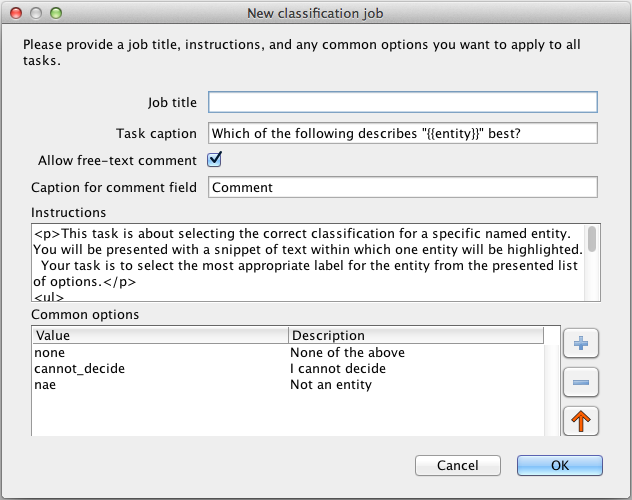
-
Job title
-
a descriptive title for this job
-
Task caption
-
the “question” that the user will be asked. This is shown above the snippet showing the entity in context, and may include the placeholder {{entity}} (including the double braces) which will be replaced by the text covered by the target entity annotation.
-
Allow free-text comment
-
whether to offer a free-text field to the annotator in addition to the selectable options. This could be used for a variety of purposes, for example for the annotator to suggest an alternative if none of the options offered are correct, to state how confident they are about their response, or to higlight perceived errors in the data.
-
Caption for comment field
-
the caption to be displayed for the free-text field. The appropriate caption depends on the purpose of the field, for example if the last of the “common options” (see below) is “Other” then the comment field caption could be “please specify”.
-
Instructions
-
detailed instructions that will be shown to workers. In contrast to the caption, which is shown as part of each unit, the instructions appear just once on each task page, and are in a collapsible panel so the user can hide them once they are confident that they understand the task. The instructions are rendered as HTML, which allows them to include markup but also means that characters such as & and < must be escaped as HTML entity references.
-
Common options
-
options that will be available for all units, in addition to unit-specific options taken from the target annotation. These common options appear below the unit-specific options (if any) and are presented in the order specified here. Use the + and - buttons to add and remove options, and the arrows to change the order. For each row in the table, the “Value” column is the value that will be submitted as the answer if the user selects this option, the “Description” is the string that will be shown to the user. It is a good idea to include details in the instructions to explain the common options.
Clicking “OK” will make calls to the Figure Eight REST API to create a job with the given settings, and store the resulting job ID so the PR can be used to load units into the job.
21.2.2 Loading data into a job [#]
When added to a corpus pipeline application, the PR will read annotations from documents and use them to create units of work in the Figure Eight job. It is highly recommended that you store your documents in a persistent corpus in a serial datastore, as the PR will add additional features to the source annotations which can be used at a later date to import the results of the crowdsourcing job and turn them back into GATE annotations.
The job builder PR has a few runtime parameters:
-
contextASName/contextAnnotationType
-
the annotation set and type representing the snippets of text that will be shown as the “context” around an entity. Typically the “context” annotation will be something like “Sentence”, or possibly “Tweet” if you are working with Twitter data.
-
entityASName/entityAnnotationType
-
the annotation set and type representing the individual entities to be classified. Every “entity” annotation must fall within the span of at least one “context” annotation – entities that are not covered by any context annotation will be ignored (and a warning logged for debugging purposes), and if there is more than one context annotation that covers an entity (e.g. HTML div tags that are nested) then the shortest annotation from among the alternatives will be the one chosen.
-
jobId
-
the unique identifier of the Figure Eight job that is to be populated. This parameter is filled in automatically when you create a job with the dialog described above.
-
skipExisting
-
if true (the default), entity annotations that already have a cf_unit feature (indicating that they have already been processed by a previous run of this PR) will be ignored. This means that if the loading process fails part way through it can simply be re-run over the same corpus and it will continue from where it left off without creating duplicate units.
The number and format of the options presented to the user, and the marking of annotations as “gold” is handled by a number of conventions governing the features that each entity annotation is expected to have. Getting the annotations into the required format is beyond the scope of the Crowd_Sourcing plugin itself, and will probably involve the use of custom JAPE grammars and/or Groovy scripts.
The job builder expects the following features on each entity annotation:
-
options
-
the classification options that are specific to this unit. If this feature is supplied its value must take one of two forms, either:
-
a java.util.Collection of values (typically strings, but any object with a sensible toString() representation can be used).
-
a java.util.Map where a key in the map is the value to be submitted by the form if this option is selected, and the corresponding value is the description of the option that will be displayed to the user. For example, if the task is to select an appropriate URI from an ontology then the key would be the ontology URI and the value could be an rdfs:label for that ontology resource in a suitable language.
If this feature is omitted, then only the “common options” configured for the job will be shown.
-
-
default
-
the option that should be selected by default when this unit is shown to a worker. The value must match one of the “options” for this unit (a key if the options are a map) or one of the “common options” for the job. If omitted, no value will be selected by default.
-
detail
-
any additional details to be shown to the worker along with the snippet text and highlighted entity. This value is interpreted as HTML, and could be used for many purposes. As one example, there is a JAPE grammar in plugins/Crowd_Sourcing/resources to create an HTML list of links from the content of any Url annotations contained within the snippet.
-
correct
-
the “correct answer” if this annotation represents a gold unit, which must match one of the “options” for this unit (a key if the options are given as a map) or one of the job’s configured “common options”. If omitted the unit is not marked as gold.
-
reason
-
for gold units, the reason why the correct answer is correct. This will be displayed to users who select the wrong answer for this unit to provide feedback.
-
entity/leftContext/rightContext
-
Snippet text to be used. If any of these values are omitted, the text will instead be taken from the document content for the annotations indicated by contextAnnotationType and entityAnnotationType annotation.
Note that the options will be presented to the workers in the order they are returned by the collection (or the map’s entrySet()) iterator. If this matters then you should consider using a collection or map type with predictable iteration order (e.g. a List or LinkedHashMap). In particular it is often a good idea to randomize the ordering of options – if you always put the most probable option first then users will learn this and may try to “beat the system” by always selecting option 1 for every unit.
The ID of the created unit will be stored as an additional feature named cf_unit on the entity annotation.
21.2.3 Importing the results [#]
Once you have populated your job and gathered judgments from human workers, you can use the “Entity Classification Results Importer” PR to turn those judgments back into GATE annotations in your original documents.
As with the job builder, the results importer PR has just one initialization parameter, which is your Figure Eight API key, and the following runtime parameters:
-
entityASName/entityAnnotationType
-
the annotation set and type representing the entities that have been classified. Each entity annotation should have a cf_unit feature created by the job builder PR.
-
resultASName/resultAnnotationType
-
the annotation set and type where annotations corresponding to the judgments of your annotators should be created.
-
answerFeatureName
-
(default “answer”) the name of the feature on each result annotation that will represent the answer selected by the annotator.
-
jobId
-
the ID of the Figure Eight job whose results are being imported (copy the value from the corresponding job builder PR).
When run, the results importer PR will call the Figure Eight REST API to retrieve the list of judgments for each unit in turn, and then create one annotation of the target type in the target annotation set (as configured by the “result” runtime parameters) for each judgment – so if your job required three annotators to judge each unit then the unit will generate three output annotations, all with the same span (as each other and as the original input entity annotation). Each generated annotation will have the following features:
-
cf_judgment
-
the “judgment ID” – the unique identifier assigned to this judgment by Figure Eight.
-
worker_id
-
the Figure Eight identifier for the worker who provided this judgment. There is no way to track this back directly to a specific human being, but it is guaranteed that two judgments with the same worker ID were performed by the same person.
-
trust
-
the worker’s “trust score” assigned by Figure Eight based on the proportion of this job’s gold units they answered correctly. The higher the score, the more reliable this worker’s judgments.
-
comment
-
the contents of the free-text comment field supplied by the user, if this field was enabled when the job was created. If the user leaves the comment field empty this feature will be omitted.
In addition, the feature named by the answerFeatureName parameter (by default “answer”) will hold the answer selected by the user – this will be one of the option values (a map key if the options were provided as a map) or one of the common options configured when the job was created.
Since each generated annotation tracks the judgment ID it was created from, this PR is idempotent – if you run it again over the same corpus then new annotations will be created for new judgments only, you will not get duplicate annotations for judgments that have already been processed.
21.2.4 Automatic adjudication [#]
Once you have imported the human judgments from Figure Eight back into GATE annotations, a common next step is to take the multiply-annotated entities and attempt to build a single “consensus” set of the classifications where enough of the annotators agree. The simplest form of automatic adjudication is the majority-vote method, where classifications are automatically accepted if at least n out of m annotators agree on them. Entities that do not have the required level of agreement cannot be accepted automatically and must be double checked somehow, either directly within GATE Developer or via a second round of crowdsourcing.
This approach is implemented by the “Majority-vote consensus builder (classification)” PR. It takes the following runtime parameters:
-
originalEntityASName/entityAnnotationType
-
the annotation set and type representing the original entities that were used to generate the units sent for annotation by the crowd.
-
resultASName/resultAnnotationType
-
the annotation set and type where annotations corresponding to the judgments of your annotators were created by the results importer.
-
answerFeatureName
-
(default “answer”) the name of the feature on each result annotation that represents the answer selected by the annotator.
-
minimumAgreement
-
the minimum number of annotators who must agree on the same option in order for it to be eligible for the consensus set. Usually this threshold would be set at more than half the total number of judgments for each entity, so at most one option can meet the threshold, but this is not required. In any case, an entity is only ever eligible for the consensus set if exactly one option meets the threshold.
-
consensusASName
-
(default “crowdConsensus”) the annotation set where consensus annotations should be created, for the entities that meet the agreement threshold.
-
disputeASName
-
(default “crowdDispute”) the annotation set where disputed annotations should be placed, for the entities that do not meet the agreement threshold (if the threshold is less than half the total number of annotators it is possible for more than one option to meet the threshold – these cases will also be considered disputed).
-
noAgreementAction
-
what to do with disputed entities. This is discussed in more detail below.
When run over a corpus, the PR will look at each of the original entity annotations in turn and count up the number of annotators who selected each of the available options (including common options specified at the job level). If there is exactly one option on which at least minimumAgreement annotators agree, then it will create a single annotation in the consensus annotation set, whose type is resultAnnotationType and whose answerFeatureName feature is the selected option.
If there is no agreement (either no option meets the threshold, or more than one option in the case when the threshold is below 50%), then the PRs action is determined by the noAgreementAction parameter:
-
resolveLocally
-
all the judgment annotations are copied from the result set into the dispute set, so they can be inspected locally in GATE Developer (typically using the annotation stack view).
-
reAnnotateByCrowd
-
the original entity annotation is copied to the dispute set, with two modifications:
-
its cf_unit feature is removed
-
its options feature is restricted to the subset of the original options that were selected by at least one of the annotators in the first round of annotation.
-
In the reAnnotateByCrowd case, the resulting entity annotations are suitable to be imported into Figure Eight again for another round of crowdsourced annotation, but this time highly ambiguous entities have a smaller set of choices that will be presented to the workers.
21.3 Entity annotation [#]
The “entity annotation” job builder and results importer PRs are intended for situations where you want people to mark occurrences of named entities in plain text. A number of simplifying assumptions are made to make this task suitable for crowdsourcing:
-
Text is presented in short snippets (e.g. one sentence or Tweet at a time).
-
Each job focuses on one specific entity type (if you want to annotate different entities you can do this by running a number of different jobs over the same corpus).
-
Entity annotations are constrained to whole tokens only, and there are no adjacent annotations (i.e. a contiguous sequence of marked tokens represents one target annotation, and different annotations must be separated by at least one intervening token). This is a reasonable assumption to make given the previous point, as adjacent entities of the same type will usually be separated by something (a comma, the word “and”, etc.).
21.3.1 Creating an annotation job [#]
To start a new annotation job, first load the Crowd_Sourcing plugin, then create a new instance of the “Entity Annotation Job Builder” PR. The PR requires your Figure Eight API key as an init-time parameter.
Right-clicking on the newly-created PR in the resources tree will offer the option to “Create a new Figure Eight job”, which presents a dialog to configure the settings of the new job (see figure 21.2). The available options are as follows:
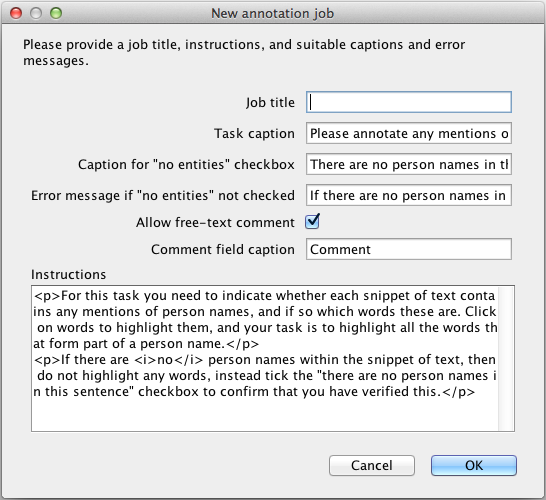
-
Job title
-
a descriptive title for this job
-
Task caption
-
the “question” that the user will be asked, which should include the kind of annotations they are being asked to find.
-
Caption for “no entities” checkbox
-
if the user does not select any tokens to annotate, they must explicitly click a checkbox to confirm that they believe there are no mentions in this unit. This is done to distinguish between units that have not been attempted and units which have been attempted but for which the correct answer is “nothing”. This parameter is the caption shown for this checkbox, and should include the kind of annotations the user is being asked to find.
-
Error message if “no entities” not checked
-
if the user attempts to submit a unit where they have not selected any tokens to annotate but have also not clicked the checkbox, this is the error message that will be shown. It should include the kind of annotations the user is being asked to find.
-
Allow free-text comment
-
whether to offer a free-text field to the annotator in addition to the selectable options. This could be used for a variety of purposes, for example for the annotator to state how confident they are about their response, or to higlight perceived errors in the data.
-
Caption for comment field
-
the caption to be displayed for the free-text field. The appropriate caption depends on the purpose of the field.
-
Instructions
-
detailed instructions that will be shown to workers. In contrast to the caption, which is shown as part of each unit, the instructions appear just once on each task page, and are in a collapsible panel so the user can hide them once they are confident that they understand the task. The instructions are rendered as HTML, which allows them to include markup but also means that characters such as & and < must be escaped as HTML entity references.
The defaults assume a job to annotate person names within the context of a single sentence, where the selection is done at the level of words (i.e. Token annotations). Figure 21.3 shows how the units are presented to users.
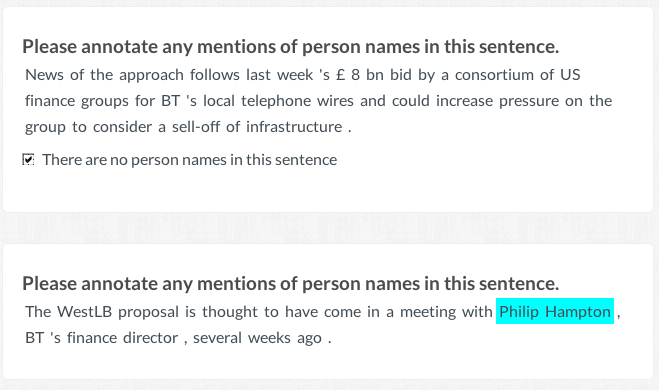
Clicking “OK” will make calls to the Figure Eight REST API to create a job with the given settings, and store the resulting job ID so the PR can be used to load units into the job.
21.3.2 Loading data into a job [#]
When added to a corpus pipeline application, the PR will read annotations from documents and use them to create units of work in the Figure Eight job. It is highly recommended that you store your documents in a persistent corpus in a serial datastore, as the PR will add additional features to the source annotations which can be used at a later date to import the results of the crowdsourcing job and turn them back into GATE annotations.
The job builder PR has a few runtime parameters:
-
snippetASName/snippetAnnotationType
-
the annotation set and type representing the snippets of text that will be shown to the user. Each snippet is one unit of work, and typical examples would be “Sentence” or “Tweet”.
-
tokenASName/tokenAnnotationType
-
the annotation set and type representing “tokens”, i.e. the atomic units that users will be asked to select when marking annotations. The token annotations should completely cover all the non-whitespace characters within every snippet, and when presented to the user the tokens will be rendered with a single space between each pair. In the vast majority of cases, the default value of “Token” will be the appropriate one to use.
-
detailFeatureName
-
feature on the snippet annotations that contains any additional details to be shown to the worker along with the snippet tokens. This value is interpreted as HTML, and could be used for many purposes. As one example, there is a JAPE grammar in plugins/Crowd_Sourcing/resources to create an HTML list of links from the content of any Url annotations contained within the snippet.
-
entityASName/entityAnnotationType
-
the annotation set and type representing the annotations that the user is being asked to create. Any already-existing annotations of this type can be treated as gold-standard data.
-
goldFeatureName/goldFeatureValue
-
a feature name/value pair that is used to mark snippets that should become gold units in the job. Any snippet annotation that has the matching feature is considered gold, and its contained entity annotations are used to construct the correct answer. Note that it is possible for the correct answer to be that the snippet contains no annotations, which is why we need an explicit trigger for gold snippets rather than simply marking as gold any snippet that contains at least one pre-annotated entity. The default trigger feature is gold=yes.
-
goldReasonFeatureName
-
for gold units, this is the feature on the snippet annotation that contains the reason why this particular unit has been annotated the way it has. If the snippet contains annotations this should describe them and explain why they have been marked, if the snippet does not contain annotations the reason should explain why (e.g. “this text is a list of navigation links”). Any user who gets this gold unit wrong will see the reason as feedback.
-
jobId
-
the unique identifier of the Figure Eight job that is to be populated. This parameter is filled in automatically when you create a job with the dialog described above.
-
skipExisting
-
if true (the default), snippet annotations that already have an appropriate <Type>_unit_id feature (indicating that they have already been processed by a previous run of this PR) will be ignored. This means that if the loading process fails part way through it can simply be re-run over the same corpus and it will continue from where it left off without creating duplicate units.
When executed, the PR will create one unit from each snippet annotation in the corpus and store the ID of the newly created unit on the annotation as a feature named for the entityAnnotationType with _unit_id appended to the end (e.g. Person_unit_id). This allows you to build several different jobs from the same set of documents for different types of annotation.
21.3.3 Importing the results [#]
Once you have populated your job and gathered judgments from human workers, you can use the “Entity Annotation Results Importer” PR to turn those judgments back into GATE annotations in your original documents.
As with the job builder, the results importer PR has just one initialization parameter, which is your Figure Eight API key, and the following runtime parameters:
-
jobId
-
the ID of the Figure Eight job whose results are being imported (copy the value from the corresponding job builder PR).
-
resultASName/resultAnnotationType
-
the annotation set and type where annotations corresponding to the judgments of your annotators should be created. This annotation type must be the same as the entityAnnotationType you specified when creating the job, since the “resultAnnotationType_unit_id” feature provides the link between the snippet and its corresponding Figure Eight unit.
-
snippetASName/snippetAnnotationType
-
the annotation set and type containing the snippets whose results are to be imported. Each snippet annotation must have an appropriate unit ID feature.
-
tokenASName/tokenAnnotationType
-
the annotation set and type representing tokens. The encoding of results from Figure Eight is based on the order of the tokens within each snippet, so it is imperative that the tokens used to import the results are the same as those used to create the units in the first place (or at least, that there are the same number of tokens in the same order within each snippet as there were when the unit was created).
-
annotateSpans
-
(boolean, default true) should adjacent tokens be merged into a single spanning annotation?
When run, the results importer PR will call the Figure Eight REST API to retrieve the list of judgments for each unit in turn, and then create annotations of the target type in the target annotation set (as configured by the “result” runtime parameters) for each judgment, matching the tokens that the annotator selected. By default, a run of adjacent tokens will be treated as a single annotation spanning from the start of the first to the end of the last token in the sequence, but this can be disabled by setting annotateSpans to false, in which case each token will be annotated independently. Each generated annotation will have the following features:
-
cf_judgment
-
the “judgment ID” – the unique identifier assigned to this judgment by Figure Eight.
-
worker_id
-
the Figure Eight identifier for the worker who provided this judgment. There is no way to track this back directly to a specific human being, but it is guaranteed that two judgments with the same worker ID were performed by the same person.
-
trust
-
the worker’s “trust score” assigned by Figure Eight based on the proportion of this job’s gold units they answered correctly. The higher the score, the more reliable this worker’s judgments.
-
comment
-
the contents of the free-text comment field supplied by the user, if this field was enabled when the job was created. If the user leaves the comment field empty this feature will be omitted.
Since each generated annotation tracks the judgment ID it was created from, this PR is idempotent – if you run it again over the same corpus then new annotations will be created for new judgments only, you will not get duplicate annotations for judgments that have already been processed.
21.3.4 Automatic adjudication [#]
Once you have imported the human judgments from Figure Eight back into GATE annotations, a common next step is to take the multiply-annotated entities and attempt to build a single “consensus” set of the annotations where enough of the annotators agree. The simplest form of automatic adjudication is the majority-vote method, where annotations are automatically accepted if at least n out of m annotators agree on them. Entities that do not have the required level of agreement cannot be accepted automatically and must be double checked manually.
This approach is implemented by the “Majority-vote consensus builder (annotation)” PR. It takes the following runtime parameters:
-
resultASName/resultAnnotationType
-
the annotation set and type where annotations corresponding to the judgments of your annotators were created by the results importer.
-
minimumAgreement
-
the minimum number of annotators who must agree on the same annotation in order for it to be eligible for the consensus set. Usually this threshold would be set at more than half the total number of judgments for each entity, but this is not required.
-
consensusASName
-
(default “crowdConsensus”) the annotation set where consensus annotations should be created, for the entities that meet the agreement threshold.
-
disputeASName
-
(default “crowdDispute”) the annotation set where disputed annotations should be placed, for the entities that do not meet the agreement threshold.
When run over a corpus, the PR inspects each group of co-extensive annotations of the target type in turn (the results importer PR will never create overlapping annotations from the same human judgment, so a group of result annotations with exactly the same span must represent judgments by different workers). If at least minimumAgreement annotators agreed on the same annotation then a single new annotation of the resultAnnotationType (with no features) is created in the consensus set. If the agreement threshold is not met, then all the result annotations in this group are copied to the dispute set so they can be inspected in GATE Developer (typically using the annotation stack view).
Chapter 22
Combining GATE and UIMA [#]
UIMA (Unstructured Information Management Architecture) is a platform for natural language processing, originally developed by IBM but now maintained by the Apache Software Foundation. It has many similarities to the GATE architecture – it represents documents as text plus annotations, and allows users to define pipelines of analysis engines that manipulate the document (or Common Analysis Structure in UIMA terminology) in much the same way as processing resources do in GATE. The Apache UIMA SDK provides support for building analysis components in Java and C++ and running them either locally on one machine, or deploying them as services that can be accessed remotely. The SDK is available for download from http://incubator.apache.org/uima/.
Clearly, it would be useful to be able to include UIMA components in GATE applications and vice-versa, letting GATE users take advantage of UIMA’s flexible deployment options and UIMA users access JAPE and the many useful plugins already available in GATE. This chapter describes the interoperability layer provided as part of GATE to support this. The UIMA-GATE interoperability layer is based on Apache UIMA 2.2.2. GATE 5.0 and earlier included an implementation based on version 1.2.3 of the pre-Apache IBM UIMA SDK.
The rest of this chapter assumes that you have at least a basic understanding of core UIMA concepts, such as type systems, primitive and aggregate analysis engines (AEs), feature structures, the format of AE XML descriptors, etc. It will probably be helpful to refer to the relevant sections of the UIMA SDK User’s Guide and Reference (supplied with the SDK) alongside this document.
There are two main parts to the interoperability layer:
-
A wrapper to allow a UIMA Analysis Engine (AE), whether primitive or aggregate, to be used within GATE as a Processing Resource (PR).
-
A wrapper to allow a GATE processing pipeline (specifically a CorpusController) to be used within UIMA as an AE.
The two components operate in very similar ways. Given a document in the source form (either a GATE Document or a UIMA CAS), a document in the target form is created with a copy of the source document’s text. Some of the annotations from the source are transferred to the target, according to a mapping defined by the user, and the target component is then run. Finally, some of the annotations on the updated target document are then transferred back to the source, according to the user-defined mapping.
The rest of this document describes this process in more detail. Section 22.1 describes the GATE AE wrapper, and Section 22.2 describes the UIMA CorpusController wrapper.
22.1 Embedding a UIMA AE in GATE [#]
Embedding a UIMA analysis engine in a GATE application is a two step process. First, you must construct a mapping descriptor XML file to define how to map annotations between the UIMA CAS and the GATE Document. This mapping file, along with the analysis engine descriptor, is used to instantiate an AnalysisEnginePR which calls the analysis engine on an appropriately initialized CAS. Examples of all the XML files discussed in this section are available in examples/conf under the UIMA plugin directory.
22.1.1 Mapping File Format [#]
Figure 22.1 shows the structure of a mapping descriptor. The inputs section defines how annotations on the GATE document are transferred to the UIMA CAS. The outputs section defines how annotations which have been added, updated and removed by the AE are transferred back to the GATE document.
<uimaGateMapping>
  <inputs>
    <uimaAnnotation type="..." gateType="..." indexed="true|false">
      <feature name="..." kind="string|int|float|fs">
        <!-- element defining the feature value goes here -->
      </feature>
      ...
    </uimaAnnotation>
  </inputs>

  <outputs>
    <added>
      <gateAnnotation type="..." uimaType="...">
        <feature name="...">
          <!-- element defining the feature value goes here -->
        </feature>
        ...
      </gateAnnotation>
    </added>

    <updated>
      ...
    </updated>

    <removed>
      ...
    </removed>
  </outputs>
</uimaGateMapping>
Input Definitions [#]
Each input definition takes the following form:
  <uimaAnnotation type="uima.Type" gateType="GATEType" indexed="true|false">
    <feature name="..." kind="string|int|float|fs">
      <!-- element defining the feature value goes here -->
    </feature>
    ...
  </uimaAnnotation>
When a document is processed, this will create one UIMA annotation of type uima.Type in the CAS for each GATE annotation of type GATEType in the input annotation set, covering the same offsets in the text. If indexed is true, GATE will keep a record of which GATE annotation gave rise to which UIMA annotation. If you wish to be able to track updates to this annotation’s features and transfer the updated values back into GATE, you must specify indexed="true". The indexed attribute defaults to false if omitted.
Each contained feature element will cause the corresponding feature to be set on the generated annotation. UIMA features can be string, integer or float valued, or can be a reference to another feature structure, and this must be specified in the kind attribute. The feature’s value is specified using a nested element, but exactly how this value is handled is determined by the kind.
There are various options for setting feature values:
-
<string value="fixed string" /> The simplest case - a fixed Java String.
-
<docFeatureValue name="featureName" /> The value of the given named feature of the current GATE document.
-
<gateAnnotFeatureValue name="featureName" /> The value of a given feature on the current GATE annotation (i.e. the one on which the offsets of the UIMA annotation are based).
-
<featureStructure type="uima.fs.Type">...</featureStructure> A feature structure of the given type. The featureStructure element can itself contain feature elements recursively.
The value is assigned to the feature according to the feature’s kind:
-
string
-
The value object’s toString() method is called, and the resulting String is set as the string value of the feature.
-
int
-
If the value object is a subclass of java.lang.Number, its intValue() method is called, and the result is set as the integer value of the feature. If the value object is not a Number, it is toString()ed, and the resulting String is parsed using Integer.parseInt(). If this succeeds, the integer result is used, if it fails the feature is set to zero.
-
float
-
As for int, except that Numbers are converted by calling floatValue(), and non-Numbers are parsed using Float.parseFloat().
-
fs
-
The value object is assumed to be a FeatureStructure, and is used as-is. A ClassCastException will result if the value object is not a FeatureStructure.
In particular, <featureStructure> value elements should only be used with features of kind fs. While nothing will stop you using them with string features, the result will probably not be what you expected.
Output Definitions [#]
The output definitions take a similar form. There are three groups:
-
added
-
Annotations which have been added by the AE, and for which corresponding new annotations are to be created in the GATE document.
-
updated
-
Annotations that were created by an input definition (with indexed="true") whose feature values have been modified by the AE, and these values are to be transferred back to the original GATE annotations.
-
removed
-
Annotations that were created by an input definition (with indexed="true") which have been removed from the CAS1 and whose source annotations are to be removed from the GATE document.
The definition elements for these three types all take the same form:
  <gateAnnotation type="GATEType" uimaType="uima.Type">
    <feature name="featureName">
      <!-- element defining the feature value goes here -->
    </feature>
    ...
  </gateAnnotation>
For added annotations, this has the mirror-image effect to the input definition – for each UIMA annotation of the given type, create a GATE annotation at the same offsets and set its feature values as specified by feature elements. For a gateAnnotation the feature elements do not have a kind, as features in GATE can have arbitrary Objects as values. The possible feature value elements for a gateAnnotation are:
-
<string value="fixed string" /> A fixed string, as before.
-
<uimaFSFeatureValue name="uima.Type:FeatureName" kind="string|int|float" /> The value of the given feature of the current UIMA annotation. The feature name must be specified in fully-qualified form, including the type on which it is defined. The kind is used in a similar way as in input definitions:
-
string
-
The Java String object returned as the string value of the feature is used.
-
int
-
An Integer object is created from the integer value of the feature.
-
float
-
A Float object is created from the float value of the feature.
-
fs
-
The UIMA FeatureStructure object is returned. Since FeatureStructure objects are not guaranteed to be valid once the CAS has been cleared, a downstream GATE component must extract the relevant information from the feature structure before the next document is processed. You have been warned.
-
Feature names in uimaFSFeatureValue must be qualified with their type name, as the feature may have been defined on a supertype of the feature’s own type, rather than the type itself. For example, consider the following:
<gateAnnotation type="Entity" uimaType="com.example.Entity">
  <feature name="type">
    <uimaFSFeatureValue name="com.example.Entity:Type" kind="string" />
  </feature>
  <feature name="startOffset">
    <uimaFSFeatureValue name="uima.tcas.Annotation:begin" kind="int" />
  </feature>
</gateAnnotation>
For updated annotations, there must have been an input definition with indexed="true" with the same GATE and UIMA types. In this case, for each GATE annotation of the appropriate type, the UIMA annotation that was created from it is found in the CAS. The feature definitions are then used as in the added case, but here, the feature values are set on the original GATE annotation, rather than on a newly created annotation.
For removed annotations, the feature definitions are ignored, and the annotation is removed from GATE if the UIMA annotation which it gave rise to has been removed from the UIMA annotation index.
A Complete Example [#]
Figure 22.2 shows a complete example mapping descriptor for a simple UIMA AE that takes tokens as input and adds a feature to each token giving the number of lower case letters in the token’s string.2 In this case the UIMA feature that holds the number of lower case letters is called LowerCaseLetters, but the GATE feature is called numLower. This demonstrates that the feature names do not need to agree, so long as a mapping between them can be defined.
<uimaGateMapping>
  <inputs>
    <uimaAnnotation type="gate.uima.cas.Token" gateType="Token" indexed="true">
      <feature name="String" kind="string">
        <gateAnnotFeatureValue name="string" />
      </feature>
    </uimaAnnotation>
  </inputs>
  <outputs>
    <updated>
      <gateAnnotation type="Token" uimaType="gate.uima.cas.Token">
        <feature name="numLower">
          <uimaFSFeatureValue name="gate.uima.cas.Token:LowerCaseLetters"
                              kind="int" />
        </feature>
      </gateAnnotation>
    </updated>
  </outputs>
</uimaGateMapping>
22.1.2 The UIMA Component Descriptor [#]
As well as the mapping file, you must provide the UIMA component descriptor that defines how to access the AE that is to be called. This could be a primitive or aggregate analysis engine descriptor, or a URI specifier giving the location of a remote Vinci or SOAP service. It is up to the developer to ensure that the types and features used in the mapping descriptor are compatible with the type system and capabilities of the AE, or a runtime error is likely to occur.
22.1.3 Using the AnalysisEnginePR [#]
To use a UIMA AE in GATE Developer, load the UIMA plugin and create a ‘UIMA Analysis Engine’ processing resource. If using the GATE Embedded, rather than GATE Developer, the class name is gate.uima.AnalysisEnginePR. The processing resource expects two parameters:
-
analysisEngineDescriptor
-
The URL of the UIMA analysis engine descriptor (or URI specifier, for a remote AE service). This must be a file: URL, as UIMA needs a file path against which to resolve imports.
-
mappingDescriptor
-
The URL of the mapping descriptor file. This may be any kind of URL (file:, http:, Class.getResource(), ServletContext.getResource(), etc.)
Any errors processing either of the descriptor files will cause an exception to be thrown. Once instantiated, you can add the PR to a pipeline in the usual way. AnalysisEnginePR implements LanguageAnalyser, so can be used in any of the standard GATE pipeline types.
The PR takes the following runtime parameter (in addition to the document parameter which is set automatically by a CorpusController):
-
annotationSetName
-
The annotation set to process. Any input mappings take annotations from this set, and any output mappings place their new annotations in this set (added outputs) or update the input annotations in this set (updated or removed). If not specified, the default (unnamed) annotation set is used.
The Annotator implementation must be available for GATE to load. For an annotator written in Java, this means that the JAR file containing the annotator class (and any other classes it depends on) must be present in the GATE classloader. The easiest way to achieve this is to put the JAR file or files in a new directory, and create a creole.xml file in the same directory to reference the JARs:
<CREOLE-DIRECTORY>
  <JAR>my-annotator.jar</JAR>
  <JAR>classes-it-uses.jar</JAR>
</CREOLE-DIRECTORY>
This directory should then be loaded in GATE as a CREOLE plugin. Note that, due to the complex mechanics of classloaders in Java, putting your JARs in GATE’s lib directory will not work.
For annotators written in C++ you need to ensure that the C++ enabler libraries (available separately from http://incubator.apache.org/uima/) and the shared library containing your annotator are in a directory which is on the PATH (Windows) or LD_LIBRARY_PATH (Linux) when GATE is run.
22.2 Embedding a GATE CorpusController in UIMA [#]
The process of embedding a GATE controller in a UIMA application is more or less the mirror image of the process detailed in the previous section. Again, the developer must supply a mapping descriptor defining how to map between UIMA and GATE annotations, and pass this, plus the GATE controller definition, to an AE which performs the translation and calls the GATE controller.
22.2.1 Mapping File Format [#]
The mapping descriptor format is virtually identical to that described in Section 22.1.1, except that the input definitions are <gateAnnotation> elements and the output definitions are <uimaAnnotation> elements. The input and output definition elements support an extra attribute, annotationSetName, which allows inputs to be taken from, and outputs to be placed in, different annotation sets. For example, the following hypothetical example maps com.example.Person annotations into the default set and com.example.html.Anchor annotations to ‘a’ tags in the ‘Original markups’ set.
<inputs>
  <gateAnnotation type="Person" uimaType="com.example.Person">
    <feature name="kind">
      <uimaFSFeatureValue name="com.example.Person:Kind" kind="string"/>
    </feature>
  </gateAnnotation>

  <gateAnnotation type="a" annotationSetName="Original markups"
                  uimaType="com.example.html.Anchor">
    <feature name="href">
      <uimaFSFeatureValue name="com.example.html.Anchor:hRef" kind="string" />
    </feature>
  </gateAnnotation>
</inputs>
Figure 22.3 shows a mapping descriptor for an application that takes tokens and sentences produced by some UIMA component and runs the GATE part of speech tagger to tag them with Penn TreeBank POS tags.3 In the example, no features are copied from the UIMA tokens, but they are still indexed="true" as the POS feature must be copied back from GATE.
<uimaGateMapping>
  <inputs>
    <gateAnnotation type="Token"
                    uimaType="com.ibm.uima.examples.tokenizer.Token"
                    indexed="true" />
    <gateAnnotation type="Sentence"
                    uimaType="com.ibm.uima.examples.tokenizer.Sentence" />
  </inputs>
  <outputs>
    <updated>
      <uimaAnnotation type="com.ibm.uima.examples.tokenizer.Token"
                      gateType="Token">
        <feature name="POS" kind="string">
          <gateAnnotFeatureValue name="category" />
        </feature>
      </uimaAnnotation>
    </updated>
  </outputs>
</uimaGateMapping>
22.2.2 The GATE Application Definition [#]
The GATE application to embed is given as a standard ‘.gapp file’, as produced by saving the state of an application in the GATE GUI. The .gapp file encodes the information necessary to load the correct plugins and create the various CREOLE components that make up the application. The .gapp file must be fully specified and able to be executed with no user intervention other than pressing the Go button. In particular, all runtime parameters must be set to their correct values before saving the application state. Also, since paths to things like CREOLE plugin directories, resource files, etc. are stored relative to the .gapp file’s location, you must not move the .gapp file to a different directory unless you can keep all the CREOLE plugins it depends on at the same relative locations. The ‘Export for GATE Cloud’ option (section 3.9.4) may help you here.
22.2.3 Configuring the GATEApplicationAnnotator
GATEApplicationAnnotator is the UIMA annotator that handles mapping the CAS into a GATE document and back again and calling the GATE controller. There is a template AE descriptor XML file for the annotator provided in the conf directory. Most of the template file can be used unchanged, but you will need to modify the type system definition and input/output capabilities to match the types and features used in your mapping descriptor. If the mapping descriptor references a type or feature that is not defined in the type system, a runtime error will occur.
The annotator requires two external resources:
-
GateApplication
-
The .gapp file containing the saved application state.
-
MappingDescriptor
-
The mapping descriptor XML file.
These must be bound to suitable URLs, either by editing the resourceManagerConfiguration section of the primitive descriptor, or by supplying the binding in an aggregate descriptor that includes the GATEApplicationAnnotator as one of its delegates.
In addition, you may need to set the following Java system properties:
-
uima.gate.configdir
-
The path to the GATE config directory. This defaults to gate-config in the same directory as uima-gate.jar.
-
uima.gate.siteconfig
-
The location of the sitewide gate.xml configuration file. This defaults to gate.uima.configdir/site-gate.xml.
-
uima.gate.userconfig
-
The location of the user-specific gate.xml configuration file. This defaults to gate.uima.configdir/user-gate.xml.
The default config files are deliberately simplified from the standard versions supplied with GATE, in particular they do not load any plugins automatically (not even ANNIE). All the plugins used by your application are specified in the .gapp file, and will be loaded when the application is loaded, so it is best to avoid loading any others from gate.xml, to avoid problems such as two different versions of the same plugin being loaded from different locations.
Classpath Notes
In addition to the usual UIMA library JAR files, GATEApplicationAnnotator requires a number of JAR files from the GATE distribution in order to function. In the first instance, you should include gate.jar from GATE’s bin directory, and also all the JAR files from GATE’s lib directory on the classpath. If you use the supplied Ant build file, ant documentanalyser will run the document analyser with this classpath. Depending on exactly which GATE plugins your application uses, you may be able to exclude some of the lib JAR files (for example, you will not need Weka if you do not use the machine learning plugin), but it is safest to start with them all. GATE will load plugin JAR files through its own classloader, so these do not need to be on the classpath.
Chapter 23
More (CREOLE) Plugins [#]
This chapter describes additional CREOLE resources which do not form part of ANNIE, and have not been covered in previous chapters.
23.1 Verb Group Chunker [#]
The rule-based verb chunker is based on a number of grammars of English [Cobuild 99, Azar 89]. We have developed 68 rules for the identification of non recursive verb groups. The rules cover finite (’is investigating’), non-finite (’to investigate’), participles (’investigated’), and special verb constructs (’is going to investigate’). All the forms may include adverbials and negatives. The rules have been implemented in JAPE. The finite state analyser produces an annotation of type ‘VG’ with features and values that encode syntactic information (‘type’, ‘tense’, ‘voice’, ‘neg’, etc.). The rules use the output of the POS tagger as well as information about the identity of the tokens (e.g. the token ‘might’ is used to identify modals).
The grammar for verb group identification can be loaded as a Jape grammar into the GATE architecture and can be used in any application: the module is domain independent. The grammar file is located within the ANNIE plugin, in the directory plugins/ANNIE/resources/VP.
23.2 Noun Phrase Chunker [#]
The NP Chunker application is a Java implementation of the Ramshaw and Marcus BaseNP chunker (in fact the files in the resources directory are taken straight from their original distribution) which attempts to insert brackets marking noun phrases in text which have been marked with POS tags in the same format as the output of Eric Brill’s transformational tagger. The output from this version should be identical to the output of the original C++/Perl version released by Ramshaw and Marcus.
For more information about baseNP structures and the use of transformation-based learning to derive them, see [Ramshaw & Marcus 95].
For the GATE Cloud version of the NP chunker, see:
https://cloud.gate.ac.uk/shopfront/displayItem/noun-phrase-chunker
23.2.1 Differences from the Original
The major difference is the assumption is made that if a POS tag is not in the mapping file then it is tagged as ‘I’. The original version simply failed if an unknown POS tag was encountered. When using the GATE wrapper the chunk tag can be changed from ‘I’ to any other legal tag (B or O) by setting the unknownTag parameter.
23.2.2 Using the Chunker
The Chunker requires the Creole plugin ‘Parser_NP_Chunking’ to be loaded. The two loadtime parameters are simply urls pointing at the POS tag dictionary and the rules file, which should be set automatically. There are five runtime parameters which should be set prior to executing the chunker.
-
annotationName: name of the annotation the chunker should create to identify noun phrases in the text.
-
inputASName: The chunker requires certain types of annotations (e.g. Tokens with part of speech tags) for identifying noun chunks. This parameter tells the chunker which annotation set to use to obtain such annotations from.
-
outputASName: This is where the results (i.e. new noun chunk annotations will be stored).
-
posFeature: Name of the feature that holds POS tag information. ’
-
unknownTag: it works as specified in the previous section.
The chunker requires the following PRs to have been run first: tokeniser, sentence splitter, POS tagger.
23.3 TaggerFramework [#]
The Tagger Framework is an extension of work originally developed in order to provide support for the TreeTagger plugin within GATE. Rather than focusing on providing support for a single external tagger this plugin provides a generic wrapper that can easily be customised (no Java code is required) to incorporate many different taggers within GATE.
The plugin currently provides example applications (see plugins/Tagger_Framework/resources) for the following taggers: GENIA (a biomedical tagger), Hunpos (providing support for English and Hungarian), TreeTagger (supporting German, French, Spanish and Italian as well as English), and the Stanford Tagger (supporting English, German and Arabic).
The basic idea behind this plugin is to allow the use of many external taggers. Providing such a generic wrapper requires a few assumptions. Firstly we assume that the external tagger will read from a file and that the contents of this file will be one annotation per line (i.e. one token or sentence per line). Secondly we assume that the tagger will write it’s response to stdout and that it will also be based on one annotation per line – although there is no assumption that the input and output annotation types are the same.
An important issue with most external taggers is tokenisation: Generally, when using a native GATE tagger in a pipeline, “Token” annotations are first generated by a tokeniser, and then processed by a POS tagger. Most external taggers, on the other hand, have built-in code to perform their own tokenisation. In this case, there are generally two options: (1) use the tokens generated by the external tagger and import them back into GATE (typically into a “Token” annotation type). Or (2), if the tagger accepts pre-tokenised text, the Tagger Framework can be configured to pass the annotations as generated by a GATE tokeniser to the external tagger. For details on this, please refer to the ‘updateAnnotations’ runtime parameter described below. However, if the tokenisation strategies are significantly different, this may lead to a degradation of the tagger’s performance.
-
Initialization Parameters
-
preProcessURL: The URL of a JAPE grammar that should be run over each document before running the tagger.
-
postProcessURL: The URL of a JAPE grammar that should be run over each document after running the tagger. This can be used, for example, to add chunk annotations using IOB tags output by the tagger and stored as features on Token annotations.
-
-
Runtime Parameters
-
debug: if set to true then a whole heap of useful information will be printed to the messages tab as the tagger runs. Defaults to false.
-
encoding: this must be set to the encoding that the tagger expects the input/output files to use. If this is incorrectly set is highly likely that either the tagger will fail or the results will be meaningless. Defaults to ISO-8859-1 as this seems to be the most commonly required encoding.
-
failOnUnmappableCharacter: What to do if a character is encountered in the document which cannot be represented in the selected encoding. If the parameter is true (the default), unmappable characters cause the wrapper to throw an exception and fail. If set to false, unmappable characters are replaced by question marks when the document is passed to the tagger. This is useful if your documents are largely OK but contain the odd character from outside the Latin-1 range.
-
failOnMissingInputAnnotations: if set to false, the PR will not fail with an ExecutionException if no input Annotations are found and instead only log a single warning message per session and a debug message per document that has no input annotations (default = true).
-
inputTemplate: template string describing how to build the line of input for the tagger corresponding to a single annotation. The template contains placeholders of the form ${feature} which will be replaced by the value of the corresponding feature from the annotation. The default template is ${string}, which simply passes the string feature of each annotation to the tagger. Typical variants would be ${string}\t${category} for an entity tagger that requires the string and the part of speech tag for each token, separated by a tab1. If a particular annotation does not have one of the specified features, the corresponding slot in the template will be left blank (i.e. replaced by an empty string). It is only an error if a particular annotation contains none of the features specified by the template.
-
regex: this should be a Java regular expression that matches a single line in the output from the tagger. Capturing groups should be used to define the sections of the expression which match the useful output.
-
featureMapping: this is a mapping from feature name to capturing group in the regular expression. Each feature will be added to the output annotations with a value equal to the specified capturing group. For example, the TreeTagger uses a regular expression (.+)\t(.+)\t(.+) to capture the three column output. This is then combined with the feature mapping {string=1, category=2, lemma=3} to add the appropriate feature/values to the output annotations.
-
inputASName: the name of the annotation set which should be used for input. If not specified the default (i.e. un-named) annotation set will be used.
-
inputAnnotationType: the name of the annotation used as input to the tagger. This will usually be Token. Note that the input annotations must contain a string feature which will be used as input to the tagger. Tokens usually have this feature but if, for example, you wish to use Sentence as the input annotation then you will need to add the string feature. JAPE grammars for doing this are provided in plugins/Tagger_Framework/resources.
-
outputASName: the name of the annotation set which should be used for output. If not specified the default (i.e. un-named) annotation set will be used.
-
outputAnnotationType: the name of the annotation to be provided as output. This is usually Token.
-
taggerBinary: a URL indicating the location of the external tagger. This is usually a shell script which may perform extra processing before executing the tagger. The plugins/Tagger_Framework/resources directory contains example scripts (where needed) for the supported taggers. These scripts may need editing (for example, to set the installation directory of the tagger) before they can be used.
-
taggerDir: the directory from which the tagger must be executed. This can be left unspecified.
-
taggerFlags: an ordered set of flags that should be passed to the tagger as command line options
-
updateAnnotations: If set to true then the plugin will attempt to update existing output annotations. This can fail if the output from the tagger and the existing annotations are created differently (i.e. the tagger does its own tokenization). Setting this option to false will make the plugin create new output annotations, removing any existing ones, to prevent the two sets getting out of sync. This is also useful when the tagger is domain specific and may do a better job than GATE. For example, the GENIA tagger is better at tokenising biomedical text than the ANNIE tokeniser. Defaults to true.
-
By default the GenericTagger PR simply tries to execute the taggerBinary using the normal Java Runtime.exec() mechanism. This works fine on Unix-style platforms such as Linux or Mac OS X, but on Windows it will only work if the taggerBinary is a .exe file. Attempting to invoke other types of program fails on Windows with a rather cryptic “error=193”.
To support other types of tagger programs such as shell scripts or Perl scripts, the GenericTagger PR supports a Java system property shell.path. If this property is set then instead of invoking the taggerBinary directly the PR will invoke the program specified by shell.path and pass the tagger binary as the first command-line parameter.
If the tagger program is a shell script then you will need to install the appropriate interpreter, such as sh.exe from the cygwin tools, and set the shell.path system property to point to sh.exe. For GATE Developer you can do this by adding the following line to build.properties (see Section 2.3, and note the extra backslash before each backslash and colon in the path):
run.shell.path: C\:\\cygwin\\bin\\sh.exe
Similarly, for Perl or Python scripts you should install a suitable interpreter and set shell.path to point to that.
You can also run taggers that are invoked using a Windows batch file (.bat). To use a batch file you do not need to use the shell.path system property, but instead set the taggerBinary runtime parameter to point to C:\WINDOWS\system32\cmd.exe and set the first two taggerFlags entries to “/c” and the Windows-style path to the tagger batch file (e.g. C:\MyTagger\runTagger.bat). This will cause the PR to run cmd.exe /c runTagger.bat which is the way to run batch files from Java.
In general most of the complexities of configuring a number of external taggers has already been determined and example pipelines are provided in the plugin’s resources directory. To use one of the supported taggers simply load one of the exampl applications and then check the runtime parameters of the Tagger_Framework PR in order to set paths correctly to your copy of the tagger you wish to use.
Some taggers require more complex configuration, details of which are covered in the remainder of this section.
23.3.1 TreeTagger—Multilingual POS Tagger [#]
The TreeTagger is a language-independent part-of-speech tagger, which supports a number of different languages through parameter files, including English, French, German, Spanish, Italian and Bulgarian. Originally made available in GATE through a dedicated wrapper, it is now fully supported through the Tagger Framework. You must install the TreeTagger separately from
http://www.ims.uni-stuttgart.de/projekte/corplex/TreeTagger/DecisionTreeTagger.html
Avoid installing it in a directory that contains spaces in its path.
Tokenisation and Command Scripts. When running the TreeTagger through the Tagger Framework, you can choose between passing Tokens generated within GATE to the TreeTagger for POS tagging or let the TreeTagger perform tokenisation as well, importing the generated Tokens into GATE annotations. If you need to pass the Tokens generated by GATE to the TreeTagger, it is important that you create your own command scripts to skip the tokenisation step done by default in the TreeTagger command scripts (the ones in the TreeTagger’s cmd directory). A few example scripts for passing GATE Tokens to the TreeTagger are available under plugins/Tagger_Framework/resources/TreeTagger, for example, tree-tagger-german-gate runs the German parameter file with existing “Token” annotations.
Note that you must set the paths in these command files to point to the location where you installed the TreeTagger:
BIN=/usr/local/durmtools/TreeTagger/bin
CMD=/usr/local/durmtools/TreeTagger/cmd
LIB=/usr/local/durmtools/TreeTagger/lib
The Tagger Framework will run the TreeTagger on any platform that supports the TreeTagger tool, including Linux, Mac OS X and Windows, but the GATE-specific scripts require a POSIX-style Bourne shell with the gawk, tr and grep commands, plus Perl for the Spanish tagger. For Windows this means that you will need to install the appropriate parts of the Cygwin environment from http://www.cygwin.com and set the system property treetagger.sh.path to contain the path to your sh.exe (typically C:\cygwin\bin\sh.exe).
POS Tags. For English the POS tagset is a slightly modified version of the Penn Treebank tagset, where the second letter of the tags for verbs distinguishes between ‘be’ verbs (B), ‘have’ verbs (H) and other verbs (V).
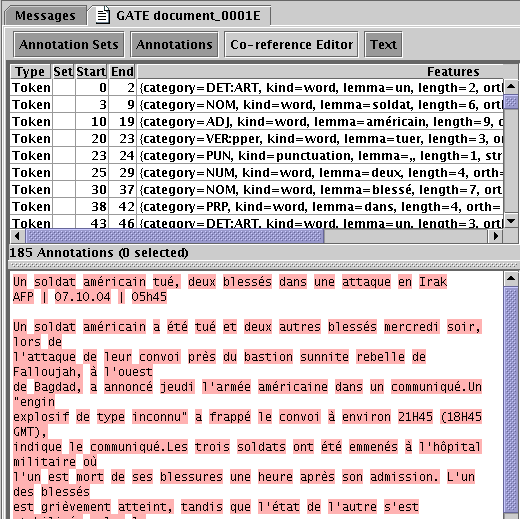
The tagsets for other languages can be found on the TreeTagger web site. Figure 23.1 shows a screenshot of a French document processed with the TreeTagger.
Potential Lemma Problems Sometimes the TreeTagger is either completely unable to determine the correct lemma, or may return multiple lemma for a token (separated by a |). In these cases any further processing that relies on the lemma feature (for example, the flexible gazetteer) may not function correctly. Both problems can be alleviated somewhat by using the resources/TreeTagger/fix-treetagger-lemma.jape JAPE grammar. This can be used either as a standalone grammar or as the post-process initialization feature of the Tagger_Framework PR.
23.3.2 GENIA and Double Quotes [#]
Documents that contain double quote characters can cause problems for the GENIA tagger. The issue arises because the in-built GENIA tokenizer converts double quotes to single quotes in the output which then do not match the document content, causing the tagger to fail. There are two possible solutions to this problem.
Firstly you can perform tokenization in GATE and disable the in-built GENIA tokenizer. Such a pipeline is provided as an example in the GENIA resources direcotry; geniatagger-en-no_tokenization.gapp. However, this may result in other problems for your subsequent code. If so, you may want to try the second solution.
The second solution is to use the GENIA tokenization via the other provided example pipeline: geniatagger-en-tokenization.gapp. If your documents do not contain double quotes then this gapp example should work as is. Otherwise, you must modify the GENIA tagger in order not to convert double quotes to single quotes. Fortunately this is fairly straightforward. In the resources directory you will find a modified copy of tokenize.cpp from v3.0.1 of the GENNIA tagger. Simply use this file to replace the copy in the normal GENIA distribution and recompile. For Windows users, a pre-compiled binary is also provided – simply replace your existing binary with this modified copy.
23.4 Chemistry Tagger [#]
This GATE module is designed to tag a number of chemistry items in running text. Currently the tagger tags compound formulas (e.g. SO2, H2O, H2SO4 ...) ions (e.g. Fe3+, Cl-) and element names and symbols (e.g. Sodium and Na). Limited support for compound names is also provided (e.g. sulphur dioxide) but only when followed by a compound formula (in parenthesis or commas).
23.4.1 Using the Tagger
The Tagger requires the Creole plugin ‘Tagger_Chemistry’ to be loaded. It requires the following PRs to have been run first: tokeniser and sentence splitter (the annotation set containing the Tokens and Sentences can be set using the annotationSetName runtime parameter). There are four init parameters giving the locations of the two gazetteer list definitions, the element mapping file and the JAPE grammar used by the tagger (in previous versions of the tagger these files were fixed and loaded from inside the ChemTagger.jar file). Unless you know what you are doing you should accept the default values.
The annotations added to documents are ‘ChemicalCompound’, ‘ChemicalIon’ and ‘ChemicalElement’ (currently they are always placed in the default annotation set). By default ‘ChemicalElement’ annotations are removed if they make up part of a larger compound or ion annotation. This behaviour can be changed by setting the removeElements parameter to false so that all recognised chemical elements are annotated.
23.5 TextRazor Annotation Service [#]
TextRazor (http://www.textrazor.com) is an online service offering entity and relation annotation, keyphrase extraction, and other similar services via an HTTP API. The Tagger_TextRazor plugin provides a PR to access the TextRazor entity annotation API and store the results as GATE annotations.
The TextRazor Service PR is a simple wrapper around the TextRazor API which sends the text content of a GATE document to TextRazor and creates one annotation for each “entity” that the API returns. The PR invokes the “words” and “entities” extractors of the TextRazor API. The PR has one initialization parameter:
-
apiKey
-
your TextRazor API key – to obtain one you must sign up for an account at http://www.textrazor.com.
and one (optional) runtime parameter:
-
outputASName
-
the annotation set in which the output annotations should be created. If unset, the default annotation set is used.
The PR creates annotations of type TREntity with features
-
type
-
the entity type(s), as class names in the DBpedia ontology. The value of this feature is a List<String>.
-
freebaseTypes
-
FreeBase types for the entity. The value of this feature is a List<String>.
-
confidence
-
confidence score (java.lang.Double).
-
ent_id
-
canonical “entity ID” – typically the title of the Wikipedia page corresponding to the DBpedia instance.
-
link
-
URL of the entity’s Wikipedia page.
Since the key features are lists rather than single values they may be awkward to process in downstream components, so a JAPE grammar is provided in the plugin (resources/jape/TextRazor-to-ANNIE.jape) which can be run after the TextRazor PR to transform key types of TREntity into the corresponding ANNIE annotation types Person, Location and Organization.
23.6 Annotating Numbers [#]
The Tagger_Numbers creole repository contains a number of processing resources which are designed to annotate numbers appearing within documents. As well as annotating a given span as being a number the PRs also determine the exact numeric value of the number and add this as a feature of the annotation. This makes the annotations created by these PRs ideal for building more complex annotations such as measurements or monetary units.
All the PRs in this plugin produce Number annotations with the following standard features
-
type: this describes the types of tokens that make up the number, e.g. roman, words, numbers
-
value: this is the actual value (stored as a Double) of the number that has been annotated
Each PR might also create other features which are described, along with the PR, in the following sections.
23.6.1 Numbers in Words and Numbers [#]
| String | Value |
| 3^2 | 9 |
| 101 | 101 |
| 3,000 | 3000 |
| 3.3e3 | 3300 |
| 1/4 | 0.25 |
| 9^1/2 | 3 |
| 4x10^3 | 4000 |
| 5.5*4^5 | 5632 |
| thirty one | 31 |
| three hundred | 300 |
| four thousand one hundred and two | 4102 |
| 3 million | 3000000 |
| fünfundzwanzig | 25 |
| 4 score | 80 |
The “Numbers Tagger” annotates numbers made up from numbers or numeric words. If that wasn’t really clear enough then Table 23.1 shows numerous ways of representing numbers that can all be annotated by this tagger (depending upon the configuration files used).
To create an instance of the PR you will need to configure the following initialization time parameters (sensible defaults are provided):
-
configURL: the URL of the configuration file you wish to use (see below for details), defaults to resources/languages/all.xml which currently provides support for English, French, German, Spanish and a variety of number related Unicode symbols. If you want a single language the you can specify the appropriately named file, i.e. resources/languages/english.xml.
-
encoding: the encoding of the configuration file, defaults to UTF-8
-
postProcessURL: the URL of the JAPE grammar used for post-processing – don’t change this unless you know what you are doing!
<config>
  <description>Basic Example</description>
  <imports>
    <url encoding="UTF-8">symbols.xml</url>
  </imports>
  <words>
    <word value="0">zero</word>
    <word value="1">one</word>
    <word value="2">two</word>
    <word value="3">three</word>
    <word value="4">four</word>
    <word value="5">five</word>
    <word value="6">six</word>
    <word value="7">seven</word>
    <word value="8">eight</word>
    <word value="9">nine</word>
    <word value="10">ten</word>
  </words>
  <multipliers>
    <word value="2">hundred</word>
    <word value="2">hundreds</word>
    <word value="3">thousand</word>
    <word value="3">thousands</word>
    <word value
  </multipliers>
  <conjunctions>
    <word whole="true">and</word>
  </conjunctions>
  <decimalSymbol>.</decimalSymbol>
  <digitGroupingSymbol>,</digitGroupingSymbol>
</config>
The configuration file is an XML document that specifies the words that can be used as numbers or multipliers (such as hundred, thousand, ...) and conjunctions that can then be used to combine sequences of numbers together. An example configuration file can be seen in Figure 23.2. This configuration file specifies a handful of words and multipliers and a single conjunction. It also imports another configuration file (in the same format) defining Unicode symbols.
The words are self-explanatory but the multipliers and conjunctions need further clarification.
There are three possible types of multiplier:
-
e: This is the default multiplier type (i.e. is used if the type is missing) and signifies base 10 exponential notation. For example, if the specified value is 2 then this is expanded to ×102, hence converting the text “3 hundred” into 3 × 10² or 300.
-
/: This type allows you to define fractions. For example you would define a half using the value 2 (i.e. you divide by 2). This allows text such as “three halves” to be normalized to 1.5 (i.e. 3∕2). Note that you can also use this type of multiplier to specify multiples greater than one. For example, the text “four score” should be normalized to 80 as a score represents 20 years. To specifiy such a multiplier we use the fraction type with a value of 0.05. This leads to normalized value being calculated as 4∕0.05 which is 80. To determine the value use the simple formula (100∕multipe)∕100
-
 : Multipliers of this type allow you to specify powers. For example, you could define
“squared” with a value of 2 to allow the text “three squared” to be normalized to the
number 9.
: Multipliers of this type allow you to specify powers. For example, you could define
“squared” with a value of 2 to allow the text “three squared” to be normalized to the
number 9.
In English conjunctions are whole words, that is they require white space on either side of them, e.g. three hundred and one. In other languages, however, numbers can be joined into a single word using a conjunction. For example, in German the conjunction ‘und’ can appear in a number without white space, e.g. twenty one is written as einundzwanzig. If the conjunction is a whole word, as in English, then the whole attribute should be set to true, but for conjunctions like ‘und’ the attribute should be set to false.
In order to support different number formats the symbols used to group numbers and to represent the decimal point can also be configured. These are optional elements in the XML configuration file which if not supplied default to a comma for the digit group symbol and a full stop for the decimal point. Whilst these are appropriate for many languages if you wanted, for example, to parse documents written in Bulgarian you would want to specify that the decimal symbol was a command and the grouping symbol was a space in order to recognise numbers such as 1 000 000,303.
Once created an instance of the PR can then be configured using the following runtime parameters:
-
allowWithinWords: digits can often occur within words (for example part numbers, chemical equations etc.) where they should not be interpreted as numbers. If this parameter is set to true then these instances will also be annotated as numbers (useful for annotating money and measurements where spaces are often omitted), however, the parameter defaults to false.
-
annotationSetName: the annotation set to use as both input and output for this PR (due to the way this PR works the two sets have to be the same)
-
failOnMissingInputAnnotations: if the input annotations (Tokens and Sentences) are missing should this PR fail or just not do anything, defaults to true to allow obvious mistakes in pipeline configuration to be captured at an early stage.
-
useHintsFromOriginalMarkups: often the original markups will provide hints that may be useful for correctly interpreting numbers within documents (i.e. numeric powers may be in <sup></sup> tags), if this parameter is set to true then these hints will be used to help parse the numbers, defaults to true.
There are no extra annotation features which are specific to this numbers PR. The type feature can take one of three values based upon the text that is annotated; words, numbers, wordsAndNumbers.
23.6.2 Roman Numerals [#]
The “Roman Numerals Tagger” annotates Roman numerals appearing in the document. The tagger is configured using the following runtime parameters:
-
allowLowerCase: traditionally Roman numerals must be all in uppercase. Setting this parameter to false, however, allows Roman numerals written in lowercase to also be annotated. This parameter defaults to false.
-
maxTailLength: Roman numerals are often used in labelling sections, figures, tables etc. and in such cases can be followed by additional information. For example, Table IVa, Appendix IIIb. These characters are referred to as the tail of the number and this parameter constrains the number of characters that can appear. The default value is 0 in which case strings such as ’IVa’ would not be annotated in any way.
-
outputASName: the name of the annotation set in which the Number annotations should be created.
As well as the normal Number annotation features (the type feature will always take the value ‘roman’) Roman numeral annotations also include the following features:
-
tail: contains the tail, if any, that appears after the Roman numeral.
23.7 Annotating Measurements [#]
For the GATE Cloud version of the measurement annotator, see:
https://cloud.gate.ac.uk/shopfront/displayItem/measurement-expression-annotator
Measurements mentioned in text documents can be difficult to accurately deal with. As well as the numerous ways in which numeric values can be written each type of measurement (distance, area, time etc.) can be written using a variety of different units. For example, lengths can be measured in metres, centimetres, inches, yards, miles, furlongs and chains, to mention just a few. Whilst measurements may all have different units and values they can, in theory be compared to one another. Extracting, normalizing and comparing measurements can be a useful IE process in many different domains. The Measurement Tagger (which can be found in the Tagger_Measurements plugin) attempts to provide such annotations for use within IE applications.
The Measurements Tagger uses a parser based upon a modified version of the Java port of the GNU Units package. This allows us to not only recognise and annotation spans of text as being a measurement but also to normalize the units to allow for easy comparison of different measurement values.
This PR actually produces two different annotations; Measurement and Ratio.
Measurement annotations represent measurements that involve a unit, e.g. 3mph, three pints, 4 m3. Single measurements (i.e. those not referring to a range or interval) are referred to as scalar measurements and have the following features:
-
type: for scalar measurements is always scalar
-
unit: the unit as recognised from the text. Note that this won’t necessarily be the annotated text. For example, an annotation spanning the text “three miles” would have a unit feature of “mile”.
-
value: a Double holding the value of the measurement (this usually comes directly from the value feature of a Number annotation).
-
dimension: the measurements dimension, e.g. speed, volume, area, length, time etc.
-
normalizedUnit: to enable measurements of the same dimension but specified in different units to be compared the PR reduces all units to their base form. A base form usually consists of a combination of SI units. For example, centimetre, mm, and kilometre are all normalized to m (for metre).
-
normalizedValue: a Double instance holding the normalized value, such that the combination of the normalized value and normalized unit represent the same measurement as the original value and unit.
-
normalized: a String representing the normalized measurement (usually a simple space separated concatenation of the normalized value and unit).
Annotations which represent an interval or range have a slightly different set of features. The type feature is set to interval, there is no normalized or unit feature and the value features (included the normalized version) are replaced by the following features, the values of which are simply copied from the Measurement annotations which mark the boundaries of the interval.
-
normalizedMinValue: a Double representing the minimum normalized number that forms part of the interval.
-
normalizedMaxValue: a Double representing the minimum normalized number that forms part of the interval.
Interval annotations do not replace scalar measurements and so multiple Measurement annotations may well overlap. They can of course be distinguished by the type feature.
As well as Measurement annotations the tagger also adds Ratio annotations to documents. Ratio annotations cover measurements that do not have a unit. Percentages are the most common ratios to be found in documents, but also amounts such as “300 parts per million” are annotated.
A Ratio annotation has the following features:
-
value: a Double holding the actual value of the ratio. For example, 20% will have a value of 0.2.
-
numerator: the numerator of the ratio. For example, 20% will have a numerator of 20.
-
denominator: the denominator of the ratio. For example, 20% will have a denominator of 100.
An instance of the measurements tagger is created using the following initialization parameters:
-
commonURL: this file defines units that are also common words and so should not be annotated as a measurement unless they form a compound unit involving two or more unit symbols. For example, C is the accepted abbreviation for coulomb but often appears in documents as part of a reference to a table or figure, i.e. Figure 3C, which should not be annotated as a measurement. The default file was hand tuned over a large patent corpus but may need to be edited when used with different domains.
-
encoding: the encoding to use when reading both of the configuration files, defaults to UTF-8.
-
japeURL: the URL of the JAPE grammar that drives the measurement parser. Unless you really know what you are doing, the value of this parameter should not be changed.
-
locale: the locale to use when parsing the units definition file, defaults to en_GB.
-
unitsURL: the URL of the main unit definition file to use. This should be in the same format as accepted by the GNU Units package.
The PR does not attempt to recognise or annotate numbers, instead it relies on Number annotations being present in the document. Whilst these annotations could be generated by any resource executed prior to the measurements tagger, we recommend using the Numbers Tagger described in Section 23.6. If you choose to produce Number annotations in some other way note that they must have a value feature containing a Double representing the value of the number. An example GATE application, showing how to configure and use the two PRs together, is provided with the measurements plugin.
Once created an instance of the tagger can be configured using the following runtime parameters:
-
consumeNumberAnnotations: if true then Number annotations used to find measurements will be consumed and removed from the document, defaults to true.
-
failOnMissingInputAnnotations: if the input annotations (Tokens) are missing should this PR fail or just not do anything, defaults to true to allow obvious mistakes in pipeline configuration to be captured at an early stage.
-
ignoredAnnotations: a list of annotation types in which a measurement can never occur, defaults to a set containing Date and Money.
-
inputASName: the annotation set used as input to this PR.
-
outputASName: the annotation set to which new annotations will be added.
The ability to prevent the tagger from annotating measurements which occur within other annotations is a very useful feature. The runtime parameters, however, only allow you to specify the names of annotations and not to restrict on feature values or any other information you may know about the documents being processed. Internally ignoring sections of a document is controlled by adding CannotBeAMeasurement annotations that span the text to be ignored. If you need greater control over the process than the ignoredAnnotations parameter allows then you can create CannotBeAMeasurement annotations prior to running the measurement tagger, for example a JAPE grammar placed before the tagger in the pipeline. Note that these annotations will be deleted by the measurements tagger once processing has completed.
23.8 Annotating and Normalizing Dates [#]
Many information extraction tasks benefit from or require the extraction of accurate date information. While ANNIE (Chapter 6) does produce Date annotations no attempt is made to normalize these dates, i.e. to firmly fix all dates, even partial or relative ones, to a timeline using a common date representation. The PR in the Tagger_DateNormalizer plugin attempts to fill this gap by normalizing dates against the date of the document (see below for details on how this is determined) in order to tie each Date annotation to a specific date. This includes normalizing dates such as April 1st, today, yesterday, and next Tuesday, as well as converting fully specified dates (ones in which the day, month and year are specified) into a common format.
Different cultures/countries have different conventions for writing dates, as well as different languages using different words for the days of the week and the months of the year. The parser underlying this PR makes use of the locale-specific information when parsing documents. When initializing an instance of the Date Normalizer you can specify the locale to use using ISO language and country codes along with Java specific variants (for details of these codes see the Java Locale documentation). So for example, to specify British English (which means the day usually comes before the month in a date) use en_GB, or for American English (where the month usually appears before the day in a date) specify en_US. If you need to override the locale on a document basis then you can do this by setting a document feature called locale to a string encoded as above. If neither the initialization parameter or document feature are present or do not represent a valid locale then the default locale of the JVM running GATE will be used.
Once initialized and added to a pipeline the Date Normalizer has the following runtime parameters that can be used to control it’s behaviour.
-
annotationName: the annotation type created by this PR, defaults to Date.
-
dateFormat: the format that dates should be normalized to. The format of this parameter is the same as that use by the Java SimpleDateFormat whose documentation describes the full range of possible formats (note you must use MM for month and not mm). This defaults to dd/MM/yyyy. Note that this parameter is only required if the numericOuput parameter is set to false.
-
failOnMissingInputAnnotations: if the input annotations (Tokens) are missing should this PR fail or just not do anything, defaults to true to allow obvious mistakes in pipeline configuration to be captured at an early stage.
-
inputASName: the annotation set used as input to this PR.
-
normalizedDocumentFeature: if set then the normalized version of the document date will be stored in a document feature with this name. This parameter defaults to normalized-date although it can be left blank to suppress storage of the document date.
-
numericOutput: if true then instead of formatting the normalized dates as String features of the Date annotations they are instead converted into a numeric representation. Specifically the first converted to the form yyyyMMdd and then cast to a Double. This is useful as dates can then be sorted numerical (which is fast) into order. If false then the formatting string in the dateFormat parameter is used instead to create a string representation. This defaults to false.
-
outputASName: the annotation set to which new annotations will be added.
-
sourceOfDocumentDate: this parameter is a list of the names of annotations, annotation features (encoded as Annotation.feature), and document features to inspect when trying to determine the date of the document. The PR works through the list getting the text of feature or under the annotation (if no feature is specified) and then parsing this to find a fully specified date, i.e. one where the day, month and year are all present. Once a date is found processing of the list stops and the date is used as the date of the document. If you specify an annotation that can occur multiple times in a document then they are sorted based on a numeric priority feature (which defaults to 0) or their order within the document. The idea here is that there are multiple ways in which to determine the date of a document but most are domain specific and this allows previous PRs in an application to determine the document date. This defaults to an empty list which is taken to assume that the document was written on the day it is being processed. The same assumption applies if no fully-specified date can be found once the whole list has been processed. Note that a common mistake is to think you can use a date annotated by this PR as the document date. The document date is determined before the document is processed, so any annotation you wish to use to represent the document date must exist before this PR executes.
It is important to note that rather this plugin creates new Date annotations and so if you run it in the same pipeline as the ANNIE NE Transducer you will likely end up with overlapping Date annotations. Depending on your needs it may be that you need a JAPE grammar to delete ANNIE Date annotations before running this PR. In practice we have found that the Date annotations added by ANNIE can be a good source of document dates and so a JAPE grammar that uses ANNIE Dates to add new DocumentDate annotations and to delete other Date annotations can be a useful step before running this PR.
The annotations created by this PR have the following features:
-
normalize: the normalized date in the format specified through the relevant runtime parameters of the PR.
-
inferred: an integer which specifies which specifes which parts of the date had to be inferred. The value is actually a bit mask created from the following flagd: day = 1, month = 2, and year = 4. You can find which (if any) flags are set by using the code (inferred & FLAG) == FLAG, i.e. to see if the day of the month had to be inferred you would do (inferred & 1) == 1.
-
complete: if no part of the date had to be inferred (i.e. inferred = 0) then this will be true, false otherwise.
-
relative: can take the values past, present or future to show how this specific date relates to the document date.
23.9 Snowball Based Stemmers [#]
The stemmer plugin, ‘Stemmer_Snowball’, consists of a set of stemmers PRs for the following 11 European languages: Danish, Dutch, English, Finnish, French, German, Italian, Norwegian, Portuguese, Russian, Spanish and Swedish. These take the form of wrappers for the Snowball stemmers freely available from http://snowball.tartarus.org. Each Token is annotated with a new feature ‘stem’, with the stem for that word as its value. The stemmers should be run as other PRs, on a document that has been tokenised.
There are three runtime parameters which should be set prior to executing the stemmer on a document.
-
annotationType: This is the type of annotations that represent tokens in the document. Default value is set to ‘Token’.
-
annotationFeature: This is the name of a feature that contains tokens’ strings. The stemmer uses value of this feature as a string to be stemmed. Default value is set to ‘string’.
-
annotationSetName: This is where the stemmer expects the annotations of type as specified in the annotationType parameter to be.
23.9.1 Algorithms
The stemmers are based on the Porter stemmer for English [Porter 80], with rules implemented in Snowball e.g.
define Step_1a as
( [substring] among (
 ’sses’ (<-’ss’)
’ies’ (<-’i’)
’ss’ () ’s’  (delete)
 )
23.10 GATE Morphological Analyzer [#]
The Morphological Analyser PR can be found in the Tools plugin. It takes as input a tokenized GATE document. Considering one token and its part of speech tag, one at a time, it identifies its lemma and an affix. These values are than added as features on the Token annotation. Morpher is based on certain regular expression rules. These rules were originally implemented by Kevin Humphreys in GATE1 in a programming language called Flex. Morpher has a capability to interpret these rules with an extension of allowing users to add new rules or modify the existing ones based on their requirements. In order to allow these operations with as little effort as possible, we changed the way these rules are written. More information on how to write these rules is explained later in Section 23.10.1.
Two types of parameters, Init-time and run-time, are required to instantiate and execute the PR.
-
rulesFile (Init-time) The rule file has several regular expression patterns. Each pattern has two parts, L.H.S. and R.H.S. L.H.S. defines the regular expression and R.H.S. the function name to be called when the pattern matches with the word under consideration. Please see 23.10.1 for more information on rule file.
-
caseSensitive (init-time) By default, all tokens under consideration are converted into lowercase to identify their lemma and affix. If the user selects caseSensitive to be true, words are no longer converted into lowercase.
-
document (run-time) Here the document must be an instance of a GATE document.
-
affixFeatureName (run-time) Name of the feature that should hold the affix value.
-
rootFeatureName (run-time) Name of the feature that should hold the root value.
-
annotationSetName (run-time) Name of the annotationSet that contains Tokens.
-
considerPOSTag (run-time) Each rule in the rule file has a separate tag, which specifies which rule to consider with what part-of-speech tag. If this option is set to false, all rules are considered and matched with all words. This option is very useful. For example if the word under consideration is "singing". "singing" can be used as a noun as well as a verb. In the case where it is identified as a verb, the lemma of the same would be "sing" and the affix "ing", but otherwise there would not be any affix.
-
failOnMissingInputAnnotations (run-time) If set to true (the default) the PR will terminate with an Exception if none of the required input Annotations are found in a document. If set to false the PR will not terminate and instead log a single warning message per session and a debug message per document that has no input annotations.
23.10.1 Rule File [#]
GATE provides a default rule file, called default.rul, which is available under the gate/plugins/Tools/morph/resources directory. The rule file has two sections.
-
Variables
-
Rules
Variables
The user can define various types of variables under the section defineVars. These variables can be used as part of the regular expressions in rules. There are three types of variables:
-
Range With this type of variable, the user can specify the range of characters. e.g. A ==> [-a-z0-9]
-
Set With this type of variable, user can also specify a set of characters, where one character at a time from this set is used as a value for the given variable. When this variable is used in any regular expression, all values are tried one by one to generate the string which is compared with the contents of the document. e.g. A ==> [abcdqurs09123]
-
Strings Where in the two types explained above, variables can hold only one character from the given set or range at a time, this allows specifying strings as possibilities for the variable. e.g. A ==> ‘bb’ OR ‘cc’ OR ‘dd’
Rules
All rules are declared under the section defineRules. Every rule has two parts, LHS and RHS. The LHS specifies the regular expression and the RHS the function to be called when the LHS matches with the given word. ‘==>’ is used as delimiter between the LHS and RHS.
The LHS has the following syntax:
< ” ∗ ”|”verb”|”noun” >< regularexpression >.
User can specify which rule to be considered when the word is identified as ‘verb’ or ‘noun’. ‘*’ indicates that the rule should be considered for all part-of-speech tags. If the part-of-speech should be used to decide if the rule should be considered or not can be enabled or disabled by setting the value of considerPOSTags option. Combination of any string along with any of the variables declared under the defineVars section and also the Kleene operators, ‘+’ and ‘*’, can be used to generate the regular expressions. Below we give few examples of L.H.S. expressions.
-
<verb>"bias"
-
<verb>"canvas"{ESEDING} "ESEDING" is a variable defined under the defineVars section. Note: variables are enclosed with "{" and "}".
-
<noun>({A}*"metre") "A" is a variable followed by the Kleene operator "*", which means "A" can occur zero or more times.
-
<noun>({A}+"itis") "A" is a variable followed by the Kleene operator "+", which means "A" can occur one or more times.
-
< ∗ >"aches" "< ∗ >" indicates that the rule should be considered for all part-of-speech tags.
On the RHS of the rule, the user has to specify one of the functions from those listed below. These rules are hard-coded in the Morph PR in GATE and are invoked if the regular expression on the LHS matches with any particular word.
-
stem(n, string, affix) Here,
-
n = number of characters to be truncated from the end of the string.
-
string = the string that should be concatenated after the word to produce the root.
-
affix = affix of the word
-
-
irreg_stem(root, affix) Here,
-
root = root of the word
-
affix = affix of the word
-
null_stem() This means words are themselves the base forms and should not be analyzed.
-
-
semi_reg_stem(n,string) semir_reg_stem function is used with the regular expressions that end with any of the {EDING} or {ESEDING} variables defined under the variable section. If the regular expression matches with the given word, this function is invoked, which returns the value of variable (i.e. {EDING} or {ESEDING}) as an affix. To find a lemma of the word, it removes the n characters from the back of the word and adds the string at the end of the word.
23.11 Flexible Exporter [#]
The Flexible Exporter enables the user to save a document (or corpus) in its original format with added annotations. The user can select the name of the annotation set from which these annotations are to be found, which annotations from this set are to be included, whether features are to be included, and various renaming options such as renaming the annotations and the file.
At load time, the following parameters can be set for the flexible exporter:
-
includeFeatures - if set to true, features are included with the annotations exported; if false (the default status), they are not.
-
useSuffixForDumpFiles - if set to true (the default status), the output files have the suffix defined in suffixForDumpFiles; if false, no suffix is defined, and the output file simply overwrites the existing file (but see the outputFileUrl runtime parameter for an alternative).
-
suffixForDumpFiles - this defines the suffix if useSuffixForDumpFiles is set to true. By default the suffix is .gate.
-
useStandOffXML - if true then the format will be the GATE XML format that separates nodes and annotations inside the file which allows overlapping annotations to be saved.
The following runtime parameters can also be set (after the file has been selected for the application):
-
annotationSetName - this enables the user to specify the name of the annotation set which contains the annotations to be exported. If no annotation set is defined, it will use the Default annotation set.
-
annotationTypes - this contains a list of the annotations to be exported. By default it is set to Person, Location and Date.
-
dumpTypes - this contains a list of names for the exported annotations. If the annotation name is to remain the same, this list should be identical to the list in annotationTypes. The list of annotation names must be in the same order as the corresponding annotation types in annotationTypes.
-
outputDirectoryUrl - this enables the user to specify the export directory where the file is exported with its original name and an extension (provided as a parameter) appended at the end of filename. Note that you can also save a whole corpus in one go. If not provided, use the temporary directory.
23.12 Configurable Exporter [#]
The Configurable Exporter allows the user to export arbitrary annotation texts and feature values according to a format specified in a configuration file. It is written with machine learning in mind, where features might be required in a comma separated format or similar, though it could be equally well applied to any purpose where data are required in a spreadsheet format or a simple format for further processing. An example of the kind of output that can be obtained using the PR is given below, although significant variation on the theme is possible, showing typical instance IDs, classes and attributes:
10000004, A, "Some text .."
10000005, A, "Some more text .."
10000006, B, "Further text .."
10000007, B, "Additional text .."
10000008, B, "Yet more text .."
Central to the PR is the concept of an instance; each line of output will relate to an instance, which might be a document for example, or an annotation type within a GATE document such as a sentence, tweet, or indeed any other annotation type. Instance is specified as a runtime parameter (see below). Whatever you want one per line of, that is your instance.
The PR has one required initialisation parameter, which is the location of the configuration file. If you edit your configuration file, you must reinitialise the PR. The configuration file comprises a single line specifying the output format. Annotation and feature names are surrounded by triple angle brackets, indicating that they are to be replaced with the annotation/feature. The rest of the text in the configuration file is passed unchanged into the output file. Where an annotation type is specified without a feature, the text spanned by that annotation will be used. Dot notation is used to indicate that a feature value is to be used. The example output given above might be obtained by a configuration file something like this, in which index, class and content are annotation types:
{index}, {class}, "{content}"
Alternatively, in this example, class is a feature on the instance annotation:
{index}, {instance.class}, "{content}"
Runtime parameters are as follows:
-
inputASName - this is the annotation set which will be used to create the export file. All annotations must be in this set, both instance annotations and export annotations. If left blank, the default annotation set will be used.
-
instanceName - this is the annotation type to be used as instance. If left blank, the document will be used as instance.
-
outputURL - this is the location of the output file to which the data will be exported. If left blank, data will be output to the messages tab/standard out.
Note that where more than one annotation of the specified type occurs within the span of the instance annotation, the first will be used to create the output. It is not currently supported to output more than one annotation of the same type per instance. If you need to export, for example, all the words in the sentence, then you would have to export the sentence rather than the individual words.
23.13 Annotation Set Transfer [#]
The Annotation Set Transfer allows copying or moving annotations to a new annotation set if they lie between the beginning and the end of an annotation of a particular type (the covering annotation). For example, this can be used when a user only wants to run a processing resource over a specific part of a document, such as the Body of an HTML document. The user specifies the name of the annotation set and the annotation which covers the part of the document they wish to transfer, and the name of the new annotation set. All the other annotations corresponding to the matched text will be transferred to the new annotation set. For example, we might wish to perform named entity recognition on the body of an HTML text, but not on the headers. After tokenising and performing gazetteer lookup on the whole text, we would use the Annotation Set Transfer to transfer those annotations (created by the tokeniser and gazetteer) into a new annotation set, and then run the remaining NE resources, such as the semantic tagger and coreference modules, on them.
The Annotation Set Transfer has no loadtime parameters. It has the following runtime parameters:
-
inputASName - this defines the annotation set from which annotations will be transferred (copied or moved). If nothing is specified, the Default annotation set will be used.
-
outputASName - this defines the annotation set to which the annotations will be transferred. This default value for this parameter is ‘Filtered’. If it is left blank the Default annotation set will be used.
-
tagASName - this defines the annotation set which contains the annotation covering the relevant part of the document to be transferred. This default value for this parameter is ‘Original markups’. If it is left blank the Default annotation set will be used.
-
textTagName - this defines the type of the annotation covering the annotations to be transferred. The default value for this parameter is ‘BODY’. If this is left blank, then all annotations from the inputASName annotation set will be transferred. If more than one covering annotation is found, the annotation covered by each of them will be transferred. If no covering annotation is found, the processing depends on the copyAllUnlessFound parameter (see below).
-
copyAnnotations - this specifies whether the annotations should be moved or copied. The default value false will move annotations, removing them from the inputASName annotation set. If set to true the annotations will be copied.
-
transferAllUnlessFound - this specifies what should happen if no covering annotation is found. The default value is true. In this case, all annotations will be copied or moved (depending on the setting of parameter copyAnnotations) if no covering annotation is found. If set to false, no annotation will be copied or moved.
-
annotationTypes - if annotation type names are specified for this list, only candidate annotations of those types will be transferred or copied. If an entry in this list is specified in the form OldTypeName=NewTypeName, then annotations of type OldTypeName will be selected for copying or transfer and renamed to NewTypeName in the output annotation set.
For example, suppose we wish to perform named entity recognition on only the text covered by the BODY annotation from the Original Markups annotation set in an HTML document. We have to run the gazetteer and tokeniser on the entire document, because since these resources do not depend on any other annotations, we cannot specify an input annotation set for them to use. We therefore transfer these annotations to a new annotation set (Filtered) and then perform the NE recognition over these annotations, by specifying this annotation set as the input annotation set for all the following resources. In this example, we would set the following parameters (assuming that the annotations from the tokenise and gazetteer are initially placed in the Default annotation set).
-
inputASName: Default
-
outputASName: Filtered
-
tagASName: Original markups
-
textTagName: BODY
-
copyAnnotations: true or false (depending on whether we want to keep the Token and Lookup annotations in the Default annotation set)
-
copyAllUnlessFound: true
The AST PR makes a shallow copy of the feature map for each transferred annotation, i.e. it creates a new feature map containing the same keys and values as the original. It does not clone the feature values themselves, so if your annotations have a feature whose value is a collection and you need to make a deep copy of the collection value then you will not be able to use the AST PR to do this. Similarly if you are copying annotations and do in fact want to share the same feature map between the source and target annotations then the AST PR is not appropriate. In these sorts of cases a JAPE grammar or Groovy script would be a better choice.
23.14 Schema Enforcer [#]
One common use of the Annotation Set Transfer (AST) PR (see Section 23.13) is to create a ‘clean’ or final annotation set for a GATE application, i.e. an annotation set containing only those annotations which are required by the application without any temporary or intermediate annotations which may also have been created. Whilst really useful the AST suffers from two problems 1) it can be complex to configure and 2) it offers no support for modifying or removing features of the annotations it copies.
Many GATE applications are developed through a process which starts with experts manually annotating documents in order for the application developer to understand what is required and which can later be used for testing and evaluation. This is usually done using either GATE Teamware or within GATE Developer using the Schema Annotation Editor (Section 3.4.6). Either approach requires that each of the annotation types being created is described by an XML based Annotation Schema. The Schema Enforcer (part of the Schema_Tools plugin) uses these same schemas to create an annotation set, the contents of which, strictly matches the provided schemas.
The Schema Enforcer will copy an annotation if and only if....
-
the type of the annotation matches one of the supplied schemas
-
all required features are present and valid (i.e. meet the requirements for being copied to the ’clean’ annotation)
Each feature of an annotation is copied to the new annotation if and only if....
-
the feature name matches a feature in the schema describing the annotation
-
the value of the feature is of the same type as specified in the schema
-
if the feature is defined, in the schema, as an enumerated type then the value must match one of the permitted values
The Schema Enforcer has no initialization parameters and is configured via the following runtime parameters:
-
inputASName - - this defines the annotation set from which annotations will be copied. If nothing is specified, the default annotation set will be used.
-
outputASName - this defines the annotation set to which the annotations will be transferred. This must be an empty or non-existent annotation set.
-
schemas - a list of schemas that will be enforced when duplicating the input annotation set.
-
useDefaults - if true then the default value for required features (specified using the value attribute in the XML schema) will be used to help complete an otherwise invalid annotation, defaults to false.
Whilst this PR makes the creation of a clean output set easy (given the schemas) it is worth noting that schemas can only define features which have basic types; string, integer, boolean, float, double, short, and byte. This means that you cannot define a feature which has an object as it’s value. For example, this prevents you defining a feature as a list of numbers. If this is an issue then it is trivial to write JAPE to copy extra features not specified in the schemas as the annotations have the same ID in both the input and output annotation sets. An example JAPE file for copying the matches feature created by the Orthomatcher PR (see Section 6.8) is provided.
23.15 Information Retrieval in GATE [#]
GATE comes with a full-featured Information Retrieval (IR) subsystem that allows queries to be performed against GATE corpora. This combination of IE and IR means that documents can be retrieved from the corpora not only based on their textual content but also according to their features or annotations. For example, a search over the Person annotations for ‘Bush’ will return documents with higher relevance, compared to a search in the content for the string ‘bush’. The current implementation is based on the most popular open source full-text search engine - Lucene (available at http://jakarta.apache.org/lucene/) but other implementations may be added in the future.
An Information Retrieval system is most often considered a system that accepts as input a set of documents (corpus) and a query (combination of search terms) and returns as input only those documents from the corpus which are considered as relevant according to the query. Usually, in addition to the documents, a proper relevance measure (score) is returned for each document. There exist many relevance metrics, but usually documents which are considered more relevant, according to the query, are scored higher.
Figure 23.3 shows the results from running a query against an indexed corpus in GATE.
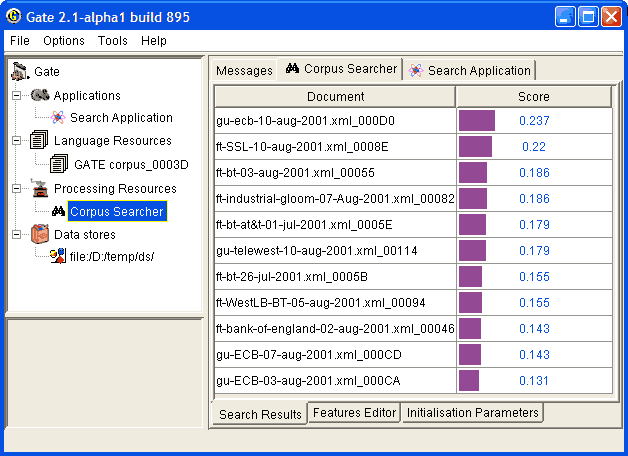
| term1 | term2 | ... | ... | termk | |
| doc1 | w1,1 | w1,2 | ... | ... | w1,k |
| doc2 | w2,1 | w2,1 | ... | ... | w2,k |
| ... | ... | ... | ... | ... | ... |
| ... | ... | ... | ... | ... | ... |
| docn | wn, 1 | wn,2 | ... | ... | wn,k |
Information Retrieval systems usually perform some preprocessing one the input corpus in order to create the document-term matrix for the corpus. A document-term matrix is usually presented as in Table 23.2, where doci is a document from the corpus, termj is a word that is considered as important and representative for the document and wi,j is the weight assigned to the term in the document. There are many ways to define the term weight functions, but most often it depends on the term frequency in the document and in the whole corpus (i.e. the local and the global frequency). Note that the machine learning plugin described in Chapter 19 can produce such document-term matrix (for detailed description of the matrix produced, see Section 19.1).
Note that not all of the words appearing in the document are considered terms. There are many words (called ‘stop-words’) which are ignored, since they are observed too often and are not representative enough. Such words are articles, conjunctions, etc. During the preprocessing phase which identifies such words, usually a form of stemming is performed in order to minimize the number of terms and to improve the retrieval recall. Various forms of the same word (e.g. ‘play’, ‘playing’ and ‘played’) are considered identical and multiple occurrences of the same term (probably ‘play’) will be observed.
It is recommended that the user reads the relevant Information Retrieval literature for a detailed explanation of stop words, stemming and term weighting.
IR systems, in a way similar to IE systems, are evaluated with the help of the precision and recall measures (see Section 10.1 for more details).
23.15.1 Using the IR Functionality in GATE
In order to run queries against a corpus, the latter should be ‘indexed’. The indexing process first processes the documents in order to identify the terms and their weights (stemming is performed too) and then creates the proper structures on the local file system. These file structures contain indexes that will be used by Lucene (the underlying IR engine) for the retrieval.
Once the corpus is indexed, queries may be run against it. Subsequently the index may be removed and then the structures on the local file system are removed too. Once the index is removed, queries cannot be run against the corpus.
Indexing the Corpus
In order to index a corpus, the latter should be stored in a serial datastore. In other words, the IR functionality is unavailable for corpora that are transient or stored in a RDBMS datastores (though support for the latter may be added in the future).
To index the corpus, follow these steps:
-
Select the corpus from the resource tree (top-left pane) and from the context menu (right button click) choose ‘Index Corpus’. A dialogue appears that allows you to specify the index properties.
-
In the index properties dialogue, specify the underlying IR system to be used (only Lucene is supported at present), the directory that will contain the index structures, and the set of properties that will be indexed such as document features, content, etc (the same properties will be indexed for each document in the corpus).
-
Once the corpus in indexed, you may start running queries against it. Note that the directory specified for the index data should exist and be empty. Otherwise an error will occur during the index creation.
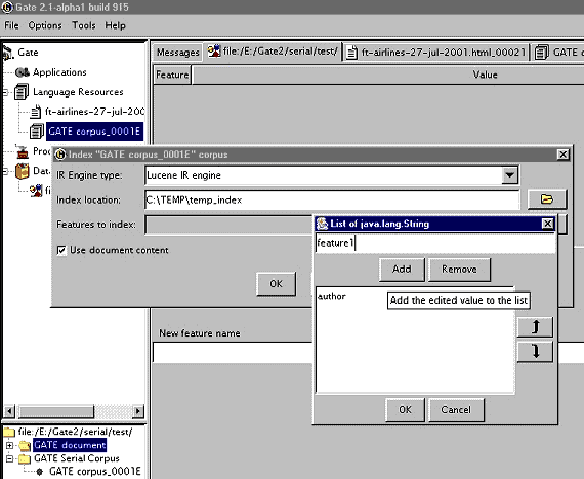
Querying the Corpus
To query the corpus, follow these steps:
-
Create a SearchPR processing resource. All the parameters of SearchPR are runtime so they are set later.
-
Create a “pipeline” application (not a “corpus pipeline”) containing the SearchPR.
-
Set the following SearchPR parameters:
-
The corpus that will be queried.
-
The query that will be executed.
-
The maximum number of documents returned.
A query looks like the following:
{+/-}field1:term1 {+/-}field2:term2 ? {+/-}fieldN:termNwhere field is the name of a index field, such as the one specified at index creation (the document content field is body) and term is a term that should appear in the field.
For example the query:
+body:government +author:CNNwill inspect the document content for the term ‘government’ (together with variations such as ‘governments’ etc.) and the index field named ‘author’ for the term ‘CNN’. The ‘author’ field is specified at index creation time, and is either a document feature or another document property.
-
-
After the SearchPR is initialized, running the application executes the specified query over the specified corpus.
-
Finally, the results are displayed (see fig.1) after a double-click on the SearchPR processing resource.
Removing the Index
An index for a corpus may be removed at any time from the ‘Remove Index’ option of the context menu for the indexed corpus (right button click).
23.15.2 Using the IR API
The IR API within GATE Embedded makes it possible for corpora to be indexed, queried and results returned from any Java application, without using GATE Developer. The following sample indexes a corpus, runs a query against it and then removes the index.
2// open a serial datastore
3SerialDataStore sds =
4Factory.openDataStore("gate.persist.SerialDataStore",
5"/tmp/datastore1");
6sds.open();
7
8//set an AUTHOR feature for the test document
9Document doc0 = Factory.newDocument(new URL("/tmp/documents/doc0.html"));
10doc0.getFeatures().put("author","John Smith");
11
12Corpus corp0 = Factory.newCorpus("TestCorpus");
13corp0.add(doc0);
14
15//store the corpus in the serial datastore
16Corpus serialCorpus = (Corpus) sds.adopt(corp0,null);
17sds.sync(serialCorpus);
18
19//index the corpus − the content and the AUTHOR feature
20
21IndexedCorpus indexedCorpus = (IndexedCorpus) serialCorpus;
22
23DefaultIndexDefinition did = new DefaultIndexDefinition();
24did.setIrEngineClassName(
25 gate.creole.ir.lucene.LuceneIREngine.class.getName());
26did.setIndexLocation("/tmp/index1");
27did.addIndexField(new IndexField("content",
28 new DocumentContentReader(), false));
29did.addIndexField(new IndexField("author", null, false));
30indexedCorpus.setIndexDefinition(did);
31
32indexedCorpus.getIndexManager().createIndex();
33//the corpus is now indexed
34
35//search the corpus
36Search search = new LuceneSearch();
37search.setCorpus(ic);
38
39QueryResultList res = search.search("+content:government +author:John");
40
41//get the results
42Iterator it = res.getQueryResults();
43while (it.hasNext()) {
44QueryResult qr = (QueryResult) it.next();
45System.out.println("DOCUMENT_ID=" + qr.getDocumentID()
46 + ", score=" + qr.getScore());
47}
23.16 WordNet in GATE [#]
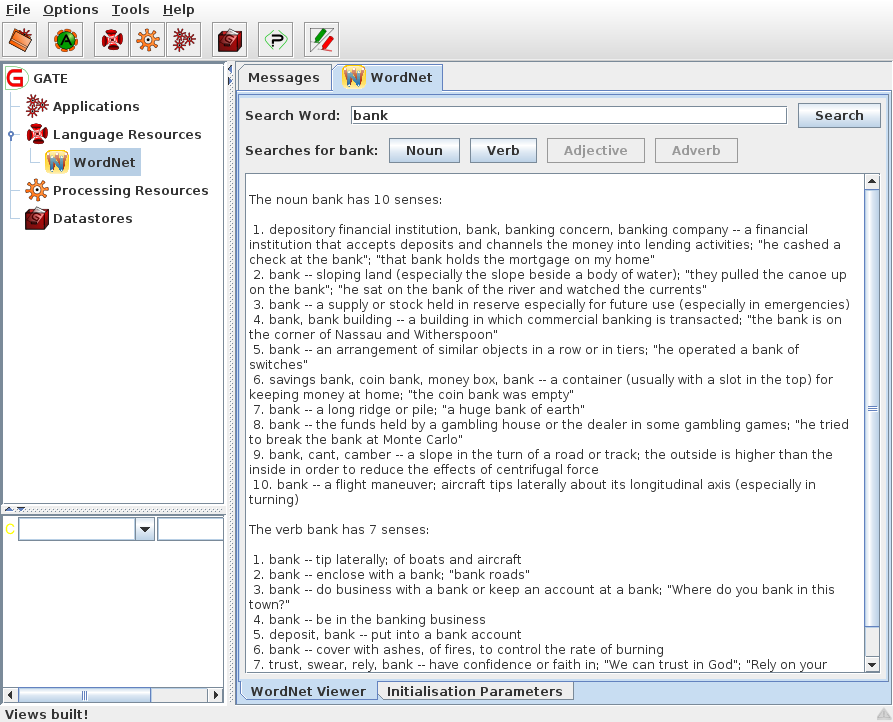
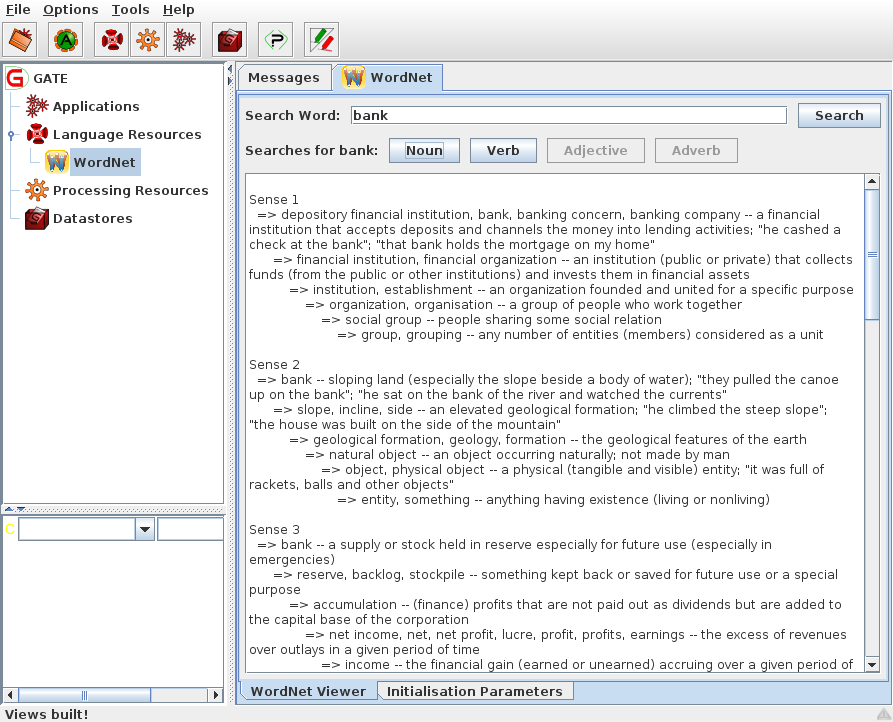
GATE currently supports versions 1.6 and newer of WordNet, so in order to use WordNet in GATE, you must first install a compatible version of WordNet on your computer. WordNet is available at http://wordnet.princeton.edu/. The next step is to configure GATE to work with your local WordNet installation. Since GATE relies on the Java WordNet Library (JWNL) for WordNet access, this step consists of providing one special xml file that is used internally by JWNL. This file describes the location of your local copy of the WordNet index files. An example of this wn-config.xml file is shown below:
<?xml version="1.0" encoding="UTF-8"?>
<jwnl_properties language="en">
  <version publisher="Princeton" number="3.0" language="en"/>
  <dictionary class="net.didion.jwnl.dictionary.FileBackedDictionary">
    <param name="morphological_processor"
       value="net.didion.jwnl.dictionary.morph.DefaultMorphologicalProcessor">
    <param name="operations">
       <param value=
          "net.didion.jwnl.dictionary.morph.LookupExceptionsOperation"/>
       <param value="net.didion.jwnl.dictionary.morph.DetachSuffixesOperation">
          <param name="noun"
             value="|s=|ses=s|xes=x|zes=z|ches=ch|shes=sh|men=man|ies=y|"/>
          <param name="verb"
             value="|s=|ies=y|es=e|es=|ed=e|ed=|ing=e|ing=|"/>
          <param name="adjective"
             value="|er=|est=|er=e|est=e|"/>
          <param name="operations">
             <param
                value="net.didion.jwnl.dictionary.morph.LookupIndexWordOperation"/>
             <param
                value="net.didion.jwnl.dictionary.morph.LookupExceptionsOperation"/>
          </param>
       </param>
       <param value="net.didion.jwnl.dictionary.morph.TokenizerOperation">
          <param name="delimiters">
             <param value=" "/>
             <param value="-"/>
          </param>
          <param name="token_operations">
             <param
                value="net.didion.jwnl.dictionary.morph.LookupIndexWordOperation"/>
             <param
                value="net.didion.jwnl.dictionary.morph.LookupExceptionsOperation"/>
             <param
                value="net.didion.jwnl.dictionary.morph.DetachSuffixesOperation">
                <param name="noun"
                   value="|s=|ses=s|xes=x|zes=z|ches=ch|shes=sh|men=man|ies=y|"/>
                <param name="verb"
                   value="|s=|ies=y|es=e|es=|ed=e|ed=|ing=e|ing=|"/>
                <param name="adjective" value="|er=|est=|er=e|est=e|"/>
                <param name="operations">


                   <param value=
                      "net.didion.jwnl.dictionary.morph.LookupIndexWordOperation"/>
                   <param value=
                      "net.didion.jwnl.dictionary.morph.LookupExceptionsOperation"/>
                </param>
             </param>
          </param>
       </param>
    </param>
  </param>
      <param name="dictionary_element_factory" value=
         "net.didion.jwnl.princeton.data.PrincetonWN17FileDictionaryElementFactory"/>
      <param name="file_manager" value=
         "net.didion.jwnl.dictionary.file_manager.FileManagerImpl">
         <param name="file_type" value=
            "net.didion.jwnl.princeton.file.PrincetonRandomAccessDictionaryFile"/>
         <param name="dictionary_path" value="/home/mark/WordNet-3.0/dict/"/>
      </param>
   </dictionary>
   <resource class="PrincetonResource"/>
</jwnl_properties>
There are three things in this file which you need to configure based upon the version of WordNet you wish to use. Firstly change the number attribute of the version element to match the version of WordNet you are using. Then edit the value of the dictionary_path parameter to point to your local installation of WordNet (this is /usr/share/wordnet/ if you have installed the Ubuntu or Debian wordnet-base package.)
Finally, if you want to use version 1.6 of WordNet then you also need to alter the dictionary_element_factory to use net.didion.jwnl.princeton.data.PrincetonWN16FileDictionaryElementFactory. For full details of the format of the configuration file see the JWNL documentation at http://sourceforge.net/projects/jwordnet.
After configuring GATE to use WordNet, you can start using the built-in WordNet browser or API. In GATE Developer, load the WordNet plugin via the Plugin Management Console. Then load WordNet by selecting it from the set of available language resources. Set the value of the parameter to the path of the xml properties file which describes the WordNet location (wn-config).
Once WordNet is loaded in GATE Developer, the well-known interface of WordNet will appear. You can search Word Net by typing a word in the box next to to the label ‘SearchWord” and then pressing ‘Search’. All the senses of the word will be displayed in the window below. Buttons for the possible parts of speech for this word will also be activated at this point. For instance, for the word ‘play’, the buttons ‘Noun’, ‘Verb’ and ‘Adjective’ are activated. Pressing one of these buttons will activate a menu with hyponyms, hypernyms, meronyms for nouns or verb groups, and cause for verbs, etc. Selecting an item from the menu will display the results in the window below.
To upgrade any existing GATE applications to use this improved WordNet plugin simply replace your existing configuration file with the example above and configure for WordNet 1.6. This will then give results identical to the previous version – unfortunately it was not possible to provide a transparent upgrade procedure.
More information about WordNet can be found at http://wordnet.princeton.edu/
More information about the JWNL library can be found at http://sourceforge.net/projects/jwordnet
An example of using the WordNet API in GATE is available on the GATE examples page at http://gate.ac.uk/wiki/code-repository/index.html.
23.16.1 The WordNet API
GATE Embedded offers a set of classes that can be used to access the WordNet Lexical Database. The implementation of the GATE API for WordNet is based on Java WordNet Library (JWNL). There are just a few basic classes, as shown in Figure 23.7. Details about the properties and methods of the interfaces/classes comprising the API can be obtained from the JavaDoc. Below is a brief overview of the interfaces:
-
WordNet: the main WordNet class. Provides methods for getting the synsets of a lemma, for accessing the unique beginners, etc.
-
Word: offers access to the word’s lemma and senses
-
WordSense: gives access to the synset, the word, POS and lexical relations.
-
Synset: gives access to the word senses (synonyms) in the synset, the semantic relations, POS etc.
-
Verb: gives access to the verb frames (not working properly at present)
-
Adjective: gives access to the adj. position (attributive, predicative, etc.).
-
Relation: abstract relation such as type, symbol, inverse relation, set of POS tags, etc. to which it is applicable.
-
LexicalRelation
-
SemanticRelation
-
VerbFrame
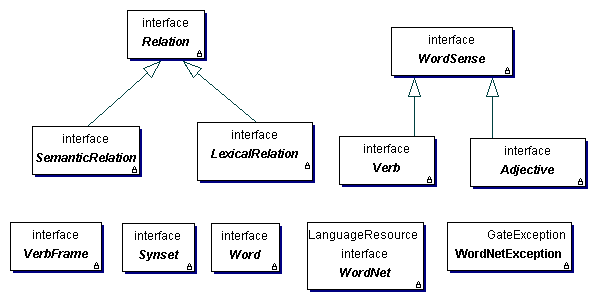
23.17 Kea - Automatic Keyphrase Detection [#]
Kea is a tool for automatic detection of key phrases developed at the University of Waikato in New Zealand. The home page of the project can be found at http://www.nzdl.org/Kea/.
This user guide section only deals with the aspects relating to the integration of Kea in GATE. For the inner workings of Kea, please visit the Kea web site and/or contact its authors.
In order to use Kea in GATE Developer, the ‘Keyphrase_Extraction_Algorithm’ plugin needs to be loaded using the plugins management console. After doing that, two new resource types are available for creation: the ‘KEA Keyphrase Extractor’ (a processing resource) and the ‘KEA Corpus Importer’ (a visual resource associated with the PR).
23.17.1 Using the ‘KEA Keyphrase Extractor’ PR
Kea is based on machine learning and needs to be trained before it can be used to extract keyphrases. In order to do this, a corpus is required where the documents are annotated with keyphrases. Corpora in the Kea format (where the text and keyphrases are in separate files with the same name but different extensions) can be imported into GATE using the ‘KEA Corpus Importer’ tool. The usage of this tool is presented in a subsection below.
Once an annotated corpus is obtained, the ‘KEA Keyphrase Extractor’ PR can be used to build a model:
-
load a ‘KEA Keyphrase Extractor’
-
create a new ‘Corpus Pipeline’ controller.
-
set the corpus for the controller
-
set the ‘trainingMode’ parameter for the PR to ‘true’
-
set the ‘inputAS’ parameter for the PR to ‘Key’ (or wherever the ‘Keyphrase’ annotations are to be found)
-
run the application.
After these steps, the Kea PR contains a trained model. This can be used immediately by switching the ‘trainingMode’ parameter to ‘false’ and running the PR over the documents that need to be annotated with keyphrases. Another possibility is to save the model for later use, by right-clicking on the PR name in the right hand side tree and choosing the ‘Save model’ option.
When a previously built model is available, the training procedure does not need to be repeated, the existing model can be loaded in memory by selecting the ‘Load model’ option in the PR’s context menu.
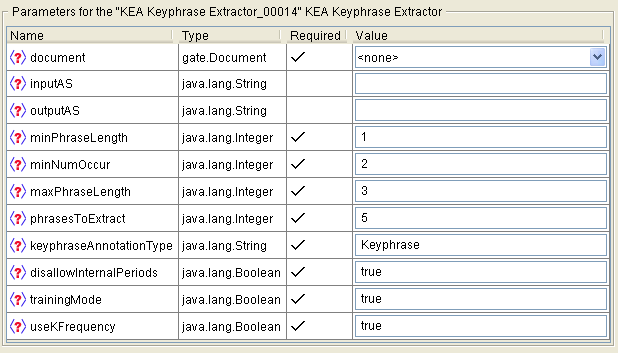
The Kea PR uses several parameters as seen in Figure 23.8:
-
document
-
The document to be processed.
-
inputAS
-
The input annotation set. This parameter is only relevant when the PR is running in training mode and it specifies the annotation set containing the keyphrase annotations.
-
outputAS
-
The output annotation set. This parameter is only relevant when the PR is running in application mode (i.e. when the ‘trainingMode’ parameter is set to false) and it specifies the annotation set where the generated keyphrase annotations will be saved.
-
minPhraseLength
-
the minimum length (in number of words) for a keyphrase.
-
minNumOccur
-
the minimum number of occurrences of a phrase for it to be a keyphrase.
-
maxPhraseLength
-
the maximum length of a keyphrase.
-
phrasesToExtract
-
how many different keyphrases should be generated.
-
keyphraseAnnotationType
-
the type of annotations used for keyphrases.
-
dissallowInternalPeriods
-
should internal periods be disallowed.
-
trainingMode
-
if ‘true’ the PR is running in training mode; otherwise it is running in application mode.
-
useKFrequency
-
should the K-frequency be used.
23.17.2 Using Kea Corpora
The authors of Kea provide on the project web page a few manually annotated corpora that can be used for training Kea. In order to do this from within GATE, these corpora need to be converted to the format used in GATE (i.e. GATE documents with annotations). This is possible using the ‘KEA Corpus Importer’ tool which is available as a visual resource associated with the Kea PR. The importer tool can be made visible by double-clicking on the Kea PR’s name in the resources tree and then selecting the ‘KEA Corpus Importer’ tab, see Figure 23.9.
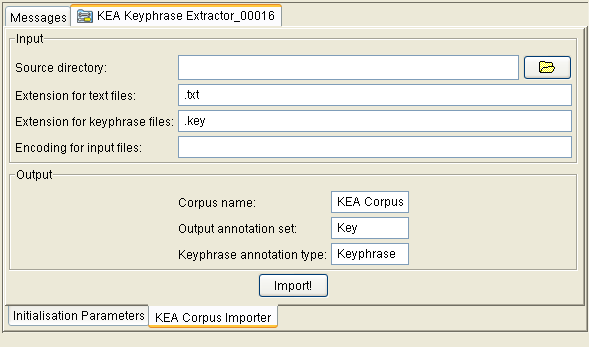
The tool will read files from a given directory, converting the text ones into GATE documents and the ones containing keyphrases into annotations over the documents.
The user needs to specify a few values:
-
Source Directory
-
the directory containing the text and key files. This can be typed in or selected by pressing the folder button next to the text field.
-
Extension for text files
-
the extension used for text fields (by default .txt).
-
Extension for keyphrase files
-
the extension for the files listing keyphrases.
-
Encoding for input files
-
the encoding to be used when reading the files (to work propertly all the .txt and .key files must be in the same encoding).
-
Corpus name
-
the name for the GATE corpus that will be created.
-
Output annotation set
-
the name for the annotation set that will contain the keyphrases read from the input files.
-
Keyphrase annotation type
-
the type for the generated annotations.
Sample training and test sets are available from the KEA Github repository2 for English, French, and Spanish.
23.18 Annotation Merging Plugin [#]
If we have annotations about the same subject on the same document from different annotators, we may need to merge the annotations.
This plugin implements two approaches for annotation merging.
MajorityVoting takes a parameter numMinK and selects the annotation on which at least numMinK annotators agree. If two or more merged annotations have the same span, then the annotation with the most supporters is kept and other annotations with the same span are discarded.
MergingByAnnotatorNum selects one annotation from those annotations with the same span, which the majority of the annotators support. Note that if one annotator did not create the annotation with the particular span, we count it as one non-support of the annotation with the span. If it turns out that the majority of the annotators did not support the annotation with that span, then no annotation with the span would be put into the merged annotations.
The annotation merging methods are available via the Annotation Merging plugin. The plugin can be used as a PR in a pipeline or corpus pipeline. To use the PR, each document in the pipeline or the corpus pipeline should have the annotation sets for merging. The annotation merging PR has no loading parameters but has several run-time parameters, explained further below.
The annotation merging methods are implemented in the GATE API, and are available in GATE Embedded as described in Section 7.18.
-
annSetOutput: the annotation set in the current document for storing the merged annotations. You should not use an existing annotation set, as the contents may be deleted or overwritten.
-
annSetsForMerging: the annotation sets in the document for merging. It is an optional parameter. If it is not assigned with any value, the annotation sets for merging would be all the annotation sets in the document except the default annotation set. If specified, it is a sequence of the names of the annotation sets for merging, separated by ‘;’. For example, the value ‘a-1;a-2;a-3’ represents three annotation set, ‘a-1’, ‘a-2’ and ‘a-3’.
-
annTypeAndFeats: the annotation types in the annotation set for merging. It is an optional parameter. It specifies the annotation types in the annotation sets for merging. For each type specified, it may also specify an annotation feature of the type. The parameter is a sequence of names of annotation types, separated by ‘;’. A single annotation feature can be specified immediately following the annotation type’s name, separated by ‘->’ in the sequence. For example, the value ‘SENT->senRel;OPINION_OPR;OPINION_SRC->type’ specifies three annotation types, ‘SENT’, ‘OPINION_OPR’ and ‘OPINION_SRC’ and specifies the annotation feature ‘senRel’ and ‘type’ for the two types SENT and OPINION_SRC, respectively but does not specify any feature for the type OPINION_OPR. If the annTypeAndFeats parameter is not set, the annotation types for merging are all the types in the annotation sets for merging, and no annotation feature for each type is specified.
-
keepSourceForMergedAnnotations: should source annotations be kept in the annSetsForMerging annotation sets when merged? True by default.
-
mergingMethod: specifies the method used for merging. Possible values are MajorityVoting and MergingByAnnotatorNum, referring to the two merging methods described above, respectively.
-
minimalAnnNum: specifies the minimal number of annotators who agree on one annotation in order to put the annotation into merged set, which is needed by the merging method MergingByAnnotatorNum. If the value of the parameter is smaller than 1, the parameter is taken as 1. If the value is bigger than total number of annotation sets for merging, it is taken to be total number of annotation sets. If no value is assigned, a default value of 1 is used. Note that the parameter does not have any effect on the other merging method MajorityVoting.
23.19 Copying Annotations between Documents [#]
Sometimes a document has two copies, each of which was annotated by different annotators for the same task. We may want to copy the annotations in one copy to the other copy of the document. This could be in order to use less resources, or so that we can process them with some other plugin, such as annotation merging or IAA. The Copy_Annots_Between_Docs plugin does exactly this.
The plugin is available with the GATE distribution. When loading the plugin into GATE, it is represented as a processing resource, Copy Anns to Another Doc PR. You need to put the PR into a Corpus Pipeline to use it. The plugin does not have any initialisation parameters. It has several run-time parameters, which specify the annotations to be copied, the source documents and target documents. In detail, the run-time parameters are:
-
sourceFilesURL specifies a directory in which the source documents are in. The source documents must be GATE xml documents. The plugin copies the annotations from these source documents to target documents.
-
inputASName specifies the name of the annotation set in the source documents. Whole annotations or parts of annotations in the annotation set will be copied.
-
annotationTypes specifies one or more annotation types in the annotation set inputASName which will be copied into target documents. If no value is given, the plugin will copy all annotations in the annotation set.
-
outputASName specifies the name of the annotation set in the target documents, into which the annotations will be copied. If there is no such annotation set in the target documents, the annotation set will be created automatically.
The Corpus parameter of the Corpus Pipeline application containing the plugin specifies a corpus which contains the target documents. Given one (target) document in the corpus, the plugin tries to find a source document in the source directory specified by the parameter sourceFilesURL, according to the similarity of the names of the source and target documents. The similarity of two file names is calculated by comparing the two strings of names from the start to the end of the strings. Two names have greater similarity if they share more characters from the beginning of the strings. For example, suppose two target documents have the names aabcc.xml and abcab.xml and three source files have names abacc.xml, abcbb.xml and aacc.xml, respectively. Then the target document aabcc.xml has the corresponding source document aacc.xml, and abcab.xml has the corresponding source document abcbb.xml.
23.20 LingPipe Plugin [#]
LingPipe is a suite of Java libraries for the linguistic analysis of human language3. We have provided a plugin called ‘LingPipe’ with wrappers for some of the resources available in the LingPipe library. In order to use these resources, please load the ‘LingPipe’ plugin. Currently, we have integrated the following five processing resources.
-
LingPipe Tokenizer PR
-
LingPipe Sentence Splitter PR
-
LingPipe POS Tagger PR
-
LingPipe NER PR
-
LingPipe Language Identifier PR
Please note that most of the resources in the LingPipe library allow learning of new models. However, in this version of the GATE plugin for LingPipe, we have only integrated the application functionality. You will need to learn new models with Lingpipe outside of GATE. We have provided some example models under the ‘resources’ folder which were downloaded from LingPipe’s website. For more information on licensing issues related to the use of these models, please refer to the licensing terms under the LingPipe plugin directory.
Due to licensing conditions LingPipe is still a directory plugin and does not appear in the default list of plugins shown in the plugin manager. To use the plugin you will need to download the latest release from https://github.com/GateNLP/gateplugin-LingPipe/releases and then add it as a directory plugin via the plugin manager.
23.20.1 LingPipe Tokenizer PR [#]
As the name suggests this PR tokenizes document text and identifies the boundaries of tokens. Each token is annotated with an annotation of type ‘Token’. Every annotation has a feature called ‘length’ that gives a length of the word in number of characters. There are no initialization parameters for this PR. The user needs to provide the name of the annotation set where the PR should output Token annotations.
23.20.2 LingPipe Sentence Splitter PR [#]
As the name suggests, this PR splits document text in sentences. It identifies sentence boundaries and annotates each sentence with an annotation of type ‘Sentence’. There are no initialization parameters for this PR. The user needs to provide name of the annotation set where the PR should output Sentence annotations.
23.20.3 LingPipe POS Tagger PR [#]
The LingPipe POS Tagger PR is useful for tagging individual tokens with their respective part of speech tags. Each document must already have been processed with a tokenizer and a sentence splitter (any kinds in GATE, not necessarily the LingPipe ones) since this PR has Token and Sentence annotations as prerequisites. This PR adds a category feature to each token.
This PR requires a model (dataset from training the tagger on a tagged corpus), which must be provided as an initialization parameter. Several models are included in this plugin’s resources directory. Additional models can be downloaded from the LingPipe website4 or trained according to LingPipe’s instructions5.
Two models for Bulgarian are now available in GATE: bulgarian-full.model and bulgarian-simplified.model, trained on a transformed version of the BulTreeBank-DP [Osenova & Simov 04, Simov & Osenova 03, Simov et al. 02, Simov et al. 04a]. The full model uses the complete tagset [Simov et al. 04b] whereas the simplified model uses tags truncated before any hyphens (for example, Pca–p, Pca–s-f, Pca–s-m, Pca–s-n, and Pce-as-m are all merged to Pca) to improve performance. This reduces the set from 573 to 249 tags and saves memory.
This PR has the following run-time parameters.
-
inputASName
-
The name of the annotation set with Token and Sentence annotations.
-
applicationMode
-
The POS tagger can be applied on the text in three different modes.
-
FIRSTBEST
-
The tagger produces one tag for each token (the one that it calculates is best) and stores it as a simple String in the category feature.
-
CONFIDENCE
-
The tagger produces the best five tags for each token, with confidence scores, and stores them as a Map<String, Double> in the category feature. This application mode requires more memory than the others.
-
NBEST
-
The tagger produces the five best taggings for the whole document and then stores one to five tags for each token (with document-based scores) as a Map<String, List<Double» in the category feature. This application mode is noticeably slower than the others.
-
23.20.4 LingPipe NER PR [#]
The LingPipe NER PR is used for named entity recognition. The PR recognizes entities such as Persons, Organizations and Locations in the text. This PR requires a model which it then uses to classify text as different entity types. An example model is provided under the ‘resources’ folder of this plugin. It must be provided at initialization time. Similar to other PRs, this PR expects users to provide name of the annotation set where the PR should output annotations.
23.20.5 LingPipe Language Identifier PR [#]
As the name suggests, this PR is useful for identifying the language of a document or span of text. This PR uses a model file to identify the language of a text. A model is provided in this plugin’s resources/models subdirectory and as the default value of this required initialization parameter. The PR has the following runtime parameters.
-
annotationType
-
If this is supplied, the PR classifies the text underlying each annotation of the specified type and stores the result as a feature on that annotation. If this is left blank (null or empty), the PR classifies the text of each document and stores the result as a document feature.
-
annotationSetName
-
The annotation set used for input and output; ignored if annotationType is blank.
-
languageIdFeatureName
-
The name of the document or annotation feature used to store the results.
Unlike most other PRs (which produce annotations), this one adds either document features or annotation features. (To classify both whole documents and spans within them, use two instances of this PR.) Note that classification accuracy is better over long spans of text (paragraphs rather than sentences, for example). More information on the languages supported can be found in the LingPipe documentation.
23.21 OpenNLP Plugin [#]
OpenNLP provides java-based tools for sentence detection, tokenization, pos-tagging, chunking, parsing, named-entity detection, and coreference. See the OpenNLP website for details.
In order to use these tools via GATE Cloud, see
In order to use these tools as GATE processing resources, load the ‘OpenNLP’ plugin via the Plugin Management Console. Alternatively, the OpenNLP system for English can be loaded from the GATE GUI by simply selecting Applications → Ready Made Applications → OpenNLP → OpenNLP IE System. Two sample applications are also provided for Dutch and German in this plugin’s resources directory, although you need to download the relevant models from Sourceforge.
We have integrated six OpenNLP tools into GATE processing resources:
-
OpenNLP Tokenizer
-
OpenNLP Sentence Splitter
-
OpenNLP POS Tagger
-
OpenNLP Chunker
-
OpenNLP Parser
-
OpenNLP NER (named entity recognition)
In general, these PRs can be mixed with other PRs of similar types. For example, you could create a pipeline that uses the OpenNLP Tokenizer, and the ANNIE POS Tagger. You may occasionally have problems with some combinations, and different OpenNLP models use different POS and chunk tags. Notes on compatibility and PR prerequisites are given for each PR in the sections below.
Note also that some of the OpenNLP tools use quite large machine learning models, which the PRs need to load into memory. You may find that you have to give additional memory to GATE in order to use the OpenNLP PRs comfortably. See the FAQ on the GATE Wiki for an example of how to do this.
23.21.1 Init parameters and models [#]
Most OpenNLP PRs have a model parameter, a URL that points to a valid maxent model trained for the relevant tool. (The OpenNLP POS tagger no longer requires a separate dictionary file.)
Because the NER PR uses multiple models, it has a config parameter, a URL that points to a configuration file, described in more detail in Section 23.21.2; the sample files models/english/en-ner.conf and models/dutch/nl-ner.conf can be easily copied, modified, and imitated.
For details of training new models (outside of the GATE framework), see Section 23.21.3
23.21.2 OpenNLP PRs [#]
OpenNLP Tokenizer [#]
This PR has no prerequisites. It adds Token and SpaceToken annotations to the annotationSetName run-time parameter’s set. Both kinds of annotations get a feature source=OpenNLP, and Token annotations get a string feature with the underlying string as its value.
OpenNLP Sentence Splitter [#]
This PR has no prerequisites. It adds Sentence annotations (with a feature and value source=OpenNLP) and Split annotations (similar to ANNIE’s, with the same kind feature, as described in Section 23.21) to the annotationSetName run-time parameter’s set.
OpenNLP POS Tagger [#]
This PR adds a category feature to each Token annotation.
This PR requires Sentence and Token annotations to be present in the annotation set specified by inputASName. (They do not have to come from OpenNLP PRs.) If the outputASName is different, this PR will copy each Token annotation and add the category feature to the output copy.
The tagsets vary according to the models.
OpenNLP NER (NameFinder) [#]
This PR finds standard named entities and adds annotations for them.
This PR requires Sentence and Token annotations to be present in the annotation set specified by the inputASName run-time parameter. (They do not have to come from OpenNLP PRs.) The Token annotations do not need to have a category feature (so a POS tagger is not a prerequisite to this PR).
This PR creates annotations in the outputASName run-time parameter’s set with types specified in the configuration file, whose URL was specified as an init parameter so it cannot be changed after initialization. (The contents of the config file and the files it points to, however, can be changed—reinitializing the PR clears out any models in memory, reloads the config file, and loads the models now specified in that file.) A configuration file should consist of two whitespace-separated columns, as in this example.
en-ner-date.bin              Date
en-ner-location.bin          Location
en-ner-money.bin             Money
en-ner-organization.bin      Organization
en-ner-percentage.bin        Percentage
en-ner-person.bin            Person
en-ner-time.bin              Time
The first entry in each row contains a path to a model file (relative to the directory where the config file is located, so in this example the models are all in the same directory with the config file), and the second contains the annotation type to be generated from that model. More than one model file can generate the same annotation type.
OpenNLP Chunker [#]
This PR marks noun, verb, and other chunks using features on Token annotations.
This PR requires Sentence and Token annotations to be present in inputASName run-time parameter’s set, and requires category features on the Token annotations (so a POS tagger is a prerequisite).
If the outputASName and inputASName run-time parameters are the same, the PR adds a feature named according to the chunkFeature run-time parameter to each Token annotation. If the annotation sets are different, the PR copies each Token and adds the feature to the output copy. The feature uses the common BIO values, as in the following examples:
-
-
B-NP token begins of a noun phrase;
-
-
I-NP token is inside a noun phrase;
-
-
B-VP token begins a verb phrase;
-
-
I-VP token is inside a verb phrase;
-
-
O token is outside any phrase;
-
-
B-PP token begins a prepositional phrase;
-
-
B-ADVP token begins an adverbial phrase.
OpenNLP Parser [#]
This PR performs a syntactic parse. It expects Sentence and Token annotations to be present in the annotation set specified by inputASName (they do not necessarily have to come from OpenNLP PRs), and will create SyntaxTreeNode annotations in the same set to represent the parse results. These node annotations are compatible with the GATE Developer syntax tree viewer provided in the Tools plugin.
23.21.3 Obtaining and generating models [#]
More models for various languages are available to download from Sourceforge. The OpenNLP tools (outside of GATE) can be used to produce additional models fro training corpora; please refer to the OpenNLP document for details.
23.22 Stanford CoreNLP [#]
GATE supports some of the NLP tools from Stanford, collectively known as Stanford CoreNLP. It currently supports named entity recognition, part-of-speech tagging, and parsing. Note that Stanford CoreNLP models are often not compatible between its different versions.
23.22.1 Stanford Tagger [#]
This tool is a cyclic-dependency based machine-learning PoS tagger [Toutanova et al. 03]. To use the Stanford Part-of-Speech tagger6 within GATE you need first to load the Stanford_CoreNLP plugin.
The PR is configured using the following initialization time parameters:
-
modelFile: the URL to the POS tagger model. This defaults to a fast English model but further models for other languages are available from the tagger’s homepage.
Further configuration of the tagger is via the following runtime parameters:
-
baseSentenceAnnotationType: the input annotation type which represents sentences; defaults to Sentence.
-
baseTokenAnnotationType: the input annotation type which represents tokens; defaults to Token
-
failOnMissingInputAnnotations: if true and no annotations of the types specified in the previous two options are found then an an exception will be thrown halting any further processing. If false, a warning will be printed instead and processing will continue. Defaults to true to help quickly catch misconfiguration during application development.
-
inputASName: the name of the annotation set that serves as input to the tagger (i.e. where the tagger will look for sentences and tokens to process); defaults to the default unnamed annotation set.
-
outputASName: the name of the annotation set into which the results of running the tagger will be stored; defaults to the default unnamed annotation set.
-
outputAnnotationType: the annotation type which will be created, or updated, with the results of running the tagger; defaults to Token.
-
posTagAllTokens: if true all tokens will be processed, including those that do not fall within a sentence; defaults to true.
-
useExistingTags: if true, any tokens that already have a “category” feature will be assumed to have been pre-tagged, and these tags will be preserved. Furthermore, the pre-existing tags for these tokens will be fed through to the tagger and may influence the tags of their surrounding context by constraining the possible sequences of tags for the sentence as a whole (see also [Derczynski et al. 13]). If false, existing category features are ignored and overwritten with the output of the tagger. Defaults to true.
23.22.2 Stanford Parser [#]
The GATE interface to the Stanford Parser is detailed in Section 18.2.
23.22.3 Stanford Named Entity Recognition [#]
Stanford NER provides a CRF-based approach to finding named entity chunks [Finkel et al. 05], based on an externally-learned model file.
The PR is configured using the following initialization time parameters:
-
modelFile: the URL to the named entity recognition model. This defaults to a fast English model but further models for other languages are available from downloads on the Stanford NER homepage.
Further configuration of the NER tool is via the following runtime parameters:
-
baseSentenceAnnotationType: the input annotation type which represents sentences; defaults to Sentence.
-
baseTokenAnnotationType: the input annotation type which represents tokens; defaults to Token
-
failOnMissingInputAnnotations: if true and no annotations of the types specified in the previous two options are found then an an exception will be thrown halting any further processing. If false, a warning will be printed instead and processing will continue. Defaults to true to help quickly catch misconfiguration during application development.
-
inputASName: the name of the annotation set that serves as input to the tagger (i.e. where the tagger will look for sentences and tokens to process); defaults to the default unnamed annotation set.
-
outputASName: the name of the annotation set into which the results of running the tagger will be stored; defaults to the default unnamed annotation set.
-
outsideLabel: the label assigned to tokens outside of an entity; e.g., the “O" in a BIO labelling scheme; defaults to O.
23.23 Content Detection Using Boilerpipe [#]
When working in a closed domain it is often possible to craft a few JAPE rules to separate real document content from the boilerplate headers, footers, menus, etc. that often appear, especially when dealing with web documents. As the number of document sources increases, however, it becomes difficult to separate content from boilerplate using hand crafted rules and a more general approach is required.
The ‘Tagger_Boilerpipe’ plugin contains a PR that can be used to apply the boilerpipe library (see http://code.google.com/p/boilerpipe/) to GATE documents in order to annotate the content sections. The boilerpipe library is based upon work reported in [Kohlschütter et al. 10], although it has seen a number of improvements since then. Due to the way in which the library works not all features are currently available through the GATE PR.
The PR is configured using the following runtime parameters:
-
allContent: this parameter defines how the mime type parameter should be interpreted and if documents should, instead of being processed, by assumed to contain nothing but actual content. defaults to ‘If Mime Type is NOT Listed’ which means that any document with a mime type not listed is assumed to be all content.
-
annotateBoilerplate: should we annotate the boilerplate sections of the document, defaults to false.
-
annotateContent: should we annotate the main content of the document, defaults to true.
-
boilerplateAnnotationName: the name of the annotation type to annotate sections determined to be boilerplate, defaults to ‘Boilerplate’. Whilst this parameter is optional it must be specified if annotateBoilerplate is set to true.
-
contentAnnotationName: the name of the annotation type to annotate sections determined to be content, defaults to ‘Content’. Whilst this parameter is optional it must be specified if annotateContent is set to true.
-
debug: if true then annotations created by the PR will contain debugging info, defaults to false.
-
extractor: specifies the boilerpipe extractor to use, defaults to the default extractor.
-
failOnMissingInputAnnotations: if the input annotations (Tokens) are missing should this PR fail or just not do anything, defaults to true to allow obvious mistakes in pipeline configuration to be captured at an early stage.
-
inputASName: the name of the input annotation set
-
mimeTypes: a set of mime types that control document processing, defaults to text/html. The exact behaviour of the PR is dependent upon both this parameter and the value of the allContent parameter.
-
ouputASName: the name of the output annotation set
-
useHintsFromOriginalMarkups: often the original markups will provide hints that may be useful for correctly identifying the main content of the document. If true, useful markup (currently the title, body, and anchor tags) will be used by the PR to help detect content, defaults to true.
If the debug option is set to true, the following features are added to the content and boilerplate annotations (see the Boilerpipe library for more information):
-
ld: link density (float)
-
nw: number of words (int)
-
nwiat: number of words in anchor text (int)
-
end: block end offset (int)
-
start: block start offset (int)
-
tl: tag level (int)
-
td: text density (float)
-
content: is the text block content (boolean)
-
nwiwl: number of words in wrapped lines (int)
-
nwl: number of wrapped lines (int)
23.24 Inter Annotator Agreement
The IAA plugin, “Inter_Annotator_Agreement”, computes interannotator agreement measures for various tasks. For named entity annotations, it computes the F-measures, namely Precision, Recall and F1, for two or more annotation sets. For text classification tasks, it computes Cohen’s kappa and some other IAA measures which are more suitable than the F-measures for the task. This plugin is fully documented in Section 10.5. Chapter 10 introduces various measures of interannotator agreement and describes a range of tools provided in GATE for calculating them.
23.25 Schema Annotation Editor
The plugin ‘Schema_Annotation_Editor’ constrains the annotation editor to permitted types. See Section 3.4.6 for more information.
23.26 Coref Tools Plugin [#]
The ‘Coref_Tools’ plugin provides a framework for co-reference type tasks, with a main focus on time efficiency. Included is the OrthoRef PR, that uses the Coref Framework to perform orthographic co-reference, in a manner similar to the Orthomatcher 6.8.
The principal elements of the Coref Framework are defined as follows:
-
anaphor
-
an annotation that is a reference to some real-world entity. Examples include Person, Location, Organization.
-
co-reference
-
two anaphors are said to be co-referring when they refer to the same entity.
-
Tagger
-
a software module that emits a set of tags (arbitrary strings) when provided with an anaphor. When two anaphors have tags in common, that is an indication that they may be co-referring.
-
Matcher
-
a software module that checks whether two anaphors are co-referring or not.
The plugin also includes the gate.creole.core.CorefBase abstract class that implements the following workflow:
-
enumerate all anaphors in the input document. This selects all annotations of types marked as input in the configuration file, and sorts them in the order they appear in the document.
-
for each anaphor:
-
obtain the set of associated tags, by interrogating all taggers registered for that annotation type;
-
construct a list of antecedents, containing the previous anaphors that have tags in common with the current anaphor. For each of them:
-
find all the matchers registered for the correct anaphor and antecedent annotation type.
-
antecedents for which at least on matcher confirms a positive match get added to the list of candidates.
-
-
generate a coref relation between the current anaphor and the most recent candidate.
-
The CorefBase class is a Processing Resource implementation and accepts the following parameters:
-
annotationSetName
-
a String value, representing the name of the annotation set that contains the anaphor annotations. The resulting relations are produced in the relation set associated with this annotation set (see Section 7.7 for technical details).
-
configFileUrl
-
a java.net.URL value, pointing to a file in the format specified below that describes the set of taggers and matchers to be used.
-
maxLookBehind
-
an Integer value, specifying the maximum distance between the current anaphor and the most distant antecedent that should be considered. A value of 1 requires the system to only consider the immediately preceding antecedent; the default value is 10. To disable this function, set this parameter to a negative value, in which case all antecedents will be considered. This is probably not a good idea in the general co-reference setting, as it will likely produce undesired results. The execution speed will also be negatively affected on very large documents.
The most important parameter listed above is configFileUrl, which should point to a file describing which taggers and matchers should be used. The file should be in XML format, and the easiest way of producing one is to modify the provided example. From a technical point of view, the configuration file is actually an XML serialisation of a gate.creole.coref.Config object, using the XStream library ( http://xstream.codehaus.org/). The XStream serialiser is configured to make the XML file more user-friendly and less verbose. A shortened example is included below for reference:
2 <taggers>
3 <default.taggers.DocumentText annotationType="Organization"/>
4 <default.taggers.Initials annotationType="Organization"/>
5 <default.taggers.MwePart annotationType="Organization"/>
6 ...
7 </taggers>
8
9 <matchers>
10 <!−− ## Organization ## −−>
11 <!−− Identity −−>
12 <default.matchers.DocumentText annotationType="Organization"
13 antecedentType="Organization"/>
14
15 <!−− Heuristics, but only if they match all references
16 in the chain −−>
17 <default.matchers.TransitiveAnd annotationType="Organization"
18 antecedentType="Organization">
19 <default.matchers.Or annotationType="Organization"
20 antecedentType="Organization">
21 <!−− Identical references always match −−>
22 <default.matchers.DocumentText annotationType="Organization"
23 antecedentType="Organization"/>
24 <default.matchers.Initials annotationType="Organization"
25 antecedentType="Organization"/>
26 <default.matchers.MwePart annotationType="Organization"
27 antecedentType="Organization"/>
28 </default.matchers.Or>
29 </default.matchers.TransitiveAnd>
30
31 ...
32 </matchers>
33</coref.Config>
Actual co-reference PRs can be implemented by extending the CorefBase class and providing appropriate default values for some of the parameters, and, if required, additional functionality.
The Coref_Tools plugin includes some ready-made Tagger and Matcher implementations.
The following Taggers are available:
-
Alias
-
This tagger requires an external configuration file, containing aliases, e.g. person names and associated nicknames. Each line in the configuration file contains the base form, the alias, and optionally a confidence score, all separated by tab characters. If the document text for the provided anaphor (or any of its parts in the case of multi-word expressions) is a known base form or an alias, then the tagger will emit both the base form and the alias as tags.
-
AnnType
-
A tagger that simply returns the annotation type for the given anaphor.
-
Collate
-
A compound tagger that wraps a list of sub-taggers. For each anaphor it produces a set of tags that consists of all possible combinations of tags produced by its sub-taggers.
-
DocumentText
-
A simple tagger that uses the normalised document text as a tag. The normalisation performed includes removing whitespace at the start and end of the annotations, and replacing all internal sequences of whitespace with a single space character.
-
FixedTags
-
A tagger that always returns the same fixed set of tags, regardless of the provided anaphor.
-
Initials
-
If the document text for the provided anaphor is a multi-word-expression, where each constituent starts with an upper case letter, this tagger returns two tags: one containing the initials, and the other containing the initials, each followed by a full stop. For example, Internation Business Machines would produce IBM and I.B.M..
-
MwePart
-
If the document text for the provided anaphor is a multi-word-expression, where each constituent starts with an upper case letter, this tagger returns the set of constituent parts as tags.
The following Matchers are available:
-
Alias
-
A matcher that matches when the document text for the anaphor and the antecedent (or their constituent parts, in the case of multi-word expressions) are aliases of each other.
-
And
-
A compound matcher that matches when all of its sub-matchers match.
-
AnnType
-
A matcher that matches when the annotation type for the anaphor and its antecedent are the same.
-
DocumentText
-
A matcher that matches if the normalised document text of the anaphor and its antecedent are the same.
-
False
-
A matcher that never matches.
-
Initials
-
A matcher that matches when the document texts for the anaphor and its antecedent are initials of each other.
-
MwePart
-
A matcher that matches when the anaphor and its antecedent are a multi-word-expression and one of its parts, respectively.
-
Or
-
A compound matcher that matches when any of its sub-matchers match.
-
TransitiveAnd
-
A matcher that wraps a sub-matcher. Given an anaphor and an antecedent, the following workflow is followed:
-
calculate the coref transitive closure for the antecedent: a set containing the antecedent, and all the annotations that are in a coref relation with another annotation from this set).
-
return a positive match if and only if the provided anaphor matches all the antecedents in the closure set, according to the wrapped sub-matcher.
-
-
True
-
A matcher that always matches.
The OrthoRef Processing Resource included in the plugin uses some of these taggers and matchers to perform orthographic co-reference. This means anaphors are considered to be co-referent or not based on similarities between their surface forms (the document text). The OrthoRef PR also serves as an example of how to use the Coref framework.
Also included with the Coref_Tools plugin is a Processing Resource named Legacy Coref Data Writer. Its role is convert to eh relations-based co-reference data into document features into the legacy format used by the Coref Editor. This PR constitutes a bridge between the new relations-based data model and the old document features based one.
23.27 Pubmed Format [#]
This plugin contains format analysers for the textual formats used by PubMed7 and the Cochrane Library8. The title and abstract of the input document are used to produce the content for the GATE document; all other fields are converted into GATE document features.
To use it, simply load the Format_Pubmed plugin; this will register the document formats with GATE.
If the input files use .pubmed.txt or .cochrane.txt extensions, then GATE should automatically find the correct document format. If your files come with different extensions, then you can force the use of the correct document format by explicitly specifying the mime type value as text/x-pubmed or text/x-cochrane, as appropriate. This will work both when directly creating a new GATE document and when populating a corpus.
23.28 MediaWiki Format [#]
This plugin contains format analysers for documents using MediaWiki markup9.
To use it, simply load the Format_MediaWiki plugin; this will register the document formats with GATE. When loading a document into GATE you must then specify the appropriate mime type: text/x-mediawiki for plain text documents containing MediaWiki markup, or text/xml+mediawiki for XML dump files (such as those produced by Wikipedia10). This will work both when directly creating a new GATE document and when populating a corpus.
Note that if loading an XML dump file containing more than one page, then you should right click on the corpus you wish to populate and choose the "Populate from MediaWiki XML Dump" option rather than creating a single document from the XML file.
23.29 Fast Infoset Document Format [#]
Fast Infoset11 is a binary compression format for XML that when used to store GATE XML files gives a space saving of, on average, 80%. Fast Infoset documents are also quicker to load than the same document stored as XML (about twice as fast in some small experiments with GATE documents). This makes Fast Infoset an ideal encoding for the long term storage of large volumes of prcoessed GATE documents.
In order to read and write Fast Infoset documents you need to load the Format_FastInfoset plugin to register the document format with GATE. The format will automatically be used to load documents with the .finf extension or when the MIME type is expicitly set to application/fastinfoset. This will work both when directly creating a single new GATE document and when populating a corpus.
Single documents or entire corpora can be exported as Fast Infoset files from within GATE Developer by choosing the "Save as Fast Infoset XML" option from the right-click menu of the relevant corpus or document.
A GCP12 output handler is also provided by the Format_FastInfoset plugin.
23.30 GATE JSON Document Format [#]
The Format_JSON plugin provides support for a storing GATE documents as JSON files. This format supports round tripping; i.e. documents saved in this format can be reloaded into GATE without loss of information.
The format is inspired by the original Twitter JSON format (i.e. prior to the addition of the extended information in the Twitter JSON to support 280 characters and quoted tweets). In essense each document is saved to a JSON object which contains two properties text and entities.
The text field is simply the text of the document, while the entities field contains the annotations and their features. The format of this field is that same as that used by Twitter to store entities, namely a map from annotation type to an array of objects each of which contains the offsets of the annotation as "indices":[start,end] and any other properties which become features of the entity annotation. The indices count in terms of Unicode characters or “codepoints”, i.e. supplementary characters such as emoji count as one “place” – this is different from how GATE (and Java in general) count string offsets but the format handles the conversion automatically.
{
  "text": "This is the text of an example document",
  "entities": {
    "Token":[
      {"indices": [0,4], "string": "This"},
      {"indices": [5,7], "string": "is"},
      ...
    ],
    "DocType":[
      {"indices": [23,30], "kind": "example"}
    ]
  }
}
You can load documents using this format by specifying text/json as the mime type. If your JSON documents don’t quite match this format you can still extract the text from them by specifying the path through the JSON to the text element as a dot separated string as a parameter to the mime type. For example, assume the text in your document was in a field called text but this wasn’t at the root of the JSON document but inside an object named document, then you would load this by specifying the mime type text/json;text-path=document.text.
{
  "metadata":{ ... },
  "document":{
    "text": "This JSON has its text more deeply nested"
  }
}
The plugin also provides a new right-click action for Corpora allowing a file containing multiple JSON objects in a single file to be split into individual documents to populate the corpus. This can handle multiple multiple objects in one file, represented as any of:
-
a top-level JSON array [{...},{...}]
-
or simply concatenated together, optionally with white space or newline characters between adjacent objects (this is the format returned by Twitter’s streaming APIs).
23.31 Bdoc Format (JSON, YAML, MsgPack) [#]
The Format_Bdoc plugin provides support for a storing GATE documents as JSON, YAML, compressed JSON, compressed YAML and MsgPack files. This format supports round tripping; i.e. documents saved in this format can be reloaded into GATE without loss of information.
The format is different from the “GATE JSON Document Format” in what representation is used for the JSON / YAML / MsgPack serialization which is closer to the abstractions GATE uses.
The format is inspired by the original Twitter JSON format (i.e. prior to the addition of the extended information in the Twitter JSON to support 280 characters and quoted tweets). In essense each document is saved to a JSON object which contains two properties text and entities.
The documentation for this plugin is online here https://gatenlp.github.io/gateplugin-Format_Bdoc/
The JSON/YAML/MsgPack serializations can also be read and written by the Python gatenlp package ( https://gatenlp.github.io/python-gatenlp/)
23.32 DataSift Document Format [#]
The Format_DataSift plugin provides support for loading JSON files in the DataSift format into GATE. The format will automatically be used when loading documents with the datasift.json extension of when the MIME type is explicityl set to text/x-json-datasift.
Documents loaded using this plugin are constructed by conconcatenating the content property of each Interaction map within the JSON file. An Interaction annotation is created over the relevant text spans and all other associated data is added to the annotations FeatureMap.
23.33 CSV Document Support [#]
The Format_CSV plugin provides support for both importing from a CSV (Comma Separated Value) file and exporting annnotations into CSV files.
As CSV files vary widly in their content, support for loading such files is provided through a new right-click option on corpus instances. This new option will display a dialog which allows you to choose the CSV file (if you select a directory then it will process all CSV files within the directory), which column contains the text data (note that the columns are numbered from 0 upwards), if the first row contains column labels, and if one GATE document should be created per CSV file or per row within a file.
If you create a new document per row, then a further option allows you to state that the document cell contains not the text of the document but the URL of the document which should be loaded. This not only allows you to refer to external documents from within a large CSV file, but you can also use this feature to populate a corpus from a plain text file with just one URL per line should you find that useful. Please note that no rate limiting is implemented within this feature so you may need to be careful about the number of rows processed if they all refer to the same external domain etc.
As mentioned the plugin also supports exporting of annotations to a CSV file. This support is accessed via the usual “Save as...” menu available on both documents and corpora. The export is configured via the following parameters:
-
annoationSetName: The annotation set from which to read annotations
-
annotationType: Produce one row per annotation of this type, or one row per document if this is not set (which is the default).
-
columnHeaders: a list of static strings to use as the first row, i.e. column headings, of the output file.
-
columns: List of columns to produce. These are defined as <Annotation>.<Feature>. If you have just .<Feature> then that is assumed to be a document feature, whereas just <Annotation> is the text under the annotation. Note that if more than one instance of an annotation type appears within the document (or specifiec annotationType) only the first will be output.
-
containedOnly: if true (which is the default) only use annotations strictly within the row annotation (i.e. the value of annotationType), else allow those which partially overlap.
-
encoding: the character encoding used to save the output file. This defaults to UTF-8 which is probably the best choice in most cases.
-
quoteCharacter: the character used to quote text fields when necessary. This defaults to ' which means that within a cell ' will be escaped (this is done by duplicating the character).
-
separatorCharacter: the character used to separate the columns in the exported file. This defaults to using a comma to generate a CSV file but you can use \t if you want to generate a TSV (Tab Separated File) instead of a CSV.
23.34 TermRaider term extraction tools [#]
TermRaider is a set of term extraction and scoring tools developed in the NeOn and ARCOMEM projects. Although some parts of the plugin are still experimental, we are now including it in GATE as a response to frequent requests from GATE users who have read publications related to those projects.
The easiest way to try TermRaider is to populate a corpus with related documents, load the sample application (plugins/TermRaider/applications/termraider-eng.gapp), and run it. This application will process the documents and create instances of three termbank language resources with sensible parameters.
All the language resources in TermRaider are serializable and can be stored in GATE datastores.
23.34.1 Termbank language resources [#]
A Termbank is a GATE language resource derived from term candidate annotations on one or more GATE corpora. All termbanks have the following init parameters.
-
corpora: a Set<gate.Corpus> from which the termbank is generated.
-
inputASName (String): the annotation set name in which to find the term candidates.
-
inputAnnotationTypes (Set<String>): annotation types which are treated as term candidates.
-
inputAnnotationFeature (String): the feature of each annotation used as the term string (if the feature is missing from the annotation, the underlying document content will be whitespace-trimmed and used). Note that these values are case-sensitive; normally the lemma (root feature from the GATE Morphological Analyser) is used for consistency.
-
languageFeature (String): the feature of each annotation identifying the language of the term. (Annotations without the feature will get an empty string as a language code, which can match language-coded terms more flexibly in some situations.)
-
scoreProperty (String): a description of the principal output score, used in the termbank’s GUI and CSV output and in the Termbank Score Copier PR. (A sensible default is provided for each termbank type.)
-
debugMode (Boolean): this sets the verbosity of the output while creating the termbank.
Each type of termbank has one or more score types, shown as columns in the Details tab of the GUI and listed in the Type pull-down menu in the Term Cloud tab. The first score is always the principal one named by the scoreProperty parameter above.
The Term class is defined in terms of the term string itself, the language code, and the annotation type, so it is possible (after preprocessing the documents properly) to distinguish affect(english, Noun) from affect(english, Verb), and gift(english, Noun) from gift(german, Noun).
DocumentFrequencyBank [#]
This termbank counts the number of documents in which each term is found, and is used primarily as input to the TfIdf Termbank. Document frequency can thus be determined from a reference corpus in advance and used in subsequent calcuations of tf.idf over other corpora. This type of termbank has only the principal score type.
A document frequency bank can be constructed from one or more corpora, from one or more existing document frequency banks, or from a combination of both, so that document frequency counts from different sources can be compiled together.
It has two additional parameters:
-
inputBanks zero or more other instances of DocumentFrequencyBank.
-
segmentAnnotationType if this is left blank (the default), a term’s frequency is determined by the number of whole documents in which it is found; if an annotation type is specified, the frequency is the number of instances of that annotation type in which the term is found (and terms found outside of the segments are ignored).
When a TfIdf Termbank queries this type of termbank for the reference document frequency, it asks for a strictly matching term (same string, language code, and annotation type), but if that is not found, a lax match is used (if the requested term or the matching term has an empty language code—in case some applications have been run without language identification PRs). If the term is not in the DocumentFrequencyBank at all, 0 is returned. (The idf calculation, described in the next section, has +1 terms to prevent division by zero.)
TfIdf Termbank [#]
This termbank calculates tf.idf scores over all the term candidates in the set of corpora. It has the following additional init parameters.
-
docFreqSource: an instance of DocumentFrequencyBank, which could be derived from another set of corpora (as described above); if this parameter is null (<none> in the GUI), an instance of DocumentFrequencyBank will be constructed from this LR’s corpora parameter and used here.
-
idfCalculation: an enum (pull-down menu in the GUI) with the following options for adjusting inverted document frequency (all adjusted to prevent division by zero):
-
LogarithmicScaled: idf = log 2
 ;
;
-
Logarithmic: idf = log 2
 ;
;
-
Scaled: idf =
 ;
;
-
Natural: idf =
 .
.
-
-
tfCalculation: an enum (pull-down) with the following options for adjusting term frequency:
-
Natural: atf = tf ;
-
Sqrt: atf =
 ;
;
-
Logarithmic: atf = 1 + log 2tf .
-
-
normalization: an enum (pull-down) with the following options for normalizing the raw score s, where s = atf ×idf :
-
None: s′ = s (this may return numbers in a low range);
-
Hundred: s′ = 100s (this makes the sliders easier to use);
-
Sigmoid: s′ =
 − 100 (this maps all raw scores monotonically to values in
the 0–100 range, so that 0→0 and ∞→100).
− 100 (this maps all raw scores monotonically to values in
the 0–100 range, so that 0→0 and ∞→100).
-
For the calculations above, tf is the term frequency (number of individual occurrences of the term in the current corpora), whereas df is the document frequency of the term according to the DocumentFrequencySource and n is the total number of documents in the DocumentFrequencySource. The raw (unnormalized) score s = atm ×idf .
This type of termbank has five score types: the principal one (normalized, s′ above), the raw score (s above, with the principal name plus the suffix “.raw”), termFrequency, localDocFrequency (number of documents in the current corpora containing the term; not used in the tf.idf calculation), and refDocFrequency (df above; this will be the same as localDocFrequency if no other docFreqSource was specified).
Annotation Termbank [#]
This termbank collects the values of scoring features on all the term candidate annotations, and for each term determines the minimum, maximum, or mean according to the mergingMode parameter. It has the following additional parameters.
-
inputScoreFeature: an annotation feature whose value should be a Number or interpretable as a number.
-
mergingMode: an enum (pull-down menu in the GUI) with the options MINIMUM, MEAN, or MAXIMUM.
-
normalization: the same normalization options as for the TfIdf Termbank above. To produce augmented tf.idf scores (as in the sample application), it is generally better to augment the tfIdfScore.raw values, compile them into an Annotation Termbank, and normalize the results (rather than carrying out augmentation on the normalized tf.idf scores).
This type of termbank has four score types: the principal one (normalized), the raw score (minimum, maximum, or mean, determined as described above; with the principal name plus the suffix “.raw”), termFrequency, and localDocFrequency (the last two are not used in the calculation).
Hyponymy Termbank [#]
This termbank calculates KYOTO Domain Relevance [Bosma & Vossen 10] over all the term candidates. It has the following additional init parameter.
-
inputHeadFeatures (List<String>): annotation features on term candidates containing the head of the expression.
-
normalization: the same normalization options as for the TfIdf Termbank above.
Head information is generated by the multiword JAPE grammar included in the application. This LR treats T1 a hyponym of T0 if and only if T0’s head feature’s value ends with T1’s head or string feature’s value. (This depends on head-final construction of compound nouns, as used in English and German.) The raw score s(T0) = df × (1 + h), where h is the number of hyponyms of T0.
This type of termbank has five score types: the principal one (normalized), the raw score (s above, with the principal name plus the suffix “.raw”), termFrequency (not used in the scoring), hyponymCount (number of distinct hyponyms found in the current corpora), and localDocFrequency.
23.34.2 Termbank Score Copier [#]
This processing resource copies the scores from a termbank onto features of the term annotations. It has no init parameters and two runtime parameters.
-
annotationSetName
-
termbank
This PR uses the annotation types, string and language code features, and scores from the selected termbank. It treats any annotation with a matching type and matching string and language feature as a match (although a missing language feature matches the empty string used as a “not found” code), and copies all the termbank’s scores to features on the annotation with the scores’ names. (The principal score name is determined by the termbank’s scoreProperty feature.)
23.34.3 The PMI bank language resource [#]
Like termbanks, the PMI Bank is a GATE language resource derived from annotations on one or more GATE corpora. The PMI Bank, however, works on collocations—pairs of “inner” annotations (e.g., Token or named entity types) within a sliding window defined as a number of “outer” annotations (usually 1 or 2 Sentence annotations).
The documents need to be processed to create the required inner and outer annotations, as shown in the pmi-example.gapp sample application provided in this plugin. The PMI Bank can then be created with the following init parameters.
-
allowOverlapCollocations
-
default false
-
corpora
-
-
debugMode
-
default false
-
innerAnnotationTypes
-
default [Entity]
-
inputASName
-
-
inputAnnotationFeature
-
default canonical
-
languageFeature
-
default lang
-
outerAnnotationType
-
default Sentence
-
outerAnnotationWindow
-
default 2
-
requireTypeDifference
-
default false
-
scoreProperty
-
default pmiScore
23.35 Document Normalizer [#]
A problem that occurs quite frequently when processing text documents created with modern WYSIWYG editors (Word is the main culprit) is that standard punctuation symbols, such as apostrophes and hyphens, are silently replaced by symbols that look “nicer”. While there may be a good reason behind this substitution (i.e. printouts look better) it plays havoc with text processing. For example, a tokenizer that handles words with apostrophes in them will produce different output, and gazetteers are likely to use standard ASCII characters for hyphens and apostrophise.
Whilst it may be possible to modify all processing resources to handle all different forms of each punctuation symbol it would be both a tedious and error prone process. A better solution would be to modify the documents as part of the processing pipeline to replace these characters with their normalized version.
This plugin normalizes the punctuation (or any other characters) by editing the document content to replace them. Note that as this plugin edits the document content it should be run as the first PR in the pipeline in order to avoid problems with changes in annotation spans etc.
The normalizations are controlled via a simple configuration file in which a pair of lines describes a single normalization; the first line is a regular expression describing the text to replace, and the second line is the replacement.
23.36 Developer Tools [#]
The Developer Tools plugin currently contains five tools useful for developers of either GATE itself or plugins and applications.
The ‘EDT Monitor’ is useful when developing GUI code and will print a warning when any Swing component is updated from anywhere but the Event Dispatch Thread. Updating Swing components from the wrong thread can lead to unexpected behaviour, including the UI locking up, so any reported issues should be investigated. All issues are reported to the console rather than the message pane as updates to the message pane may not appear if the UI is locked.
The ‘Show/Hide Resources’ tool adds a new entry to the right-click menu of all resources allowing them to be hidden from the GUI. On it’s own this is not particularly useful, but it also provides a Tool menu entry to show all hidden resources. This is useful for looking at PR instances created internally by other PRs etc.
‘The Duplicator’ tool adds a new entry to the right click-menu of all resources allowing them to be easily duplicated. This uses the Factory.duplicate(Resource) method and makes testing of custom duplication easy from within GATE Developer.
The ‘Java Heap Dumper’ tool adds a new entry to the Tools menu which allows a heap dump of the JVM in which GATE is running to be saved to a file of the users choosing from within the GUI.
The ‘Log4J Level: ALL’ tool adds a new entry to the Tools menu which switches the Log4J level of all loggers and appenders to ALL so that you can quickly see all logging activity in both the GUI and the log files.
23.37 Linguistic Simplifier [#]
This plugin provides a linguistically based document simplifier and is based upon work supported by the EU ForgetIT project.
The idea behind this plugin is to simplify sentences by removing words or phrases which are not required to convey the main point of the sentence. This can can be viewed as a first step in document summarization and also mirrors the way people remember conversations; the details and not the exact words used. The approach presented here uses accomplishes this task using a number of linguistically motived rules in conjunction with WordNet. Examples sentences which can be simplified include:
-
For some reason people will actually buy a pink coloured car.
-
The tub of ice-cream was unusually large in size.
-
There was a big explosion, which shook the windows, and people ran into the street.
-
The function of this department is the collection of accounts.
For best results the PR should be run after running the following pre-processing PRs: tokenizer, sentence splitter, POS tagger, morphological analyser, and the noun chunker. The output of the PR is stored as Redundant annotations (in the annotation set specified by the annotationSetName runtime parameter). To produce a simplified document the text under each Redundant annotation should be removed, and replaced, if present, by the annotations replacement feature. Two document exporter plugins are also provided to output simplified documents as either plain text or HTML.
The plugin contains a demo application (available from the Ready-Made menu if the plugin has been loaded), which allows the techniques to be demonstrated. The performance of the approach can be improved by passing a WordNet LR instance to the PR as a runtime param. This is not provided in the demo application, as it is not possible to provide this in an easily portable way. See Section 23.16 for details of how to load WordNet into GATE.
23.38 GATE-Time [#]
This plugin provides a number of components and applications for annotating time related information and events within documents.
23.38.1 DCTParser
If processing news (news-style and also colloquial) documents, it is important that later components (based around HeidelTime) know the document creation time (DCT) of the documents.
Note that it is not the time when the documents have been loaded into GATE. Instead, it is the time when the document was written, e.g., when a news document was published. To provide the DCT of a document / all documents in the corpus, the DCTParser can be used. It can be used in two ways:
-
to parse the DCT out of TimeML-style xml documents, e.g., the corpora TempEval-3 TimeBank, TempEval-3 Aquaint, and TempEval-3 platinum contain DCT information in this format. (cf. very last section)
-
to manually set the DCT for a document or a full corpus.
It is crucial to know that if a corpus contains many documents, then, the documents typically have differing DCTs. Currently, the DCT can only be parsed if it is available in TimeML-style format, or it can be manually provided for the document or the full corpus. If HeidelTime processes news doc- uments with wrong DCT information, relative and underspecified expressions will, of course, be normalized incorrectly. If the documents that are to be processed are narrative documents (e.g., Wikipedia documents), no document creation time is required. The HeidelTime GATE wrapper can handle this automatically if the domain of the HeidelTime component is set to “narratives” (see next section).
The DCTParser is configured through the following runtime parameters:
-
timeml or manualdate
-
name of the annotation set where DCT is stored
-
if format is set to “manualdate”, the user can set a date manually and this date is stored as DCT by DCTParser
-
name of annotation set for output
23.38.2 HeidelTime
HeidelTime can be used for many languages and four domains (in particular news and narrative, but also colloquial and autonomic for English — see Heideltime standalone Manual). Note that HeidelTime can perform linguistic preprocessing for all the languages if respective tools are installed correctly and configured correctly in the config.props file.
If processing HeidelTime narrative-style documents, it is not important that DCT information is available for the documents. If news-style (and colloquial) documents are processed, then DCT information is crucial and processing fails, if no DCT information is available. For this, creationDateAnnotationType has to contain information about the DCT annotation (see above).
HeidelTime can be used in such a way that the linguistic preprocessing is performed internally. For this further tools have to be set-up and the parameter doPreprocessing has to be set to true. In this case, some other parameters are ignored (about Sentence, Token, POS). If other preprocessing annotations shall be used (e.g., those of ANNIE) then doPreprocessing has to be set to false and the other parameters (about Sentence, Token, POS) have to be provided correctly.
HeidelTime is configured via three init parameters: different models have to be loaded depending on language and domain.
-
the location of the config.props file
-
narratives, news, colloquial, or scientific
-
english, german, dutch, .......
and the following runtime parameters:
-
if DCTParser is used to set the DCT, then the value is “DCT”
-
set to false to use existing annotations, true if you want HeidelTime to pre-process the document
-
name of annotation set, where token, sentence, pos information are stored (if any)
-
name of annotation set for output
-
name of the part-of-speech feature of the Token annotations (if using ANNIE, this is category)
-
type of the sentence annotation (if using ANNIE, this is Sentence)
-
type of the token annotation (if using ANNIE, this is Token)
23.38.3 TimeML Event Detection
The plugin also contains a “Ready Made” application for detecting TimeML based events.
23.39 StringAnnotation Plugin [#]
This plugin provides the ExtendedGazetter (see Section 13.11) and the FeatureGazetteer (see Section 13.12) and in addition the JavaRegexpAnnotator which makes it easy to use Java regular expressions to annotate GATE documents. An arbitrary number of regular expressions can be used and they can be matched using several different matching strategies. For each regular expression, new annotations and features can be created, optionally based on the content of matching groups from the regular expression.
More detailed documentation of the StringAnnotation plugin is available online at https://gatenlp.github.io/gateplugin-StringAnnotation, the documentation for the JavaRegexpAnnotation is at https://gatenlp.github.io/gateplugin-StringAnnotation/JavaRegexpAnnotator.
23.40 CorpusStats Plugin [#]
This plugin provides the following processing resources:
-
CorpusStatsTfIdfPR for gathering statistics on the frequencies of terms used in a corpus
-
CorposStatsCollocationsPR for gathering statistics on the frequencies of term pairs/collocations in a corpus
-
AssignStatsTfIdfPR for assigning the statistics previously gathered on a corpus to the terms in a document
These processing resources can be used with multiprocessing/duplication to process very large corpora.
More detailed documentation of the plugin is available online at https://gatenlp.github.io/gateplugin-CorpusStats/
23.41 ModularPipelines Plugin [#]
This plugin provides the following processing resources:
-
Pipeline PR for loading another pipeline from a file as part of a containing pipeline. This allows to build more complex pipelines by combining sub-pipelines which can be kept and maintained separately.
-
Parametrized Corpus Controller A conditional corpus controller which can be configured from a config file, i.e. the parameters of the contained processing resources can be set from the config file. This allows to run pipelines with different settings without changing the pipeline files.
More detailed documentation of the plugin is available online at https://github.com/GateNLP/gateplugin-ModularPipelines/wiki
23.42 Java Plugin [#]
This plugin provides the Java Scripting PR processing resource, which allows the use of Java code created/edited from within the GATE GUI to process GATE documents (similar to the Groov Scripting PR, see Section 7.16.2).
More detailed documentation of the plugin is available online at https://github.com/GateNLP/gateplugin-Java/wiki/JavaScriptingPR
23.43 Python Plugin [#]
This plugin provides the PythonPr processing resource, which allows the use of Python code created/edited from within the GATE GUI to process GATE documents.
The python code makes use of the Python gatenlp package to manipulate GATE documents.
More detailed documentation of the plugin is available online at http://gatenlp.github.io/gateplugin-Python/
More detailed documentation of the Python gatenlp package is available online at https://gatenlp.github.io/python-gatenlp/
Part IV
The GATE Family: Cloud, MIMIR, Teamware [#]
Chapter 24
GATE Cloud [#]
The growth of unstructured content on the internet has resulted in an increased need for researchers in diverse fields to run language processing and text mining on large-scale datasets, many of which are impossible to process in reasonable time on standard desktops. However, in order to take advantage of the on-demand compute power and data storage on the cloud, NLP researchers currently have to re-write/adapt their algorithms.
Therefore, we have now adapted the GATE infrastructure (and its JAPE rule-based and machine learning engines) to the cloud and thus enabled researchers to run their GATE applications without a significant overhead. In addition to lowering the barrier to entry, GATE Cloud also reduces the time required to carry out large-scale NLP experiments by allowing researchers to harness the on-demand compute power of the cloud.
Cloud computing means many things in many contexts. On GATE Cloud it means:
-
zero fixed costs: you don’t buy software licences or server hardware, just pay for the compute time that you use.
-
near zero startup time: in a matter of minutes you can specify, provision and deploy the type of computation that used to take months of planning.
-
easy in, easy out: if you try it and don’t like it, go elsewhere! You can even take the software with you; it’s all open-source.
-
someone else takes the admin load: - the GATE team from the University of Sheffield make sure you’re running the best of breed technology for text, search and semantics.
-
cloud providers’ data center managers (we use Amazon Inc.) make sure the hardware and operating platform for your work is scaleable, reliable and cheap.
GATE is (and always will be) free, but machine time, training, dedicated support and bespoke development is not. Using GATE Cloud you can rent cloud time to process large batches of documents on vast server farms, or academic clusters. You can push a terabyte of annotated data into an index server and replicate the data across the world. Or just purchase training services and support for the various tools in the GATE family.
24.1 GATE Cloud services: an overview [#]
GATE Cloud offers several types of services:
-
Run a pre-packaged annotation pipeline such as ANNIE or TwitIE. Individual documents can be processed free of charge using a REST API (rate limits apply) or larger batches of documents can be processed using the paid service described below.
-
Uniquely among online text-mining platforms, the batch-mode service also allows you to build your own custom pipeline in GATE Developer and upload it to run on the cloud infrastructure.
-
Rent a dedicated server to index your documents using GATE Mímir (chapter 26), or to collect social media data via Twitter’s streaming APIs.
For an up to date list of available services see https://cloud.gate.ac.uk/shopfront.
24.2 Using GATE Cloud services [#]
The GATE Cloud platform is designed to make it easy for you to explore the available resources and experiment with them to find one (or more) that suits your needs. You can browse the available services and filter the pipelines and dedicated servers by tag. You can "try before you buy" – the detail page for each pipeline has a simple tool to allow you to paste in or upload a small sample of text, run the pipeline over the text, and browse the resulting annotations.
Once you have found a pipeline of interest you can use the on-line REST API to process documents free of charge. The basic quota allows you to process 1,200 documents per day at an average rate of 2 per second, but higher quotas are available for research users or by commercial arrangement with the GATE team. To use the API, first sign up for an account on GATE Cloud, then visit your account management page to generate an API key. There are links to client libraries and API documentation on the GATE Cloud site.
For other services – batch processing with one of the standard pipelines or one of your own, and dedicated Twitter collection or Mímir servers – you will need to buy credit vouchers from the University of Sheffield online shop. Vouchers are available in any multiple of £5, and you can buy additional vouchers at any time. Note that you must use exactly the same email address on the University shop as on your GATE Cloud account, in order for us to be able to match up your purchases and apply the credit to your account automatically. With the batch mode service there are no limits on the number or size of documents you can process, you simply pay for the amount of processing time you use and the amount of data you want to store, with a simple and transparent pricing structure.
As with the free quotas, we can offer discounts on the price of paid services for research users – contact us for more details.
24.3 Annotation Jobs on GATE Cloud [#]
GATE Cloud annotation jobs provide a way to quickly process large numbers of documents using a GATE application, with the results exported to files in GATE XML, JSON, or XCES format, and/or sent to a Mímir server for indexing. Annotation jobs are optimized for the processing of large batches of documents (tens of thousands or more) rather than processing a small number of documents on the fly (GATE Developer is best suited for the latter).
To submit an annotation job you first choose which GATE application you want to run. GATE Cloud provides some standard pre-packaged applications (e.g., ANNIE, TwitIE), or you can provide your own application. You then upload the documents you wish to process packaged up into ZIP or (optionally compressed) TAR archives, Twitter JSON bundles or ARC/WARC files (as produced by the Heritrix web crawler), and decide which annotations you would like returned as output, and in what format.
When the job is started, GATE Cloud takes the document archives you provided and divides them up into manageable-sized batches of up to 15,000 documents. Each batch is then processed using the GATE paralleliser and the generated output files are packaged up and made available for you to download from the GATE Cloud site when the job has completed.
24.3.1 The Annotation Service Charges Explained
GATE Cloud annotation jobs run on a public commercial cloud, which charges us per hour for the processing time we consume. As GATE Cloud allows you to run your own GATE application, and different GATE applications can process radically different numbers of documents in a given amount of time (depending on the complexity of the application) we cannot adopt the "£x per thousand documents" pricing structure used by other similar services. Instead, GATE Cloud passes on to you, the user, the per-hour charges we pay to the cloud provider plus a small mark-up to cover our own costs.
For a given annotation job, we add up the total amount of compute time taken to process all the individual batches of documents that make up your job (counted in seconds), round this number up to the next full hour and multiply this by the hourly price for the particular job type to get the total cost of the job. For example, if your annotation job was priced at £1 per hour and split into three batches that each took 56 minutes of compute time then the total cost of the job would be £3 (178 minutes of compute time, rounded up to 3 hours). However, if each batch took 62 minutes to process then the total cost would be £4 (184 minutes, rounded up to 4 hours). In addition we charge a data storage fee of (currently) £0.04 per GB per month for the data you store within the GATE Cloud platform. Data charges accrue pro-rata on a daily basis, so 2GB stored for half a month will cost the same as 1GB stored for a whole month.
While the job is running, we apply charges to your account whenever a job has consumed ten CPU hours since the last charge (which takes considerably less than ten real hours as several batches will typically execute in parallel). If your GATE Cloud account runs out of funds at any time, all your currently-executing annotation jobs will be suspended. You will be able to resume the suspended jobs once you have topped up your account to clear the negative balance. Note that it is not possible to download the result files from completed jobs if your GATE Cloud account is overdrawn.
24.3.2 Where to find more details [#]
Detailed documentation on the GATE Cloud platform can be found at https://cloud.gate.ac.uk/info/help, including
-
Documentation for the various REST APIs
-
Details of how to prepare your own custom pipeline to run as a batch job
A Java client library and command-line tool for the REST APIs can be found at https://github.com/GateNLP/cloud-client, with extensive documentation on its own GitHub wiki, along with example code showing how you can call the APIs from other programming languages.
Finally, you can use the GATE-users mailing list if you have any questions not covered by the documentation.
24.4 GATE Cloud Pipeline URLs [#]
Many of the annotation pipelines covered in this guide have a GATE Cloud equivalent. These are listed and linked to below.
Chapter 25
GATE Teamware: A Web-based Collaborative Corpus Annotation Tool [#]
Current tools demonstrate that text annotation projects can be approached successfully in a collaborative fashion. However, we believe that this can be improved further by providing a unified environment that provides a multi-role methodological framework to support the different phases and actors in the annotation process. The multi-role support is particularly important, as it enables the most efficient use of the skills of the different people and lowers overall annotation costs through having simple and efficient annotation web-based UIs for non-specialist annotators. In this paper we present Teamware, a novel web-based collaborative annotation environment which enables users to carry out complex corpus annotation projects, involving less skilled, cheaper annotators working remotely from within their web browsers. It has been evaluated by us through the creation of several gold standard corpora, as well as through external evaluation in commercial annotation projects.
For technical and user interface details not covered in this chapter, please refer to the Teamware User Guide.
GATE Teamware is open-source software, released under the GNU Affero General Public Licence version 3. Commercial licences are available from the University of Sheffield. The source code is available from the subversion repository at
https://gate.svn.sourceforge.net/svnroot/gate/teamware/trunk
25.1 Introduction
For the past ten years, NLP development frameworks such as OpenNLP, GATE, and UIMA have been providing tool support and facilitating NLP researchers with the task of implementing new algorithms, sharing, and reusing them. At the same time, Information Extraction (IE) research and computational linguistics in general has been driven forward by the growing volume of annotated corpora, produced by research projects and through evaluation initiatives such as MUC [Marsh & Perzanowski 98], ACE1, DUC [DUC 01], and CoNLL shared tasks. Some of the NLP frameworks (e.g., AGTK [Maeda & Strassel 04], GATE [Cunningham et al. 02]) even provide text annotation user interfaces. However, much more is needed in order to produce high quality annotated corpora: a stringent methodology, annotation guidelines, inter-annotator agreement measures, and in some cases, annotation adjudication (or data curation) to reconcile differences between annotators.
Current tools demonstrate that annotation projects can be approached in a collaborative fashion successfully. However, we believe that this can be improved further by providing a unified environment that provides a multi-role methodological framework to support the different phases and actors in the annotation process. The multi-role support is particularly important, as it enables the most efficient use of the skills of the different people and lowers overall annotation costs through having simple and efficient annotation web-based UIs for non-specialist annotators. This also enables role-based security, project management and performance measurement of annotators, which are all particularly important in corporate environments.
This chapter presents Teamware, a web-based software suite and a methodology for the implementation and support of complex annotation projects. In addition to its research uses, it has also been tested as a framework for cost-effective commercial annotation services, supplied either as in-house units or as outsourced specialist activities.
In comparison to previous work Teamware is a novel general purpose, web-based annotation framework, which:
-
structures the roles of the different actors involved in large-scale corpus annotation (e.g., annotators, editors, managers) and supports their interactions in an unified environment;
-
provides a set of general purpose text annotation tools, tailored to the different user roles, e.g., a curator management tool with inter-annotator agreement metrics and adjudication facilities and a web-based document tool for in-experienced annotators;
-
supports complex annotation workflows and provides a management console with business process statistics, such as time spent per document by each of its annotators, percentage of completed documents, etc;
-
offers methodological support, to complement the diverse technological tool support.
25.2 Requirements for Multi-Role Collaborative Annotation Environments
As discussed above, collaborative corpus annotation is a complex process, which involves different kinds of actors (e.g., annotators, editors, managers) and also requires a diverse range of pre-processing, a user interface, and evaluation tools. Here we structure all these into a coherent set of key requirements, which arise from our goal to provide cost-effective corpus annotation.
Firstly, due to the multiple actors involved and their complex interactions, a collaborative environment needs to support these different roles through user groups, access privileges, and corresponding user interfaces. Secondly, since many annotation projects manipulate hundreds of documents, there needs to be a remote, efficient data storage. Thirdly, significant cost savings can be achieved through pre-annotating corpora automatically, which in turns requires support for automatic annotation services and their flexible configuration. Last, but not least, a flexible workflow engine is required to capture the complex requirements and interactions.
Next we discuss the four high-level requirements in finer-grained details.
25.2.1 Typical Division of Labour
Due to annotation projects having different sizes and complexity, in some cases the same person might perform more than one role or new roles might be needed. For example, in small projects it is common that the person who defines and manages the project is also the one who carries out quality assurance and adjudication. Nevertheless these are two distinct roles (manager vs editor), involving different tasks and requiring different tool support.
Annotators are given a set of annotation guidelines and often work on the same document independently. This is needed in order to get more reliable results and/or measure how well humans perform the annotation task (see more on Inter-Annotator Agreement (IAA) below). Consequently, manual annotation is a slow and error-prone task, which makes overall corpus production very expensive. In order to allow the involvement of less-specialised annotators, the manual annotation user interface needs to be simple to learn and use. In addition, there needs to be an automatic training mode for annotators where their performance is compared against a known gold standard and all mistakes are identified and explained to the annotator, until they have mastered the guidelines.
Since the annotators and the corpus editors are most likely working at different locations, there needs to be a communication channel between them, e.g., instant messaging. If an editor/manager is not available, an annotator should also be able to mark an annotation as requiring discussion and then all such annotations should be shown automatically in the editor console. In addition, the annotation environment needs to restrict annotators to working on a maximum of n documents (given as a number or percentage), in order to prevent an over-zealous annotator from taking over a project and introducing individual bias. Annotators also need to be able to save their work and, if they close the annotation tool, the same document must be presented to them for completion the next time they log in.
From the user interface perspective, there needs to be support for annotating document-level metadata (e.g., language identification), word-level annotations (e.g., named entities, POS tags), and relations and trees (e.g., co-reference, syntax trees). Ideally, the interface should offer some generic components for all these, which can be customised with the project-specific tags and values via an XML schema or other similar declarative mechanism. The UI also needs to be extensible, so specialised UIs can easily be plugged in, if required.
Editors or curators are responsible for measuring Inter-Annotator Agreement (IAA), annotation adjudication, gold-standard production, and annotator training. They also need to communicate with annotators when questions arise. Therefore, they need to have wider privileges in the system. In addition to the standard annotation interfaces, they need to have access to the actual corpus and its documents and run IAA metrics. They also need a specialised adjudication interface which helps them identify and reconcile differences in multiply annotated documents. For some annotation projects, they also need to be able to send a problematic document back for re-annotation.
Project managers are typically in charge of defining new corpus annotation projects and their workflows, monitoring their progress, and dealing with performance issues. Depending on project specifics, they may work together with the curators and define the annotation guidelines, the associated schemas (or set of tags), and prepare and upload the corpus to be annotated. They also make methodological choices: whether to have multiple annotators per document; how many; which automatic NLP services need to be used to pre-process the data; and what is the overall workflow of annotation, quality assurance, adjudication, and corpus delivery.
Managers need a project monitoring tool where they can see:
-
Whether a corpus is currently assigned to a project or, what annotation projects have been run on the corpus with links to these projects or their archive reports (if no longer active). Also links to the the annotation schemas for all annotation types currently in the corpus.
-
Project completion status (e.g., 80% manually annotated, 20% adjudicated).
-
Annotator statistics within and across projects: which annotator worked on each of the documents, what schemas they used, how long they took, and what was their IAA (if measured).
-
The ability to lock a corpus from further editing, either during or after a project.
-
Ability to archive project reports, so projects can be deleted from the active list. Archives should preserve information on what was done and by whom, how long it took, etc.
25.2.2 Remote, Scalable Data Storage
Given the multiple user roles and the fact that several annotation projects may need to be running at the same time, possibly involving different, remotely located teams, the data storage layer needs to scale to accommodate large, distributed corpora and have the necessary security in place through authentication and fine-grained user/group access control. Data security is paramount and needs to be enforced as data is being sent over the web to the remote annotators. Support for diverse document input and output formats is also necessary, especially stand-off ones when it is not possible to modify the original content. Since multiple users can be working concurrently on the same document, there needs to be an appropriate locking mechanism to support that. The data storage layer also needs to provide facilities for storing annotation guidelines, annotation schemas, and, if applicable, ontologies. Last, but not least, a corpus search functionality is often required, at least one based on traditional keyword-based search, but ideally also including document metadata and linguistic annotations.
25.2.3 Automatic annotation services
Automatic annotation services can reduce significantly annotation costs (e.g., annotation of named entities), but unfortunately they also tend to be domain or application specific. Also, several might be needed in order to bootstrap all types that need to be annotated, e.g., named entities, co-reference, and relation annotation modules. Therefore, the architecture needs to be open so that new services can be added easily. Such services can encapsulate different IE modules and take as input one or more documents (or an entire corpus). The automatic services also need to be scalable, in order to minimise their impact on the overall project completion time. The project manager should also be able to choose services based on their accuracy on a given corpus.
Machine Learning (ML) IE modules can be regarded as a specific kind of automatic service. A mixed initiative system [Day et al. 97] can be set up by the project manager and used to facilitate manual annotation behind the scenes. This means that once a document has been annotated manually, it will be sent to train the ML service which internally generates an ML model. This model will then be applied by the service on any new document, so that this document will be partially pre-annotated. The human annotator then only needs to validate or correct the annotations provided by the ML system, which makes the annotation task significantly faster [Day et al. 97].
25.2.4 Workflow Support
In order to have an open, flexible model of corpus annotation processes, we need a powerful workflow engine which supports asynchronous execution and arbitrary mix of automatic and manual steps. For example, manual annotation and adjudication tasks are asynchronous. Resilience to failures is essential and workflows need to save intermediary results from time to time, especially after operations that are very expensive to re-run (e.g. manual annotation, adjudication). The workflow engine also needs to have status persistence, action logging, and activity monitoring, which is the basis for the project monitoring tools.
In a workflow it should be possible for more than one annotator to work on the same document at the same time, however, during adjudication by editors, all affected annotations need to be locked to prevent concurrent modifications. For separation of concerns, it is also often useful if the same corpus can have more than one active project. Similarly, the same annotator needs to be able to work on several annotation projects.
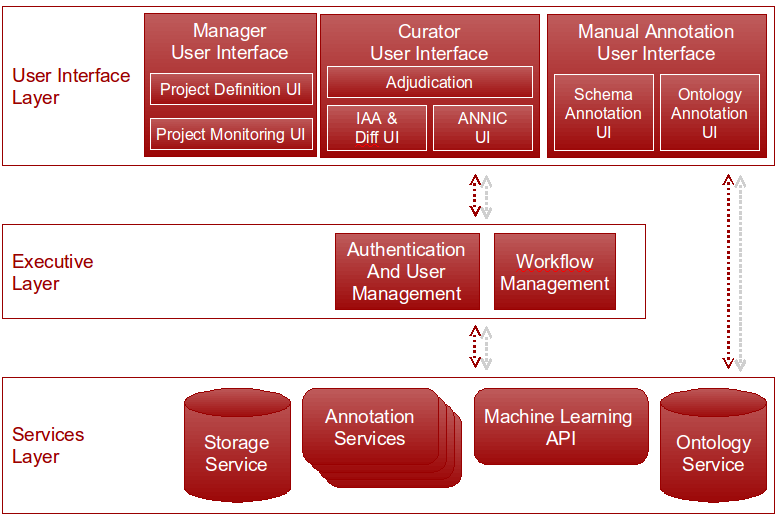
25.3 Teamware: Architecture, Implementation, and Examples
Teamware is a web-based collaborative annotation and curation environment, which allows unskilled annotators to be trained and then used to lower the cost of corpus annotation projects. Further cost reductions are achieved by bootstrapping with relevant automatic annotation services, where these exist, and/or through mixed initiative learning methods. It has a service-based architecture which is parallel, distributed, and also scalable (via service replication) (see Figure 25.1).
As shown in Figure 25.1, the Teamware architecture consists of SOAP web services for data storage, a set of web-based user interfaces (UI Layer), and an executive layer in the middle where the workflows of the specific annotation projects are defined. The UI Layer is connected with the Executive Layer for exchanging command and control messages (such as requesting the ID for document that needs to be annotated next), and also it connects directly to the services layer for data-intensive communication (such as downloading the actual document data, and uploading back the annotations produced).
25.3.1 Data Storage Service
The storage service provides a distributed data store for corpora, documents, and annotation schemas. Input documents can be in all major formats (e.g. plain text, XML, HTML, PDF), based on GATE’s comprehensive support. In all cases, when a document is created/imported in Teamware, the format is analysed and converted into GATE’s single unified, graph-based model of annotation. Then this internal annotation format is used for data exchange between the service layer, the executive layer and the UI layer. Different processes within Teamware can add and remove annotation data within the same document concurrently, as long as two processes do not attempt to manipulate the same subset of the data at the same time. A locking mechanism is used to ensure this and prevent data corruption. The main export format for annotations is currently stand-off XML, including XCES [Ide et al. 00]. Document text is represented internally using Unicode and data exchange uses the UTF-8 character encoding, so Teamware supports documents written in any natural language supported by the Unicode standard (and the Java platform).
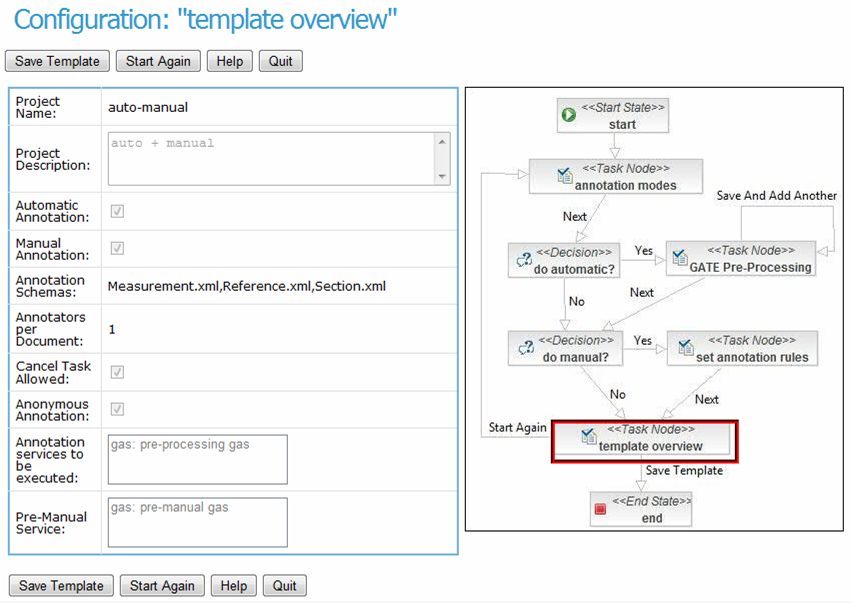
25.3.2 Annotation Services
The Annotation Services (GAS) provide distribution of compute-intensive NLP tasks over multiple processors. It is transparent to the external user how many machines are actually used to execute a particular service. GAS provides a straightforward mechanism for running applications, created with the GATE framework, as web services that carry out various NLP tasks. In practical applications we have tested a wide range of services such as named entity recognition (based on the freely-available ANNIE system [Cunningham et al. 02]), ontology population [Maynard et al. 09], patent processing [Agatonovic et al. 08], and automatic adjudication of multiple annotation layers in corpora.
The GAS architecture is itself layered, with a separation between the web service endpoint that accepts requests from clients and queues them for processing, and one or more workers that take the queued requests and process them. The queueing mechanism used to communicate between the two sides is the Java Messaging System (JMS)2, a standard framework for reliable messaging between Java components, and the configuration and wiring together of all the components is handled using the Spring Framework 3.
The endpoint, message queue and worker(s) are conceptually and logically separate, and may be physically hosted within the same Java Virtual Machine (VM), within separate VMs on the same physical host, or on separate hosts connected over a network. When a service is first deployed it will typically be as a single worker which resides in the same VM as the service endpoint. This may be adequate for simple or lightly-loaded services but for more heavily-loaded services additional workers may be added dynamically without shutting down the web service, and similarly workers may be removed when no longer required. All workers that are configured to consume jobs from the same endpoint will transparently share the load. Multiple workers also provide fault-tolerance – if a worker fails its in-progress jobs will be returned to the queue and will be picked up and handled by other workers.
25.3.3 The Executive Layer
Firstly, the executive layer implements authentication and user management, including role definition and assignment. In addition, administrators can define here which UI components are made accessible to which user roles (the defaults are shown in Figure 25.1).
The second major part is the workflow manager, which is based on JBoss jBPM4 and has been developed to meet most of the requirements discussed in Section 25.2.4 above. Firstly, it provides dynamic workflow management: create, read, update, delete (CRUD) workflow definitions, and workflow actions. Secondly, it supports business process monitoring, i.e., measures how long annotators take, how good they are at annotating, as well as reporting the overall progress and costs. Thirdly, there is a workflow execution engine which runs the actual annotation projects. As part of the execution process, the project manager selects the number of annotators per document; the annotation schemas; the set of annotators and curator(s) involved in the project; and the corpus to be annotated.
Figure 25.2 shows an example workflow template. The diagram on the right shows the choice points in workflow templates - whether to do automatic annotation or manual or both; which automatic annotation services to execute and in what sequence; and for manual annotation – what schemas to use, how may annotators per document, whether they can reject annotating a document, etc. The left-hand side shows the actual selections made for this particular workflow, i.e., use both automatic and manual annotation; annotate measurements, references, and sections; and have one annotator per document. Once this template is saved by the project manager, then it can be executed by the workflow engine on a chosen corpus and list of annotators and curators. The workflow engine will first call the automatic annotation service to bootstrap and then its results will be corrected by human annotators.
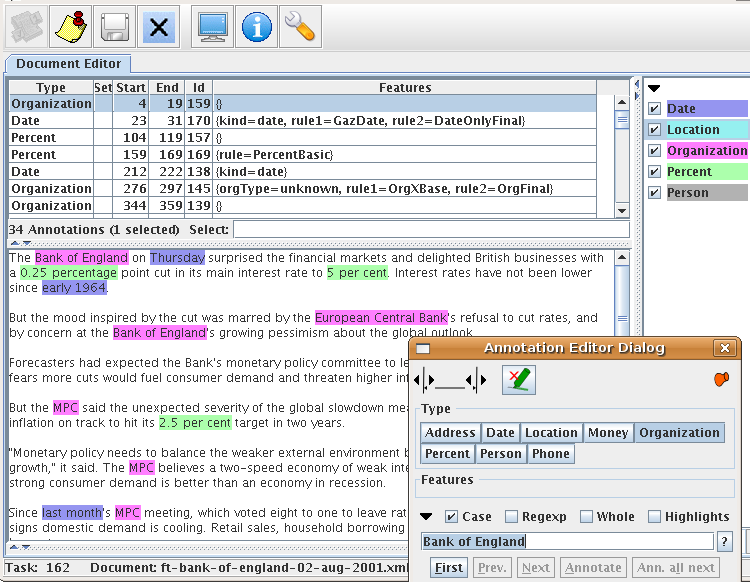
The rationale behind having an executive layer rather than defining authentication and workflow management as services similar to the storage and ontology ones comes from the fact that Teamware services are all SOAP web services, whereas elements of the executive layer are only in part implemented as SOAP services with the rest being browser based. Conceptually also the workflow manager acts like a middleman that ties together all the different services and communicates with the user interfaces.
25.3.4 The User Interfaces
The Teamware user interfaces are web-based and do not require prior installation. They either rendered natively in the web browser or, for more complex UIs, a Java Web Start wrapper is provided around some Swing-based GATE editors (e.g., the document editor and the ANNIC viewer [Aswani et al. 05]). After the user logs in, the system checks their role(s) and access privileges to determine which interface elements they are allowed to access.
Annotator User Interface
When manual annotators log into Teamware, they see a very simple web page with one link to their user profile data and another one – to start annotating documents. The generic schema-based annotator UI is shown in Figure 25.3 and it is a visual component in GATE, which is reused here via Java Web Start5. This removes the need to install GATE on the annotator machines and instead they just click on a link to download and start a web application.
The annotation editor dialog shows the annotation types (or tags) valid for the current project and optionally their features (or attributes). These are generated automatically from the annotation schemas assigned to the project by its manager. The annotation editor also supports the modification of annotation boundaries, as well as the use of regular expressions to annotate multiple matching strings simultaneously. To add a new annotation, one selects the text with the mouse (e.g., “Bank of England”) and then clicks on the desired annotation type in the dialog (e.g., Organization). Existing annotations are edited by hovering over them, which shows their current type and features in the editor dialog.
The toolbar at the top of Figure 25.3 shows all other actions which can be performed. The first button requests a new document to be annotated. When pressed, a request is sent to the workflow manager which checks if there are any pending documents which can be assigned to this annotator. The second button signals task completion, which saves the annotated document as completed on the data storage layer and enables the annotator to ask for a new one (via the first button). The third (save) button stores the document without marking it as completed in the workflow. This can be used for saving intermediary annotation results or if an annotator needs to log off prior to completing a document. The next time they login and request a new task, they will be given this document to complete first.
Curator User Interface
As discussed above, curators (or editors) carry out quality assurance tasks. In Teamware the curation tools cover IAA metrics (e.g. precision/recall and kappa) to identify if there are differences between annotators; a visual annotation comparison tool to see quickly where the differences are per annotation type [Cunningham et al. 02]; and an editor to edit and reconcile annotations manually (i.e., adjudication) or by using external automatic services.
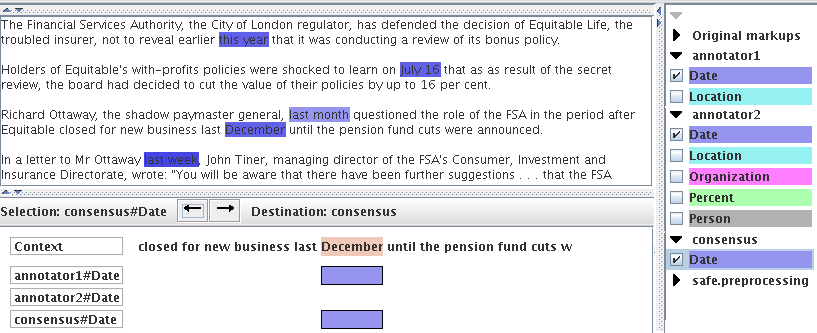
The key part of the manual adjudication UI is shown in Figure 25.4: the complete UI shows also the full document text above the adjudication panel, as well as lists all annotation types on the right, so the curator can select which one they want to work on. In our example, the curator has chosen to adjudicate Date annotations created by two annotators and to store the results in a new consensus annotation set. The adjudication panel has on top arrows that allow curators to jump from one difference to the next, thus reducing the required effort. The relevant text snippet is shown and below it are shown the annotations of the two annotators. The curator can easily see the differences and correct them, e.g., by dragging the correct annotation into the consensus set.
Project Manager Interface
The project manager web UI is the most powerful and multi-functional one. It provides the front-end to the executive layer (see Section 25.3.3 and Figure 25.2). In a nutshell, managers upload documents and corpora, define the annotation schemas, choose and configure the workflows and execute them on a chosen corpus. The management console also provides project monitoring facilities, e.g., number of annotated documents, number in progress, and yet to be completed (see Figure 25.5). Per annotator statistics are also available – time spent per document, overall time worked, average IAA, etc. These requirements were discussed in further detail in Section 25.2.1 above.
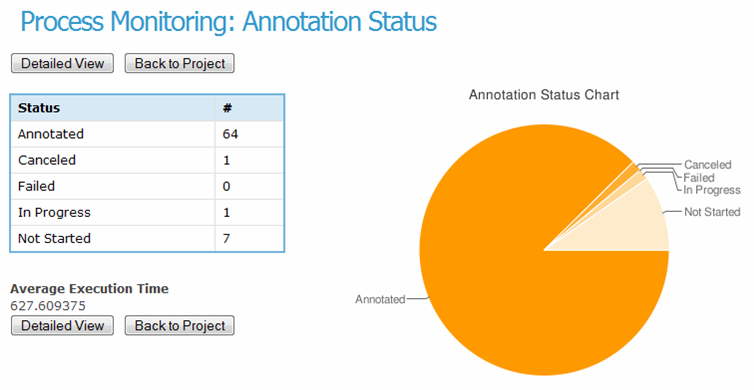
25.4 Practical Applications
Teamware has already been used in practice in over 10 corpus annotation projects of varying complexity and size – due to space limitations, here we focus on three representative ones. Firstly, we tested the robustness of the data layer and the workflow manager in the face of simultaneous concurrent access. For this we annotated 100 documents, 2 annotators per document, with 60 active annotators requesting documents to annotate and saving their results on the server. There were no latency or concurrency issues reported.
Once the current version was considered stable, we ran several corpus annotation projects to produce gold standards for IE evaluation in three domains: business intelligence, fisheries, and bio-informatics. The latter involved 10 bio-informatics students which were first given a brief training session and were then allowed to work from home. The project had 2 annotators per document, working with 6 entity types and their features. Overall, 109 Medline abstracts of around 200-300 words each were annotated with average annotation speed of 9 minutes per abstract. This project revealed several shortcomings of Teamware which will be addressed in the forthcoming version 2:
-
IAA is calculated per document, but there is no easy way to see how it changes across the entire corpus.
-
The datastore layer can sometimes leave the data in an inconsistent state following an error, due to the underlying binary Java serialisation format. A move towards XML file-based storage is being investigated.
-
There needs to be a limit on the proportion of documents which any given annotator is allowed to work on, since one over-zealous annotator ended up introducing a significant bias by annotating more than 80% of all documents.
The most versatile and still ongoing practical use of Teamware has been in a commercial context, where a company has two teams of 5 annotators each (one in China and one in the Philippines). The annotation projects are being defined and overseen by managers in the USA, who also act occasionally as curators. They have found that the standard double-annotated agreement-based approach is a good foundation for their commercial needs (e.g., in the early stages of the project and continuously for gold standard production), while they also use very simple workflows where the results of automatic services are being corrected by annotators, working only one per document to maximise volume and lower the costs. In the past few months they have annotated over 1,400 documents, many of which according to multiple schemas and annotation guidelines. For instance, 400 patent documents were doubly annotated both with measurements (IAA achieved 80-95%) and bio-informatics entities, and then curated and adjudicated to create a gold standard. They also annotated 1000 Medline abstracts with species information where they measured average speed of 5-7 minutes per document. The initial annotator training in Teamware was between 30 minutes and one hour, following which they ran several small-scale experimental projects to train the annotators in the particular annotation guidelines (e.g., measurements in patents). Annotation speed also improved over time, as the annotators became more proficient with the guidelines – the Teamware annotator statistics registered improvements of between 15 and 20%. Annotation quality (measured through inter-annotator agreement) remained high, even when annotators have worked on many documents over time.
Chapter 26
GATE Mímir [#]
Mímir 1 is a multi-paradigm information management index and repository which can be used to index and search over text, annotations, semantic schemas (ontologies), and semantic meta-data (instance data). It allows queries that arbitrarily mix full-text, structural, linguistic and semantic queries and that can scale to terabytes of text.
Full details on how to build and use Mímir can be found in its own user guide. GATE Mímir is open-source software, released under the GNU Affero General Public Licence version 3. Commercial licences are available from the University of Sheffield. The source code is available from the subversion repository at
https://gate.svn.sourceforge.net/svnroot/gate/mimir/trunk
A GATE Cloud version of the Mímir server can also be reserved at
https://cloud.gate.ac.uk/shopfront/displayItem/mimir-server
Appendix A
Change Log [#]
This chapter lists major changes to GATE (currently Developer and Embedded only) in roughly chronological order by release. Changes in the documentation are also referenced here.
It was brought to our attention that in versions 9.0.1 and below there was a very small chance that the GUI action “Export for GATE Cloud” could be compromised. This would have required malicious code to be running locally on the machine; either by another user on a multi-user machine or because the computer had already been compromised. This issue only occurred within the GUI action and did not affect API use of the gate-core Maven artifact. Note that no known exploits exist for this issue, and we do not know for certain that the code could be exploited. If, however, you are at all concerned then we suggest you regenerate any packaged applications using a recent version of GATE Developer; at minimum 9.2-SNAPSHOT built on or after the 10th of August 2022.
A.1 Version 9.0.1 (March 2021) [#]
GATE Developer 9.0.1 is a bugfix release – the only change is to the way URL redirects are handled when loading a document. Support for following redirects from http to https was added in 9.0 which, while correct, broke the way URLs were used within GCP. This release fixes that bug and adds some additional security checking to the redirect handling.
A.2 Version 9.0 (February 2021) [#]
Whilst the majority of changes in GATE Developer 9.0 are small a number of them change default behaviour (in the UI or API) hence the change in version number. These changes include:
-
We now recommend users install a 64 bit version of Java whenever possible. This seems to be especially important on Windows.
-
We now default to assuming documents are UTF-8 encoded unless you specify otherwise. In previous versions if no encoding was specified GATE would use the default platform encoding, but this seemed to cause more problems than it solved (especially for Windows users). If you want the old behaviour then ensure the encoding parameter is set to the empty string when creating a document.
-
GATE uses a library called XStream for saving and loading GATE XML documents and applications. This allows us to store features of any Java type, but that can be abused by maliciously crafted files. In general use this is unlikely to be a problem, but in situations where GATE may be used as part of a service with no way of vetting input files it could present a serious security threat. XStream now offers a security framework to restrict the types of objects that can be loaded/saved. This can work either by allowing only specific types or by preventing specific types from being used. As we often do not know in advance what features might be used we have opted to use a minimal blacklist as the default security setting. This blocks the Java classes known to be exploitable. This can be further configured via calls to Gate.setXStreamSecurity() and we strongly encourage developers who depend on gate-core within larger applications to configure this based on their specific use cases.
-
Developers wishing to build GATE from source need to use Maven v3.6.0 or above.
-
Previous versions of GATE used Log4J for some of the logging. This was problematic when using gate-core as a dependency in larger projects and was awkward to configure properly. In this release we’ve switched to using SLF4J allowing the actual logging back-end to be configured independently. Plugins and code compiled against previous versions of GATE should work with the new release without change (we include the log4j-over-slf4j bridge as a dependency), although Log4J specific methods within gate-core have been deprecated and may be removed in a future release.
Many bugs have been fixed and documentation improved, in particular:
-
the Twitter plugin has been improved to make better use of the information provided by Twitter within a JSON Tweet object. The Hashtag tokenizer has been updated to provide a tokenized feature to make grouping semantically similar hashtags easier. Lots of other minor improvements and efficiency changes have been made throughout the rest of the TwitIE pipelines.
-
the ANNIE gazetteers have been updated to better support different ways of referring to countries and a blacklist option to prevent things being wrongly annotated.
-
A new addition to the JAPE syntax allows you to copy all features from a matched annotation to the new annotation being created
-
the Format_CSV plugin now allows the document cell to be interpreted as being a URL pointing to the document to load rather than the contents of the document. See Section 23.33 for more details.
A.3 Version 8.6.1 (January 2020) [#]
GATE Developer 8.6.1 is a bugfix release – the only change is to adjust for the fact that the Central Maven repository has been switched from http to https.
A.4 Version 8.6 (June 2019) [#]
GATE Developer 8.6 is mainly a maintenance and stability release, but there are some important new features, in particular around the processing of Twitter data:
-
The Format_Twitter plugin can now correctly handle extended 280 character tweets and the latest Twitter JSON format. See Section 17.2 for full details.
-
The new Format_JSON plugin provides import/export support for GATE JSON. This is essentially the old style Twitter format, but it no longer needs to track changes to the Twitter JSON format so should be more suitable for long term storage of GATE documents as JSON files. See Section 23.30 for more details. This plugin makes use of a new mechanism whereby document format parsers can take parameters via the document MIME type, which may be useful to third party formats too.
Many bugs have been fixed and documentation improved, in particular:
-
The plugin loading mechanism now properly respects the user’s Maven settings.xml:
-
HTTP proxy and “mirror” repository settings now work properly, including authentication. Also plugin resolution will now use the system proxy (if there is one) by default if there is no proxy specified in the Maven settings.
-
The “offline” setting is respected, and will prevent GATE from trying to fetch plugins from remote repositories altogether – for this to work, all the plugins you want to use must already be cached locally, or you can use “Export for GATE Cloud” to make a self-contained copy of an application including all its plugins.
-
-
Upgraded many dependencies including Tika and Jackson to avoid known security bugs in the previous versions.
-
Documentation improvements for the Kea plugin, the Corpus QA and annotation diff tools, and the default GATE XML and inline XML formats (section 3.9.1)
-
For plugin developers, the standard plugin testing framework generates a report detailing all the plugin-to-plugin dependencies, including those that are only expressed in the plugin’s example saved applications (section 7.12.1).
Some obsolete plugins have been removed (Websphinx web crawler, which depends on an unmaintained library, and the RASP parser, whose external binary is no longer available for modern operating systems), and there are many smaller bug fixes and improvements.
Note: following changes to Oracle’s JDK licensing scheme, we now recommend running GATE using the freely-available OpenJDK. The AdoptOpenJDK project offers simple installers for all major platforms, and major Linux distributions such as Ubuntu and CentOS offer OpenJDK packages as standard. See section 2.2 for full installation instructions.
A.5 Version 8.5.1 (June 2018) [#]
Version 8.5.1 is a minor release to fix a few critical bugs in 8.5:
-
Fixed an exception that prevented the ANNIC search GUI from opening.
-
Fixed a problem with “Export for GATE Cloud” that meant some resources were not getting included in the output ZIP file.
-
Fixed the XML schema in the gate-spring library.
A.6 Version 8.5 (May 2018) [#]
GATE Developer and Embedded 8.5 introduces a number of significant internal changes to the way plugins are managed, but with the exception of the plugin manager most users will not see significant changes in the way they use GATE.
-
The GATE plugins are no longer bundled with the GATE Developer distribution, instead each plugin is downloaded from a repository at runtime, the first time it is used. This means the distribution is much smaller than previous versions.
-
Most plugins are now distributed as a single JAR file through the Java-standard “Central Repository”, and resource files such as gazetteers and JAPE grammars are bundled inside the plugin JAR rather than being separate files on disk. If you want to modify the resources of a plugin then GATE provides a tool to extract an editable copy of the files from a plugin onto your disk – it is no longer possible to edit plugin grammars in place.
-
This makes dependencies between plugins much easier to manage – a plugin can specify its dependencies declaratively by name and version number rather than by fragile relative paths between plugin directories.
GATE 8.5 remains backwards compatible with existing third-party plugins, though we encourage you to convert your plugins to the new style where possible.
Further details on these changes can be found in sections 3.5 (the plugin manager in GATE Developer), 7.3 (loading plugins via the GATE Embedded API), 7.12 (creating a new plugin from scratch), and 7.20 (converting an existing plugin to the new style).
If you have an existing saved application from GATE version 8.4.1 or earlier it will be necessary to “upgrade” it to use the new core plugins. An upgrade tool is provided on the “Tools” menu of GATE Developer, and is described in section Section 3.9.5.
A.6.1 For developers
As part of this release, GATE development has moved from SourceForge to GitHub – bug reports, patches and feature requests should now use the GitHub issue tracker as described in section 12.1.
A.7 Version 8.4.1 (June 2017) [#]
This is a minor release that fixes one rarely encountered but serious bug with the handling of CDATA sections within the text content of GATE XML format documents. CDATA has always been handled correctly in annotation and document feature values, this bug would only affect a small number of documents where the text contains many less-than signs (<<<) and few annotations. In particular, annotated documents that have been processed using the GATE tokeniser are extremely unlikely to be affected as each less-than sign is treated as a separate Token annotation.
This release also includes one small improvement to the Twitter hashtag tokeniser so it recognises the names of some political parties when they occur within hashtags such as #VoteLabour.
A.8 Version 8.4 (February 2017) [#]
GATE Developer and Embedded 8.4 is mainly a bug fix release, with a small number of critical fixes compared to version 8.3. This will be the final major release of GATE before major re-structuring of the codebase and the plugin system for version 8.5.
-
Fixed an issue which had prevented the use of Java 8 lambda expressions in the RHS of JAPE rules, even when running on Java 8.
-
Removed OpenCalais and Zemanta plugins as the web services they depend on have changed and the plugins no longer work.
-
Fixed a bug that could cause the searchable datastore GUI to freeze.
-
Fixes to the TermRaider and Hindi sample applications
A.8.1 Java compatibility
For GATE 8.4 we recommend the use of the latest Java 8 from Oracle. If you are still restricted to Java 7, most components will still work with the exception of the Stanford CoreNLP tools and the TwitIE application (which uses the Stanford POS tagger). Future versions of GATE will require Java 8 as a minimum.
A.9 Version 8.3 (January 2017) [#]
GATE Developer and Embedded 8.3 is mainly a bug fix release, with several critical fixes and functionality improvements.
-
JAPE grammars can now match and create annotation types and features with spaces or punctuation in their names, by using double quotes around the type or feature name (e.g. {"w:p"}).
-
Fixed a regression in 8.2 that meant saved application states and “export for GATE Cloud” packages created on Windows would not load on other platforms.
-
Fixed a bug in the Stanford CoreNLP plugin which would sometimes fail when GATE is installed in a directory whose path contains spaces.
-
Various improvements to the Twitter normaliser and emoticon finder.
-
Improvements to the Lang_French and Lang_German components. Further improvements will follow in the next release.
-
Improvement to the Crowd_Sourcing plugin to allow a default option to be specified for clasification jobs.
-
Fixed Java version detection in the Windows EXE launcher.
-
Detection of document format using clues from the content is now much more efficient.
-
Fixed some GUI deadlocks in the searchable data store GUI and the plugin manager.
-
Fixed a long-standing bug in the regex sentence splitter for documents with long sequences of blank lines.
-
Removed Minipar parser plugin as the data files on which it depends are no longer available for download, and the Tagger_NormaGene plugin as the service it relies on is no longer online.
Plus the usual suite of miscellaneous smaller bug fixes.
A.9.1 Java compatibility
For GATE 8.3 we recommend the use of the latest Java 8 from Oracle. If you are still restricted to Java 7, most components will still work with the exception of the Stanford CoreNLP tools and the TwitIE application (which uses the Stanford POS tagger). Future versions of GATE will require Java 8 as a minimum.
A.10 Version 8.2 (May 2016) [#]
GATE Developer and Embedded 8.2 is mainly a bug fix release – there are a few new plugins but the emphasis is on bug fixing and library updates.
-
New tools for temporal expression and event detection, including a wrapper for the HeidelTime tagger (section 23.38).
-
New language plugins for Danish and Welsh named entitiy recognition.
-
Performance improvements in the ANNIE NER system, in particular to deal better with hyphenated names and titles.
-
Improvements to TermRaider to support GATE documents that contain many independent sections (e.g. web forums, lists of tweets).
-
Bug fixes in the handling of Twitter JSON data – GATE now has full round-trip support for Twitter JSON, tweets can be loaded, annotated, and saved back to the same format accurately. The JSON format parser has been separated from the rest of the Twitter plugin, making it easier to add JSON support to non-TwitIE applications.
-
Updated dependencies – the Stanford_CoreNLP plugin now uses version 3.6.0 of Stanford CoreNLP, and the Groovy plugin uses Groovy version 2.4.4
-
GCP input and output handlers added to the Format_CSV plugin.
Plus the usual suite of miscellaneous smaller bug fixes.
A.10.1 Java compatibility
For GATE 8.2 we recommend the use of the latest Java 8 from Oracle. If you are still restricted to Java 7, most components will still work with the exception of the Stanford CoreNLP tools. Future versions of GATE will require Java 8 as a minimum.
A.11 Version 8.1 (June 2015) [#]
A.11.1 New plugins and significant new features
-
Integration of the Stanford NER tools – all the Stanford tools in GATE have been brought together under a single Stanford_CoreNLP plugin.
-
Improved crowdsourcing tools (chapter 21), including tools to perform automatic adjudication of multiply-annotated documents.
-
Parsers for new document formats, including the DataSift format (section 23.32) for social media data, and an improved Twitter JSON parser (section 17.2) which can import the standoff annotations Twitter themselves provide (hashtags, etc.).
-
Improved support for data export, making it easy for plugins to add their own export formats accessible through the GUI and the API. New exporters are provided for the Twitter JSON format (section 17.3) and a more configurable inline XML format.
-
A new plugin for simplifying sentences using linguistic rules and other information (section 23.37), contributed by the ForgetIT project.
A.11.2 Library updates and bugfixes
-
Apache Tika (for parsing PDF, MS Word, etc.) updated to version 1.7.
-
ASM (for processing CREOLE metadata) updated to version 5.0.3. This allows the use of Java 8 language features such as lambdas in third-party plugins, though GATE itself remains compatible with Java 7.
-
Stanford CoreNLP tools updated to version 3.4 (the latest version that is compatible with Java 7).
-
MetaMap libraries (for UMLS) updated to version 2014.
-
Better support in the GATE Unicode Tokeniser for scripts that use supplementary characters beyond the basic 16 bit range.
-
Bugfixes in the segment processing PR.
A.11.3 Tools for developers
Three new tools have been added to the Developer_Tools plugin:
-
Menu options to produce Java heap dumps to aid debugging.
-
Menu option to dynamically increase the Log4J logging verbosity at runtime.
-
A tool that attempts to unload all plugins that are loaded but not currently in use.
Other changes that benefit developers include:
-
New helper methods in the gate.Utils class.
-
The gate.util.ProcessManager API has been extended to allow an external process to be kept running. This is especially useful for running some external tools which have very long starup times yet can be reused across documents.
-
Some changes in the management of classloaders that should reduce the potential for deadlocks.
…and as always, a range of smaller improvements and bug fixes.
A.12 Version 8.0 (May 2014) [#]
GATE 8.0 is a major release which brings some major new features, many new and updated plugins, and significant under-the-bonnet changes to GATE Embedded.
A.12.1 Major changes
Java 7 required
GATE 8.0 requires Java 7 or later to run.
Tools for Twitter
A new “Twitter” plugin provides tools dedicated to Twitter data:
-
format parsers to handle Tweets in the JSON formats produced by the Twitter APIs
-
Twitter-specific components such as a tokeniser and POS tagger
-
the TwitIE named entity annotation pipeline.
See section 17.1 for full details.
ANNIE Refreshed
The ANNIE named entity annotation pipeline which has been the mainstay of many GATE applications for many years has been brought up to date, with new gazetteers and improved JAPE grammars giving improved precision and recall on common test corpora.
Tools for Crowd Sourcing
A new Crowd_Sourcing plugin provides facilities to support generation of manually annotated corpora via the CrowdFlower crowdsourcing platform1. The plugin provides support for two different kinds of tasks, general entity annotation (e.g. determining which words in a given sentence are person names) and entity linking (e.g. for ontology-based annotation, where the spans of the entities are known but not which particular ontology instance each annotation corresponds to). Using crowdsourcing you can generate multiply-annotated gold standard corpora rapidly and at relatively low cost. For full details see chapter 21.
A.12.2 Other new and improved plugins
-
New language plugins to support Russian and Bulgarian
-
Integration of the Stanford POS Tagger (section 23.22), which is used by TwitIE
-
A document normalizer plugin, predominantly to normalize punctuation such as Microsoft Word “ssec:creole:datasiftmart quotes” (see section 23.35)
-
Wrappers for the AlchemyAPI keyword and entity extraction services (in the AlchemyAPI plugin)
-
Wrapper for the TextRazor annotation service (see section 23.5).
-
New document format parser to populate a GATE corpus from one or more CSV files (see section 23.33).
-
Support for loading and saving GATE XML files in the binary FastInfoset format (see section 23.29).
-
Various improvements to the Learning plugin, in particular to support numeric and boolean features
-
Improvements to the TermRaider term extraction plugin (see section 23.34)
-
The OntoRoot Gazetteer (in the Gazetteer_Ontology_Based plugin) now supports tokenisers and POS taggers other than the default ANNIE PR types, making it possible to use other preprocessing tools for non-English data
-
Further improvements to the classloading model to better isolate plugins from one another.
-
A new enableDebugging runtime parameter for JAPE grammars will add additional features to every generated annotation detailing which rule was responsible for creating the annotation.
A.12.3 Bug fixes and other improvements
-
The annotation schema LR type is now available by default without the need to load any plugins. The schemas that were previously loaded by default by the ANNIE plugin must now be loaded explicitly if you require them (section 3.4.6). Annotation schemas now support the include element, so multiple schemas can be loaded by loading a single master file.
-
The segment processing PR (section 20.2.10) now preserves annotation IDs, allowing ID-sensitive tools such as coreference to work properly.
A.12.4 For developers
Changes of note for users of the GATE Embedded APIs include:
-
A new data model to represent relations between annotations, see section 7.7 for details. The Coref_Tools plugin has been retrofitted to use this new model to represent coreference chains. Relation information is preserved when saving documents as GATE XML, but note that such documents will not be compatible with older versions of GATE.
-
A new “resource helper” mechanism allows plugins to contribute additional actions to existing resource types, both in the Developer GUI (section 4.8.2) and in the Embedded API (section 7.19)
-
A new class gate.corpora.DocumentJsonUtils provides methods to export a GATE document in a JSON format compatible with that used by Twitter. See the JavaDoc documentation for details.
-
Many deprecated classes, fields and methods have been removed. If you were previously calling any of these deprecated APIs you will need to update your code accordingly. Also some classes in the GATE core that were only used by one plugin have been moved into the respective plugin’s source tree. In particular, Java RHS actions in JAPE rules no longer provide the long-deprecated annotations variable – use inputAS or outputAS as appropriate.
-
Many library dependencies have been updated to more recent versions.
-
The GATE APIs make much wider use of generics than previously – many places in the code that previously used raw types are now properly generic
-
A new Developer_Tools plugin (section 23.36) provides utilities to assist in debugging applications in GATE Developer.
If you are working on the core GATE source code, note that:
-
the source tree has been split into “main” and “test”, isolating the test classes from the rest of the source
-
each plugin is now a separate Eclipse “project”, and the main project is just the core sources, which makes it easier to control dependencies among the different parts
-
dependencies are no longer checked in to subversion, instead they are fetched at build time from the Maven central repository by Apache Ivy.
A.13 Version 7.1 (November 2012) [#]
A.13.1 New plugins
The TermRaider plugin (see Section 23.34) provides a toolkit and sample application for term extraction.
Two new plugins, Tagger_Zemanta (since removed) and Tagger_Lupedia provide PRs that wrap online annotation services provided by Zemanta and Ontotext.
A new plugin named Coref_Tools includes a framework for fast co-reference processing, and one PR that performs orthographical co-reference in the style of the ANNIE Orthomatcher. See Section 23.26 for full details.
A new Configurable Exporter PR in the Tools plugin, allowing annotations and features to be exported in formats specified by the user (e.g. for use with external machine learning tools). See Section 23.12 for details.
Support for reading a number of new document formats has also been added:
-
PubMed and the Cochrane Library formats (see Section 23.27).
-
CoNLL “IOB” format (see Section 5.5.10).
-
MediaWiki markup, both plain text and XML dump files such as those from Wikipedia (see Section 23.28).
In addition, “ready-made applications” have been added to many existing plugins (notably the Lang_* non-English language plugins) to make it easier to experiment with their PRs.
A.13.2 Library updates
Updated the Stanford Parser plugin (see Section 18.2) to version 2.0.4 of the parser itself, and added run-time parameters to the PR to control the parser’s dependency options.
The Measurement and Number taggers have been upgraded to use JAPE+ instead of JAPE. This should result in faster processing, and also allows for more memory efficient duplication of PR instances, i.e. when a pool of applications is created.
The OpenNLP plugin has been completely revised to use Apache OpenNLP 1.5.2 and the corresponding set of models. See Section 23.21 for details.
The native launcher for GATE on Mac OS X now works with Oracle Java 7 as well as Apple Java 6.
A.13.3 GATE Embedded API changes
Some of the most significant changes in this version are “under the bonnet” in GATE Embedded:
-
The class loading architecture underlying the loading of plugins and the generation of code from JAPE grammars has been re-worked. The new version allows for the complete unloading of plugins and for better memory handling of generated classes. Different plugins can now also use different versions of the same 3rd party libraries. There have also been a number of changes to the way plugins are (un)loaded which should provide for more consistent behaviour.
-
The GATE XML format has been updated to handle more value types (essentially every data type supported by XStream ( http://xstream.codehaus.org/faq.html) should be usable as feature name or value. Files in the new format can be opened without error by older GATE versions, but the data for the previously-unsupported types will be interpreted as a String, containing an XML fragment.
-
The PRs defined in the ANNIE plugin are now described by annotations on the Java classes rather than explicitly inside creole.xml. The main reason for this change is to enable the definitions to be inherited to any subclasses of these PRs. Creating an empty subclass is a common way of providing a PR with a different set of default parameters (this is used extensively in the language plugins to provide custom gazetteers and named entity transducers). This has the added benefit of ensuring that new features also automatically percolate down to these subclasses. If you have developed your own PR that extends one of the ANNIE ones you may find it has acquired new parameters that were not there previously, you may need to use the @HiddenCreoleParameter annotation to suppress them.
-
The corpus parameter of LanguageAnalyser (an interface most, if not all, PRs implement) is now annotated as @Optional as most implementations do not actually require the parameter to be set.
-
When saving an application the plugins are now saved in the same order in which they were originally loaded into GATE. This ensures that dependencies between plugins are correctly maintained when applications are restored.
-
API support for working with relations between annotations was added. See Section 7.7 for more details.
-
The method of populating a corpus from a single file has been updated to allow any mime type to be used when creating the new documents.
And numerous smaller bug fixes and performance improvements…
A.14 Version 7.0 (February 2012) [#]
A.14.1 Major new features
The CREOLE Plugin Manager has been completely re-written and now includes support for installing new plugins from remote update sites. See section 3.6 for more details. In addition, plugins can now contribute additional “ready-made applications” to the GATE Developer menus alongside the standard applications (ANNIE, etc.). Details can be found in section 12.3.4.
A new plugin named JAPE_Plus has been added. It contains a new JAPE execution engine that includes various optimisations and should be significantly faster than the standard engine. JAPE_Plus has not yet been comprehensively tested, so it should be considered beta software, and used with caution. See Section 8.11 for more details.
A new Java-based launcher has been implemented which now replaces the use of Apache ANT for starting-up GATE Developer. The GATE Developer application now behaves in a more natural way in dock-based desktop environments such as Mac OS X and Ubuntu Unity.
Improved the support for processing biomedical text by adding new PRs to incorporate the following tools: AbGene, the NormaGene tagger, the GENIA sentence splitter, MutationFinder and the Penn BioTagger (contains a tokenizer and three taggers for gene, malignancy and variation). For full details of these new resources see section 16.1.
The Flexible Gazetteer PR has been rewritten to provide a better and faster implementation. The two parameters inputAnnotationSetName and outputAnnotationSetName have been renamed to inputASName and outputASName, however old applications with the old parameters should still work. Please see Section 13.6 for more details.
A.14.2 Removal of deprecated functionality
Various components were removed in this release as they have been unsupported and deprecated in previous releases:
-
the GATE Unicode Kit (GUK), which has been superseded by improved native support for localisation in the various target operating systems. If you still require GUK it is available as a separate software project at http://gate.svn.sourceforge.net/viewvc/gate/guk/trunk.
-
the database-backed datastore implementation.
-
the plugins Jape_Compiler (superseded by JAPE_Plus) and Ontology_OWLIM2.
In addition the Web_Search_Google, Web_Search_Yahoo and Web_Translate_Google plugins have been removed as the underlying web services on which they depend are no longer available. Documentation for obsolete plugins can be found in appendix C, and if you require any of them for your application please see plugins/Obsolete/README.TXT in the GATE Developer distribution.
A.14.3 Other enhancements and bug fixes
CREOLE plugins can now use Apache Ivy to include third-party dependencies. See section 4.7 for details.
The Default ANNIE Gazetteer now allows a user to specify different annotation types to be used for annotating entries from different lists. For example, a user may want to find city names mentioned in a gazetteer list (e.g. city.lst) and annotate the matching strings as City. Please see section 6.3 for more details.
The Segment Processing PR has two additional run-time parameters called segmentAnnotationFeatureName and segmentAnnotationFeatureValue. These features allow users to specify a constraint on feature name and feature value. If user has provided values for these parameters, only the annotations with the specified feature name and feature value are processed with the Segment Processing PR. Also, the parameter controller has been renamed to analyser which means the Segment Processing PR can now also run an individual PR on the specified segments2. See 20.2.10 for more information on section-by-section processing.
The Hash Gazetteer (section 13.5) now properly supports the caseSensitive parameter (previously the parameter could be set but had no effect).
The Document Reset PR (Section 6.1) now defaults to keeping the Key set as well as Original markups. This makes working with pre-annotated gold standard document less dangerous (assuming you put the gold standard annotations in a set called Key).
Updated Stanford Parser plugin (see Section 18.2) to version 1.6.8.
The TextCat based Language Identification PR now supports generating new language fingerprints. See section 15.1 for full details.
Added support for reading XCAS and XMI-format documents created by UIMA. See section 5.5.9 for details.
Various improvements to the GATE Developer GUI:
-
added support in the document editor to switch the principal text orientation, to better support documents written in right-to-left languages such as Arabic, Hebrew or Urdu (section 3.2).
-
added new mouse shortcuts to the Annotation Stack view in the document editor to speed up the curation process (section 3.4.3).
-
the document editor layout is now saved to the user preferences file, gate.xml. It means that you can give this file to a new user so s/he will have a preconfigured document editor (section 3.2).
-
the script behind an instance of the Groovy Scripting PR (section 7.16.2) can now be edited from within GATE Developer through a new visual resource which supports syntax highlighting.
The rule and phase names are now accessible in a JAPE Java RHS by the ruleName() and phaseName() methods and the name of the JAPE processing resource executing the JAPE transducer is accessible through the action context getPRName() method. See section 8.6.5.
A.15 Version 6.1 (April 2011) [#]
A.15.1 New CREOLE Plugins
Tagger_Numbers to annotate many kinds of numbers in documents and determine their numeric values. The tagger can annotate numbers expressed in many forms including Arabic and Roman numerals, words (in English, French, German and Spanish) and scientific notation (4.3e6 = 4300000). See section 23.6 for full details.
Tagger_Measurements to annotate many different forms of measurement expressions (“5.5 metres”, “1 minute 30 seconds”, “10 to 15 pounds”, etc.) along with their normalized values in SI units. See section 23.7 for full details.
Tagger_Boilerpipe, which contains a boilerpipe3 based PR for performing content detection. See section 23.23 for full details.
Tagger_DateNormalizer to annotate and normalize dates within a document. See section 23.8 for full details.
Schema_Tools providing a “Schema Enforcer” PR that can be used to create a clean output annotation set based on a set of annotation schemas. See section 23.14 for full details.
Teamware_Tools providing a new PR called QA Summariser for Teamware. When documents are annotated using GATE Teamware, this PR can be used for generating a summary of agreements among annotators. See section 10.7 for full details.
Tagger_MetaMap has been rewritten to make use of the new MetaMap Java API features. There are numerous performance enhancements and bug fixes detailed in section 16.1.2. Note that this version of the plugin is not compatible with the version provided in GATE 6.0, though this earlier version is still available in the Obsolete directory if required.
A.15.2 Other new features and improvements
Added support for handling controller events to JAPE by making it possible to define ControllerStarted, ControllerFinished, and ControllerAborted code blocks in a JAPE file (see section 8.6.5).
JAPE Java right-hand-side code can now access an ActionContext object through the predefined field ctx which allows access to the corpus LR and the transducer PR and their features (see section 8.6.5).
Three new optional attributes can be specified in <GATECONFIG> element of gate.xml or local configuration file:
-
addNamespaceFeatures - set to “true” to deserialize namespace prefix and URI information as features.
-
namespaceURI - The feature name to use that will hold the namespace URI of the element, e.g. “namespace”
-
namespacePrefix - The feature name to use that will hold the namespace prefix of the element, e.g. “prefix”
Setting these attributes will alter GATE’s default namespace deserialization behaviour to remove the namespace prefix and add it as a feature, along with the namespace URI. This allows namespace-prefixed elements in the Original markups annotation set to be matched with JAPE expressions, and also allows namespace scope to be added to new annotations when serialized to XML. See 5.5.2 for details.
Searchable Serial Datastores (Lucene-based) are now portable and can be moved across different systems. Also, several GUI improvements have been made to ease the creation of Lucene datastores. See chapter 9 for details.
The populate method that allowed populating corpus from a trecweb file has been made more generic to accept a tag. The method extracts content between the start and end of this tag to create new documents. In GATE Developer, right-clicking on an instance of the Corpus and choosing the option “Populate from Single Concatenated File" allows users to populate the corpus using this functionality. See Section 7.4.5 for more details.
Fixed a regression in the JAPE parser that prevented the use of RHS macros that refer to a LHS label (named blocks :label { ... } and assignments :label.Type = {}
Enhanced the Groovy scriptable controller with some features inspired by the realtime controller, in particular the ability to ignore exceptions thrown by PRs and the ability to limit the running time of certain PRs. See section 7.16.3 for details.
The Ontology and Gazetteer_LKB plugins have been upgraded to use Sesame 3.2.3 and OWLIM 3.5.
The Websphinx Crawler PR has new runtime parameters for controlling the maximum page size and spoofing the user-agent.
A few bug fixes and improvements to the “recover” logic of the packagegapp Ant task (see section E.2).
…and many other smaller bugfixes.
Note: As of version 6.1, GATE Developer and Embedded require Java 6 or later and will no longer run on Java 5. If you require Java 5 compatibility you should use GATE 6.0.
A.16 Version 6.0 (November 2010) [#]
A.16.1 Major new features
Added an annotation tool for the document editor: the Relation Annotation Tool (RAT). It is designed to annotate a document with ontology instances and to create relations between annotations with ontology object properties. It is close and compatible with the Ontology Annotation Tool (OAT) but focus on relations between annotations. See section 14.6 for details.
Added a new scriptable controller to the Groovy plugin, whose execution strategy is controlled by a simple Groovy DSL. This supports more powerful conditional execution than is possible with the standard conditional controllers (for example, based on the presence or absence of a particular annotation, or a combination of several document feature values), rich flow control using Groovy loops, etc. See section 7.16.3 for details.
A new version of Alignment Editor has been added to the GATE distribution. It consists of several new features such as the new alignment viewer, ability to create alignment tasks and store in xml files, three different views to align the text (links view and matrix view - suitable for character, word and phrase alignments, parallel view - suitable for sentence or long text alignment), an alignment exporter and many more. See chapter 20 for more information.
MetaMap, from the National Library of Medicine (NLM), maps biomedical text to the UMLS Metathesaurus and allows Metathesaurus concepts to be discovered in a text corpus. The Tagger_MetaMap plugin for GATE wraps the MetaMap Java API client to allow GATE to communicate with a remote (or local) MetaMap PrologBeans mmserver and MetaMap distribution. This allows the content of specified annotations (or the entire document content) to be processed by MetaMap and the results converted to GATE annotations and features. See section 16.1.2 for details.
A new plugin called Web_Translate_Google has been added with a PR called Google Translator PR in it. It allows users to translate text using the Google translation services. See section C.5 for more information.
New Gazetteer Editor for ANNIE Gazetteer that can be used instead of Gaze. It uses tables instead of text area to display the gazetteer definition and lists, allows sorting on any column, filtering of the lists, reloading a list, etc. See section 13.2.2.
A.16.2 Breaking changes
This release contains a few small changes that are not backwards-compatible:
-
Changed the semantics of the ontology-aware matching mode in JAPE to take account of the default namespace in an ontology. Now class feature values that are not complete URIs will be treated as naming classes within the default namespace of the target ontology only, and not (as previously) any class whose URI ends with the specified name. This is more consistent with the way OWL normally works, as well as being much more efficient to execute. See section 14.8 for more details.
-
Updated the WordNet plugin to support more recent releases of WordNet than 1.6. The format of the configuration file has changed, if you are using the previous WordNet 1.6 support you will need to update your configuration. See section 23.16 for details.
-
The deprecated Tagger_TreeTagger plugin has been removed, applications that used it will need to be updated to use the Tagger_Framework plugin instead. See section 23.3 for details of how to do this.
A.16.3 Other new features and bugfixes
The concept of templates has been introduced to JAPE. This is a way to declare named “variables” in a JAPE grammar that can contain placeholders that are filled in when the template is referenced. See section 8.1.6 for full details.
Added a JAPE operator to get the string covered by a left-hand-side label and assign it to a feature of a new annotation on the right hand side (see section 8.1.3).
Added a new API to the CREOLE registry to permit plugins that live entirely on the classpath. CreoleRegister.registerComponent instructs the registry to scan a single java Class for annotations, adding it to the set of registered plugins. See section 7.3 for details.
Maven artifacts for GATE are now published to the central Maven repository. See section 2.6.1 for details.
Bugfix: DocumentImpl no longer changes its stringContent parameter value whenever the document’s content changes. Among other things, this means that saved application states will no longer contain the full text of the documents in their corpus, and documents containing XML or HTML tags that were originally created from string content (rather than a URL) can now safely be stored in saved application states and the GATE Developer saved session.
A processing resource called Quality Assurance PR has been added in the Tools plugin. The PR wraps the functionality of the Quality Assurance Tool (section 10.3).
A new section for using the Corpus Quality Assurance from GATE Embedded has been written. See section 10.3.
The Generic Tagger PR (in the Tagger_Framework plugin) now allows more flexible specification of the input to the tagger, and is no longer limited to passing just the “string” feature from the input annotations. See section 23.3 for details.
Added new parameters and options to the LingPipe Language Identifier PR. (section 23.20.5), and corrected the documentation for the LingPipe POS Tagger (section 23.20.3).
In the document editor, fixed several exceptions to make editing text with annotations highlighted working. So you should now be able to edit the text and the annotations should behave correctly that is to say move, expand or disappear according to the text insertions and deletions.
Options for document editor: read-only and insert append/prepend have been moved from the options dialogue to the document editor toolbar at the top right on the triangle icon that display a menu with the options. See section 3.2.
Added new parameters and options to the Crawl PR and document features to its output.
Fixed a bug where ontology-aware JAPE rules worked correctly when the target annotation’s class was a subclass of the class specified in the rule, but failed when the two class names matched exactly.
Improved support for conditional pipelines containing non-LanguageAnalyser processing resources.
Added the current Corpus to the script binding for the Groovy Script PR, allowing a Groovy script to access and set corpus-level features. Also added callbacks that a Groovy script can implement to do additional pre- or post-processing before the first and after the last document in a corpus. See section 7.16 for details.
A.17 Version 5.2.1 (May 2010) [#]
This is a bugfix release to resolve several bugs that were reported shortly after the release of version 5.2:
-
Fixed some bugs with the automatic “create instance” feature in OAT (the ontology annotation tool) when used with the new Ontology plugin.
-
Added validation to datatype property values of the date, time and datetime types.
-
Fixed a bug with Gazetteer_LKB that prevented it working when the dictionaryPath contained spaces.
-
Added a utility class to handle common cases of encoding URIs for use in ontologies, and fixed the example code to show how to make use of this. See chapter 14 for details.
-
The annotation set transfer PR now copies the feature map of each annotation it transfers, rather than re-using the same FeatureMap (this means that when used to copy annotations rather than move them, the copied annotation is independent from the original and modifying the features of one does not modify the other). See section 23.13 for details.
-
The Log4J log files are now created by default in the .gate directory under the user’s home directory, rather than being created in the current directory when GATE starts, to be more friendly when GATE is installed in a shared location where the user does not have write permission.
This release also fixes some shortcomings in the Groovy support added by 5.2, in particular:
-
The corpora variable in the console now includes persistent corpora (loaded from a datastore) as well as transient corpora.
-
The subscript notation for annotation sets works with long values as well as ints, so someAS[annotation.start()..annotation.end()] works as expected.
A.18 Version 5.2 (April 2010) [#]
A.18.1 JAPE and JAPE-related
Introduced a utility class gate.Utils containing static utility methods for frequently-used idioms such as getting the string covered by an annotation, finding the start and end offsets of annotations and sets, etc. This class is particularly useful on the right hand side of JAPE rules (section 8.6.5).
Added type parameters to the bindings map available on the RHS of JAPE rules, so you can now do AnnotationSet as = bindings.get("label") without a cast (see section 8.6.5).
Fixed a bug with JAPE’s handling of features called “class” in non-ontology-aware mode. Previously JAPE would always match such features using an equality test, even if a different operator was used in the grammar, i.e. {SomeType.class != "foo"} was matched as {SomeType.class == "foo"}. The correct operator is now used. Note that this does not affect the ontology-aware behaviour: when an ontology parameter is specified, “class” features are always matched using ontology subsumption.
Custom JAPE operators and annotation accessors can now be loaded from plugins as well as from the lib directory (see section 8.2.5).
A.18.2 Other Changes
Added a mechanism to allow plugins to contribute menu items to the “Tools” menu in GATE Developer. See section 4.8 for details.
Enhanced Groovy support in GATE: the Groovy console and Groovy Script PR (in the Groovy plugin) now import many GATE classes by default, and a number of utility methods are mixed in to some of the core GATE API classes to make them more natural to use in Groovy. See section 7.16 for details.
Modified the batch learning PR (in the Learning plugin) to make it safe to use several instances in APPLICATION mode with the same configuration file and the same learned model at the same time (e.g. in a multithreaded application). The other modes (including training and evaluation) are unchanged, and thus are still not safe for use in this way. Also fixed a bug that prevented APPLICATION mode from working anywhere other than as the last PR in a pipeline when running over a corpus in a datastore.
Introduced a simple way to create duplicate copies of an existing resource instance, with a way for individual resource types to override the default duplication algorithm if they know a better way to deal with duplicating themselves. See section 7.8.
Enhanced the Spring support in GATE to provide easy access to the new duplication API, and to simplify the configuration of the built-in Spring pooling mechanisms when writing multi-threaded Spring-based applications. See section 7.15.
The GAPP packager Ant task now respects the ordering of mapping hints, with earlier hints taking precedence over later ones (see section E.2.3).
Bug fix in the UIMA plugin from Roland Cornelissen - AnalysisEnginePR now properly shuts down the wrapped AnalysisEngine when the PR is deleted.
Patch from Matt Nathan to allow several instances of a gazetteer PR in an embedded application to share a single copy of their internal data structures, saving considerable memory compared to loading several complete copies of the same gazetteer lists (see section 13.10).
In the corpus quality assurance, measures for classification tasks have been added. You can also now set the beta for the fscore. This tool has been optimised to work with datastores so that it doesn’t need to read all the documents before comparing them.
A.19 Version 5.1 (December 2009) [#]
Version 5.1 is a major increment with lots of new features and integration of a number of important systems from 3rd parties (e.g. LingPipe, OpenNLP, OpenCalais, a revised UIMA connector). We’ve stuck with the 5 series (instead of jumping to 6.0) because the core remains stable and backwards compatible.
Other highlights include:
-
an entirely new ontology API from Johann Petrak of OFAI (the old one is still available but as a plugin)
-
new benchmarking facilities for JAPE from Andrew Borthwick and colleagues at Intelius
-
new quality assurance tools from Thomas Heitz and colleagues at Ontotext and Sheffield
-
a generic tagger integration framework from René Witte of Concordia University
-
several new code contributions from Ontotext, including a large knowledge-based gazetteer and various plugin wrappers from Marin Nozchev, Georgi Georgiev and colleagues
-
a revised and reordered user guide, amalgamated with the programmers’ guide and other materials
-
Groovy support, application composition, section-by-section processing and lots of other bits and pieces
A.19.1 New Features
LingPipe Support
LingPipe is a suite of Java libraries for the linguistic analysis of human language. We have provided a plugin called ‘LingPipe’ with wrappers for some of the resources available in the LingPipe library. For more details, see the section 23.20.
OpenNLP Support
OpenNLP provides tools for sentence detection, tokenization, pos-tagging, chunking and parsing, named-entity detection, and coreference. The tools use Maximum Entropy modelling. We have provided a plugin called ‘OpenNLP’ with wrappers for some of the resources available in the OpenNLP Tools library. For more details, see section 23.21.
OpenCalais Support
We added a new PR called ‘OpenCalais PR’. This will process a document through the OpenCalais service, and add OpenCalais entity annotations to the document. (This plugin was subsequently removed in GATE 8.4)
Ontology API
The ontology API (package gate.creole.ontology has been changed, the existing ontology implementation based on Sesame1 and OWLIM2 (package gate.creole.ontology.owlim) has been moved into the plugin Ontology_OWLIM2. An upgraded implementation based on Sesame2 and OWLIM3 that also provides a number of new features has been added as plugin Ontology.
Benchmarking Improvements
A number of improvements to the benchmarking support in GATE. JAPE transducers now log the time spent in individual phases of a multi-phase grammar and by individual rules within each phase. Other PRs that use JAPE grammars internally (the pronominal coreferencer, English tokeniser) log the time taken by their internal transducers. A reporting tool, called ‘Profiling Reports’ under the ‘Tools’ menu makes summary information easily available. For more details, see chapter 11.
GUI improvements
To deal with quality assurance of annotations, one component has been updated and two new components have been added. The annotation diff tool has a new mode to copy annotations to a consensus set, see section 10.2.1. An annotation stack view has been added in the document editor and it allows to copy annotations to a consensus set, see section 3.4.3. A corpus view has been added for all corpus to get statistics like precision, recall and F-measure, see section 10.3.
An annotation stack view has been added in the document editor to make easier to see overlapping annotations, see section 3.4.3.
ABNER Support
ABNER is A Biomedical Named Entity Recogniser, for finding entities such as genes in text. We have provided a plugin called ‘AbnerTagger’ with a wrapper for ABNER. For more details, see section 16.1.1.
Generic Tagger Support
A new plugin has been added to provide an easy route to integrate taggers with GATE. The Tagger_Framework plugin provides examples of incorporating a number of external taggers which should serve as a starting point for using other taggers. See Section 23.3 for more details.
Section-by-Section Processing
We have added a new PR called ‘Segment Processing PR’. As the name suggests this PR allows processing individual segments of a document independently of one other. For more details, please look at the section 20.2.10.
Application Composition
The gate.Controller implementations provided with the main GATE distribution now also implement the gate.ProcessingResource interface. This means that an application can now contain another application as one of its components.
Groovy Support
Groovy is a dynamic programming language based on Java. You can now use it as a scripting language for GATE, via the Groovy Console. For more details, see Section 7.16.
A.19.2 JAPE improvements
GATE now produces a warning when any Java right-hand-sides in JAPE rules make use of the deprecated annotations parameter. All bundled JAPE grammars have been updated to use the replacement inputAS and outputAS parameters as appropriate.
The new Imports: statement at the beginning of a JAPE grammar file can now be used to make additional Java import statements available to the Java RHS code, see 8.6.5.
The JAPE debugger has been removed. Debugging of JAPE has been made easier as stack traces now refer to the JAPE source file and line numbers instead of the generated Java source code.
The Montreal Transducer has been made obsolete.
A.19.3 Other improvements and bug fixes
Plugin names have been rationalised. Mappings exist so that existing applications will continue to work, but the new names should be used in the future. Plugin name mappings are given in Appendix B. Also, the Segmenter_Chinese plugin (used to be known as chineseSegmenter plugin) is now part of the Lang_Chinese plugin.
The User Guide has been amalgamated with the Programmer’s Guide; all material can now be found in the User Guide. The ‘How-To’ chapter has been converted into separate chapters for installation, GATE Developer and GATE Embedded. Other material has been relocated to the appropriate specialist chapter.
Made Mac OS launcher 64-bit compatible. See section 2.2.1 for details.
The UIMA integration layer (Chapter 22) has been upgraded to work with Apache UIMA 2.2.2.
Oracle and PostGreSQL are no longer supported.
The MIAKT Natural Language Generation plugin has been removed.
The Minorthird plugin has been removed. Minorthird has changed significantly since this plugin was written. We will consider writing an up-to-date Minorthird plugin in the future.
A new gazetteer, Large KB Gazetteer (in the plugin ‘Gazetteer_LKB’) has been added, see Section 13.9 for details.
gate.creole.tokeniser.chinesetokeniser.ChineseTokeniser and related resources under the plugins/ANNIE/tokeniser/chinesetokeniser folder have been removed. Please refer to the Lang_Chinese plugin for resources related to the Chinese language in GATE.
Added an isInitialised() method to gate.Gate().
Added a parameter to the chemistry tagger PR (section 23.4) to allow it to operate on annotation sets other than the default one.
Plus many more smaller bugfixes...
A.20 Version 5.0 (May 2009) [#]
Note: existing users – if you delete your user configuration file for any reason you will find that GATE Developer no longer loads the ANNIE plugin by default. You will need to manually select ‘load always’ in the plugin manager to get the old behaviour.
A.20.1 Major New Features
JAPE Language Improvements
Several new extensions to the JAPE language to support more flexible pattern matching. Full details are in Chapter 8 but briefly:
-
Negative constraints, that prevent a rule from matching if certain other annotations are present (Section 8.1.11).
-
Additional matching operators for feature values, so you can now look for {Token.length < 5}, {Lookup.minorType != "ignore"}, etc. as well as simple equality (Section 8.2).
-
‘Meta-property’ accessors, see Section 8.1.3 to permit access to the string covered by an annotation, the length of the annotation, etc., e.g. {Lookup@length > 4}.
-
Contextual operators, allowing you to search for one annotation contained within (or containing) another, e.g. {Sentence contains {Lookup.majorType == "location"}} (see Section 8.2.4).
-
Additional Kleene operator for ranges, e.g. ({Token})[2,5] matches between 2 and 5 consecutive tokens, see Section 8.1.4.
-
Additional operators can be added via runtime configuration (see Section 8.2.5).
Some of these extensions are similar to, but not the same as, those provided by the Montreal Transducer plugin. If you are already familiar with the Montreal Transducer, you should first look at Section 8.10 which summarises the differences.
Resource Configuration via Java 5 Annotations
Introduced an alternative style for supplying resource configuration information via Java 5 annotations rather than in creole.xml. The previous approach is still fully supported as well, and the two styles can be freely mixed. See Section 4.7 for full details.
Ontology-Based Gazetteer
Added a new plugin ‘Gazetteer_Ontology_Based’, which contains OntoRoot Gazetteer – a dynamically created gazetteer which is, in combination with few other generic resources, capable of producing ontology-aware annotations over the given content with regards to the given ontology. For more details see Section 13.8.
Inter-Annotator Agreement and Merging
New plugins to support tasks involving several annotators working on the same annotation task on the same documents. The plugin ‘Inter_Annotator_Agreement’ (Section 10.5) computes inter-annotator agreement scores between the annotators, the ‘Copy_Annots_Between_Docs’ plugin (Section 23.19) copies annotations from several parallel documents into a single master document, and the ‘Annotation_Merging’ plugin (Section 23.18) merges annotations from multiple annotators into a single ‘consensus’ annotation set.
Packaging Self-Contained Applications for GATE Teamware
Added a mechanism to assemble a saved GATE application along with all the resource files it uses into a single self-contained package to run on another machine (e.g. as a service in GATE Teamware). This is available as a menu option (Section 3.9.4) which will work for most common cases, but for complex cases you can use the underlying Ant task described in Section E.2.
GUI Improvements
-
A new schema-driven tool to streamline manual annotation tasks (see Section 3.4.6).
-
Context-sensitive help on elements in the resource tree and when pressing F1 key. Search in mailing list from the Help menu. Help is displayed in your browser or in a Java browser if you don’t have one.
-
Improved search function inside documents with a regular expression builder. Search and replace annotation function in all annotation editors.
-
Remember for each resource type the last path used when loading/saving a resource.
-
Remember the last annotations selected in the annotation set view when you shift click on the annotation set view button.
-
Improved context menu and when possible added drag and drop in: resource tree, annotation set view, annotation list view, corpus view, controller view. Context menu key can be now used if you have Java 1.6.
-
New dialog box for error messages with user oriented messages, optional display of the configuration and proposing some useful actions. This will progressively replace the old stack trace dump into the message panel which is still here for the moment but should be hide by default in the future.
-
Add read-only document mode that can be enable from the Options menu.
-
Add a selection filter in the status bar of the annotations list table to easily select rows based on the text you enter.
-
Add the last five applications loaded/saved in the context menu of the language resources in the resources tree.
-
Display more informations on what going’s on in the waiting dialog box when running an application. The goal is to improve it to get a global progress bar and estimated time.
A.20.2 Other New Features and Improvements
-
New parser plugins: A new plugin for the Stanford Parser (see Section 18.2) and a rewritten plugin for the RASP NLP tools.
-
A new sentence splitter, based on regular expressions, has been added to the ANNIE plugin. More details in Section 6.5.
-
‘Real-time’ corpus controller (Section 4.4), which terminates processing of a document if it takes longer than a configurable timeout..
-
Major update to Annie OrthoMatcher coreference engine. Now correctly matches the sequence ‘David Jones ... David ... David Smith ... David’ as referring to two people. Also handles nicknames (David = Dave) via a new nickname list. Added optional parameter ‘highPrecisionOrgs’, which if set to true turns off riskier org matching rules. Many misc. bug fixes.
-
Improved alignment editor (Chapter 20) with several advanced features and an API for adding your own actions to the editor.
-
A new plugin for Chinese word segmentation, which is based on our work using machine learning algorithms for the Sighan-05 Chinese word segmentation task. It can learn a model from manually segmented text, and apply a learned model to segment Chinese text. In addition several learned models are available with the plugin, which can be used to segment text. For details about the plugin and those learned models see Section 15.6.1.
-
New features in the ML API to produce an n-gram based language model from a corpus and a so-called ‘document-term matrix’ (see Section 23.15). Also introduced features to support active learning, a new learning algorithm (PAUM) and various optimisations including the ability to use an external executable for SVM training. Full details in Chapter 19.
-
A new plugin to compute BDM scores for an ontology. The BDM score can be used to evaluate ontology based information extraction and classification. For details about the plugin see Section 10.6.
-
Added new ‘getCovering’ method to AnnotationSet. This method returns annotations that completely span the provided range. An optional annotation type parameter can be provided to further limit the returned set.
-
Complete redesign of ANNIC GUI. More details in Section 9.
A.20.3 Specific Bug Fixes
-
HTML document format parser: several bugs fixed, including a null pointer exception if the document contained certain characters illegal in HTML (#1754749). Also, the HTML parser now respects the ‘Add space on markup unpack’ configuration option – previously it would always add space, even if the option was set to false.
-
Fixed a severe performance bug in the Annie Pronominal Coreferencer resulting in a 50X speed improvement.
-
JAPE did not always correctly handle the case when the input and output annotation sets for a transducer were different. This has now been fixed.
-
‘Save Preserving Format’ was not correctly escaping ampersands and less than signs when two HTML entities are close together. Only the first one was replaced: A & B & C was output as A & B & C instead of A & B & C. This has now been fixed, and the fix is also valid for the flexible exporter but only if the standoff annotations parameter is set to false.
Plus many more minor bug fixes
A.21 Version 4.0 (July 2007) [#]
A.21.1 Major New Features
ANNIC
ANNotations In Context: a full-featured annotation indexing and retrieval system designed to support corpus querying and JAPE rule authoring. It is provided as part of an extension of the Serial Datastores, called Searchable Serial Datastore (SSD). See Section 9 for more details.
New Machine Learning API
A brand new machine learning layer specifically targetted at NLP tasks including text classification, chunk learning (e.g. for named entity recognition) and relation learning. See Chapter 19 for more details.
Ontology API
A new ontology API, based on OWL In Memory (OWLIM), which offers a better API, revised ontology event model and an improved ontology editor to name but few. See Chapter 14 for more details.
OCAT
Ontology-based Corpus Annotation Tool to help annotators to manually annotate documents using ontologies. For more details please see Section 14.5.
Alignment Tools
A new set of components (e.g. CompoundDocument, AlignmentEditor etc.) that help in building alignment tools and in carrying out cross-document processing. See Chapter 20 for more details.
New HTML Parser
A new HTML document format parser, based on Andy Clark’s NekoHTML. This parser is much better than the old one at handling modern HTML and XHTML constructs, JavaScript blocks, etc., though the old parser is still available for existing applications that depend on its behaviour.
Java 5.0 Support
GATE now requires Java 5.0 or later to compile and run. This brings a number of benefits:
-
Java 5.0 syntax is now available on the right hand side of JAPE rules with the default Eclipse compiler. See Section 8.6 for details.
-
enum types are now supported for resource parameters. see Section 7.12 for details on defining the parameters of a resource.
-
AnnotationSet and the CreoleRegister take advantage of generic types. The AnnotationSet interface is now an extension of Set<Annotation> rather than just Set, which should make for cleaner and more type-safe code when programming to the API, and the CreoleRegister now uses parameterized types, which are backwards-compatible but provide better type-safety for new code.
A.21.2 Other New Features and Improvements
-
Hiding the view for a particular resource (by right clicking on its tab and selecting ‘Hide this view’) will now completely close the associated viewers and dispose them. Re-selecting the same resource at a later time will lead to re-creating the necessary viewers and displaying them. This has two advantages: firstly it offers a mechanism for disposing views that are not needed any more without actually closing the resource and secondly it provides a way to refresh the view of a resource in the situations where it becomes corrupted.
-
The DataStore viewer now allows multiple selections. This lets users load or delete an arbitrarily large number of resources in one operation.
-
The Corpus editor has been completely overhauled. It now allows re-ordering of documents as well as sorting the document list by either index or document name.
-
Support has been added for resource parameters of type gate.FeatureMap, and it is also possible to specify a default value for parameters whose type is Collection, List or Set. See Section 7.3 for details.
-
(Feature Request #1446642) After several requests, a mechanism has been added to allow overriding of GATE’s document format detection routine. A new creation-time parameter mimeType has been added to the standard document implementation, which forces a document to be interpreted as a specific MIME type and prevents the usual detection based on file name extension and other information. See Section 5.5.1 for details.
-
A capability has been added to specify arbitrary sets of additional features on individual gazetteer entries. These features are passed forward into the Lookup annotations generated by the gazetteer. See Section 6.3 for details.
-
As an alternative to the Google plugin, a new plugin called yahoo has been added to to allow users to submit their query to the Yahoo search engine and to load the found pages as GATE documents. See Section C.3 for more details.
-
It is now easier to run a corpus pipeline over a single document in the GATE Developer GUI – documents now provide a right-click menu item to create a singleton corpus containing just this document. See Section 3.3 for details.
-
A new interface has been added that lets PRs receive notification at the start and end of execution of their containing controller. This is useful for PRs that need to do cleanup or other processing after a whole corpus has been processed. See Section 4.4 for details.
-
The GATE Developer GUI does not call System.exit() any more when it is closed. Instead an effort is made to stop all active threads and to release all GUI resources, which leads to the JVM exiting gracefully. This is particularly useful when GATE is embedded in other systems as closing the main GATE window will not kill the JVM process any more.
-
The set of AnnotationSchemas that used to be included in the core gate.jar and loaded as builtins have now been moved to the ANNIE plugin. When the plugin is loaded, the default annotation schemas are instantiated automatically and are available when doing manual annotation.
-
There is now support in creole.xml files for automatically creating instances of a resource that are hidden (i.e. do not show in the GUI). One example of this can be seen in the creole.xml file of the ANNIE plugin where the default annotation schemas are defined.
-
A couple of helper classes have been added to assist in using GATE within a Spring application. Section 7.15 explains the details.
-
Improvements have been made to the thread-safety of some internal components, which mean that it is now safe to create resources in multiple threads (though it is not safe to use the same resource instance in more than one thread). This is a big advantage when using GATE in a multithreaded environment, such as a web application. See Section 7.14 for details.
-
Plugins can now provide custom icons for their PRs and LRs in the plugin JAR file. See Section 7.12 for details.
-
It is now possible to override the default location for the saved session file using a system property. See Section 2.3 for details.
-
The TreeTagger plugin (‘Tagger_TreeTagger’) supports a system property to specify the location of the shell interpreter used for the tagger shell script. In combination with Cygwin this makes it much easier to use the tagger on Windows.
-
The Buchart plugin has been removed. It is superseded by SUPPLE, and instructions on how to upgrade your applications from Buchart to SUPPLE are given in Section 18.1. The probability finder plugin has also been removed, as it is no longer maintained.
-
The bootstrap wizard now creates a basic plugin that builds with Ant. Since a Unix-style make command is no longer required this means that the generated plugin will build on Windows without needing Cygwin or MinGW.
-
The GATE source code has moved from CVS into Subversion. See Section 2.2.3 for details of how to check out the code from the new repository.
-
An optional parameter, keepOriginalMarkupsAS, has been added to the DocumentReset PR which allows users to decide whether to keep the Original Markups AS or not while reseting the document. See Section 6.1 for more details.
A.21.3 Bug Fixes and Optimizations
-
The Morphological Analyser has been optimized. A new FSM based, although with minor alteration to the basic FSM algorithm, has been implemented to optimize the Morphological Analyser. The previous profiling figures show that the morpher when integrated with ANNIE application used to take upto 60% of the overall processing time. The optimized version only takes 7.6% of the total processing time. See Section 23.10 for more details on the morpher.
-
The ANNIE Sentence Splitter was optimised. The new version is about twice as fast as the previous one. The actual speed increase varies widely depending on the nature of the document.
-
The imlementation of the OrthoMatcher component has been improved. This resources takes significantly less time on large documents.
-
The implementation of AnnotationSets has been improved. GATE now requires up to 40% less memory to run and is also 20% faster on average. The get methods of AnnotationSet return instances of ImmutableAnnotationSet. Any attempt at modifying the content of these objects will trigger an Exception. An empty ImmutableAnnotationSet is returned instead of null.
-
The Chemistry tagger (Section 23.4) has been updated with a number of bugfixes and improvements.
-
The Document user interface has been optimised to deal better with large bursts of events which tend to occur when the document that is currently displayed gets modified. The main advantages brought by this new implementation are:
-
The document UI refreshes faster than before.
-
The presence of the GUI for a document induces a smaller performance penalty than it used to. Due to a better threading implementation, machines benefiting from multiple CPUs (e.g. dual CPU, dual core or hyperthreading machines) should only see a negligible increase in processing time when a document is displayed compared to the situations where the document view is not shown. In the previous version, displaying a document while it was processed used to increase execution time by an order of magnitude.
-
The GUI is more responsive now when a large number of annotations are displayed, hidden or deleted.
-
The strange exceptions that used to occur occasionally while working with the document GUI should not happen any more.
-
And as always there are many smaller bugfixes too numerous to list here...
A.22 Version 3.1 (April 2006)
A.22.1 Major New Features
Support for UIMA
UIMA (http://www.research.ibm.com/UIMA/) is a language processing framework developed by IBM. UIMA and GATE share some functionality but are complementary in most respects. GATE now provides an interoperability layer to allow UIMA applications to include GATE components in their processing and vice-versa. For full information, see Chapter22.
New Ontology API
The ontology layer has been rewritten in order to provide an abstraction layer between the model representation and the tools used for input and output of the various representation formats. An implementation that uses Jena 2 (http://jena.sourceforge.net/ontology) for reading and writing OWL and RDF(S) is provided.
Ontotext Japec Compiler
Japec is a compiler for JAPE grammars developed by Ontotext Lab. It has some limitations compared to the standard JAPE transducer implementation, but can run JAPE grammars up to five times as fast. By default, GATE still uses the stable JAPE implementation, but if you want to experiment with Japec, see Section C.1.
A.22.2 Other New Features and Improvements
-
Addition of a new JAPE matching style ‘all’. This is similar to Brill, but once all rules from a given start point have matched, the matching will continue from the next offset to the current one, rather than from the position in the document where the longest match finishes. More details can be found in Section 8.4.
-
Limited support for loading PDF and Microsoft Word document formats. Only the text is extracted from the documents, no formatting information is preserved.
-
The Buchart parser has been deprecated and replaced by a new plugin called SUPPLE - the Sheffield University Prolog Parser for Language Engineering. Full details, including information on how to move your application from Buchart to SUPPLE, is in Section 18.1.
-
The Hepple POS Tagger is now open-source. The source code has been included in the GATE Developer/Embedded distribution, under src/hepple/postag. More information about the POS Tagger can be found in Section 6.6.
-
Minipar is now supported on Windows. minipar-windows.exe, a modified version of pdemo.cpp is added under the gate/plugins/Parser_Minipar directory to allow users to run Minipar on windows platform. While using Minipar on Windows, this binary should be provided as a value for miniparBinary parameter. (The Minipar plugin has been subsequently retired.)
-
The XmlGateFormat writer(Save As Xml from GATE Developer GUI, gate.Document.toXml() from GATE Embedded API) and reader have been modified to write and read GATE annotation IDs. For backward compatibility reasons the old reader has been kept. This change fixes a bug which manifested in the following situation: If a GATE document had annotations carrying features of which values were numbers representing other GATE annotation IDs, after a save and a reload of the document to and from XML, the former values of the features could have become invalid by pointing to other annotations. By saving and restoring the GATE annotation ID, the former consistency of the GATE document is maintained. For more information, see Section 1.
-
The NP chunker and chemistry tagger plugins have been updated. Mark A. Greenwood has relicenced them under the LGPL, so their source code has been moved into the GATE Developer/Embedded distribution. See Sections 23.2 and 23.4 for details.
-
The Tree Tagger wrapper has been updated with an option to be less strict when characters that cannot be represented in the tagger’s encoding are encountered in the document.
-
JAPE Transducers can be serialized into binary files. The option to load serialized version of JAPE Transducer (an init-time parameter binaryGrammarURL) is also implemented which can be used as an alternative to the parameter grammarURL. More information can be found in Section 8.9.
-
On Mac OS, GATE Developer now behaves more ‘naturally’. The application menu items and keyboard shortcuts for About and Preferences now do what you would expect, and exiting GATE Developer with command-Q or the Quit menu item properly saves your options and current session.
-
Updated versions of Weka(3.4.6) and Maxent(2.4.0).
-
Optimisation in gate.creole.ml: the conversion of AnnotationSet into ML examples is now faster.
-
It is now possible to create your own implementation of Annotation, and have GATE use this instead of the default implementation. See AnnotationFactory and AnnotationSetImpl in the gate.annotation package for details.
A.22.3 Bug Fixes
-
The Tree Tagger wrapper has been updated in order to run under Windows.
-
The SUPPLE parser has been made more user-friendly. It now produces more helpful error messages if things go wrong. Note that you will need to update any saved applications that include SUPPLE to work with this version - see Section 18.1 for details.
-
Miscellaneous fixes in the Ontotext JapeC compiler.
-
Optimization : the creation of a Document is much faster.
-
Google plugin: The optional pagesToExclude parameter was causing a NullPointerException when left empty at run time. Full details about the plugin functionality can be found in Section C.2.
-
Minipar, SUPPLE, TreeTagger: These plugins that call external processes have been fixed to cope better with path names that contain spaces. Note that some of the external tools themselves still have problems handling spaces in file names, but these are beyond our control to fix. If you want to use any of these plugins, be sure to read the documentation to see if they have any such restrictions. (The Minipar plugin has been subsequently retired.)
-
When using a non-default location for GATE configuration files, the configuration data is saved back to the correct location when GATE exits. Previously the default locations were always used.
-
Jape Debugger: ConcurrentModificationException in JAPE debugger. The JAPE debugger was generating a ConcurrentModificationException during an attempt to run ANNIE. There is no exception when running without the debugger enabled. As result of fixing one unnecessary and incorrect callback to debugger was removed from SinglePhaseTransducer class.
-
Plus many other small bugfixes...
A.23 January 2005
Release of version 3.
New plugins for processing in various languages (see 15). These are not full IE systems but are designed as starting points for further development (French, German, Spanish, etc.), or as sample or toy applications (Cebuano, Hindi, etc.).
Other new plugins:
-
Chemistry Tagger 23.4
-
Montreal Transducer (since retired)
-
RASP Parser
-
MiniPar (since retired)
-
Buchart Parser 18.1
-
MinorThird (Version 5.1: removed)
-
NP Chunker 23.2
-
Stemmer 23.9
-
TreeTagger
-
Probability Finder
-
Crawler
-
Google PR C.2
Support for SVM Light, a support vector machine implementation, has been added to the machine learning plugin ‘Learning’.
A.24 December 2004
GATE no longer depends on the Sun Java compiler to run, which means it will now work on any Java runtime environment of at least version 1.4. JAPE grammars are now compiled using the Eclipse JDT Java compiler by default.
A welcome side-effect of this change is that it is now much easier to integrate GATE-based processing into web applications in Tomcat.
A.25 September 2004
GATE applications are now saved in XML format using the XStream library, rather than by using native java serialization. On loading an application, GATE will automatically detect whether it is in the old or the new format, and so applications in both formats can be loaded. However, older versions of GATE will be unable to load applications saved in the XML format. (A java.io.StreamCorruptedException: invalid stream header exception will occcur.) It is possible to get new versions of GATE to use the old format by setting a flag in the source code. (See the Gate.java file for details.) This change has been made because it allows the details of an application to be viewed and edited in a text editor, which is sometimes easier than loading the application into GATE.
A.26 Version 3 Beta 1 (August 2004)
Version 3 incorporates a lot of new functionality and some reorganisation of existing components.
Note that Beta 1 is feature-complete but needs further debugging (please send us bug reports!).
Highlights include: completely rewritten document viewer/editor; extensive ontology support; a new plugin management system; separate .jar files and a Tomcat classloading fix; lots more CREOLE components (and some more to come soon).
Almost all the changes are backwards-compatible; some recent classes have been renamed (particularly the ontologies support classes) and a few events added (see below); datastores created by version 3 will probably not read properly in version 2. If you have problems use the mailing list and we’ll help you fix your code!
The gorey details:
-
Anonymous CVS is now available. See Section 2.2.3 for details.
-
CREOLE repositories and the components they contain are now managed as plugins. You can select the plugins the system knows about (and add new ones) by going to ‘Manage CREOLE Plugins’ on the file menu.
-
The gate.jar file no longer contains all the subsidiary libraries and CREOLE component resources. This makes it easier to replace library versions and/or not load them when not required (libraries used by CREOLE builtins will now not be loaded unless you ask for them from the plugins manager console).
-
ANNIE and other bundled components now have their resource files (e.g. pattern files, gazetteer lists) in a separate directory in the distribution – gate/plugins.
-
Some testing with Sun’s JDK 1.5 pre-releases has been done and no problems reported.
-
The gate:// URL system used to load CREOLE and ANNIE resources in past releases is no longer needed. This means that loading in systems like Tomcat is now much easier.
-
MAC OS X is now properly supported by the installed and the runtime.
-
An Ontology-based Corpus Annotation Tool (OCAT) has been implemented as a plugin. Documentation of its functionality is in Section 14.5.
-
The NLG Lexical tools from the MIAKT project have now been released.
-
The Features viewer/editor has been completely updated – see Section 3.4.5 for details.
-
The Document editor has been completely rewritten – see Section 3.2 for more information.
-
The datastore viewer is now a full-size VR – see Section 3.9.2 for more information.
A.27 July 2004
GATE documents now fire events when the document content is edited. This was added in order to
support the new facility of editing documents from the GUI. This change will break backwards
compatibility by requiring all DocumentListener implementations to implement a new method:
public void contentEdited(DocumentEvent e);
A.28 June 2004
A new algorithm has been implemented for the AnnotationDiff function. A new, more usable, GUI is included, and an ‘Export to HTML’ option added. More details about the AnnotationDiff tool are in Section 10.2.1.
A new build process, based on ANT (http://ant.apache.org/) is now available. The old build process, based on make, is now unsupported. See Section 2.6 for details of the new build process.
A Jape Debugger from Ontos AG has been integrated. You can turn integration ON with command line option ‘-j’. If you run GATE Developer with this option, the new menu item for Jape Debugger GUI will appear in the Tools menu. The default value of integration is OFF. We are currently awaiting documentation for this.
NOTE! Keep in mind there is ClassCastException if you try to debug ConditionalCorpusPipeline. Jape Debugger is designed for Corpus Pipeline only. The Ontos code needs to be changed to allow debugging of ConditionalCorpusPipeline.
A.29 April 2004
There are now two alternative strategies for ontology-aware grammar transduction:
-
using the [ontology] feature both in grammars and annotations; with the default Transducer.
-
using the ontology aware transducer – passing an ontology LR to a new subsume method in the SimpleFeatureMapImpl. the latter strategy does not check for ontology features (this will make the writing of grammars easier – no need to specify ontology).
The changes are in:
-
SinglePhaseTransducer (always call subsume with ontology – if null then the ordinary subsumption takes place)
-
SimpleFeatureMapImpl (new subsume method using an ontology LR)
More information about the ontology-aware transducer can be found in Section 14.8.
A morphological analyser PR has been added. This finds the root and affix values of a token and adds them as features to that token.
A flexible gazetteer PR has been added. This performs lookup over a document based on the values of an arbitrary feature of an arbitrary annotation type, by using an externally provided gazetteer. See 13.6 for details.
A.30 March 2004
Support was added for the MAXENT machine learning library.
A.31 Version 2.2 – August 2003
Note that GATE 2.2 works with JDK 1.4.0 or above. Version 1.4.2 is recommended, and is the one included with the latest installers.
GATE has been adapted to work with Postgres 7.3. The compatibility with PostgreSQL 7.2 has been preserved.
Note that as of Version 5.1 PostgreSQL is no longer supported.
New library version – Lucene 1.3 (rc1)
A bug in gate.util.Javac has been fixed in order to account for situations when String literals require an encoding different from the platform default.
Temporary .java files used to compile JAPE RHS actions are now saved using UTF-8 and the ‘-encoding UTF-8’ option is passed to the javac compiler.
A custom tools.jar is no longer necessary
Minor changes have been made to the look and feel of GATE Developer to improve its appearance with JDK 1.4.2
A.32 Version 2.1 – February 2003
Integration of Machine Learning PR and WEKA wrapper.
Addition of DAML+OIL exporter.
Integration of WordNet (see Section 23.16).
The syntax tree viewer has been updated to fix some bugs.
A.33 June 2002
Conditional versions of the controllers are now available (see Section 3.8.2). These allow processing resources to be run conditionally on document features.
PostgreSQL Datastores are now supported.
These store data into a PostgreSQL RDBMS.
(As of Version 5.1 PostgreSQL is no longer supported.)
Addition of OntoGazetteer (see Section 13.3), an interface which makes ontologies visible within GATE Developer, and supports basic methods for hierarchy management and traversal.
Integration of Protégé, so that people with developed Protégé ontologies can use them within GATE.
Addition of IR facilities in GATE (see Section 23.15).
Modification of the corpus benchmark tool (see Section 10.4.3), which now takes an application as a parameter.
See also for details of other recent bug fixes.
Appendix B
Version 5.1 Plugins Name Map [#]
In version 5.1 we attempted to impose order on chaos by further defining the plugin naming convention (see Section 12.3.1) and renaming those existing plugins that did not conform to it. Below, you will find a mapping of old plugin names to new.
| Old Name | New Name |
| abner | Tagger_Abner |
| alignment | Alignment |
| annotationMerging | Annotation_Merging |
| arabic | Lang_Arabic |
| bdmComputation | Ontology_BDM_Computation |
| cebuano | Lang_Cebuano |
| Chemistry_Tagger | Tagger_Chemistry |
| chinese | Lang_Chinese |
| chineseSegmenter | Lang_Chinese |
| copyAS2AnoDoc | Copy_Annots_Between_Docs |
| crawl | Web_Crawler_Websphinx |
| french | Lang_French |
| german | Lang_German |
| Web_Search_Google | |
| hindi | Lang_Hindi |
| iaaPlugin | Inter_Annotator_Agreement |
| italian | Lang_Italian |
| Kea | Keyphrase_Extraction_Algorithm |
| learning | Learning |
| lkb_gazetteer | Gazetteer_LKB |
| Minipar | Parser_Minipar |
| NP_Chunking | Tagger_NP_Chunking |
| Ontology_Based_Gazetteer | Gazetteer_Ontology_Based |
| OpenCalais | Tagger_OpenCalais |
| openNLP | OpenNLP |
| rasp | Parser_RASP |
| romanian | Lang_Romanian |
| Stanford | Stanford_CoreNLP |
| Stemmer | Stemmer_Snowball |
| SUPPLE | Parser_SUPPLE |
| TaggerFramework | Tagger_Framework |
| TreeTagger | Tagger_TreeTagger |
| uima | UIMA |
| yahoo | Web_Search_Yahoo |
Appendix C
Obsolete CREOLE Plugins [#]
These plugins should not be needed for new development with GATE, but are documented here in case they are required by an old application. Note that the obsolete plugins do not appear in GATE’s plugin manager by default.
C.1 Ontotext JapeC Compiler [#]
Note: the JapeC compiler does not currently support the new JAPE language features introduced in July–September 2008. If you need to use negation, the @length and @string accessors, the contextual operators within and contains, or any comparison operators other than ==, then you will need to use the standard JAPE transducer instead of JapeC.
JapeC is an alternative implementation of the JAPE language which works by compiling JAPE grammars into Java code. Compared to the standard implementation, these compiled grammars can be several times faster to run. At Ontotext, a modified version of the ANNIE sentence splitter using compiled grammars has been found to run up to five times as fast as the standard version. The compiler can be invoked manually from the command line, or used through the ‘Ontotext Japec Compiler’ PR in the Jape_Compiler plugin.
The ‘Ontotext Japec Transducer’ (com.ontotext.gate.japec.JapecTransducer) is a processing resource that is designed to be an alternative to the original Jape Transducer. You can simply replace gate.creole.Transducer with com.ontotext.gate.japec.JapecTransducer in your gate application and it should work as expected.
The Japec transducer takes the same parameters as the standard JAPE transducer:
-
grammarURL
-
the URL from which the grammar is to be loaded. Note that the Japec Transducer will only work on file: URLs. Also, the alternative binaryGrammarURL parameter of the standard transducer is not supported.
-
encoding
-
the character encoding used to load the grammars.
-
ontology
-
the ontology used for ontolog-aware transduction.
Its runtime parameters are likewise the same as those of the standard transducer:
-
document
-
the document to process.
-
inputASName
-
name of the AnnotationSet from which input annotations to the transducer are read.
-
outputASName
-
name of the AnnotationSet to which output annotations from the transducer are written.
The Japec compiler itself is written in Haskell. Compiled binaries are provided for Windows, Linux (x86) and Mac OS X (PowerPC), so no Haskell interpreter is required to run Japec on these platforms. For other platforms, or if you make changes to the compiler source code, you can build the compiler yourself using the Ant build file in the Jape_Compiler plugin directory. You will need to install the latest version of the Glasgow Haskell Compiler1 and associated libraries. The japec compiler can then be built by running:
../../bin/ant japec.clean japec
from the Jape_Compiler plugin directory.
C.2 Google Plugin [#]
This plugin is no longer operational because the functionality, provided by Google, on which it depends, is no longer available.
C.3 Yahoo Plugin [#]
The Yahoo API is now integrated with GATE, and can be used as a PR-based plugin. This plugin, ‘Web_Search_Yahoo’, allows the user to query Yahoo and build a document corpus that contains the search results returned by Yahoo for the query. For more information about the Yahoo API please refer to http://developer.yahoo.com/search/. In order to use the Yahoo PR, you need to obtain an application ID.
The Yahoo PR can be used for a number of different application scenarios. For example, one use case is where a user wants to find the different named entities that can be associated with a particular individual. In this example, the user could build a collection of documents by querying Yahoo with the individual’s name and then running ANNIE over the collection. This would annotate the results and show the different Organization, Location and other entities that are associated with the query.
C.3.1 Using the YahooPR
In order to use the PR, you first need to load the plugin using the GATE Developer plugin manager. Once the PR is loaded, it can be initialized by creating an instance of a new PR. Here you need to specify the Yahoo Application ID. Please use the license key assigned to you by registering with Yahoo.
Once the Yahoo PR is initialized, it can be placed in a pipeline or a conditional pipeline application. This pipeline would contain the instance of the Yahoo PR just initialized as above. There are a number of parameters to be set at runtime:
-
corpus: The corpus used by the plugin to add or append documents from the Web.
-
corpusAppendMode: If set to true, will append documents to the corpus. If set to false, will remove preexisting documents from the corpus, before adding the documents newly fetched by the PR
-
limit: A limit on the results returned by the search. Default set to 10.
-
pagesToExclude: This is an optional parameter. It is a list with URLs not to be included in the search.
-
query: The query sent to Yahoo. It is in the format accepted by Yahoo.
Once the required parameters are set we can run the pipeline. This will then download all the URLs in the results and create a document for each. These documents would be added to the corpus.
C.4 Gazetteer Visual Resource - GAZE [#]
Gaze is a tool for editing the gazetteer lists , definitions and mapping to ontology. It is suitable for use both for Plain/Linear Gazetteers (Default and Hash Gazetteers) and Ontology-enabled Gazetteers (OntoGazetteer). The Gazetteer PR associated with the viewer is reinitialised every time a save operation is performed. Note that GAZE does not scale up to very large lists (we suggest not using it to view over 40,000 entries and not to copy inside more than 10, 000 entries).
Gaze is part of and provided by the ANNIE plugin. To make it possible to visualize gazetteers with the Gaze visualizer, the ANNIE plugin must be loaded first. Double clicking on a gazetteer PR that uses a gazetteer definition (index) file will display the contents of the gazetteer in the main window. The first pane will display the definition file, while the right pane will display whichever gazetteer list has been selected from it.
A gazetteer list can be modified simply by typing in it. it can be saved by clicking the Save button. When a list is saved, the whole gazetteer is automatically reinitialised (and will be ready for use in GATE immediately).
To edit the definition file, right click inside the pane and choose from the options (Inset, Edit, Remove). A pop-up menu will appear to guide you through the remaining process. Save the definition file by selecting Save. Again, the gazetteer will be reinitialised automatically.
C.4.1 Display Modes
The display mode depends on the type of gazetteer loaded in the VR. The mode in which Linear/Plain Gazetteers are loaded is called Linear/Plain Mode. In this mode, the Linear Definition is displayed in the left pane, and the Gazetteer List is displayed in the right pane. The Ontology/Extended mode is on when the displayed gazetteer is ontology-aware, which means that there exists a mapping between classes in the ontology and lists of phrases. Two more panes are displayed when in this mode. On the top in the left-most pane there is a tree view of the ontology hierarchy, and at the bottom the mapping definition is displayed. This section describes the Linear/Plain display mode, the Ontology/Extended mode is described in section 13.4.
Whenever a gazetteer PR that uses a gazetteer definition (index) file is loaded, the Gaze gazetteer visualisation will appear on double-click over the gazetteer in the Processing Resources branch of the Resources Tree.
C.4.2 Linear Definition Pane
This pane displays the nodes of the linear definition, and allows manipulation of the whole definition as a file, as well as the single nodes. Whenever a gazetteer list is modified, its node in the linear definition is coloured in red.
C.4.3 Linear Definition Toolbar
All the functionality explained in this section (New, Load, Save, Save As) is accessible also via File | Linear Definition in the menu bar of Gaze.
New – Pressing New invokes a file dialog where the location of the new definition is specified.
Load – Pressing Load invokes a file dialog, and after locating the new definition it is loaded by pressing Open.
Save – Pressing Save saves the definition to the location from which it has been read.
Save As – Pressing Save As allows another location to be chosen, and the definition saved there.
C.4.4 Operations on Linear Definition Nodes
Double-click node – Double-clicking on a definition node forces the displaying of the gazetteer list of the node in the right-most pane of the viewer.
Insert – On right-click over a node and choosing Insert, a dialog is displayed, requesting List, Major Type, Minor Type and Languages. The mandatory fields are List and Major Type. After pressing OK, a new linear node is added to the definition.
Remove – On right-click over a node and choosing Remove, the selected linear node is removed from the definition.
Edit – On right-click over a node and choosing Edit a dialog is displayed allowing changes of the fields List, Major Type, Minor Type and Languages.
C.4.5 Gazetteer List Pane
The gazetteer list pane has a toolbar with similar to the linear definition’s buttons (New, Load, Save, Save As). They work as predicted by their names and as explained in the Linear Definition Pane section, and are also accessible from File / Gazetteer List in the menu bar of Gaze. The only addition is Save All which saves all modified gazetteer lists. The editing of the gazetteer list is as simple as editing a text file. One could use Ctrl+A to select the whole list, Ctrl+C to copy the selected, Ctrl+V to paste it, Del to delete the selected text or a single character, etc.
C.4.6 Mapping Definition Pane
The mapping definition is displayed one mapping node per row. It consists of a gazetteer list, ontology URL, and class id. The content of the gazetteer list in the node is accessible through double-clicking. It is displayed in the Gazetteer List Pane. The toolbar allows the creation of a new definition (New), the loading of an existing one (Load), saving to the same or new location (Save/Save As). The functionality of the toolbar buttons is also available via File.
C.5 Google Translator PR [#]
The Google Translator PR allows users to translate their documents into many other languages using the Google translation service. It is based on the library called google-translate-api-java which is distributed under the LGPL licence and is available to download from http://code.google.com/p/google-api-translate-java/.
The PR is included in the plugin called Web_Translate_Google and depends on the Alignment plugin. (chapter 20).
If a user wants to translate an English document into French using the Google Translator PR. The first thing user needs to do is to create an instance of CompoundDocument with the English document as a member of it. The CompoundDocument in GATE provides a convenient way to group parallel documents that are translations of one other (see chapter 20 for more information). The idea is to use text from one of the members of the provided compound document, translate it using the Google translation service and create another member with the translated text. In the process, the PR also aligns the chunks of parallel texts. Here, a chunk could be a sentence, paragraph, section or the entire document.
siteReferrer is the only init-time parameter required to instantiate the PR. It has to be a valid website address. The value of this parameter is required to inform Google about the users using their service. There are seven run-time parameters:
-
document - an instance of the compound document with a member document containing source text.
-
sourceDocumentId - id of the source member document that needs to be translated.
-
targetDocumentId - id of the target member document. This document is created by the PR and contains the translated text.
-
sourceLanguage - the language of the source document.
-
targetLanguage - the language into which the source document should be translated.
-
unitOfTranslation - annotation type used for identifying chunks of texts to be translated and aligned.
-
inputASName - name of the annotation set which contains unit of translations.
-
alignmentFeatureName - name of the alignment feature used for storing the alignment information. The alignment feature is a document feature stored on the compound document.
Appendix D
Design Notes [#]
Why has the pleasure of slowness disappeared? Ah, where have they gone, the amblers of yesteryear? Where have they gone, those loafing heroes of folk song, those vagabonds who roam from one mill to another and bed down under the stars? Have they vanished along with footpaths, with grasslands and clearings, with nature? There is a Czech proverb that describes their easy indolence by a metaphor: ‘they are gazing at God’s windows.’ A person gazing at God’s windows is not bored; he is happy. In our world, indolence has turned into having nothing to do, which is a completely different thing: a person with nothing to do is frustrated, bored, is constantly searching for an activity he lacks.
Slowness, Milan Kundera, 1995 (pp. 4-5).
GATE is a backplane into which specialised Java Beans plug. These beans are loose-coupled with respect to each other - they communicate entirely by means of the GATE framework. Inter-component communication is handled by model components - LanguageResources, and events.
Components are defined by conformance to various interfaces (e.g. LanguageResource), ensuring separation of interface and implementation.
The reason for adding to the normal bean initialisation mech is that LRs, PRs and VRs all have characteristic parameterisation phases; the GATE resources/components model makes explicit these phases.
D.1 Patterns [#]
GATE is structured around a number of what we might call principles, or patterns, or alternatively, clever ideas stolen from better minds than mine. These patterns are:
-
modelling most things as extensible sets of components (cf. Section D.1.1);
-
separating components into model, view, or controller (cf. Section D.1.2) types;
-
hiding implementation behind interfaces (cf. Section D.1.3).
Four interfaces in the top-level package describe the GATE view of components: Resource, ProcessingResource, LanguageResource and VisualResource.
D.1.1 Components [#]
Architectural Principle
Wherever users of the architecture may wish to extend the set of a particular type of entity, those types should be expressed as components.
Another way to express this is to say that the architecture is based on agents. I’ve avoided this in the past because of an association between this term and the idea of bits of code moving around between machines of their own volition. I take this to be somewhat pointless, and probably the result of an anthropomorphic obsession with mobility as a correlate of intelligence. If we drop this connotation, however, we can say that GATE is an agent-based architecture. If we want to, that is.
Framework Expression
Many of the classes in the framework are components, by which we mean classes that conform to an interface with certain standard properties. In our case these properties are based on the Java Beans component architecture, with the addition of component metadata, automated loading and standardised storage, threading and distribution.
All components inherit from Resource, via one of the three sub-interfaces LanguageResource (LR), VisualResource (VR) or ProcessingResource (PR) VisualResources (VRs) are straightforward – they represent visualisation and editing components that participate in GUIs – but the distinction between language and processing resources merits further discussion.
Like other software, LE programs consist of data and algorithms. The current orthodoxy in software development is to model both data and algorithms together, as objects1. Systems that adopt the new approach are referred to as Object-Oriented (OO), and there are good reasons to believe that OO software is easier to build and maintain than other varieties [Booch 94, Yourdon 96].
In the domain of human language processing R&D, however, the terminology is a little more complex. Language data, in various forms, is of such significance in the field that it is frequently worked on independently of the algorithms that process it. For example: a treebank2 can be developed independently of the parsers that may later be trained from it; a thesaurus can be developed independently of the query expansion or sense tagging mechanisms that may later come to use it. This type of data has come to have its own term, Language Resources (LRs) [LREC-1 98], covering many data sources, from lexicons to corpora.
In recognition of this distinction, we will adopt the following terminology:
-
Language Resource (LR):
-
refers to data-only resources such as lexicons, corpora, thesauri or ontologies. Some LRs come with software (e.g. Wordnet has both a user query interface and C and Prolog APIs), but where this is only a means of accessing the underlying data we will still define such resources as LRs.
-
Processing Resource (PR):
-
refers to resources whose character is principally programmatic or algorithmic, such as lemmatisers, generators, translators, parsers or speech recognisers. For example, a part-of-speech tagger is best characterised by reference to the process it performs on text. PRs typically include LRs, e.g. a tagger often has a lexicon; a word sense disambiguator uses a dictionary or thesaurus.
Additional terminology worthy of note in this context: language data refers to LRs which are at their core examples of language in practice, or ‘performance data’, e.g. corpora of texts or speech recordings (possibly including added descriptive information as markup); data about language refers to LRs which are purely descriptive, such as a grammar or lexicon.
PRs can be viewed as algorithms that map between different types of LR, and which typically use LRs in the mapping process. An MT engine, for example, maps a monolingual corpus into a multilingual aligned corpus using lexicons, grammars, etc.3
Further support for the PR/LR terminology may be gleaned from the argument in favour of declarative data structures for grammars, knowledge bases, etc. This argument was current in the late 1980s and early 1990s [Gazdar & Mellish 89], partly as a response to what has been seen as the overly procedural nature of previous techniques such as augmented transition networks. Declarative structures represent a separation between data about language and the algorithms that use the data to perform language processing tasks; a similar separation to that used in GATE.
Adopting the PR/LR distinction is a matter of conforming to established domain practice and terminology. It does not imply that we cannot model the domain (or build software to support it) in an Object-Oriented manner; indeed the models in GATE are themselves Object-Oriented.
D.1.2 Model, view, controller [#]
According to Buschmann et al (Pattern-Oriented Software Architecture, 1996), the Model-View-Controller (MVC) pattern
...divides an interactive application into three components. The model contains the core functionality and data. Views display information to the user. Controllers handle user input. Views and controllers together comprise the user interface. A change-propagation mechanism ensures consistency between the user interface and the model. [p.125]
A variant of MVC, the Document-View pattern,
...relaxes the separation of view and controller... The View component of Document-View combines the responsibilities of controller and view in MVC, and implements the user interface of the system.
A benefit of both arrangements is that
...loose coupling of the document and view components enables multiple simultaneous synchronized but different views of the same document.
Geary (Graphic Java 2, 3rd Edtn., 1999) gives a slightly different view:
MVC separates applications into three types of objects:
Models: Maintain data and provide data accessor methods
Views: Paint a visual representation of some or all of a model’s data
Controllers: Handle events ... By encapsulating what other architectures intertwine, MVC applications are much more flexible and reusable than their traditional counterparts.
[pp. 71, 75]
Swing, the Java user interface framework, uses
a specialised version of the classic MVC meant to support pluggable look and feel instead of applications in general. [p. 75]
GATE may be regarded as an MVC architecture in two ways:
-
directly, because we use the Swing toolkit for the GUIs;
-
by analogy, where LRs are models, VRs are views and PRs are controllers. Of these, the latter sits least easily with the MVC scheme, as PRs may indeed be controllers but may also not be.
D.1.3 Interfaces [#]
Architectural Principle
The implementation of types should generally be hidden from the clients of the architecture.
Framework Expression
With a few exceptions (such as for utility classes), clients of the framework work with the gate.* package. This package is mostly composed of interface definitions. Instantiations of these interfaces are obtained via the Factory class.
The subsidiary packages of GATE provide the implementations of the gate.* interfaces that are accessed via the factory. They themselves avoid directly constructing classes from other packages (with a few exceptions, such as JAPE’s need for unattached annotation sets). Instead they use the factory.
D.2 Exception Handling [#]
When and how to use exceptions? Borrowing from Bill Venners, here are some guidelines (with examples):
-
Exceptions exist to refer problem conditions up the call stack to a level at which they may be dealt with. "If your method encounters an abnormal condition that it can’t handle, it should throw an exception." If the method can handle the problem rationally, it should catch the exception and deal with it.
Example:
If the creation of a resource such as a document requires a URL as a parameter, the method that does the creation needs to construct the URL and read from it. If there is an exception during this process, the GATE method should abort by throwing its own exception. The exception will be dealt with higher up the food chain, e.g. by asking the user to input another URL, or by aborting a batch script. -
All GATE exceptions should inherit from gate.util.GateException (a descendant of java.lang.Exception, hence a checked exception) or gate.util.GateRuntimeException (a descendant of java.lang.RuntimeException, hence an unchecked exception). This rule means that clients of GATE code can catch all sorts of exceptions thrown by the system with only two catch statements. (This rule may be broken by methods that are not public, so long as their callers catch the non-GATE exceptions and deal with them or convert them to GateException/GateRuntimeException.) Almost all exceptions thrown by GATE should be checked exceptions: the point of an exception is that clients of your code get to know about it, so use a checked exception to make the compiler force them to deal with it. Except:
Example:
With reference to the previous example, a problem using the URL will be signalled by something like an UnknownHostException or an IOException. These should be caught and re-thrown as descendants of GateException. -
In a situation where an exceptional condition is an indication of a bug in the GATE library, or in the implementation of some other library, then it is permissible to throw an unchecked exception.
Example:
If a method is creating annotations on a document, and before creating the annotations it checks that their start and end points are valid ranges in relation to the content of the document (i.e. they fall within the offset space of the document, and the end is after the start), then if the method receives an InvalidOffsetException from the AnnotationSet.add call, something is seriously wrong. In such cases it may be best to throw a GateRuntimeException. -
Where you are inheriting from a non-GATE class and therefore have the exception signatures fixed for you, you may add a new exception deriving from a non-GATE class.
Example:
The SAX XML parser API uses SaxException. Implementing a SAX parser for a document type involves overriding methods that throw this exception. Where you want to have a subtype for some problem which is specific to GATE processing, you could use GateSaxException which extends SaxException. -
Test code is different: in the JUnit test cases it is fine just to declare that each method throws Exception and leave it at that. The JUnit test runner will pick up the exceptions and report them to you. Test methods should, however, try and ensure that the exceptions thrown are meaningful. For example, avoid null pointer exceptions in the test code itself, e.g. by using assertNonNull.
Example:
1 public void testComments() throws Exception {
2 ResourceData docRd = (ResourceData) reg.get("gate.Document");
3 assertNotNull(
4 "testComments: couldn’t find document res data", docRd
5 );
6 String comment = docRd.getComment();
7 assert(
8 "testComments: incorrect or missing COMMENT on document",
9 comment != null && comment.equals("GATE document")
10 );
11 } // testComments()See also the testing notes.
-
"Throw a different exception type for each abnormal condition." You can go too far on this one - a hundred exception types per package would certainly be too much - but in general you should create a new exception type for each different sort of problem you encounter.
Example:
The gate.creole package has a ResourceInstantiationException - this deals with all problems to do with creating resources. We could have had "ResourceUrlProblem" and "ResourceParameterProblem" but that would probably have ended up with too many. On the other hand, just throwing everything as GateException is too coarse (Hamish take note!). -
Put exceptions in the package that they’re thrown from (unless they’re used in many packages, in which case they can go in gate.util). This makes it easier to find them in the documentation and prevents name clashes.
Example:
gate.jape.ParserException is correctly placed; if it was in gate.util it might clash with, for example, gate.xml.ParserException if there was such.
Appendix E
Ant Tasks for GATE [#]
This chapter describes the Ant tasks provided by GATE that you can use in your own build files. The tasks require Ant 1.7 or later.
E.1 Declaring the Tasks [#]
To use the GATE Ant tasks in your build file you must include the following <typedef> (where ${gate.home} is the location of your GATE installation):
<typedef resource="gate/util/ant/antlib.xml">
  <classpath>
    <pathelement location="${gate.home}/bin/gate.jar" />
    <fileset dir="${gate.home}/lib" includes="*.jar" />
  </classpath>
</typedef>
If you have problems with library conflicts you should be able to reduce the JAR files included from the lib directory to just jdom, xstream and jaxen.
E.2 The packagegapp task - bundling an application with its dependencies [#]
E.2.1 Introduction
GATE saved application states (GAPP files) are an XML representation of the state of a GATE application. One of the features of a GAPP file is that it holds references to the external resource files used by the application as paths relative to the location of the GAPP file itself (or relative to the location of the GATE home directory where appropriate). This is useful in many cases but if you want to package up a copy of an application to send to a third party or to use in a web application, etc., then you need to be very careful to save the file in a directory above all its resources, and package the resources up with the GAPP file at the same relative paths. If the application refers to resources outside its own file tree (i.e. with relative paths that include ..) then you must either maintain this structure or manually edit the XML to move the resource references around and copy the files to the right places to match. This can be quite tedious and error-prone...
The packagegapp Ant task aims to automate this process. It extracts all the relative paths from a GAPP file, writes a modified version of the file with these paths rewritten to point to locations below the new GAPP file location (i.e. with no .. path segments) and copies the referenced files to their rewritten locations. The result is a directory structure that can be easily packaged into a zip file or similar and moved around as a self-contained unit.
This Ant task is the underlying driver for the ‘Export for GATE Cloud’ option described in Section 3.9.4. Export for GATE Cloud does the equivalent of:
<packagegapp src="sourceFile.gapp"
             destfile="{tempdir}/application.xgapp"
             copyPlugins="yes"
             copyResourceDirs="yes"
             onUnresolved="recover" />
followed by packaging the temporary directory into a zip file. These options are explained in detail below.
The packagegapp task requires Ant 1.7 or later.
E.2.2 Basic Usage [#]
In many cases, the following simple invocation will do what you want:
<packagegapp src="original.xgapp"
             gatehome="/path/to/GATE"
             destfile="package/target.xgapp" />
Note that the parent directory of the destfile (in this case package) must already exist. It will not be created automatically. The value for the gatehome attribute should be the path to your GATE installation (the directory containing build.xml, the bin, lib and plugins directories, etc.). If you know that the gapp file you want to package does not reference any resources relative to the GATE home directory1 then this attribute may be omitted.
This will perform the following steps:
-
Read in the original.xgapp file and extract all the relative paths it contains.
-
For each plugin referred to by a relative path, foo/bar/MyPlugin, rewrite the plugin location to be plugins/MyPlugin (relative to the location of the destfile). If the application refers to two plugins in different original locations with the same name, one of them will be renamed to avoid a name clash. If one plugin is a subdirectory of another plugin, this nesting will be maintained in the relocated directory structure.
-
For each resource file referred to by the gapp, see if it lives under the original location of one of the plugins moved in the previous step. If so, rewrite its location relative to the new location of the plugin.
-
If there are any relative resource paths that are not accounted for by the above rule (i.e. they do not live inside a referenced plugin), the build fails (see Section E.2.3 for how to change this behaviour).
-
Write out the modified GAPP to the destfile.
-
Recursively copy the whole content of each of the plugins from step 2 to their new locations2.
This means that the all the relative paths in the new GAPP file (package/target.xgapp) will point to plugins/Something. You can now bundle up the whole package directory and take it elsewhere.
E.2.3 Handling Non-Plugin Resources
By default, the task only handles relative resource paths that point within one of the plugins that the GAPP refers to. However, many applications refer to resources that live outside the plugin directories, for example custom JAPE grammars, gazetteer lists, etc. The task provides two approaches to support this: it can handle the unresolved references automatically, or you can provide your own ‘hints’ to augment the default plugin-based ones.
Resolving Unresolved Resources [#]
By default, the build will fail if there are any relative paths that cannot be accounted for by the plugins (or the explicit hints, see Section E.2.3). However, this is configurable using the onUnresolved attribute, which can take the following values:
-
fail
-
(default) the build fails if an unresolved relative path is found.
-
absolute
-
unresolved relative paths are left pointing to the same location as in the original file, but as an absolute rather than a relative URL. The same file will be used even if you move the GAPP file to a different directory. This option is useful if the resource in question is visible at the same absolute location on the machine where you will be putting the packaged file (for example a very large dictionary or ontology held on a network share).
-
recover
-
attempt to recover gracefully (see below).
With onUnresolved="recover", unresolved resources are relocated to a directory named application-resources under the target GAPP file location. Resources in the same original directory are copied to the same subdirectory of application-resources, files from different original directories are copied to different subdirectories. Typically, for a resource whose original location was .../myresources/grammar/clever.jape the target location would be application-resources/grammar/clever.jape but if the application also referred to (say) .../otherresources/grammar/clean.jape then this would be mapped into application-resources/grammar-2 to avoid a name clash.
As with plugins, if one unresolved resource is contained in a subdirectory of a directory containing another unresolved resource, the relative path will be preserved, i.e. if the application refers to .../dictionaries/main.txt and also .../dictionaries/specialist/medical.txt then the latter will be relocated to application-resources/dictionaries/specialist rather than simply creating another top-level application-resources/specialist directory. This is particularly relevant when using the copyResourceDirs option described below.
Example:
<packagegapp src="original.xgapp" destfile="package/target.xgapp"
             onUnresolved="recover" />
Providing Mapping Hints [#]
By default, the task knows how to handle resources that live inside plugins. You can think of this as a ‘hint’ /foo/bar/MyPlugin -> plugins/MyPlugin, saying that whenever the mapper finds a resource path of the form /foo/bar/MyPlugin/X , it will relocate it to plugins/MyPlugin/X relative to the output GAPP file. You can specify your own hints which will be used the same way.
<packagegapp src="original.xgapp" destfile="package/target.xgapp">
  <hint from="${user.home}/my-app-v1" to="resources/my-app" />
  <hint from="/share/data/bigfiles" absolute="yes" />
</packagegapp>
In this example, ~/my-app-v1/grammar/main.jape would be mapped to the location resources/my-app/grammar/main.jape (as always, relative to the output GAPP file). You can also hint that certain resources should be converted to absolute paths rather than being packaged with the application, using absolute="yes". The from and to values refer to directories - you cannot hint a single file, nor put two files from the same original directory into different directories in the packaged GAPP.
Explicit hints override the default plugin-based hints. For example given the hint from="${gate.home}/plugins/ANNIE/resources" to="resources/ANNIE", resources in the ANNIE plugin would be mapped into resources/ANNIE, but the plugin creole.xml itself would still be mapped into plugins/ANNIE.
As well as providing the hints inline in the build file you can also read them from a file in the normal Java Properties format3, using
<hint file="hints.properties" />
The keys in the property file are the from paths (in this case, relative paths are resolved against the project base directory, as with the location attribute of a property task) and the values are the to paths relative to the output file location.
The order of the <hint> elements is significant – if more than one hint could apply to the same resource file, the one defined first is used. For example, given the hints
<hint from="${gate.home}/plugins/ANNIE/resources/tokeniser" to="tokeniser" />
<hint from="${gate.home}/plugins/ANNIE/resources" to="annie" />
the resource plugins/ANNIE/resources/tokeniser/DefaultTokeniser.rules would be mapped into the tokeniser directory, but if the hints were reversed it would instead be mapped into annie/tokeniser. Note, however, that this does not necessarily extend to hints loaded from property files, as the order in which hints from a single property file are applied is not specified. Given
<hint file="file1.proeprties" />
<hint file="file2.properties" />
the relative precedence of two hints from file1 is not fixed, but it is the case that all hints in file1 will be applied before those in file2.
E.2.4 Streamlining your Plugins [#]
By default, the task will recursively copy the whole content of every plugin into the target directory. In most cases this is OK but it may be the case that your plugins contain many extraneous resources that are not used by your application. In this case you can specify copyPlugins="no":
<packagegapp src="original.xgapp" destfile="package/target.xgapp"
             copyPlugins="no" />
In this mode, the packager task will copy only the following files from each plugin:
-
creole.xml
-
any JAR files referenced from <JAR> elements in creole.xml4
In addition it will of course copy any files directly referenced by the GAPP, but not files referenced indirectly (the classic examples being .lst files used by a gazetteer .def, or the individual phases of a multiphase JAPE grammar) or files that are referenced by the creole.xml itself as AUTOINSTANCE parameters (e.g. the annotation schemas in ANNIE). You will need to name these extra files explicitly as extra resources (see the next section).
E.2.5 Bundling Extra Resources [#]
Apart from plugins (when you don’t use copyPlugins="no"), the only files copied into the target directory are those that are referenced directly from the GAPP file. This is often but not always sufficient, for example if your application contains a multiphase JAPE transducer then packagegapp will include the main JAPE file but not the individual phase files. The task provides two ways to include extra files in the package:
-
If you set the attribute copyResourceDirs="yes" on the packagegapp task then whenever the task packages a referenced resource file it will also recursively include the whole contents of the directory containing that file in the output package. You probably don’t want to use this option if you have resource files in a directory shared with other files (e.g. your home directory...).
-
To include specific extra resources you can use an <extraresourcespath> (see below).
The <extraresourcespath> allows you to specify specific extra files that should be included in the package:
<packagegapp src="original.xgapp" destfile="package/target.xgapp">
  <extraresourcespath>
    <pathelement location="${user.home}/common-files/README" />
    <fileset dir="${user.home}/my-app-v1" includes="grammar/*.jape" />
  </extraresourcespath>
</packagegapp>
As the name suggests, this is a path-like structure and supports all the usual elements and attributes of an Ant <path>, including multiple nested fileset, filelist, pathelement and other path elements. For specific types of indirect references, there are helper elements that can be included under extraresourcespath. Currently the only one of these is gazetteerlists, which takes the path to a gazetteer definition file and returns the set of .lst files the definition uses:
<gazetteerlists definition="my/resources/lists.def" encoding="UTF-8" />
Other helpers (e.g. for multiphase JAPE) may be implemented in future.
You can also refer to a path defined elsewhere in the usual way:
<path id="extra.files">
  ...
</path>

<packagegapp ...>
  <extraresourcespath refid="extra.files" />
</packagegapp>
Resources declared in the extraresourcespath and directories included using copyResourceDirs are treated exactly the same as resources that are referenced by the GAPP file - their target locations in the package are determined by the mapping hints, default plugin-based hints, and the onUnresolved setting as above. If you want to put extra resource files at specific locations in the package tree, independent of the mapping hints mechanism, you should do this with a separate <copy> task after the <packagegapp> task has done its work.
E.3 The expandcreoles Task - Merging Annotation-Driven Config into creole.xml [#]
The expandcreoles task processes a number of creole.xml files from plugins, processes any @CreoleResource and @CreoleParameter annotations on the declared resource classes, and merges this configuration with the original XML configuration into a new copy of the creole.xml. It is not necessary to do this in the normal use of GATE, and this task is documented here simply for completeness. It is intended simply for use with non-GATE tools that can process the creole.xml file format to extract information about plugins (the prime use case for this is to generate the GATE plugins information page automatically from the plugin definitions).
The typical usage of this task (taken from the GATE build.xml) is:
<expandcreoles todir="build/plugins" gatehome="${basedir}">
  <fileset dir="plugins" includes="*/creole.xml" />
</expandcreoles>
This will initialise GATE with the given GATE_HOME directory, then read each file from the nested fileset, parse it as a creole.xml, expand it from any annotation configuration, and write it out to a file under build/plugins. Each output file will be generated at the same location relative to the todir as the original file was relative to the dir of its fileset.
Appendix F
Named-Entity State Machine Patterns [#]
There are, it seems to me, two basic reasons why minds aren’t computers... The first... is that human beings are organisms. Because of this we have all sorts of needs - for food, shelter, clothing, sex etc - and capacities - for locomotion, manipulation, articulate speech etc, and so on - to which there are no real analogies in computers. These needs and capacities underlie and interact with our mental activities. This is important, not simply because we can’t understand how humans behave except in the light of these needs and capacities, but because any historical explanation of how human mental life developed can only do so by looking at how this process interacted with the evolution of these needs and capacities in successive species of hominids.
…
The second reason... is that... brains don’t work like computers.
Minds, Machines and Evolution, Alex Callinicos, 1997 (ISJ 74, p.103).
This chapter describes the individual grammars used in GATE for Named Entity Recognition, and how they are combined together. It relates to the default NE grammar for ANNIE, but should also provide guidelines for those adapting or creating new grammars. For documentation about specific grammars other than this core set, use this document in combination with the comments in the relevant grammar files. chapter 8 also provides information about designing new grammar rules and tips for ensuring maximum processing speed.
F.1 Main.jape
This file contains a list of the grammars to be used, in the correct processing order. The ordering of the grammars is crucial, because they are processed in series, and later grammars may depend on annotations produced by earlier grammars.
The default grammar consists of the following phases:
-
first.jape
-
firstname.jape
-
name.jape
-
name_post.jape
-
date_pre.jape
-
date.jape
-
reldate.jape
-
number.jape
-
address.jape
-
url.jape
-
identifier.jape
-
jobtitle.jape
-
final.jape
-
unknown.jape
-
name_context.jape
-
org_context.jape
-
loc_context.jape
-
clean.jape
F.2 first.jape
This grammar must always be processed first. It can contain any general macros needed for the whole grammar set. This should consist of a macro defining how space and control characters are to be processed (and may consequently be different for each grammar set, depending on the text type). Because this is defined first of all, it is not necessary to restate this in later grammars. This has a big advantage – it means that default grammars can be used for specialised grammar sets, without having to be adapted to deal with e.g. different treatment of spaces and control characters. In this way, only the first.jape file needs to be changed for each grammar set, rather than every individual grammar.
The first.jape grammar also has a dummy rule in. This is never intended to fire – it is simply added because every grammar set must contain rules, but there are no specific rules we wish to add here. Even if the rule were to match the pattern defined, it is designed not to produce any output (due to the empty RHS).
F.3 firstname.jape
This grammar contains rules to identify first names and titles via the gazetteer lists. It adds a gender feature where appropriate from the gazetteer list. This gender feature is used later in order to improve co-reference between names and pronouns. The grammar creates separate annotations of type FirstPerson and Title.
F.4 name.jape
This grammar contains initial rules for organization, location and person entities. These rules all create temporary annotations, some of which will be discarded later, but the majority of which will be converted into final annotations in later grammars. Rules beginning with ‘Not’ are negative rules – this means that we detect something and give it a special annotation (or no annotation at all) in order to prevent it being recognised as a name. This is because we have no negative operator (we have ‘=’ but not ‘!=’).
F.4.1 Person
We first define macros for initials, first names, surnames, and endings. We then use these to recognise combinations of first names from the previous phase, and surnames from their POS tags or case information. Persons get marked with the annotation ‘TempPerson’. We also percolate feature information about the gender from the previous annotations if known.
F.4.2 Location
The rules for Location are fairly straightforward, but we define them in this grammar so that any ambiguity can be resolved at the top level. Locations are often combined with other entity types, such as Organisations. This is dealt with by annotating the two entity types separately, and them combining them in a later phase. Locations are recognised mainly by gazetteer lookup, using not only lists of known places, but also key words such as mountain, lake, river, city etc. Locations are annotated as TempLocation in this phase.
F.4.3 Organization
Organizations tend to be defined either by straight lookup from the gazetteer lists, or, for the majority, by a combination of POS or case information and key words such as ‘company’, ‘bank’, ‘Services’ ‘Ltd.’ etc. Many organizations are also identified by contextual information in the later phase org_context.jape. In this phase, organizations are annotated as TempOrganization.
F.4.4 Ambiguities
Some ambiguities are resolved immediately in this grammar, while others are left until later phases. For example, a Christian name followed by a possible Location is resolved by default to a person rather than a Location (e.g. ‘Ken London’). On the other hand, a Christian name followed by a possible organisation ending is resolved to an Organisation (e.g. ‘Alexandra Pottery’), though this is a slightly less sure rule.
F.4.5 Contextual information
Although most of the rules involving contextual information are invoked in a much later phase, there are a few which are invoked here, such as ‘X joined Y’ where X is annotated as a Person and Y as an Organization. This is so that both annotations types can be handled at once.
F.5 name_post.jape
This grammar runs after the name grammar to fix some erroneous annotations that may have been created. Of course, a more elegant solution would be not to create the problem in the first instance, but this is a workaround. For example, if the surname of a Person contains certain stop words, e.g. ‘Mary And’ then only the first name should be recognised as a Person. However, it might be that the firstname is also an Organization (and has been tagged with TempOrganization already), e.g. ‘U.N.’ If this is the case, then the annotation is left untouched, because this is correct.
F.6 date_pre.jape
This grammar precedes the date phase, because it includes extra context to prevent dates being recognised erroneously in the middle of longer expressions. It mainly treats the case where an expression is already tagged as a Person, but could also be tagged as a date (e.g. 16th Jan).
F.7 date.jape
This grammar contains the base rules for recognising times and dates. Given the complexity of potential patterns representing such expressions, there are a large number of rules and macros.
Although times and dates can be mutually ambiguous, we try to distinguish between them as early as possible. Dates, times and years are generally tagged separately (as TempDate, TempTime and TempYear respectively) and then recombined to form a final Date annotation in a later phase. This is because dates, times and years can be combined together in many different ways, and also because there can be much ambiguity between the three. For example, 1312 could be a time or a year, while 9-10 could be a span of time or date, or a fixed time or date.
F.8 reldate.jape
This grammar handles relative rather than absolute date and time sequences, such as ‘yesterday morning’, ‘2 hours ago’, ‘the first 9 months of the financial year’etc. It uses mainly explicit key words such as ‘ago’ and items from the gazetteer lists.
F.9 number.jape
This grammar covers rules concerning money and percentages. The rules are fairly straightforward, using keywords from the gazetteer lists, and there is little ambiguity here, except for example where ‘Pound’ can be money or weight, or where there is no explicit currency denominator.
F.10 address.jape
Rules for Address cover ip addresses, phone and fax numbers, and postal addresses. In general, these are not highly ambiguous, and can be covered with simple pattern matching, although phone numbers can require use of contextual information. Currently only UK formats are really handled, though handling of foreign zipcodes and phone number formats is envisaged in future. The annotations produced are of type Email, Phone etc. and are then replaced in a later phase with final Address annotations with ‘phone’ etc. as features.
F.11 url.jape
Rules for email addresses and Urls are in a separate grammar from the other address types, for the simple reason that SpaceTokens need to be identified for these rules to operate, whereas this is not necessary for the other Address types. For speed of processing, we place them in separate grammars so that SpaceTokens can be eliminated from the Input when they are not required.
F.12 identifier.jape
This grammar identifies ‘Identifiers’ which basically means any combination of numbers and letters acting as an ID, reference number etc. not recognised as any other entity type.
F.13 jobtitle.jape
This grammar simply identifies Jobtitles from the gazetteer lists, and adds a JobTitle annotation, which is used in later phases to aid recognition of other entity types such as Person and Organization. It may then be discarded in the Clean phase if not required as a final annotation type.
F.14 final.jape
This grammar uses the temporary annotations previously assigned in the earlier phases, and converts them into final annotations. The reason for this is that we need to be able to resolve ambiguities between different entity types, so we need to have all the different entity types handled in a single grammar somewhere. Ambiguities can be resolved using prioritisation techniques. Also, we may need to combine previously annotated elements, such as dates and times, into a single entity.
The rules in this grammar use Java code on the RHS to remove the existing temporary annotations, and replace them with new annotations. This is because we want to retain the features associated with the temporary annotations. For example, we might need to keep track of whether a person is male or female, or whether a location is a city or country. It also enables us to keep track of which rules have been used, for debugging purposes.
For the sake of obfuscation, although this phase is called final, it is not the final phase!
F.15 unknown.jape
This short grammar finds proper nouns not previously recognised, and gives them an Unknown annotation. This is then used by the namematcher – if an Unknown annotation can be matched with a previously categorised entity, its annotation is changed to that of the matched entity. Any remaining Unknown annotations are useful for debugging purposes, and can also be used as input for additional grammars or processing resources.
F.16 name_context.jape
This grammar looks for Unknown annotations occurring in certain contexts which indicate they might belong to Person. This is a typical example of a grammar that would benefit from learning or automatic context generation, because useful contexts are (a) hard to find manually and may require large volumes of training data, and (b) often very domain–specific. In this core grammar, we confine the use of contexts to fairly general uses, since this grammar should not be domain–dependent.
F.17 org_context.jape
This grammar operates on a similar principle to name_context.jape. It is slightly oriented towards business texts, so does not quite fulfil the generality criteria of the previous grammar. It does, however, provide some insight into more detailed use of contexts.</p>
F.18 loc_context.jape
This grammar also operates in a similar manner to the preceding two, using general context such as coordinated pairs of locations, and hyponymic types of information.
F.19 clean.jape
This grammar comes last of all, and simply aims to clean up (remove) some of the temporary annotations that may not have been deleted along the way.
Appendix G
Part-of-Speech Tags used in the Hepple Tagger [#]
CC - coordinating conjunction: ‘and’, ‘but’, ‘nor’, ‘or’, ‘yet’, plus, minus, less, times
(multiplication), over (division). Also ‘for’ (because) and ‘so’ (i.e., ‘so that’).
CD - cardinal number
DT - determiner: Articles including ‘a’, ‘an’, ‘every’, ‘no’, ‘the’, ‘another’, ‘any’, ‘some’,
‘those’.
EX - existential ‘there’: Unstressed ‘there’ that triggers inversion of the inflected verb and the
logical subject; ‘There was a party in progress’.
FW - foreign word
IN - preposition or subordinating conjunction
JJ - adjective: Hyphenated compounds that are used as modifiers; happy-go-lucky.
JJR - adjective - comparative: Adjectives with the comparative ending ‘-er’ and a comparative
meaning. Sometimes ‘more’ and ‘less’.
JJS - adjective - superlative: Adjectives with the superlative ending ‘-est’ (and ‘worst’). Sometimes
‘most’ and ‘least’.
JJSS - -unknown-, but probably a variant of JJS
-LRB- - -unknown-
LS - list item marker: Numbers and letters used as identifiers of items in a list.
MD - modal: All verbs that don’t take an ‘-s’ ending in the third person singular present: ‘can’,
‘could’, ‘dare’, ‘may’, ‘might’, ‘must’, ‘ought’, ‘shall’, ‘should’, ‘will’, ‘would’.
NN - noun - singular or mass
NNP - proper noun - singular: All words in names usually are capitalized but titles might not
be.
NNPS - proper noun - plural: All words in names usually are capitalized but titles might not
be.
NNS - noun - plural
NP - proper noun - singular
NPS - proper noun - plural
PDT - predeterminer: Determiner like elements preceding an article or possessive pronoun;
‘all/PDT his marbles’, ‘quite/PDT a mess’.
POS - possessive ending: Nouns ending in ‘’s’ or ‘’’.
PP - personal pronoun
PRPR$ - unknown-, but probably possessive pronoun
PRP - unknown-, but probably possessive pronoun
PRP$ - unknown, but probably possessive pronoun,such as ‘my’, ‘your’, ‘his’, ‘his’, ‘its’, ‘one’s’,
‘our’, and ‘their’.
RB - adverb: most words ending in ‘-ly’. Also ‘quite’, ‘too’, ‘very’, ‘enough’, ‘indeed’, ‘not’, ‘-n’t’,
and ‘never’.
RBR - adverb - comparative: adverbs ending with ‘-er’ with a comparative meaning.
RBS - adverb - superlative
RP - particle: Mostly monosyllabic words that also double as directional adverbs.
STAART - start state marker (used internally)
SYM - symbol: technical symbols or expressions that aren’t English words.
TO - literal “to”
UH - interjection: Such as ‘my’, ‘oh’, ‘please’, ‘uh’, ‘well’, ‘yes’.
VBD - verb - past tense: includes conditional form of the verb ‘to be’; ‘If I were/VBD
rich...’.
VBG - verb - gerund or present participle
VBN - verb - past participle
VBP - verb - non-3rd person singular present
VB - verb - base form: subsumes imperatives, infinitives and subjunctives.
VBZ - verb - 3rd person singular present
WDT - ‘wh’-determiner
WP$ - possessive ‘wh’-pronoun: includes ‘whose’
WP - ‘wh’-pronoun: includes ‘what’, ‘who’, and ‘whom’.
WRB - ‘wh’-adverb: includes ‘how’, ‘where’, ‘why’. Includes ‘when’ when used in a temporal
sense.
:: - literal colon
, - literal comma
$ - literal dollar sign
- - literal double-dash
“ - literal double quotes
´ - literal grave
( - literal left parenthesis
. - literal period
# - literal pound sign
) - literal right parenthesis
’ - literal single quote or apostrophe
Appendix H
Copyright and Licence [#]
Developing Language Processing Components with GATE Version 9
©2023 The University of Sheffield, Department of Computer Science
The University of Sheffield, Department of Computer Science
Regent Court
211 Portobello
Sheffield
S1 4DP
United Kingdom
https://gate.ac.uk
This work is licenced under the Creative Commons Attribution-No Derivative Licence. You are free to copy, distribute, display, and perform the work under the following conditions:
-
Attribution — You must give the original author credit.
-
No Derivative Works — You may not alter, transform, or build upon this work.
With the understanding that:
-
Waiver — Any of the above conditions can be waived if you get permission from the copyright holder.
-
Other Rights — In no way are any of the following rights affected by the license: your fair dealing or fair use rights; the author’s moral rights; rights other persons may have either in the work itself or in how the work is used, such as publicity or privacy rights.
-
Notice — For any reuse or distribution, you must make clear to others the licence terms of this work.
For more information about the Creative Commons Attribution-No Derivative License, please visit this web address: http://creativecommons.org/licenses/by-nd/2.0/uk/
References
[Agatonovic et al. 08]
M. Agatonovic, N. Aswani, K. Bontcheva, H. Cunningham, T. Heitz, Y. Li, I. Roberts,
and V. Tablan. Large-scale, parallel automatic patent annotation. In Proceedings of the
1st ACM workshop on Patent information retrieval (PaIR ’08, 30 October 2008, PaIR ’08,
pages 1–8, New York, NY, USA, October 2008. ACM.
[Ao & Takagi 05]
H. Ao and T. Takagi. ALICE: an algorithm to extract abbreviations from MEDLINE. J
Am Med Inform Assoc, 12(5):576–586, 2005.
[Aronson & Lang 10]
A. R. Aronson and F.-M. Lang. An overview of MetaMap: historical perspective and recent
advances. Journal of the American Medical Informatics Association (JAMIA), 17:229–236,
2010.
[Aswani & Gaizauskas 09]
N. Aswani and R. Gaizauskas. Evolving a General Framework for Text Alignment: Case
Studies with Two South Asian Languages. In Proceedings of the International Conference
on Machine Translation: Twenty-Five Years On, Cranfield, Bedfordshire, UK, November
2009.
[Aswani & Gaizauskas 10]
N. Aswani and R. Gaizauskas. Developing Morphological Analysers for South Asian
Languages: Experimenting with the Hindi and Gujarati Languages. In 7th Language
Resources and Evaluation Conference (LREC), La Valletta, Malta, May 2010. ELRA.
[Aswani et al. 05]
N. Aswani, V. Tablan, K. Bontcheva, and H. Cunningham. Indexing and Querying
Linguistic Metadata and Document Content. In Proceedings of Fifth International
Conference on Recent Advances in Natural Language Processing (RANLP2005), Borovets,
Bulgaria, 2005.
[Aswani et al. 06]
N. Aswani, K. Bontcheva, and H. Cunningham. Mining information for instance
unification. In 5th International Semantic Web Conference (ISWC2006), Athens, Georgia,
USA, 2006.
[Azar 89]
S. Azar. Understanding and Using English Grammar. Prentice Hall Regents, 1989.
[Baker et al. 02]
P. Baker, A. Hardie, T. McEnery, H. Cunningham, and R. Gaizauskas. EMILLE, A
67-Million Word Corpus of Indic Languages: Data Collection, Mark-up and Harmonisation.
In Proceedings of 3rd Language Resources and Evaluation Conference (LREC’2002), pages
819–825, 2002.
[Bird & Liberman 99]
S. Bird and M. Liberman. A Formal Framework for Linguistic Annotation. Technical
Report MS-CIS-99-01, Department of Computer and Information Science, University of
Pennsylvania, Philadelphia, PA, 1999. http://xxx.lanl.gov/abs/cs.CL/9903003.
[Bontcheva & Sabou 06]
K. Bontcheva and M. Sabou. Learning Ontologies from Software Artifacts: Exploring and
Combining Multiple Sources. In Workshop on Semantic Web Enabled Software Engineering
(SWESE), Athens, G.A., USA, November 2006.
[Bontcheva 04]
K. Bontcheva. Open-source Tools for Creation, Maintenance, and Storage of Lexical
Resources for Language Generation from Ontologies. In Proceedings of 4th Language
Resources and Evaluation Conference (LREC’04), 2004.
[Bontcheva 05]
K. Bontcheva. Generating Tailored Textual Summaries from Ontologies. In Second
European Semantic Web Conference (ESWC’2005), 2005.
[Bontcheva et al. 00]
K. Bontcheva, H. Brugman, A. Russel, P. Wittenburg, and H. Cunningham. An
Experiment in Unifying Audio-Visual and Textual Infrastructures for Language Processing
R&D. In Proceedings of the Workshop on Using Toolsets and Architectures To Build NLP
Systems at COLING-2000, Luxembourg, 2000. http://gate.ac.uk/.
[Bontcheva et al. 02a]
K. Bontcheva, H. Cunningham, V. Tablan, D. Maynard, and O. Hamza. Using GATE as
an Environment for Teaching NLP. In
Proceedings of the ACL Workshop on Effective Tools and Methodologies in Teaching NLP,
2002. http://gate.ac.uk/sale/acl02/gate4teaching.pdf.
[Bontcheva et al. 02b]
K. Bontcheva, H. Cunningham, V. Tablan, D. Maynard, and H. Saggion. Developing
Reusable and Robust Language Processing Components for Information Systems using
GATE. In Proceedings of the 3rd International Workshop on Natural Language and
Information Systems (NLIS’2002), Aix-en-Provence, France, 2002. IEEE Computer Society
Press. http://gate.ac.uk/sale/nlis/nlis.ps.
[Bontcheva et al. 02c]
K. Bontcheva, M. Dimitrov, D. Maynard, V. Tablan,
and H. Cunningham. Shallow Methods for Named Entity Coreference Resolution. In
Chaînes de références et résolveurs d’anaphores, workshop TALN 2002, Nancy, France,
2002. http://gate.ac.uk/sale/taln02/taln-ws-coref.pdf.
[Bontcheva et al. 03]
K. Bontcheva, A. Kiryakov, H. Cunningham, B. Popov, and M. Dimitrov. Semantic
web enabled, open source language technology. In EACL workshop on Language
Technology and the Semantic Web: NLP and XML, Budapest, Hungary, 2003.
http://gate.ac.uk/sale/eacl03-semweb/bontcheva-etal-final.pdf.
[Bontcheva et al. 04]
K. Bontcheva, V. Tablan, D. Maynard, and H. Cunningham. Evolving GATE to
Meet New Challenges in Language Engineering. Natural Language Engineering,
10(3/4):349—373, 2004.
[Bontcheva et al. 06a]
K. Bontcheva, H. Cunningham, A. Kiryakov, and V. Tablan. Semantic Annotation and
Human Language Technology. In J. Davies, R. Studer, and P. Warren, editors, Semantic
Web Technology: Trends and Research. John Wiley and Sons, 2006.
[Bontcheva et al. 06b]
K. Bontcheva, J. Davies, A. Duke, T. Glover, N. Kings, and I. Thurlow. Semantic
Information Access. In J. Davies, R. Studer, and P. Warren, editors, Semantic Web
Technologies. John Wiley and Sons, 2006.
[Bontcheva et al. 09]
K. Bontcheva, B. Davis, A. Funk, Y. Li, and T. Wang. Human Language Technologies.
In J. Davies, M. Grobelnik, and D. Mladenic, editors, Semantic Knowledge Management,
pages 37–49. 2009.
[Bontcheva et al. 10]
K. Bontcheva, H. Cunningham, I. Roberts, and V. Tablan. Web-based collaborative
corpus annotation: Requirements and a framework implementation. In Proceedings of the
LREC 2010 Workshop on New Challenges for NLP Frameworks, 17–23 May 2010, pages
20–27, Valletta, Malta, May 2010.
[Bontcheva et al. 13]
K. Bontcheva, L. Derczynski, A. Funk, M. A. Greenwood, D. Maynard, and N. Aswani.
TwitIE: An Open-Source Information Extraction Pipeline for Microblog Text. In
Proceedings of the International Conference on Recent Advances in Natural Language
Processing. Association for Computational Linguistics, 2013.
[Booch 94]
G. Booch. Object-Oriented Analysis and Design 2nd Edn. Benjamin/Cummings, 1994.
[Bosma & Vossen 10]
W. Bosma and P. Vossen. Bootstrapping language-neutral term extraction. In 7th
Language Resources and Evaluation Conference (LREC), Valletta, Malta, 2010.
[Brugman et al. 99]
H. Brugman, K. Bontcheva, P. Wittenburg, and H. Cunningham. Integrating Multimedia
and Textual Software Architectures for Language Technology. Technical report
MPI-TG-99-1, Max-Planck Institute for Psycholinguistics, Nijmegen, Netherlands, 1999.
[Caporaso et al. 07]
J. G. Caporaso, W. A. B. Jr., D. A. Randolph, K. B. Cohen, , and L. Hunter.
MutationFinder: A high-performance system for extracting point mutation mentions from
text. Bioinformatics, 23(14):1862–1865, 2007.
[Carletta 96]
J. Carletta. Assessing agreement on classification tasks: the Kappa statistic. Computational
Linguistics, 22(2):249–254, 1996.
[Chinchor 92]
N. Chinchor. MUC-4 Evaluation Metrics. In Proceedings of the Fourth Message
Understanding Conference, pages 22–29, 1992.
[Cimiano et al. 03]
P. Cimiano, S.Staab, and J. Tane. Automatic Acquisition of Taxonomies from Text: FCA
meets NLP. In Proceedings of the ECML/PKDD Workshop on Adaptive Text Extraction
and Mining, pages 10–17, Cavtat-Dubrovnik, Croatia, 2003.
[Cobuild 99]
C. Cobuild, editor. English Grammar. Harper Collins, 1999.
[Cunningham & Bontcheva 05]
H. Cunningham and K. Bontcheva. Computational Language Systems, Architectures.
Encyclopedia of Language and Linguistics, 2nd Edition, pages 733–752, 2005.
[Cunningham & Scott 04a]
H. Cunningham and D. Scott. Introduction to the Special Issue on Software
Architecture for Language Engineering. Natural Language Engineering, 2004.
http://gate.ac.uk/sale/jnle-sale/intro/intro-main.pdf.
[Cunningham & Scott 04b]
H. Cunningham and D. Scott, editors. Special Issue of Natural Language Engineering on
Software Architecture for Language Engineering. Cambridge University Press, 2004.
[Cunningham 94]
H. Cunningham. Support Software for Language Engineering Research. Technical Report
94/05, Centre for Computational Linguistics, UMIST, Manchester, 1994.
[Cunningham 99a]
H. Cunningham. A Definition and Short History of Language Engineering. Journal of
Natural Language Engineering, 5(1):1–16, 1999.
[Cunningham 99b]
H. Cunningham. JAPE: a Java Annotation Patterns Engine. Research Memorandum
CS–99–06, Department of Computer Science, University of Sheffield, May 1999.
[Cunningham 00]
H. Cunningham. Software Architecture for Language Engineering. Unpublished PhD
thesis, Department of Computer Science, University of Sheffield, Sheffield, UK, 2000.
http://gate.ac.uk/sale/thesis/.
[Cunningham 02]
H. Cunningham. GATE, a General Architecture for Text Engineering. Computers and the
Humanities, 36:223–254, 2002.
[Cunningham 05]
H. Cunningham. Information Extraction, Automatic. Encyclopedia of Language and
Linguistics, 2nd Edition, pages 665–677, dec 2005.
[Cunningham et al. 94]
H. Cunningham, M. Freeman, and W. Black. Software Reuse, Object-Oriented
Frameworks and Natural Language Processing. In New Methods in Language Processing
(NeMLaP-1), 14-16 September 1994, pages 357–367, Manchester, 1994. UCL Press.
[Cunningham et al. 95]
H. Cunningham, R. Gaizauskas, and Y. Wilks. A General Architecture for Text
Engineering (GATE) – a new approach to Language Engineering R&D. Technical
Report CS–95–21, Department of Computer Science, University of Sheffield, 1995.
http://xxx.lanl.gov/abs/cs.CL/9601009.
[Cunningham et al. 96a]
H. Cunningham, K. Humphreys, R. Gaizauskas, and M. Stower. CREOLE Developer’s
Manual. Technical report, Department of Computer Science, University of Sheffield, 1996.
http://www.dcs.shef.ac.uk/nlp/gate.
[Cunningham et al. 96b]
H. Cunningham, K. Humphreys, R. Gaizauskas, and Y. Wilks. TIPSTER-Compatible
Projects at Sheffield. In Advances in Text Processing, TIPSTER Program Phase II. DARPA,
Morgan Kaufmann, California, 1996.
[Cunningham et al. 96c]
H. Cunningham, Y. Wilks,
and R. Gaizauskas. GATE – a General Architecture for Text Engineering. In Proceedings
of the 16th Conference on Computational Linguistics (COLING-96), Copenhagen, August
1996. ftp://ftp.dcs.shef.ac.uk/home/hamish/auto_papers/Cun96b.ps.
[Cunningham et al. 96d]
H. Cunningham, Y. Wilks, and R. Gaizauskas. Software Infrastructure for Language
Engineering. In Proceedings of the AISB Workshop on Language Engineering for Document
Analysis and Recognition, Brighton, U.K., April 1996.
[Cunningham et al. 96e]
H. Cunningham, Y. Wilks, and R. Gaizauskas. New Methods, Current Trends and
Software Infrastructure for NLP. In Proceedings of the Conference on New Methods in
Natural Language Processing (NeMLaP-2), Bilkent University, Turkey, September 1996.
ftp://ftp.dcs.shef.ac.uk/home/hamish/auto_papers/Cun96c.ps.
[Cunningham et al. 97a]
H. Cunningham,
K. Humphreys, R. Gaizauskas, and Y. Wilks. GATE – a TIPSTER-based General
Architecture for Text Engineering. In Proceedings of the TIPSTER Text Program
(Phase III) 6 Month Workshop. DARPA, Morgan Kaufmann, California, May 1997.
ftp://ftp.dcs.shef.ac.uk/home/hamish/auto_papers/Cun97e.ps.
[Cunningham et al. 97b]
H. Cunningham, K. Humphreys,
R. Gaizauskas, and Y. Wilks. Software Infrastructure for Natural Language Processing.
In Proceedings of the 5th Conference on Applied Natural Language Processing (ANLP-97),
March 1997. ftp://ftp.dcs.shef.ac.uk/home/hamish/auto_papers/Cun97a.ps.gz.
[Cunningham et al. 98a]
H. Cunningham, W. Peters, C. McCauley, K. Bontcheva, and Y. Wilks. A Level Playing
Field for Language Resource Evaluation. In Workshop on Distributing and Accessing
Lexical Resources at Conference on Language Resources Evaluation, Granada, Spain, 1998.
http://www.dcs.shef.ac.uk/ hamish/dalr.
[Cunningham et al. 98b]
H. Cunningham, M. Stevenson, and Y. Wilks. Implementing a Sense Tagger within a
General Architecture for Language Engineering. In Proceedings of the Third Conference on
New Methods in Language Engineering (NeMLaP-3), pages 59–72, Sydney, Australia, 1998.
[Cunningham et al. 99]
H. Cunningham, R. Gaizauskas, K. Humphreys, and Y. Wilks. Experience with a
Language Engineering Architecture: Three Years of GATE. In Proceedings of the AISB’99
Workshop on Reference Architectures and Data Standards for NLP, Edinburgh, April
1999. The Society for the Study of Artificial Intelligence and Simulation of Behaviour.
http://www.dcs.shef.ac.uk/ hamish/GateAisb99.html.
[Cunningham et al. 00a]
H. Cunningham, K. Bontcheva,
W. Peters, and Y. Wilks. Uniform language resource access and distribution in the context
of a General Architecture for Text Engineering (GATE). In Proceedings of the Workshop on
Ontologies and Language Resources (OntoLex’2000), Sozopol, Bulgaria, September 2000.
http://gate.ac.uk/sale/ontolex/ontolex.ps.
[Cunningham et al. 00b]
H. Cunningham, K. Bontcheva, V. Tablan, and Y. Wilks. Software Infrastructure for
Language Resources: a Taxonomy of Previous Work and a Requirements Analysis. In
Proceedings of the second International Conference on Language Resources and Evaluation
(LREC 2000), 30 May – 2 Jun 2000, pages 815–824, Athens, Greece, 2000.
[Cunningham et al. 00c]
H. Cunningham, D. Maynard, K. Bontcheva, V. Tablan, and Y. Wilks. Experience
of using GATE for NLP R&D. In Proceedings of the Workshop on Using Toolsets
and Architectures To Build NLP Systems at COLING-2000, Luxembourg, 2000.
http://gate.ac.uk/.
[Cunningham et al. 00d]
H. Cunningham, D. Maynard, and V. Tablan. JAPE: a Java Annotation Patterns Engine
(Second Edition). Research Memorandum CS–00–10, Department of Computer Science,
University of Sheffield, Sheffield, UK, November 2000.
[Cunningham et al. 02]
H. Cunningham, D. Maynard, K. Bontcheva, and V. Tablan. GATE: an Architecture for
Development of Robust HLT Applications. In Proceedings of the 40th Annual Meeting
on Association for Computational Linguistics, 7–12 July 2002, ACL ’02, pages 168–175,
Stroudsburg, PA, USA, 2002. Association for Computational Linguistics.
[Cunningham et al. 03]
H. Cunningham, V. Tablan, K. Bontcheva, and M. Dimitrov. Language Engineering Tools
for Collaborative Corpus Annotation. In Proceedings of Corpus Linguistics 2003, Lancaster,
UK, 2003. http://gate.ac.uk/sale/cl03/distrib-ollie-cl03.doc.
[Damljanovic & Bontcheva 08]
D. Damljanovic and K. Bontcheva. Enhanced Semantic Access to Software Artefacts. In
Workshop on Semantic Web Enabled Software Engineering (SWESE), Karlsruhe, Germany,
October 2008.
[Damljanovic 10]
D. Damljanovic. Towards Portable Controlled Natural Languages for Querying Ontologies.
In M. Rosner and N. Fuchs, editors, Second Workshop on Controlled Natural Languages,
volume 622 of CEUR Workshop Pre-Proceedings ISSN 1613-0073. http://ceur-ws.org,
Marettimo Island, Italy, September 2010.
[Damljanovic et al. 08]
D. Damljanovic, V. Tablan, and K. Bontcheva. A Text-based Query Interface to OWL
Ontologies. In 6th Language Resources and Evaluation Conference (LREC), Marrakech,
Morocco, May 2008. ELRA.
[Damljanovic et al. 09]
D. Damljanovic, F. Amardeilh, and K. Bontcheva. CA Manager Framework: Creating
Customised Workflows for Ontology Population and Semantic Annotation. In Proceedings
of The Fifth International Conference on Knowledge Capture (KCAP’09), California, USA,
September 2009.
[Davies & Fleiss 82]
M. Davies and J. Fleiss. Measuring Agreement for Multinomial Data. Biometrics,
38:1047–1051, 1982.
[Davis et al. 06]
B. Davis, S. Handschuh, H. Cunningham, and V. Tablan. Further use of Controlled
Natural Language for Semantic Annotation of Wikis. In Proceedings of the 1st Semantic
Authoring and Annotation Workshop at ISWC2006, Athens, Georgia, USA, November 2006.
[Day et al. 97]
D. Day, J. Aberdeen, L. Hirschman, R. Kozierok, P. Robinson, and M. Vilain.
Mixed-Initiative Development of Language Processing Systems. In Proceedings of the 5th
Conference on Applied Natural Language Processing (ANLP-97), 1997.
[Della Valle et al. 08]
E. Della Valle, D. Cerizza, I. Celino, A. Turati, H. Lausen, N. Steinmetz, M. Erdmann,
and A. Funk. Realizing Service-Finder: Web service discovery at web scale. In European
Semantic Technology Conference (ESTC), Vienna, September 2008.
[Derczynski et al. 13]
L. Derczynski, A. Ritter, S. Clark, and K. Bontcheva. Twitter Part-of-Speech Tagging
for All: Overcoming Sparse and Noisy Data. In Proceedings of Recent Advances in Natural
Language Processing (RANLP). Association for Computational Linguistics, 2013.
[Derczynski et al. 14]
L. Derczynski, C. Field, and K. Bøgh. DKIE: Open source information extraction
for Danish. In S. Wintner, M. Tadia, and B. Babych, editors, Proceedings of the
Demonstrations at the 14th Conference of the European Chapter of the Association for
Computational Linguistics, pages 61–64. Association for Computational Linguistics, 2014.
[Dimitrov 02a]
M. Dimitrov. A Light-weight
Approach to Coreference Resolution for Named Entities in Text. MSc Thesis, University of
Sofia, Bulgaria, 2002. http://www.ontotext.com/ie/thesis-m.pdf.
[Dimitrov 02b]
M. Dimitrov. A Light-weight
Approach to Coreference Resolution for Named Entities in Text. MSc Thesis, University of
Sofia, Bulgaria, 2002. http://www.ontotext.com/ie/thesis-m.pdf.
[Dimitrov et al. 02]
M. Dimitrov, K. Bontcheva, H. Cunningham, and D. Maynard. A Light-weight Approach
to Coreference Resolution for Named Entities in Text. In Proceedings of the Fourth Discourse
Anaphora and Anaphor Resolution Colloquium (DAARC), Lisbon, 2002.
[Dimitrov et al. 04]
M. Dimitrov, K. Bontcheva, H. Cunningham, and D. Maynard. A Light-weight Approach
to Coreference Resolution for Named Entities in Text. In A. Branco, T. McEnery,
and R. Mitkov, editors, Anaphora Processing: Linguistic, Cognitive and Computational
Modelling. John Benjamins, 2004.
[Dowman et al. 05a]
M. Dowman, V. Tablan, H. Cunningham, and B. Popov. Content
augmentation for mixed-mode news broadcasts. In Proceedings of the
3rd European Conference on Interactive Television: User Centred ITV
Systems, Programmes and Applications, Aalborg University, Denmark, 2005.
http://gate.ac.uk/sale/euro-itv-2005/content-augmentation-for-mixed-mode-news-broadcast-consumption.pdf.
[Dowman et al. 05b]
M. Dowman, V. Tablan, H. Cunningham, and B. Popov. Web-assisted annotation,
semantic indexing and search of television and radio news. In Proceedings of the 14th
International World Wide Web Conference, Chiba, Japan, 2005.
[Dowman et al. 05c]
M. Dowman, V. Tablan, H. Cunningham, C. Ursu, and B. Popov. Semantically enhanced
television news through web and video integration. In Second European Semantic Web
Conference (ESWC’2005), 2005.
[DUC 01]
NIST. Proceedings of the Document Understanding Conference, September 13 2001.
[Eugenio & Glass 04]
B. D. Eugenio and M. Glass. The kappa statistic: a second look. Computational Linguistics,
1(30), 2004. (squib).
[Finkel et al. 05]
J. Finkel, T. Grenager, and C. Manning. Incorporating non-local information into
information extraction systems by Gibbs sampling. In Proceedings of the 43rd Annual
Meeting of the Association for Computational Linguistics, pages 363–370. Association for
Computational Linguistics, 2005.
[Fleiss 75]
J. L. Fleiss. Measuring agreement between two judges on the presence or absence of a trait.
Biometrics, 31:651–659, 1975.
[Frakes & Baeza-Yates 92]
W. Frakes and R. Baeza-Yates, editors. Information retrieval, data structures and
algorithms. Prentice Hall, New York, Englewood Cliffs, N.J., 1992.
[Funk et al. 07a]
A. Funk, D. Maynard, H. Saggion, and K. Bontcheva. Ontological integration of
information extracted from multiple sources. In Multi-source Multilingual Information
Extraction and Summarization (MMIES) workshop at Recent Advances in Natural Language
Processing (RANLP07), pages 9–15, Borovets, Bulgaria, September 2007.
[Funk et al. 07b]
A. Funk, V. Tablan, K. Bontcheva, H. Cunningham, B. Davis, and S. Handschuh.
CLOnE: Controlled Language for Ontology Editing. In Proceedings of the 6th International
Semantic Web Conference (ISWC 2007), Busan, Korea, November 2007.
[Gaizauskas et al. 95]
R. Gaizauskas, T. Wakao, K. Humphreys, H. Cunningham, and Y. Wilks. Description of
the LaSIE system as used for MUC-6. In Proceedings of the Sixth Message Understanding
Conference (MUC-6), 6–8 November 1995, pages 207–220. Morgan Kaufmann, California,
1995.
[Gaizauskas et al. 96a]
R. Gaizauskas, P. Rodgers, H. Cunningham, and K. Humphreys. GATE User Guide.
http://www.dcs.shef.ac.uk/nlp/gate, 1996.
[Gaizauskas et al. 96b]
R. Gaizauskas, H. Cunningham, Y. Wilks, P. Rodgers, and K. Humphreys. GATE – an
Environment to Support Research and Development in Natural Language Engineering. In
Proceedings of the 8th
IEEE International Conference on Tools with Artificial Intelligence (ICTAI-96), Toulouse,
France, October 1996. ftp://ftp.dcs.shef.ac.uk/home/robertg/ictai96.ps.
[Gaizauskas et al. 03]
R. Gaizauskas, M. A. Greenwood, M. Hepple, I. Roberts, H. Saggion, and M. Sargaison.
The University of Sheffield’s TREC 2003 Q&A Experiments. In In Proceedings of the 12th
Text REtrieval Conference, 2003.
[Gaizauskas et al. 04]
R. Gaizauskas, M. A. Greenwood, M. Hepple, I. Roberts, H. Saggion, and M. Sargaison.
The University of Sheffield’s TREC 2004 Q&A Experiments. In In Proceedings of the 13th
Text REtrieval Conference, 2004.
[Gaizauskas et al. 05]
R. Gaizauskas, M. A. Greenwood, M. Hepple, H. Harkema, H. Saggion, and A. Sanka.
The University of Sheffield’s TREC 2005 Q&A Experiments. In In Proceedings of the 11th
Text REtrieval Conference, 2005.
[Gambäck & Olsson 00]
B. Gambäck and F. Olsson. Experiences of Language Engineering Algorithm Reuse. In
Second International Conference on Language Resources and Evaluation (LREC), pages
155–160, Athens, Greece, 2000.
[Gazdar & Mellish 89]
G. Gazdar and C. Mellish. Natural Language Processing in Prolog. Addison-Wesley,
Reading, MA, 1989.
[Gooch 12]
P. Gooch. Badrex: In situ expansion and coreference of biomedical abbreviations using
dynamic regular expressions. Technical report, City University London, London, 2012.
[Greenwood et al. 02]
M. A. Greenwood, I. Roberts, and R. Gaizauskas. The University of Sheffield’s TREC
2002 Q&A Experiments. In In Proceedings of the 11th Text REtrieval Conference, 2002.
[Grishman 97]
R. Grishman.
TIPSTER Architecture Design Document Version 2.3. Technical report, DARPA, 1997.
http://www.itl.nist.gov/div894/894.02/related_projects/tipster/.
[Hepple 00]
M. Hepple. Independence and commitment: Assumptions for rapid training and execution
of rule-based POS taggers. In Proceedings of the 38th Annual Meeting of the Association
for Computational Linguistics (ACL-2000), Hong Kong, October 2000.
[Hripcsak & Heitjan 02]
G. Hripcsak and D. Heitjan. Measuring agreement in medical informatics reliability
studies. Journal of Biomedical Informatics, 35:99–110, 2002.
[Hripcsak & Rothschild 05]
G. Hripcsak and A. S. Rothschild. Agreement, the F-measure, and Reliability in
Information Retrieval. Journal of the American Medical Informatics Association,
12(3):296–298, 2005.
[Humphreys et al. 96]
K. Humphreys, R. Gaizauskas, H. Cunningham, and S. Azzam. CREOLE Module
Specifications. http://www.dcs.shef.ac.uk/nlp/gate/, 1996.
[Humphreys et al. 98]
K. Humphreys, R. Gaizauskas, S. Azzam, C. Huyck, B. Mitchell, H. Cunningham, and
Y. Wilks. Description of the LaSIE system as used
for MUC-7. In Proceedings of the Seventh Message Understanding Conference (MUC-7).
http://www.itl.nist.gov/iaui/894.02/related_projects/muc/index.html, 1998.
[Humphreys et al. 99]
K. Humphreys, R. Gaizauskas, M. Hepple, and M. Sanderson. The University of Sheffield
TREC-8 Q&A System. In In Proceedings of the 8th Text REtrieval Conference, 1999.
[Ide et al. 00]
N. Ide, P. Bonhomme, and L. Romary. XCES: An XML-based Standard for Linguistic
Corpora. In Proceedings of the second International Conference on Language Resources and
Evaluation (LREC 2000), 30 May – 2 Jun 2000, pages 825–830, Athens, Greece, 2000.
[Jackson 75]
M. Jackson. Principles of Program Design. Academic Press, London, 1975.
[Jin et al. 06]
Y. Jin, R. T. McDonald, K. Lerman, M. A. Mandel, S. Carroll, M. Y. Liberman, F. C.
Pereira, R. S. Winters, , and P. S. White. Automated recognition of malignancy mentions
in biomedical literature. BMC Bioinformatics, 7:492–499, 2006.
[Kiryakov 03]
A. Kiryakov. Ontology and Reasoning in MUMIS: Towards the Semantic Web. Technical
Report CS–03–03, Department of Computer Science, University of Sheffield, 2003.
http://gate.ac.uk/gate/doc/papers.html.
[Kohlschütter et al. 10]
C. Kohlschütter, P. Fankhauser, and W. Nejdl. Boilerplate Detection using Shallow Text
Features. In Proceedings of the Third ACM International Conference on Web Search and
Data Mining, 2010.
[Laclavik & Maynard 09]
M. Laclavik and D. Maynard. Motivating intelligent email in business: an investigation
into current trends for email processing and communication research. In Proceedings of
Workshop on Emails in e-Commerce and Enterprise Context, 11th IEEE Conference on
Commerce and Enterprise Computing, Vienna, Austria, 2009.
[Lal & Ruger 02]
P. Lal and S. Ruger. Extract-based summarization with simplification. In
Proceedings of the ACL 2002 Automatic Summarization / DUC 2002 Workshop, 2002.
http://www.doc.ic.ac.uk/ srueger/pr-p.lal-2002/duc02-final.pdf.
[Lal 02]
P. Lal. Text summarisation. Unpublished M.Sc. thesis, Imperial College, London, 2002.
[Li & Bontcheva 08]
Y. Li and K. Bontcheva. Adapting support vector machines for f-term-based classification
of patents. ACM Transactions on Asian Language Information Processing, 7(2):7:1–7:19,
2008.
[Li & Cunningham 08]
Y. Li and H. Cunningham. Geometric and Quantum Methods for Information Retrieval.
SIGIR Forum, 42(2):22–32, 2008.
[Li & Shawe-Taylor 06]
Y. Li and J. Shawe-Taylor. Using KCCA for Japanese-English Cross-language Information
Retrieval and Document Classification. Journal of Intelligent Information Systems,
27(2):117–133, 2006.
[Li & Shawe-Taylor 07]
Y. Li and J. Shawe-Taylor. Advanced Learning Algorithms for Cross-language Patent
Retrieval and Classification. Information Processing and Management, 43(5):1183–1199,
2007.
[Li et al. 04]
Y. Li, K. Bontcheva, and H. Cunningham. An
SVM Based Learning Algorithm for Information Extraction. Machine Learning Workshop,
Sheffield, 2004. http://gate.ac.uk/sale/ml-ws04/mlw2004.pdf.
[Li et al. 05a]
Y. Li, K. Bontcheva, and H. Cunningham. Using Uneven Margins SVM and Perceptron
for Information Extraction. In Proceedings of Ninth Conference on Computational Natural
Language Learning (CoNLL-2005), 2005.
[Li et al. 05b]
Y. Li, C. Miao, K. Bontcheva, and H. Cunningham. Perceptron Learning for Chinese
Word Segmentation. In Proceedings of Fourth SIGHAN Workshop on Chinese Language
processing (Sighan-05), pages 154–157, Korea, 2005.
[Li et al. 05c]
Y. Li, K. Bontcheva, and H. Cunningham. SVM Based Learning System For Information
Extraction. In J. Winkler, M. Niranjan, and N. Lawerence, editors, Deterministic and
Statistical Methods in Machine Learning: First International Workshop, 7–10 September,
2004, volume 3635 of Lecture Notes in Computer Science, pages 319–339, Sheffield, UK,
2005. Springer.
[Li et al. 07a]
Y. Li, K. Bontcheva, and H. Cunningham. Hierarchical, Perceptron-like Learning for
Ontology Based Information Extraction. In 16th International World Wide Web Conference
(WWW2007), pages 777–786, May 2007.
[Li et al. 07b]
Y. Li, K. Bontcheva, and H. Cunningham. Cost Sensitive Evaluation Measures for F-term
Patent Classification. In The First International Workshop on Evaluating Information
Access (EVIA 2007), 15 May 2007, pages 44–53, Tokyo, Japan, May 2007.
[Li et al. 07c]
Y. Li, K. Bontcheva, and H. Cunningham. Experiments of opinion analysis on the
corpora MPQA and NTCIR-6. In Proceedings of the Sixth NTCIR Workshop Meeting on
Evaluation of Information Access Technologies: Information Retrieval, Question Answering
and Cross-Lingual Information Access, pages 323–329, May 2007.
[Li et al. 07d]
Y. Li, K. Bontcheva, and H. Cunningham. SVM Based Learning System for F-term
Patent Classification. In Proceedings of the Sixth NTCIR Workshop Meeting on Evaluation
of Information Access Technologies: Information Retrieval, Question Answering and
Cross-Lingual Information Access, pages 396–402, May 2007.
[Li et al. 09]
Y. Li, K. Bontcheva, and H. Cunningham. Adapting SVM for Data Sparseness and
Imbalance: A Case Study on Information Extraction. Natural Language Engineering,
15(2):241–271, 2009.
[Lombard et al. 02]
M. Lombard, J. Snyder-Duch, and C. C. Bracken. Content analysis in mass
communication: Assessment and reporting of intercoder reliability. Human Communication
Research, 28:587–604, 2002.
[LREC-1 98]
Conference on Language Resources Evaluation (LREC-1), Granada, Spain, 1998.
[LREC-2 00]
Second Conference on Language Resources Evaluation (LREC-2), Athens, 2000.
[Maeda & Strassel 04]
K. Maeda and S. Strassel. Annotation Tools for Large-Scale Corpus Development: Using
AGTK at the Linguistic Data Consortium. In Proceedings of 4th Language Resources and
Evaluation Conference (LREC’2004), 2004.
[Manning & Schütze 99]
C. Manning and H. Schütze. Foundations of Statistical Natural
Language Processing. MIT press, Cambridge, MA, 1999. Supporting materials available at
http://www.sultry.arts.usyd.edu.au/fsnlp/ .
[Manov et al. 03]
D. Manov, A. Kiryakov, B. Popov, K. Bontcheva, and D. Maynard. Experiments with
geographic knowledge for information extraction.
In Workshop on Analysis of Geographic References, HLT/NAACL’03, Edmonton, Canada,
2003. http://gate.ac.uk/sale/hlt03/paper03.pdf.
[Marsh & Perzanowski 98]
E. Marsh and D. Perzanowski. Muc-7 evaluation of ie technology: Overview of
results. In Proceedings of the Seventh Message Understanding Conference (MUC-7).
http://www.itl.nist.gov/iaui/894.02/related_projects/muc/index.html, 1998.
[Maynard & Greenwood 14]
D. Maynard and M. A. Greenwood. Who cares about sarcastic tweets? Investigating the
impact of sarcasm on sentiment analysis. In Proceedings of LREC 2014, Reykjavik, Iceland,
2014.
[Maynard 05]
D. Maynard. Benchmarking ontology-based annotation tools for the semantic web. In UK
e-Science Programme All Hands Meeting (AHM2005) Workshop on Text Mining, e-Research
and Grid-enabled Language Technology, Nottingham, UK, 2005.
[Maynard 08]
D. Maynard. Benchmarking textual annotation tools for the semantic web. In Proc. of
6th International Conference on Language Resources and Evaluation (LREC), Marrakech,
Morocco, 2008.
[Maynard et al. 00]
D. Maynard, H. Cunningham, K. Bontcheva, R. Catizone, G. Demetriou, R. Gaizauskas,
O. Hamza, M. Hepple, P. Herring, B. Mitchell, M. Oakes, W. Peters, A. Setzer,
M. Stevenson, V. Tablan, C. Ursu, and Y. Wilks. A Survey of Uses of GATE. Technical
Report CS–00–06, Department of Computer Science, University of Sheffield, 2000.
[Maynard et al. 01]
D. Maynard, V. Tablan, C. Ursu, H. Cunningham, and Y. Wilks. Named Entity
Recognition from Diverse Text Types. In Recent Advances in Natural Language Processing
2001 Conference, pages 257–274, Tzigov Chark, Bulgaria, 2001.
[Maynard et al. 02a]
D. Maynard, K. Bontcheva, H. Saggion, H. Cunningham, and O. Hamza. Using a Text
Engineering Framework to Build an Extendable and Portable IE-based Summarisation
System. In Proceedings of the ACL Workshop on Text Summarisation, pages 19–26,
Phildadelphia, Pennsylvania, 2002. ACM.
[Maynard et al. 02b]
D. Maynard, H. Cunningham, K. Bontcheva, and M. Dimitrov. Adapting a robust
multi-genre NE system for automatic content extraction. In Proceedings of the 10th
International Conference on Artificial Intelligence: Methodology, Systems, Applications
(AIMSA’02), Varna, Bulgaria, Sep 2002.
[Maynard et al. 02c]
D. Maynard, H. Cunningham, K. Bontcheva, and M. Dimitrov. Adapting A Robust
Multi-Genre NE System for Automatic Content Extraction. In Proceedings of the Tenth
International Conference on Artificial Intelligence: Methodology, Systems, Applications
(AIMSA 2002), 2002.
[Maynard et al. 02d]
D. Maynard, H. Cunningham, and R. Gaizauskas. Named entity recognition at sheffield
university. In H. Holmboe, editor, Nordic Language Technology – Arbog for Nordisk
Sprogtechnologisk Forskningsprogram 2002-2004, pages 141–145. Museum Tusculanums
Forlag, 2002.
[Maynard et al. 02e]
D. Maynard, V. Tablan, H. Cunningham, C. Ursu, H. Saggion, K. Bontcheva, and
Y. Wilks. Architectural Elements of Language Engineering Robustness. Journal of Natural
Language Engineering – Special Issue on Robust Methods in Analysis of Natural Language
Data, 8(2/3):257–274, 2002.
[Maynard et al. 03a]
D. Maynard, K. Bontcheva, and H. Cunningham. From information extraction to content
extraction. Submitted to EACL’2003, 2003.
[Maynard et al. 03b]
D. Maynard, K. Bontcheva, and H. Cunningham. Towards a semantic extraction of
named entities. In G. Angelova, K. Bontcheva, R. Mitkov, N. Nicolov, and N. Nikolov,
editors, Proceedings of Recent Advances in Natural Language Processing (RANLP’03), pages
255–261, Borovets, Bulgaria, Sep 2003. http://gate.ac.uk/sale/ranlp03/ranlp03.pdf.
[Maynard et al. 03c]
D. Maynard, K. Bontcheva, and H. Cunningham. Towards a semantic extraction of Named
Entities. In Recent Advances in Natural Language Processing, Bulgaria, 2003.
[Maynard et al. 03d]
D. Maynard, V. Tablan, K. Bontcheva, and H. Cunningham. Rapid customisation of an
Information Extraction system for surprise languages. Special issue of ACM Transactions
on Asian Language Information Processing: Rapid Development of Language Capabilities:
The Surprise Languages, 2:295–300, 2003.
[Maynard et al. 03e]
D. Maynard, V. Tablan, and H. Cunningham. NE recognition without training data on a
language you don’t speak. In ACL Workshop on Multilingual and Mixed-language Named
Entity Recognition: Combining Statistical and Symbolic Models, Sapporo, Japan, 2003.
[Maynard et al. 04a]
D. Maynard, K. Bontcheva, and H. Cunningham. Automatic Language-Independent
Induction of Gazetteer Lists. In Proceedings of 4th Language Resources and Evaluation
Conference (LREC’04), Lisbon, Portugal, 2004. ELRA.
[Maynard et al. 04b]
D. Maynard, H. Cunningham, A. Kourakis, and A. Kokossis. Ontology-Based
Information Extraction in hTechSight. In First European Semantic Web Symposium (ESWS
2004), Heraklion, Crete, 2004.
[Maynard et al. 04c]
D. Maynard, M. Yankova, N. Aswani, and H. Cunningham. Automatic Creation and
Monitoring of Semantic Metadata in a Dynamic Knowledge Portal. In Proceedings of the
11th International Conference on Artificial Intelligence: Methodology, Systems, Applications
(AIMSA 2004), Varna, Bulgaria, 2004.
[Maynard et al. 06]
D. Maynard, W. Peters, and Y. Li. Metrics for evaluation of ontology-based information
extraction. In WWW 2006 Workshop on Evaluation of Ontologies for the Web (EON),
Edinburgh, Scotland, 2006.
[Maynard et al. 07a]
D. Maynard, W. Peters, M. d’Aquin, and M. Sabou. Change management for metadata
evolution. In ESWC International Workshop on Ontology Dynamics (IWOD), Innsbruck,
Austria, June 2007.
[Maynard et al. 07b]
D. Maynard, H. Saggion, M. Yankova, K. Bontcheva, and W. Peters. Natural Language
Technology for Information Integration in Business Intelligence. In 10th International
Conference on Business Information Systems (BIS-07), Poznan, Poland, 25-27 April 2007.
[Maynard et al. 08a]
D. Maynard, W. Peters, and Y. Li. Evaluating evaluation metrics for ontology-based
applications: Infinite reflection. In Proc. of 6th International Conference on Language
Resources and Evaluation (LREC), Marrakech, Morocco, 2008.
[Maynard et al. 08b]
D. Maynard, Y. Li, and W. Peters. NLP Techniques for Term Extraction and Ontology
Population. In P. Buitelaar and P. Cimiano, editors, Bridging the Gap between Text and
Knowledge - Selected Contributions to Ontology Learning and Population from Text. IOS
Press, 2008.
[Maynard et al. 09]
D. Maynard, A. Funk, and W. Peters. SPRAT: a tool for automatic semantic
pattern-based ontology population. In International Conference for Digital Libraries and
the Semantic Web, Trento, Italy, September 2009.
[McDonald & Pereira 05]
R. McDonald and F. Pereira. Identifying Gene and Protein Mentions in Text Using
Conditional Random Fields. BMC Bioinformatics, 6(Suppl 1):S6, 2005.
[McDonald et al. 04]
R. T. McDonald, R. S. Winters, M. Mandel, Y. Jin, P. S. White, and F. Pereira.
An entity tagger for recognizing acquired genomic variations in cancer literature.
Bioinformatics, 20(17):3249–3251, 2004.
[McEnery et al. 00]
A. McEnery, P. Baker, R. Gaizauskas, and H. Cunningham. EMILLE: Building a Corpus
of South Asian Languages. Vivek, A Quarterly in Artificial Intelligence, 13(3):23–32, 2000.
[Osenova & Simov 04]
P. Osenova and K. Simov. BulTreeBank stylebook. Technical Report BTB-TR05,
BulTreeBank Project, May 2004.
[Pastra et al. 02]
K. Pastra, D. Maynard, H. Cunningham, O. Hamza, and Y. Wilks. How feasible is the
reuse of
grammars for named entity recognition? In Proceedings of the 3rd Language Resources and
Evaluation Conference, 2002. http://gate.ac.uk/sale/lrec2002/reusability.ps.
[Peters et al. 98]
W. Peters, H. Cunningham, C. McCauley, K. Bontcheva, and Y. Wilks. Uniform
Language Resource Access and Distribution. In Workshop on Distributing and Accessing
Lexical Resources at Conference on Language Resources Evaluation, Granada, Spain, 1998.
[Polajnar et al. 05]
T. Polajnar, V. Tablan, and H. Cunningham. User-friendly ontology authoring using a
controlled language. Technical Report CS Report No. CS-05-10, University of Sheffield,
Sheffield, UK, 2005.
[Porter 80]
M. Porter. An algorithm for suffix stripping. Program, 14(3):130–137, 1980.
[Ramshaw & Marcus 95]
L. Ramshaw and M. Marcus. Text Chunking Using Transformation-Based Learning. In
Proceedings of the Third ACL Workshop on Very Large Corpora, 1995.
[Saggion & Funk 09]
H. Saggion and A. Funk. Extracting opinions and facts for business intelligence. RNTI
Journal, E(17):119–146, November 2009.
[Saggion & Gaizauskas 04a]
H. Saggion and R. Gaizauskas. Mining on-line sources for definition knowledge. In
Proceedings of the 17th FLAIRS 2004, Miami Bearch, Florida, USA, May 17-19 2004. AAAI.
[Saggion & Gaizauskas 04b]
H. Saggion and R. Gaizauskas. Multi-document summarization by cluster/profile relevance
and redundancy removal. In Proceedings of the Document Understanding Conference 2004.
NIST, 2004.
[Saggion & Gaizauskas 05]
H. Saggion and R. Gaizauskas. Experiments on statistical and pattern-based biographical
summarization. In Proceedings of EPIA 2005, pages 611–621, 2005.
[Saggion 04]
H. Saggion. Identifying definitions in text collections for question answering. lrec. In
Proceedings of Language Resources and Evaluation Conference. ELDA, 2004.
[Saggion 06]
H. Saggion. Multilingual Multidocument Summarization Tools and Evaluation. In
Proceedings of LREC 2006, 2006.
[Saggion 07]
H. Saggion. Shef: Semantic tagging and summarization techniques applied to
cross-document coreference. In Proceedings of SemEval 2007, Assocciation for
Computational Linguistics, pages 292–295, June 2007.
[Saggion et al. 02a]
H. Saggion, H. Cunningham, K. Bontcheva, D. Maynard, C. Ursu, O. Hamza, and
Y. Wilks. Access to Multimedia Information through Multisource and Multilanguage
Information Extraction. In Proceedings of the 7th Workshop on Applications of Natural
Language to Information Systems (NLDB 2002), Stockholm, Sweden, 2002.
[Saggion et al. 02b]
H. Saggion, H. Cunningham, D. Maynard, K. Bontcheva, O. Hamza, C. Ursu, and
Y. Wilks. Extracting Information for Information Indexing of Multimedia Material. In
Proceedings of 3rd Language Resources and Evaluation Conference (LREC’2002), 2002.
http://gate.ac.uk/sale/lrec2002/mumis_lrec2002.ps.
[Saggion et al. 03a]
H. Saggion, K. Bontcheva, and H. Cunningham. Robust Generic and Query-based
Summarisation. In Proceedings of the European Chapter of Computational Linguistics
(EACL), Research Notes and Demos, 2003.
[Saggion et al. 03b]
H. Saggion, H. Cunningham, K. Bontcheva, D. Maynard, O. Hamza, and Y. Wilks.
Multimedia Indexing through Multisource and Multilingual Information Extraction; the
MUMIS project. Data and Knowledge Engineering, 48:247–264, 2003.
[Saggion et al. 03c]
H. Saggion, J. Kuper, H. Cunningham, T. Declerck,
P. Wittenburg, M. Puts, F. DeJong, and Y. Wilks. Event-coreference across Multiple,
Multi-lingual Sources in the Mumis Project. In Proceedings of the European Chapter of
Computational Linguistics (EACL), Research Notes and Demos, 2003.
[Saggion et al. 07]
H. Saggion, A. Funk, D. Maynard, and K. Bontcheva. Ontology-based information
extraction for business applications. In Proceedings of the 6th International Semantic Web
Conference (ISWC 2007), Busan, Korea, November 2007.
[Schwartz & Hearst 03]
A. S. Schwartz and M. A. Hearst. A simple algorithm for identifying abbreviation
definitions in biomedical text. Pacific Symposium on Biocomputing. Pacific Symposium on
Biocomputing, pages 451–462, 2003.
[Scott & Gaizauskas. 00]
S. Scott and R. Gaizauskas. The University of Sheffield TREC-9 Q&A System. In In
Proceedings of the 9th Text REtrieval Conference, 2000.
[Settles 05]
B. Settles. ABNER: An open source tool for automatically tagging genes, proteins, and
other entity names in text. Bioinformatics, 21(14):3191–3192, 2005.
[Shaw & Garlan 96]
M. Shaw and D. Garlan. Software Architecture. Prentice Hall, New York, 1996.
[Simov & Osenova 03]
K. Simov and P. Osenova. Practical annotation scheme for an HPSG treebank of Bulgarian.
In Proceedings of the 4th International Workshop on Linguistically Interpreteted Corpora
(LINC-2003), Budapest, Hungary, 2003.
[Simov et al. 02]
K. Simov, G. Popova, and P. Osenova. HPSG-based syntactic treebank of Bulgarian
(BulTreeBank). In A. Wilson, P. Rayson, and T. McEnery, editors, A Rainbow of Corpora:
Corpus Linguistics and the Languages of the World, pages 135–142. Lincom-Europa,
Munich, 2002.
[Simov et al. 04a]
K. Simov, P. Osenova, A. Simov, and M. Kouylekov. Design and implementation of the
Bulgarian HPSG-based treebank. Journal of Research on Language and Computation,
2(4):495–522, December 2004.
[Simov et al. 04b]
K. Simov, P. Osenova, and M. Slavcheva. BulTreeBank morphosyntactic tagset. Technical
Report BTB-TR03, BulTreeBank Project, March 2004.
[Stevenson et al. 98]
M. Stevenson, H. Cunningham, and Y. Wilks. Sense tagging and language engineering.
In Proceedings of the 13th European Conference on Artificial Intelligence (ECAI-98), pages
185–189, Brighton, U.K., 1998.
[Tablan et al. 02]
V. Tablan, C. Ursu, K. Bontcheva,
H. Cunningham, D. Maynard, O. Hamza, T. McEnery, P. Baker, and M. Leisher. A
Unicode-based Environment for Creation and Use of Language Resources. In 3rd Language
Resources and Evaluation Conference, Las Palmas, Canary Islands – Spain, 2002. ELRA.
http://gate.ac.uk/sale/iesl03/iesl03.pdf.
[Tablan et al. 03]
V. Tablan, K. Bontcheva, D. Maynard, and H. Cunningham. Ollie: on-line learning for
information extraction. In SEALTS ’03: Proceedings of the HLT-NAACL 2003 workshop
on Software engineering and architecture of language technology systems, volume 8,
pages 17–24, Morristown, NJ, USA, 2003. Association for Computational Linguistics.
http://gate.ac.uk/sale/hlt03/ollie-sealts.pdf.
[Tablan et al. 06a]
V. Tablan, W. Peters, D. Maynard, H. Cunningham, and K. Bontcheva. Creating tools
for morphological analysis of sumerian. In 5th Language Resources and Evaluation
Conference (LREC), Genoa, Italy, May 2006. ELRA.
[Tablan et al. 06b]
V. Tablan, T. Polajnar, H. Cunningham, and K. Bontcheva. User-friendly Ontology
Authoring Using a Controlled Language. In 5th Language Resources and Evaluation
Conference (LREC), Genoa, Italy, May 2006. ELRA.
[Tablan et al. 08]
V. Tablan, D. Damljanovic, and K. Bontcheva. A Natural Language Query Interface
to Structured Information. In Proceedings of the 5h European Semantic Web Conference
(ESWC, 1–5 June 2008), volume 5021 of Lecture Notes in Computer Science, pages 361–375,
Tenerife, Spain, 1–5 June 2008. Springer-Verlag New York Inc.
[Tanabe & Wilbur 02]
L. Tanabe and W. J. Wilbur. Tagging Gene and Protein Names in Full Text Articles.
In Proceedings of the ACL-02 workshop on Natural Language Processing in the biomedical
domain, 7–12 July 2002, volume 3, pages 9–13, Philadelphia, PA, 2002. Association for
Computational Linguistics.
[Toutanova et al. 03]
K. Toutanova, D. Klein, C. D. Manning, and Y. Singer. Feature-rich part-of-speech
tagging with a cyclic dependency network. In Proceedings of the 2003 Conference of
the North American Chapter of the Association for Computational Linguistics on Human
Language Technology, NAACL ’03, pages 173–180, 2003.
[Tsuruoka et al. 05]
Y. Tsuruoka, Y. Tateishi, J.-D. Kim, T. Ohta, J. McNaught, S. Ananiadou, and J. Tsujii.
Developing a robust part-of-speech tagger for biomedical text. In P. Bozanis and
E. Houstis, editors, Advances in Informatics: Proceedings of the 10th Panhellenic
Conference on Informatics (PCI 2005), 11–13 November 2005, volume 3746 of Lecture Notes
in Computer Science, pages 382–392, Volas, Greece, 2005. Springer Berlin Heidelberg.
[Ursu et al. 05]
C. Ursu, T. Tablan, H. Cunningham, and B. Popav. Digital media preservation and
access through semantically enhanced web-annotation. In Proceedings of the 2nd European
Workshop on the Integration of Knowledge, Semantic and Digital Media Technologies
(EWIMT 2005), London, UK, December 01 2005.
[van Rijsbergen 79]
C. van Rijsbergen. Information Retrieval. Butterworths, London, 1979.
[Wang et al. 05]
T. Wang, D. Maynard, W. Peters, K. Bontcheva, and H. Cunningham. Extracting a
domain ontology from linguistic resource based on relatedness measurements. In Proceedings
of the 2005 IEEE/WIC/ACM International Conference on Web Intelligence (WI 2005),
pages 345–351, Compiegne, France, Septmeber 2005.
[Wang et al. 06]
T. Wang, Y. Li, K. Bontcheva, H. Cunningham, and J. Wang. Automatic Extraction
of Hierarchical Relations from Text. In Proceedings of the Third European Semantic Web
Conference (ESWC 2006), Budva, Montenegro, 2006.
[Wood et al. 03]
M. M. Wood, S. J. Lydon, V. Tablan, D. Maynard, and H. Cunningham. Using parallel
texts to improve recall in IE. In Recent Advances in Natural Language Processing, Bulgaria,
2003.
[Wood et al. 04]
M. Wood, S. Lydon, V. Tablan, D. Maynard, and H. Cunningham. Populating a
Database from Parallel Texts using Ontology-based Information Extraction. In Proceedings
of NLDB 2004, 2004. http://gate.ac.uk/sale/nldb2004/NLDB.pdf.
[Yourdon 89]
E. Yourdon. Modern Structured Analysis. Prentice Hall, New York, 1989.
[Yourdon 96]
E. Yourdon. The Rise and Resurrection of the American Programmer. Prentice Hall, New
York, 1996.
Colophon
Formal semantics (henceforth FS), at least as it relates to computational language understanding, is in one way rather like connectionism, though without the crucial prop Sejnowski’s work (1986) is widely believed to give to the latter: both are old doctrines returned, like the Bourbons, having learned nothing and forgotten nothing. But FS has nothing to show as a showpiece of success after all the intellectual groaning and effort.
On Keeping Logic in its Place (in Theoretical Issues in Natural Language Processing, ed. Wilks), Yorick Wilks, 1989 (p.130).
We used LaTeX to produce this document, along with TeX4HT for the HTML production. Thank you Don Knuth, Leslie Lamport and Eitan Gurari.
1If you’ve read the overview at http://gate.ac.uk/overview.html, you may prefer to skip to Section 1.1.
2Rumours that we’re planning to send several of the development team to Antarctica on one-way tickets are false, libellous and wishful thinking.
3Our philosophy is reuse not reinvention, so we integrate and interoperate with other systems e.g.: LingPipe, OpenNLP, UIMA, and many more specific tools.
4This is the figure for direct Sheffield-based investment only and therefore an underestimate.
5GATE Developer and GATE Embedded are bundled, and in older distributions were referred to just as ‘GATE’.
6Follow the ‘support’ link from http://gate.ac.uk/ to subscribe to the mailing list.
7The terms ‘resource’ and ‘component’ are synonymous in this context. ‘Resource’ is used instead of just ‘component’ because it is a common term in the literature of the field: cf. the Language Resources and Evaluation conference series [LREC-1 98, LREC-2 00].
8The main JAR file (gate.jar) supplies the framework. Built-in resources and various 3rd-party libraries are supplied as separate JARs; for example (guk.jar, the GATE Unicode Kit.) contains Unicode support (e.g. additional input methods for languages not currently supported by the JDK). They are separate because the latter has to be a Java extension with a privileged security profile.
9JDK: Java Development Kit, Sun Microsystem’s Java implementation. Unicode support is being actively improved by Sun, but at the time of writing many languages are still unsupported. In fact, Unicode itself doesn’t support all languages, e.g. Sylheti; hopefully this will change in time.
10Perhaps because Outlook Express trashed her mail folder again, or because she got tired of Microsoft-specific viruses and hadn’t heard of Gmail or Thunderbird.
11While developing, she uses a file:/… URL; for deployment she can put them on a web server.
12Languages other than Java require an additional interface layer, such as JNI, the Java Native Interface, which is in C.
1see https://docs.oracle.com/javase/8/docs/technotes/guides/net/proxies.html
2On Mac OS X, us the standard ‘Preferences’ option in the application menu, the same as for native Mac applications.
1Existing features take precedence over the schema, e.g. those created by previously-run processing resources, are not editable but are not modified or removed by the editor.
2Gorey details: features of annotations and documents in GATE may be virtually any Java object; serialising arbitrary binary data to XML is not simple; instead we serialise them as strings, and therefore they will be re-loaded as strings.
1It’s not an XML entity but a information extraction named entity
2 http://ifarm.nl/signll/conll/
1The principal architects of the IE systems in GATE version 1 were Robert Gaizauskas and Kevin Humphreys. This work lives on in the LaSIE system. (A derivative of LaSIE was distributed with GATE version 1 under the name VIE, a Vanilla IE system.)
1CREOLE stands for Collection of REusable Objects for Language Engineering
2Fully qualified name: gate.Factory
3Alternatively a string giving the document source may be provided.
4In the common case where the getter/setter pair are simple accessors for a private field whose name matches the Java Bean property name, the annotation may be applied to the field rather than to the setter.
5Spring 5 no longer supports commons-pool version 1
6to the gate.groovy.ScriptableController Log4J logger
1A good description of the original version of this language is in Doug Appelt’s TextPro manual. Doug was a great help to us in implementing JAPE. Thanks Doug!
2In order for this rule to match you would also need to quote the type in the Input line at the top of the grammar, e.g. Input: "html:table"
3The exception to this is when a negative constraint is used alone, without any positive constraints in the combination. In this case it binds all the annotations at the match position that do not match the constraint. Thus, {!Lookup} would bind all the annotations starting at this location except Lookups. In general negative constraints should only be used in combination with positive ones.
4In the Montreal transducer, the two forms were equivalent
5This syntax will be familiar to Groovy users.
6However this does mean that it is not possible to include an n, r or t character after a backslash in a JAPE quoted string, or to have a backslash as the last character of your regular expression. Workarounds include placing the backslash in a character class ([∖∖]|) or enabling the (?x) flag, which allows you to put whitespace between the backslash and the offending character without changing the meaning of the pattern.
7Prior to GATE version 8.0 there was a (deprecated) additional parameter named annotations – any grammars that used this will have to be modified to use inputAS or outputAS as appropriate.
8Prior to GATE 5.2 this parameter was a plain Map without type parameters, which is why you will see a lot of now-unnecessary casts in existing JAPE grammars such as those in ANNIE.
1http://lucene.apache.org
1GATE versions up to 5.2 placed benchmark.txt in the execution directory.
2GATE versions up to 5.2 placed benchmark.txt in the execution directory.
1An ontology resource is usually identified by an URI concatenated with a set of characters starting with ‘#’. This set of characters is called fragment identifier. For example, if the URI of a class representing GATE POS Tagger is: ’http://gate.ac.uk/ns/gate-ontology#POSTagger’, the fragment identifier will be ’POSTagger’.
2In previous versions of GATE the gazetteer took three separate parameters for the tokeniser, POS tagger and morphological analyser. Existing saved applications that use these parameters will still work in GATE 8.0.
1See http://www.sighan.org/bakeoff2005/ for the Sighan-05 task
2http://hypermedia.research.southwales.ac.uk/kos/wnlt/
1 ftp://ftp.ncbi.nlm.nih.gov/pub/tanabe/AbGene/
2 http://www-tsujii.is.s.u-tokyo.ac.jp/~y-matsu/geniass/
3 http://www-tsujii.is.s.u-tokyo.ac.jp/GENIA/tagger/
4The plugin contains a saved application, genia.xgapp, which includes both components. The runtime parameters of both components will need changing to point to your locally installed copies of the GENIA applications
5 http://www.seas.upenn.edu/~strctlrn/BioTagger/BioTagger.html
1 https://dev.twitter.com/docs/platform-objects/tweets
2HTML entity references &, < and > are decoded into the corresponding characters
1shef.nlp.supple.prolog.SICStusProlog exists for backwards compatibility and behaves the same as SICStusProlog3.
2resources/englishPCFG.ser.gz
3resources/english-tag-map.txt
4 http://nlp.stanford.edu/software/parser-faq.shtml
1Strictly speaking, removed from the annotation index, as feature structures cannot be removed from the CAS entirely.
2The Java code implementing this AE is in the examples directory of the UIMA plugin. The AE descriptor and mapping file are in examples/conf.
3The .gapp file implementing this example is in the test/conf directory under the UIMA plugin, along with the mapping file and the AE descriptor that will run it.
1Java string escape sequences such as \t will be decoded before the template is expanded.
2see https://github.com/EUMSSI/KEA
3see http://alias-i.com/lingpipe/
4 http://alias-i.com/lingpipe/web/models.html
5 http://alias-i.com/lingpipe/demos/tutorial/posTags/read-me.html
6 http://www-nlp.stanford.edu/software/tagger.shtml
7 http://www.ncbi.nlm.nih.gov/pubmed/
8 http://www.thecochranelibrary.com/
9 http://www.mediawiki.org/wiki/Help:Formatting
10 http://en.wikipedia.org/wiki/Wikipedia:Database_download
11 http://en.wikipedia.org/wiki/Fast_Infoset
12 http://svn.code.sf.net/p/gate/code/gcp/trunk
1http://www.ldc.upenn.edu/Projects/ACE/
2http://java.sun.com/products/jms/
3http://www.springsource.org/
4http://www.jboss.com/products/jbpm/
5http://java.sun.com/javase/technologies/desktop/javawebstart/index.jsp
1Old Norse “The rememberer, the wise one”.
2Existing saved applications using the controller parameter will still work provided the controller in question implements the LanguageAnalyser interface. The CorpusController implementations supplied as standard with GATE all implement this interface.
3http://code.google.com/p/boilerpipe/
1GHC version 6.4.1 was used to build the supplied binaries for Windows, Linux and Mac
1Older development methods like Jackson Structured Design [Jackson 75] or Structured Analysis [Yourdon 89] kept them largely separate.
2A corpus of texts annotated with syntactic analyses.
3This point is due to Wim Peters.
1You can check this by searching for the string “$gatehome$” in the XML
2This is done with an Ant copy task and so is subject to the normal defaultexcludes
3the hint tag supports all the attributes of the standard Ant property tag so can load the hints from a file on disk or from a resource in a JAR file
4When loading a plugin, the classloader inspects the Class-Path attribute in each JAR file’s manifest and also loads the JARs that this references. However the packager task does not do this, so if you use the manifest mechanism with your plugins you will need to explicitly reference the additional JAR files using an extraresourcespath.